

Every finished game imported from api-football.com brings six team statistics with it, whether you ask for them or not. Eight more are available on request, expected goals among them, and those need a stat column to land in.
One feature, three names
The switch is called Import Additional Team Game Statistics, the stat block it fills is called Match >> Club Statistics, and older articles call the whole thing club statistics. Team and club mean the same thing throughout.
What arrives without any setup
These six are imported for every finished game and stored on the game itself. They need no configuration and no switch.
- Ball possession
- Total shots
- Shots on goal
- Corner kicks
- Fouls
- Offsides
🚀 1. Switch the extra eight on
Go to FL API Import > Settings. In the Import Data block, set Import Additional Team Game Statistics to Yes and press Save.

A mapping check appears under the switch. If it reports fields that need mapping, press Fix and the plugin creates all eight columns for you, each pointed at its API field and given a sensible maximum for the bar charts.
| Column | Short | API field |
|---|---|---|
| Shots off Goal | SoffG | Shots off Goal |
| Blocked Shots | Blk | Blocked Shots |
| Shots insidebox | SiB | Shots insidebox |
| Shots outsidebox | SoB | Shots outsidebox |
| Goalkeeper Saves | Saves | Goalkeeper Saves |
| Total passes | Pass | Total passes |
| Passes accurate | PassA | Passes accurate |
| Expected Goals | xG | Expected Goals |
2. Map a column by hand
Go to Settings & Tools > Statistics and open the Match >> Club Statistics block. Rows come in two kinds. A default row is one of the six core stats and needs nothing. A simple row is yours, and once the import is on its Default Field dropdown offers the eight API fields, starting from – select related API field –. Choose the field and save.
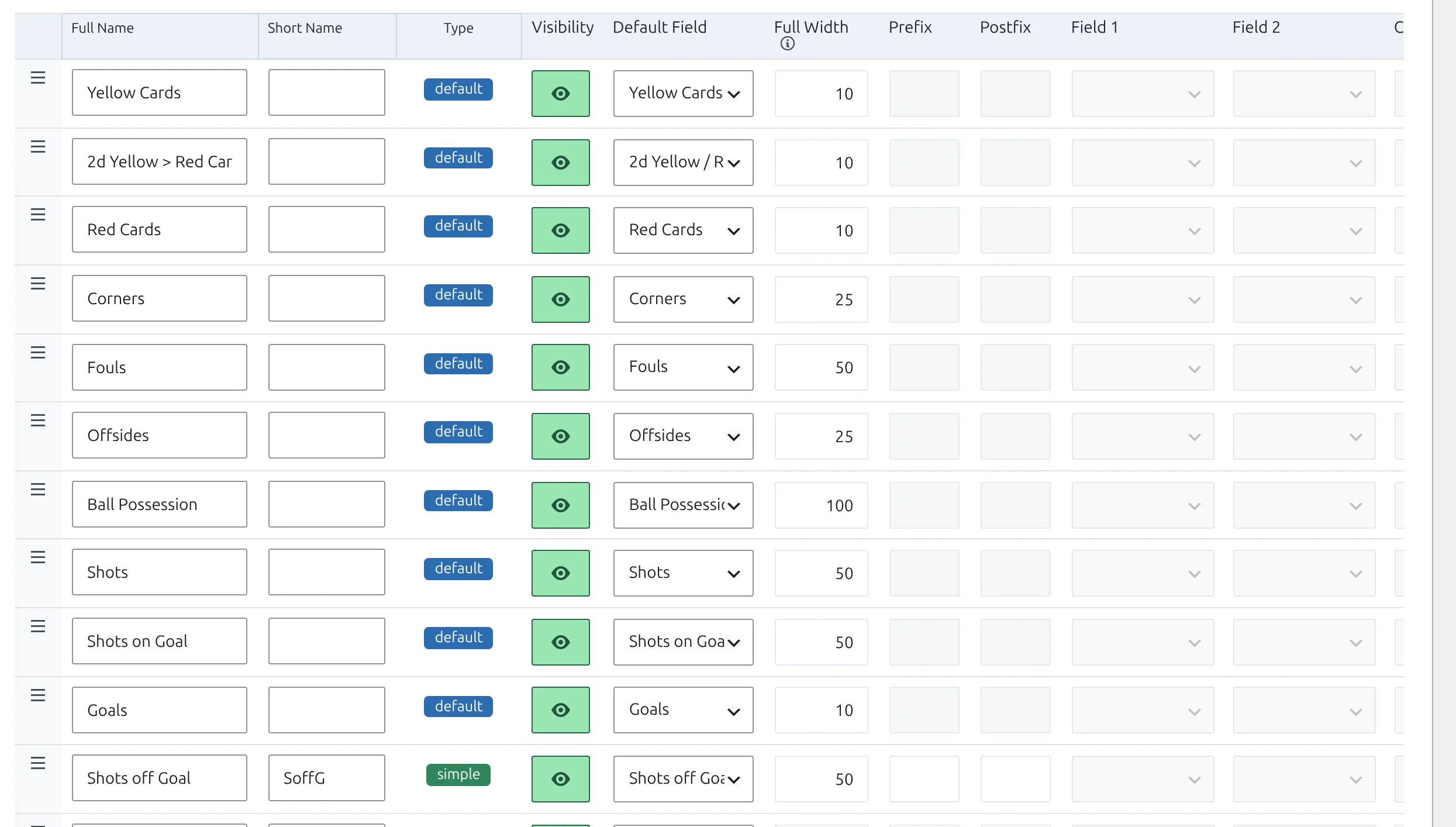
Only simple columns can be fed from the provider. Calculated and formula columns work their value out from other columns and have no dropdown.
⚽ 3. Show them on the game page
Open the game layout in the Layout Builder and add the Stats block from the Match group. It draws the two teams’ values side by side, using each column’s maximum to size the bars.
4. Fill in games you already imported
Values are written when a game is imported as finished, so games imported before you switched this on have none. Re-run the import over them with Re-Update Finished Matches in a single league’s configuration actions – for every game, one matchweek or one game. Update Finished Games on the Import Dashboard won’t do it: it only picks up games that aren’t marked finished on your site yet.
🆘 Troubleshooting
The extra columns are empty but possession works
Possession and the other five are imported unconditionally, so seeing them prove the fixture is arriving. The extra eight need both the switch and a mapped column. Check the mapping report under the switch, then re-run the update on a finished game.
A cell is blank where the value should be zero
A genuine zero is stored as no value, so a team with no offsides or no blocked shots shows an empty cell rather than 0. Nothing is wrong with the import.
Expected goals never arrives
Not every league and season carries xG at the provider, and older seasons often don’t. Check one game on api-football.com before assuming the mapping is wrong.
Live games show no team stats
Live team statistics have their own switch in the live settings, and the extra eight also need the switch on this page. Both must be on. See Live Scores.
📚 Related
- Import Player Game Statistics – the same idea, per player.
- Import Dashboard – running and scheduling the finished-games update.
- Layout Builder – where the Stats block goes.