

Some leagues are split into conferences or divisions – Eastern and Western, North and South – where clubs play mostly inside their own half of the league and sometimes across it. One season, one set of fixtures, but two or more tables.
The short version: import the whole league as one group, then split the standing table, not the competition.
Read the league page first
This page only covers what’s different about a conference league. The API Leagues row, the three configuration cards and the two structure steps are all explained in API Import for a Round-Robin League.
Why the importer needs telling
When you map API rounds to a round-robin stage, the plugin doesn’t get a list of divisions from the provider. It works the groups out from the fixtures: for each club it lists the clubs it plays, and every distinct list becomes a group.
That’s exactly right for a normal league, where every club plays every other and all the lists match. It’s unreliable for a conference league:
- If the conferences never meet, you get one group per conference – which looks like what you wanted, until a cross-conference fixture is added later and the shape changes.
- If they do meet, every club with a cross-conference game gets a list of its own, and you end up with extra groups that overlap – close to one group per club when most clubs cross over.
- Map only part of the season and clubs that haven’t played each other yet split into groups that mean nothing.
So don’t leave it to be guessed. Ask for one group, and draw the division line yourself.
🚀 1. Import every club into one group
Set the competition up as an ordinary round-robin: FL API Import > API Leagues, the database button on the league row, Manual Configuration, then pick or create the local competition.
On step 1 of Edit Competition Structure, click Set All so the whole season is mapped, then turn Put all Teams into single table to Yes.
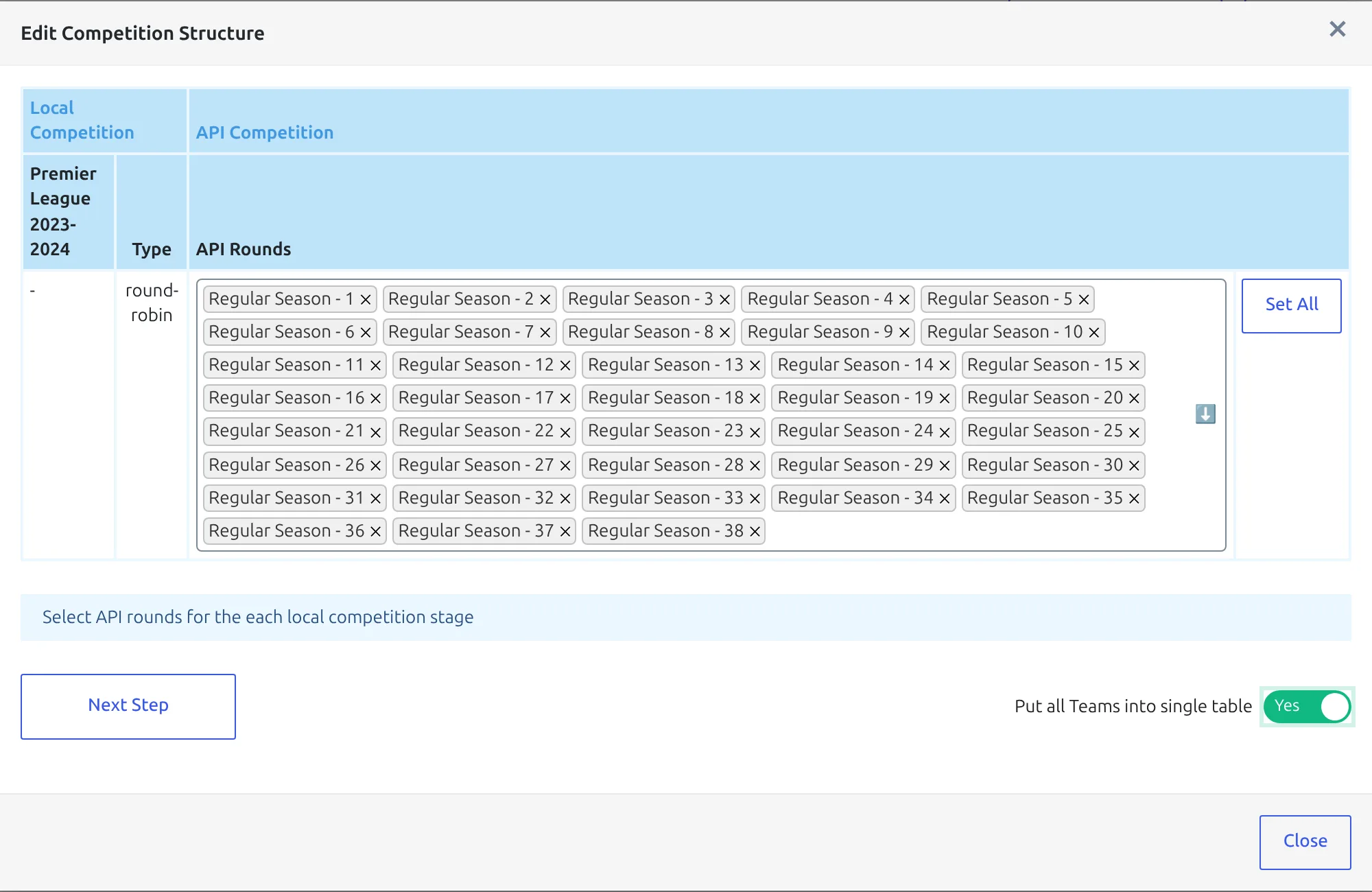
That switch tells the plugin to stop inferring anything: every club it finds in the mapped rounds goes into one group. Click Next Step, confirm step 2 shows a single group holding the full league, and click Update Competition Structure.
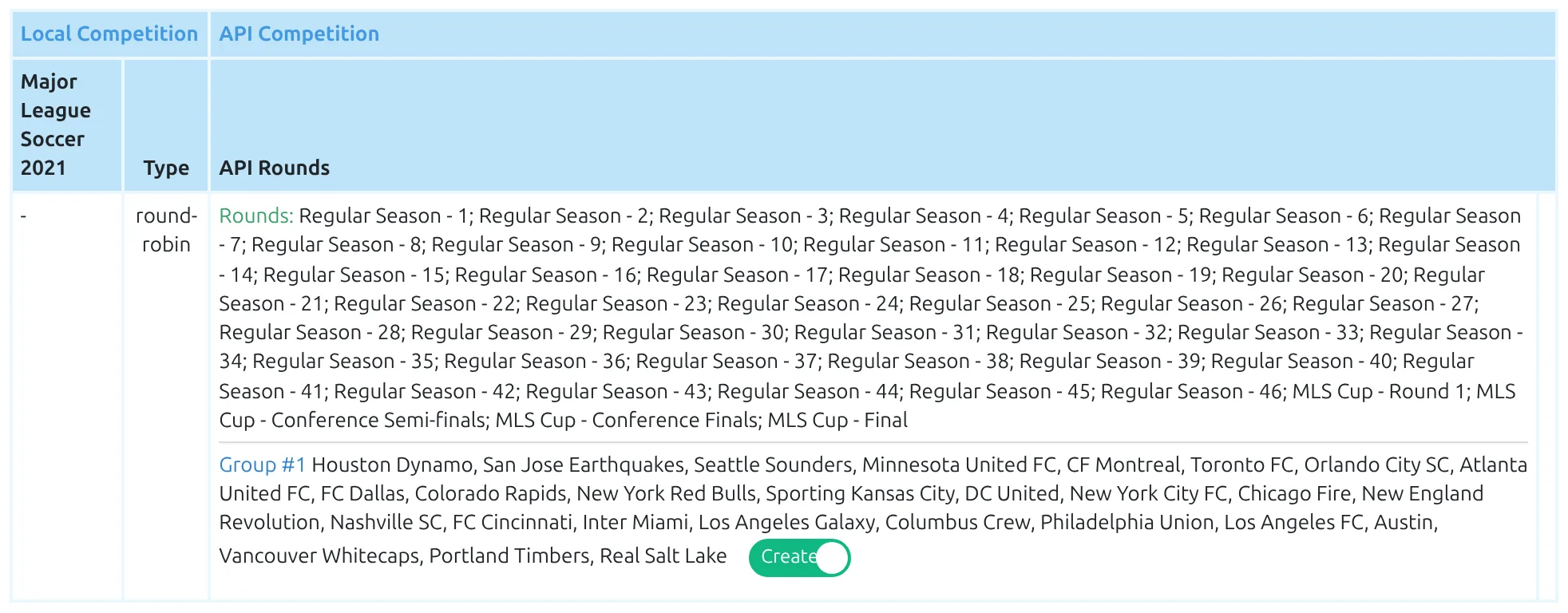
The toggle resets itself
Once you move to step 2, Put all Teams into single table goes back to No. If you return to step 1 to change a mapping, set it to Yes again before moving forward, or the groups will be inferred from fixtures after all.
Then run Create Games and Update Players & Squads from the same modal, as you would for any league.
2. Check for clubs that got left out
Clubs are recognized from fixtures alone. A club with no fixture in the mapped rounds – a late entrant, an expansion team, a club whose opening games haven’t been published – won’t be in the group, even with the single-table switch on.
Open the competition from the Competitions menu and compare the group against the real league. Add anything missing by hand.

If you need to import a club that isn’t on the site at all, the branching-arrow button on the API Leagues row has Create/Update teams, which pulls in a league’s clubs without touching the competition structure. See Create or Update Clubs.
3. Split the table, not the competition
With every club in one group, the competition holds every fixture and every statistic for the season, which is what you want. The division line belongs on the standing table.
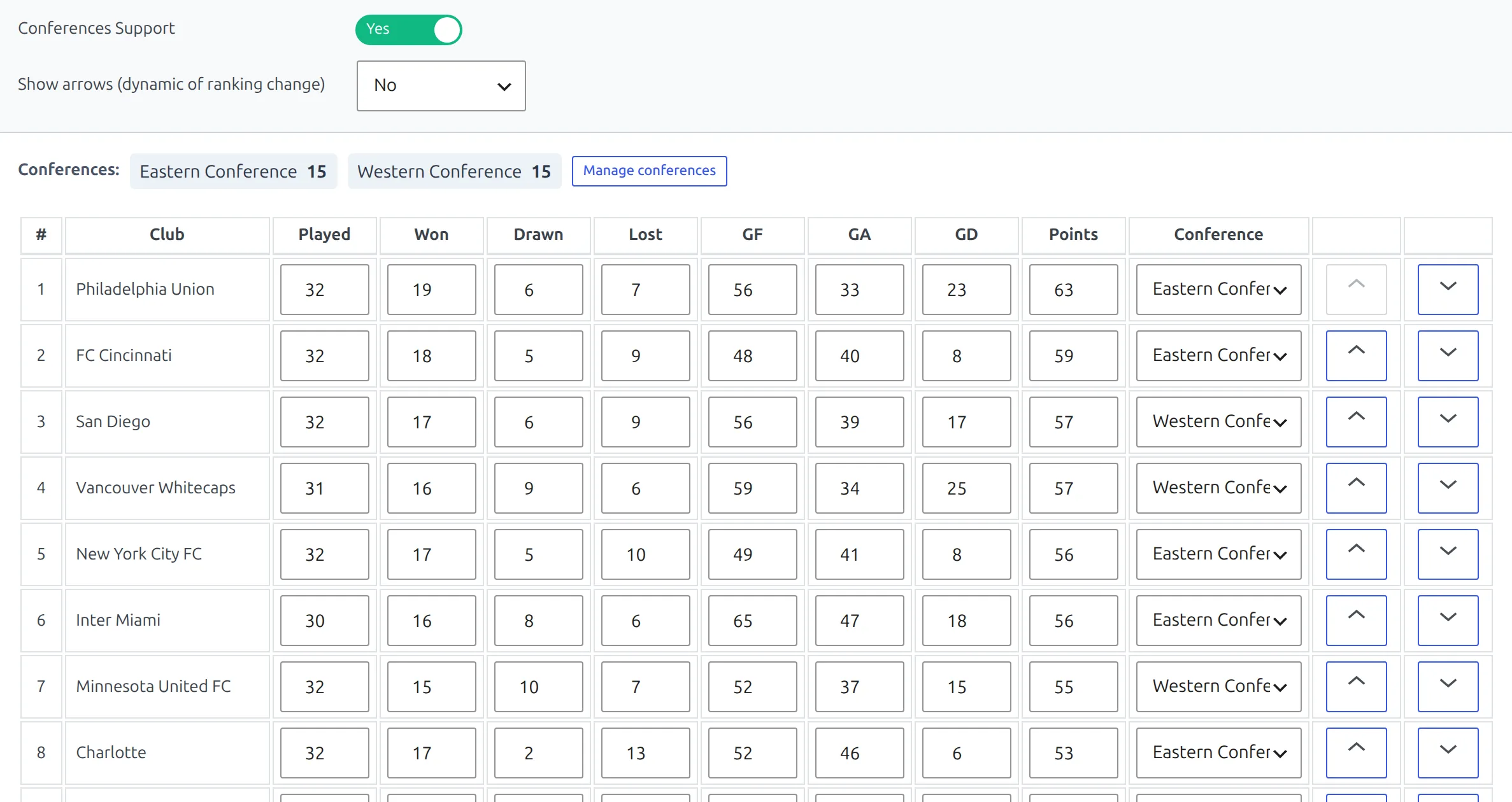
Create one standing table for the competition, then turn Conferences Support on. A Conference column appears on every row, and Manage conferences above the table lets you name and rename them. Assign each club, and the chip strip shows how many clubs each conference holds.
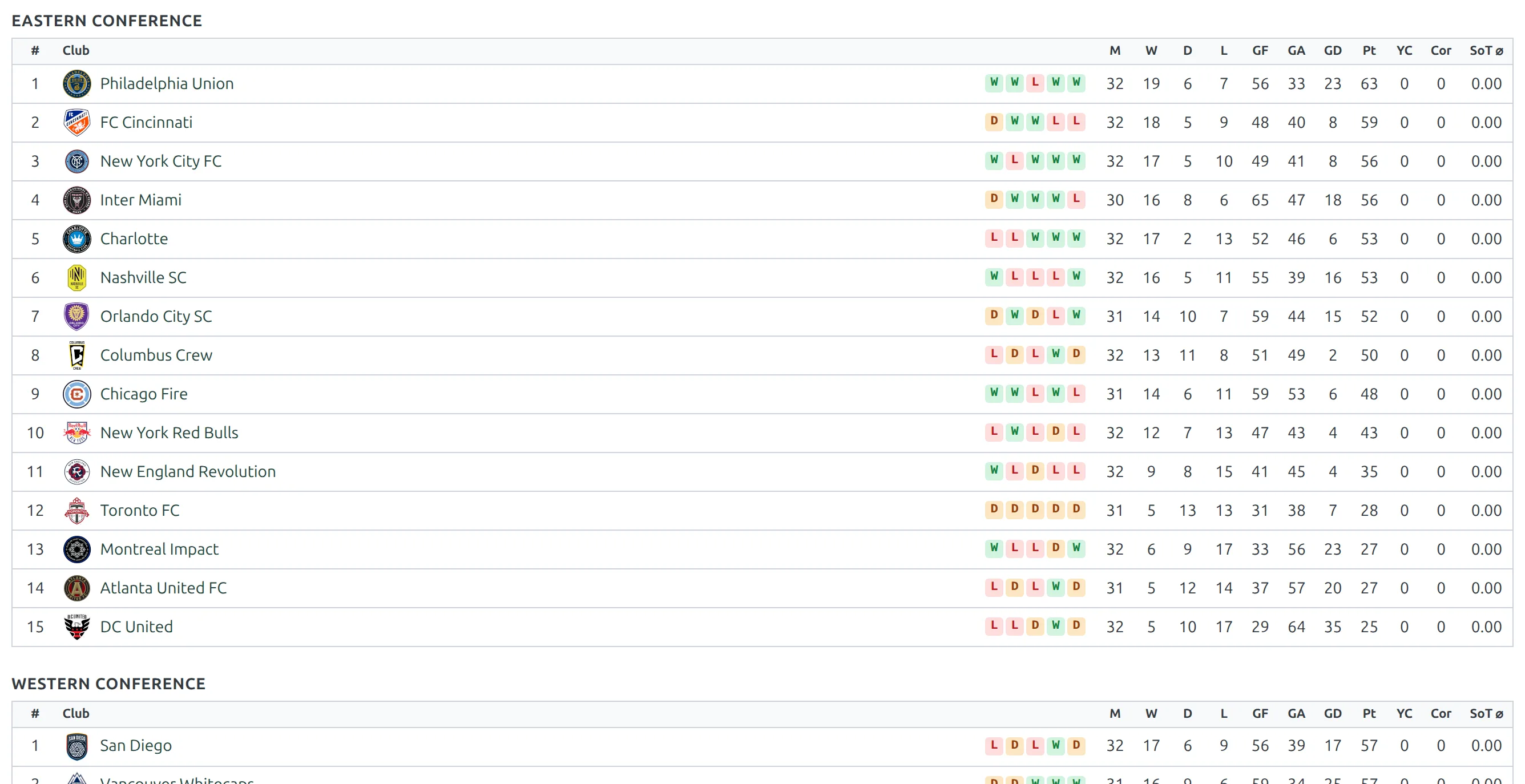
On the front end the one table renders as one section per conference. Each conference gets its own numbering, its own colors and its own position arrows, while the underlying results stay in one competition.
Setting up the conferences themselves, and the current limits on them, are covered on the Standing Conferences page under PRO Features.
Why not one group per conference?
You can do it, and it works while the conferences never meet. The moment a cross-conference fixture exists, it belongs to two groups at once and something has to give. One group plus a split table avoids the question entirely.
4. Keep it running
Save the league to the Import Dashboard with the star button and pick the actions that should repeat – see Import Dashboard. Fixtures added mid-season are picked up by the Discover New Games tab.
You shouldn’t need the structure step again for this competition. If you do run it, check the toggles on step 2 first: the group already has clubs, so it defaults to Ignore, which is the safe answer.
🆘 Troubleshooting
Step 2 shows two groups instead of one
The single-table toggle was off, or it reset when you stepped back. Return to step 1, set it to Yes and click Next Step again.
The competition already has several groups
Groups are filled in the order they appear, so a single recognized group only fills the first one and the rest keep whatever they held. Delete the extra groups in the competition editor before running the update, or set everything to Ignore and move the clubs by hand.
A club is in the group but has no games
Its fixtures are in API rounds you didn’t map. Reopen the structure modal, click Set All and re-run Create Games.
The table shows the whole league in one list
That’s the expected state until the conferences are configured on the standing table. The import doesn’t split tables.
📚 What’s next
- API Import for a Round-Robin League – the full walkthrough this page builds on.
- Create or Update Clubs – importing clubs on their own.
- Import Dashboard – schedule the updates.