

An international cup runs in phases: qualifying rounds, a play-off round, a group stage, then a knockout phase. Football Leagues models that as one competition with several stages, and the API import can fill all of them in a single pass – as long as the stages exist first.
That’s the whole trick to this page. Build the skeleton by hand, then map it. The importer fills a structure you’ve already defined. It doesn’t invent stages.
The examples below use real Champions League seasons. The competition structure is the UEFA Champions League 2022-2023: four stages, 10 local rounds and 48 API group rounds. The import screens use the next season, 2023-2024, which followed the same format. From 2024-25 the Champions League swapped its groups for a single league phase – that shape is covered in step 3.
Start with the simple case
This page assumes you’ve already linked at least one straightforward league. If you haven’t, read API Import for a Round-Robin League first – it explains the API Leagues row, the three configuration cards and the two structure steps in detail. Everything below builds on that.
Video: a multistage cup from start to finish
This video walks through a multistage cup import from start to finish. It was recorded on older screens, so some buttons have moved: today the stages are built under Competitions > Add New Competition, and the mapping starts at FL API Import > API Leagues, the database button on the league row, then Manual Configuration. The steps below match the current screens.
🚀 1. Build the stages
Go to Competitions > Add New Competition, set the league and season, and publish. Then work through the stages. Multistage Competitions covers the editor itself; what matters for the import is that each stage ends up with the right type and the right number of rounds.
A typical continental cup looks like this:
| Stage title | Type | Rounds | Bracket Layout |
|---|---|---|---|
| Qualifying rounds | Knockout | Preliminary round, First qualifying round, Second qualifying round, Third qualifying round | hide |
| Play-off round | Knockout | One round, no name needed | hide |
| Group stage | Round Robin | One round | – |
| Knockout phase | Knockout | Round of 16, Quarter-finals, Semi-finals, Final | manual or automatic |
Use Add New Stage for each one after the first, and Add New Round inside a stage to build its rounds. Hide the bracket layout on the qualifying and play-off stages – a bracket for those is rarely worth showing. On the final knockout stage, pick a bracket layout: automatic suits a competition that’s already finished, manual gives you control over the order.
A fourth choice, advanced, is a bracket you draw yourself on the stage’s own Bracket tab – see Advanced Bracket. For a real bracket put in order tie by tie on manual, see Euro 2024 Knockout Stage.
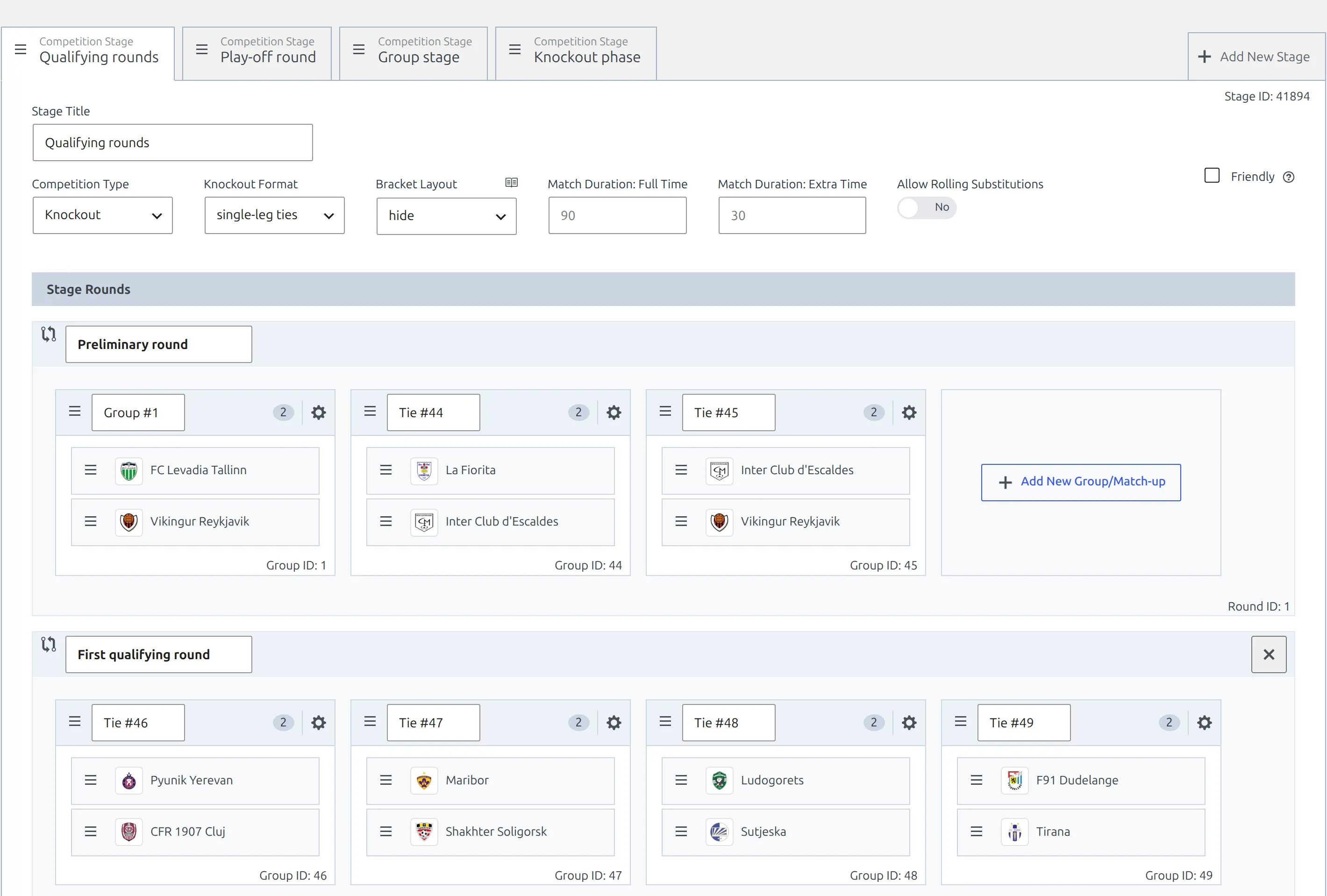
A stage added with Add New Stage doesn’t start as a knockout. It starts as Round Robin with Double format and Bracket Layout on manual, so on every knockout stage change three things:
- Competition Type to Knockout.
- Knockout Format to two-legged ties or single-leg ties, to match how the ties are played. The Competitions list shows it next to the stage.
- Bracket Layout to hide, unless this is the stage that should draw a bracket.
Add New Round only appears once the stage is a Knockout. A Round Robin stage always has a single round, and that’s right for a group stage. Each round you add arrives named Round #2, Round #3 and so on – type the real name over it, because that name is what you’ll see next to the API rounds in step 3.
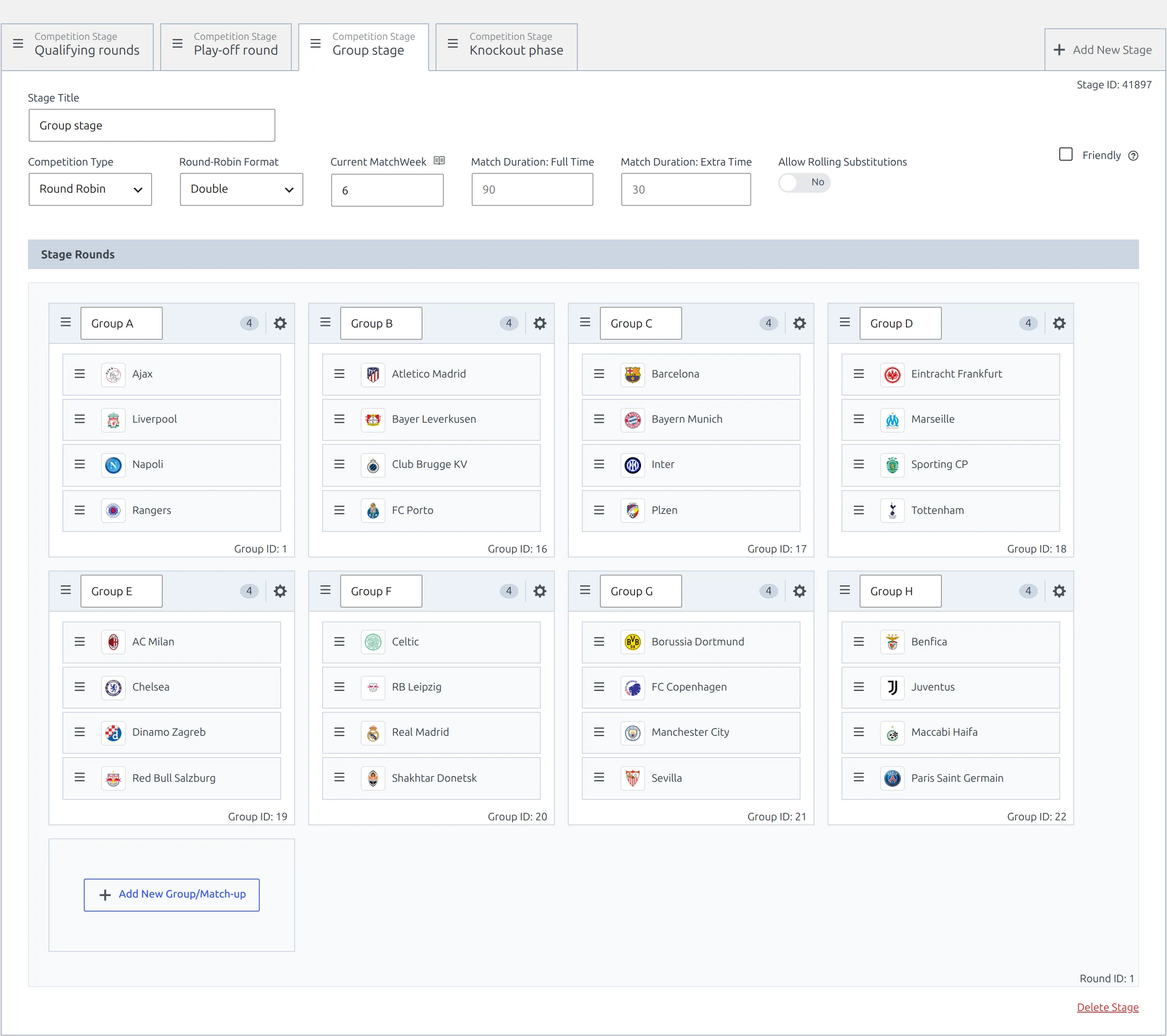
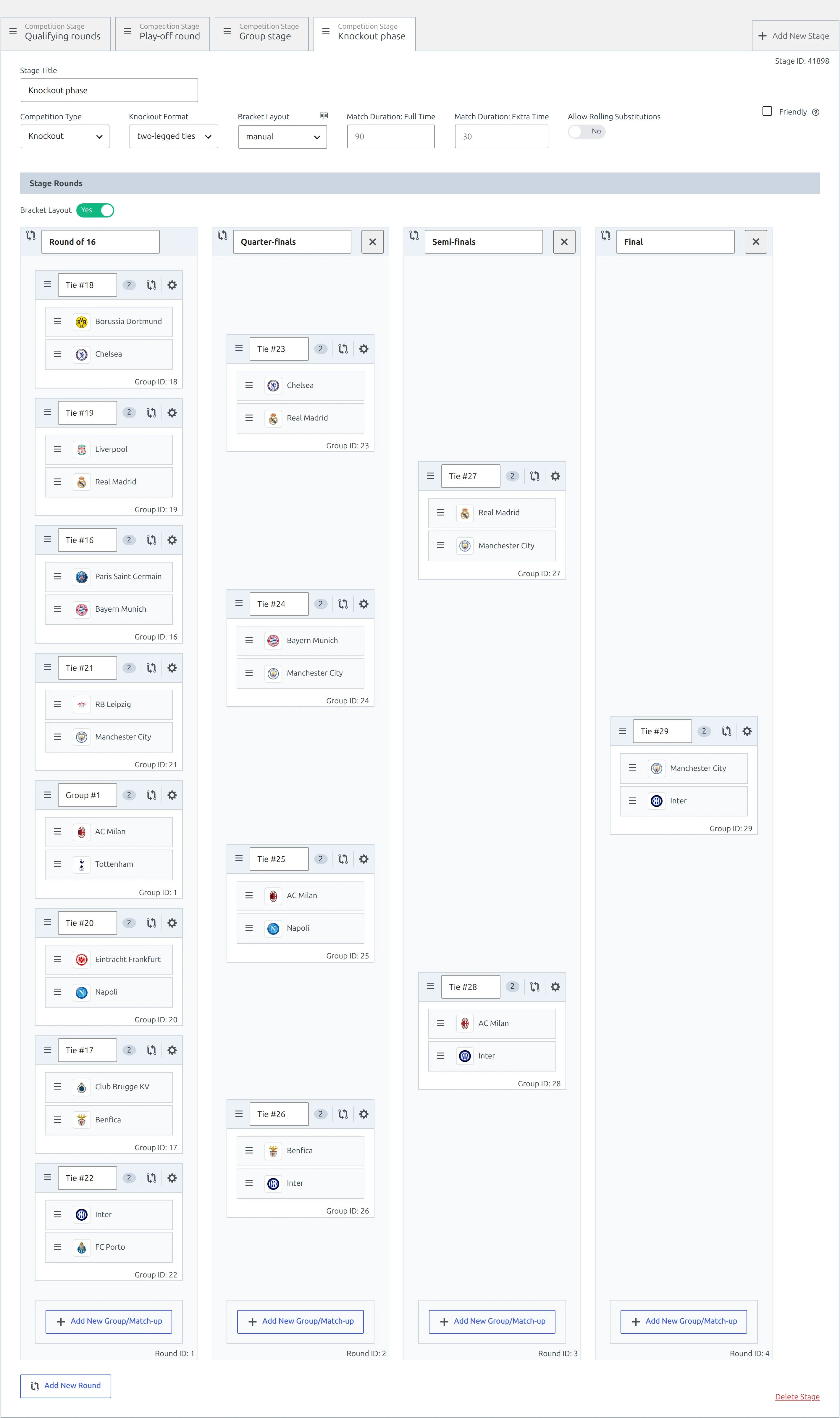
Every round arrives with one empty slot
Adding a round in the editor also creates one empty group inside it – a tie, on a knockout stage. The import fills that slot first and adds the rest after it, so you don’t need to create ties by hand. Just get the rounds right.
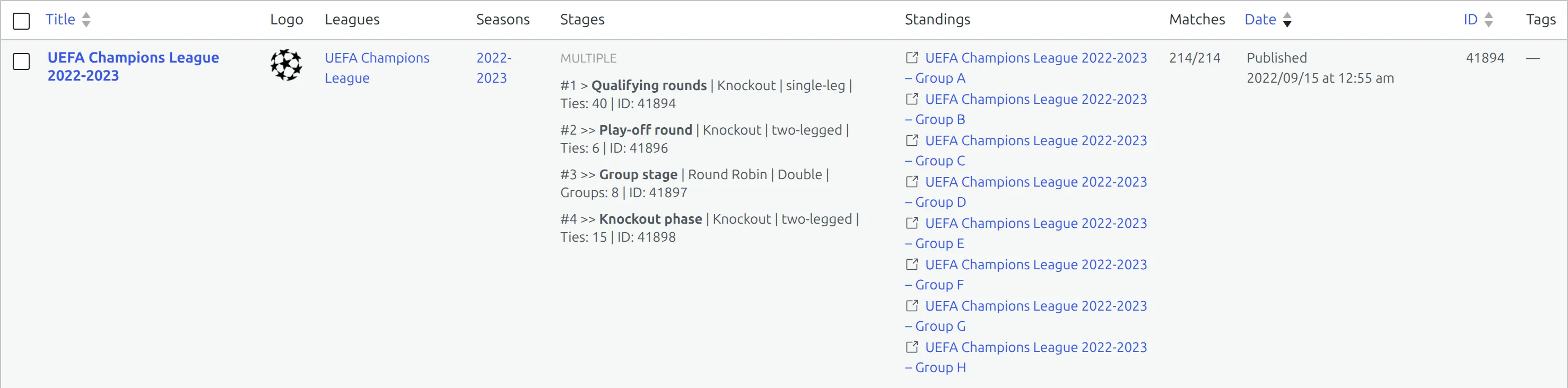
Click Save below the stages. When you’re done, open Competitions and check the structure reads the way you expect before going near the importer.
The Stages column should say Multiple. Under it, the main stage sits on a line starting #1 > and every other stage on a line starting #2 >>, #3 >> and so on, each with its type, format, number of groups or ties, and ID. If the column says Single, the stages were never added to this competition, and the importer will only see this one.
2. Create the import configuration
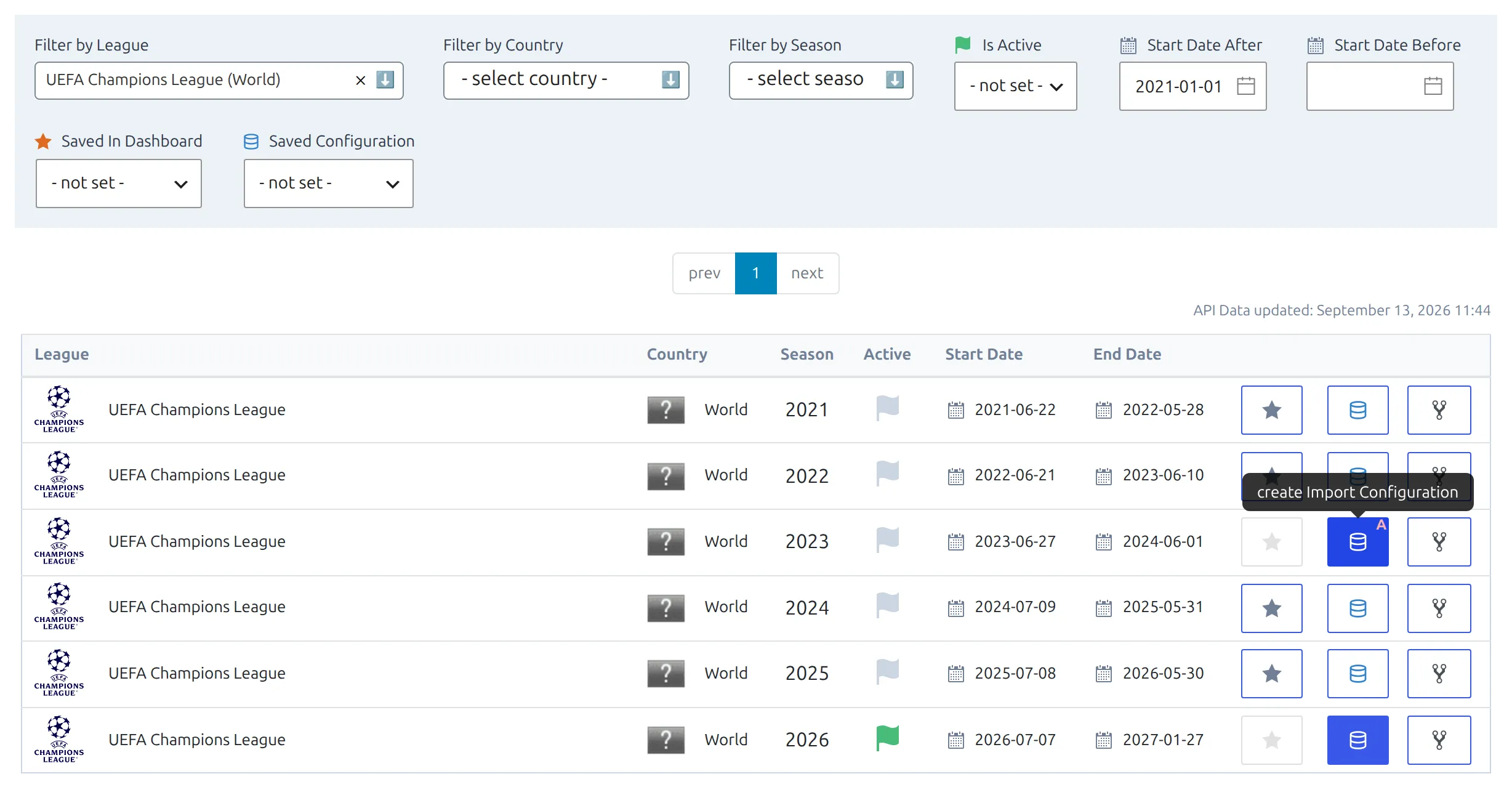
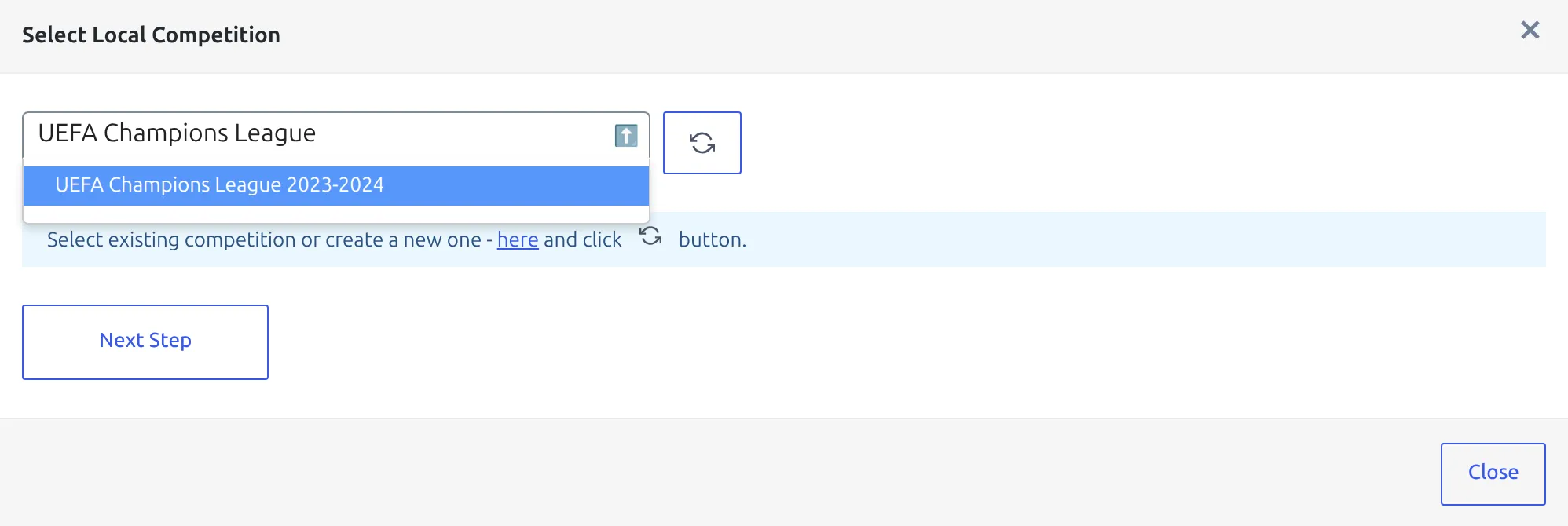
Open FL API Import > API Leagues, find the competition and season, and click the blue database button on its row. Choose Manual Configuration, pick your new competition from Select Local Competition, and click Next Step.
Filter by League is the quickest way in: type the competition name and the table shows one row per season. The API names seasons by their starting year, so Champions League 2023-2024 is the 2023 row. Hover the database button and it reads create Import Configuration.
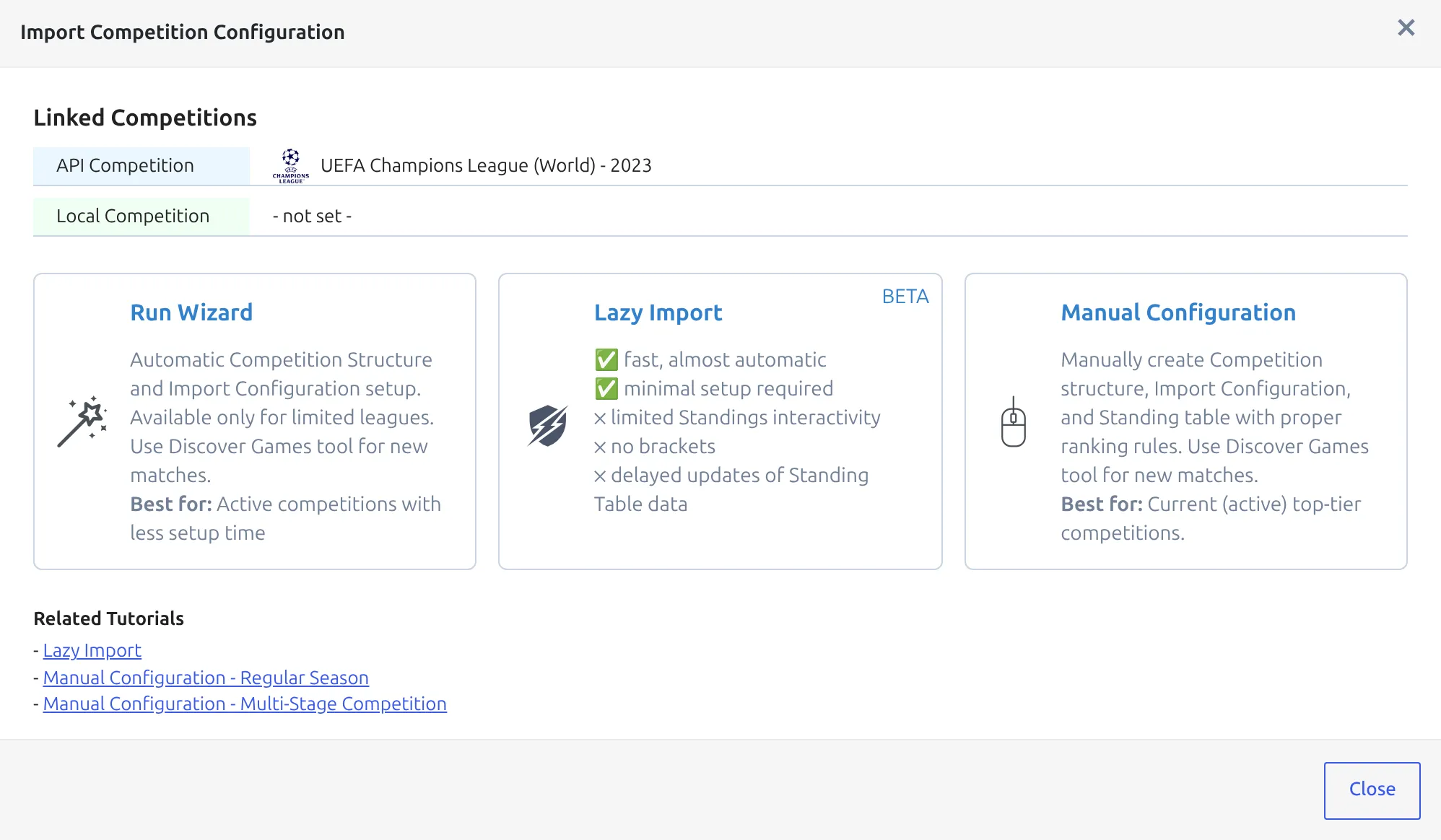
The Import Wizard is not the tool for this shape. It builds its own structure, and the point of a multistage competition is that you defined yours. Lazy Import doesn’t fit either: it ignores stages and draws no brackets.
Select Local Competition lists your competitions by their main stage only. Secondary stages never appear in it, and neither does a competition that’s already linked to an API league.
3. Map each stage to its own API rounds
Step 1 of Edit Competition Structure now lists every round of every stage, main stage first, then the secondary stages in order. The Type column shows whether each row is round-robin or knockout, which is a quick way to catch a stage you set up wrong. A stage with a single round shows as its title followed by a dash, like Play-off round –.
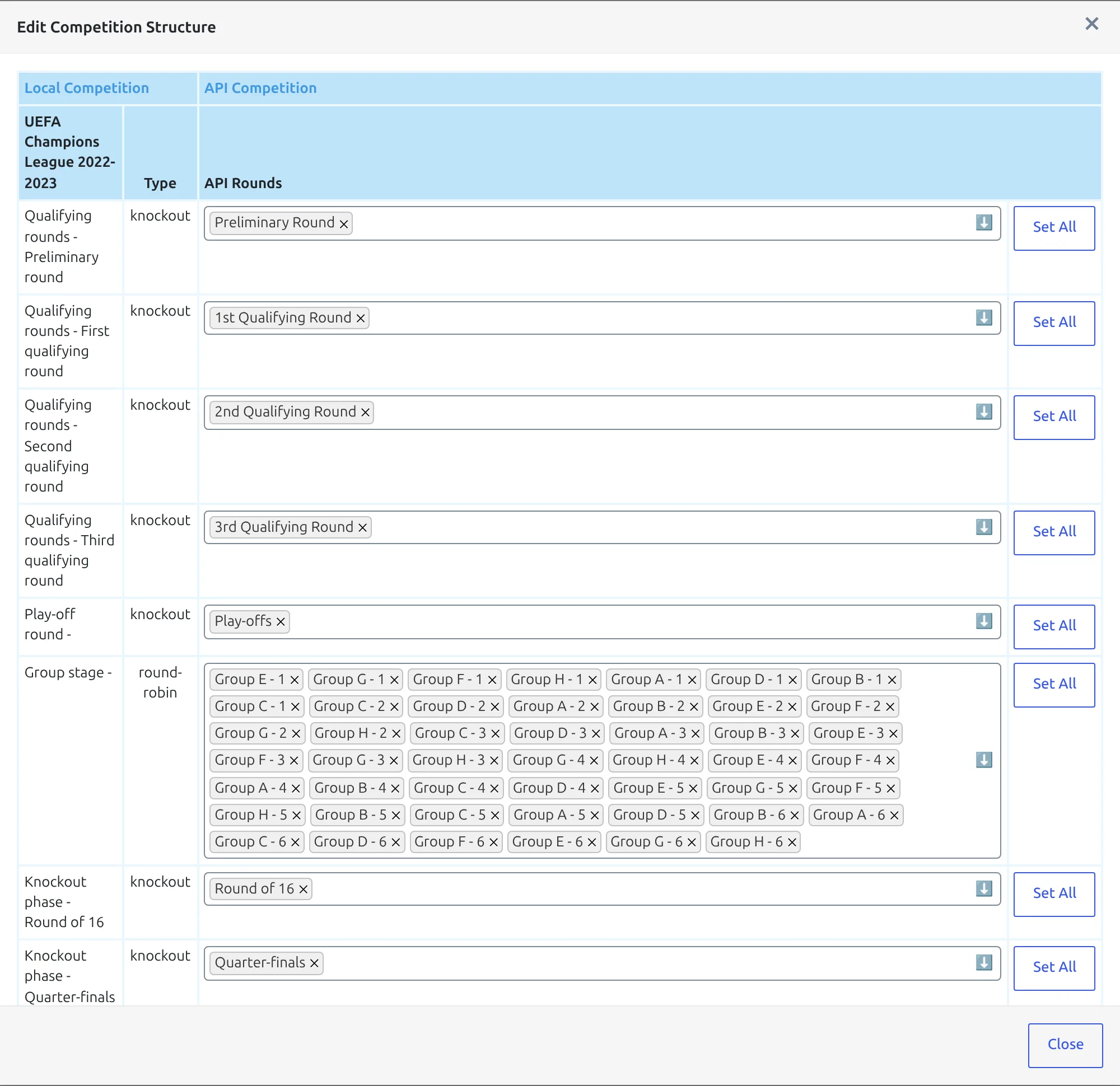
This is where a multistage import differs from a league. Don’t start with Set All. Each row gets only the API rounds that belong to it, so the fixtures land in the right stage. Here’s the Champions League 2022-2023 structure in full:
| Your row | API rounds to select |
|---|---|
| Qualifying rounds – Preliminary round | Preliminary Round |
| Qualifying rounds – First qualifying round | 1st Qualifying Round |
| Qualifying rounds – Second qualifying round | 2nd Qualifying Round |
| Qualifying rounds – Third qualifying round | 3rd Qualifying Round |
| Play-off round – | Play-offs |
| Group stage – | Every group round – the Champions League names them Group A - 1 through Group H - 6, 48 in all |
| Knockout phase – Round of 16 | Round of 16 |
| Knockout phase – Quarter-finals | Quarter-finals |
| Knockout phase – Semi-finals | Semi-finals |
| Knockout phase – Final | Final |
The exact names come from the API and vary by competition, so read the dropdown rather than trusting the table above. Once you pick a round on one row, it drops out of every other row’s dropdown, so you can’t map the same API round twice. If a round you need is missing, look for it on another row and remove it there first.
Typing 48 group rounds by hand is no fun, and that’s where Set All earns its place. It adds every round that isn’t mapped to any row yet. So map every other row first, open the group stage dropdown to check only group rounds are left, then click Set All on the group stage row.
A round the provider hasn’t published yet isn’t in any dropdown. A season imported before its final is drawn has no Final round to pick, so that row stays empty. Leave rows like that blank and map them after the draw.
Leave Put all Teams into single table off. It only affects round-robin stages, and a group stage should keep its groups. Click Next Step.
A league phase instead of groups (2024-25 onwards)
Since 2024-25 the Champions League, Europa League and Conference League play a league phase: 36 clubs in one table, but nobody plays everybody. Build that stage as a Round Robin with one round, and map every league round to its single row – League Stage - 1 to League Stage - 8 for the Champions League and Europa League, League Stage - 1 to League Stage - 6 for the Conference League.
This is the one case where Put all Teams into single table goes to Yes. Without it the importer builds a group from each club’s opponents, and step 2 fills up with dozens of overlapping groups instead of one group of 36. Flip it right before Next Step: it goes back to No as soon as step 2 loads, and it applies to every round-robin row in the modal at once. API Import for a Competition with Conferences shows the same switch.
4. Check groups and ties
Step 2 reports what the plugin recognised, and it reads differently per stage type.
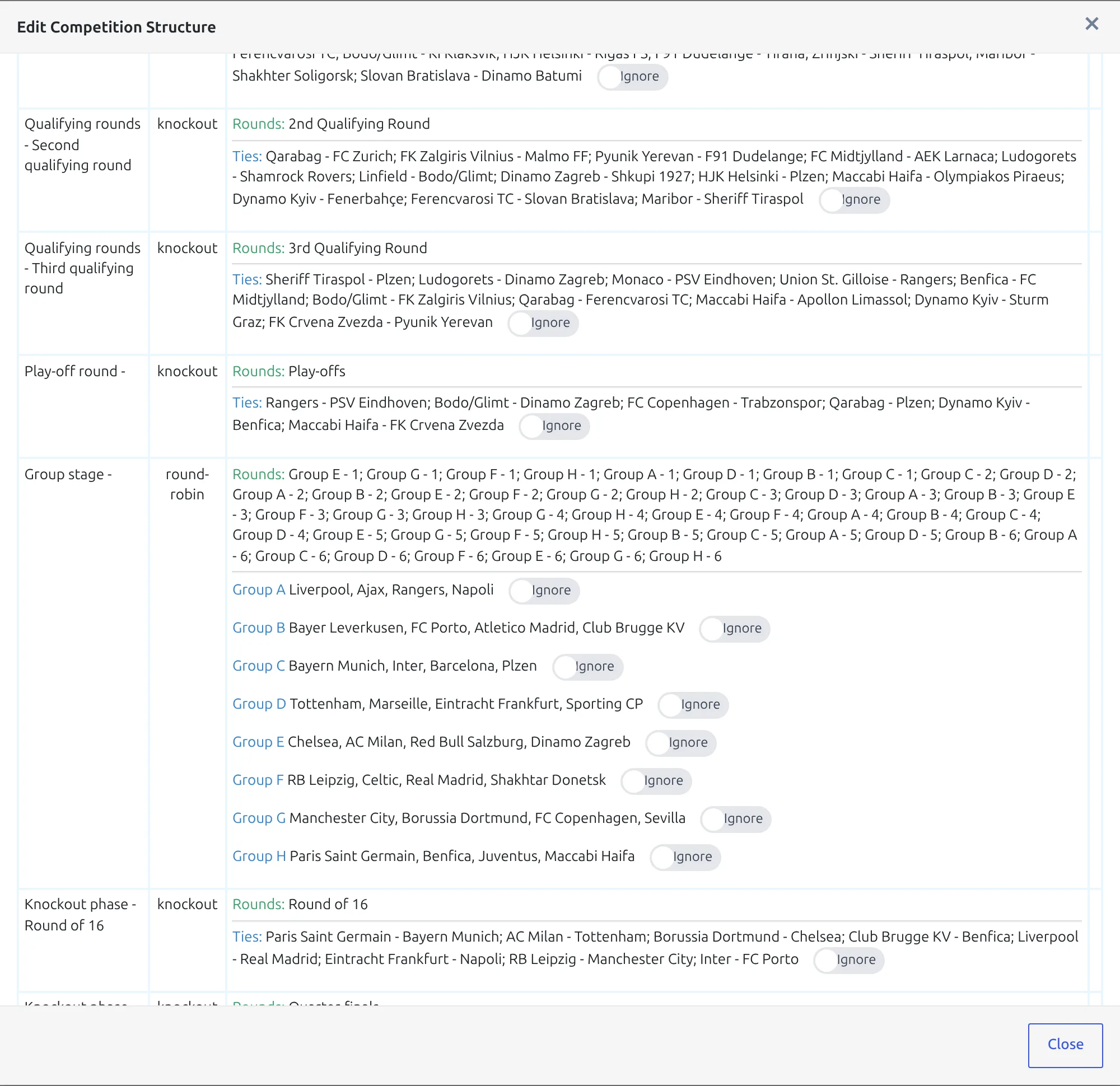
- Round-robin stages show named groups with their club lists. Names come from the API’s own standings where the club sets match, so you usually get Group A and Group B rather than Group #1.
- Knockout stages show a single entry labelled Ties: with the match-ups listed. A two-legged tie appears once, not twice – the reverse fixture is recognised as the same pairing.
Every mapped row also repeats its API rounds on a Rounds: line above the groups, which is the last chance to spot a round on the wrong row. Groups are listed in alphabetical order and fill your stage’s groups in that order. A new group stage holds one empty group, so Group A fills it and Group B to Group H are added after it.
Each entry has a Create / Ignore toggle. Anything that already has clubs in your competition defaults to Ignore, which is what makes it safe to come back and map a later stage without disturbing an earlier one. On a stage you are mapping for the first time the toggle is green and reads Create:
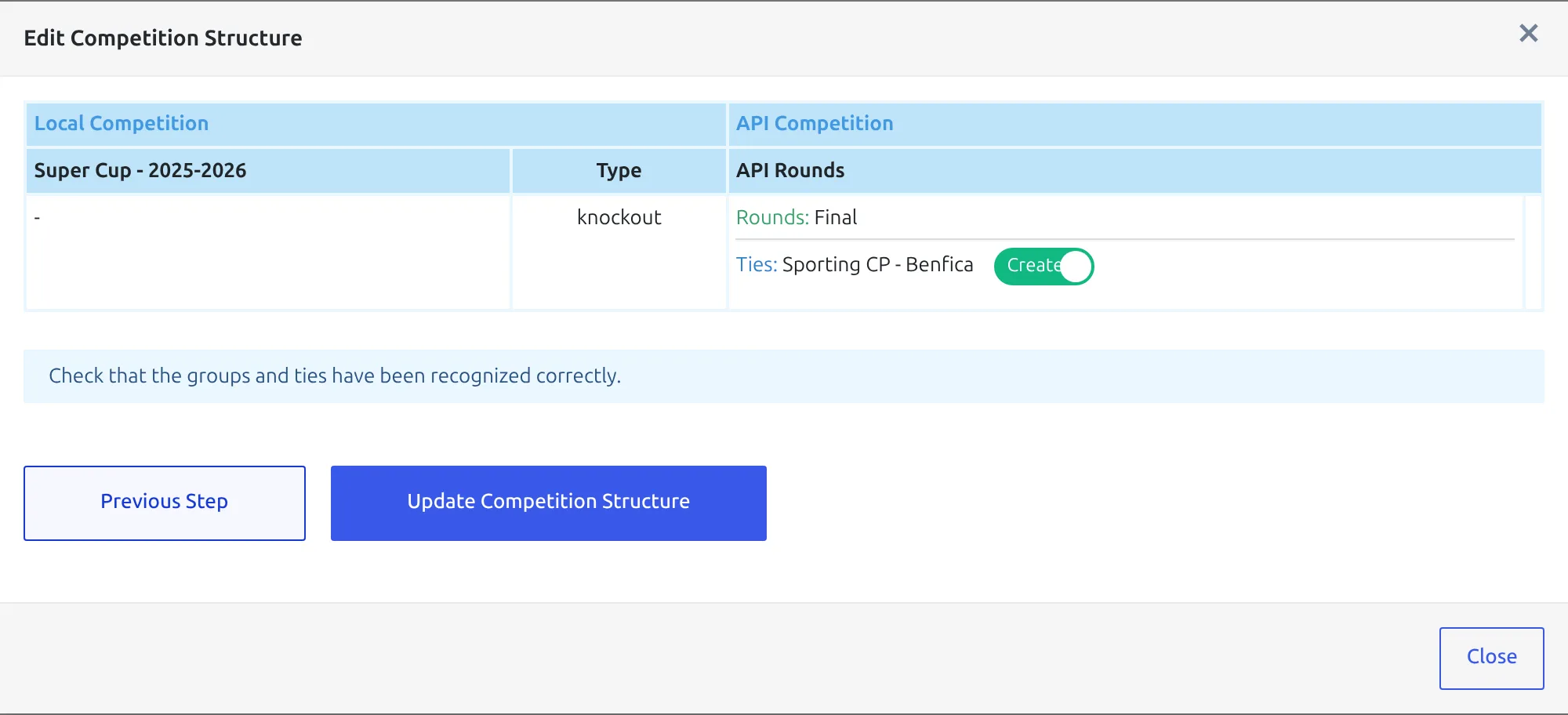
Click Update Competition Structure. Missing clubs are imported (with their stadiums too, when Import Stadiums is on in the API settings – it is unless you switched it off), ties and groups are filled, and the round mapping is saved for later imports. On a large cup this takes a few minutes – leave the tab open.
5. Create games and squads
Reopen the database button. The three cards are replaced by action cards. Run Create Games, then Update Players & Squads with All Clubs selected, then Update Finished Games if the competition is already under way.
On a first setup you often don’t have to reopen anything: after Update Competition Structure succeeds, the configuration modal opens by itself on the action cards.
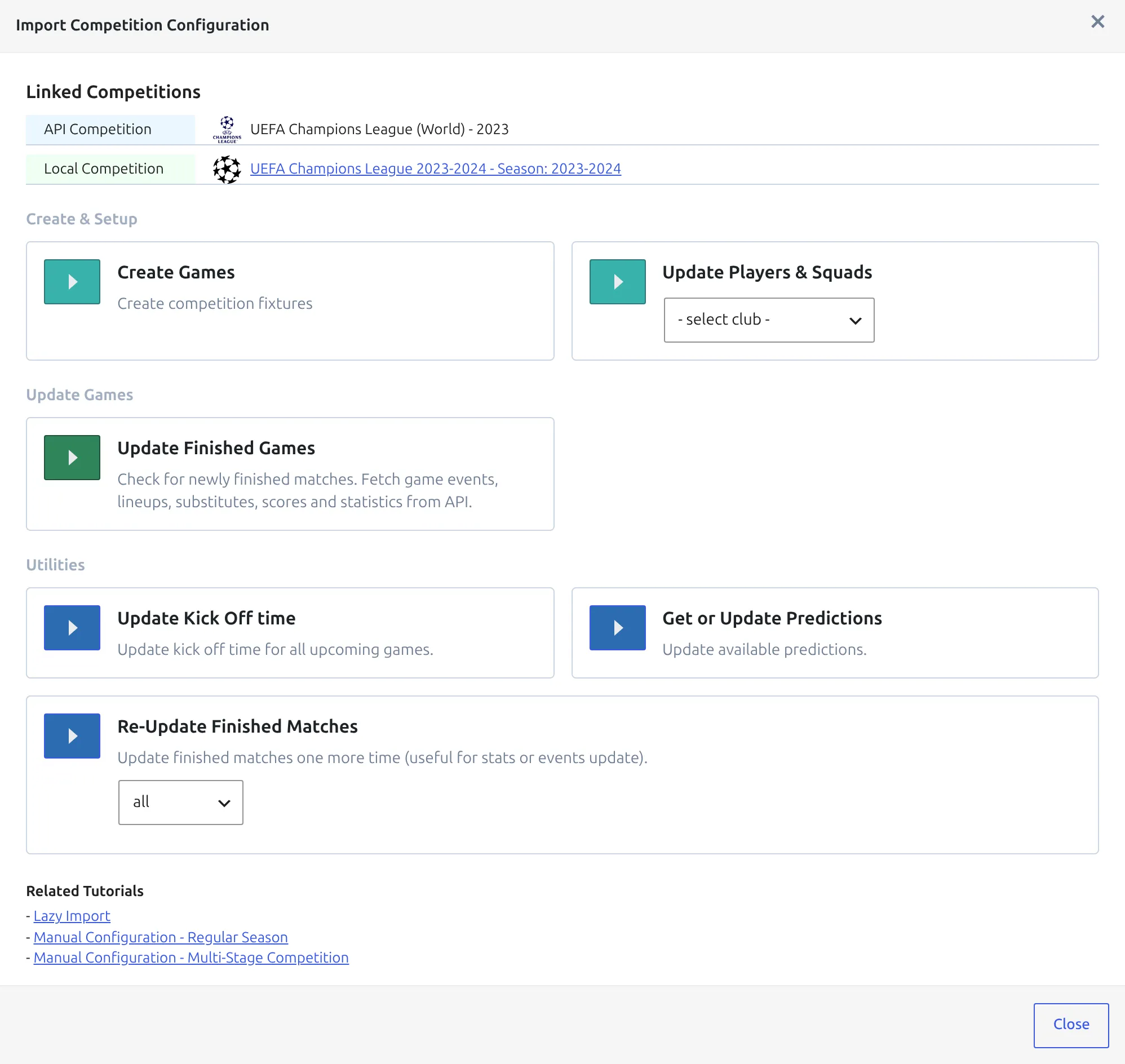
Games land in the stage that owns their API round, which is exactly why the mapping in step 3 was worth doing carefully.
Group games also get their matchweek from the last number in the round name, so Group C - 4 becomes matchweek 4 of the group stage. Knockout games take their round’s ID instead – 1 for the stage’s first round, 2 for the next.
6. One standing table per group
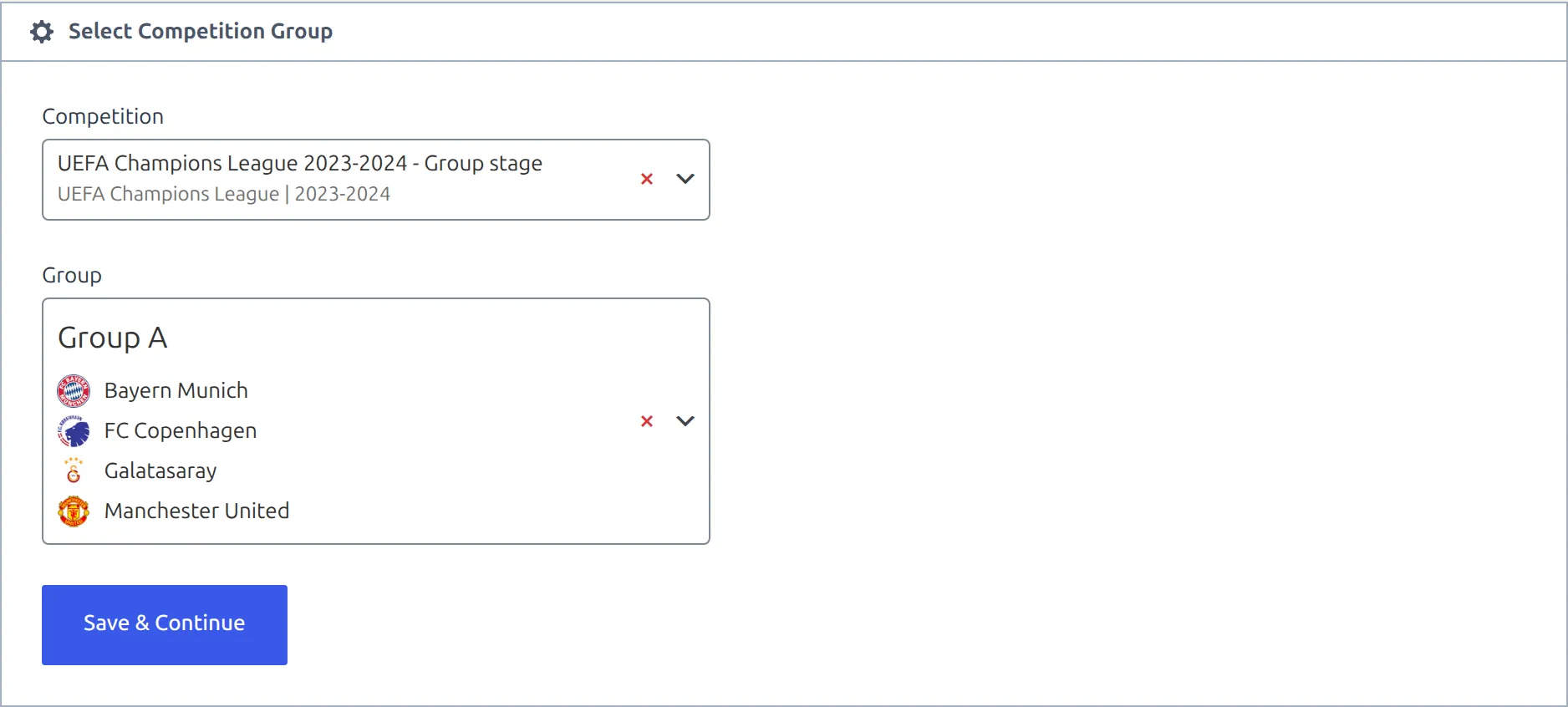
The group stage needs its own tables, and there’s one table per group. Go to Competitions > Standing Tables > Add New Standing Table, pick the group-stage competition and the group, and set the ranking rules.
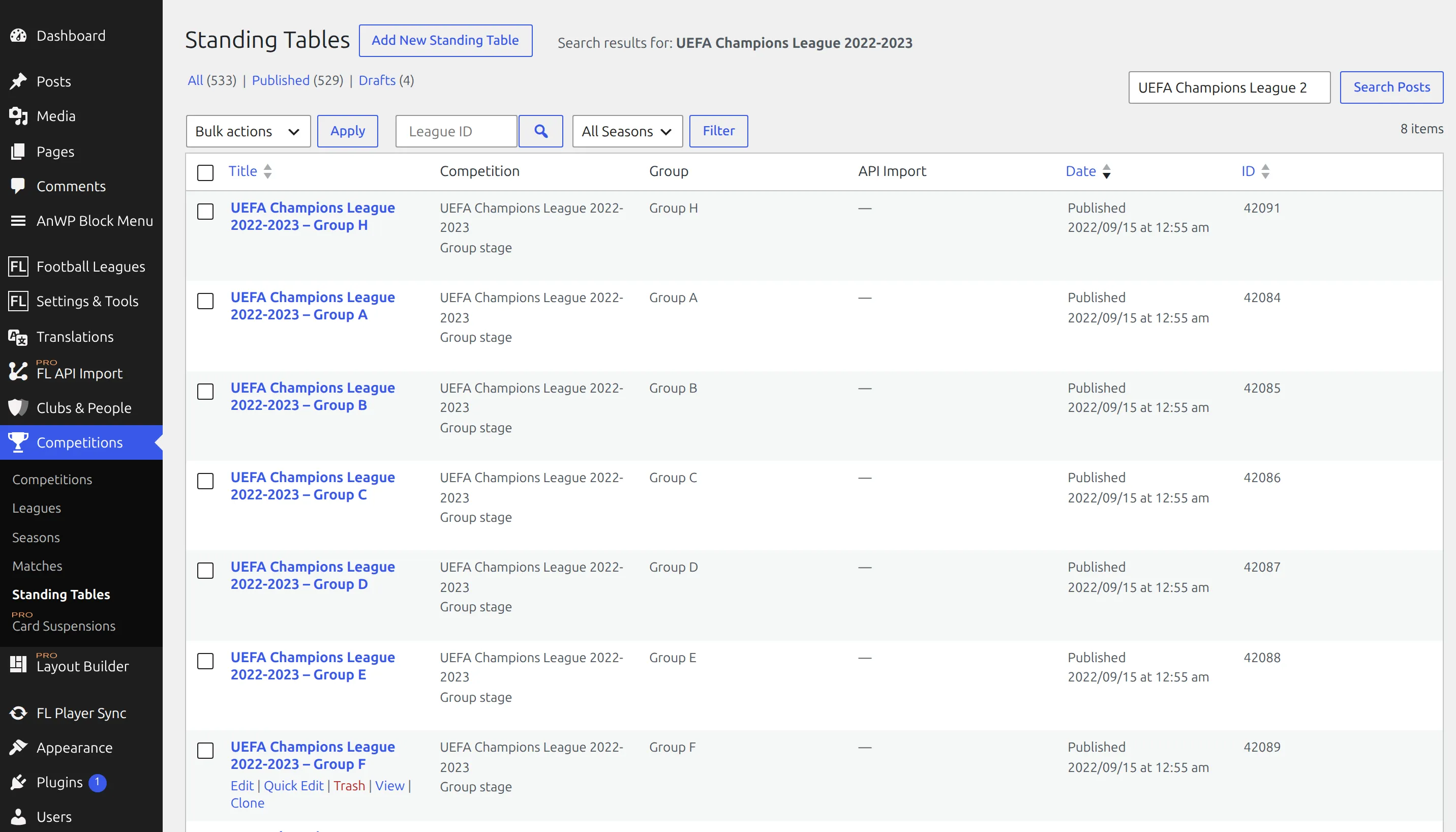
The setup screen shows each stage as the competition title followed by the stage title, for example UEFA Champions League 2023-2024 – Group stage. Only round-robin stages are offered, and a group drops out of the Group list once it has a published table. Work down the list until it’s empty and every group is covered.
Clone last season’s tables
If you ran the same cup last season, clone those standing tables instead of rebuilding eight of them. The ranking rules come across with the clone, which is the part that’s tedious to redo.
Hover last season’s table in the list and click Clone. The copy opens on the setup screen, just like a new table – pick this season’s group stage and group, then Save & Continue. Row colors, notes and initial points come across along with the rules, so clear any initial points last season’s table carried.
Knockout stages don’t need standing tables. Their bracket is drawn from the ties.
7. Later rounds, later
A cup only reveals its later match-ups as it goes. You map what exists now, and come back after each draw. That return trip is a separate, shorter job – see Add New Games to a Multistage Competition.
Save the league to the Import Dashboard with the star button so scores and line-ups keep updating in between. See Import Dashboard.
8. Check the competition page
Open the competition on the front end. The group tables and the knockout bracket both show on the competition page. Stages set to hide draw no bracket, which is why the qualifying and play-off rounds don’t add brackets of their own.
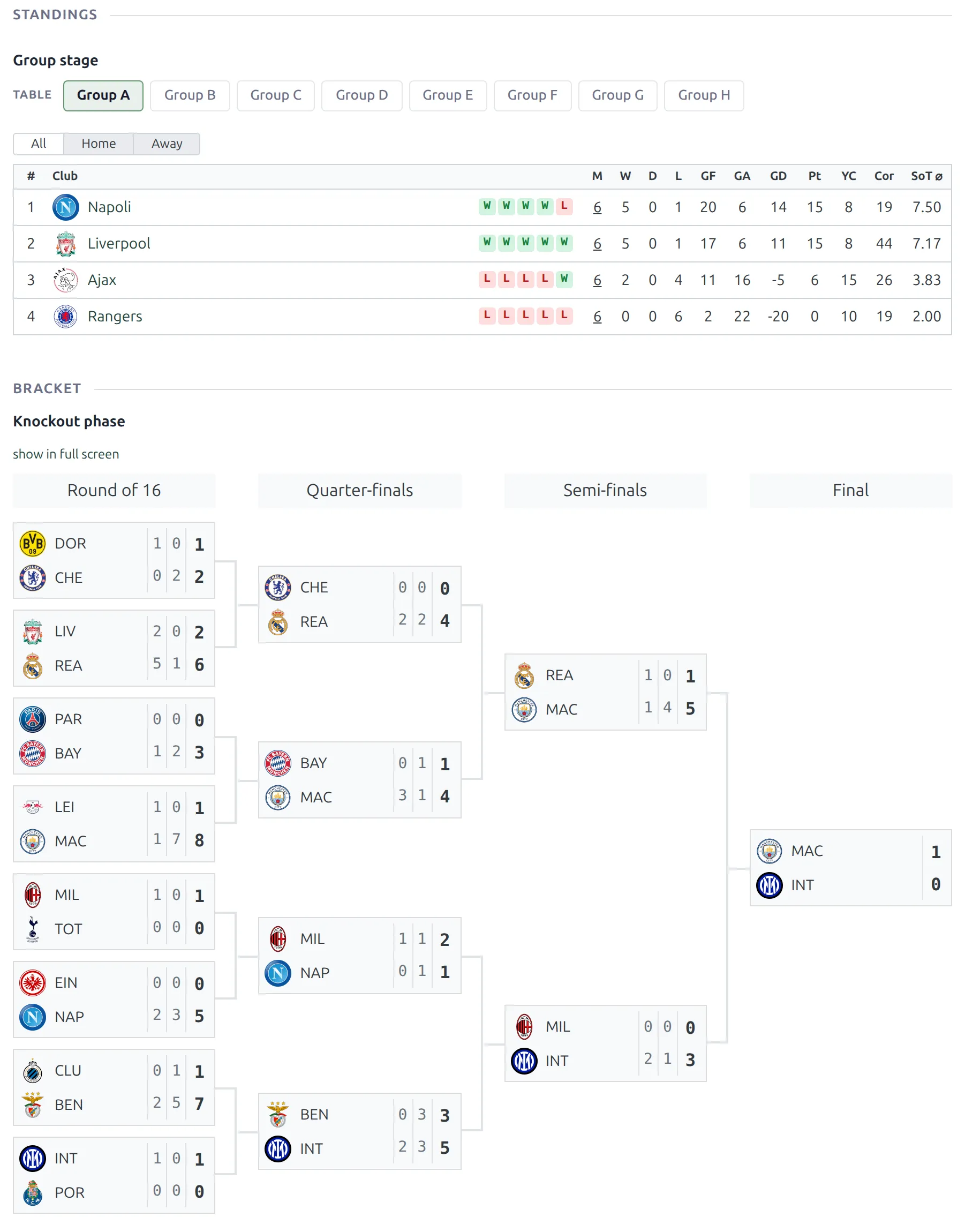
To show the bracket somewhere else, use the Bracket Shortcode with the knockout stage’s ID – the one the Competitions list shows next to the stage.
🆘 Troubleshooting
My competition isn’t in Select Local Competition
Two reasons. The list shows competitions by their main stage, so look for the season title, not a stage name like Group stage. And a competition that’s already linked to an API league and season is left out – open that league’s row instead of starting a new configuration.
Only the first stage appears in step 1
The other stages aren’t attached to this one. Stages belong to a competition when they’re added as tabs with Add New Stage in its editor and saved – a second competition created on its own stays separate, and the Competitions list shows it as Single. Fix the structure, close the modal and reopen it – the stage list is read when the modal opens.
Games landed in the wrong stage
An API round was mapped to the wrong row. Correcting the mapping doesn’t move games that already exist, and Create Games skips every fixture it has imported before. So: reopen the structure from the branching-arrow button on the league row (Add teams to groups/ties), move the round to the right row, click Next Step and then Update Competition Structure. Then delete the misplaced games permanently – moving them to the Trash isn’t enough, because a trashed game still counts as imported – and run Create Games again. Existing games aren’t duplicated.
Create Games finished, but some games are missing
A game is only created when both clubs sit in the same group or tie of the mapped round. Fixtures that don’t are skipped, so compare the number of games with the real schedule. The usual cause is an entry left on Ignore in step 2, so that group or tie never got its clubs. Reopen Add teams to groups/ties, set that entry to Create, update the structure and run Create Games again.
Step 2 shows dozens of groups for one stage
That’s a league phase read without the single-table switch. Go back to step 1, set Put all Teams into single table to Yes and click Next Step again. It resets every time step 2 loads, so set it again whenever you step back.
A knockout round shows no ties
The draw for that round hasn’t happened yet, so the API has no fixtures for it. Map it now if you like, but the ties only appear once the fixtures exist. Come back after the draw.
The bracket is empty or out of order
The bracket reads the ties in the order they’re stored. With manual bracket layout you can reorder them in the competition editor. See Advanced Bracket.
An empty bracket usually has a simpler cause: the stage is on hide, or it’s on automatic and has no games yet – automatic draws nothing until the first game exists. Euro 2024 Knockout Stage shows both layouts on a real bracket, and how to drag the ties into the official order.
📚 What’s next
- Add New Games to a Multistage Competition – the return trip after each draw.
- Euro 2024 Knockout Stage – a knockout draw imported, ordered and put on the site.
- Multistage Competitions – the competition editor in full.
- Knockout Competitions – ties, two legs, extra time and penalties.
- Import Dashboard – schedule the updates.