

API Import connects Football Leagues to api-football.com so competitions, clubs, players, fixtures, results, standings and live scores arrive automatically instead of being typed in by hand. This page takes you from a fresh install to your first imported competition.
What you need
Football Leagues PRO, and a paid subscription at api-football.com. The API is a third party service – we’re not affiliated with it, and the subscription is bought separately from the plugin.
🚀 1. Get an api-football.com subscription
Register at dashboard.api-football.com and pick a plan on the pricing page. A new account starts on the free tier: 100 requests per day, with per-minute and per-hour limits. That’s enough to look around, not enough to import a season.
Once you’re logged in, buy the plan on the API-FOOTBALL subscription page of your dashboard. The same account also sells basketball, baseball and other sports APIs – Football Leagues only talks to the football one, so those won’t help.
You can subscribe two ways, and the choice matters later because it changes which server the plugin talks to:
| Subscription | Request URL to select | Notes |
|---|---|---|
| dashboard.api-football.com | Direct Subscription | Recommended. Enables the Get Your API Status button inside the plugin. |
| RapidAPI marketplace | RapidApi Account | Works, but the API status button is hidden – RapidAPI doesn’t expose that endpoint. |
For most sites a PRO plan is enough. A rough yardstick: importing one average season through the Import Wizard costs about 100 – 800 requests.
Can I test on the free plan?
Yes. You can connect a free account and try a small competition before you pay. Two things keep you inside 100 requests a day:
- Skip players. In the Import Wizard, untick Update Players. Players are fetched club by club: a page-by-page player list for every team, plus a squad request when the season is current. A 20-team league spends at least 20 requests on players alone, usually more.
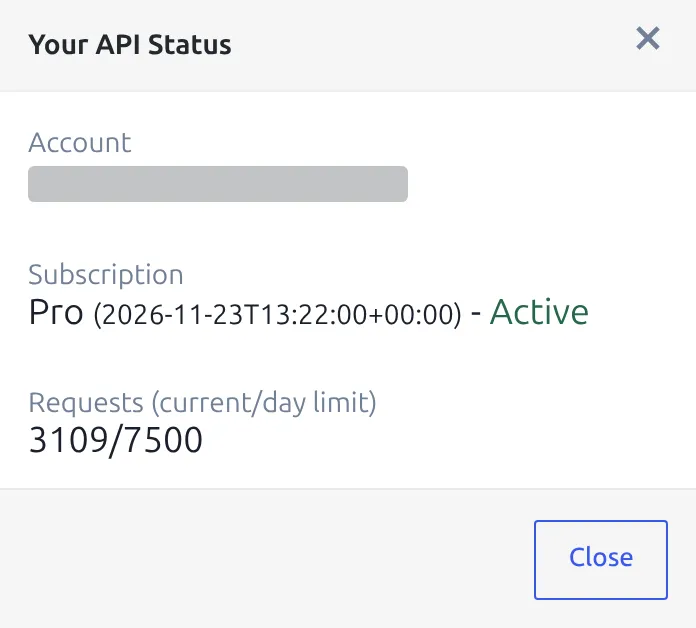
- Use a direct subscription. Then Get Your API Status on the API Leagues tab shows your plan and how many requests you’ve used today against the daily limit.
2. Run the setup wizard
In wp-admin, open FL API Import. It’s a top-level menu with its own REST-API icon, sitting just below Translations. Until an API provider is configured, every tab shows a three-step setup wizard instead.
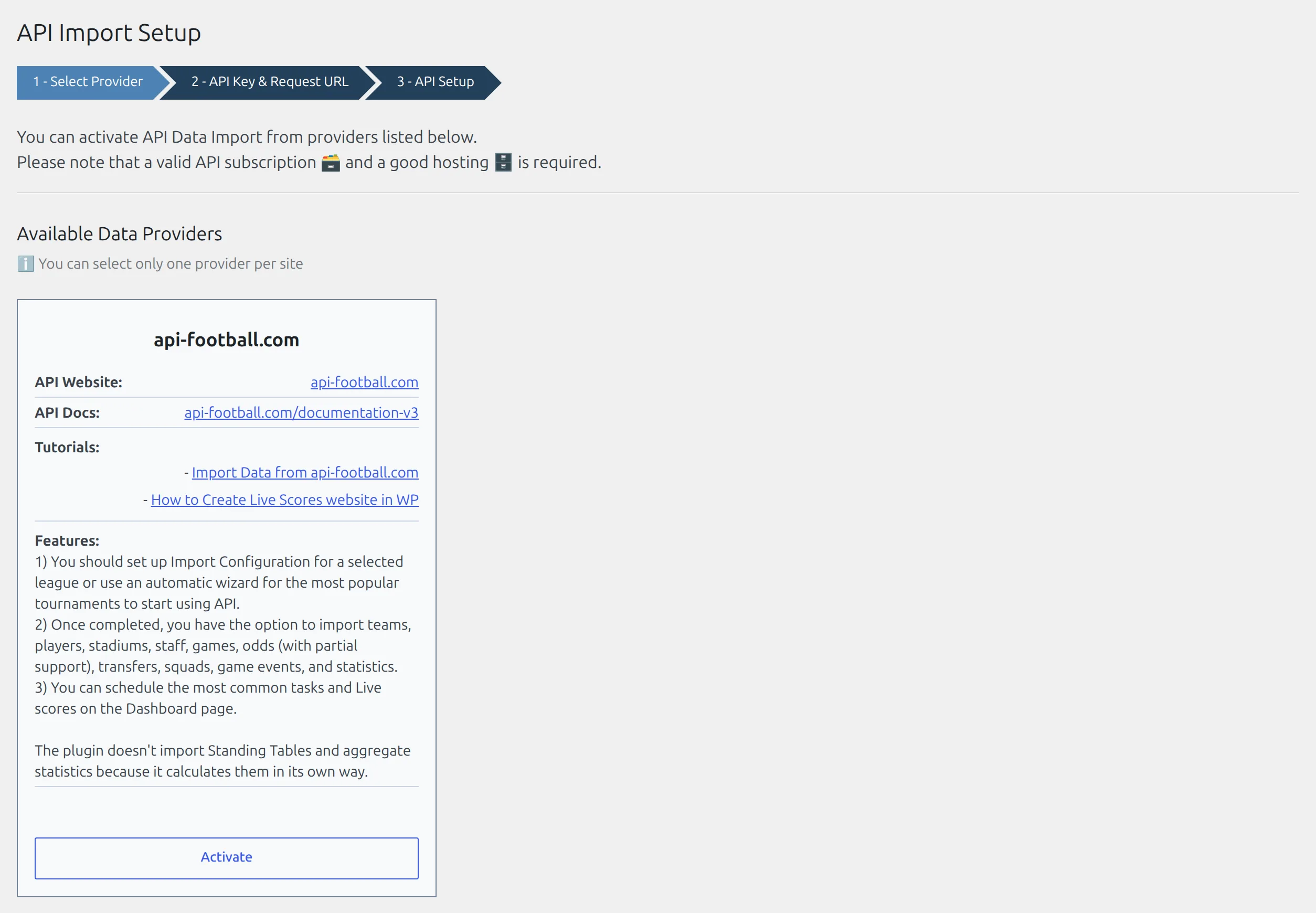
Step 1 – Select Provider
Click Activate on the api-football.com card.
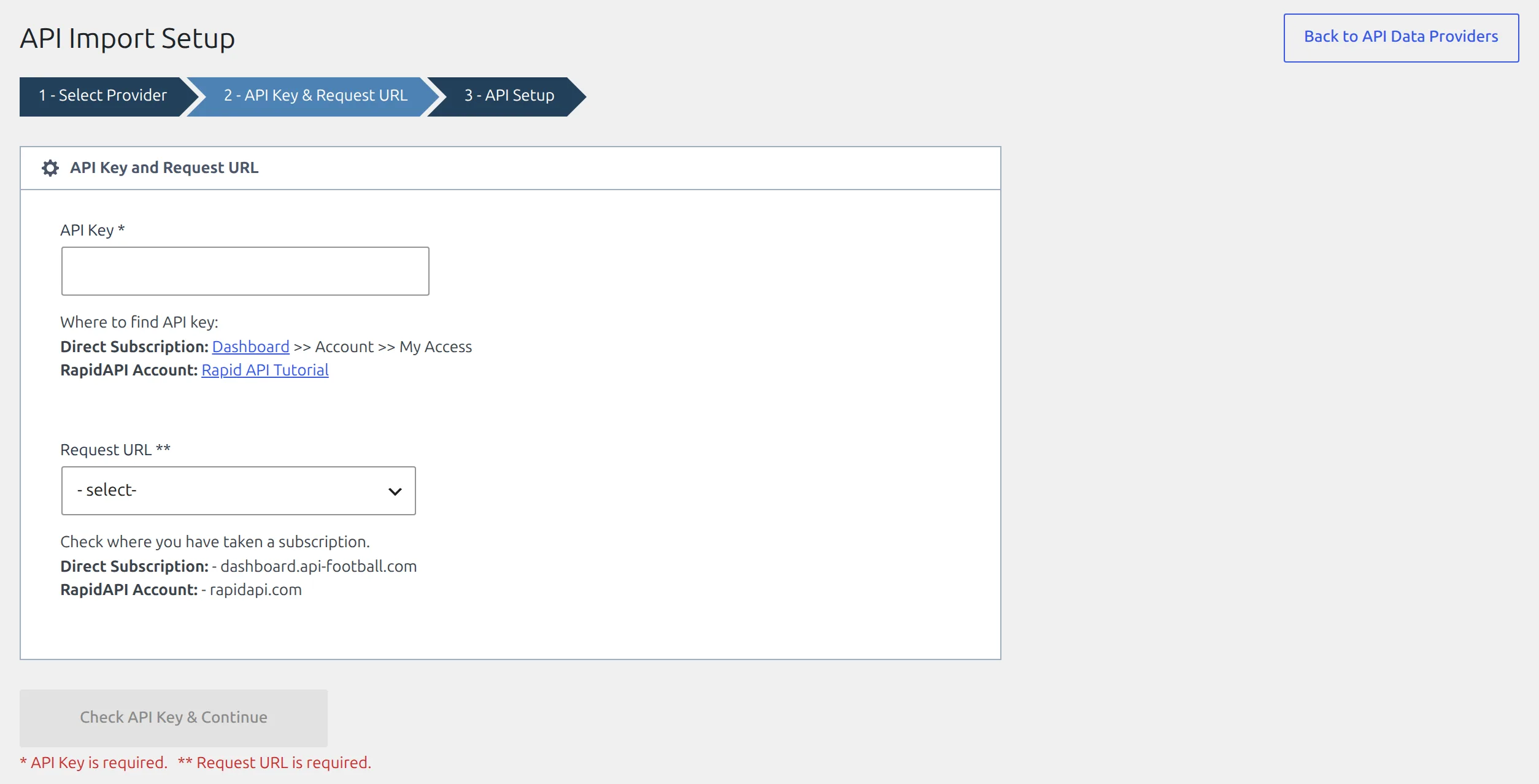
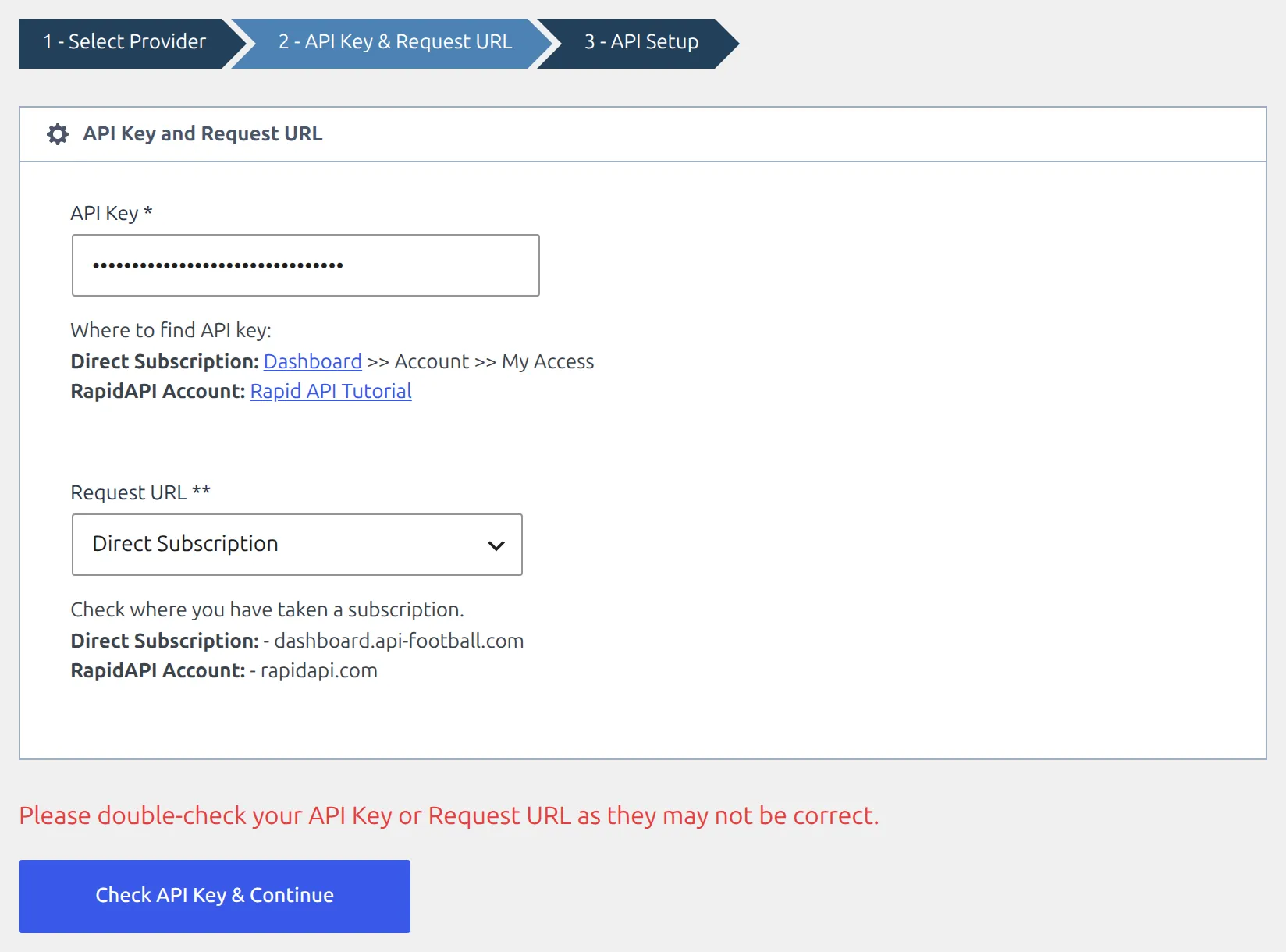
Step 2 – API Key & Request URL
Paste your API key, then set Request URL to match where you bought the subscription (see the table above). Click Check API Key & Continue – the plugin calls the API to confirm the key works before it lets you past this step.
Can’t find your key? On a direct subscription it’s in your api-football dashboard under Account > My Access. On RapidAPI, follow the RapidAPI part of the Authentication section in the api-football documentation. The wizard links to both, right under the key field.
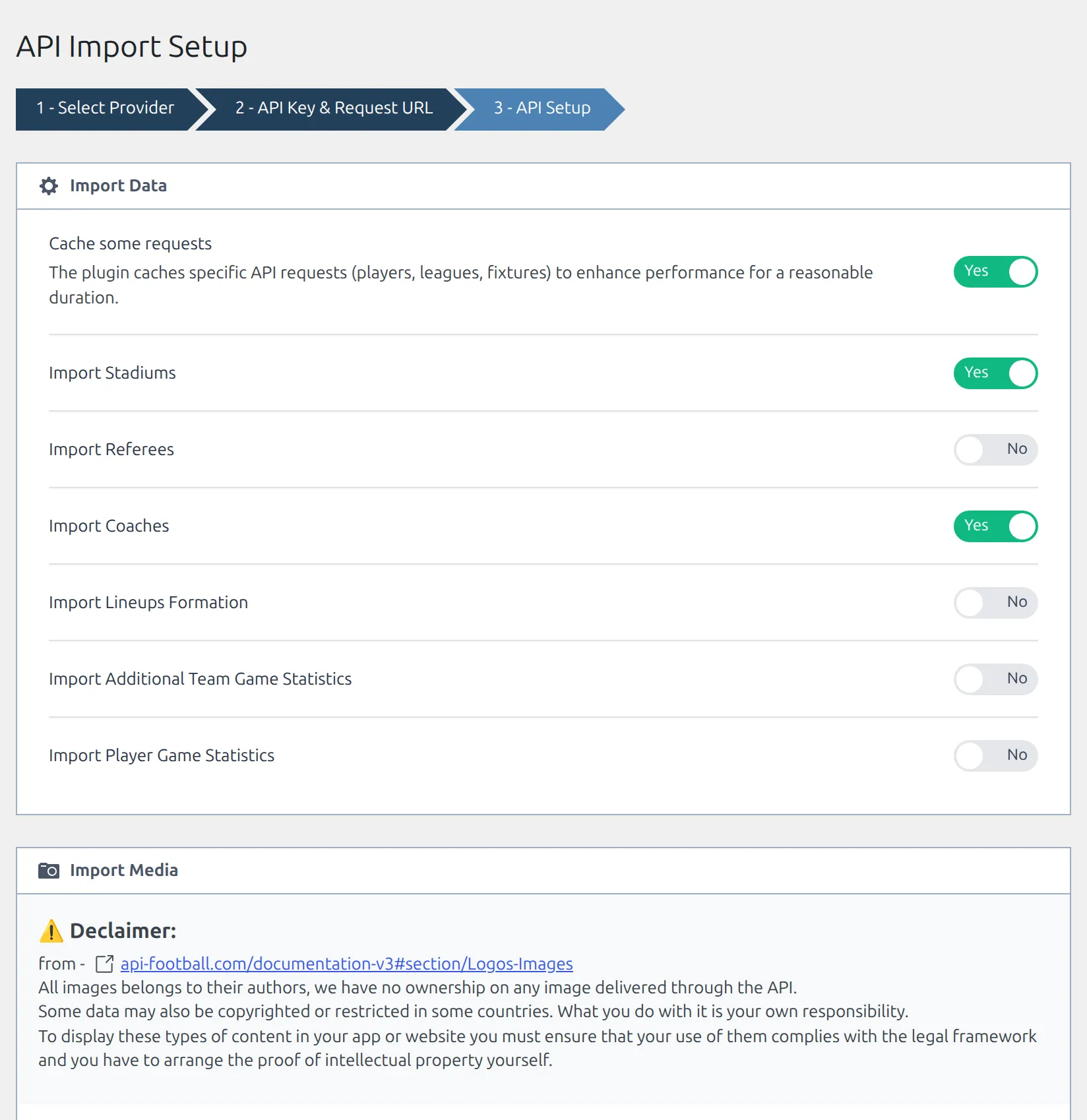
Step 3 – API Setup
Choose what the import should bring in, then click Save. You land on the API Leagues tab, ready to import. None of these choices are permanent – the same options live on the Settings tab and can be changed whenever you like.
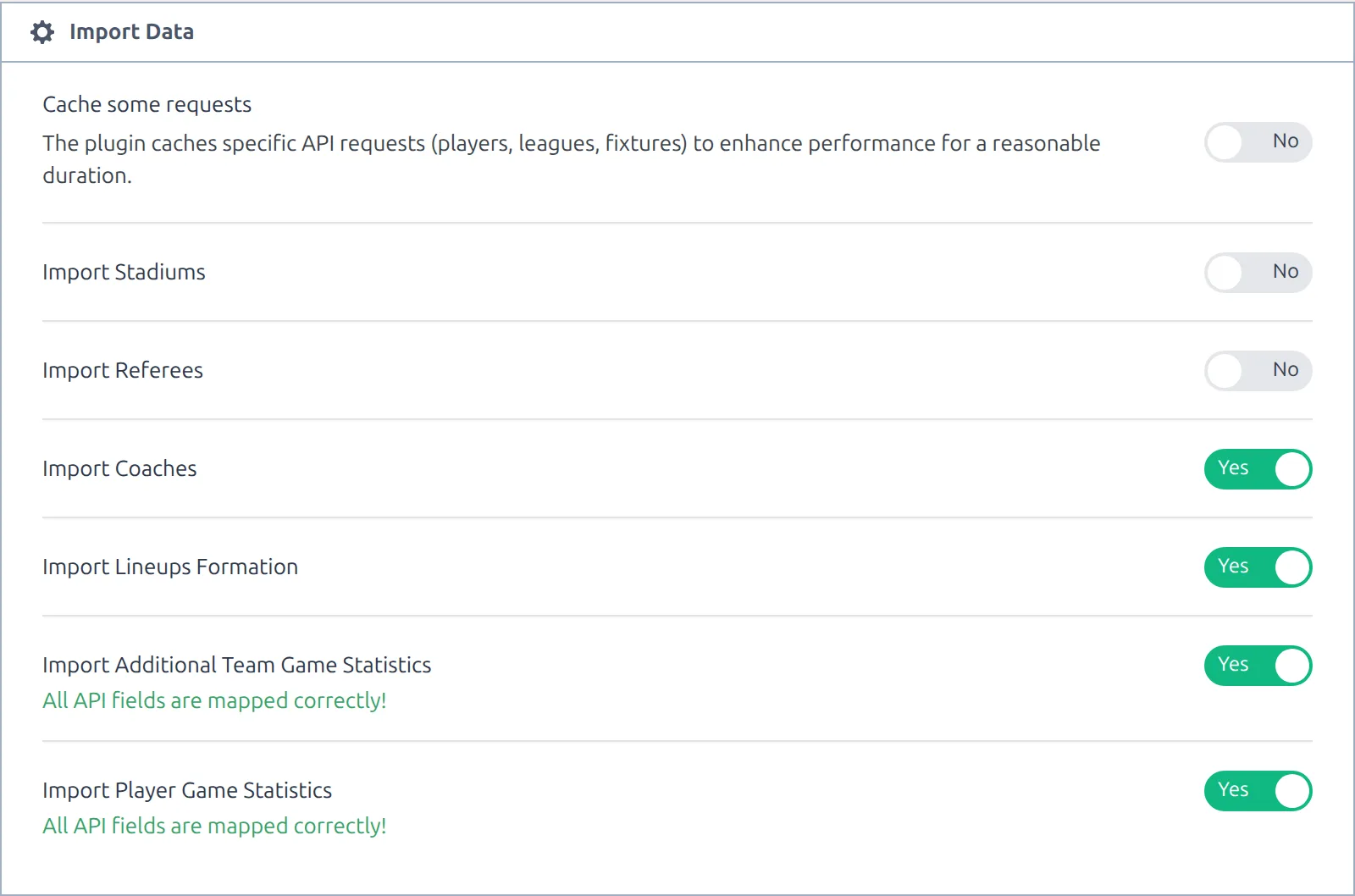
It’s a long screen: six blocks of options, with Save at the very bottom. Switch on either statistics import here and the Fix warning described below can show up straight away – click it now, or later on the Settings tab.
3. Check your import settings
Open FL API Import > Settings. Your API key and Request URL sit at the top – change them here if you ever move from RapidAPI to a direct subscription. Below them, the options are grouped into six blocks. You don’t have to read all of them now, but two are worth a look before your first import.
| Block | Controls |
|---|---|
| Import Data | Request caching, and whether to import stadiums, referees, coaches, lineup formations, additional team game statistics and player game statistics. |
| Import Media | Team logos, player photos, coach photos, stadium photos. |
| Game Predictions | Fetching predictions and where they’re shown. |
| LIVE | The master switch for live import, plus live team and player stats. Refresh intervals, score blinking and sound are set at Settings & Tools > Settings > Features > Live Scores. |
| Odds | Pre-match odds, bookmaker selection, affiliate links. |
| Advanced Setup | SSL verification, squad reset behaviour, hiding newly imported teams and players, duplicate checks. |
The Fix button
Turn on Import Additional Team Game Statistics or Import Player Game Statistics and the plugin checks whether your statistics columns can hold what the API sends. If any are missing you’ll see a warning and a Fix button. Click it.
For team stats, Fix adds the 8 columns the API provides – shots off goal, blocked shots, shots insidebox, shots outsidebox, goalkeeper saves, total passes, accurate passes and xG. For player stats it adds 14 columns (saves through to rating) and creates the matching database columns. Skip it and the data arrives with nowhere to go.
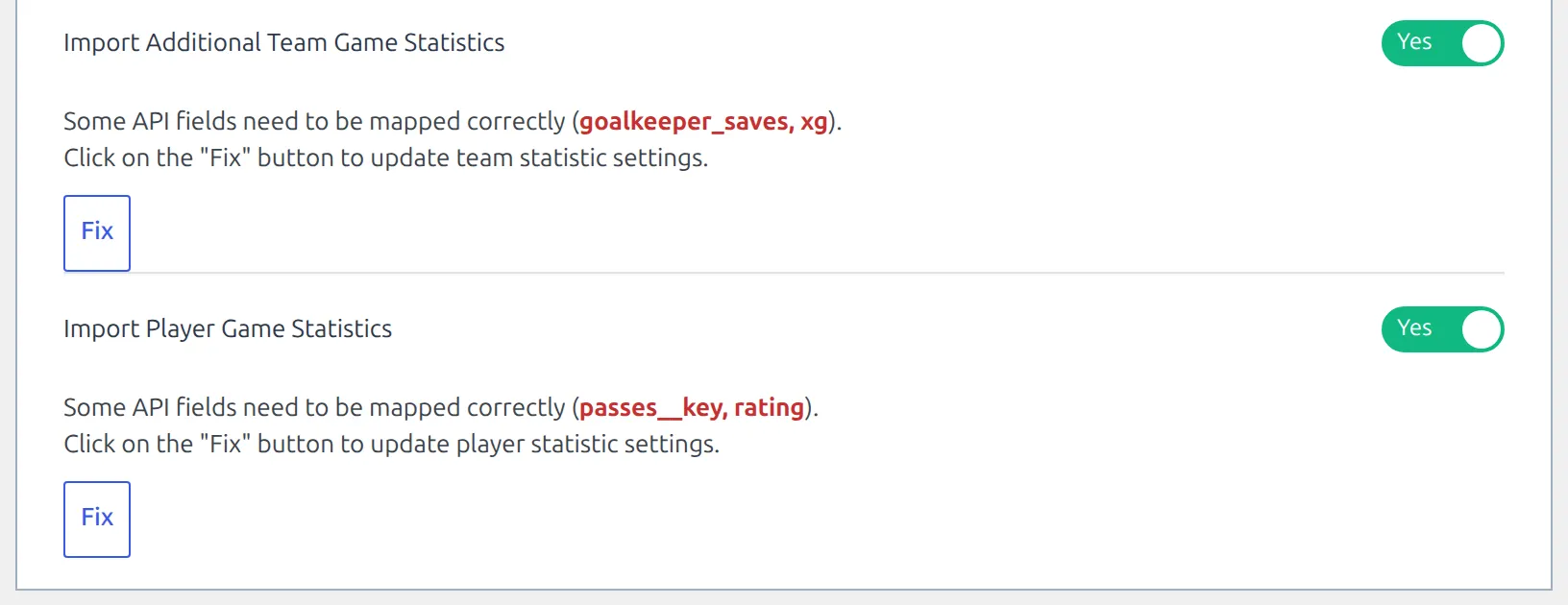
After a successful Fix the warning changes to All API fields are mapped correctly! What those statistics then show on your site is covered in Import Additional Team Statistics and Import Player Game Statistics.
Tip
The check also runs every time you open the Settings tab, so a site that already has either statistics option on can show the Fix warning without you changing anything. That’s the plugin telling you a newer API field has no column yet.
⚽ 4. Import your first competition
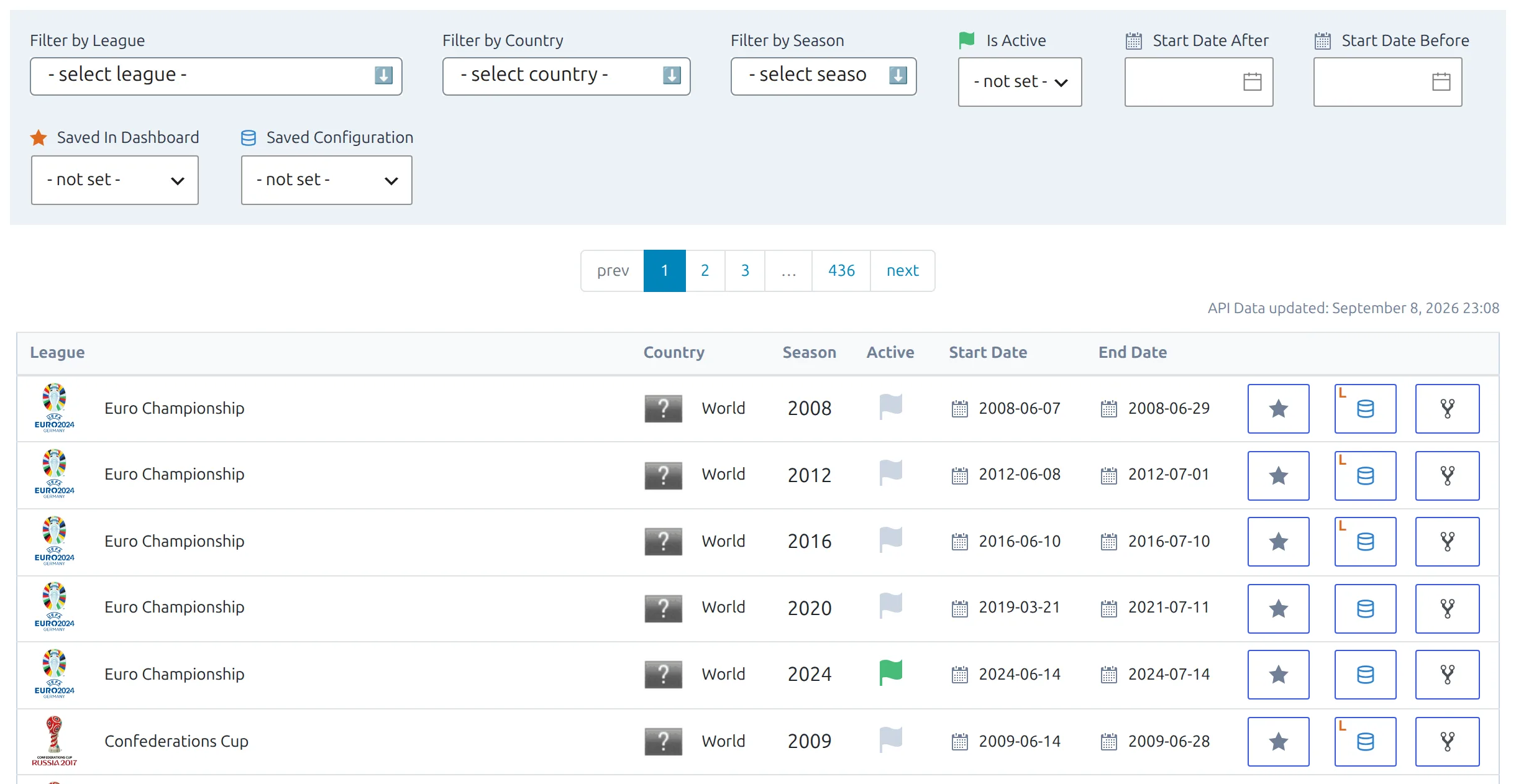
Go to the API Leagues tab. Narrow the list with the filter bar – Filter by League, Filter by Country, Filter by Season, Is Active, a start-date range, Saved In Dashboard and Saved Configuration – then work on the row you want.
How you set the competition up depends on its shape:
- A regular league – every team plays every other team. See Round-Robin Competition.
- A cup or tournament with several stages – group stage, then knockout. See Multistage Competition and Knockout Competition.
Click the blue database button on the league’s row. The Import Competition Configuration window offers three ways in:
- Run Wizard – the fastest route, but only for leagues and seasons on the wizard’s supported list. Those rows show a small red A on the database button; for every other league the card reads – not available –.
- Lazy Import (BETA) – fast and almost automatic, with less interactive standings and no brackets.
- Manual Configuration – you build the competition structure and the standing table yourself.
Not sure which one fits? API Import for a Round-Robin League compares the three before walking through the manual route.
The Import Wizard
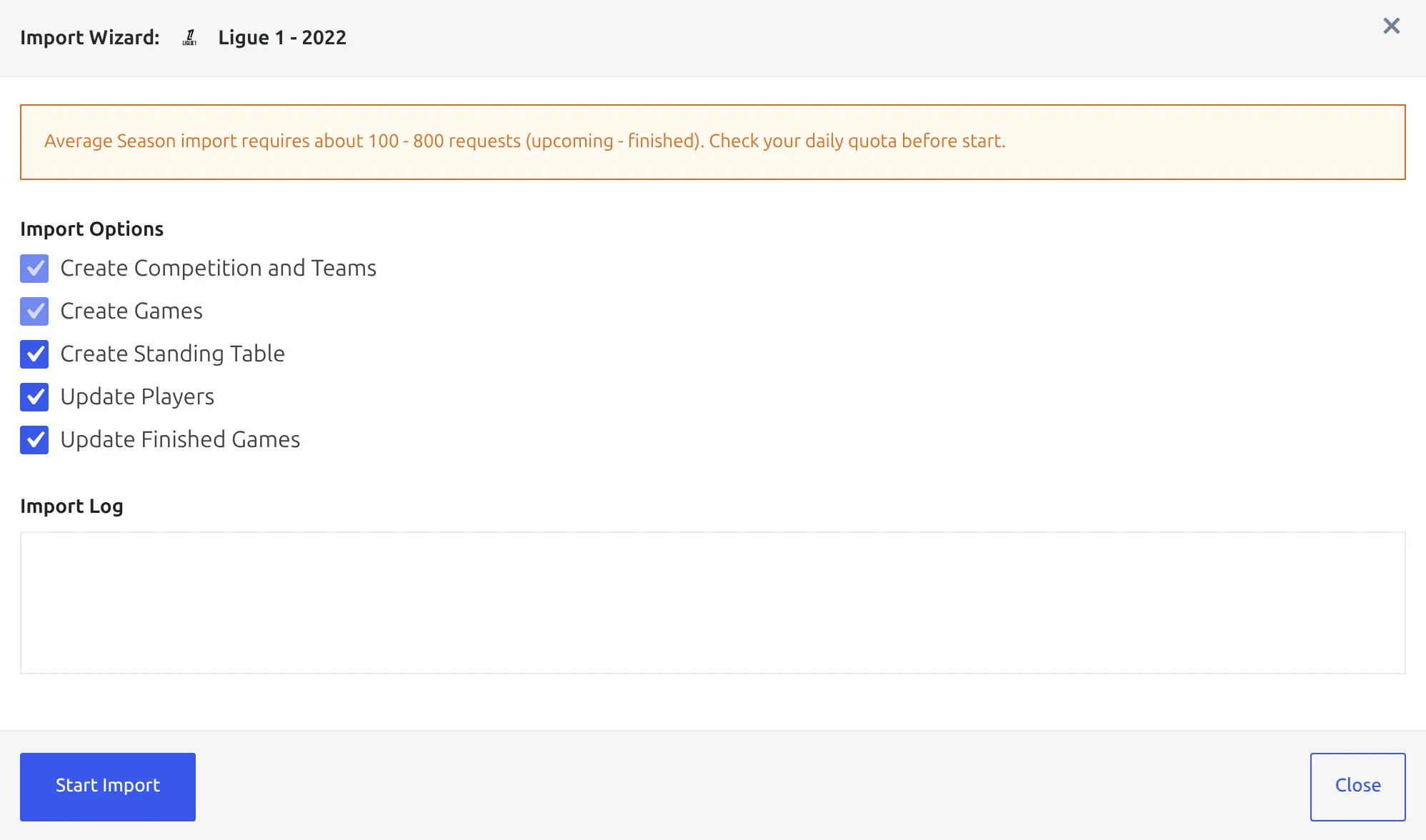
The Import Wizard chains the whole job together: create the competition and teams, create the games, create a standing table, update players, then pull finished results. The first two always run. The last three are checkboxes you can untick before you click Start Import. It warns you up front that an average season takes about 100 – 800 requests, and Cancel Import stops it part-way.
Manual Configuration video tutorials
Two videos show an import configuration being set up from start to finish. They were recorded on an older version of the import screens, so the layout has moved on: today the same job starts at FL API Import > API Leagues, the database button on the league row, then Manual Configuration. The written guides linked with each video match the current screens.
A regular league (round-robin) – written guide: API Import for a Round-Robin League.
A cup or tournament with several stages – written guide: API Import for a Multistage Competition.
Standing tables
Football Leagues doesn’t copy the league table from the API – it calculates standings itself from the imported games. The Import Wizard creates the standing table for you (its Create Standing Table step), and a Lazy Import configuration has its own Create & Update Standings action. With Manual Configuration you add the table once under Competitions > Standing Tables > Add New Standing Table and choose its ranking rules, which decide how ties are broken.
5. Save the competition to your Dashboard
Click the star on the league’s row – its tooltip reads save to Dashboard, and the star turns orange once the league is saved. Before the league is linked to a local competition the star is faded and unclickable, so do this after the import, not before.
Saving to the Dashboard is what makes a competition available for repeat and scheduled updates – pulling in finished results, kick-off changes, injuries, odds and live scores. See the Import Dashboard for what happens next.
📚 Where to go next
- Import Dashboard – run and schedule updates.
- Create or Update Clubs – import teams and their stadiums.
- Live Scores – minute-by-minute updates during matches.
- Lazy Import – a lighter alternative that creates games and standings on a slow schedule.
- API Import Use Cases – real competitions set up step by step, such as the Euro 2024 knockout stage.
- Layout Builder – design the competition, team and player pages your imported data fills.
🆘 Troubleshooting
The setup wizard keeps reappearing
Every tab falls back to the wizard while no provider is saved. Finish step 3 and click Save – stopping at step 2 leaves the configuration empty.
“Get Your API Status” is missing
Expected on a RapidAPI subscription – that button is hidden when Request URL is set to RapidApi Account, because the status endpoint isn’t available there. Check your remaining quota in the RapidAPI dashboard instead.
The API key check fails
The wizard says Please double-check your API Key or Request URL as they may not be correct. That’s nearly always a mismatch between where you bought the plan and the Request URL you picked – a direct key sent to the RapidAPI endpoint is rejected, and the other way round. If both look right, try turning off Verify SSL certificate in Advanced Setup; some hosts ship an outdated certificate bundle.
“Database Upgrade Pending” instead of the import screens
FL API Import stays locked until a Football Leagues database upgrade or data migration has finished, because the importers write straight to the plugin’s tables. On Database Upgrade Pending, open any other admin page (Dashboard or Posts) so the upgrade runs, then come back and reload. On Data Migration Pending, click Database Updater, run the pending migrations, then return.
A league or a new season is missing from API Leagues
The plugin keeps its copy of the league list for 24 hours to save requests. Click Update API Data at the top of the API Leagues tab to fetch a fresh one.
“Competition create error” in the Import Wizard
The wizard stops at its first step when the request that creates the competition fails – an API error, a PHP error or a server timeout all end up as this one line, and the real reason isn’t shown in the log. Turn on the WordPress debug log, run the wizard again, then send a screenshot of the wizard and the log through PRO support.
Scheduled updates stopped running on their own
Jobs you schedule on the Import Dashboard, such as updating finished games, run on WP-Cron. If they only run when you press Run yourself, WP-Cron isn’t firing on your site – How to test if cron works properly in WordPress shows how to check it. Still stuck? Open a PRO support ticket.
Scores update in wp-admin but not on the site (Cloudflare or page cache)
The calls to api-football.com go out from your own server, so Cloudflare isn’t part of that connection. When games update in wp-admin but visitors still see old scores, a page cache is serving an older copy. Set Full page caching on API import at Settings & Tools > Settings > Configuration > Advanced (Premium block) to Partial or Full: after games are updated from the API – finished results, lineups, live scores – it tries to clear the page cache of common caching plugins, such as WP Rocket, LiteSpeed Cache and W3 Total Cache. It can’t clear Cloudflare’s own edge cache, so if Cloudflare caches your HTML, purge that cache in your Cloudflare dashboard after an update.