

A player wears the number set in the club squad. Sometimes one match is different – a squad number changed mid-season, a youth player borrowed a shirt, a cup tie used a different set. You can override the number for a single match without touching the squad.
This is a free-version feature.
🚀 Change the number
- Open the match: Matches → your match.
- In the Match Data box, choose Lineups from the left-hand nav.
- Find the player in Starting LineUp or Substitutes and click their shirt icon. A tooltip reads “Edit Number”.
- In the Edit Number dialog, type the number into Custom Number. The Squad Number field beside it is read-only, there to show you what the squad says.
- Click Close.
- Click Save (or the WordPress Update button).
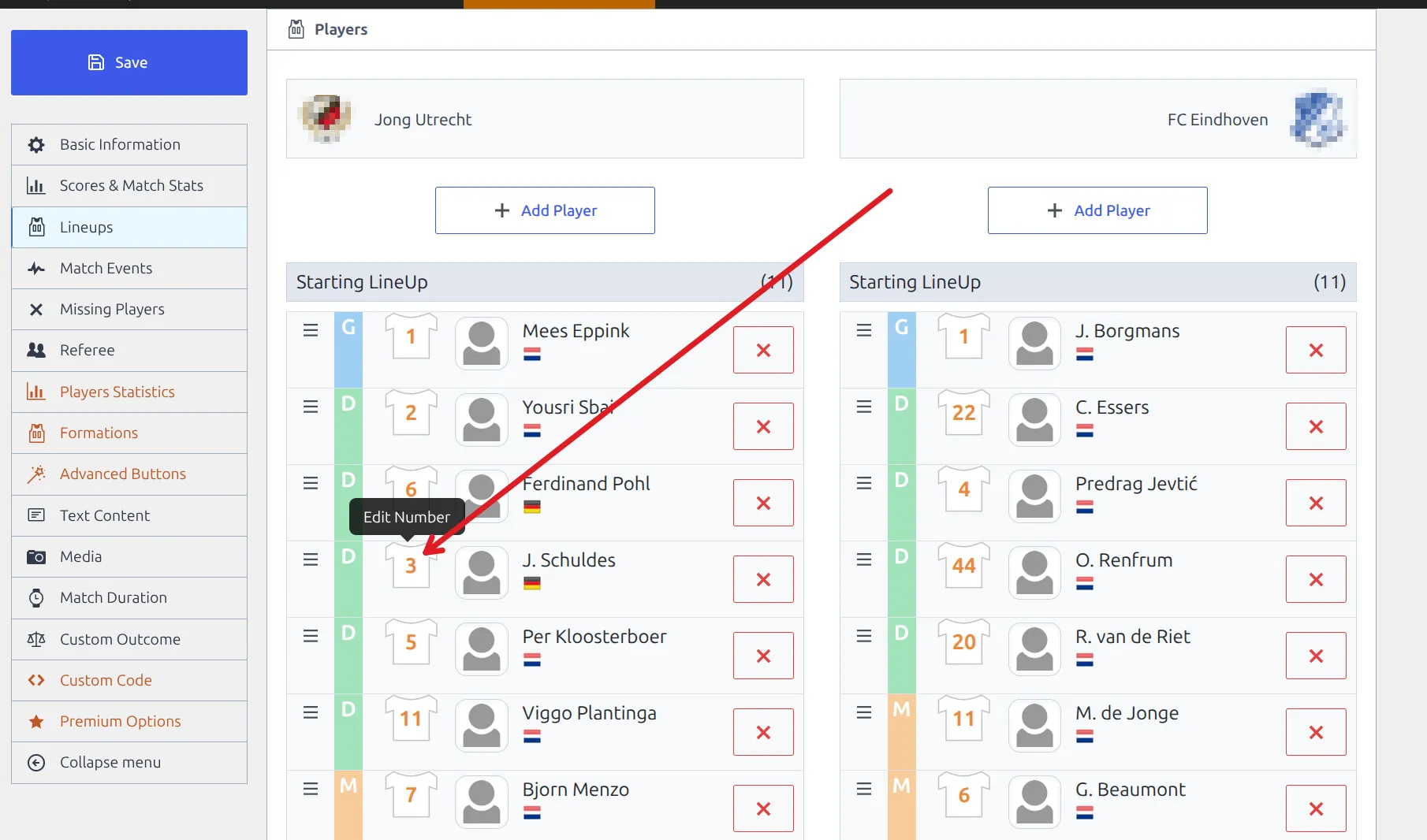
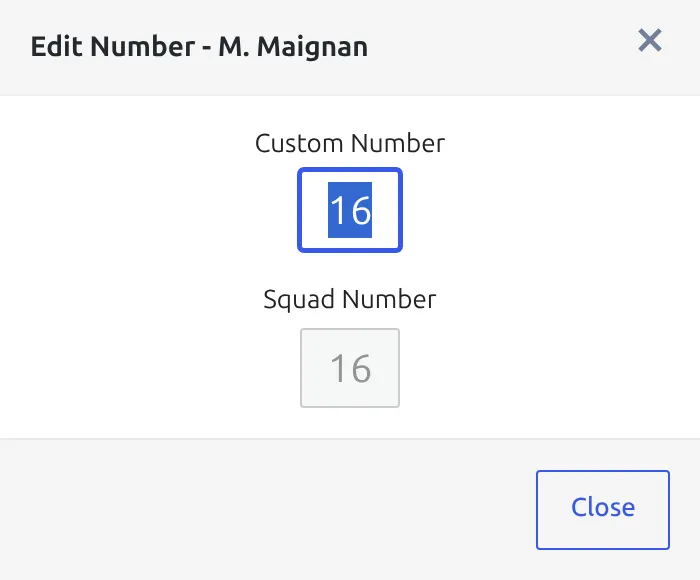
The dialog has no Save button
Close only closes the dialog – it does not store anything. The number is saved with the rest of the match when you click Save. Leave the match without saving and the change is gone.
Go back to the squad number
- Click the shirt icon again.
- Clear the Custom Number field so it is empty.
- Click Close, then Save.
An empty custom number means “no override”, so the player falls back to their club squad number everywhere – line-ups, the formation pitch and the player stats block.
What the orange number means
An orange number means this match has its own stored number for that player. A dark number means the number is coming straight from the club squad.
It does not mean you changed anything. When you add a player through Add Player, the plugin copies their squad number into the match at that moment, so they show orange immediately even though the number matches the squad. That is expected – most players in a normal line-up are orange.
Why it works this way
Copying the number in at the moment a player is added means an old match keeps showing the number the player actually wore that day, even after the squad is renumbered for a new season. The trade-off is the one in the next section.
🆘 Troubleshooting
I changed a squad number but old matches still show the old one
Working as designed – see above. Those matches stored the number when the player was added to them. To bring a match in line with the new squad number, open it, clear that player’s Custom Number, and save. Matches you build after the squad change pick up the new number on their own.
I set the number to 0 and it shows the squad number instead
0 cannot be used as a custom number – it reads as “no override”. If a player genuinely wears 0, set it as their squad number in the club squad instead.
I typed letters and the front end shows something else
Use digits only. The field accepts text, but the front end reads it as a number: 12A comes out as 12, and GK comes out as 0. The admin keeps showing what you typed, so the two disagree until you fix it.
My custom numbers vanished after an API import
Re-importing a match’s line-up replaces the numbers with whatever the data feed supplies. If you hand-edit numbers on imported matches, do it after the import, not before.
The Lineups panel didn’t load
Do not press Save. If the panel is blank or stuck, saving writes an empty line-up over the real one – players, substitutes, captains and custom numbers all go. Reload the page first, and if it still won’t load, check for a JavaScript error from another plugin.
📚 Related
- Club Squad – where the default number comes from
- Squad shortcode – show the roster with numbers