

Overview
The Roster shortcode displays a team’s players for a specific season. Use it to show squad lists on team pages, create printable team sheets, or display roster information anywhere on your site.
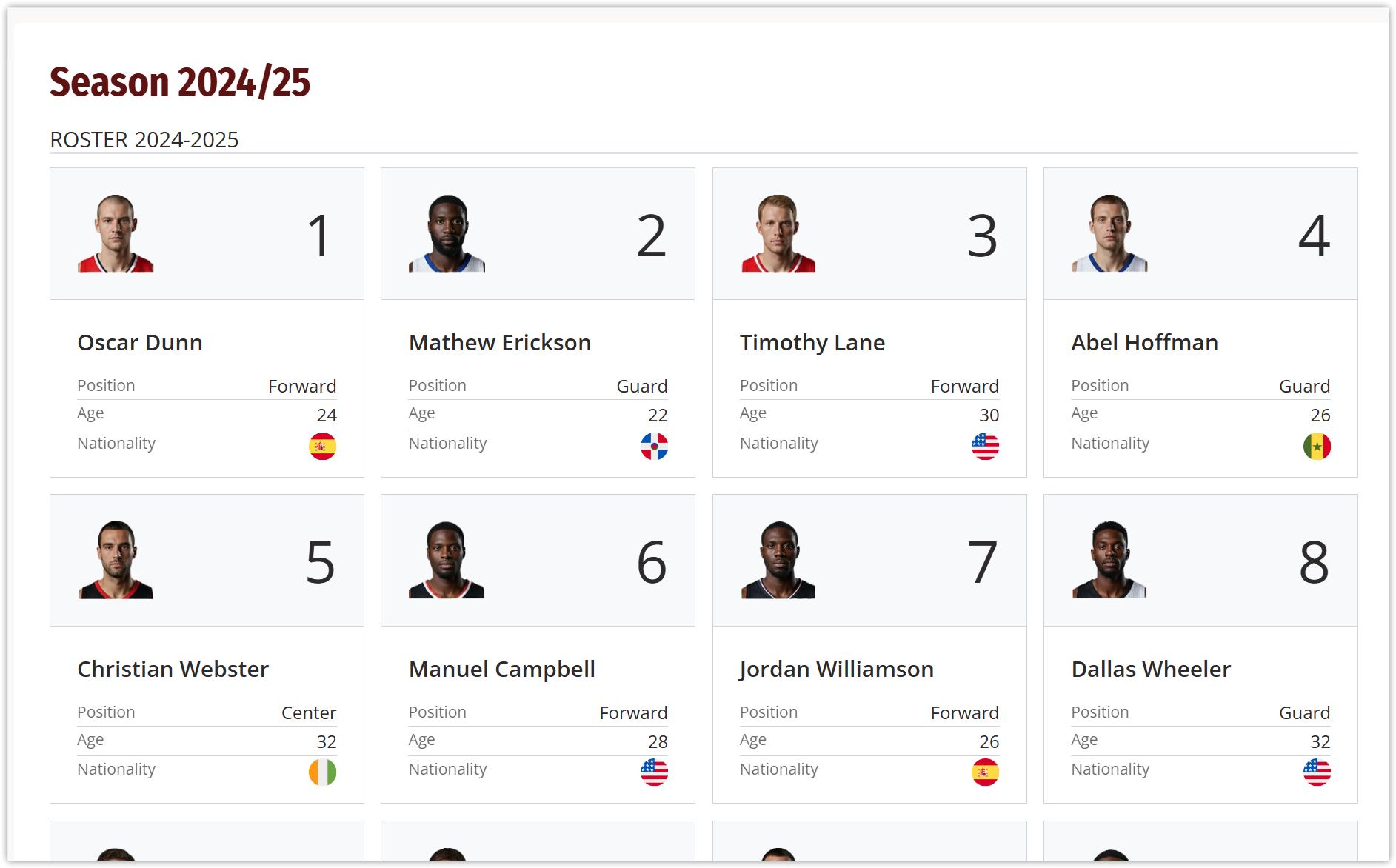
Key Features:
- Display players assigned to a team for a specific season
- List or grid layout options
- Optional custom title
- Links to individual player profiles
Quick Reference
[sl-roster team_id="45" season_id="5"]Important
Both team_id AND season_id must be specified for the shortcode to work.
Parameters
| Parameter | Default | Description |
|---|---|---|
team_id | (required) | Team post ID |
season_id | (required) | Season term ID |
title | (empty) | Custom title displayed above the roster |
layout | (empty) | Display layout: empty for list view, or grid for card layout |
header | false | Show the default “Roster” header when set to true |
Examples
Basic Usage
[sl-roster team_id="45" season_id="5"]Displays team #45 roster for season #5 in the default list format.
With Custom Title
[sl-roster team_id="45" season_id="5" title="First Team Squad 2024/25"]Roster with a custom title displayed above the player list.
Grid Layout
[sl-roster team_id="45" season_id="5" layout="grid"]Players displayed in a card-based grid format with photos.
Complete Example
[sl-roster team_id="45" season_id="5" title="Lakers Squad" layout="grid" header="true"]Grid layout roster with both a custom title and the default header.
Layout Options
| Layout | Value | Best For |
|---|---|---|
| List | (empty) | Detailed player info, printable sheets, narrow areas |
| Grid | grid | Visual presentations, photo galleries, wide areas |
Finding IDs
Team ID
- Go to Sports Leagues → Teams
- Click Edit on the team you want
- Look at the URL in your browser:
post.php?post=45 - The number after
post=is your Team ID (45 in this example)
Season ID
- Go to Tournaments → Seasons
- Click on the season name
- Look at the URL:
tag_ID=5 - The number after
tag_ID=is your Season ID (5 in this example)
Tip
Use the Shortcode Builder to select teams and seasons visually without needing to find IDs manually. Look for it in the page editor toolbar.
Prerequisites
Before the roster shortcode displays anything, make sure you have:
- Created players – Go to Sports Leagues → Players
- Assigned players to the team – Go to Teams → Edit Team → Team Roster tab
- Selected the correct season when assigning players to the roster
Troubleshooting
Roster is Empty
Problem: The shortcode displays but shows no players.
Solution:
- Go to Teams → Edit Team → Team Roster tab
- Select the correct season from the dropdown
- Add players to the roster
- Save the team
Nothing Displays
Problem: The shortcode area is completely blank.
Solution:
- Check that both
team_idANDseason_idare provided - Verify the IDs are correct by checking URLs in the admin
- Ensure the team post is published (not draft)
- Confirm the season term exists
Shortcode Shows as Text
Problem: [sl-roster ...] appears as plain text instead of rendering.
Solution:
- In Gutenberg: Use a Shortcode block, not a Paragraph block
- In Classic Editor: Switch to Text mode (not Visual)
- Check for typos in the shortcode name (
sl-rosternotsl_roster)
Template Customization
You can customize the roster appearance by copying the template file to your theme:
- Copy
plugins/anwp-sports-leagues/sports-leagues/templates/shortcode-roster.php - Paste to
your-theme/sports-leagues/shortcode-roster.php - Edit the template file in your theme
Note
For grid layout, use shortcode-roster--grid.php instead.