

The [sl-tournament-header] shortcode shows a tournament’s header: its logo, title, subtitle and start and end dates, plus an optional dropdown that jumps to the same league’s other seasons. It’s the same header you see at the top of tournament pages, so you can reuse it on any page or post.
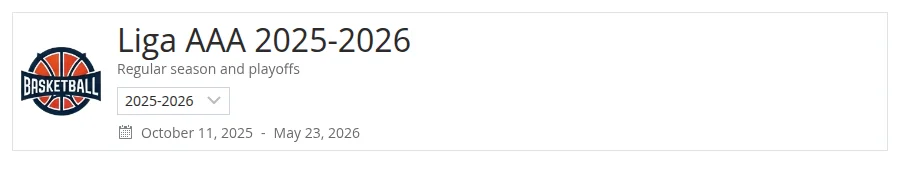
The simplest version needs only the tournament ID:
[sl-tournament-header tournament_id="123"]What the Header Shows
Everything in the header comes from the tournament itself. Edit the tournament (under Tournaments) to change it:
| Part | Where it comes from | When it’s shown |
|---|---|---|
| Logo | The Tournament logo box in the tournament editor | Only if a logo is set |
| Title | The tournament title | Always |
| Subtitle | The Tournament Subtitle field | Only if filled in |
| Season dropdown | The tournament’s league and season (see Season Selector below) | Only with season_selector="1", when the tournament has a league and a season, and at least two published tournaments share that league |
| Dates | Date From and Date To, in your site’s date format (Settings > General) | Only if both dates are set |
The header always shows the tournament, never a stage. A stage ID only changes where the header links to (see stage_id below).
🚀 Add the Header
With the Shortcode Builder
- Go to Sports Leagues > Shortcodes and pick Tournament Header.
- Click the search button next to Tournament and choose your tournament.
- Optionally pick a Tournament Stage and set Title as a Link or Show Season Selector to Yes. Not both (see the warning below).
- Copy the shortcode and paste it into a Shortcode block, or anywhere shortcodes work.
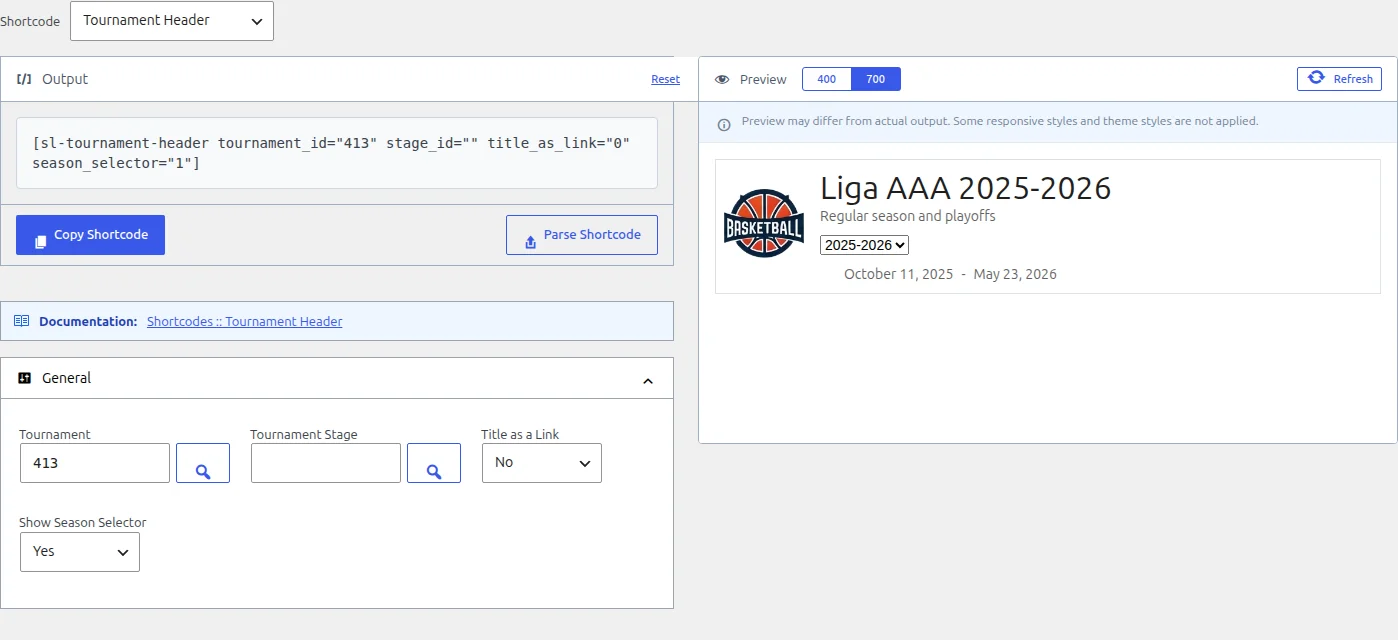
New to the builder? The Shortcode Builder page covers it. To look up a tournament or stage ID by hand, see Find the IDs on the Standing shortcode page.
With the Block
In the block editor, add the SL Tournament Header block (in the Sports Leagues category). It has the same options as the shortcode, plus two title options the shortcode doesn’t have (see Block Settings below).
Parameters
The shortcode accepts these four parameters. Anything else is ignored.
| Parameter | Builder field | What it does | Values | Default |
|---|---|---|---|---|
tournament_id | Tournament | The tournament to show. Required: without it the shortcode outputs nothing | A tournament ID | (empty) |
stage_id | Tournament Stage | When title_as_link is on, the header links to this stage’s page instead of the tournament page. Has no other effect | A stage ID | (empty) |
title_as_link | Title as a Link | Makes the whole header clickable, not only the title | 1 or 0 | 0 |
season_selector | Show Season Selector | Adds a dropdown with the league’s other seasons | 1 or 0 | 0 |
title_as_link and season_selector also accept yes and true (lowercase) for on. Any other value, Yes included, counts as off.
Don’t combine Title as a Link with the Season Selector
The link covers the whole header, dropdown included. With both turned on, clicking the dropdown opens the tournament (or stage) page instead of the season list. Pick one of the two.
Season Selector
In Sports Leagues, each season of a competition is its own tournament, and the tournaments are tied together by their league. The season selector lists every published tournament in the same league as the one you picked that also has a season set, labelled by season and sorted by season name in descending order, so 2025-2026 comes before 2024-2025. Picking a season opens that tournament’s page.
For example, if “Elite League 2024-2025” and “Elite League 2025-2026” both have the league Elite League, the header of either one shows a dropdown with 2025-2026 and 2024-2025.
- The dropdown only appears when the tournament you picked has both a league and a season, and the league has at least two published tournaments. Drafts never show up.
- Two tournaments in the same league with the same season both show up, so you’ll see that season twice.
- See Seasons and Leagues for how to set up leagues and seasons.
Examples
Header with a season switcher
[sl-tournament-header tournament_id="123" season_selector="1"]Good on a page about a competition that runs every year: visitors can jump to last season from the dropdown.
Clickable header that opens the tournament
[sl-tournament-header tournament_id="123" title_as_link="1"]Use this on your home page or in a news post, so the header works as a link to the full tournament page.
Clickable header that opens a stage
[sl-tournament-header tournament_id="123" stage_id="124" title_as_link="1"]The header still shows the tournament, but a click opens the stage’s page, for example the playoffs.
Block Settings
The SL Tournament Header block shows a live preview in the editor (links are turned off there). Its settings:
| Setting | What it does |
|---|---|
| Tournament ID | Same as tournament_id |
| Stage ID | Same as stage_id |
| Title as a link | Same as title_as_link |
| Season Selector | Same as season_selector |
| Tournament Title in Header | Block only. Tournament Title (default) or League Name, which shows the tournament’s league instead of its title. If the tournament has no league, the title is left empty |
| Custom Title | Block only. Your own text in place of the title. When set, it wins over Tournament Title in Header |
No title parameter in the shortcode
The shortcode ignores title and title_field. To show a custom title or the league name, use the block instead.
If the block is missing from the inserter, check that Load Gutenberg Blocks is set to Yes in the plugin settings, on the Service Links tab.
Where Else the Header Appears
- Tournament pages. The standard tournament page opens with this header. Its season dropdown is controlled in Appearance > Customize > Sports Leagues > Tournament > Show Season Selector, not by the shortcode.
- Tournament list. The Tournament List shortcode shows one clickable header per tournament.
- Layout Builder (Premium). Tournament layouts have a Header block that shows the same header, following the same Customizer setting for the season dropdown. See Layout Builder.
🆘 Common Problems
Nothing shows up
tournament_idis missing or empty. The shortcode needs it.
An empty box with no title
The ID doesn’t belong to any post, for example a tournament you deleted permanently. A tournament in the Trash still shows normally. Pick the tournament again with the search button in the Shortcode Builder. If the header shows a team’s or a page’s name instead, the ID belongs to that post, not to a tournament.
The header shows a stage name instead of the tournament
You put a stage ID in tournament_id. Use the tournament’s ID there, and the stage ID in stage_id. With a stage ID in tournament_id the season dropdown never appears either.
The season dropdown doesn’t appear
- Check
season_selector="1"is in the shortcode. - The league has only one tournament. The dropdown needs at least two.
- The tournament has no league or no season set. The dropdown needs both.
- Your other seasons are drafts or have no season set. Only published tournaments with a season are listed.
- Your other seasons are separate tournaments with a different league. Give them all the same league in the tournament editor.
Clicking the season dropdown opens the tournament page
title_as_link is on as well. Its link sits on top of the dropdown. Turn title_as_link off to use the season selector.
The dates or logo are missing
The dates only show when both Date From and Date To are set. The logo only shows when the tournament has a Tournament logo.
My custom title or CSS class is ignored
The shortcode has no title, title_field or class parameter. A custom title works in the block (Custom Title). The block’s Additional CSS class(es) field doesn’t reach the header either, so to style one header differently, wrap it in a Group block and give the Group the class.
📚 Related
- Shortcode Builder: build and preview shortcodes without typing them
- Tournaments: tournaments, stages and where the logo, subtitle and dates are set
- Standing shortcode: show the tournament’s table under the header
- Games shortcode: list the tournament’s games