

Games are the heart of Sports Leagues—recording results, events, lineups, and statistics. Every game belongs to a tournament and connects two teams competing at a specific date, time, and venue.
🚀 Creating a Game
Game creation follows a two-step process: first set up the structure (tournament, teams), then add the game details.
Step 1: Game Setup
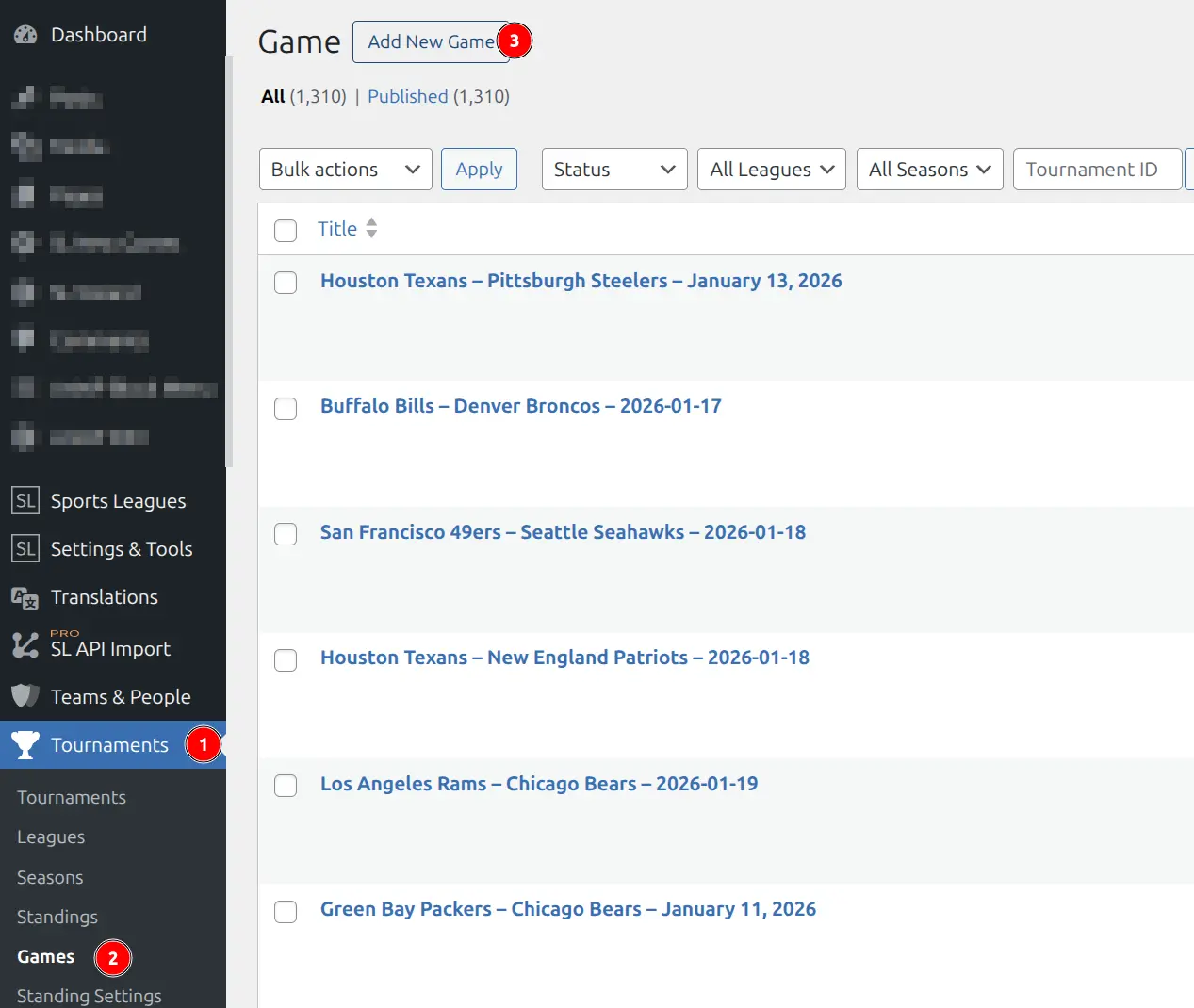
- Go to Sports Leagues > Games > Add New Game
- Select a Tournament
- Select a Stage within that tournament
- For round-robin stages, select the Group
- For knockout stages, select the Round (e.g., Quarterfinals)
- Select Home Team and Away Team
- Click Publish
Step 2: Game Details
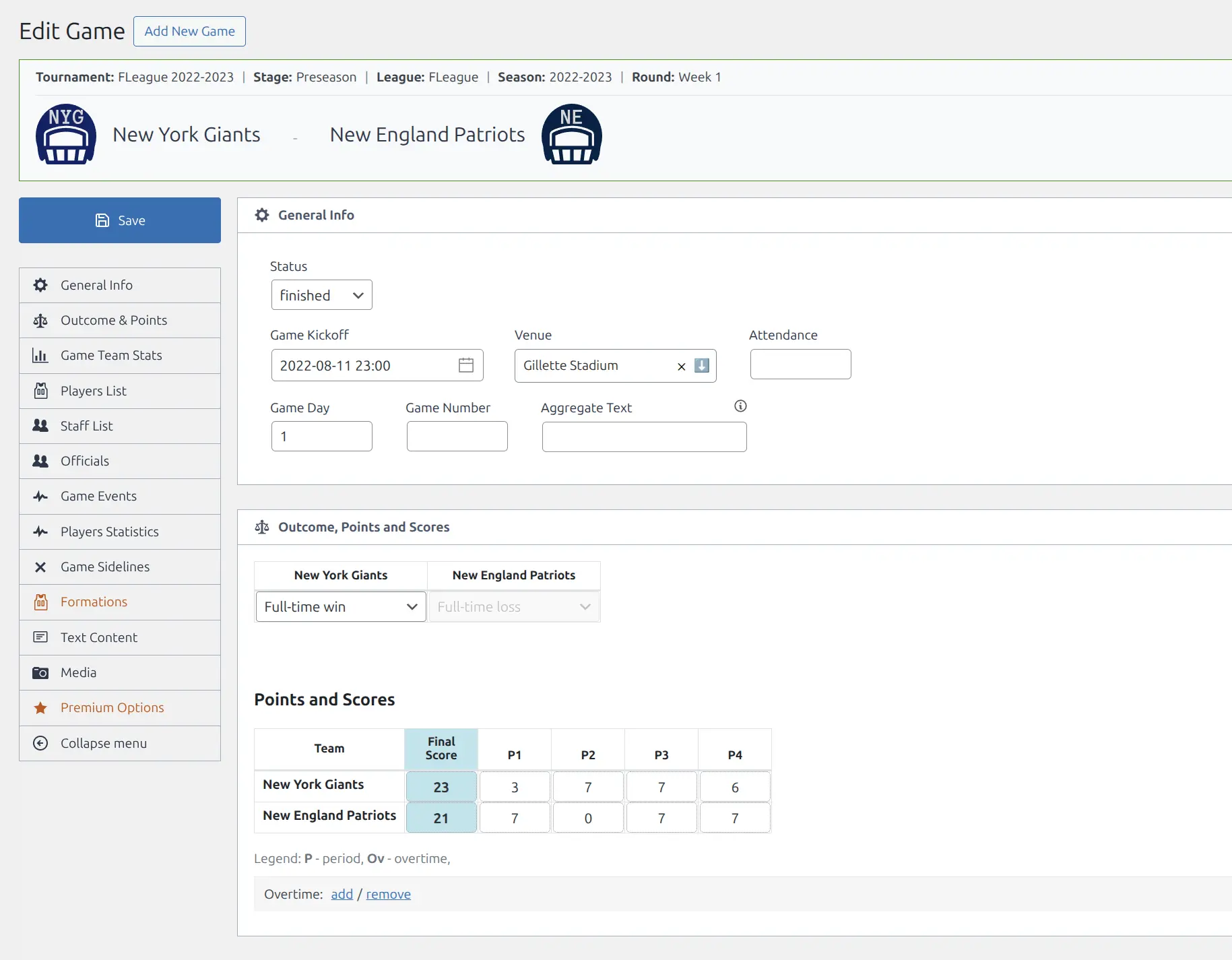
After publishing, the game editor shows the full interface with all sections. The structure header displays your selected tournament, stage, season, and teams.
Tip
Need to change the tournament or teams after creation? Click Edit structure in the header to return to the setup screen.
Game Editor Sections
The game editor is organized into sections accessible via the left navigation menu:
General Info
| Field | Description |
|---|---|
| Date | Game date (YYYY-MM-DD format) |
| Kickoff | Start time (HH:MM format) |
| Venue | Select from created venues |
| Game Day | Round/matchweek number for standings grouping |
| Attendance | Number of spectators |
| Aggregate Text | Additional score info (e.g., “agg: 3-2”) |
Outcome & Points
Record the final result and how standings points are calculated:
| Field | Description |
|---|---|
| Finished | Mark game as completed (required for standings calculation) |
| Home Score | Final score for home team |
| Away Score | Final score for away team |
| Score by Period | Period/quarter scores for sports with multiple periods |
| Home Points | Standing points awarded to home team (auto-calculated or manual) |
| Away Points | Standing points awarded to away team |
| Special Result | Override outcome (e.g., forfeit, canceled) |
Important
The Finished checkbox must be checked for results to count in standings. Unfinished games are treated as upcoming fixtures.
Game Team Stats
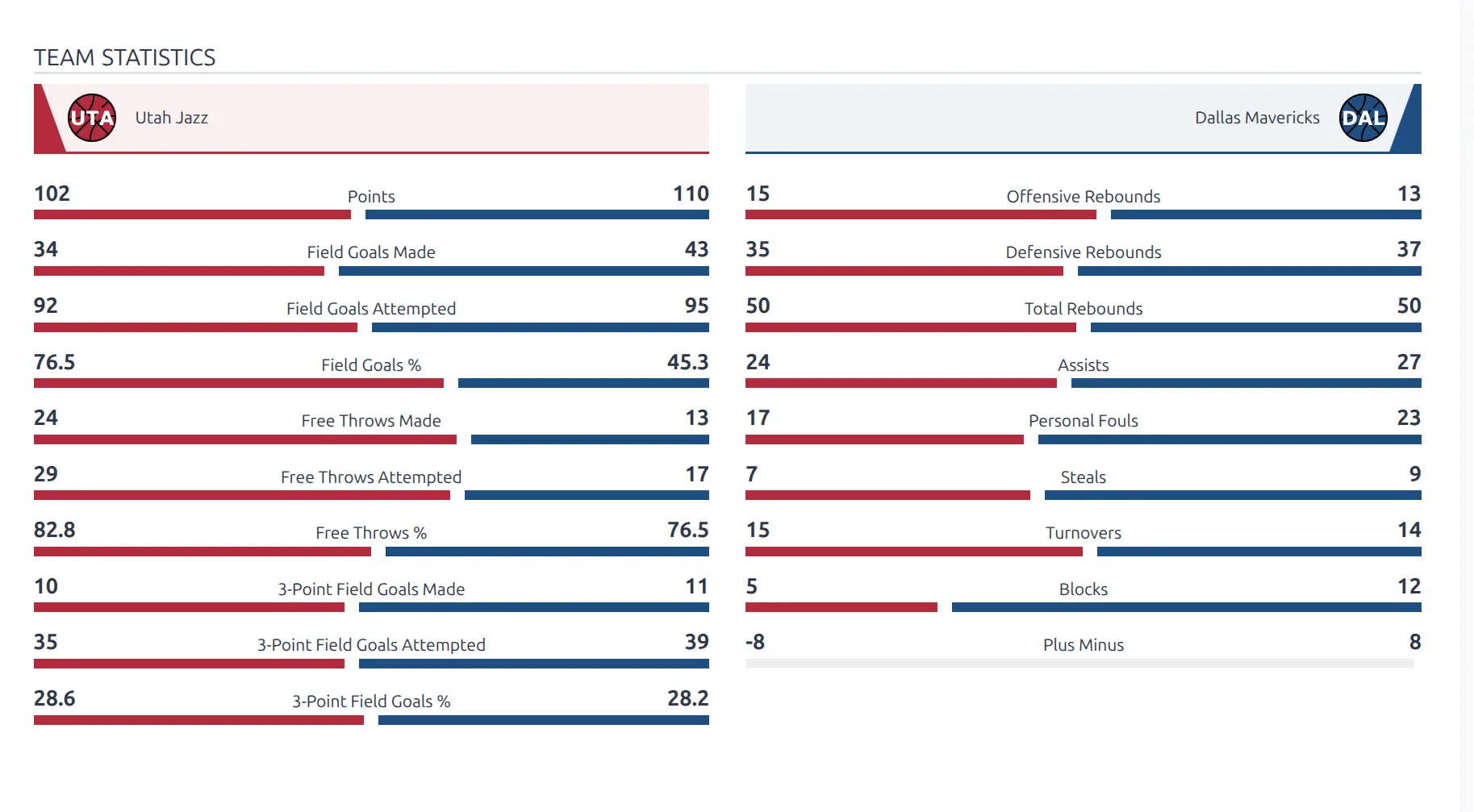
Record team-level statistics for the game. Stats fields are configured in Sports Leagues > Sport Configurator > Team Stats.
Players List (Lineups)
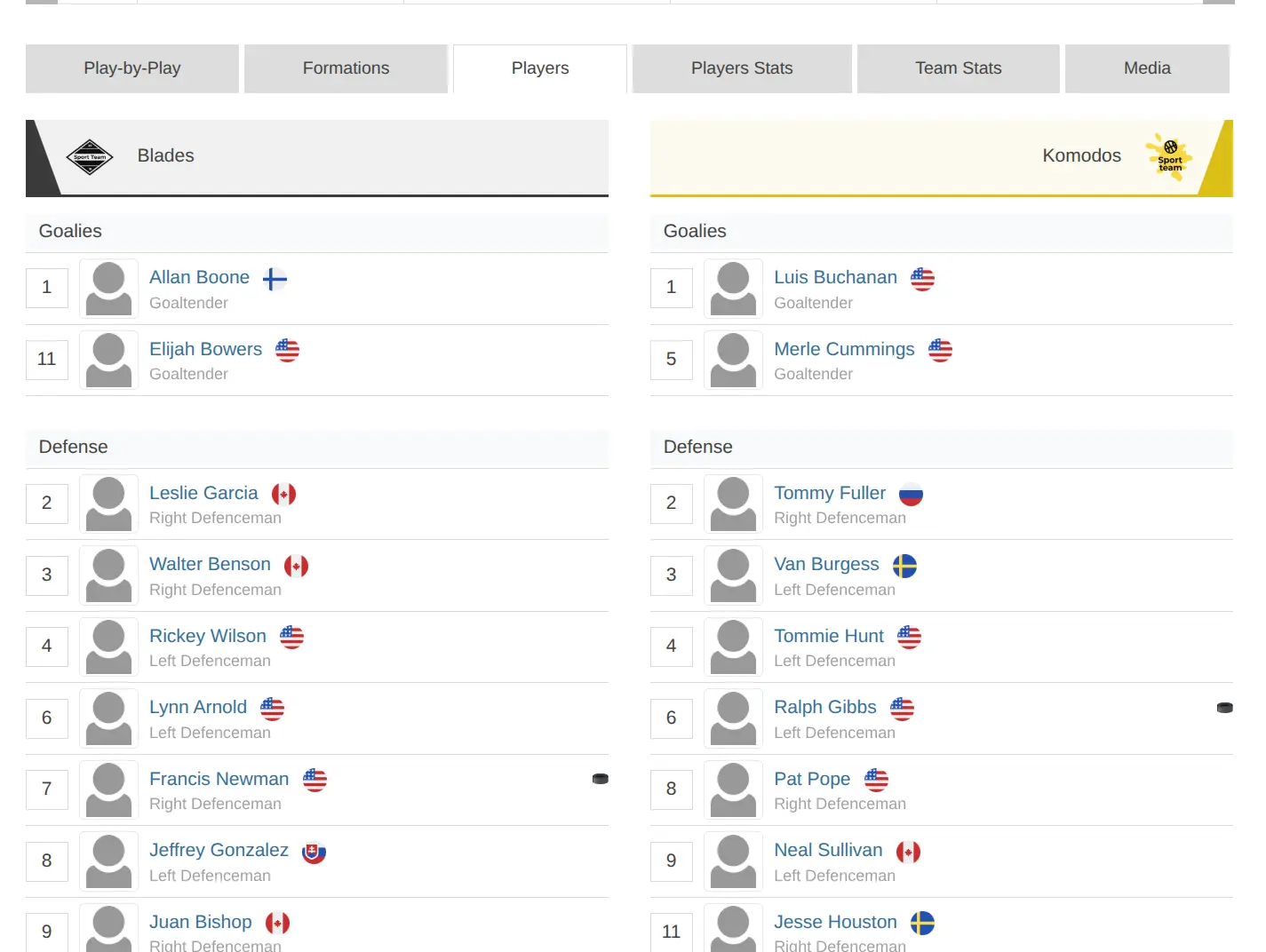
Add players who participated in the game. Players can be marked as starters or substitutes.
- Click Add Player under the home or away team
- Search for a player or select from the team roster
- Set the player’s Number for this game (can differ from roster number)
- Set Starter or Substitute status
- Drag to reorder players
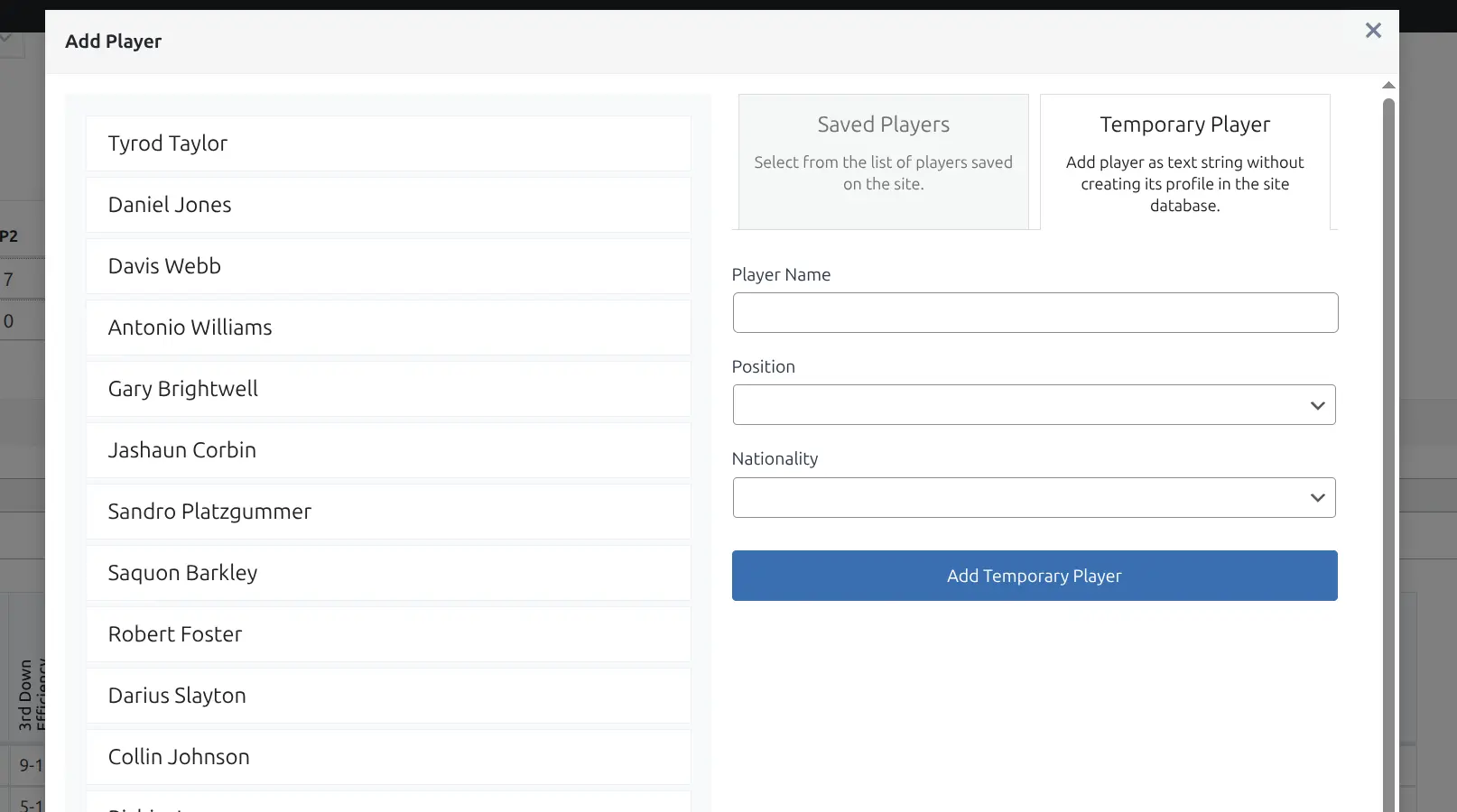
Adding Temporary Players
Need to add a player who is not yet in the system? Use Create Temporary Player in the Add Player modal. Temporary players can be converted to full player profiles later.
Staff List
Add coaches and other staff members present at the game. Works the same as the Players List.
Officials
Add referees and other officials. Officials must be created first in Sports Leagues > Teams & People > Officials.
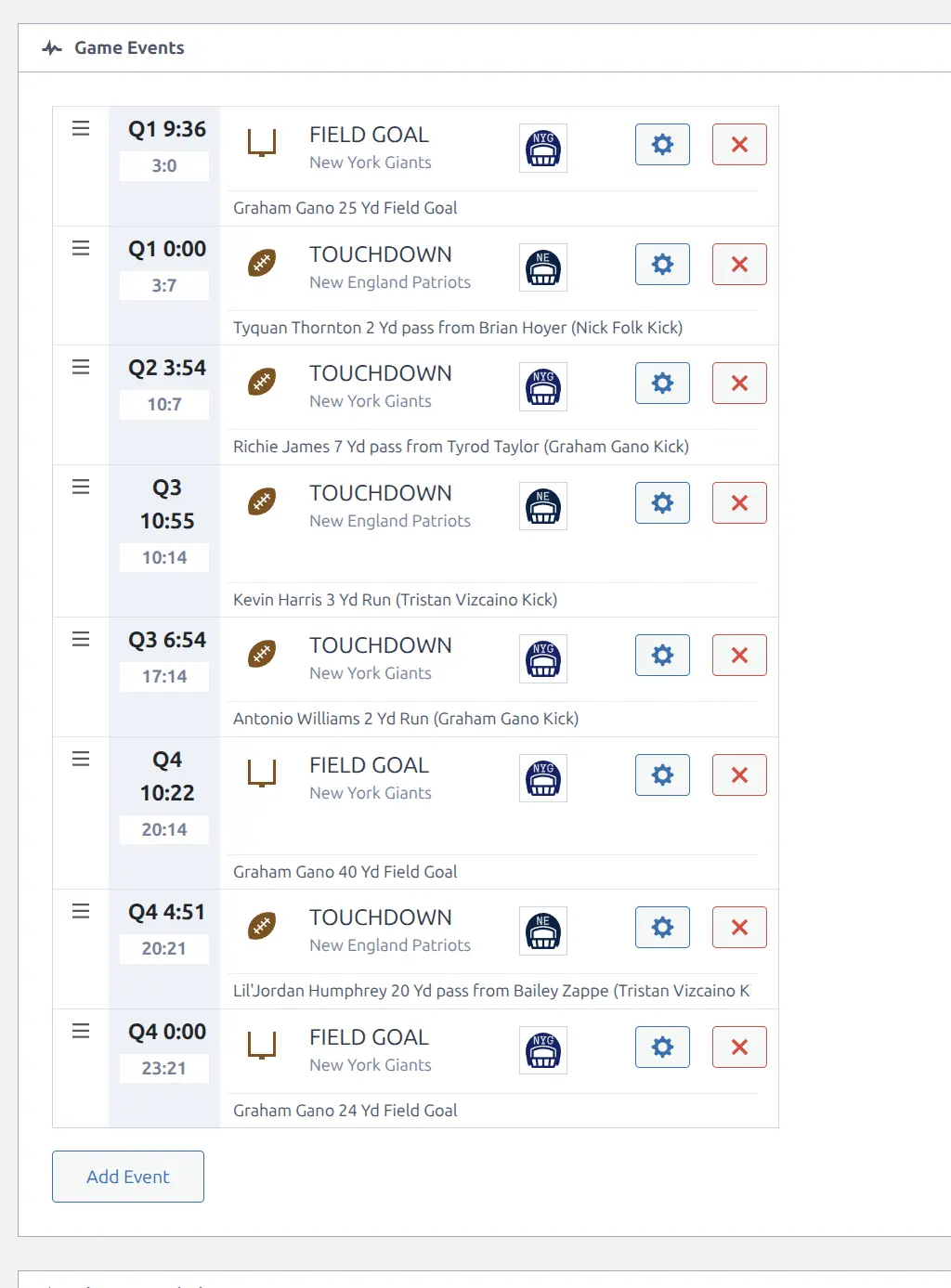
Game Events
Record what happened during the game—goals, cards, fouls, substitutions, and other sport-specific actions.
- Click Add Event
- Select the Event Type (configured in Event Configuration)
- Select the Team
- Select the Player (from the game lineup)
- Enter the Time when it happened
- Optionally add a second player (for assists, substitutions)
- Add Comment text for the event (shows in commentary)
See the Game Events guide for configuring event types.
Players Statistics
Record individual player statistics for the game. Stats fields are configured in Sports Leagues > Sport Configurator > Player Stats.
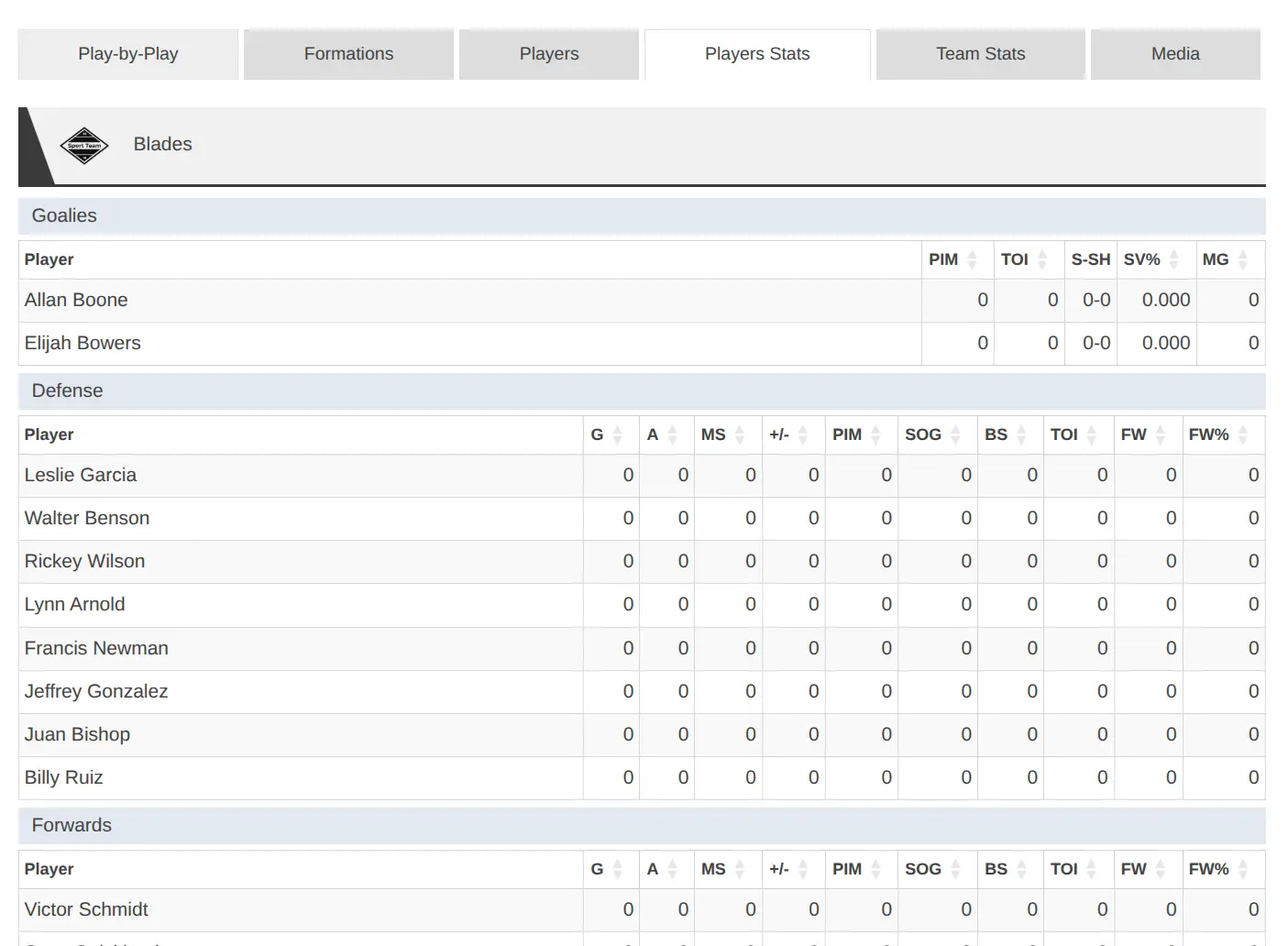
The stats table shows all players from both teams. Navigate between stat groups using the tabs at the top. Statistics automatically aggregate into player career totals and team statistics.
Game Sidelines
Record players who were unavailable for the game (injured, suspended, rested). Useful for tracking player availability.
Text Content
Add text content that appears on the game page:
- Summary — Game recap or description shown at top of game page
- Bottom Content — Content shown below the game sections (supports shortcodes)
Media
Add media content to the game:
- Video — Embed video from YouTube, Vimeo, or direct URL
- Photo Gallery — Add multiple photos
- Featured Image — Thumbnail shown in game lists (set in sidebar)
Game Frontend Display
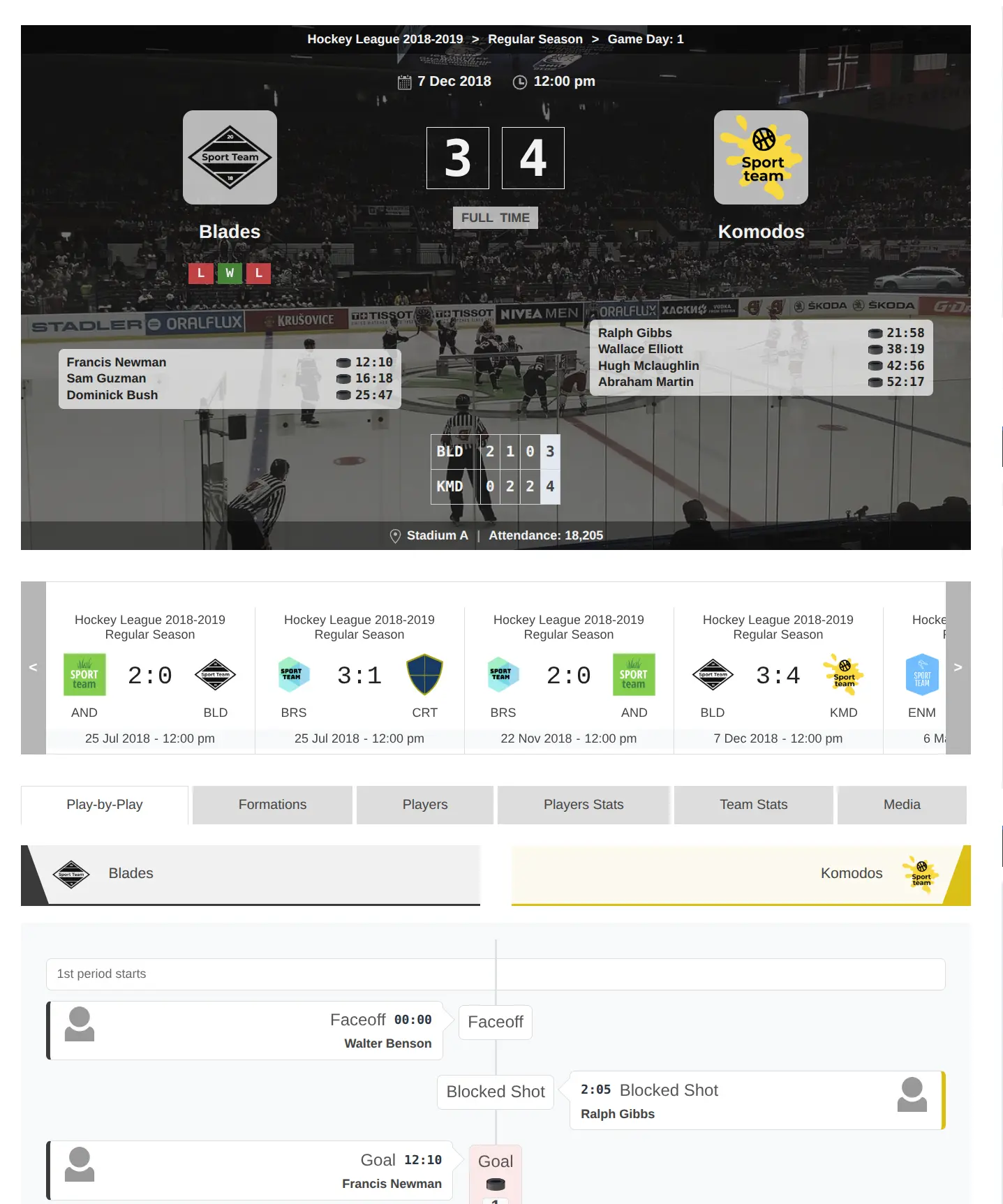
Each game has an automatically generated public page showing all recorded information organized into sections.
The Core game page includes:
- Scoreboard with team logos and final score
- Game info (date, time, venue, attendance)
- Lineups for both teams
- Game events displayed in header and player list
- Player statistics table
- Video and gallery
Premium Game Features
The Premium version adds advanced game management features and enhanced frontend displays.
Team Formations
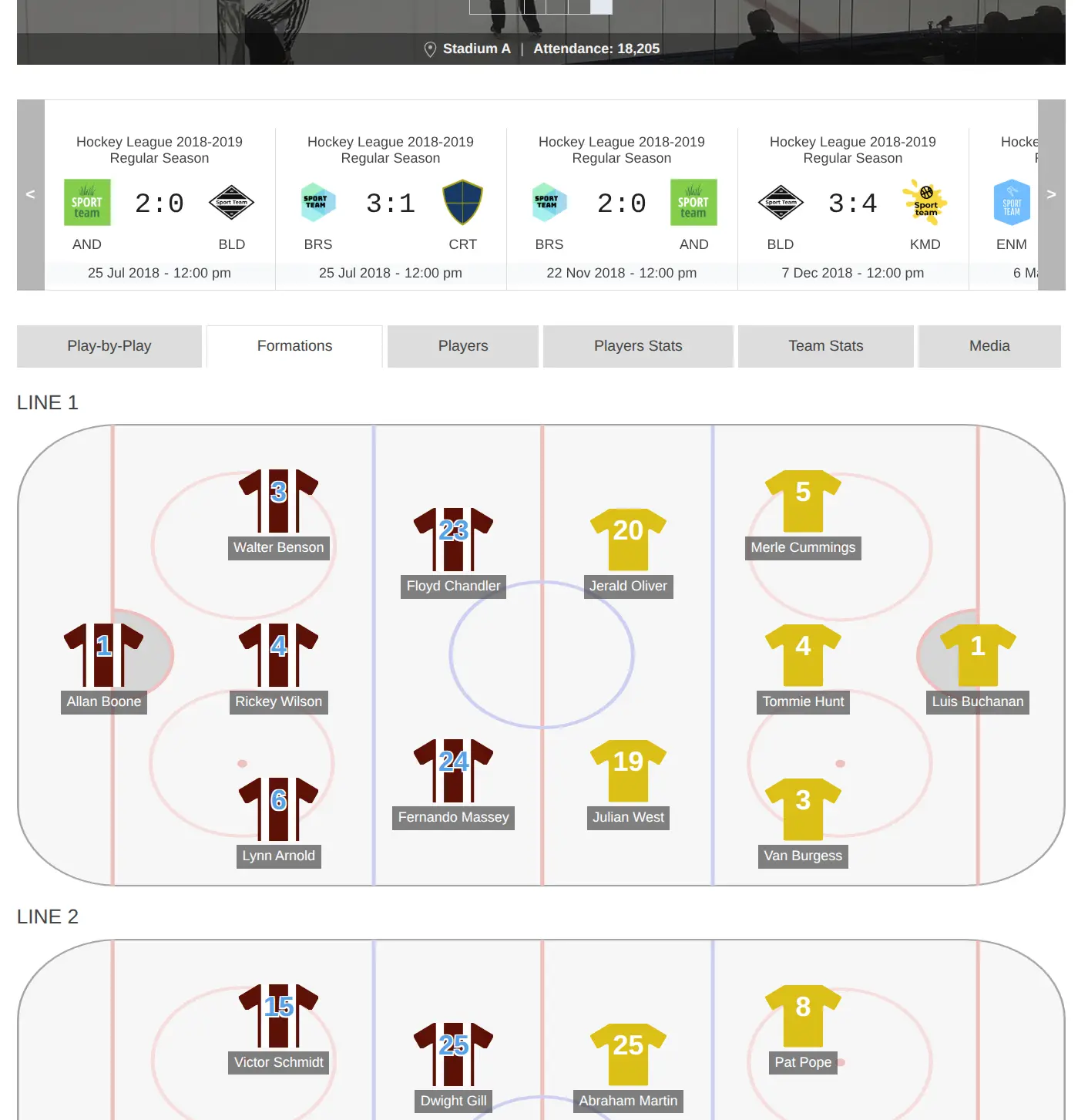
Create visual formation diagrams showing player positions on the field/court. Drag players from the lineup onto the formation grid.
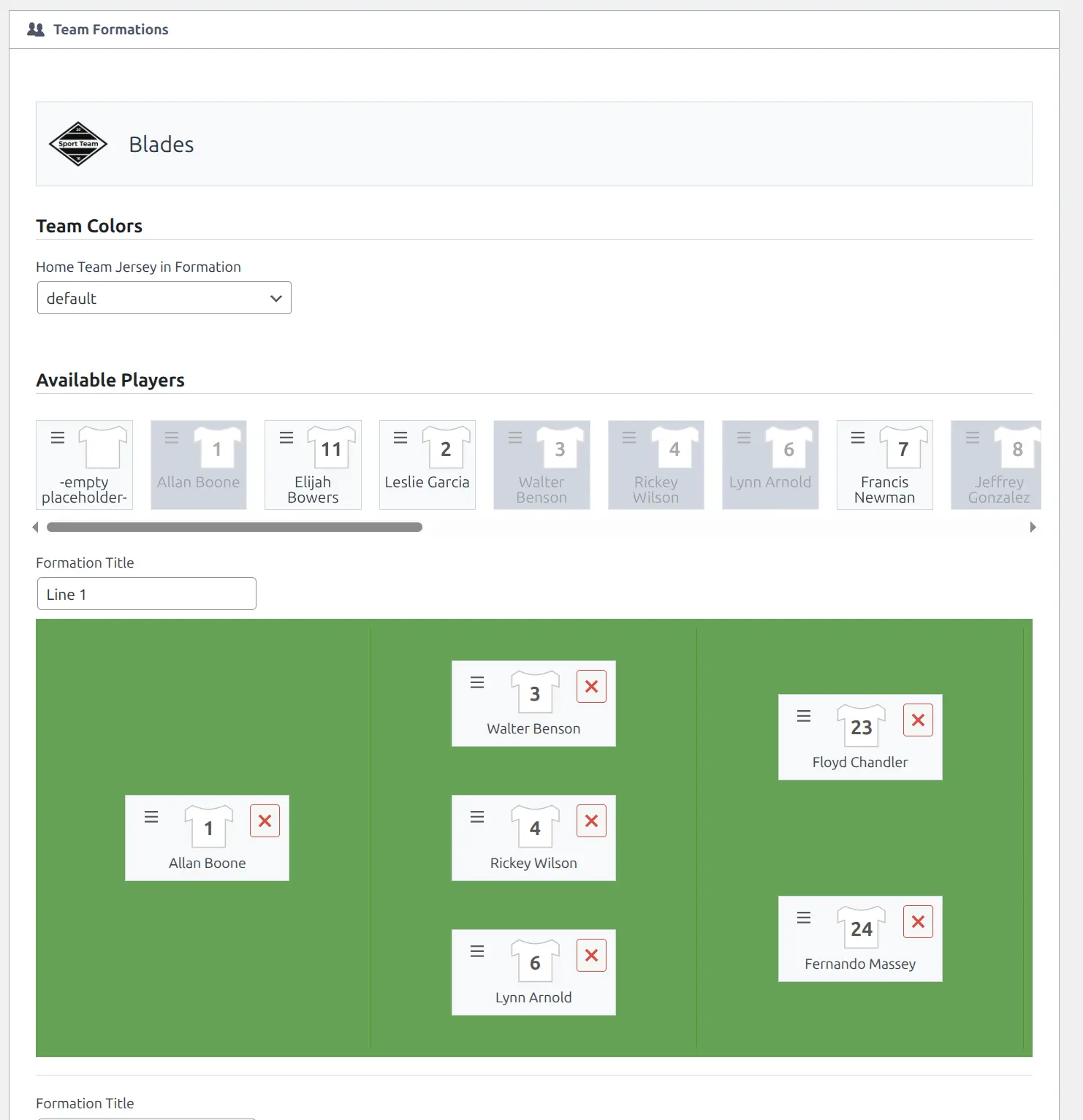
Formation features include:
- Custom team colors — Set jersey colors for visual display
- Formation title — Name the formation (e.g., “4-3-3”, “Zone Defense”)
- Multiple formations — Add additional formations for tactical changes
- Configurable grid — Number of columns set in Premium Settings
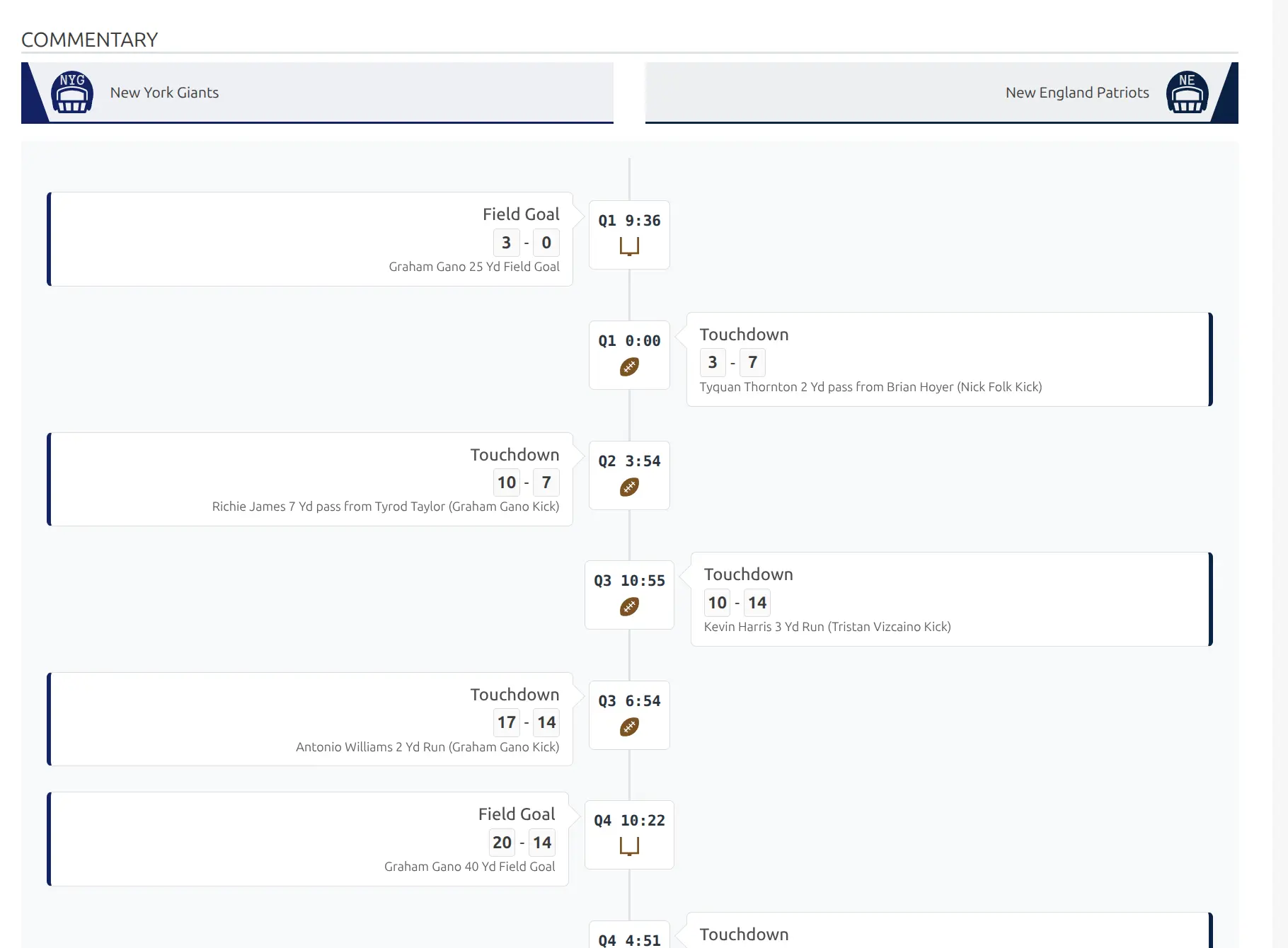
Play-by-Play Commentary
Display game events as a chronological timeline with custom background colors per event type. Configure in Event Configuration by enabling “Show in Commentary” for each event type.
Head-to-Head Section
Automatically displays previous meetings between the two teams, showing historical results and statistics.
Advanced Buttons
Add custom action buttons to game pages (e.g., “Buy Tickets”, “Watch Live”, “View Highlights”). Configure buttons globally in Sports Leagues Premium > Advanced Buttons, then add them to individual games.
Premium Options
| Option | Description |
|---|---|
| Game Priority | Set priority 1-5 for featured game displays |
| Scoreboard Background | Custom background image for the scoreboard |
| User Roles Lock | Prevent assigned User Roles from editing this game |
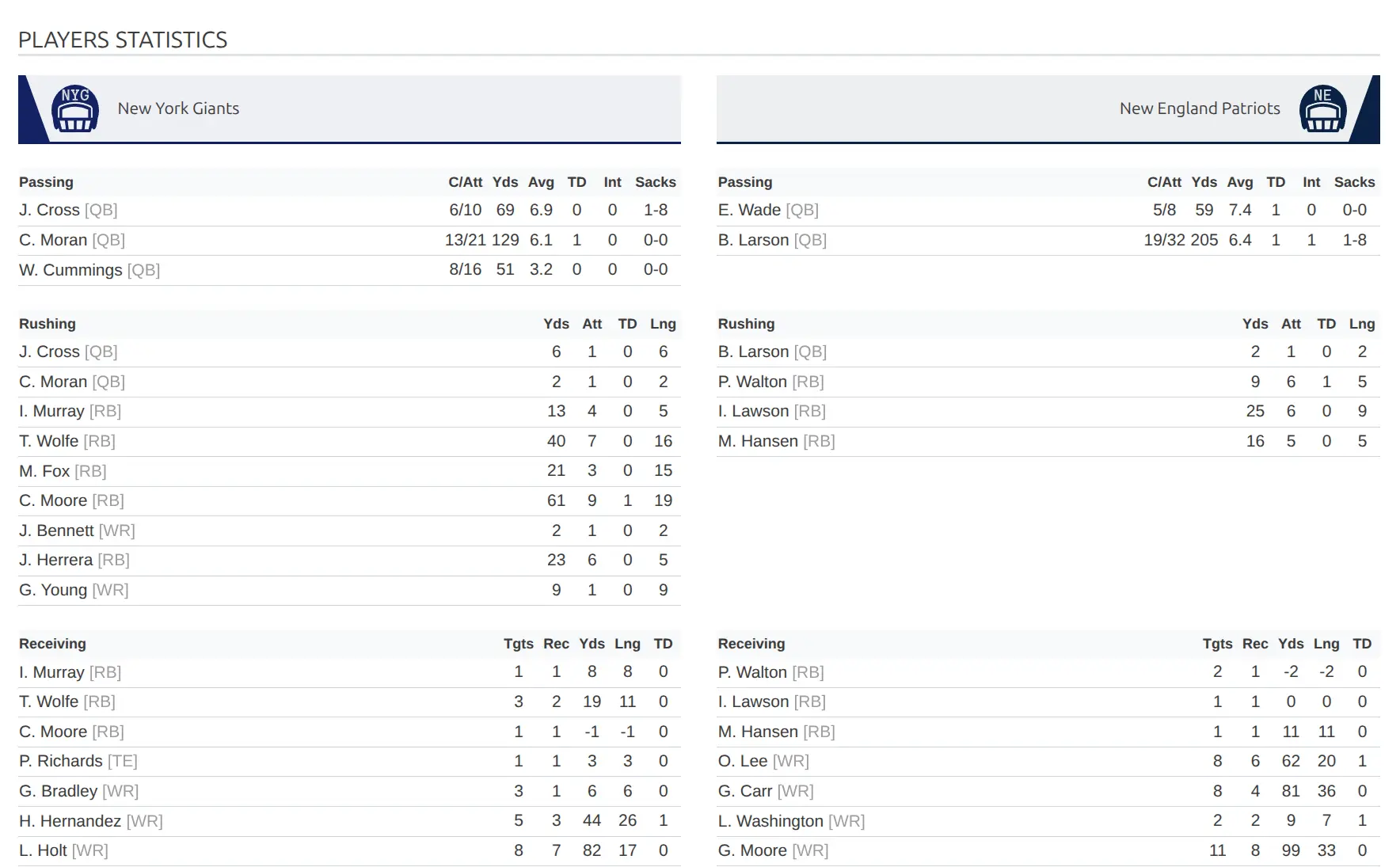
Enhanced Player Statistics Display
Premium game pages can display player statistics in grouped tables by position, with additional features like player ratings and advanced sorting.
Core vs Premium Comparison
| Feature | Core | Premium |
|---|---|---|
| Create games with results | ✅ | ✅ |
| Player lineups | ✅ | ✅ |
| Game events | ✅ | ✅ |
| Player statistics | ✅ | ✅ |
| Team statistics | ✅ | ✅ |
| Video and gallery | ✅ | ✅ |
| Team formations | — | ✅ |
| Play-by-play commentary | — | ✅ |
| Head-to-head section | — | ✅ |
| Advanced buttons | — | ✅ |
| Game priority | — | ✅ |
| Scoreboard background | — | ✅ |
| Player ratings | — | ✅ |
| User Roles lock | — | ✅ |
Game Status Reference
| Status | Description | Standings Impact |
|---|---|---|
| Upcoming | Scheduled but not yet played | Not counted |
| Finished | Completed with result | Counted |
| Postponed | Delayed to later date | Not counted |
| Canceled | Will not be played | Not counted |
💡 Tips for Success
- Add players to lineups first — Events and statistics require players to be in the game lineup
- Use Game Day for fixtures — Set the same Game Day number for all games in a round/matchweek
- Set up Event Configuration early — Configure event types before recording games
- Configure Player Stats in Sport Configurator — Define which statistics to track before entering game data
- Use temporary players sparingly — Better to create full player profiles when possible
Related Documentation
- Tournaments — Create tournaments to hold games
- Teams — Create teams that compete in games
- Game Events — Configure event types
- Player Statistics — Configure player stats
- Venues — Create venues for games
- Permalinks Settings — Customize game URLs