

Players and Staff are the people in your leagues. Players participate in games and have statistics tracked; Staff are coaches, managers, and other team personnel. Both are managed together under the Persons menu.
📋 Players vs Staff
| Aspect | Players | Staff |
|---|---|---|
| Purpose | Participate in games, track statistics | Coaches, managers, trainers |
| Statistics | Goals, assists, minutes, custom stats | Game appearances only |
| Position field | Playing position (Guard, Forward, etc.) | Job title (Head Coach, etc.) |
| Team assignment | Current Team + National Team | Current Team only |
| Physical data | Height, Weight | Not available |
| Job History | Not available | Track previous positions |
Tip
Both Players and Staff can be added to Team Rosters and will appear on team pages.
👤 Creating a Player
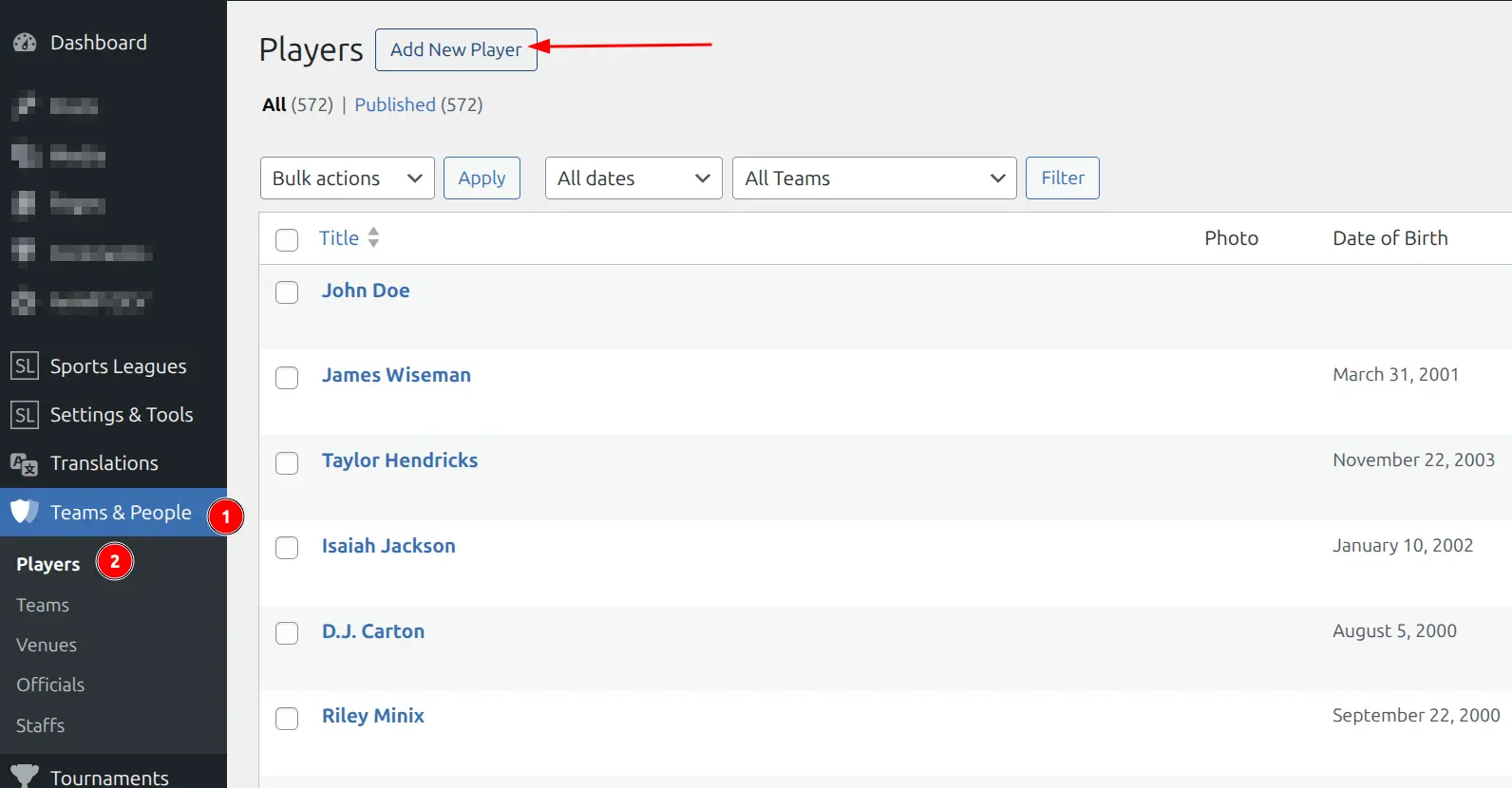
- Go to Sports Leagues > Persons > Players
- Click Add New Player
- Enter the player name in the title field
- Fill in player details across the tabs (see below)
- Set a Featured Image (player photo) in the sidebar
- Click Publish
Player Data Tabs
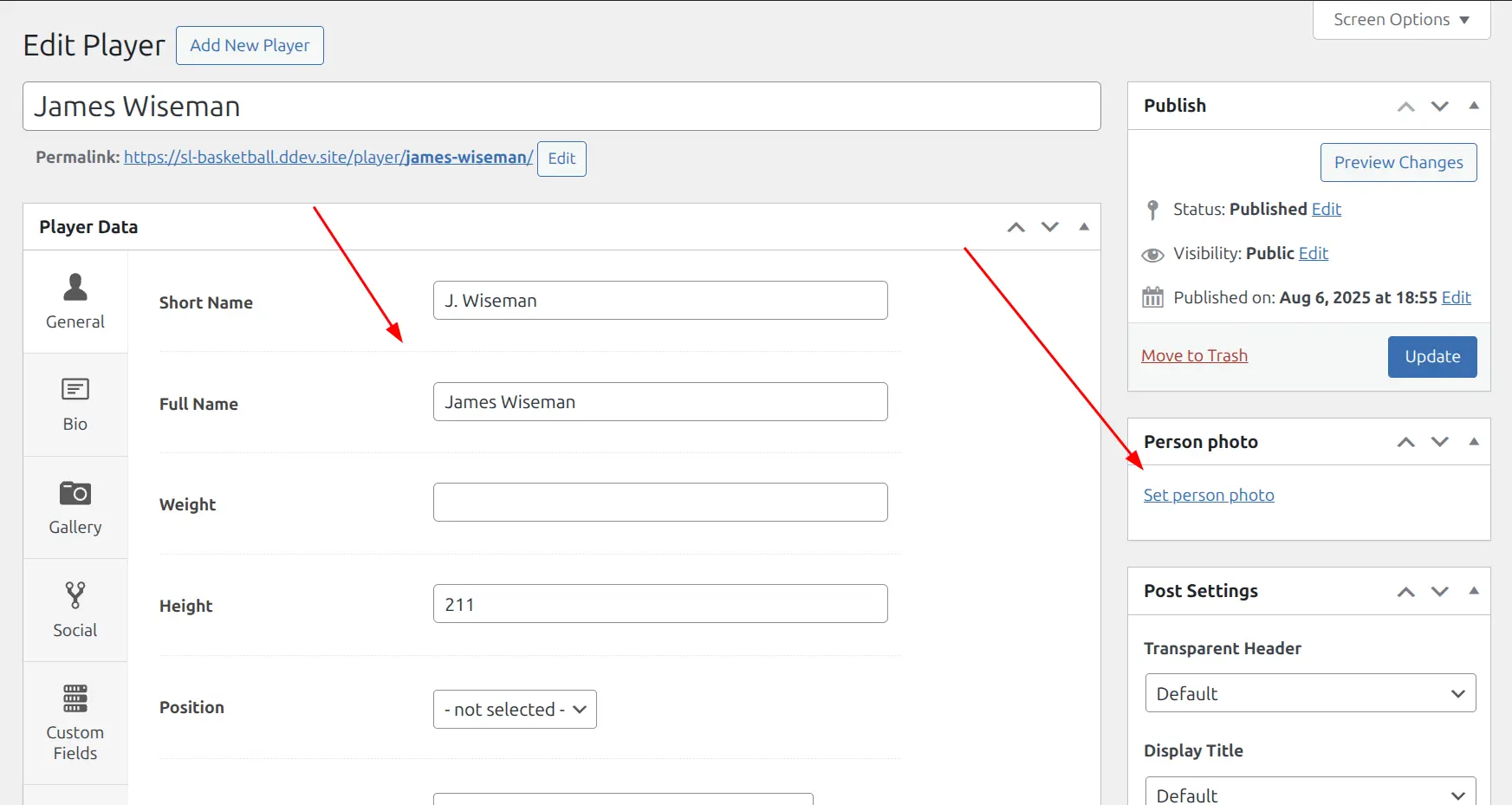
The player editor is organized into tabs for easier navigation:
General Tab
| Field | Description |
|---|---|
| Short Name | Abbreviated name for compact displays (e.g., “J. Smith”) |
| Full Name | Complete legal name |
| Weight | Player weight (any format: “180 lbs”, “82 kg”) |
| Height | Player height (any format: “6’2\””, “188 cm”) |
| Position | Playing position (configured in Player Statistics settings) |
| Current Team | Club team the player currently plays for |
| National Team | National team (for international competitions) |
| Place of Birth | City/town of birth |
| Country of Birth | Country where player was born |
| Nationality | Player’s nationality (supports multiple) |
| Date of Birth | Birth date (used for age calculation) |
| Date of Death | For historical/retired players |
| External ID | ID from external systems (for data import) |
Bio Tab
Full biography with rich text editor. Supports images, links, and formatting. Displayed on the player’s public page.
Gallery Tab
Add multiple photos to create a player gallery. Optionally add descriptive text below the gallery.
Social Tab
Add social media profile links:
- Twitter / X
- YouTube
- TikTok
- VKontakte
- Discord
- Twitch
Custom Fields Tab
Add custom data fields configured in Sports Leagues > Settings > Custom Fields. Useful for sport-specific data like jersey number, draft year, or contract status.
Bottom Content Tab
Add content that appears at the bottom of the player’s public page. Supports shortcodes, so you can embed stats tables, related players, or custom layouts.
👔 Creating Staff
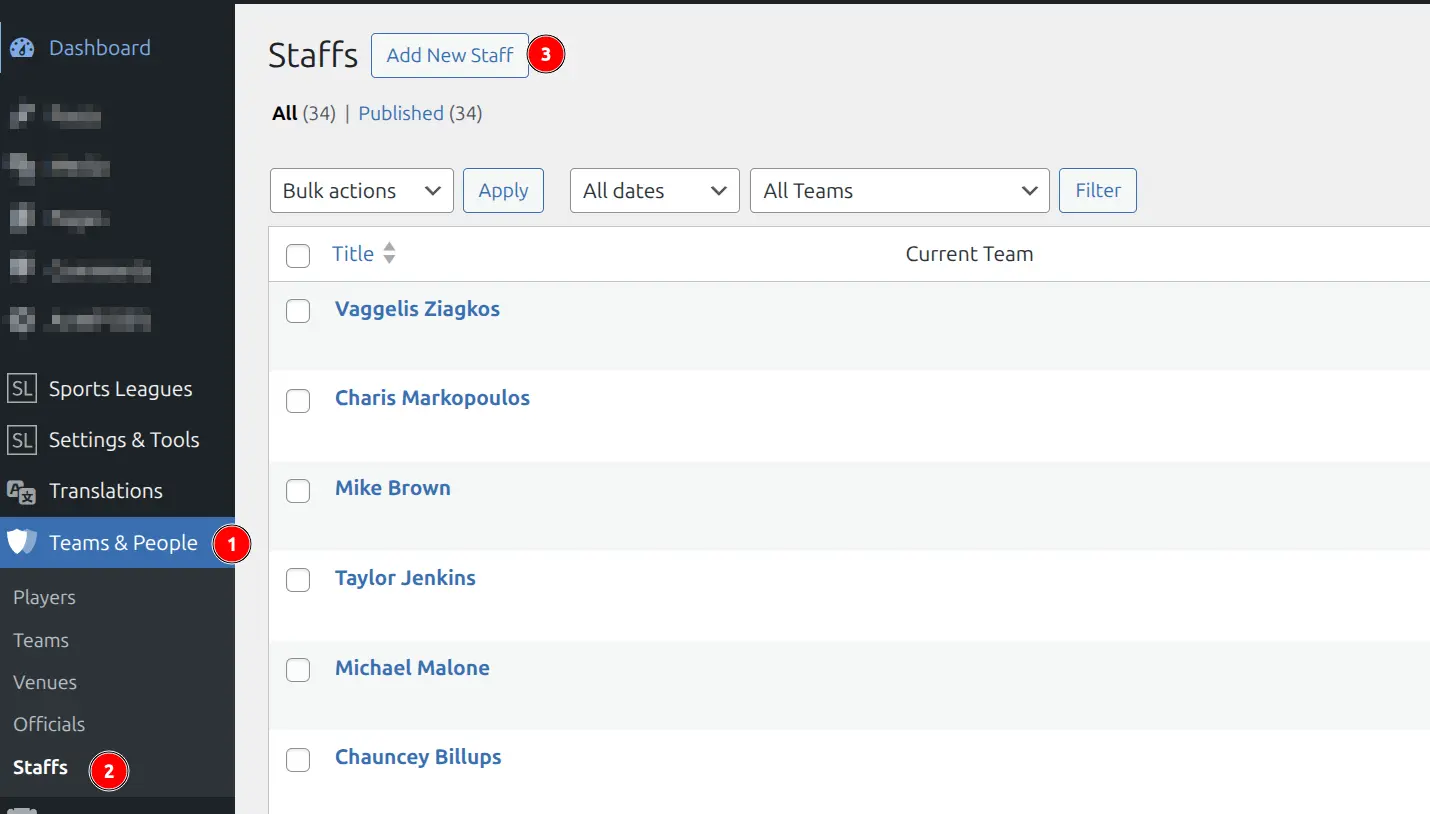
- Go to Sports Leagues > Persons > Staffs
- Click Add New Staff
- Enter the staff member’s name
- Fill in staff details across the tabs
- Set a Featured Image (photo) in the sidebar
- Click Publish
Staff Data Tabs
General Tab
| Field | Description |
|---|---|
| Short Name | Abbreviated name for compact displays |
| Current Team | Team the staff member currently works for |
| Job Title | Current role (Head Coach, Assistant, Trainer, etc.) |
| Place of Birth | City/town of birth |
| Date of Birth | Birth date |
| Nationality | Nationality (supports multiple) |
| External ID | ID from external systems |
Job History Tab
Track the staff member’s career history. Add multiple entries with:
- Job Title — Position held
- From / To — Date range
- Team — Organization worked for
Click Add Another Entry to add more career stops. Entries can be reordered by dragging.
Other Tabs
Staff also have Bio, Custom Fields, and Bottom Content tabs that work the same as for players.
📊 Managing Players in Admin
The Players list (Sports Leagues > Persons > Players) shows key information at a glance:
- Photo — Featured image thumbnail
- Date of Birth — Birth date
- Position — Playing position
- Current Team — Assigned team
- ID — WordPress post ID (sortable)
Filtering: Use the “All Teams” dropdown above the list to filter players by their current team.
🌐 Frontend Display
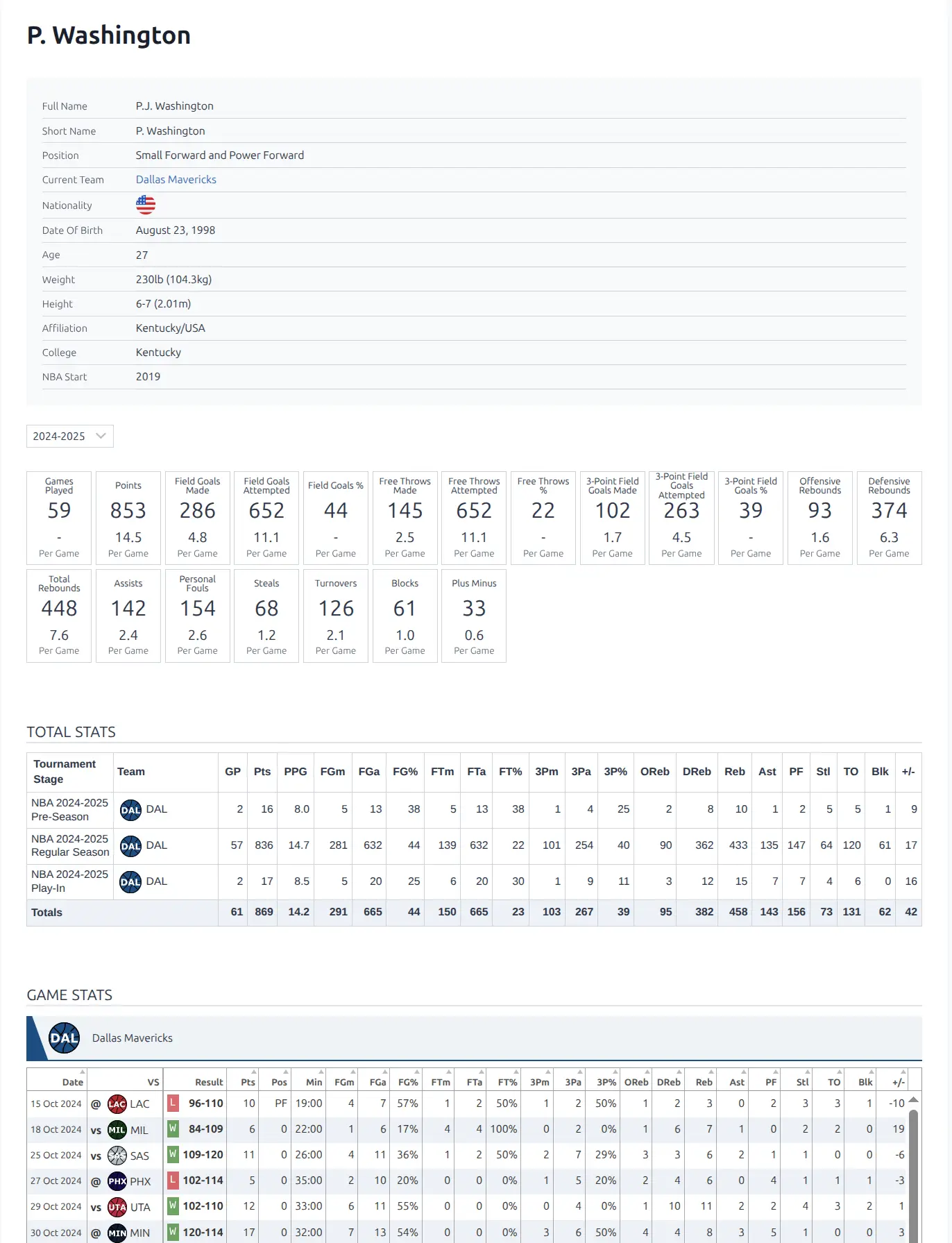
Each player and staff member has an automatically generated public page showing their profile information, statistics, and game history.
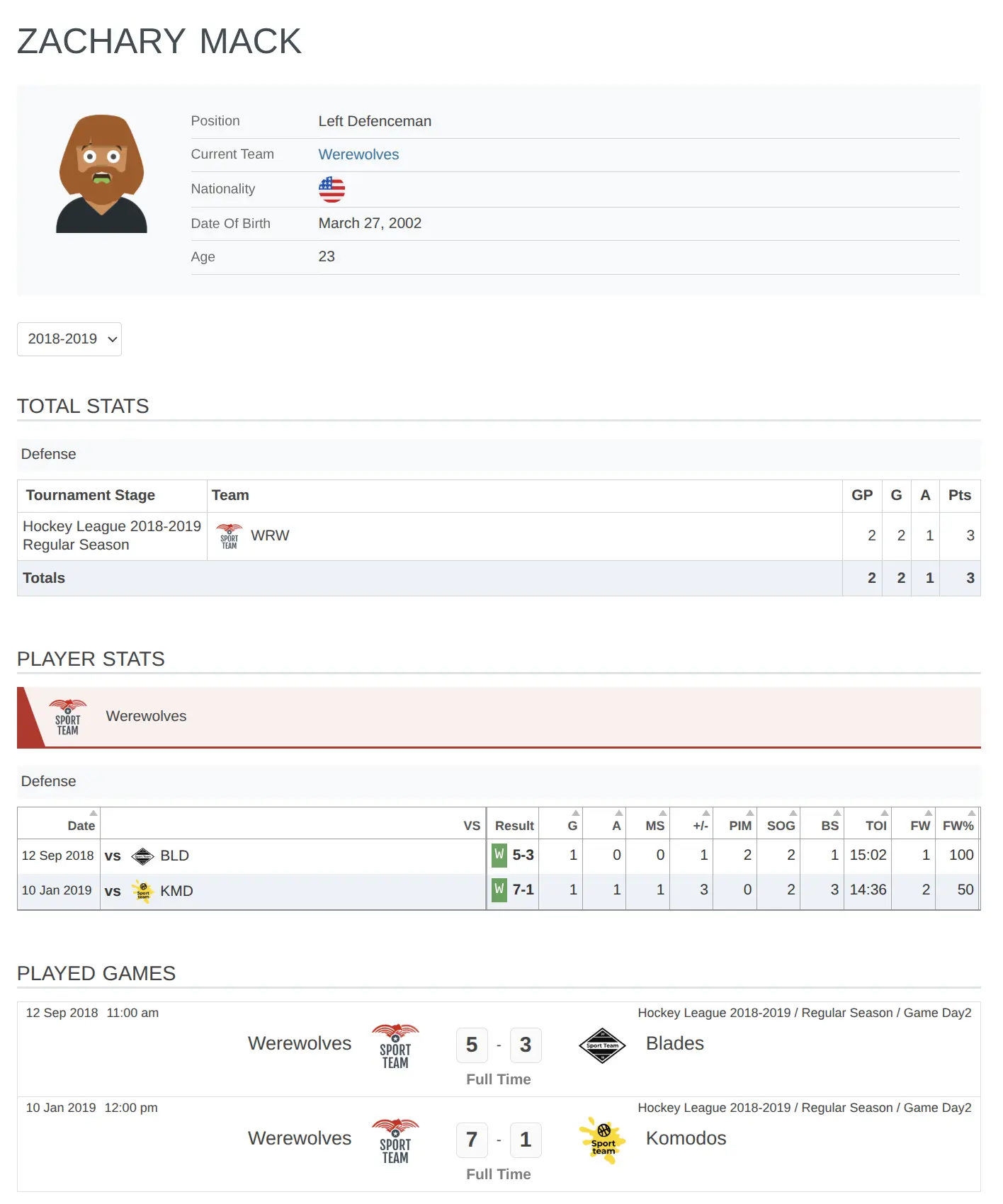
The page layout varies by sport configuration and includes:
- Player photo and basic info (name, position, team)
- Personal details (birthdate, nationality, physical stats)
- Career statistics by season
- Recent games and performance
- Social media links
- Gallery (if images added)
- Bio content
⭐ Premium Features
The Premium version enhances player pages with additional layouts and statistics displays.
Premium features include:
- Hidden post status — Hide players from public view while keeping data
- Advanced statistics shortcodes — Display player stats in custom layouts
- Player Stats Panel — Compact stats display widget
📥 Bulk Import
Import multiple players or staff at once using the Import/Export Tool. Prepare a spreadsheet with player data and import via CSV.
🔗 Connecting to Teams
After creating players and staff:
- Set their Current Team in the player/staff editor
- Add them to Team Rosters for season-specific squad management
- They’ll appear in team dropdowns when creating games
Note
The “Current Team” field is for display purposes. To track players across multiple seasons or teams, use the Team Roster feature which manages squad membership per season.
🔧 URL Customization
By default, player URLs use /player/player-name/ and staff URLs use /staff/staff-name/. Customize these slugs in Permalinks Settings.
📚 Related Documentation
- Team Roster — Manage squad membership by season
- Player Statistics Configuration — Set up positions and stat tracking
- Import/Export Tool — Bulk import players and staff
- Roster Shortcode — Display team rosters on pages
- Permalinks Settings — Customize player/staff URLs