

Overview
When enabled, game times automatically adjust to match each visitor’s device timezone. A fan in London sees London time, a fan in Tokyo sees Tokyo time – no manual conversion needed.
Benefits:
- Works automatically – visitors don’t configure anything
- No account required
- Reduces “what time is the game?” questions
How to Enable
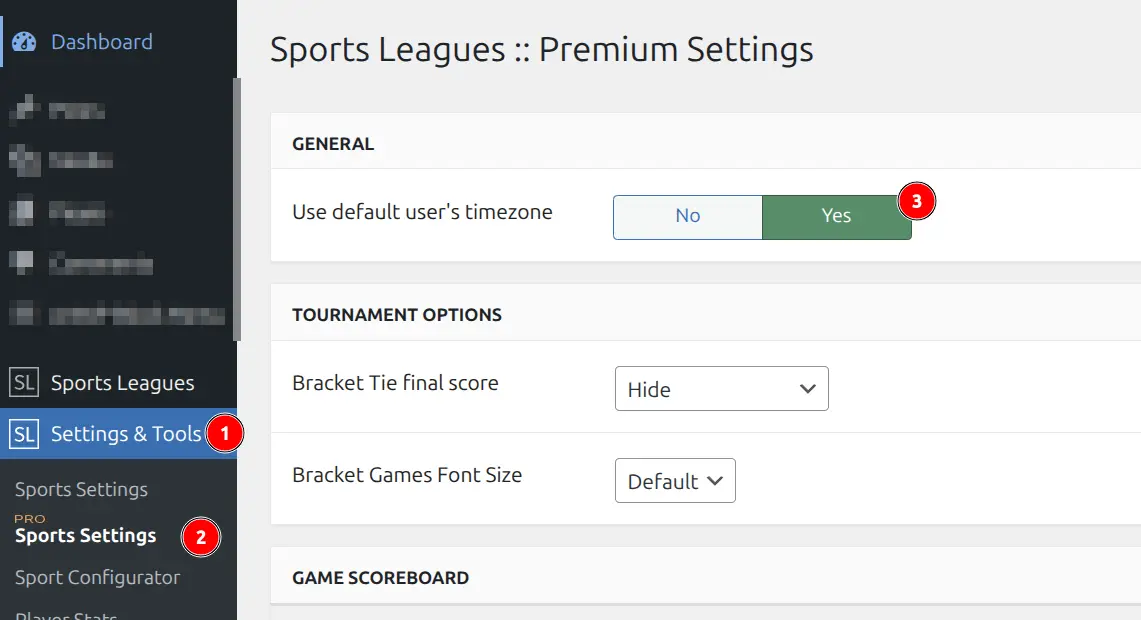
- Go to Sports Leagues → Premium Settings
- In the General section, find “Use default user’s timezone”
- Toggle to Yes
- Save Changes
That’s it! Changes apply immediately.
What Gets Converted
Converted (visitor sees their local time):
- Game pages and game lists
- Calendar widgets
- Upcoming games widgets
- Countdown timers
Not converted (stays in your site timezone):
- WordPress admin area
- Exported data
Example
You enter a game at 3:00 PM New York time:
| Visitor Location | They See |
|---|---|
| New York | 3:00 PM |
| London | 8:00 PM |
| Los Angeles | 12:00 PM |
| Tokyo | 5:00 AM (next day) |
Best Practice
Set your WordPress timezone to a city name (like “America/New_York”) rather than a UTC offset. This ensures Daylight Saving Time is handled correctly.
Settings → General → Timezone
Troubleshooting
Times aren’t converting
- Check the setting is enabled (Premium Settings → General)
- Try a different browser or incognito mode
- Make sure JavaScript isn’t blocked
Times are off by a few hours
- Verify your WordPress timezone is correct (Settings → General)
- Use a city-based timezone, not UTC offset
- Check if DST recently changed
FAQs
Do visitors need to do anything?
No, it’s automatic based on their device settings.
Does it work without user accounts?
Yes, works for all visitors immediately.
Does it handle Daylight Saving Time?
Yes, if you use city-based timezone settings.
Does it slow down my site?
No, conversion happens in the browser with minimal impact.