

Demo Import lets you set up a complete sports website in minutes. Import pre-configured demo data including teams, players, games, tournaments, theme settings, and sample pages – all designed to work together.
What gets imported:
- Sports data (teams, players, games, tournaments, statistics)
- Plugin settings (columns, formats, permalinks)
- Layout Builder configurations
- Blocks Everywhere hooks
- Theme settings (colors, typography, header/footer)
- Demo pages (homepage, standings, schedule)
- Blog posts (sample news and match reports)
- Navigation menus
Requirements
Required:
- AnWP Sports Leagues Premium (active)
- AnWP SL Kit (active)
- Kadence theme (must be active before import)
Recommended:
- Kadence Blocks plugin (for full demo page layouts)
How to Import Demo Data
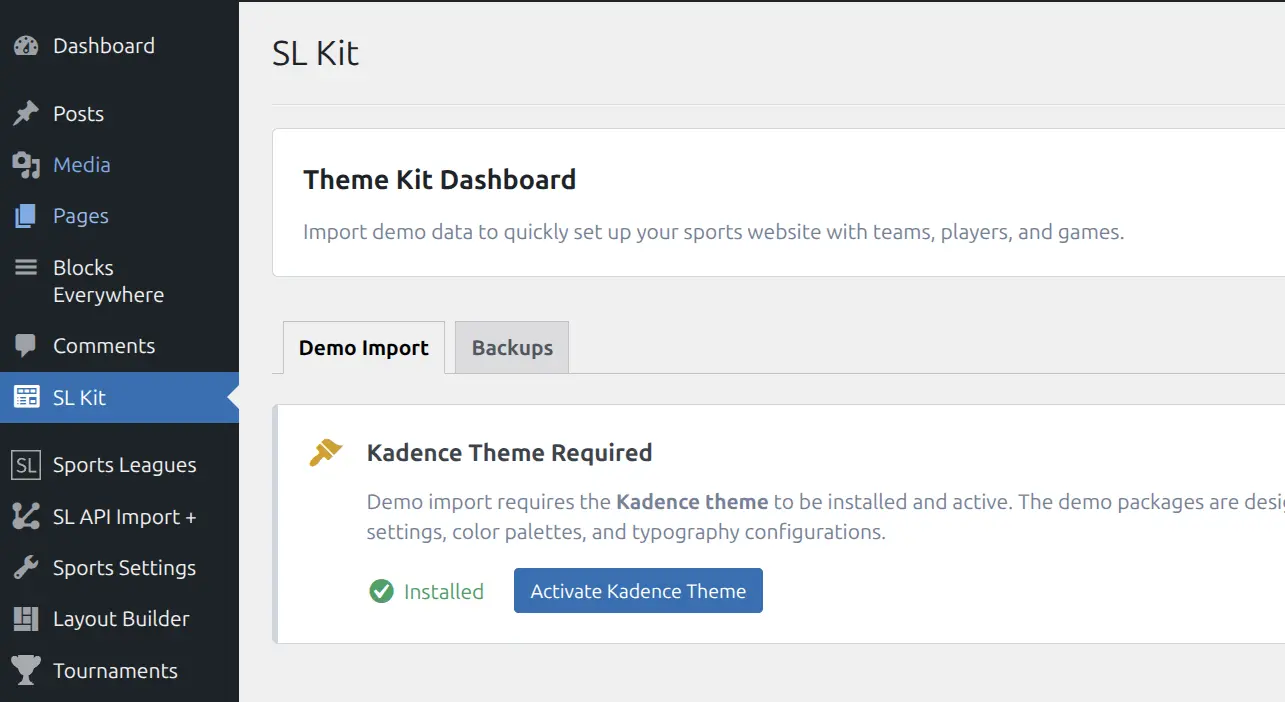
Step 1: Activate Kadence Theme
Go to SL Kit in the WordPress admin menu.
If Kadence theme is not active, you will see a setup card with options to:
- Install Kadence Theme – one-click installation from WordPress.org
- Activate Kadence Theme – if already installed but not active
The import functionality only becomes available after Kadence is active.
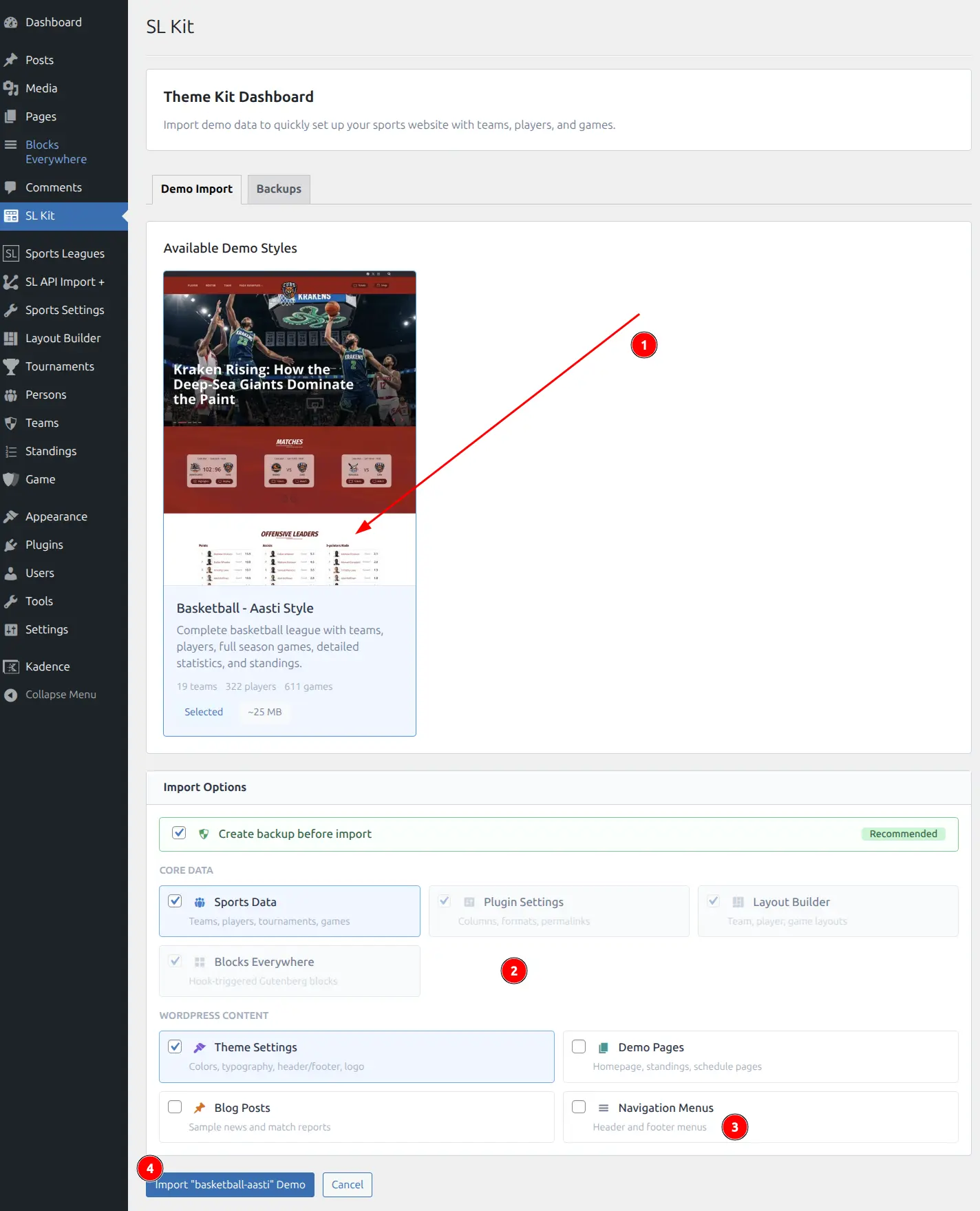
Step 2: Select Demo Style
Once Kadence is active, the Available Demo Styles section appears.
- Browse available demo packages
- Click a demo card to select it
- Review the demo preview and description
Step 3: Configure Import Options
After selecting a demo, the Import Options panel appears with two sections:
Core Data (always imported):
| Option | Description |
|---|---|
| Sports Data | Teams, players, tournaments, games |
| Plugin Settings | Columns, formats, permalinks |
| Layout Builder | Team, player, game page layouts |
| Blocks Everywhere | Hook-triggered Gutenberg blocks |
WordPress Content (optional):
| Option | Description |
|---|---|
| Theme Settings | Colors, typography, header/footer, logo |
| Demo Pages | Homepage, standings, schedule pages |
| Blog Posts | Sample news and match reports |
| Navigation Menus | Header and footer menus |
Tip
“Create backup before import” is enabled by default. Keep this option enabled so you can restore your previous settings if needed.
Step 4: Confirm and Import
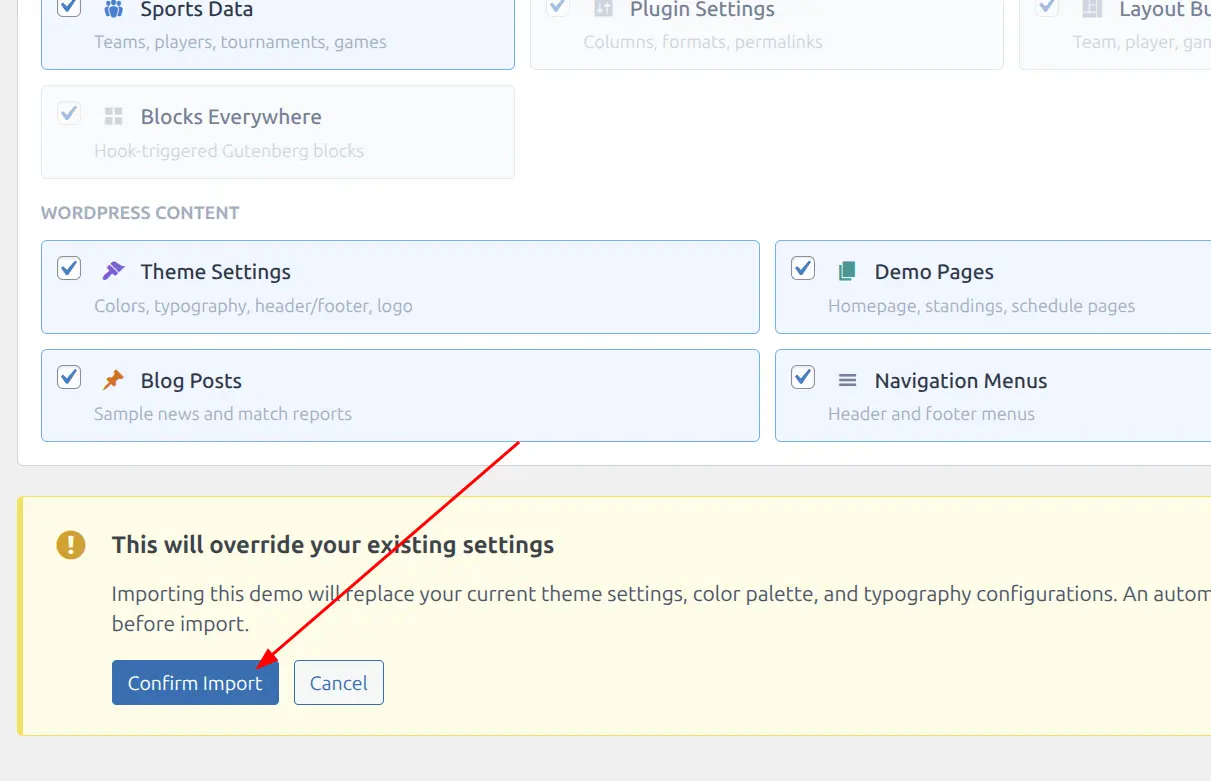
- Click Import “[Demo Name]” Demo
- Review the warning: “This will override your existing settings”
- Click Confirm Import
Step 5: Monitor Progress
The import runs step-by-step with a progress indicator:
- Progress bar shows overall completion percentage
- Current step highlighted (e.g., “Teams”, “Players”, “Games”)
- Checkmarks appear as each step completes
- Total steps shown (e.g., “Import Steps 3/21”)
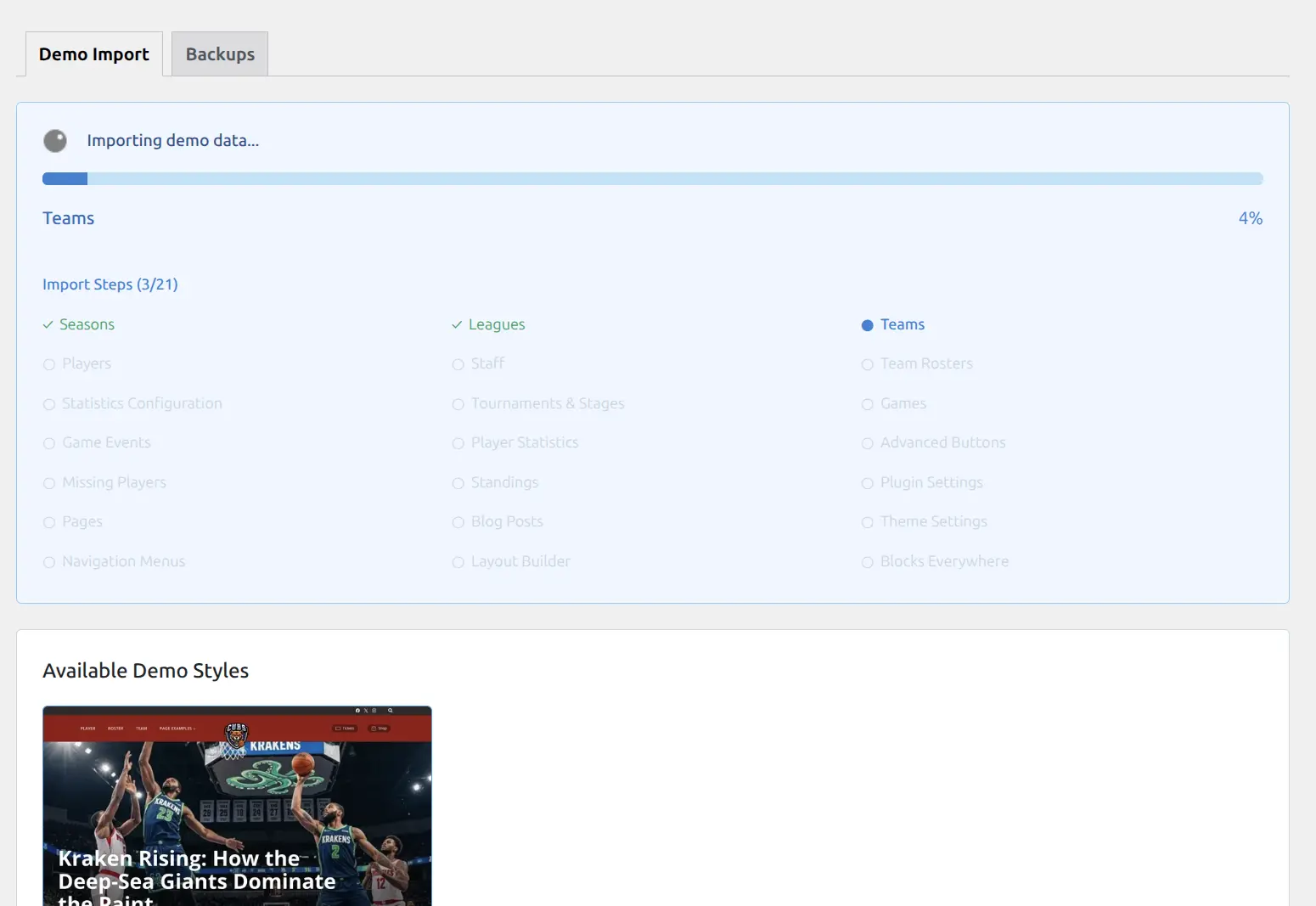
Import steps include: Seasons, Leagues, Teams, Players, Staff, Team Rosters, Tournaments & Stages, Games, Game Events, Player Statistics, Missing Players, Standings, Advanced Buttons, Plugin Settings, Theme Settings, Pages, Blog Posts, Navigation Menus, Layout Builder, Blocks Everywhere
Step 6: Review Results
After import completes:
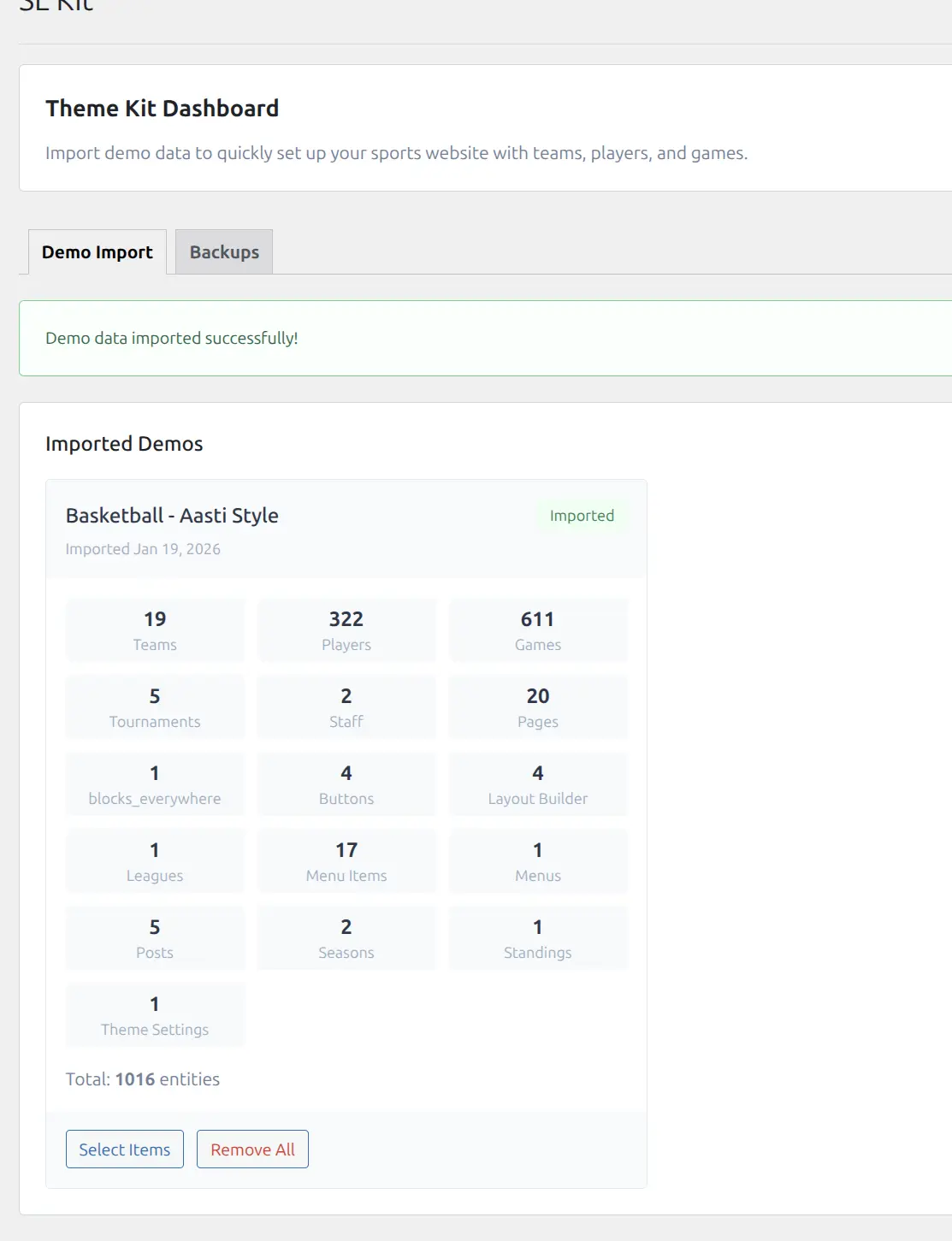
- Success message appears: “Demo data imported successfully!”
- Imported Demos section shows what was imported
- Entity counts displayed (teams, players, games, etc.)
- Import date recorded
Managing Backups
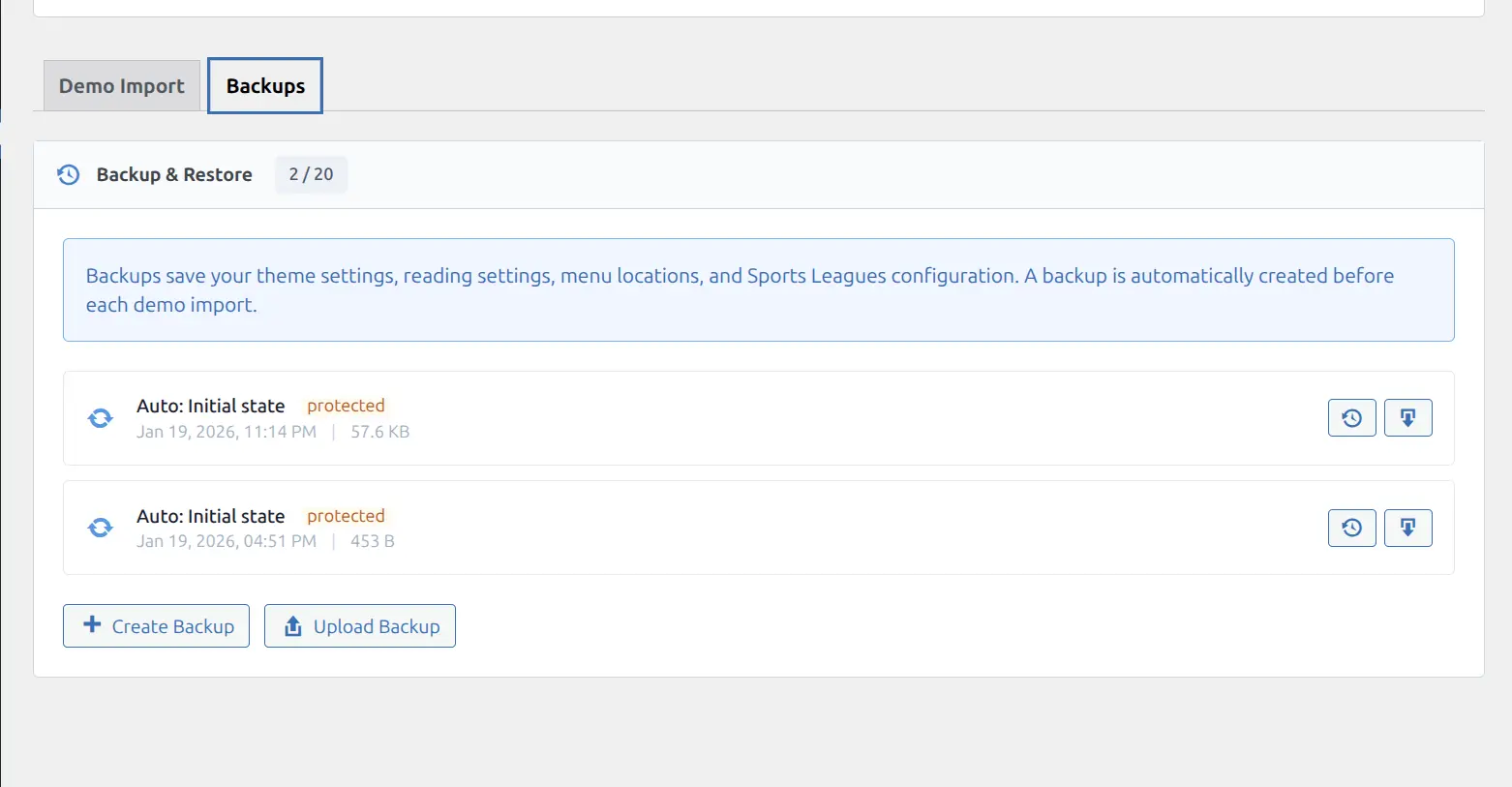
The Backups tab provides backup and restore functionality.
What Backups Include
- Theme settings (mods)
- Reading settings
- Menu locations
- Sports Leagues configuration
- Custom CSS
- Color palette
Automatic Backups
A backup is automatically created:
- Before each demo import
- Before removing demo data
These are marked as protected and cannot be deleted.
Manual Backups
- Click Create Backup
- Enter an optional label (e.g., “Before theme change”)
- Click Create
Backup Actions
| Action | Description |
|---|---|
| Restore | Revert settings to backup state |
| Download | Save backup file to computer |
| Delete | Remove backup (non-protected only) |
| Upload | Import a backup file |
Note
Maximum 20 backups can be stored. Delete old backups if you need to create new ones.
Removing Demo Data
Remove All
- In the Imported Demos section, click Remove All
- Review the warning
- Click Yes, Remove
An automatic backup is created before removal.
Selective Removal
For granular control over what to remove:
- Click Select Items on an imported demo
- Choose categories to remove
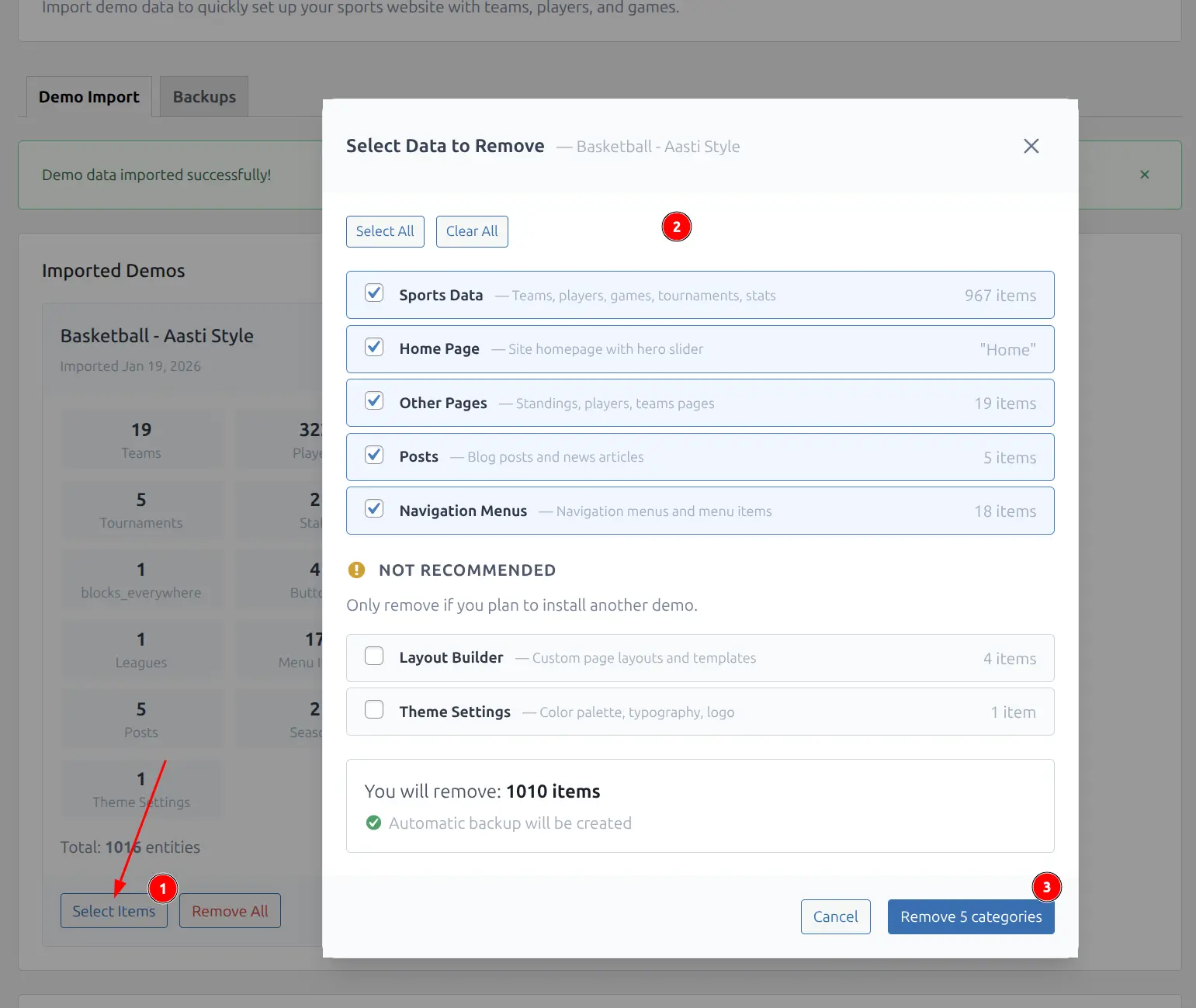
Categories:
| Category | Contents |
|---|---|
| Sports Data | Teams, players, games, tournaments, stats |
| Home Page | Site homepage with hero slider |
| Other Pages | Standings, players, teams pages |
| Posts | Blog posts and news articles |
| Navigation Menus | Navigation menus and menu items |
Warning
Only remove Layout Builder and Theme Settings if you are installing another demo. These are difficult to recreate manually.
- Review item count: “You will remove: X items”
- Click Remove X categories
Troubleshooting
Import fails or times out
Causes:
- PHP memory limit too low
- PHP execution time limit too short
- Server timeout settings
Solutions:
- Contact hosting provider to increase limits
- Try importing with fewer options selected
- Import during off-peak hours
Missing content after import
Check:
- All import options were selected
- Import completed without errors
- Cache cleared (browser + caching plugins)
Theme settings not applied
Solutions:
- Ensure Kadence theme is active
- Visit Appearance > Customize and save
- Clear any full-page caching
Kadence Blocks styles missing
Solution: Install and activate Kadence Blocks plugin for full demo page layouts.