

Teams are the competitive units in Sports Leagues. Each team has a profile with logo, roster, staff, home venue, and detailed information. Teams participate in tournaments and have players assigned to their roster for each season.
Creating a Team
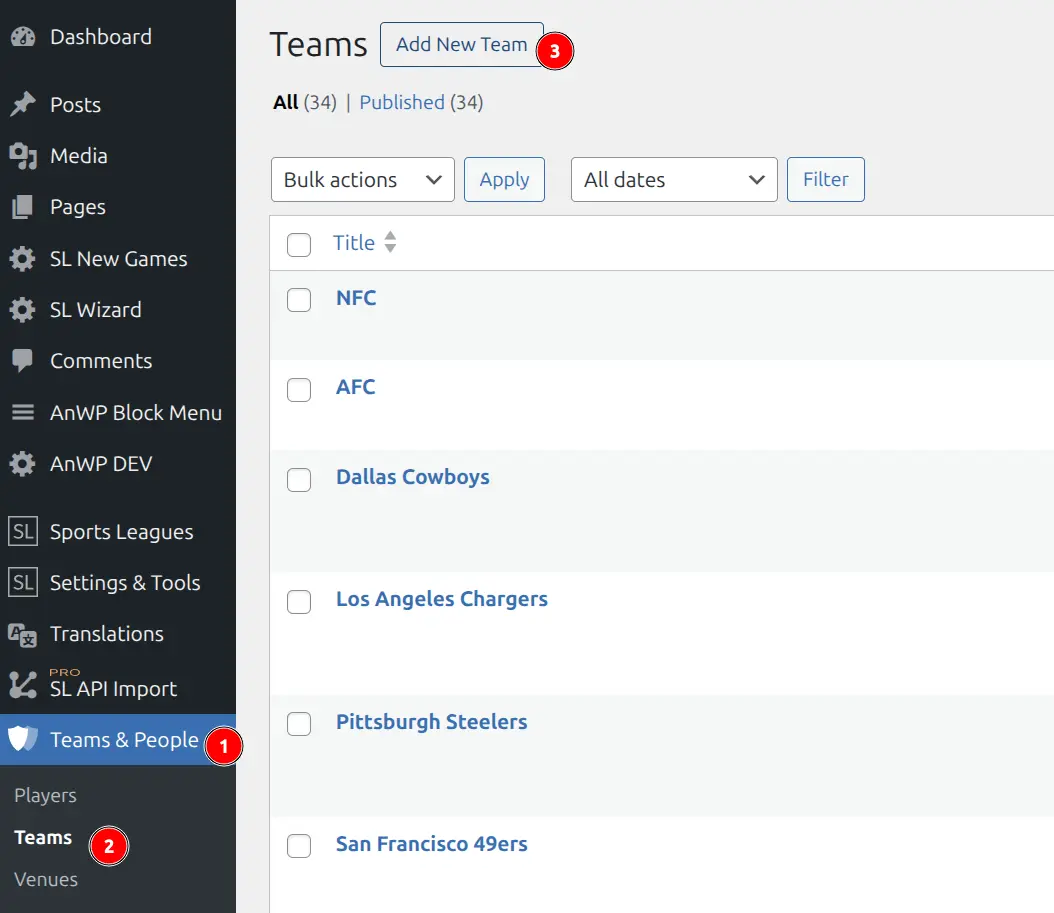
- Go to Sports Leagues > Teams & People > Teams
- Click Add New Team
- Enter the team name in the title field
- Fill in team details across the tabs (see below)
- Set a Team Logo (featured image) in the sidebar
- Click Publish
Team Data Tabs
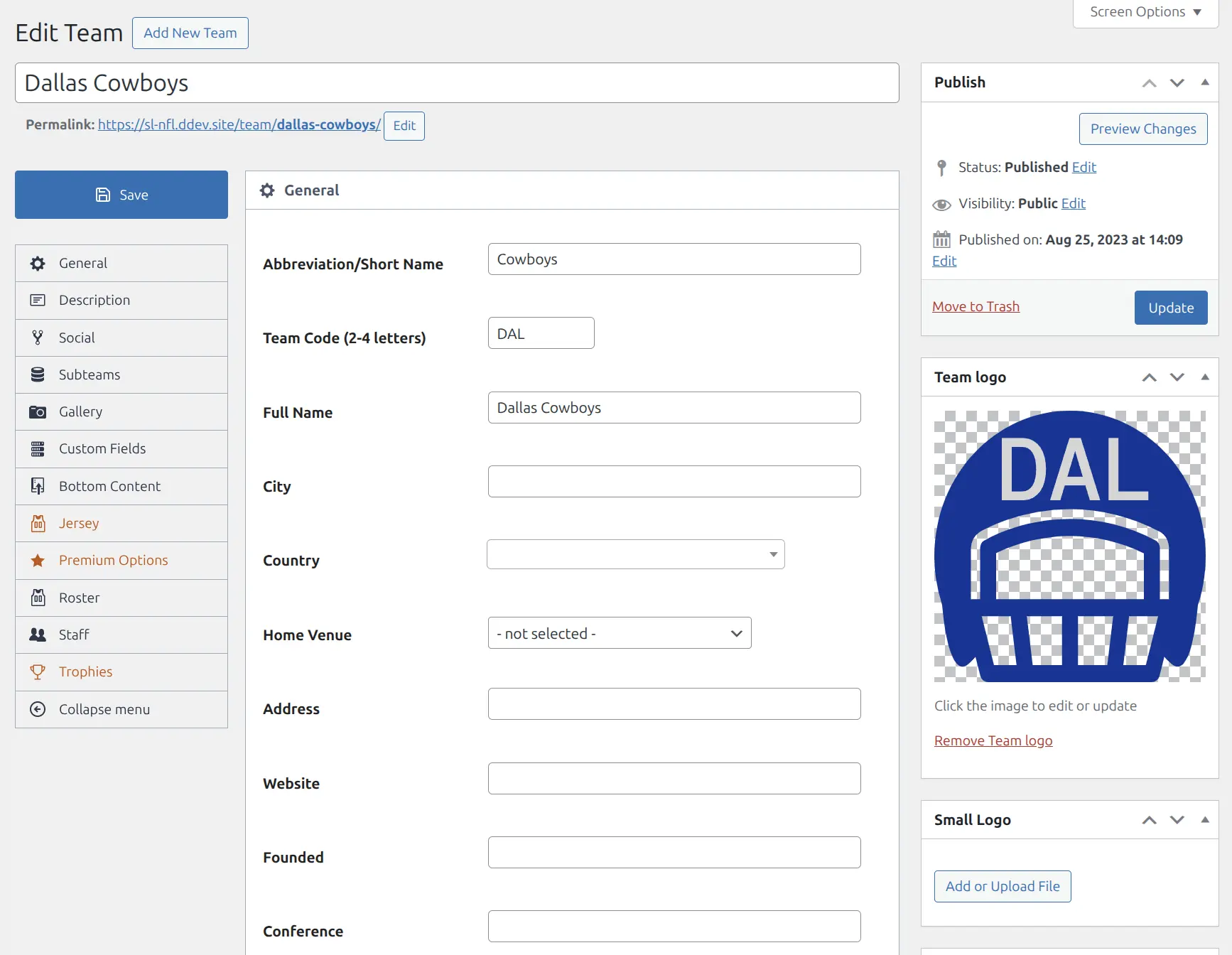
The team editor is organized into tabs for easier navigation:
General Tab
| Field | Description |
|---|---|
| Abbreviation/Short Name | Short version of team name for compact displays (e.g., “Cowboys”) |
| Team Code | 2-4 letter code for scoreboards (e.g., “DAL”) |
| Full Name | Complete official team name |
| City | Team’s home city |
| Country | Team’s country (used for flag display) |
| Home Venue | Select from created venues |
| Address | Team headquarters address |
| Website | Official team website URL |
| Founded | Year the team was established |
| Conference | Conference name (for US sports) |
| Division | Division name |
| Team Main Color | Primary brand color (used in charts and styling) |
| National Team | Mark as national team (for international competitions) |
| External ID | ID from external systems (for data import) |
Description Tab
Full team description with rich text editor. Supports images, links, and formatting. Displayed on the team’s public page.
Social Tab
Add social media profile links:
- Twitter / X
- YouTube
- TikTok
- VKontakte
- Discord
- Twitch
Subteams Tab
Configure team hierarchy for organizations with multiple squads (e.g., senior team, reserve team, youth academy):
- Root team — Parent organization that aggregates stats from subteams
- Subteam — Child team linked to a root team
- Summary page — Root page that combines data from multiple subteams
Gallery Tab
Add multiple photos to create a team gallery. Optionally add descriptive text below the gallery.
Custom Fields Tab
Add custom data fields configured in Sports Leagues > Settings > Custom Fields. Useful for sport-specific data like arena name, championship titles, or sponsor information.
Bottom Content Tab
Add content that appears at the bottom of the team’s public page. Supports shortcodes, so you can embed standings, player stats, or custom layouts.
Team Roster
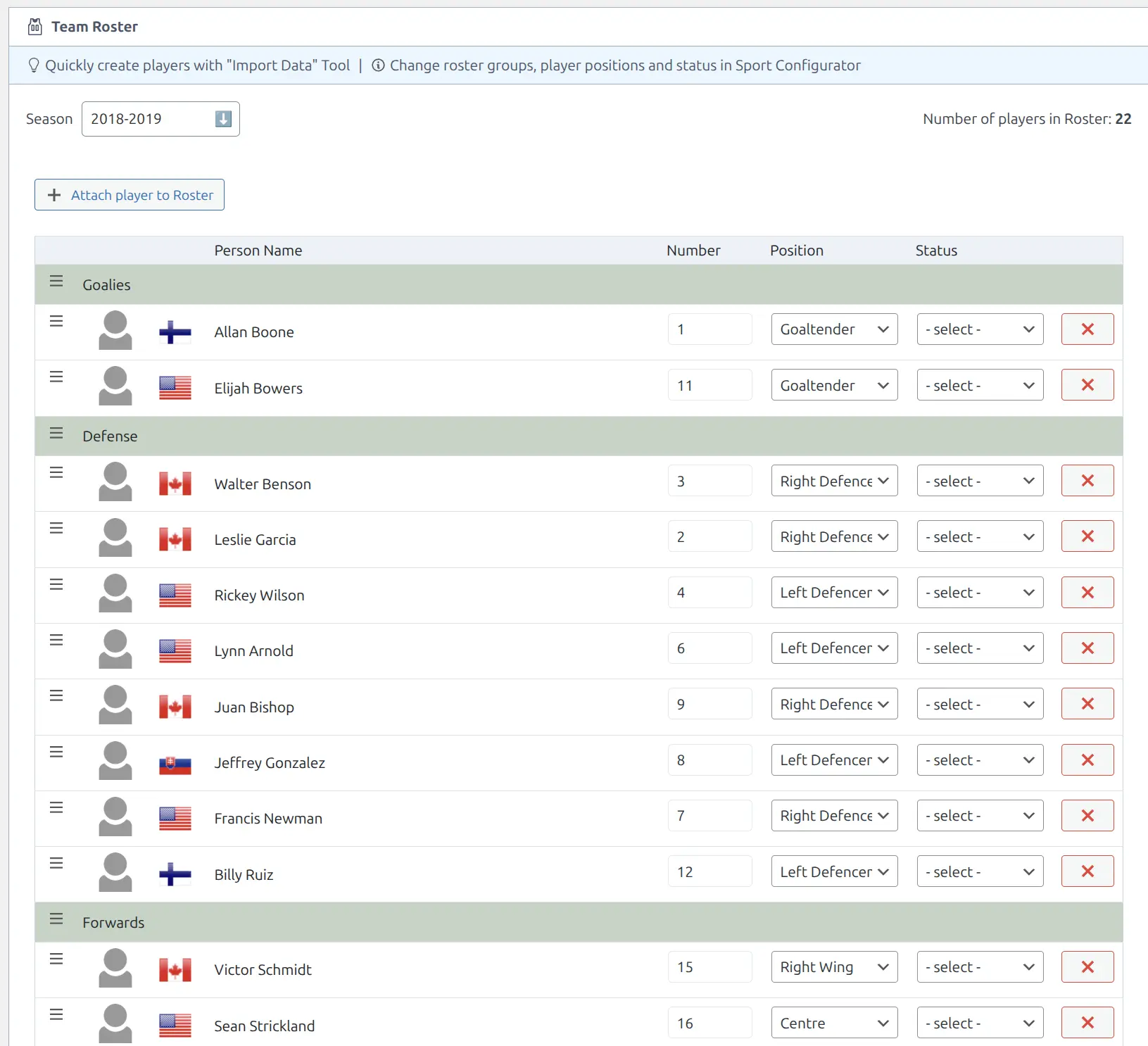
The Roster tab manages which players belong to the team for each season. Rosters are season-specific, allowing you to track squad changes over time.
Building a Roster
- Edit the team and click the Roster tab
- Select a Season from the dropdown
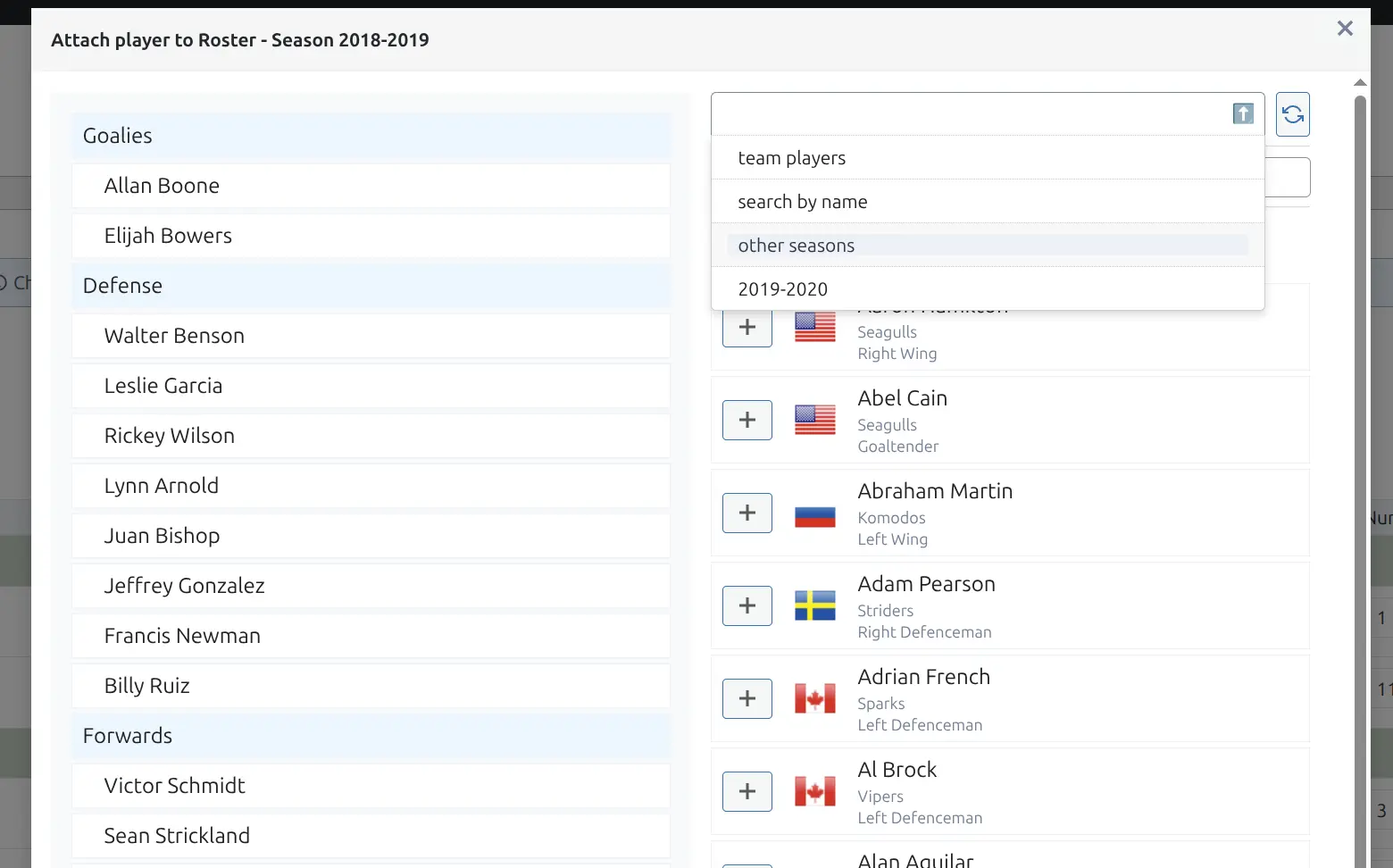
- Click Attach player to Roster
- In the modal, find players using filters:
- Team players — Players with this team as their current team
- Search by name — Type to find any player
- Other seasons — Copy from a previous roster
- Click the + button to add a player
- Set each player’s Number, Position, and Status
- Drag players to reorder within their group
- Click Save
Roster Groups
Players are organized into position groups (e.g., Goalies, Defense, Forwards). These groups are configured in Sports Leagues > Sport Configurator > Roster Groups. Drag the group headers to reorder sections.
Attach Player Modal
The modal shows your current roster on the left and available players on the right. Use the dropdown to filter by source:
Tip
Use “Other seasons” to quickly copy last season’s roster, then make adjustments for player transfers and new signings.
Team Staff
Below the player roster is the Staff section. Add coaches, managers, and other team personnel the same way as players. Staff members have a Job field instead of Number/Position.
Team Frontend Display
Each team has an automatically generated public page showing team information, upcoming and finished games, and the current roster.
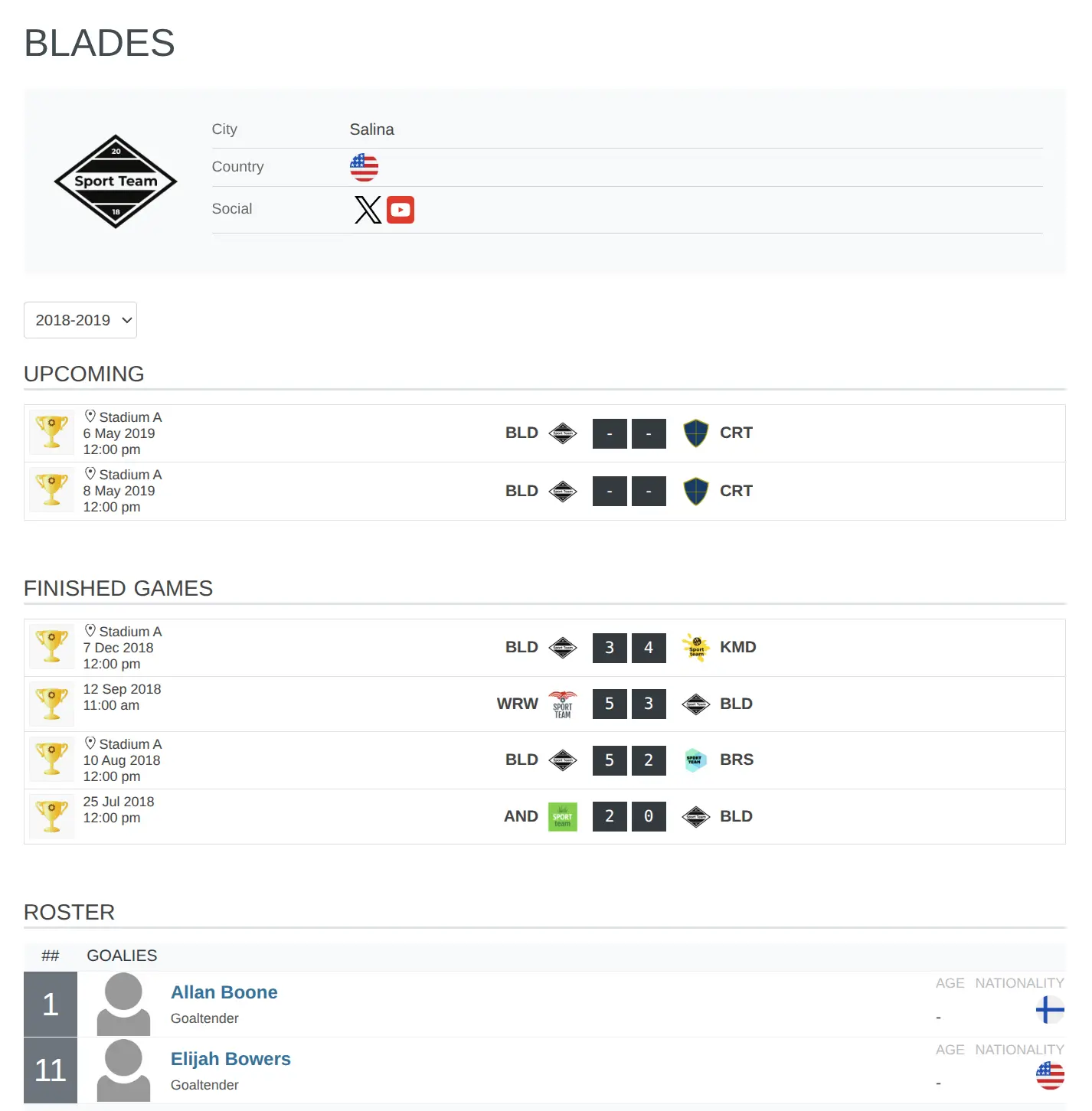
The Core team page includes:
- Team logo and basic info (city, country)
- Social media links
- Season selector
- Upcoming games
- Finished games (recent results)
- Roster organized by position groups
Premium Team Features
The Premium version adds advanced team management features and enhanced frontend displays.
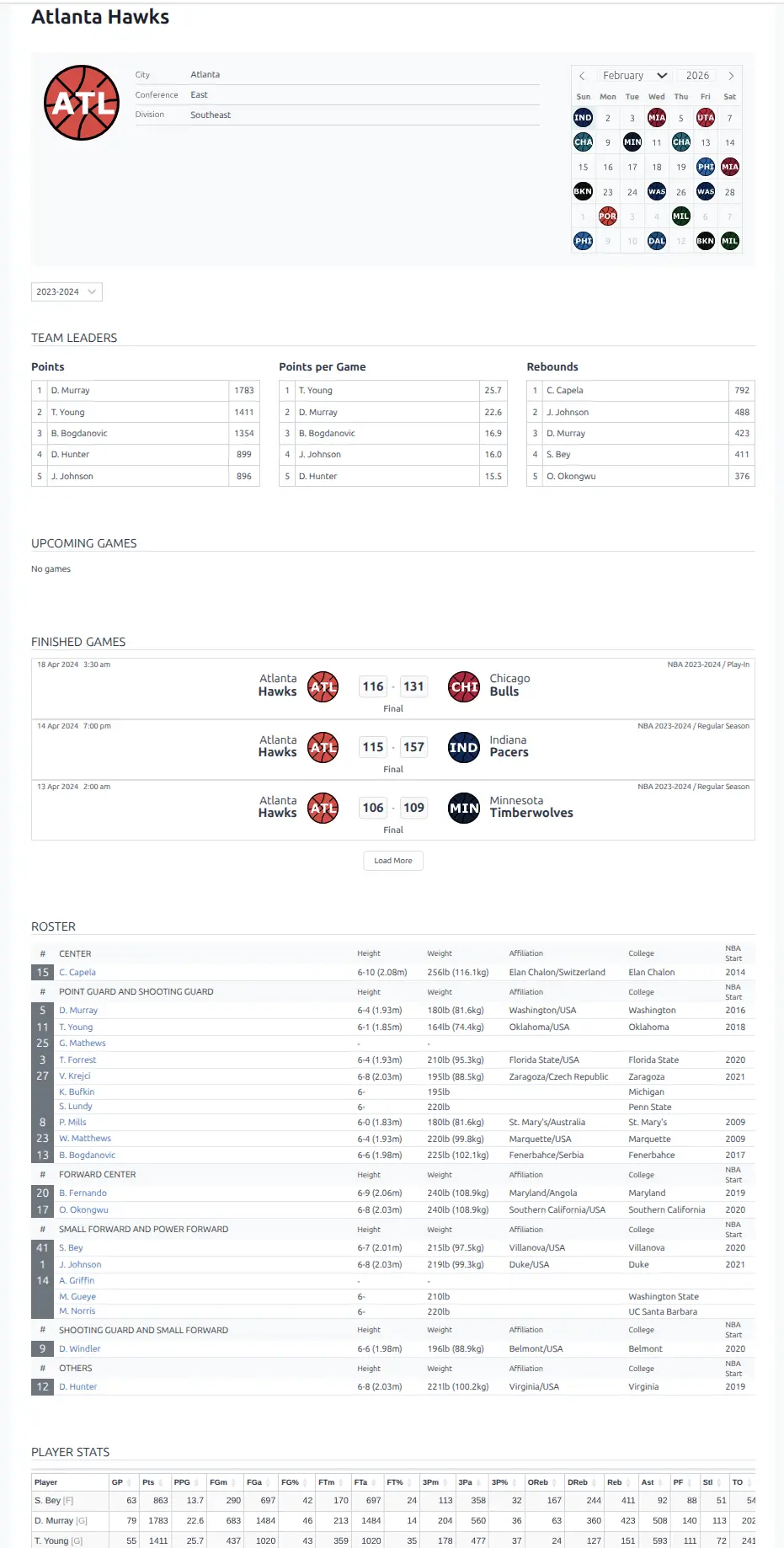
Enhanced Team Page
Premium team pages include additional sections:
- Team Leaders — Top scorers, assist leaders, rebound leaders
- Game Schedule Calendar — Visual calendar showing all games
- Player Stats Table — Detailed statistics for all roster players
- Extended Roster — Additional player details like height, weight, college
Trophies
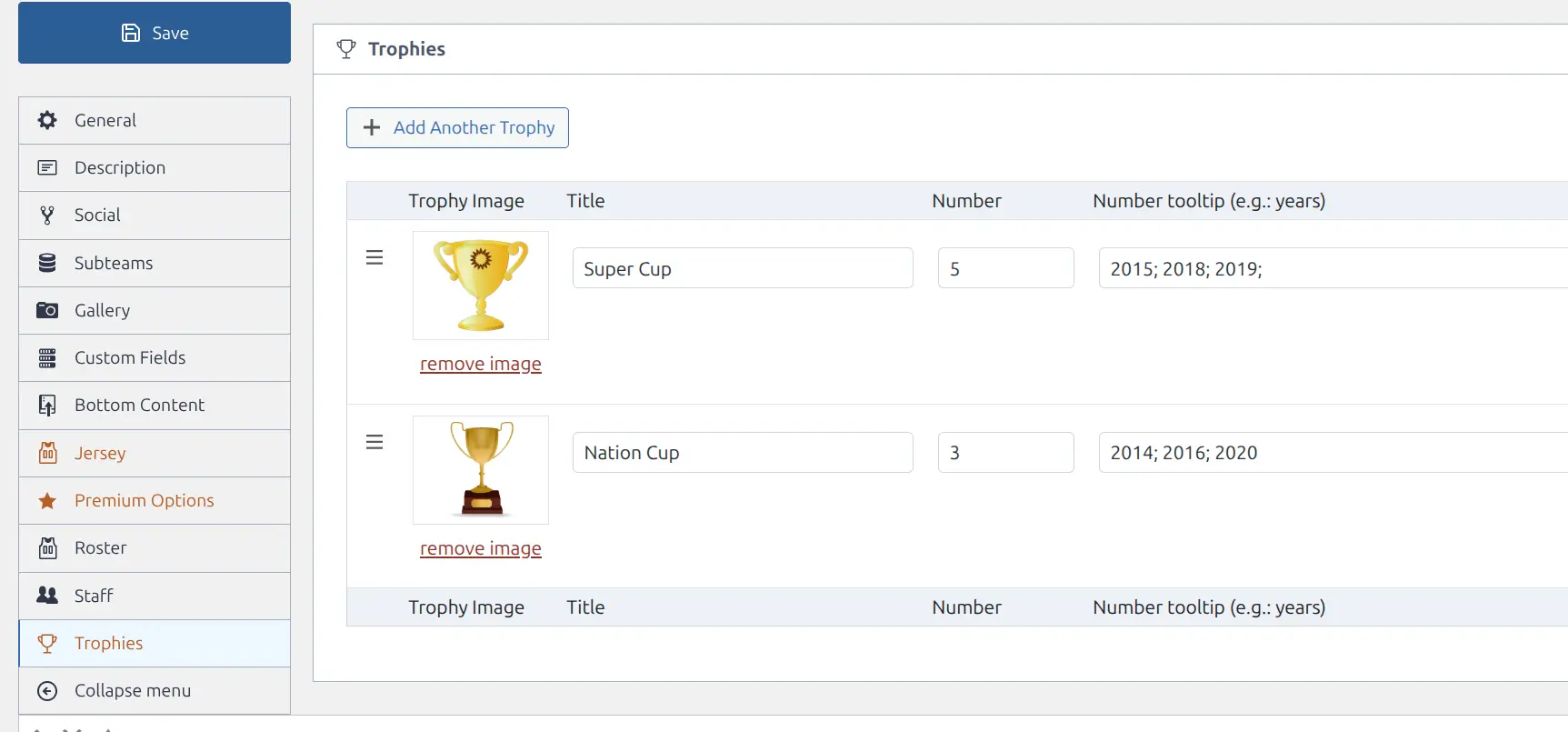
Track team achievements with the Trophies tab (Premium only). Add championship titles, cups, and other awards with images.
- Click the Trophies tab in the team editor
- Click Add Another Trophy
- Set a trophy image using the media library
- Enter the Title (e.g., “Super Cup”)
- Enter the Number of times won
- Add Number tooltip with winning years (e.g., “2015; 2018; 2019”)
- Drag to reorder trophies
- Click Save
Jersey Configuration
The Jersey tab (Premium only) lets you configure team uniform colors for visual display in game lineups and formation diagrams.
Premium Options
Additional Premium settings include:
- Hidden post status — Hide teams from public view while keeping data
- Custom layout options — Control which sections appear on team pages
Related Documentation
- Venues — Manage stadiums and arenas for home games
- Players and Staff — Create people to add to rosters
- Team Roster — Detailed roster management guide
- Tournaments — Add teams to competitions
- Import/Export Tool — Bulk import teams
- Permalinks Settings — Customize team URLs