

Game Events define what happens during a match—goals, cards, fouls, substitutions, and other sport-specific actions. Configure event types once in the Event Configuration page, then use them across all games in your league.
🎯 Key Uses
- Record scoring plays – Goals, points, touchdowns, tries
- Track discipline – Cards, penalties, fouls, suspensions
- Log player changes – Substitutions, timeouts
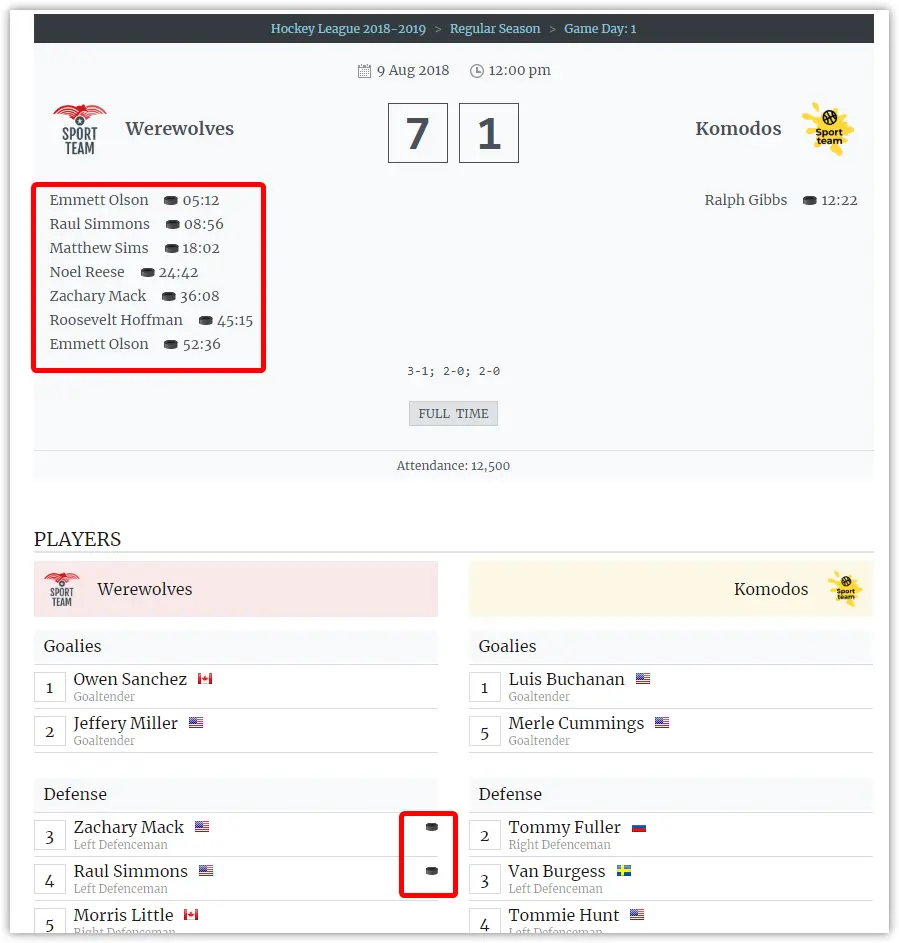
- Display events – Show in game pages, player listings, and timelines
🚀 Getting Started
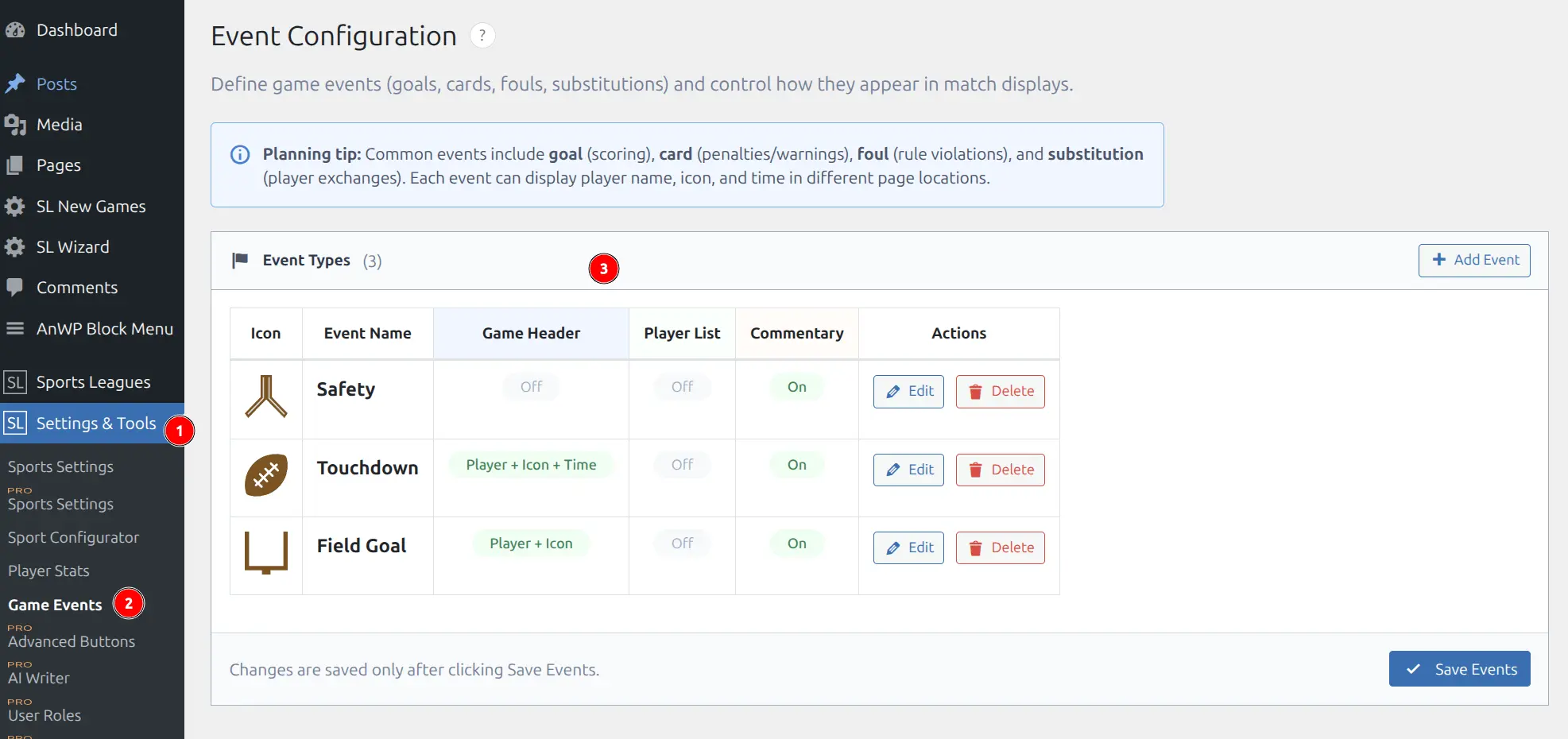
Access the Event Configuration page from Sports Leagues → Event Configuration in your WordPress admin menu.
The interface displays all configured events with their display settings, and provides options to add, edit, or delete events.
Creating a New Event
- Click the Add Event button
- Fill in the event details (see fields below)
- Click Save to add the event
- Click Save Events to persist all changes
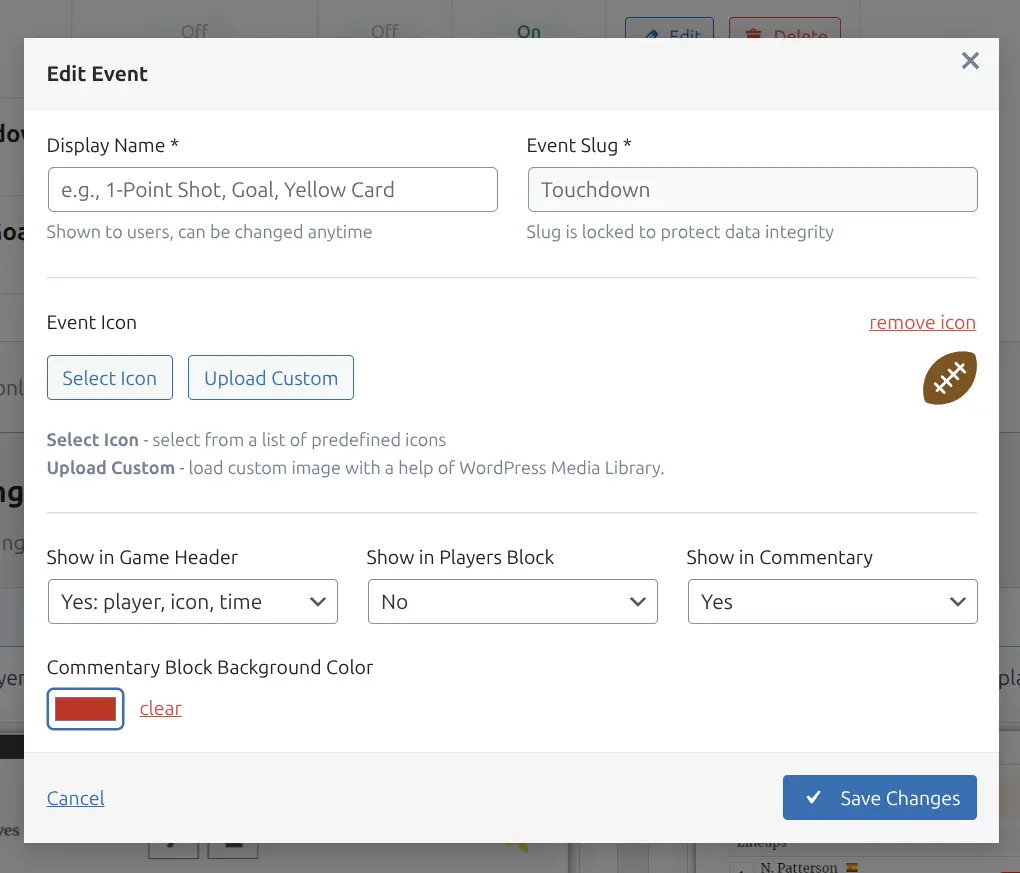
Event Fields
| Field | Description | Required |
|---|---|---|
| Display Name | User-facing name (e.g., “Yellow Card”, “1-Point Shot”) | Yes |
| Event Slug | Internal identifier, auto-generated from display name | Yes |
| Event Icon | Predefined icon or custom upload | No |
| Show in Game Header | Display in match header area | No |
| Show in Players Block | Display next to player names in lineups | No |
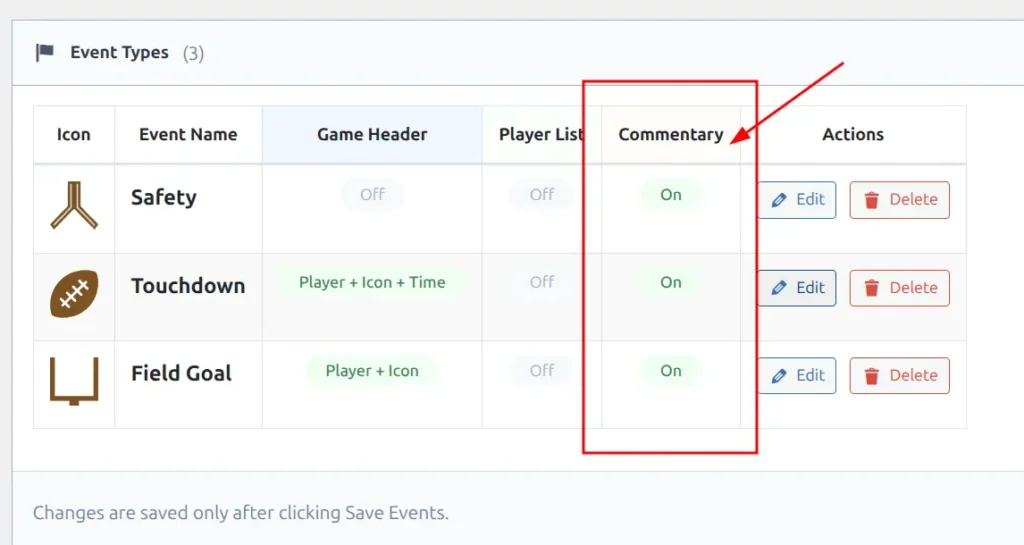
| Show in Commentary | Display in commentary timeline [PRO] | No |
Display Name vs Slug
- Display Name – Shown to visitors, can be changed anytime (e.g., “Yellow Card”)
- Event Slug – Internal ID, locked after creation to protect data integrity (e.g.,
yellow_card)
Tip
The slug is auto-generated from the display name when creating new events. You can edit it before first save, but it becomes locked afterward.
Event Icons
Two options for icons:
- Select Icon – Choose from predefined sport icons
- Upload Custom – Use WordPress Media Library for custom images
Display Options
Events can appear in three locations on your site. Configure each event’s visibility based on its importance.
Game Header
Key events displayed prominently at the top of match pages, perfect for goals and important plays.
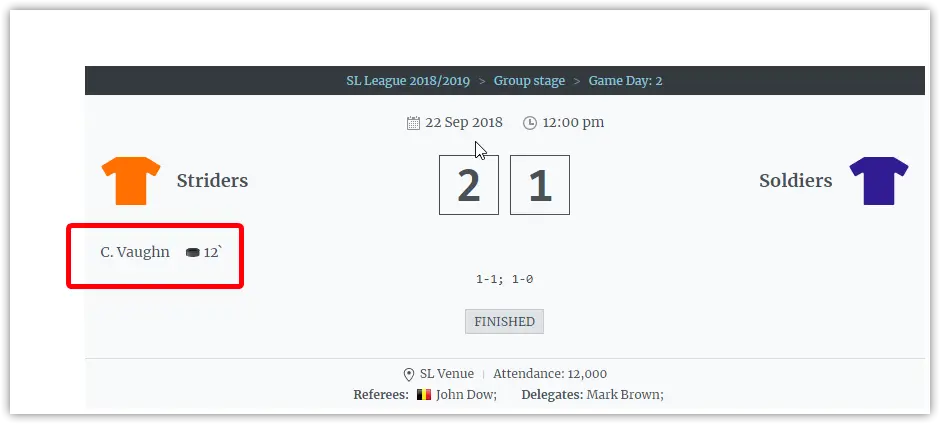
| Option | What Shows |
|---|---|
| No | Hidden from header |
| Player + Icon + Time | Full display with minute |
| Player + Icon | Without time |
Player List
Icons displayed next to player names in lineup and roster blocks.
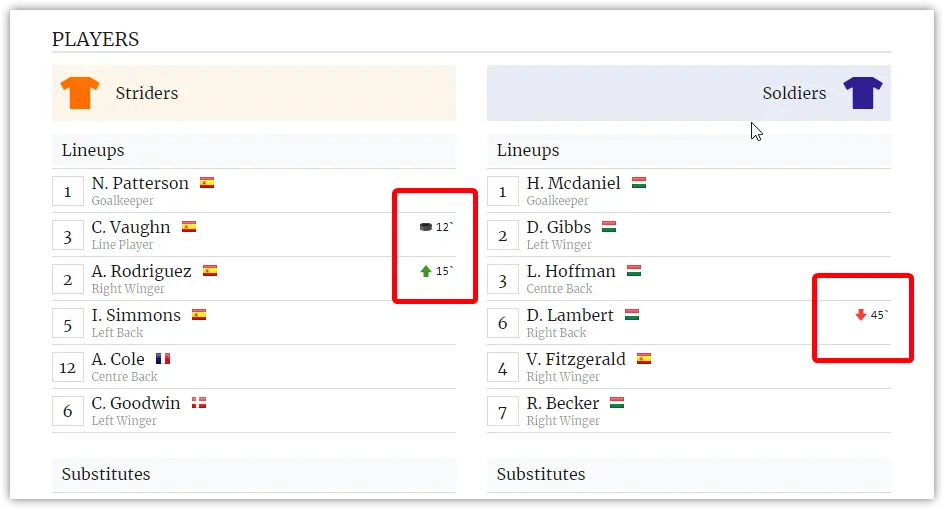
| Option | What Shows |
|---|---|
| No | Hidden from player list |
| Icon + Time | Icon with minute |
| Icon only | Just the icon |
Commentary Block [PRO]
Chronological timeline of match events with optional custom background colors per event type. Available in the Premium version.
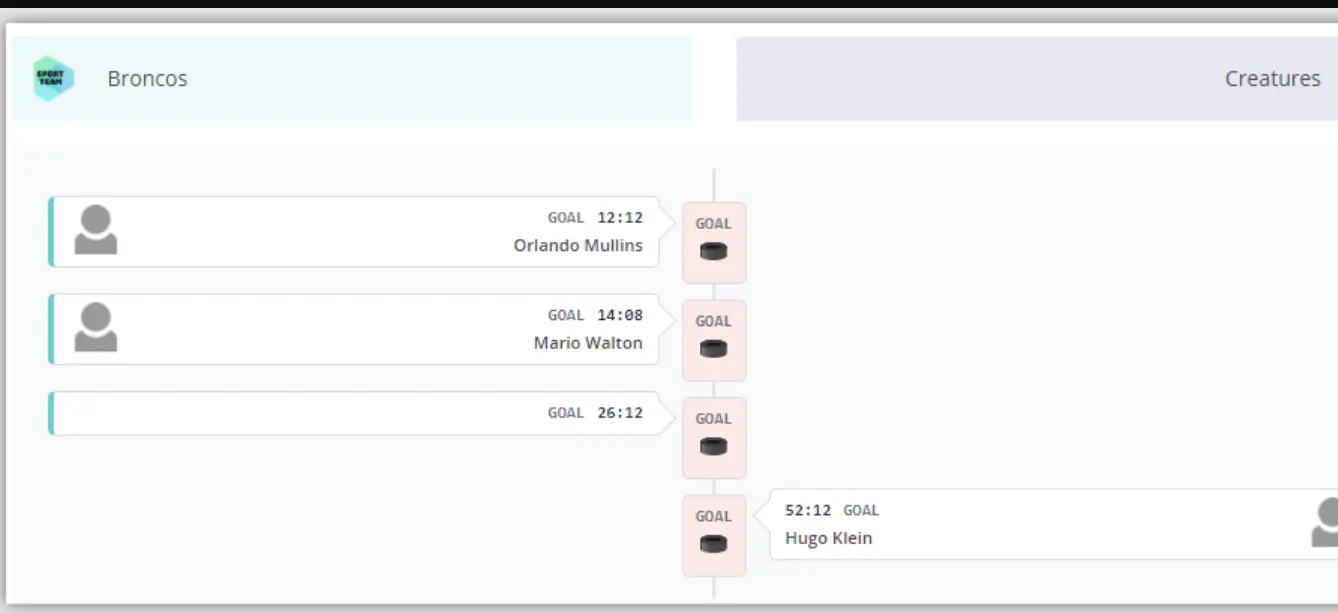
| Option | What Shows |
|---|---|
| No | Hidden from timeline |
| Yes | Event appears in timeline |
Background Color (when Commentary enabled): Highlight important events like goals and cards with custom colors in the timeline.
Core vs Premium Features
| Feature | Core | Premium |
|---|---|---|
| Game Header display | ✅ | ✅ |
| Player List display | ✅ | ✅ |
| Predefined icons | ✅ | ✅ |
| Custom icon upload | ✅ | ✅ |
| Commentary Block display | — | ✅ |
| Custom background colors | — | ✅ |
Common Event Types by Sport
Here are typical events for popular sports to help you get started:
🏀 Basketball
- 2-Point Field Goal, 3-Point Field Goal, Free Throw
- Personal Foul, Technical Foul
- Substitution, Timeout
🏒 Ice Hockey
- Goal, Assist, Power Play Goal
- Minor Penalty, Major Penalty
- Save, Substitution
🏉 Rugby
- Try, Conversion, Penalty Kick, Drop Goal
- Yellow Card, Red Card
- Substitution
🏈 American Football
- Touchdown, Field Goal, Safety, Extra Point
- Penalty, Turnover
- Substitution
🤾 Handball
- Goal, 7-Meter Goal
- 2-Minute Suspension, Red Card
- Substitution
Saving Changes
Important
Changes are not saved automatically. After adding or editing events, click the Save Events button and wait for the confirmation message.
Attaching Events to Games
After configuring event types, add them to individual games:
- Edit a game in Sports Leagues → Games
- Find the Game Events metabox
- Click Add Event
- Select the event type, team, player, and time
- Update the game
Events automatically:
- Update player statistics
- Display in configured locations
- Appear in game timeline
💡 Tips for Success
- Plan event types first – Common events include goal/score, card/penalty, foul, and substitution
- Use consistent slugs – Do not change slugs after games are recorded
- Configure display settings – Not all events need to show everywhere
- Icons improve readability – Visual indicators help users scan quickly
🆘 Troubleshooting
Events Not Showing on Game Page
Check:
- The event’s display options are enabled (Game Header or Players Block set to a visible option)
- The game has events attached in the Game Events metabox
- Theme template overrides are not hiding the events section
Cannot Change Event Slug
Event slugs are locked after creation to protect data integrity. If you need a different slug, create a new event with the correct slug and update your games to use it.
Commentary Block Not Available
The Commentary Block display option is a Premium feature. Upgrade to Sports Leagues Premium to access this feature.