

Player Statistics allows tracking individual player performance data across games and seasons. The system uses Stat Groups to organize statistics by player position – different positions can track different stats.
Admin Menu: Sports Settings > Player Stats
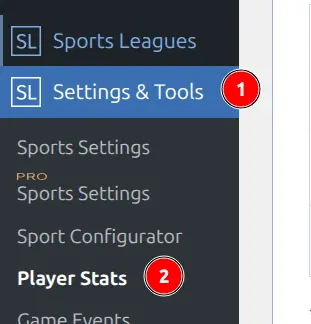
Understanding Stat Groups
Stat Groups solve a fundamental problem: different positions track different statistics.
Without groups, every player would see the same statistics fields – cluttering the interface with irrelevant data. With groups, you can assign specific statistics to specific positions.
Example: American Football
| Position | Tracked Statistics |
|---|---|
| Quarterbacks | Passing Completions, Passing Yards, Touchdowns, Interceptions |
| Running Backs | Rushing Yards, Rushing Attempts, Touchdowns, Fumbles |
| Wide Receivers | Receptions, Receiving Yards, Touchdowns |
Example: Basketball (Single Group)
All positions track the same stats (Points, Rebounds, Assists, Steals, Blocks), so one group assigned to all positions works.
Configuration Approaches
Single-Group Setup
Use when all players track identical statistics (basketball, volleyball).
- Create one stat group
- Assign all positions to it
- Add statistics to that group
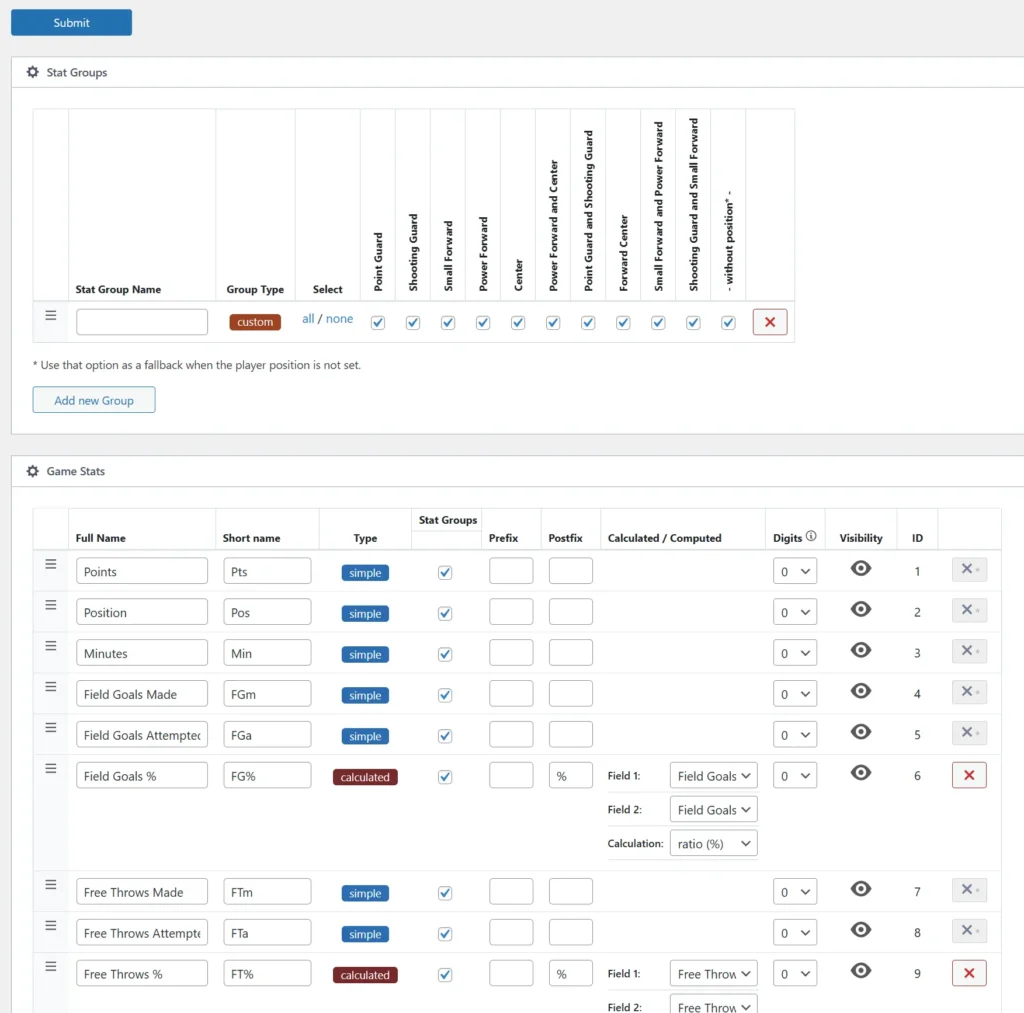
Multi-Group Setup
Use for sports where different positions have different statistics (football, baseball, hockey).
- Create specialized groups (e.g., “Passing”, “Rushing”, “Receiving”)
- Assign specific positions to each group
- Add position-relevant statistics to each group
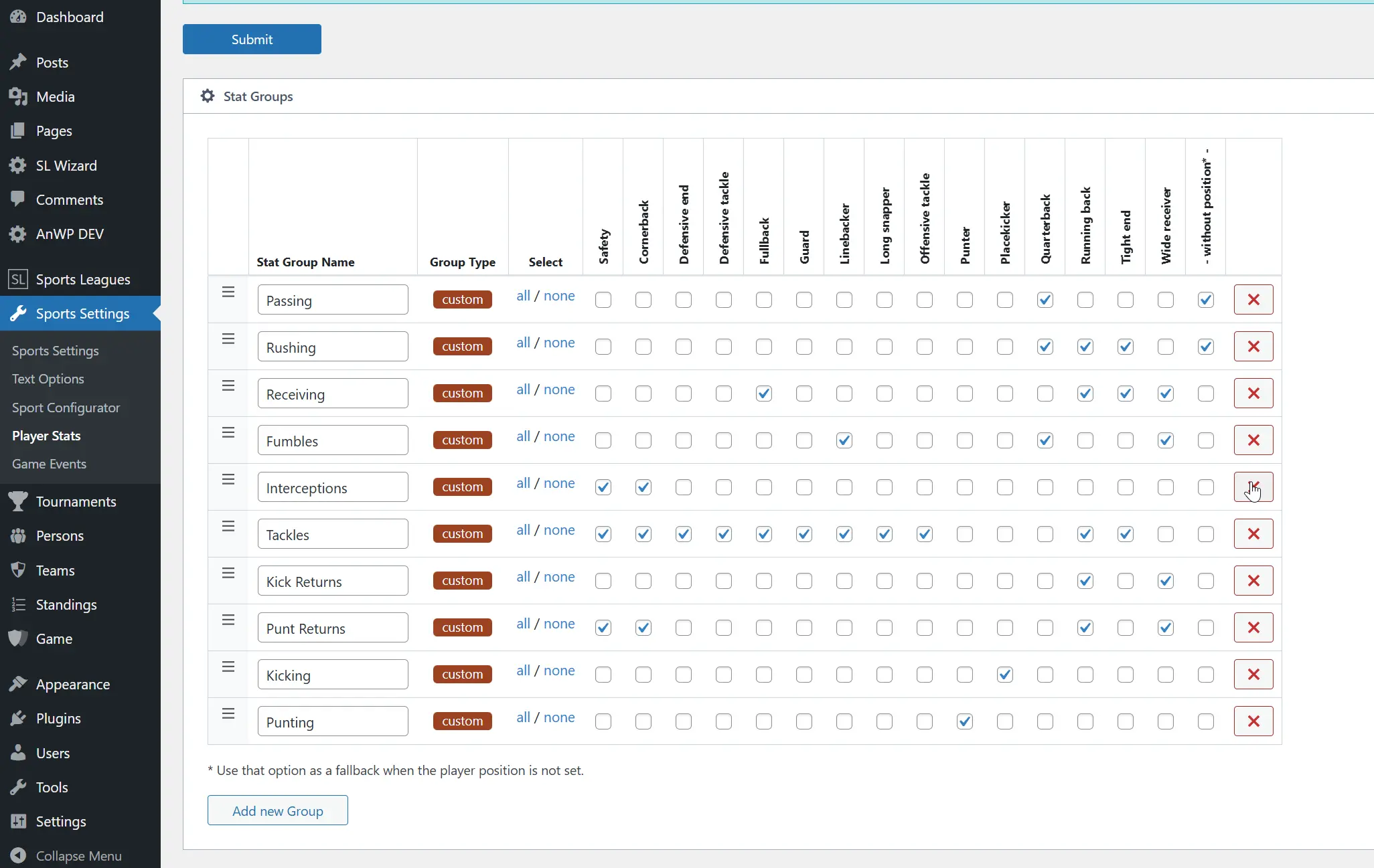
Setting Up Stat Groups
- Go to Sports Settings > Player Stats
- In the Stat Groups section, click “Add new Group”
- Configure each group:
- Name: Descriptive label (e.g., “Offensive Stats”)
- Group Type:
customorroster - Positions: Check which player positions use this group
Important: Every position must be assigned to at least one stat group. The interface highlights unassigned positions with an orange background.
Tip: Use the “- without position -” checkbox as a fallback for players without a defined position.
Game Stats Configuration
Game Stats define what statistics are recorded for each player during a game.
Adding Game Statistics
- In the Game Stats section, click a stat type button to add it
- Configure each stat column (see table below)
| Field | Description |
|---|---|
| Full Name | Complete name shown in tooltips (e.g., “Points Scored”) |
| Short Name | Abbreviation for column headers (e.g., “PTS”) |
| Type | See Column Types below |
| Stat Groups | Which groups can record this stat |
| Prefix/Postfix | Optional text wrapping (e.g., prefix “$” for salaries) |
| Digits | Decimal places (0-4) |
| Visibility | Show/hide column |
Column Types
| Type | Color | Description | Example |
|---|---|---|---|
| Simple | Blue | Countable numeric data | Goals, Assists, Shots |
| Time | Green | Duration in MM:SS format | Time On Ice, Minutes Played |
| Composed | Orange | Combines multiple columns with separator | “5-12” (Saves-Shots) |
| Calculated | Red | Computed from other columns | Save Percentage |
Calculated Stats
For Calculated type, select:
- Field 1: First operand
- Field 2: Second operand
- Calculation:
sum,difference,ratio, orratio (%)
Composed Stats
For Composed type:
- Select up to 3 fields to combine
- Set a separator (e.g., “-“, “/”)
- Result: “value1-value2-value3”
Tip: Hidden columns are useful for composed/calculated stats. Create hidden source columns, then display only the combined/calculated result.
Season Stats Configuration
Season Stats aggregate individual game statistics across an entire season.
Adding Season Statistics
- In the Season Stats section, click a stat type button
- Configure each stat (see table below)
| Field | Description |
|---|---|
| Full Name | Complete statistic name |
| Short Name | Abbreviation |
| Type | simple, time, played, composed, or calculated |
| Game Field | Which game stat to aggregate (required for simple/time) |
| Result Type | How to aggregate: sum, average, min, max |
| Stat Groups | Which groups display this stat |
| Digits | Decimal places |
Result Types
| Type | Description | Use Case |
|---|---|---|
| Sum | Total across all games | Total goals, total assists |
| Average | Value divided by games played | Points per game |
| Min | Lowest value recorded | |
| Max | Highest value recorded | Career high |
Season-Specific Types
| Type | Description |
|---|---|
| Played | Games played count |
| Time | Aggregated time statistics |
Entering Player Statistics
After configuration, enter statistics on the game edit page.
- Edit a game
- Find the Player Statistics section
- Enter values for each player
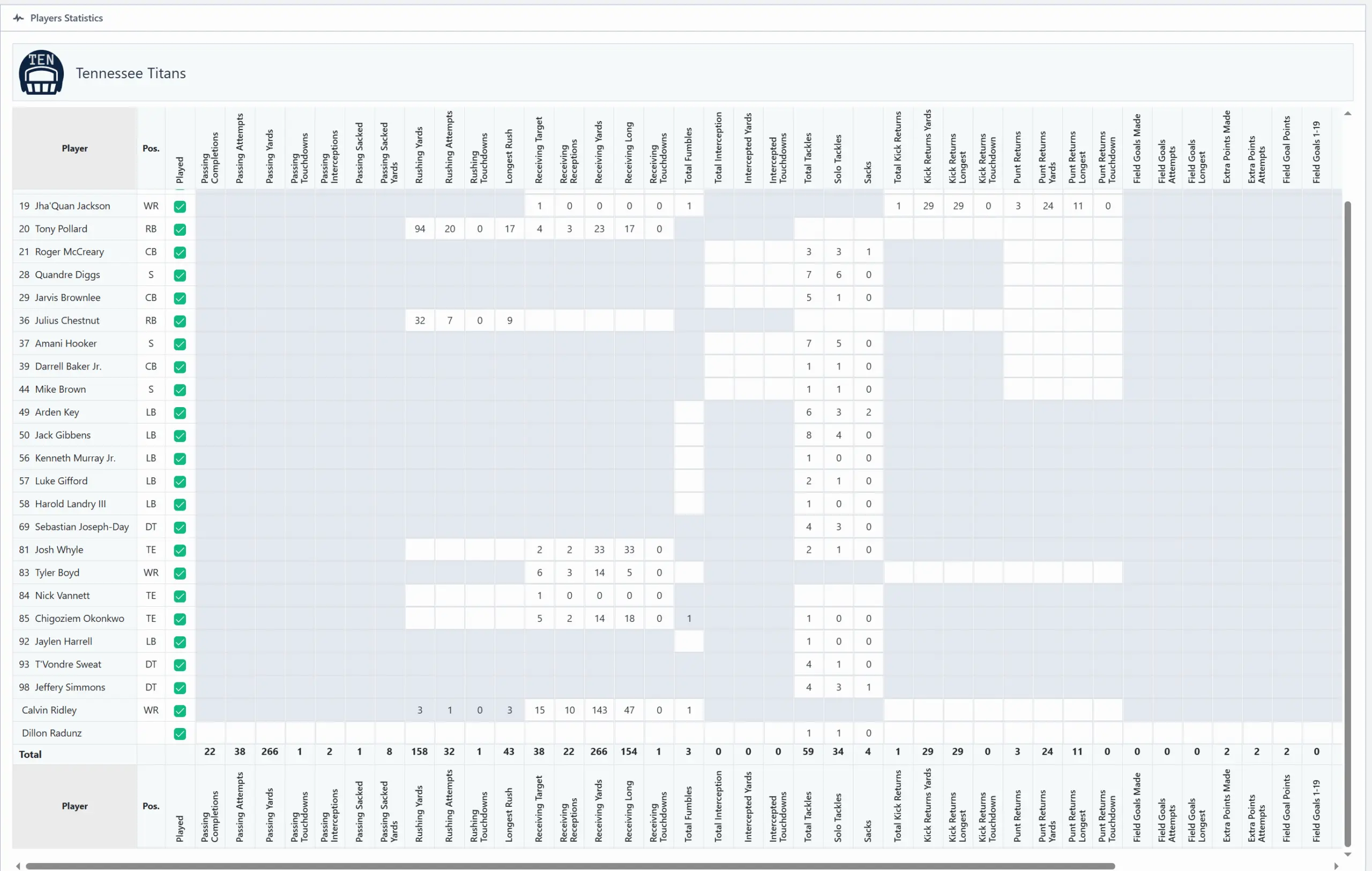
Visual Feedback
During data entry, background colors indicate stat relevance:
| Background | Meaning |
|---|---|
| White | Recommended statistic for this player’s position |
| Gray | Non-typical statistic (still editable for edge cases) |
📊 Displaying Statistics
Once configured, player statistics appear automatically on team and game pages.
On Team Pages
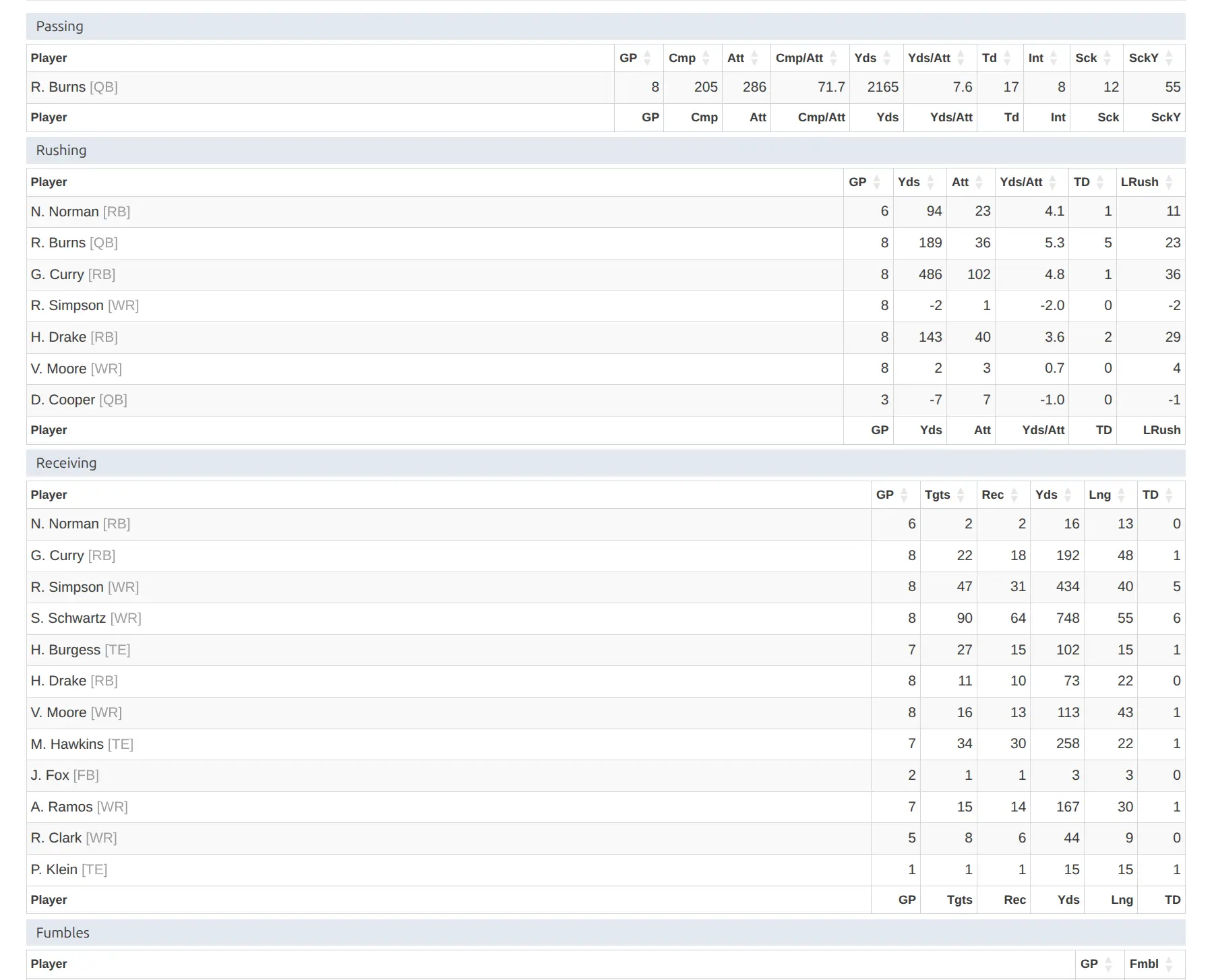
Season statistics appear in the Players Stats block on team pages, showing aggregated stats for each player across all games.
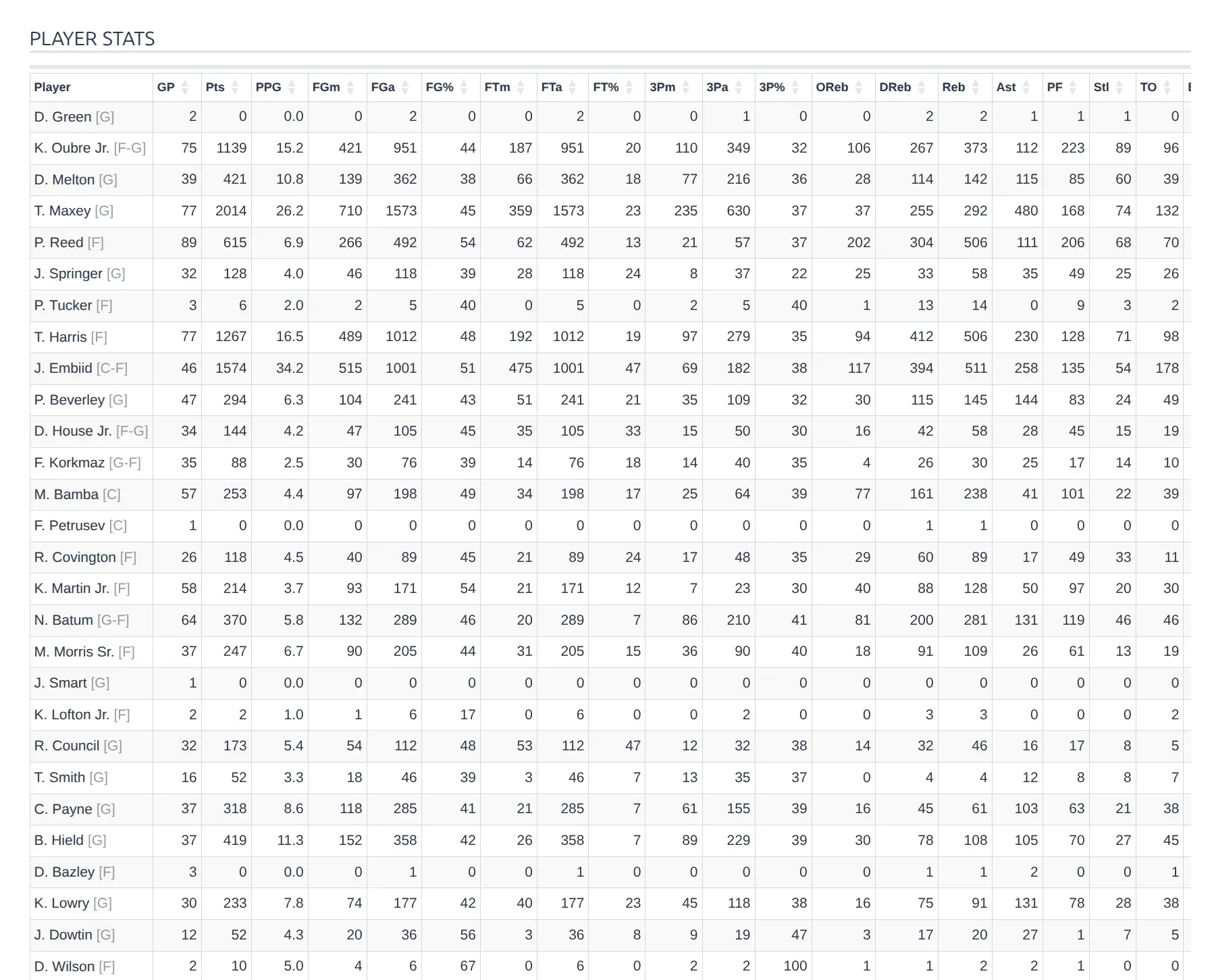
The table displays columns based on your Season Stats configuration. Stats are grouped by stat group when using multi-group setups.
On Game Pages
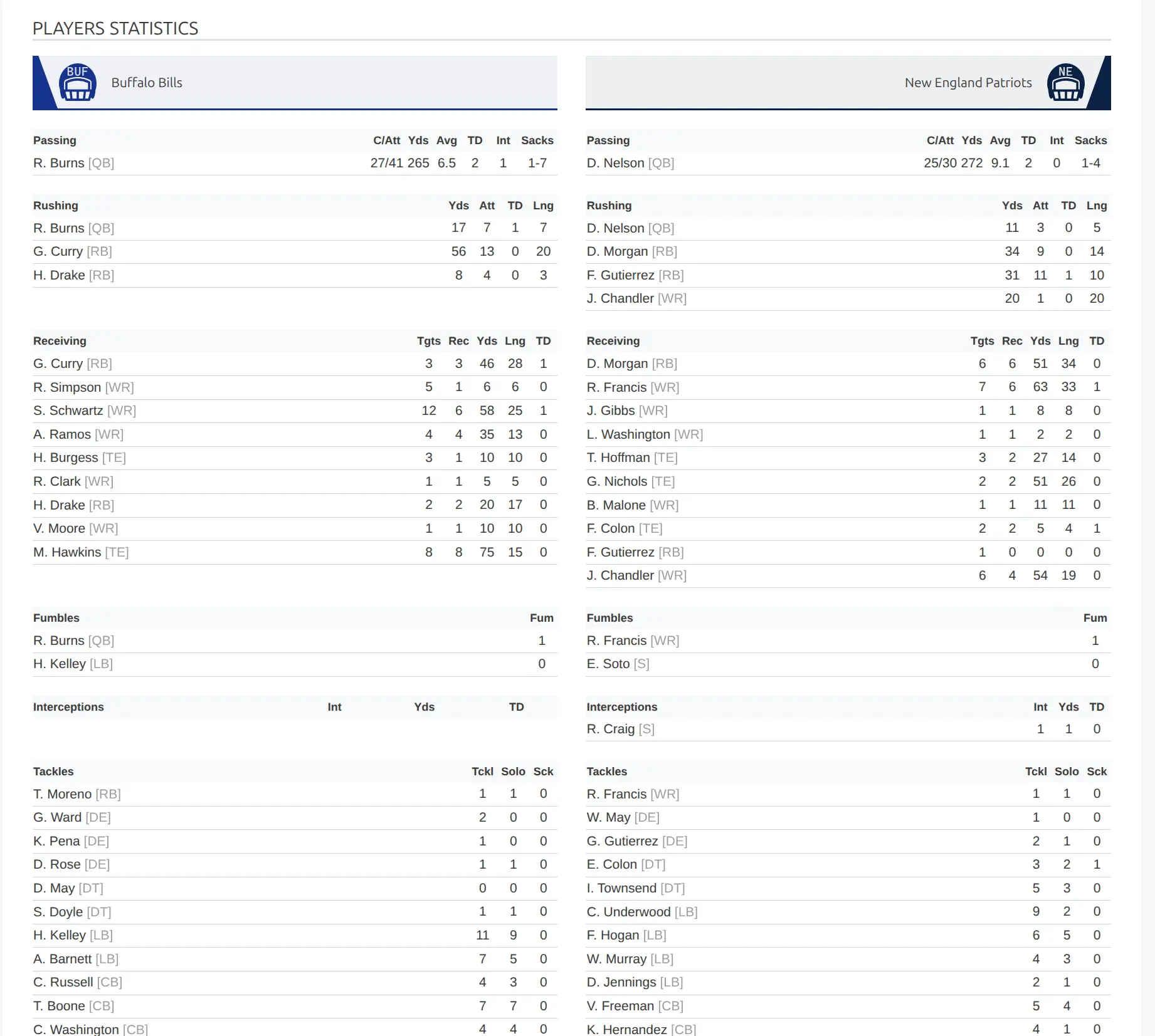
Individual game statistics appear on the game page, showing each player’s performance for that specific match.
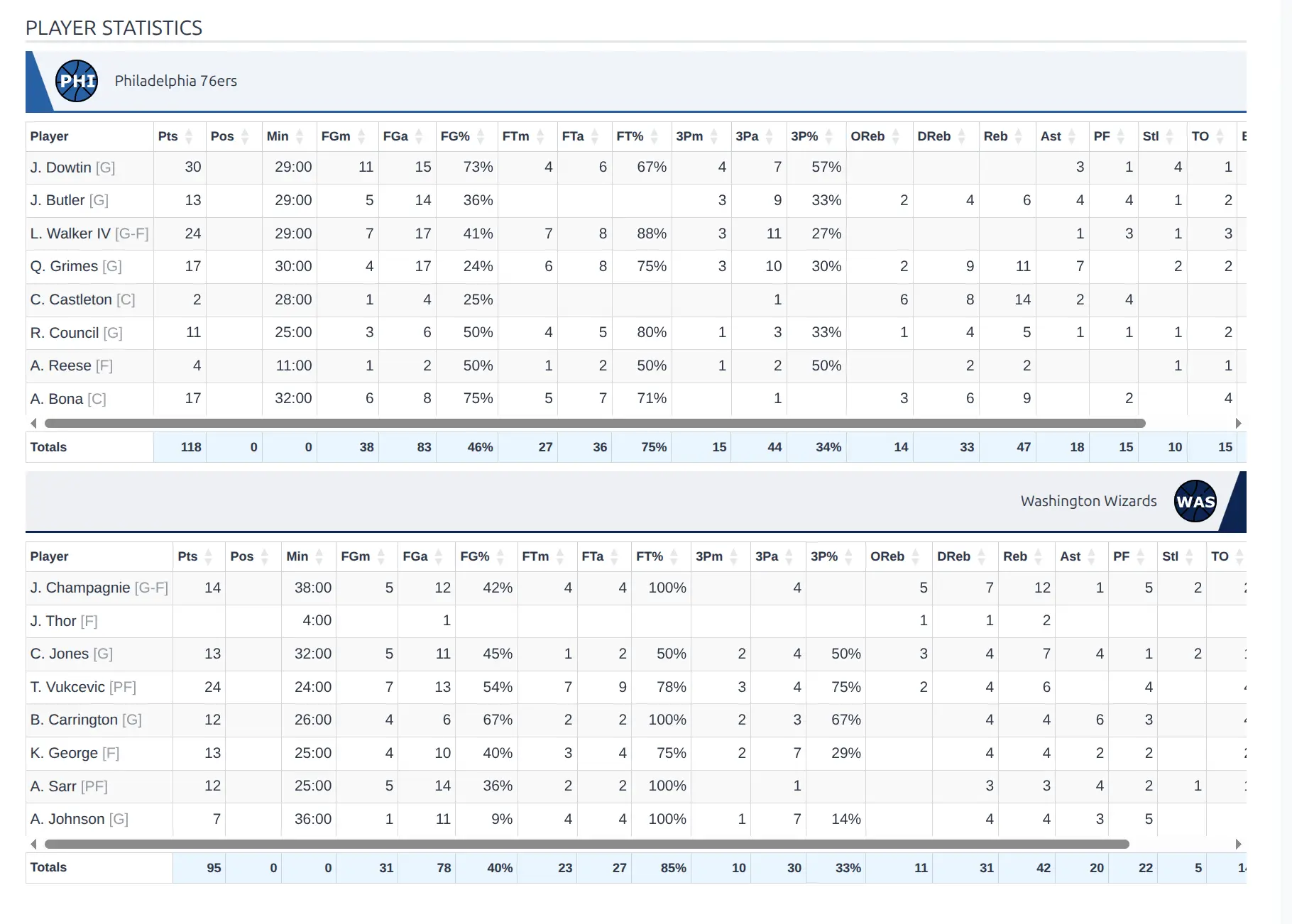
For multi-group configurations, each stat group displays separately with its relevant players.
Layout Options
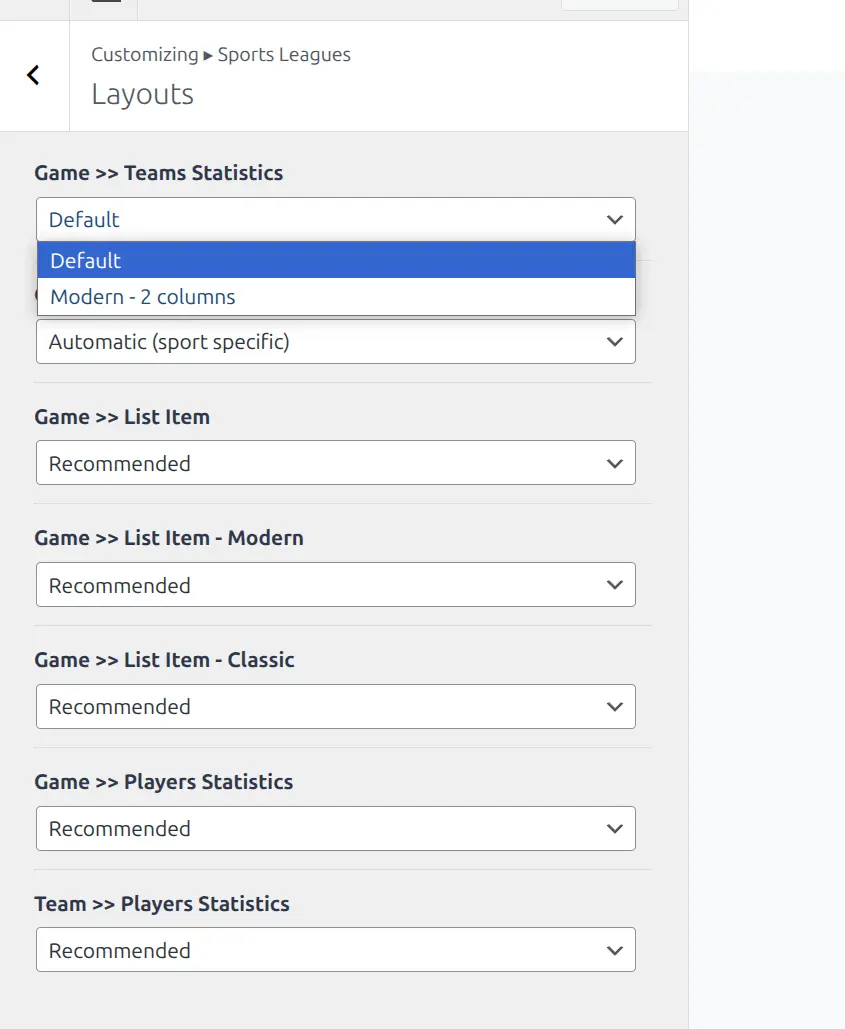
Control how statistics display using the Customizer. Go to Appearance > Customize > Sports Leagues > Layouts to configure stat display options.
Shortcodes
Display player statistics anywhere using shortcodes:
[sl-players tournament_id="123" type="stats"][sl-players tournament_id="123" type="scorers" limit="10"]Tips
- Configure before data entry: Set up all stat groups and columns before recording game data
- Use hidden columns: Create source data columns as hidden, display only composed/calculated results
- Position assignment: Ensure every position belongs to at least one stat group
- Fallback option: Enable “- without position -” for players without defined positions
- Order matters: Drag rows to reorder how stats appear in tables
Troubleshooting
Stats not appearing on game edit page
- Verify the player is in the game lineup
- Check player has a position assigned
- Confirm position is assigned to a stat group
Wrong season totals
- Verify the Result Type setting (sum vs average)
- Check individual game data
- Clear plugin cache:
Sports Settings > Tools > Clear Cache
Cannot delete a statistic
Statistics that have been saved to the database cannot be deleted. This protects existing data.
Related Documentation
- Sport Configurator – Configure positions and roles
- Lineups – Add players to games
- Game Events – Event-based statistics