

The Shortcode Builder is a visual tool for creating shortcodes without memorizing parameters. Instead of writing shortcode syntax manually, you select a shortcode type and configure options through an interactive form with live preview.
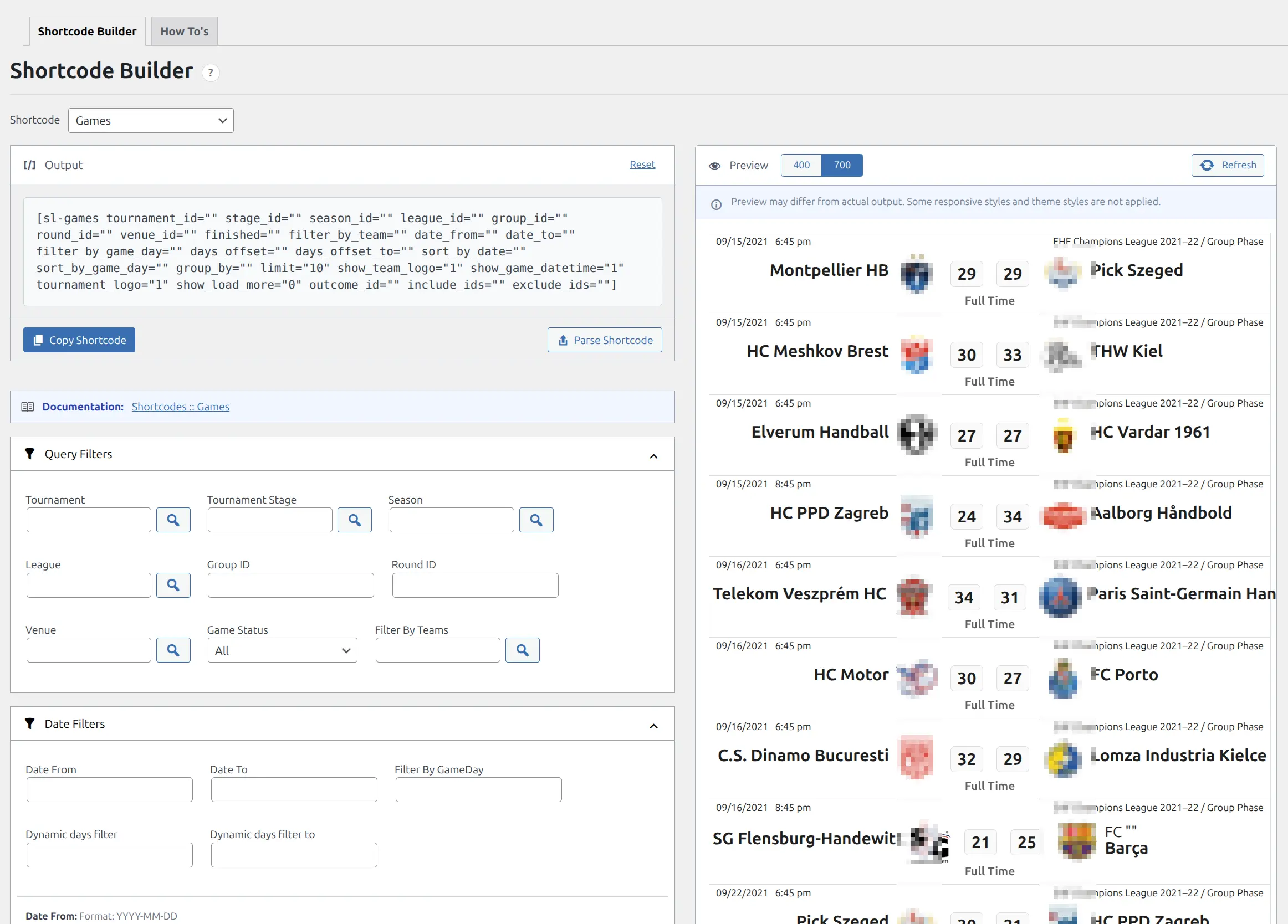
Key Benefits:
- No need to memorize shortcode parameters
- Visual form fields with descriptions
- Live preview shows output before copying
- Parse existing shortcodes to edit them
- Available in both Gutenberg and Classic Editor
Accessing the Shortcode Builder
Method 1: Admin Menu (Recommended)
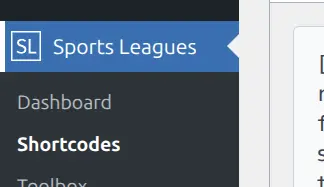
- Go to Sports Leagues > Shortcode Builder in WordPress admin
- Select shortcode type from dropdown
- Configure options
- Copy generated shortcode
Method 2: Classic Editor Button
When editing a page/post in Classic Editor:
- Click the SL Shortcodes button in the editor toolbar
- Select shortcode type
- Configure in popup modal
- Click Insert to add shortcode
Method 3: Gutenberg Shortcode Block
- Add a Shortcode block to your page
- Open Shortcode Builder from admin menu
- Configure and copy shortcode
- Paste into the block
Using the Shortcode Builder
Step 1: Select Shortcode Type
Use the dropdown at the top to choose which shortcode to configure:
- Core shortcodes – Available to all users
- Premium shortcodes – Marked with orange badge (requires Premium)
Step 2: Configure Options
The form displays all available options for the selected shortcode, organized in sections:
| Section | Contains |
|---|---|
| General | Main entity selection (team, player, tournament) |
| Query | Data filtering (season, league, date range) |
| Filters | Additional filtering options |
| Display | Layout style, visible columns, ordering |
| Sorting | Sort field and direction |
Field Types:
- Dropdowns – Select from predefined options
- Selectors – Click to open entity picker (teams, players, etc.)
- Yes/No – Toggle switches
- Numbers – Numeric values (limits, widths)
- Multi-select – Select multiple values, drag to reorder
Step 3: Use Live Preview
The right panel shows a live preview of how the shortcode will appear on your site:
- Click Refresh to update preview after changes
- Use 700 / TST buttons to change preview width
- Preview loads with your actual site data and styles
Step 4: Copy and Use
- The generated shortcode appears in the Output field at the top
- Click Copy Shortcode to copy to clipboard
- Paste into any page, post, or widget
Editing Existing Shortcodes
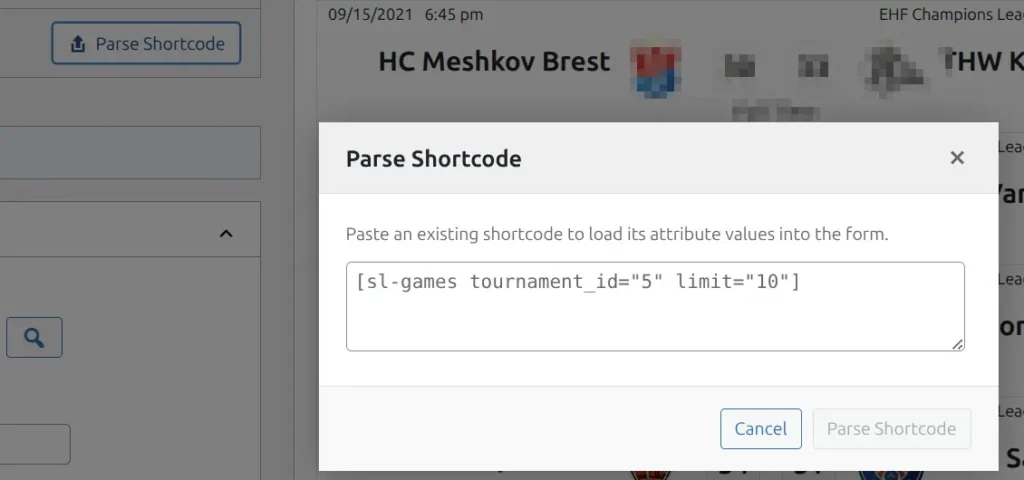
The Parse Shortcode feature lets you edit shortcodes you’ve already created:
How to Parse a Shortcode
- Click Parse Shortcode button (next to Copy)
- Paste your existing shortcode in the popup
- Click Parse Shortcode
- Form fields populate with current values
- Modify options as needed
- Copy updated shortcode
Example:
[sl-games tournament_id="5" limit="10"]After parsing, the form shows Tournament ID = 5 and Limit = 10, ready to edit.
Note
If the shortcode tag doesn’t match the selected type, you’ll see a warning to select the correct shortcode first.
Tips & Best Practices
Finding Entity IDs
Many fields require entity IDs (teams, players, tournaments). Two ways to find them:
- Use the Selector – Click the selector field to open a searchable picker
- Check the URL – When editing an item, look at the URL:
post.php?post=123(ID = 123)
Working with Multi-Select Fields
For fields like “Sections” or “Columns”:
- Click to add items
- Drag items to reorder them
- The order in the field = display order on frontend
Preview Limitations
Some shortcodes with complex JavaScript (sliders, live scores) may not fully render in preview. These will show a static snapshot or placeholder.
Reset Form
Click Reset to clear all form fields and start fresh.
Troubleshooting
Shortcode Shows as Text
Problem: The shortcode [sl-...] appears as plain text instead of rendering.
Solutions:
- In Gutenberg: Use a Shortcode block, not Paragraph
- In Classic Editor: Switch to Text mode (not Visual)
- Check for typos in shortcode name
Preview Not Loading
Problem: Preview panel shows blank or error.
Solutions:
- Click Refresh button
- Check browser console for JavaScript errors
- Ensure WordPress REST API is accessible
Form Not Appearing
Problem: Selecting a shortcode type shows no form.
Solutions:
- Clear browser cache (Ctrl+Shift+R)
- Check for JavaScript errors in browser console
- Ensure plugin is updated to latest version
Copied Shortcode Missing Parameters
Problem: Some parameters don’t appear in copied shortcode.
Tip
Parameters with default values are intentionally omitted from output to keep shortcodes clean. Only changed values appear.