

Tournaments are the heart of the plugin. They contain teams, games, and generate standings. Every game belongs to a tournament, and standings are calculated per tournament stage.
📋 Tournament Concepts
Before creating a tournament, understand these key concepts:
| Concept | Description | Example |
|---|---|---|
| Stage | A phase of the tournament | “Group Stage”, “Playoffs” |
| Round | A set of matchups (knockout only) | “Quarterfinals”, “Semifinals” |
| Group | A division of teams | “Group A”, “Eastern Conference” |
| Matchup | A pairing in knockout stage | “Team A vs Team B” |
Tournament Systems
| System | Description | Best For |
|---|---|---|
| Group | Round-robin within groups, standings calculated | Regular seasons, group stages |
| Knockout | Single-elimination brackets with matchups | Cup competitions, playoffs |
Tip
Use multiple stages for complex tournaments. For example: Group Stage (group system) followed by Playoffs (knockout system).
➕ Creating a Tournament
Before creating a tournament, ensure you have created at least one Season and League.
- Go to Sports Leagues > Tournaments > Add New
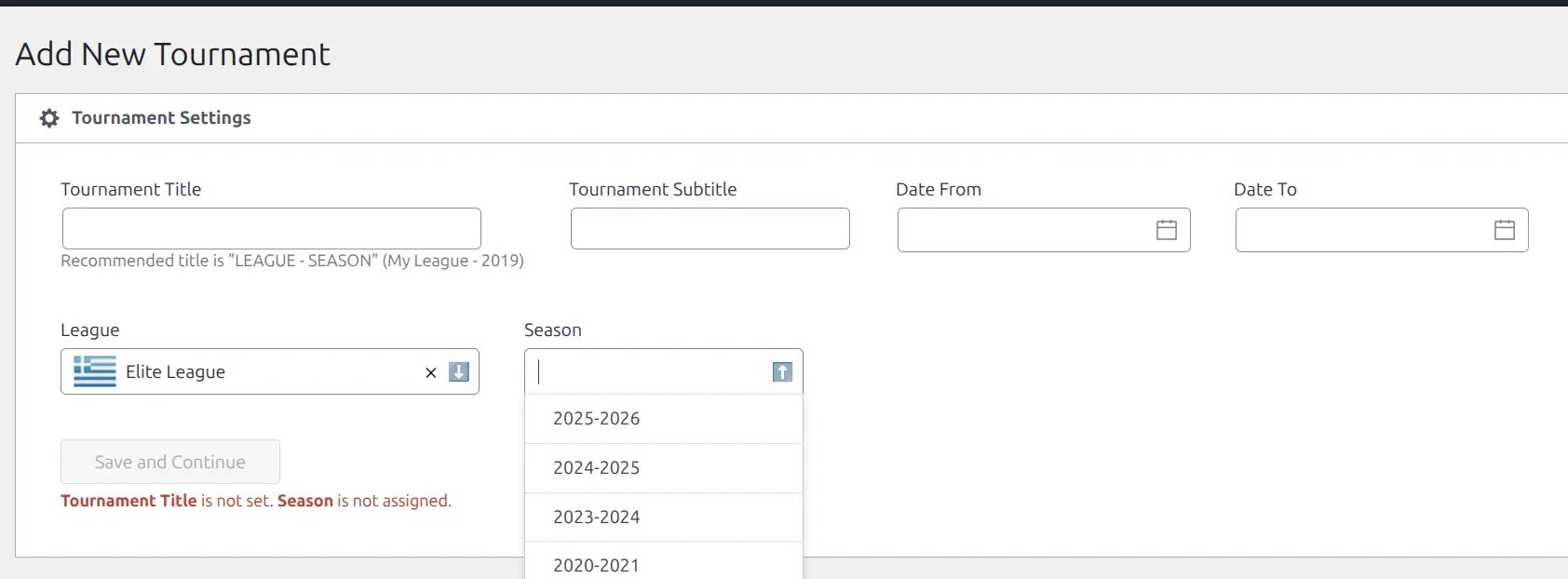
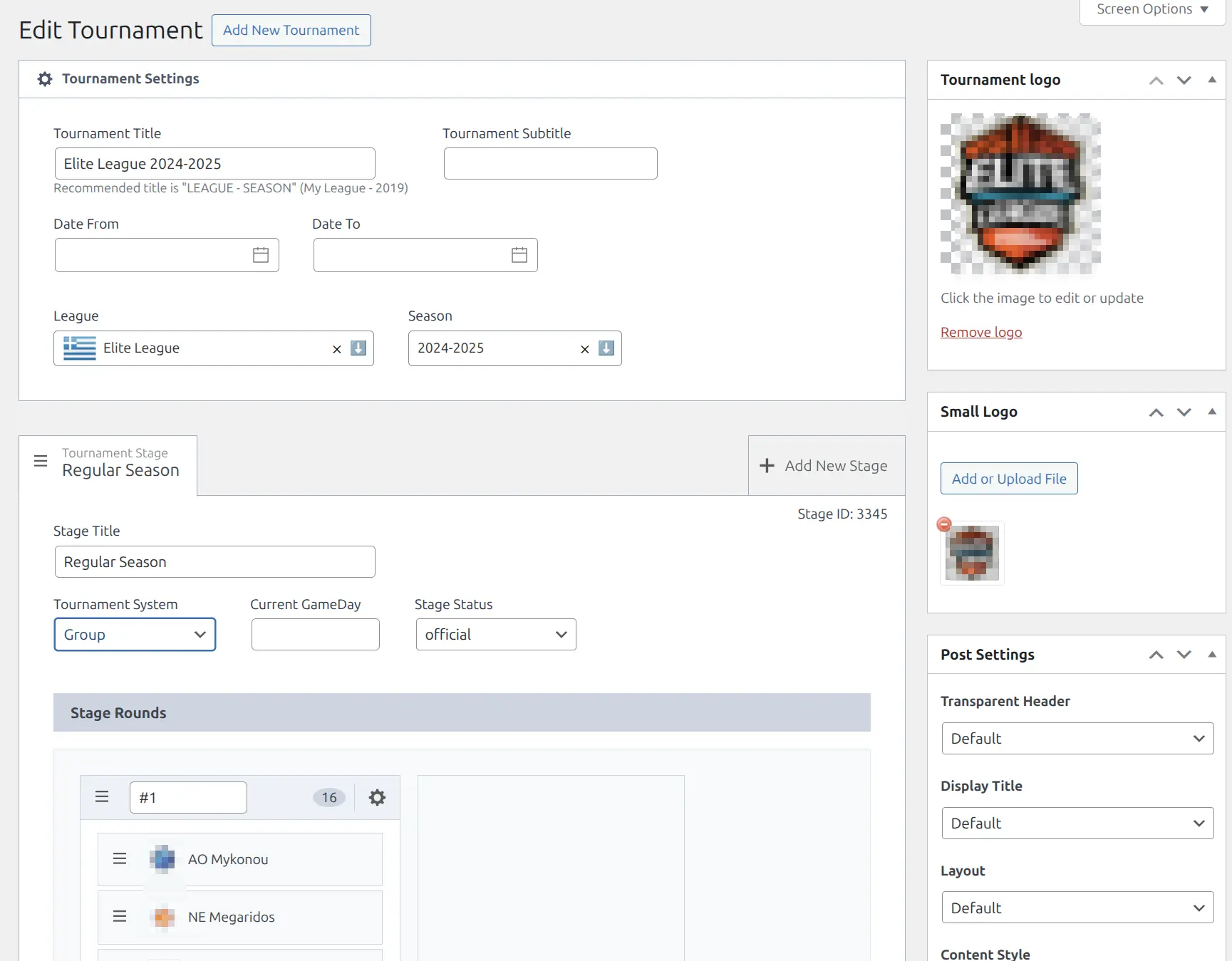
- Fill in the Tournament Settings:
- Tournament Title — Name of the competition (e.g., “Premier League 2024-25”)
- Tournament Subtitle — Optional secondary text
- Date From / Date To — Tournament duration (optional)
- League — Select the league category
- Season — Select the time period
- Click Save and Continue
Tip
When you select both League and Season, the title auto-fills as “League Name Season” (e.g., “Premier Division 2024-25”).
🏗️ Tournament Structure
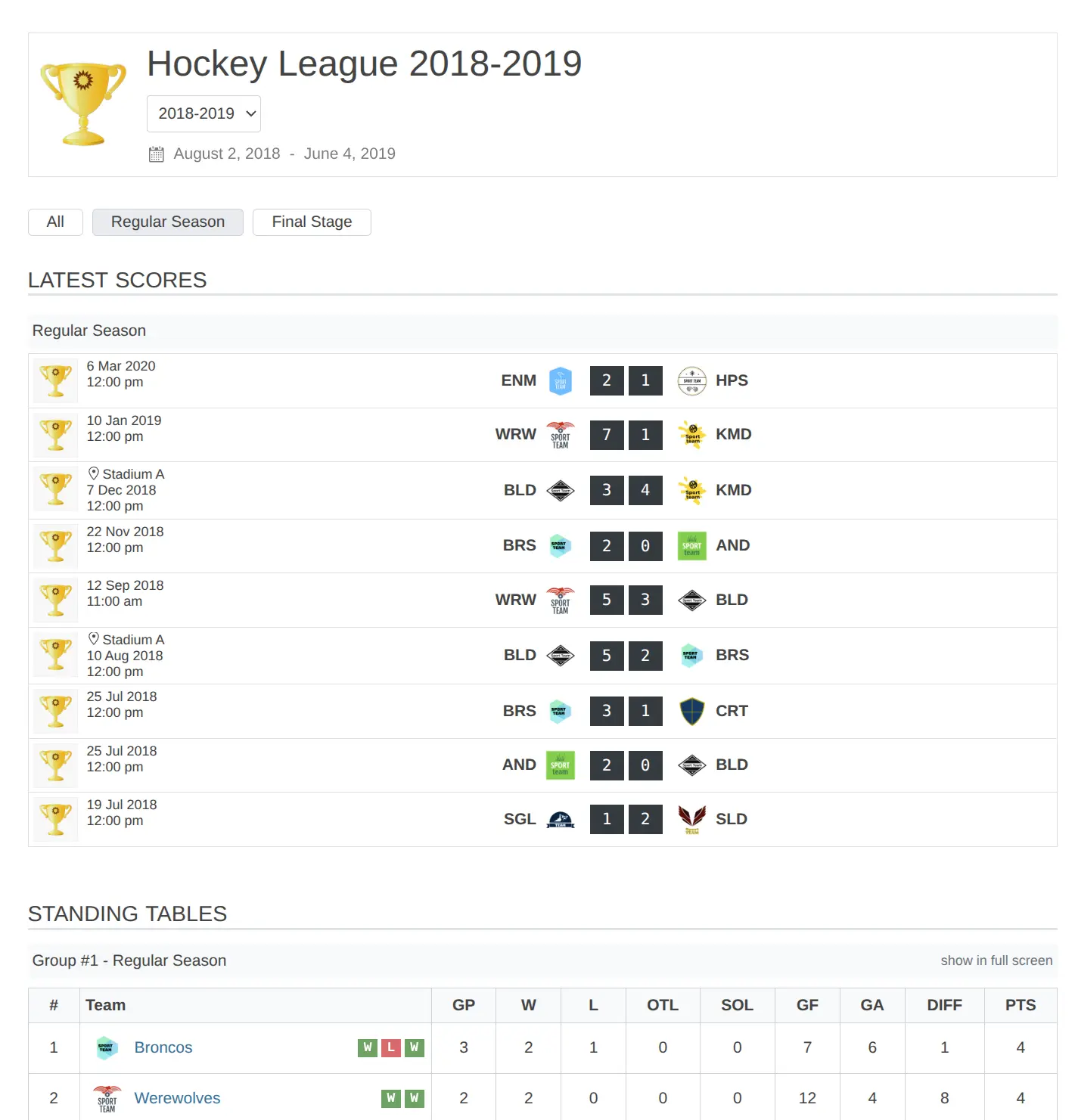
After saving the basic settings, the tournament editor shows the structure builder with stages, rounds, and groups.
Working with Stages
Stages are the main divisions of your tournament. A simple league has one stage; a cup competition might have Group Stage + Knockout Stage.
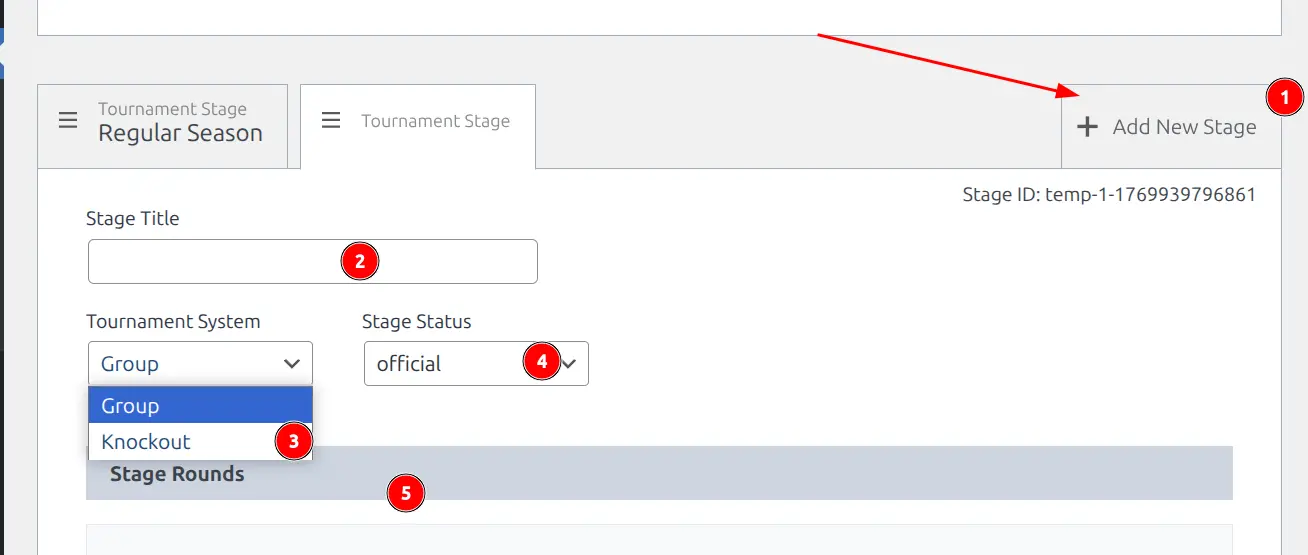
To add a new stage:
- Click Add New Stage in the stage tabs area
- Enter a Stage Title (e.g., “Group Stage”, “Playoffs”)
- Select the Tournament System:
- Group — For round-robin competitions with standings
- Knockout — For elimination brackets
- Set Stage Status:
- Official — Games count in overall statistics
- Friendly — Games excluded from stats
Stage management:
- Reorder stages — Drag stages by their handle to change order
- Switch stages — Click a stage tab to view/edit it
- Delete a stage — Click “Delete Stage” at the bottom (only if multiple stages exist)
Working with Groups
Groups organize teams within a stage. For a simple league, one group is enough. For multiple divisions, create multiple groups (e.g., “Group A”, “Group B”).
To add a new group:
- Click Add New Group (or “Add New Matchup” in knockout)
- Enter a group title in the header field
- Add teams to the group
Group management:
- Rename — Edit the title directly in the group header
- Reorder groups — Drag by the handle on the left
- Reorder teams — Drag teams within a group to set seeding order
- Delete group — Open the group settings modal and click “Delete Group”
Adding Teams to Groups
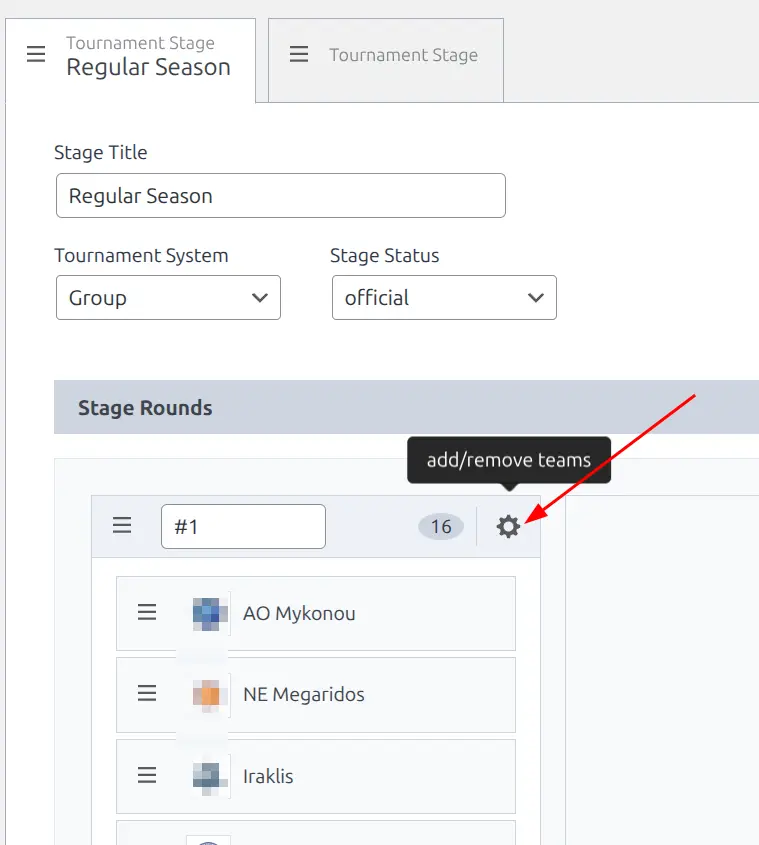
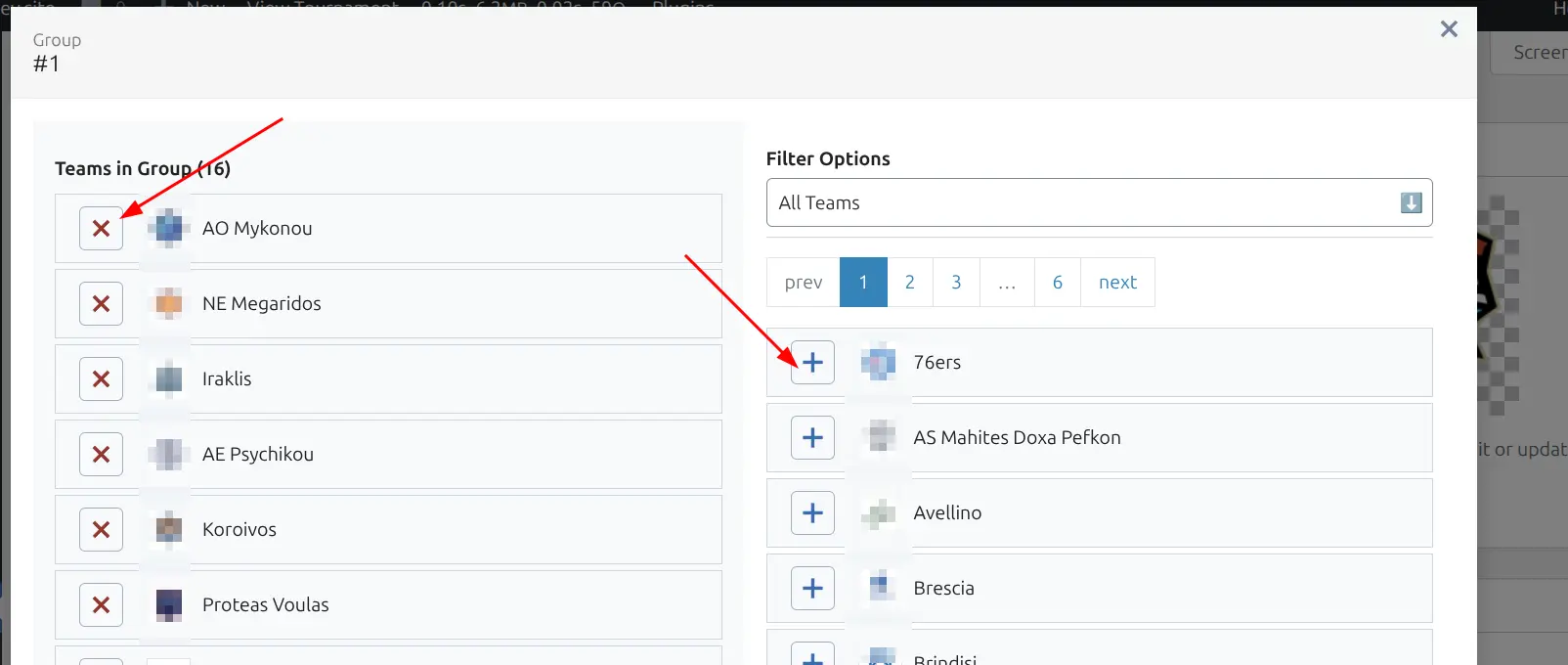
- Click the gear icon on the group header
- In the modal, use the right panel to find teams:
- All Teams — Browse all available teams
- Search By Title — Type to filter teams
- Previous Round — Show teams from the previous round (knockout)
- Previous Stage — Show teams from the previous stage
- Click the + button next to a team to add it
- Click the X button next to a team on the left to remove it
- Click Close when done
Note
In knockout stages, each matchup can have a maximum of 2 teams. The modal will show a warning if you try to add more.
Working with Knockout Rounds
In knockout stages, rounds organize the elimination bracket (Quarterfinals, Semifinals, Finals, etc.).
To add a new round:
- Click Add New Round
- Edit the round title (e.g., “Quarterfinals”)
- Add matchups within the round
To delete a round:
- Click the X button in the round header (available for rounds after the first)
- Confirm deletion in the popup
💾 Saving Changes
Click the Save button at the bottom of the page to save all tournament structure changes. The button is disabled until all required fields are filled (Title, League, Season).
Warning
Deleting stages or groups with existing games can break statistics. Remove or reassign games before deleting tournament structure elements.
🔄 Core vs Premium Comparison
Both Core and Premium versions support full tournament management. Premium adds workflow enhancements for advanced tournament setups.
| Feature | Core | Premium |
|---|---|---|
| Create tournaments with stages | ✓ | ✓ |
| Group system (round-robin) | ✓ | ✓ |
| Knockout system (elimination) | ✓ | ✓ |
| Multiple stages per tournament | ✓ | ✓ |
| Add/remove teams from groups | ✓ | ✓ |
| Drag-and-drop reordering | ✓ | ✓ |
| Official/Friendly stage status | ✓ | ✓ |
| Current GameDay tracking | — | ✓ |
| Bracket Layout control | — | ✓ |
| Team Placeholders in brackets | — | ✓ |
⭐ Premium Features
The Premium version adds advanced tournament management features for professional leagues and complex competitions.
Current GameDay
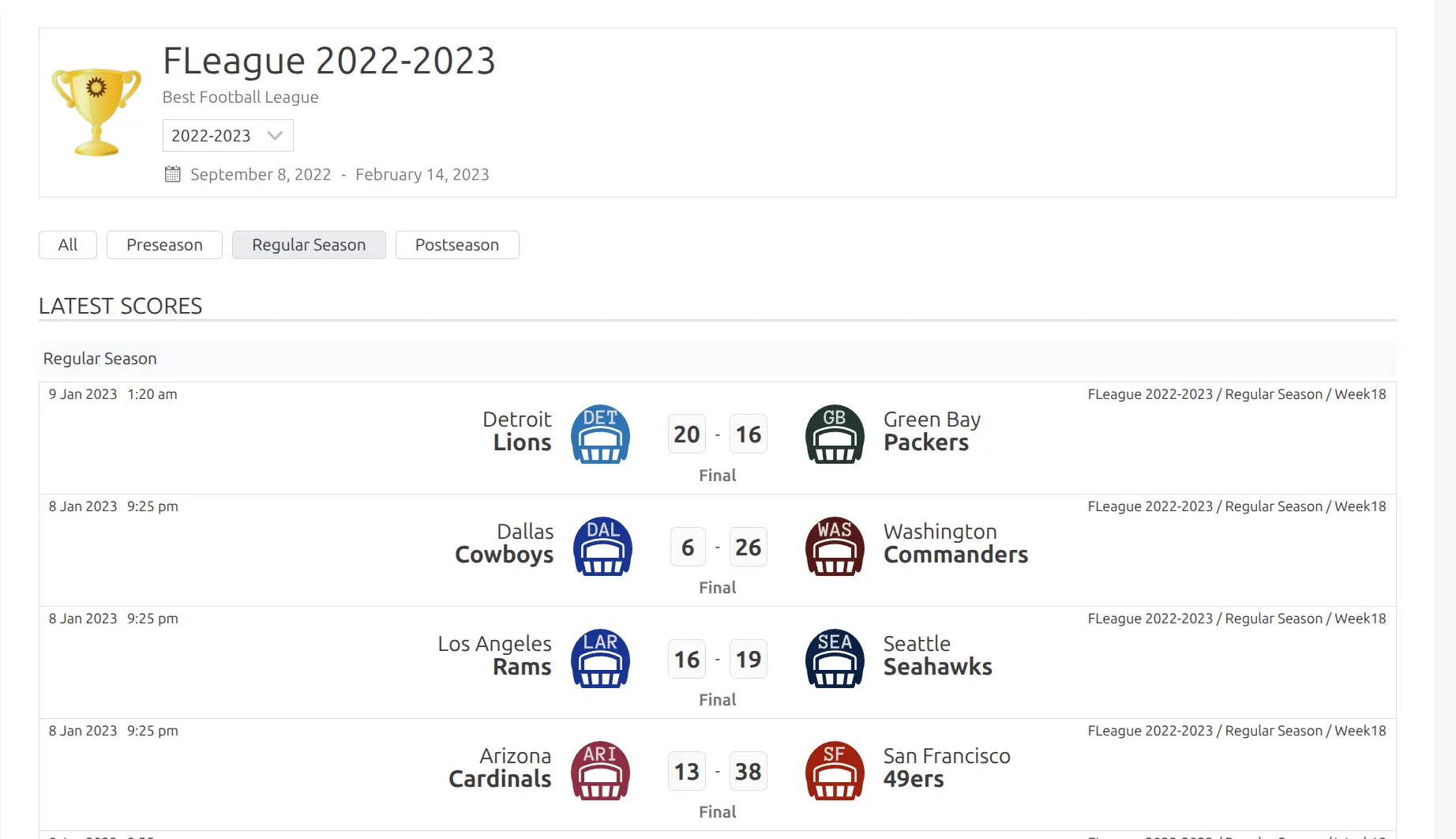
For group stages, track the current gameday (matchweek) number. This field appears in stage settings when using the Group tournament system.
Use cases:
- Display “Matchweek 15” in standings widgets
- Filter games by current gameday in shortcodes
- Highlight upcoming fixtures for the active round
Bracket Layout Control
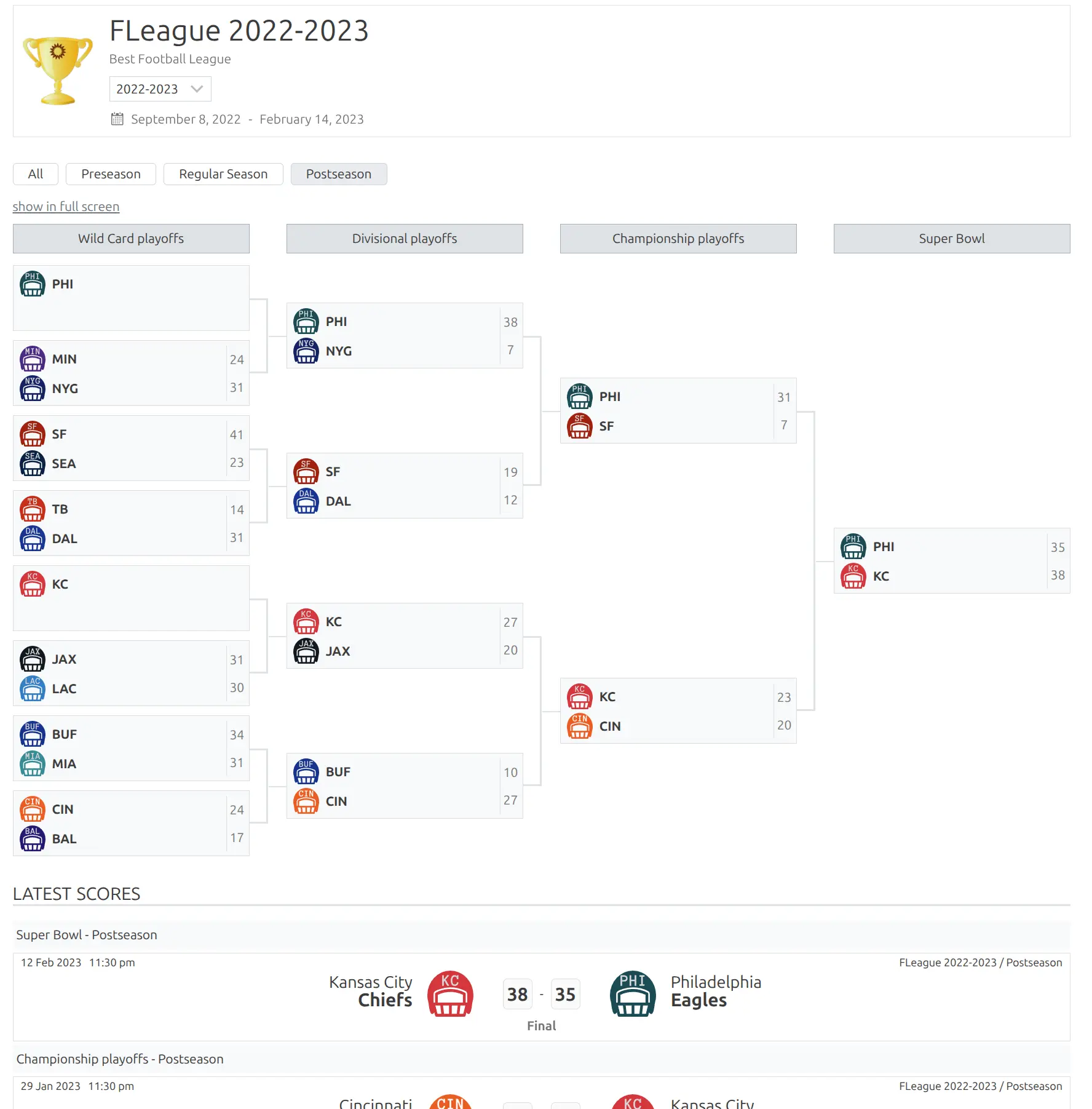
For knockout stages, control how the bracket displays on the frontend. This option appears in stage settings when using the Knockout tournament system.
| Option | Behavior |
|---|---|
| Show (default) | Displays visual bracket diagram with matchups connected by lines |
| Hide | Shows only the game list without bracket visualization |
Tip
Use “Hide” for tournaments with many rounds where the bracket becomes too wide, or when you prefer a simple list format.
Team Placeholders
In knockout matchups, set placeholder text for teams that haven’t qualified yet. This is ideal for brackets where qualification depends on group stage results.
Examples:
- “Winner of Group A”
- “1st Place Eastern Conference”
- “Winner QF1”
- “TBD”
To set placeholders:
- In a knockout stage, find the matchup you want to configure
- Click the curly brackets icon on the matchup header
- Enter placeholder text for Team A and Team B
- Click Close
Placeholders display in the bracket when no actual team is assigned. Once you add a real team, the placeholder is replaced automatically.
🔗 Editing Tournament Details
Additional tournament details (logo, featured image, custom content) are edited through the standard WordPress sidebar:
| Field | Description |
|---|---|
| Tournament Logo | Small logo displayed in listings and headers |
| Featured Image | Large image for tournament page banner |
| Post Status | Published, Draft, or Hidden (Premium) |
📊 After Creating a Tournament
Once your tournament structure is ready, you can:
- Create games — Go to Sports Leagues > Games > Add New and select this tournament
- Create standings — Go to Sports Leagues > Standings > Add New to create a standing table for a stage
- Display on frontend — Use shortcodes or blocks to show tournament data
📚 Related Documentation
- Seasons and Leagues — Required before creating tournaments
- Standing Table — Create standings for tournament stages
- Display Shortcodes — Show tournament data on your site