

Getting 404 “Page Not Found” errors on your Sports Leagues pages? This usually happens when WordPress permalink rules get out of sync. Here’s how to fix it.
🚀 Quick Fix: Flush Permalinks
Most 404 errors are resolved by flushing the permalink cache:
- Go to Settings > Permalinks in WordPress admin
- Scroll to the bottom of the page
- Click Save Changes (you don’t need to change any settings)
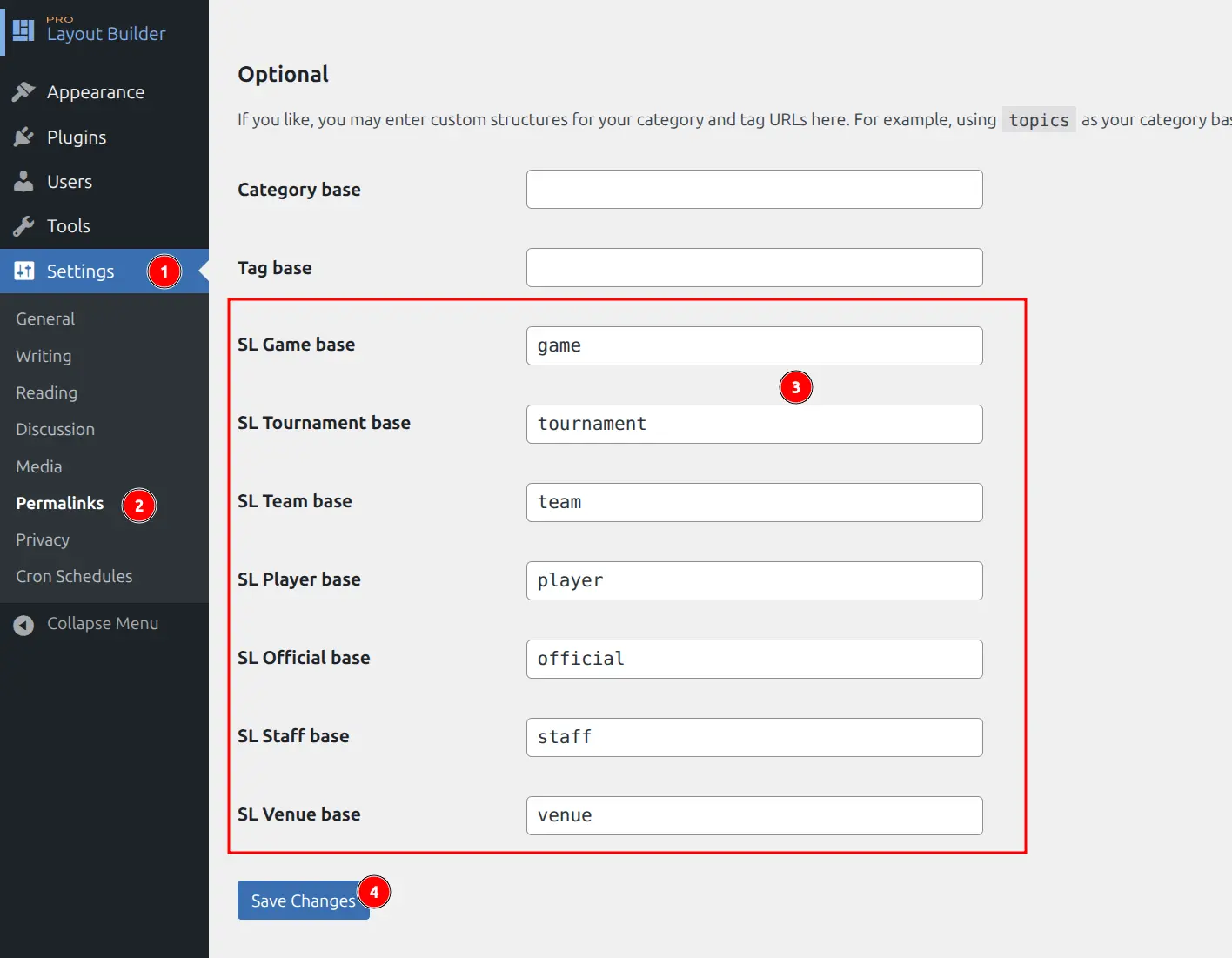
This regenerates WordPress’s rewrite rules and usually resolves 404 errors immediately.
🔧 Method 2: Change the Slug Base
If flushing permalinks doesn’t fix the issue, the problem may be a slug conflict. This happens when a Sports Leagues URL slug matches an existing page, taxonomy, or another plugin’s post type.
Why Conflicts Cause 404s
When two items share the same URL base, WordPress’s rewrite system becomes confused:
- You have a WordPress page at
/team/ - Sports Leagues also uses
/team/for team pages - WordPress can’t determine which to display → 404 error
How to Fix
- Go to Settings > Permalinks
- Scroll to the Optional section
- Find the Sports Leagues slug settings (labeled “SL Game base”, “SL Team base”, etc.)
- Change the conflicting slug to something unique (e.g.,
team→cluborsquad) - Click Save Changes
Common Conflict Examples
| Conflict | Solution |
|---|---|
Page at /team/ | Change SL Team base to club or squad |
Page at /player/ | Change SL Player base to roster or athlete |
Page at /game/ | Change SL Game base to match or fixture |
Another plugin uses /venue/ | Change SL Venue base to arena or stadium |
🆘 Still Getting 404s?
If the above steps don’t resolve your issue, try these additional solutions:
Clear All Caches
- Caching plugin – Clear cache in WP Super Cache, W3 Total Cache, LiteSpeed, etc.
- Object cache – Flush Redis or Memcached if using them
- CDN cache – Purge Cloudflare, Sucuri, or other CDN caches
- Browser cache – Try incognito/private browsing mode
Check .htaccess File
On Apache servers, corrupted .htaccess rules can cause 404s. Re-saving permalinks regenerates this file. If issues persist, check with your hosting provider.
Plugin Conflicts
Some plugins can interfere with WordPress rewrite rules:
- Temporarily deactivate other plugins
- Flush permalinks (Settings > Permalinks > Save Changes)
- Test if 404s are resolved
- Reactivate plugins one by one to find the conflict
📚 Related Documentation
- Permalinks Settings – Customize URL slugs for all entity types