

When using API Import, some imported games shouldn’t count toward standings or statistics — preseason games, exhibition matches, or cup finals like the NBA Cup Championship. This guide shows how to create a “friendly” stage and move those games into it, so they’re excluded from all standings and statistics calculations.
🎯 When You Need This
API providers sometimes import games that don’t belong in your regular season numbers:
- Cup/Championship finals — e.g., the NBA Cup Championship game that doesn’t count in regular season standings
- Preseason/Exhibition games imported alongside regular season games
- All-Star or special event games that shouldn’t affect any statistics
These games land in the “Regular Season” stage by default. Moving them to a friendly stage excludes them from standings, player stats, team stats, and all other statistical calculations — while keeping the games visible on your site.
How It Works
Every stage in a tournament has a Stage Status — either official or friendly. Games inherit their status from the stage they belong to. All statistics queries only include games with official status.
| Stage Status | Standings | Player Stats | Team Stats | Frontend Display |
|---|---|---|---|---|
official | Included | Included | Included | Visible |
friendly | Excluded | Excluded | Excluded | Visible |
🚀 Step-by-Step Guide
Step 1: Create a Friendly Stage
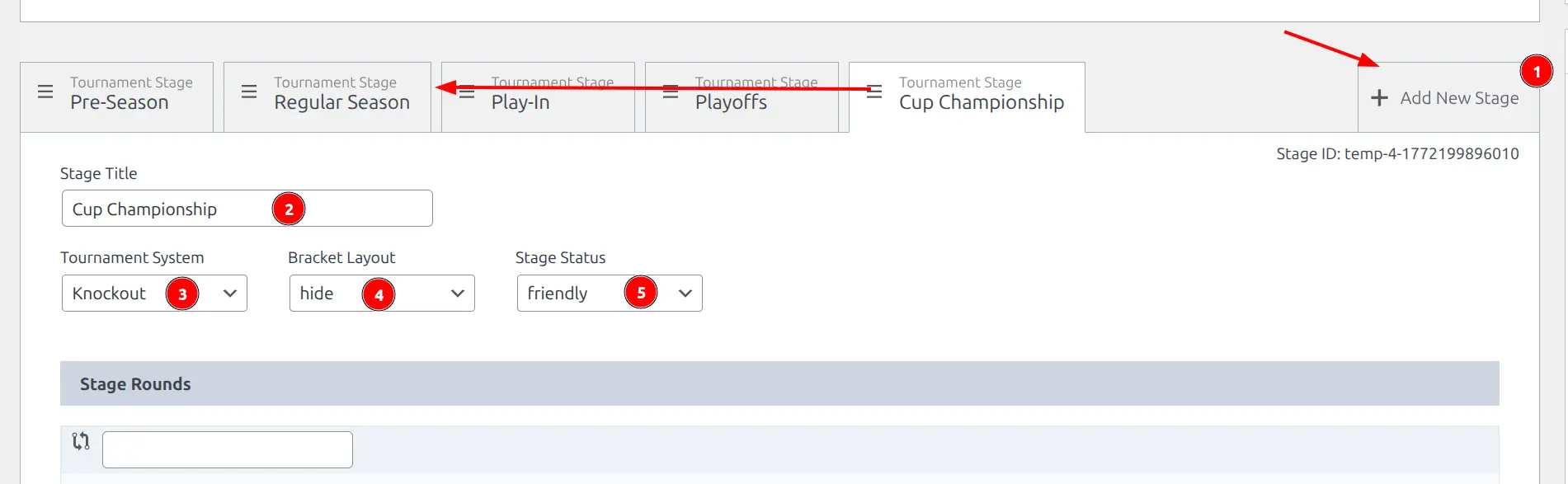
- Open the Tournament for editing (e.g., NBA 2025-2026)
- Click ➕ Add New Stage
- Set the Stage Title (e.g., “Cup Championship”)
- Set Tournament System to
Knockout(or any system that fits) - Set Bracket Layout to
hide - Set Stage Status to
friendly
Tip
Setting Bracket Layout to “hide” keeps the stage clean — no empty bracket displays on the frontend.
Step 2: Add Teams to the Friendly Stage
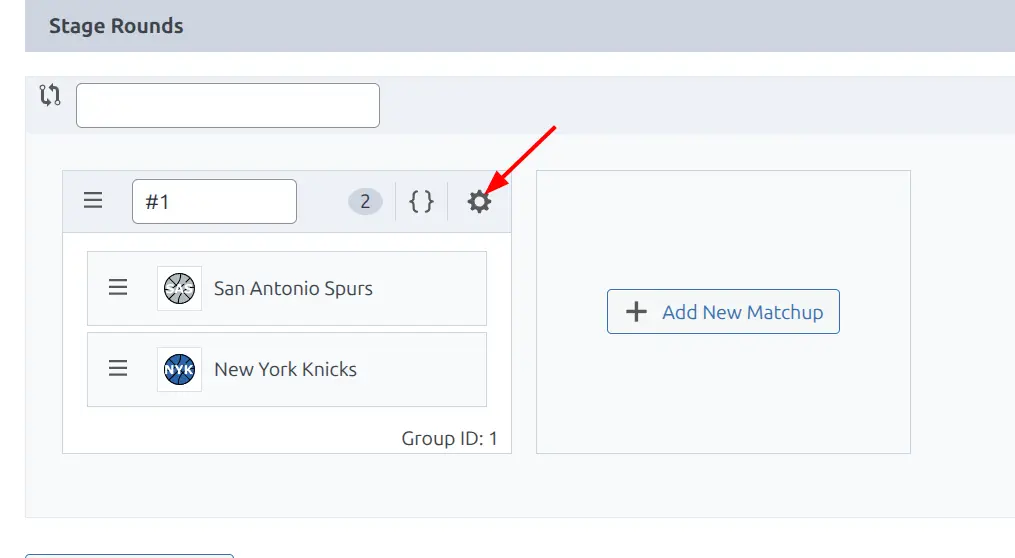
- In the new friendly stage, find the Stage Rounds section
- Click the gear icon ⚙️ on a group to add teams
- Add the teams that play in these games
- Save the tournament
Step 3: Find the Game to Move
- Go to Sports Leagues > Games
- Use the date filters to narrow down the list — set the Game Day range to the game’s date
- Click Filter
- Find the game and click Edit (or Edit structure directly from the list)

Step 4: Open Edit Structure
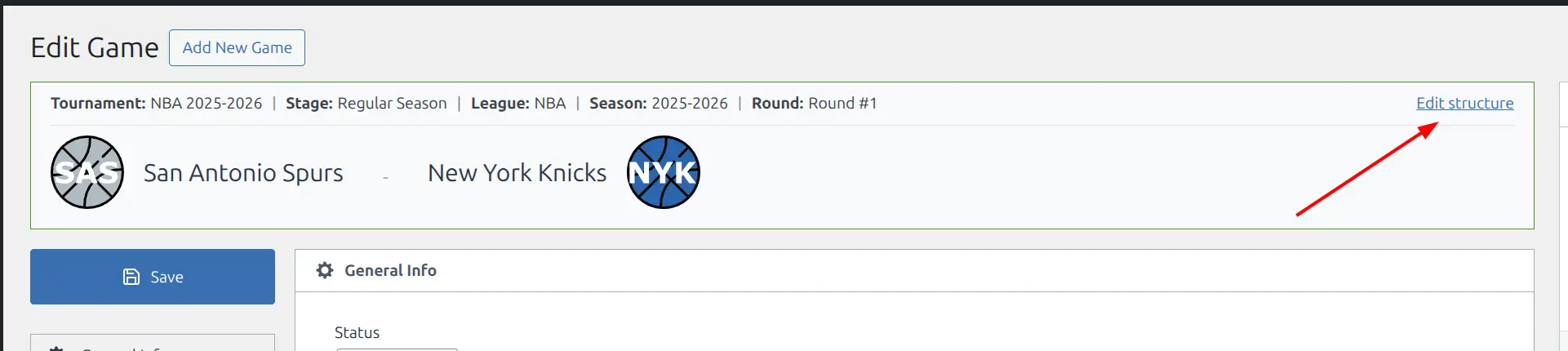
On the Game edit page, click “Edit structure” in the top-right corner of the game header. This opens the Game Setup panel where you can reassign the game to a different stage.
Step 5: Change the Stage and Save
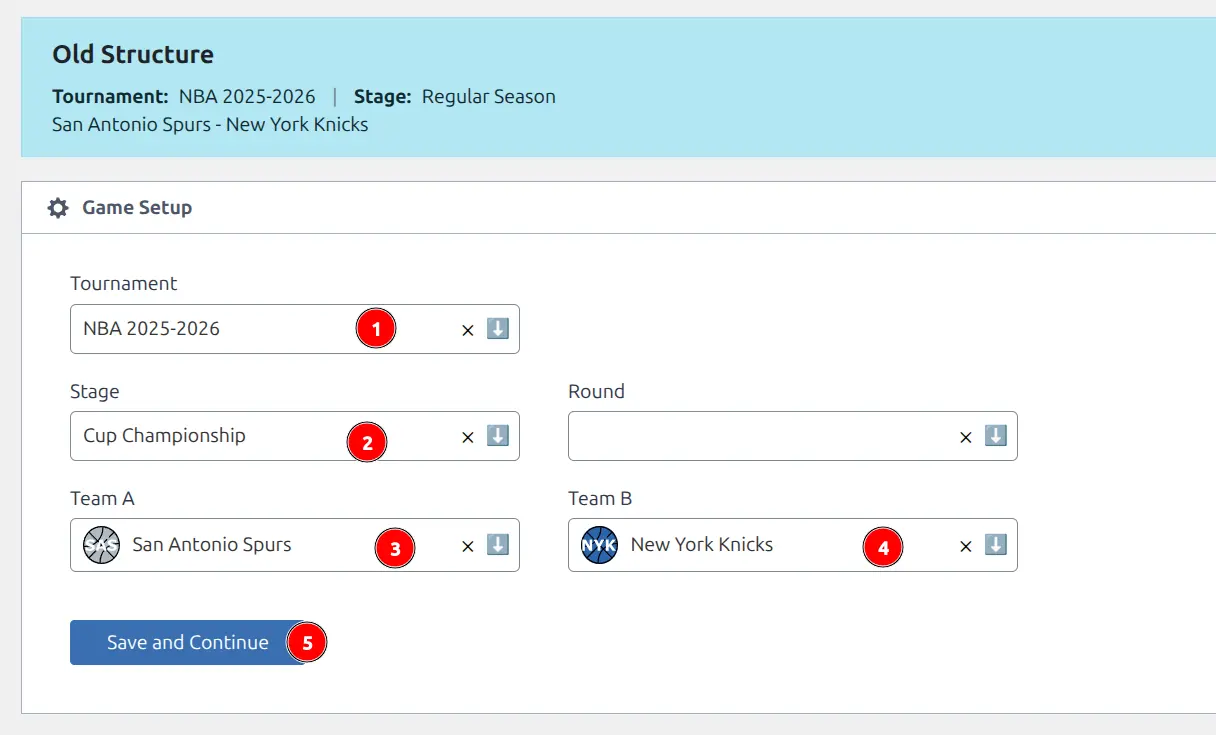
The Game Setup panel displays the old structure at the top. Below it, update the assignment:
- Keep the Tournament the same
- Change the Stage to your friendly stage (e.g., “Cup Championship”)
- Verify Team A and Team B are correct
- Click “Save and Continue”
Step 6: Update the Game
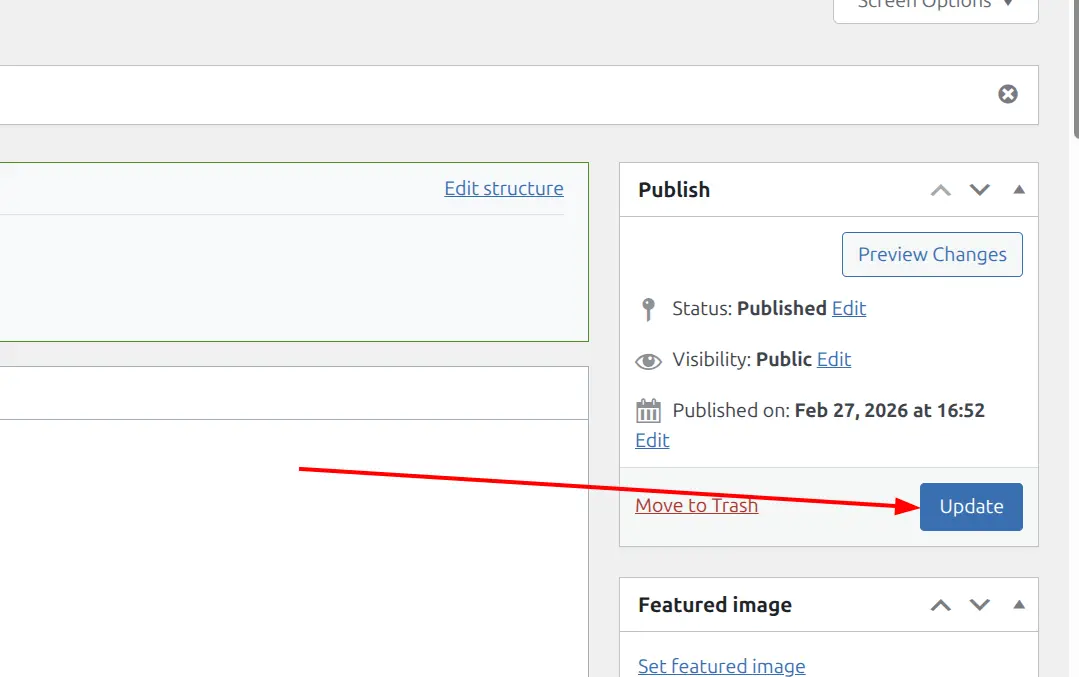
After saving the structure change, click “Update” in the Publish metabox to finalize.
Step 7: Recalculate the Standing
The standing table needs recalculation to reflect the change:
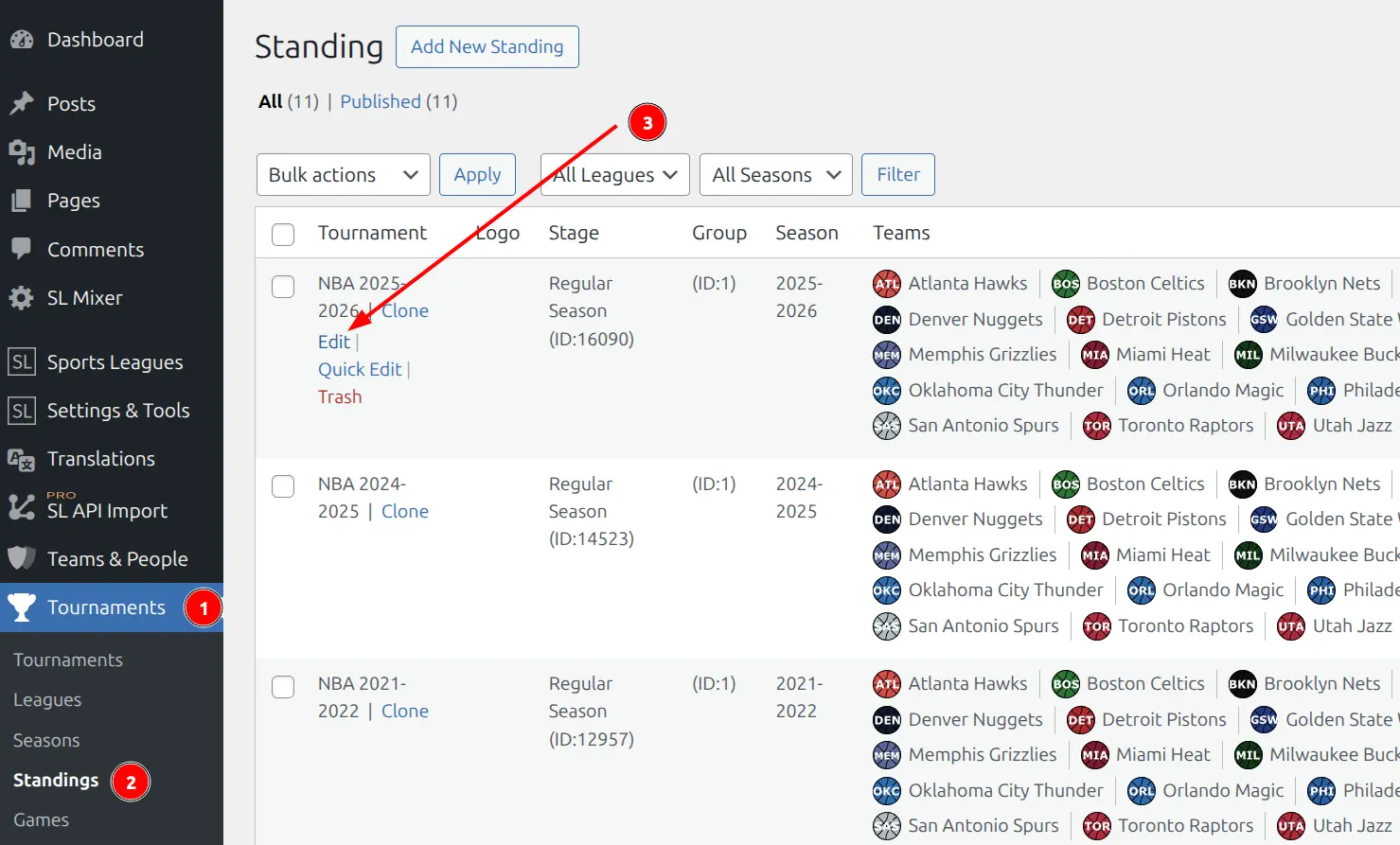
- Go to Tournaments > Standings
- Find the standing for your Regular Season stage
- Click Edit
- Click Update to recalculate
Warning
Standings don’t update automatically when you move a game between stages. You must open the standing and click Update to recalculate.
🆘 Troubleshooting
Standings still show the moved game
You need to recalculate the standing. Open it for editing and click Update (see Step 7).
The friendly stage doesn’t appear in the Stage dropdown
Save the tournament after creating the new stage, then refresh the game edit page. The stage list loads from saved tournament data.
API Import keeps putting games in the wrong stage
API Import assigns games to stages based on mapping. After moving a game manually, the next import cycle respects the current assignment. If the game is re-created in the wrong stage, move it again and check your import schedule.
📚 Related
- Friendly Stage — full feature overview and additional use cases
- Exclude a Game from Stats — all methods to exclude games (friendly stage, hidden status, draft)
- Tournaments — how stages, groups, and rounds work
- Standings — how standings calculate from game data