

This guide walks you through setting up your first sports website. By the end, you’ll have a working league with teams, players, games, and automatic standings.
🎯 What You Can Build
- ✅ League websites with standings and fixtures
- ✅ Team sites with rosters and game schedules
- ✅ Tournament platforms with brackets
- ✅ Sports club sites with multiple divisions
- ✅ Statistics tracking platforms
📋 Prerequisites
| Requirement | Minimum | Recommended |
|---|---|---|
| WordPress | 5.9+ | Latest |
| PHP | 7.4+ | 8.0+ |
| MySQL | 5.6+ | 5.7+ |
| Required Plugin | CMB2 | — |
| Permalinks | Non-Plain | Post name |
🚀 Step 1: Configure Your Sport
The Sport Configurator sets up positions, statistics, events, and standing table format for your sport.
- Go to Sports Settings > Sport Configurator
- Select your sport from the dropdown (Basketball, Hockey, Rugby, etc.)
- Click Load Configuration
- Review the pre-configured settings
- Click Save Configuration
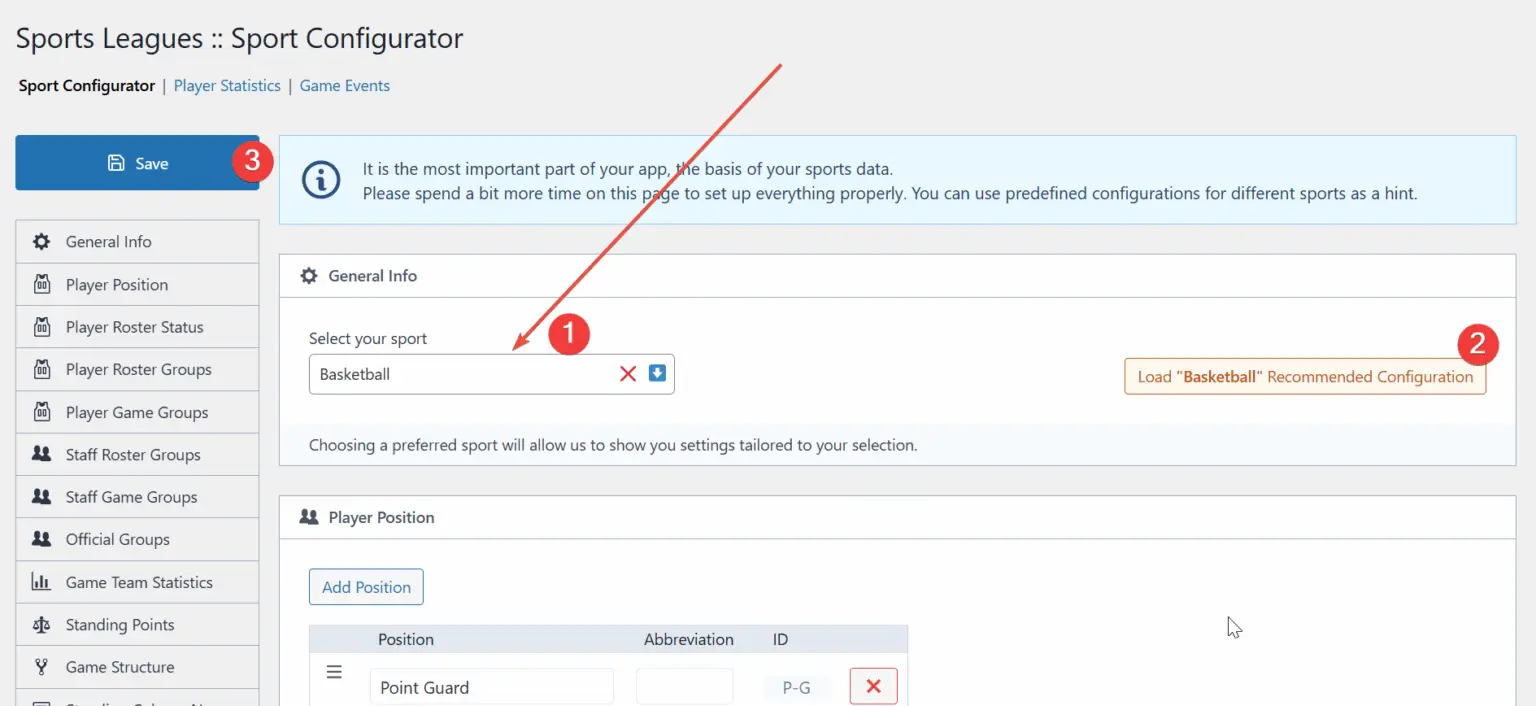
What gets configured:
- Player positions specific to your sport
- Statistics to track (points, rebounds, assists, etc.)
- Game events (goals, fouls, penalties, etc.)
- Standing table columns and point system
📁 Step 2: Create League & Season
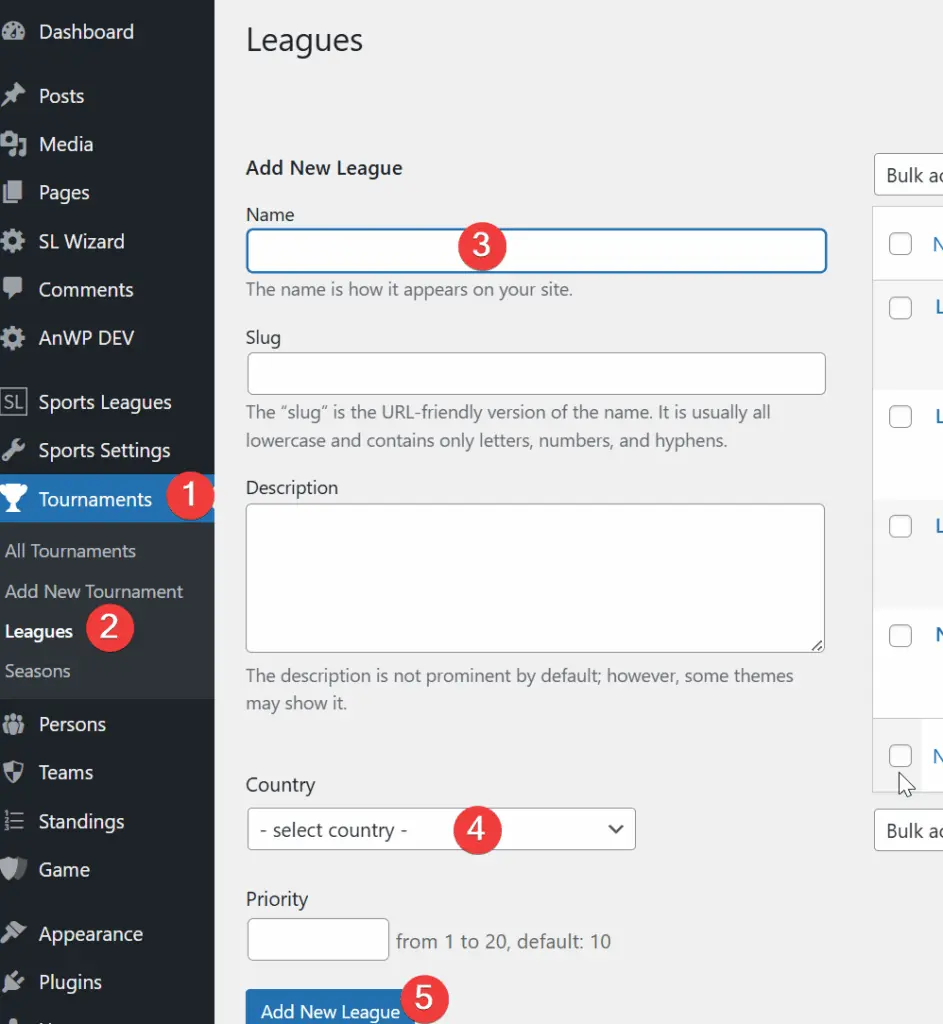
Create a League
- Go to Sports Leagues > Leagues
- Enter league name (e.g., “NBA”, “Premier Division”)
- Click Add New League
Create a Season
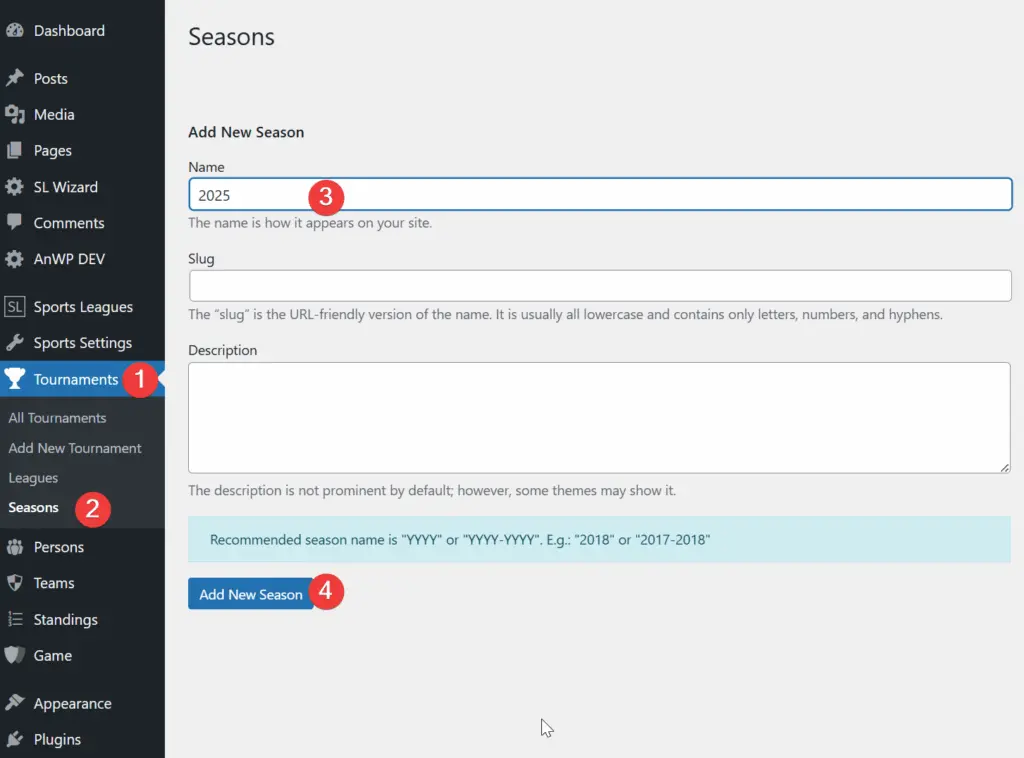
- Go to Sports Leagues > Seasons
- Enter season name (e.g., “2024-25”)
- Click Add New Season
Tip
Use consistent naming — “2024-25” not “2024/25” or “Season 2024”. This makes filtering easier later.
👥 Step 3: Add Teams
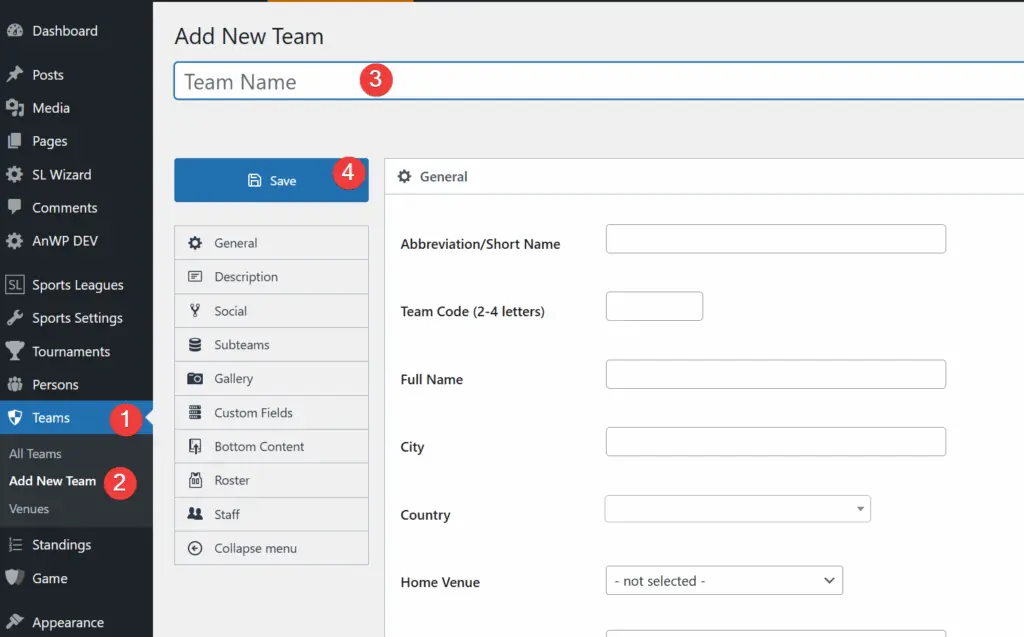
Create Team One-by-One
- Go to Sports Leagues > Teams > Add New
- Enter team name as title
- Fill in Team Details:
- Short Name (2-4 letters for compact displays)
- City (optional)
- Upload team logo in sidebar
- Click Publish
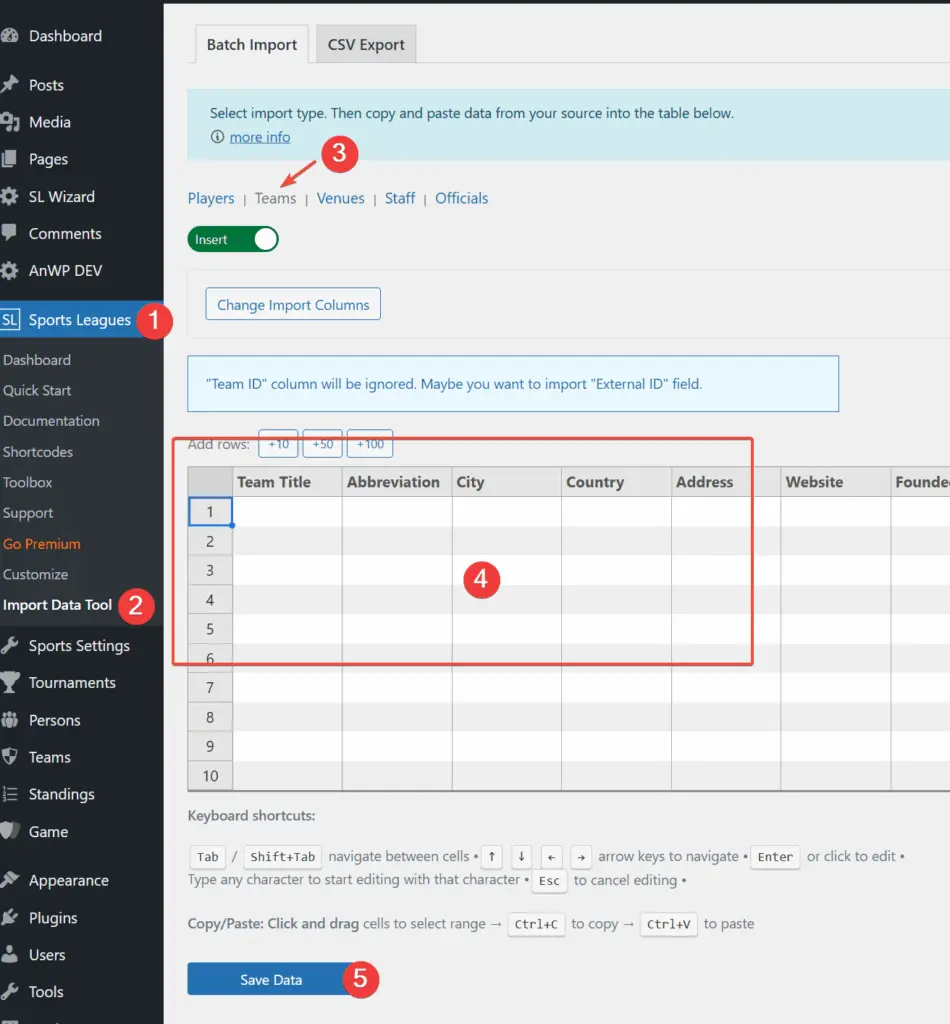
Bulk Create Teams
For multiple teams at once:
- Go to Sports Leagues > Teams > Bulk Add
- Enter team names (one per line)
- Click Create Teams
🏃 Step 4: Add Players
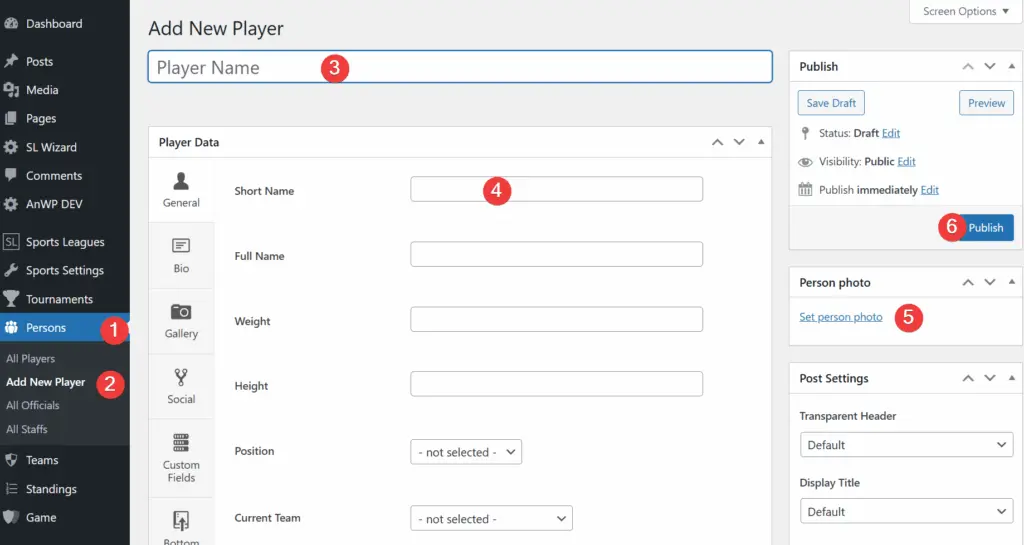
Create Players
- Go to Sports Leagues > Persons > Add New Player
- Enter player name as title
- Fill in Player Details:
- Position
- Jersey Number
- Date of Birth
- Photo (Featured Image)
- Click Publish
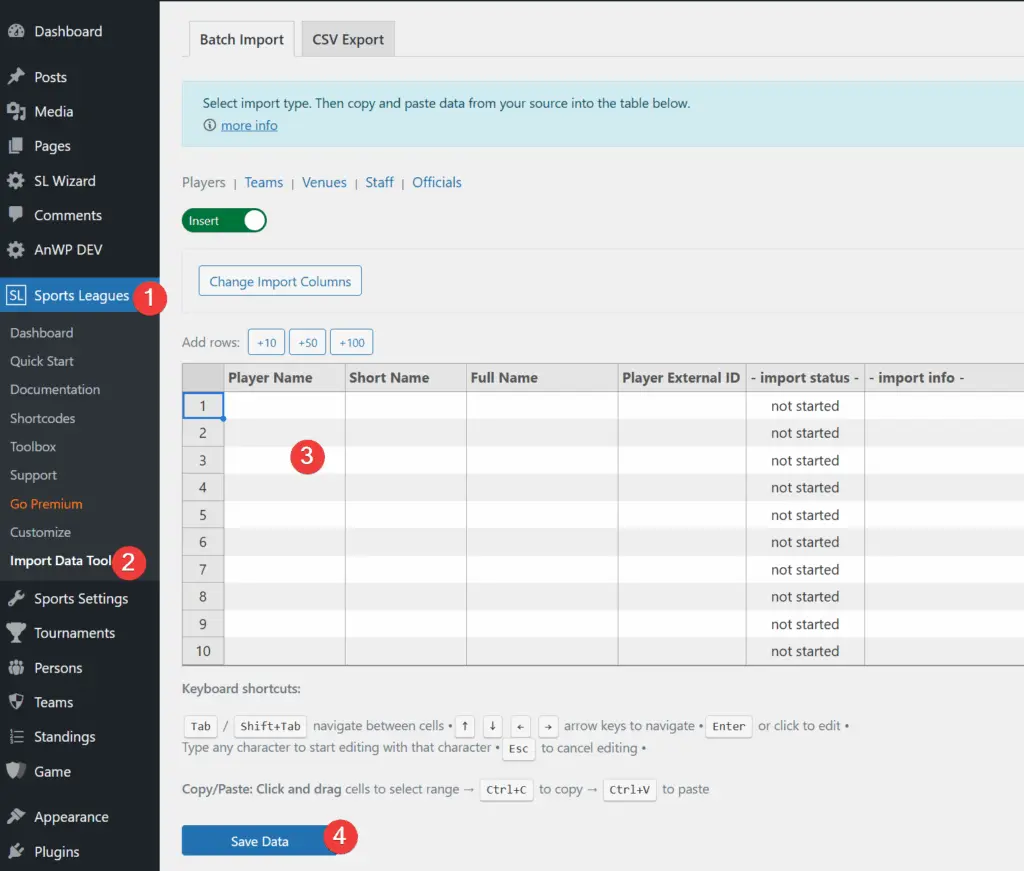
Bulk Create Players
- Go to Sports Leagues > Persons > Players > Bulk Add
- Enter player names (one per line)
- Select default team (optional)
- Click Create Players
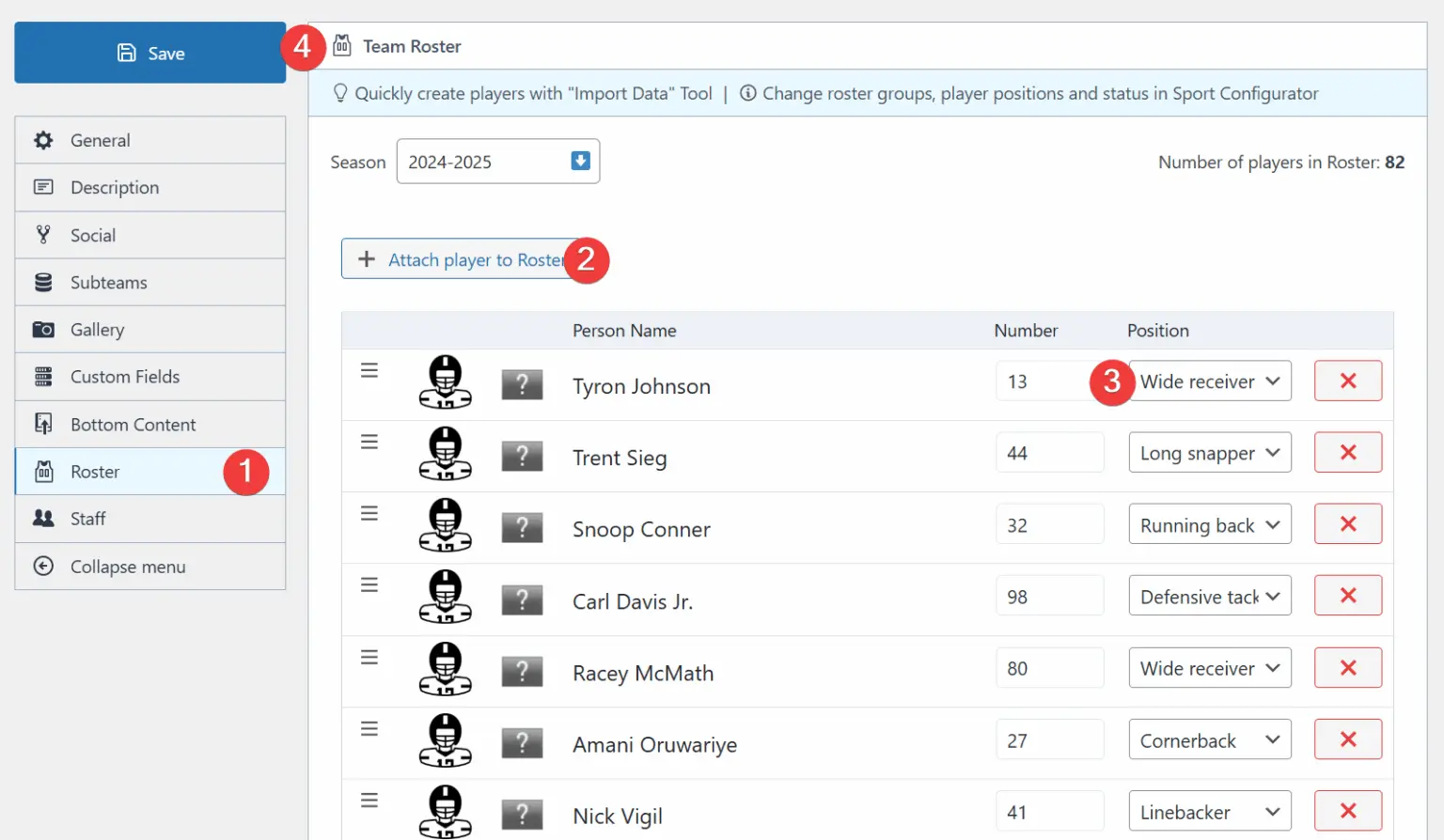
Assign to Team Roster
- Go to Sports Leagues > Teams
- Edit a team
- Scroll to Roster section
- Click Add Player
- Select player, position, number, status
- Click Update
Note
Rosters are season-specific. Players must be assigned to rosters before they can appear in game lineups.
🏆 Step 5: Create Tournament
- Go to Sports Leagues > Tournaments > Add New
- Enter tournament name (e.g., “Premier Division 2024-25”)
- In sidebar, select:
- League: Your league
- Season: Your season
- In Tournament Data, set tournament type (Round Robin, Knockout, etc.)
- In Participating Teams, add your teams
- Click Publish
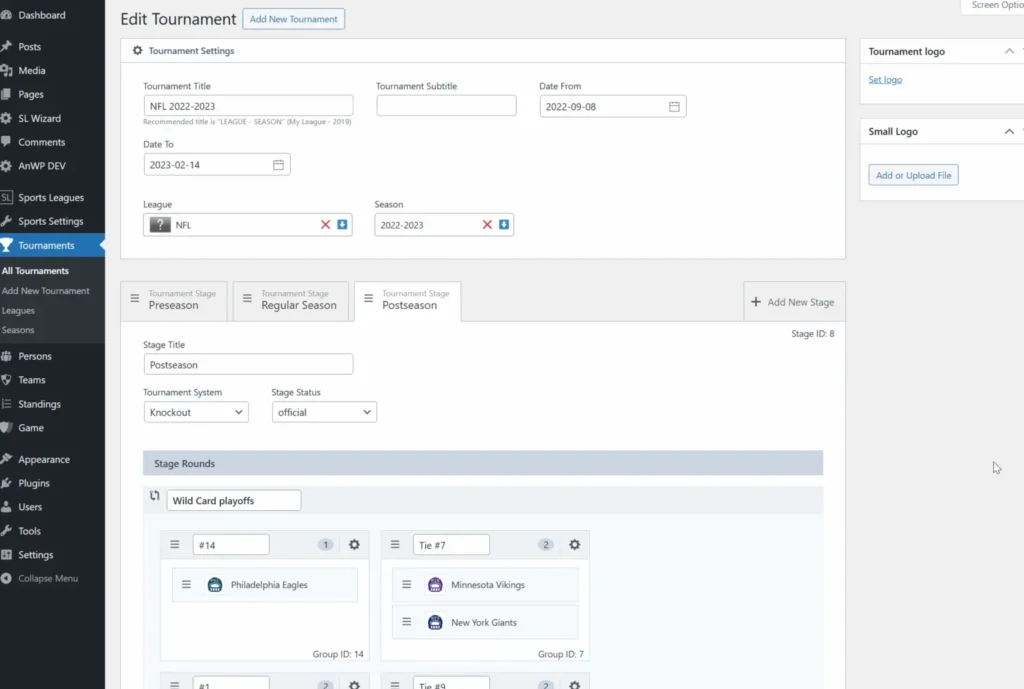
Tournament Types:
| Type | Description |
|---|---|
| Round Robin | Each team plays every other team |
| Knockout | Single elimination bracket |
| Multistage | Combines group stage + playoffs |
⚽ Step 6: Add Games
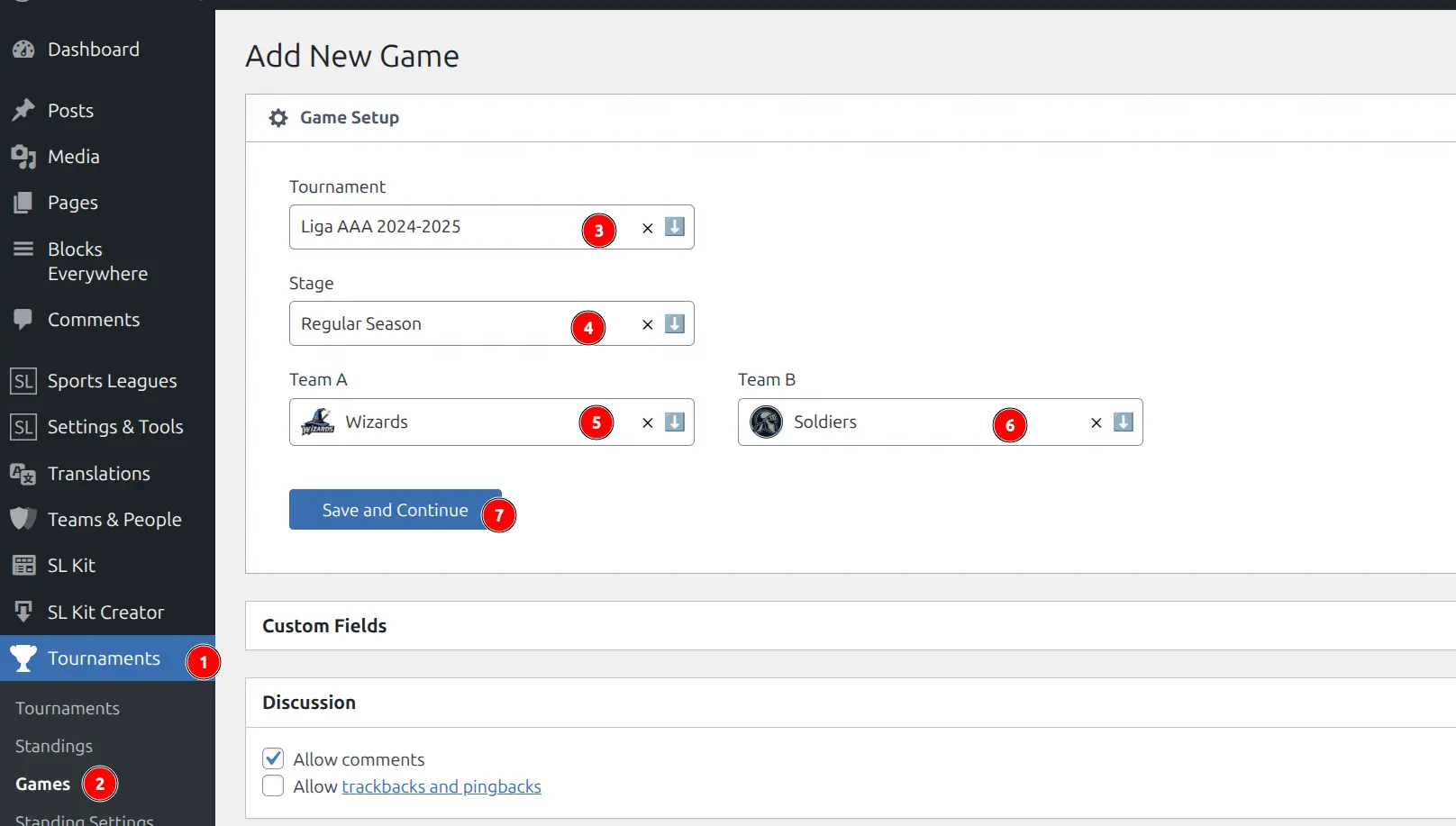
- Go to Sports Leagues > Games > Add New
- Fill in Game Details
- For completed games, fill in Game Result:
- Home Score
- Away Score
- Check Finished
- Click Publish
| Field | Description |
|---|---|
| Tournament | Select your tournament |
| Home Team | Home team |
| Away Team | Away team |
| Date/Time | Game date and kickoff |
| Game Day | Round number (e.g., 1, 2, 3) |
| Venue | Game location (optional) |
Important
Games must be marked as Finished to count in standings. Unfinished games appear as fixtures only.
📊 Step 7: Add Game Events (Optional)
Game events track scoring, fouls, substitutions, and other in-game actions. This enables player statistics.
- Edit a game
- Scroll to Game Events section
- Click Add Event
- Select:
- Event type (Goal, Foul, Card, etc.)
- Team
- Player
- Minute
- Add more events as needed
- Click Update
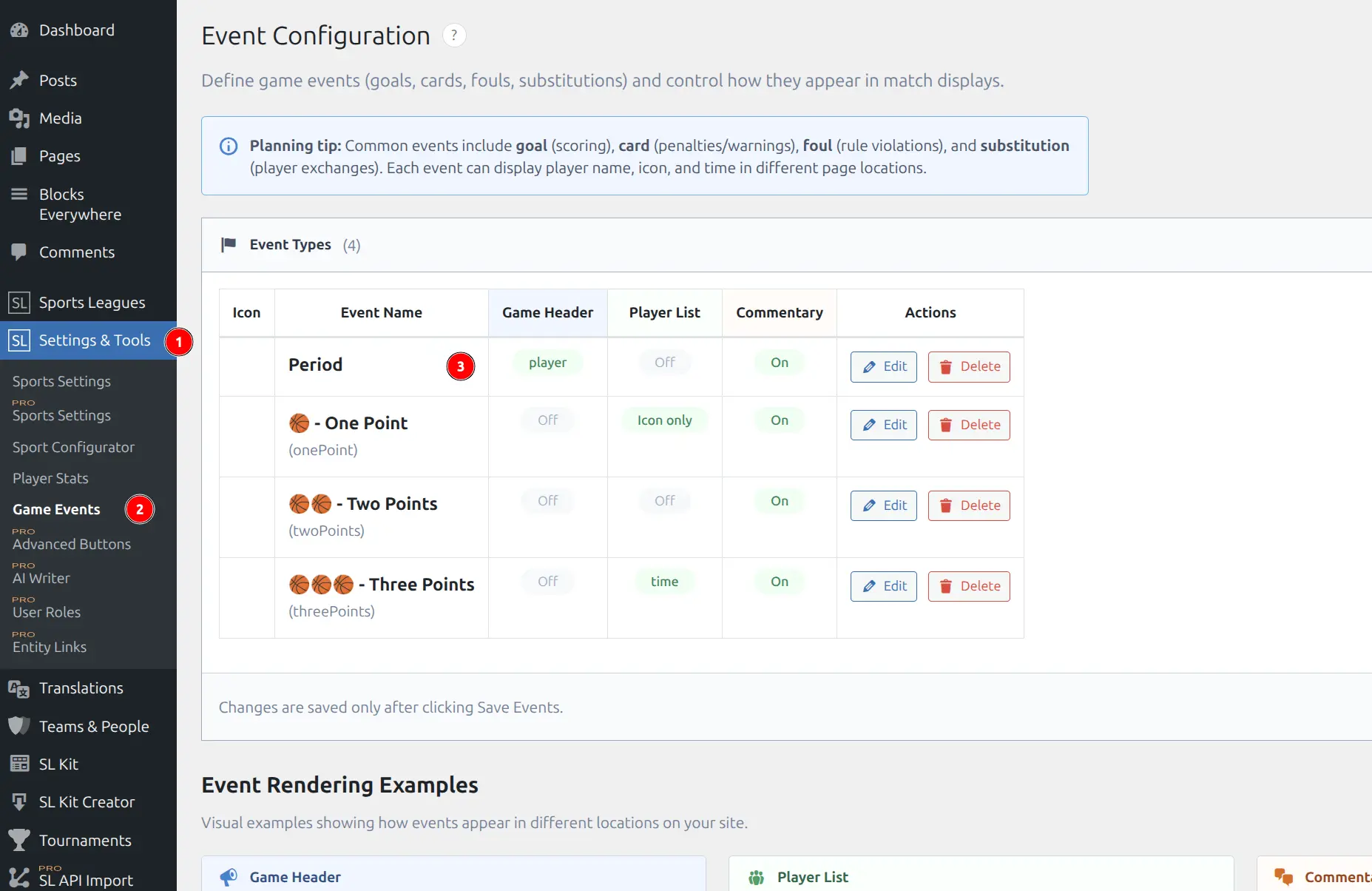
Tip
Events are optional but enable automatic player statistics calculation. See Game Events for details.
📈 Step 8: Create Standing Table (2 min)
Standing tables must be created manually, but statistics calculate automatically from finished games.
Create a Standing
- Go to Sports Leagues > Standings > Add New
- Select your Tournament from the dropdown
- Choose the Stage & Group containing your teams
- Click Select Group & Continue
- Review the table (teams loaded automatically)
- Click Publish
Result: The standing table shows current rankings based on finished games.
What Standing Shows
| Column | Description |
|---|---|
| Pos | Team position/rank |
| Team | Team name |
| P | Games played |
| W/D/L | Wins, draws, losses |
| PF/PA | Points for / against |
| PD | Point differential |
| Pts | Standing points |
Tip: Add more finished games → standings recalculate automatically.
Learn more:
- Standing Table — Ranking criteria, position colors, column visibility
- Standing Table Pro — Columns builder, conferences, manual data [PRO]
🌐 Step 9: Display on Website
Using Shortcodes
Add shortcodes to any page or post:
[sl-standing tournament_id="123"]

[sl-games tournament_id="123"]

[sl-team id="456"]
Find IDs: Edit any item → check URL for post=123
Using Blocks
- Edit page in Gutenberg
- Add block → Search “Sports” or “SL”
- Configure in sidebar panel
See Blocks Reference for all available blocks.
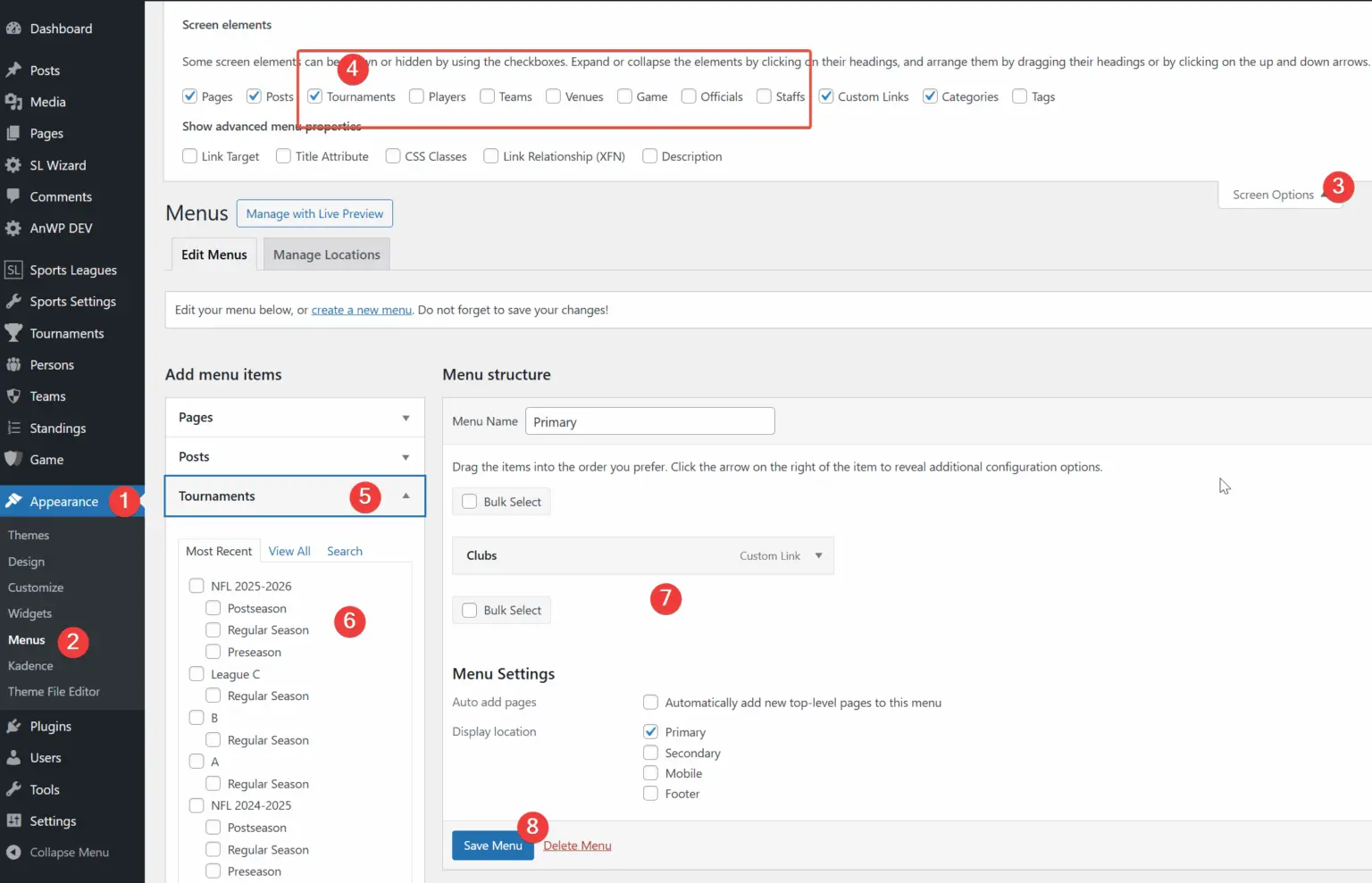
Add to Menu
- Go to Appearance > Menus
- Find Sports Leagues section
- Add teams, tournaments, or archive pages to menu
💡 Quick Tips
| Tip | Why |
|---|---|
| Start with 2-3 teams | Test workflow before adding more |
| Use short names | Better display in compact widgets |
| Consistent season naming | Easier filtering later |
| Upload team logos | More professional appearance |
| Mark games “Finished” | Required for standings calculation |
⚠️ Common Mistakes to Avoid
| Mistake | Solution |
|---|---|
| Standings not showing | Mark games as “Finished” |
| Teams not appearing | Ensure teams are Published |
| Shortcode shows as text | Use Shortcode block in Gutenberg |
| 404 errors on pages | Go to Settings > Permalinks > Save |
| Players not in lineups | Assign players to team rosters first |
🆘 Troubleshooting
Standings Empty?
Problem: Standing table shows no data.
Solutions:
- Edit games → Verify “Finished” is checked
- Verify tournament is assigned to games
- Clear cache: Sports Settings > Tools > Clear Cache
Player Stats Not Showing?
Problem: Player statistics are empty or not calculating.
Solutions:
- Players must be in team rosters
- Games must have events with players
- Games must be marked “Finished”
See Player Statistics Configuration for detailed setup.
404 Errors?
Problem: Team, player, or game pages show 404 Not Found.
Solutions:
- Go to Settings > Permalinks
- Click Save Changes (no changes needed)
- This rebuilds URL rewrite rules
📚 Next Steps
Expand your league:
- Add all teams and players
- Schedule remaining games
- Add game events for statistics
Learn more:
- Team Roster — Assign players to teams by season
- Standing Table — Customize standings display
- Shortcode Builder — Generate shortcodes visually
- Troubleshooting — Common questions and solutions
[PRO] Premium Features
Upgrade to Premium for advanced features:
- Premium Overview — All premium features
- Advanced Standing Table — Custom columns, conferences, manual data
- AI Writer — AI-generated game reviews
🎊 You’re Ready!
You now have a working sports website with teams, players, games, and automatic standings. Continue adding data and exploring the plugin’s features to build your complete sports platform.