

AnWP SL Kit includes 5 exclusive Gutenberg blocks for creating dynamic sports displays: sliders, player cards, and staff profiles.
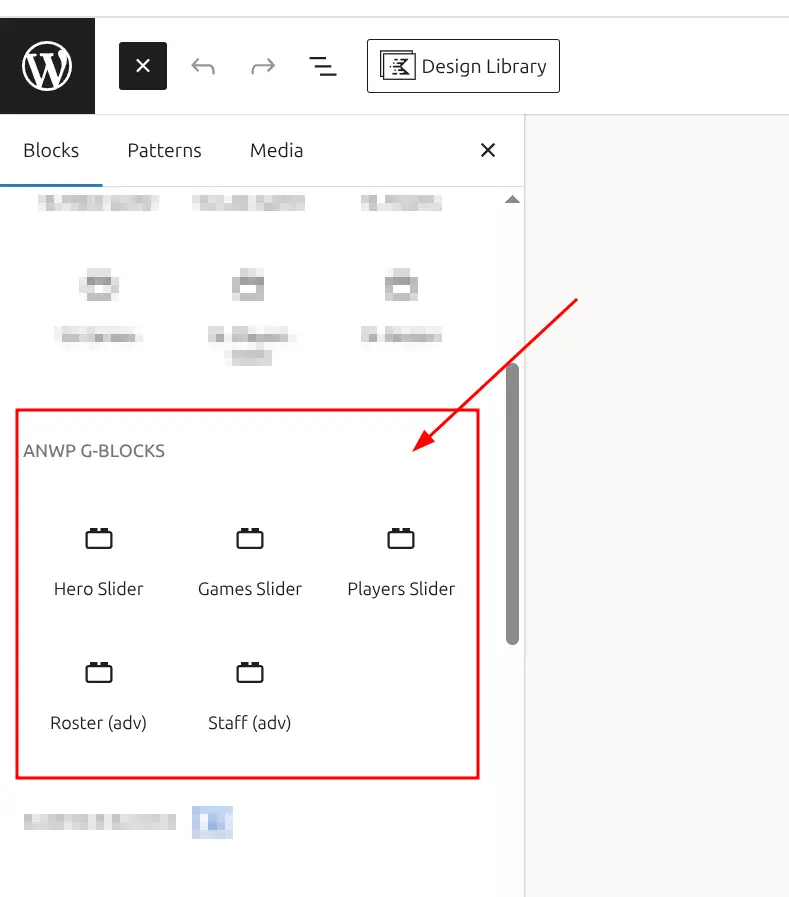
Block Categories
Sports Leagues provides three block categories: Sports Leagues (Core) – basic blocks included with the free plugin; Sports Leagues Premium – advanced blocks with “SL+” prefix; and ANWP G-Blocks (SL Kit) – exclusive slider and card blocks covered in this guide. For core and premium blocks, see the Blocks Reference.
📚 Available Blocks
| Block | Purpose | Best For |
|---|---|---|
| Hero Slider | Full-width post slider with Ken Burns effect | Homepage hero, featured articles |
| Games Horizontal Slider | Sports games carousel with scores | Match schedules, recent results |
| Players Horizontal Slider | Player carousel with photos | Quick roster display, player highlights |
| Roster (adv) | Player cards with customizable statistics | Detailed team rosters with stats |
| Staff (adv) | Staff cards with job titles | Coaching staff, management team |
🚀 How to Add Blocks
- Open any page or post in the block editor
- Click the (+) block inserter button
- Find the SL Kit Blocks category (or search by name)
- Click or drag a block to insert it
- Configure settings in the Inspector Panel (right sidebar)
Hero Slider
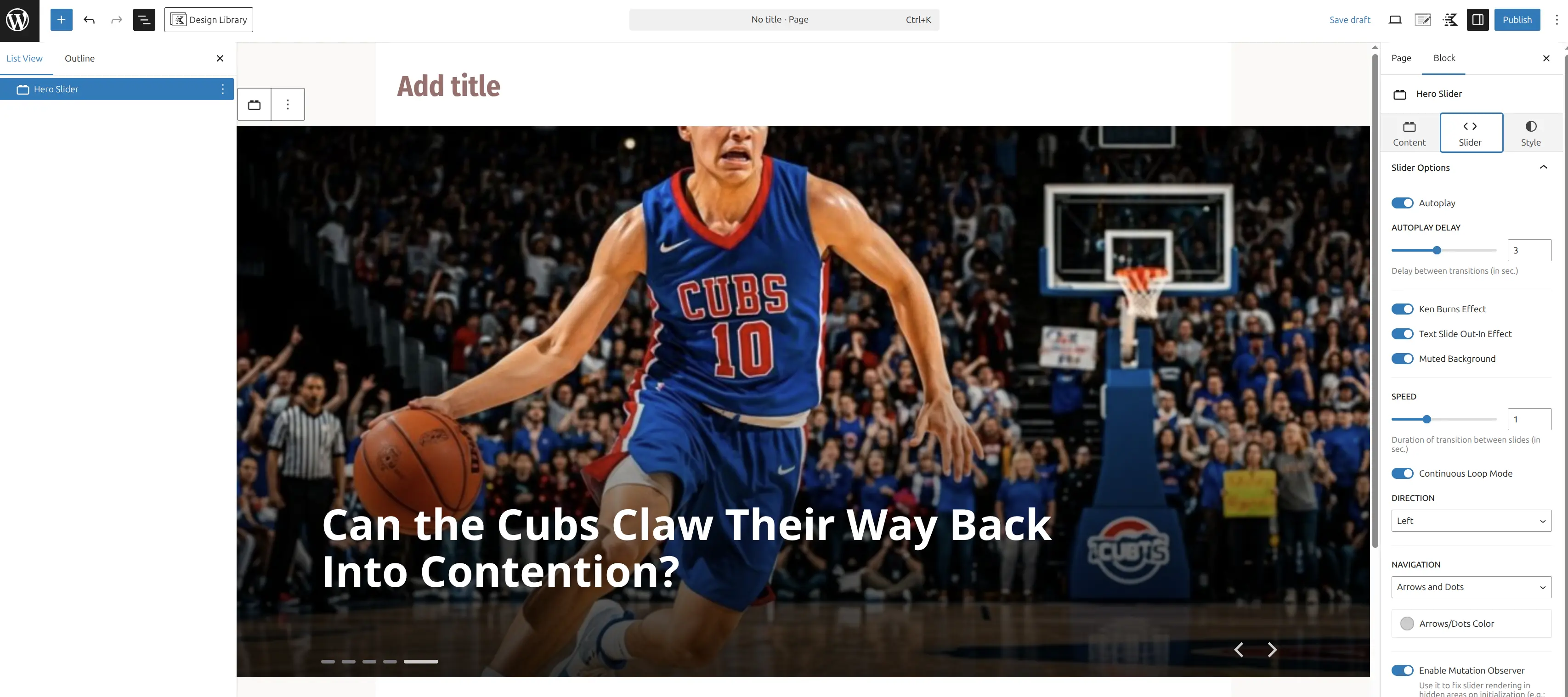
Creates a full-width, auto-playing slider showcasing WordPress posts with featured images, titles, and optional excerpts. Includes Ken Burns zoom effect, customizable typography, and responsive controls.
When to Use
- Homepage hero sections
- Featured blog posts showcase
- Article highlights
- Any full-width image slider with post content
Query Settings (Content Selection)
| Setting | Default | Description |
|---|---|---|
| Posts to Show | Latest | Options: Latest, Include by ID |
| Include IDs | (empty) | Comma-separated post IDs when using “Include by ID” |
| Limit | 5 | Number of slides (recommended: 3-10) |
| Filter by Category | (empty) | Comma-separated category IDs |
| Filter by Tag | (empty) | Comma-separated tag IDs |
| Filter by Author | (empty) | Comma-separated author IDs |
| Exclude IDs | (empty) | Comma-separated post IDs to skip |
| Offset | 0 | Skip first N posts |
| Image Size | large | Options: thumbnail, medium, medium_large, large, full |
Style Settings (Appearance)
Slider Behavior
| Setting | Default | Description |
|---|---|---|
| Autoplay | ON | Enable automatic sliding |
| Autoplay Delay | 3 seconds | Time between slides (1-10 seconds) |
| Speed | 1 second | Transition animation speed (0.3-3 seconds) |
| Direction | LTR | Slider direction: LTR or RTL |
| Loop | ON | Loop back to first slide after last |
| Enable Observer | ON | Re-initialize in tabs/accordions |
Visual Effects
| Setting | Default | Description |
|---|---|---|
| Ken Burns Effect | ON | Slow zoom animation on images |
| Text Slide Effect | ON | Smooth text appearance on slide change |
| Muted Background | ON | Darken image for text readability |
Navigation
| Setting | Default | Description |
|---|---|---|
| Navigation | Both | Options: Both, Arrows, Dots, None |
| Arrows Color | #ccc | Navigation arrow color |
Layout & Spacing (Responsive)
| Setting | Desktop | Tablet | Mobile |
|---|---|---|---|
| Slider Height | 800px | 600px | 300px |
| Horizontal Padding | 30px | 30px | 20px |
| Bottom Padding | 120px | 60px | 40px |
| Title Font Size | 62px | auto | 32px |
Typography & Colors
| Setting | Default | Description |
|---|---|---|
| Post Title Color | #ffffff | Title text color |
| Post Title Text Shadow | OFF | Optional shadow for contrast |
| Post Excerpt | OFF | Show excerpt below title |
| Excerpt Num Words | 30 | Words to display in excerpt |
| Post Excerpt Color | #ffffff | Excerpt text color |
Usage Examples
Homepage Hero with Latest Posts:
- Posts to Show: Latest
- Limit: 5
- Slider Height (Desktop): 800px
- Ken Burns Effect: ON
- Autoplay Delay: 3 seconds
Category-Specific Slider:
- Filter by Category: 5 (your category ID)
- Limit: 3
- Post Excerpt: ON
- Excerpt Num Words: 20
Manual Post Selection:
- Posts to Show: Include by ID
- Include IDs: 123,456,789
- Navigation: Arrows only
Best Practices
Use high-quality featured images (minimum 1920x1080px). Keep slide count between 3-7 for optimal engagement. Enable Ken Burns effect for visual interest. Enable Muted Background if using light text on light images.
Games Horizontal Slider
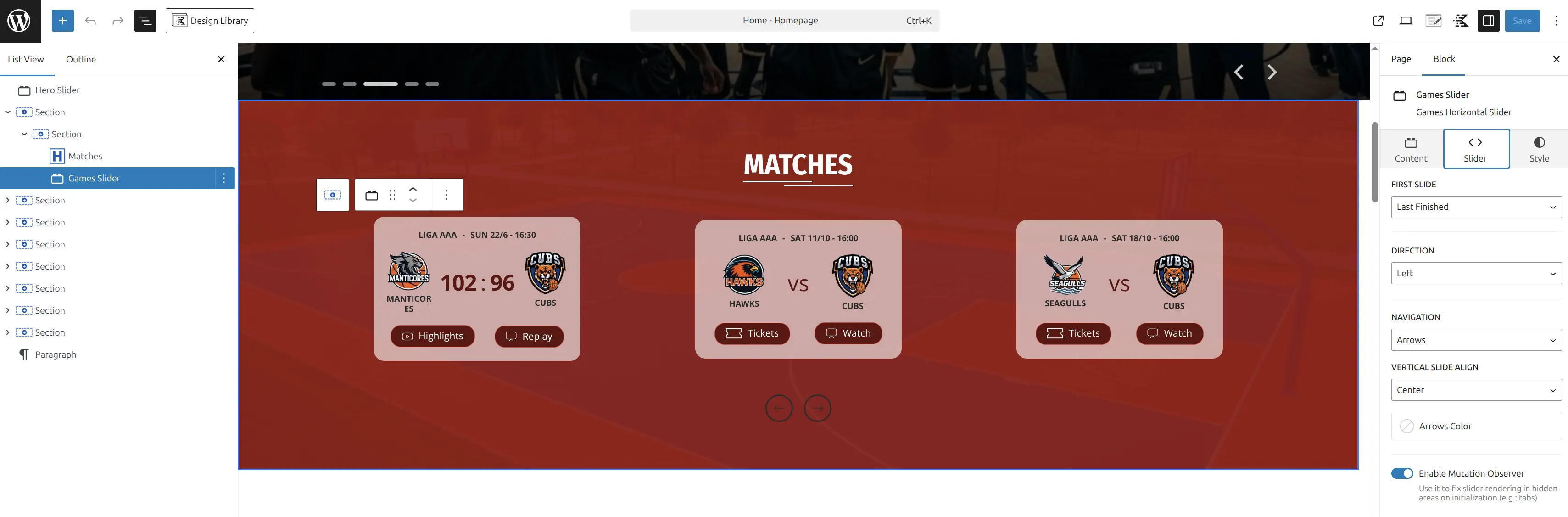
Displays sports games in a horizontal carousel with team logos, scores, dates, and game status. Fully integrated with Sports Leagues data.
When to Use
- Recent/upcoming game schedules
- Team-specific game highlights
- League/tournament game listings
- Homepage sports content
- Sidebar game widgets
Query Settings (Game Selection)
| Setting | Default | Description |
|---|---|---|
| Tournament ID | (empty) | Filter by specific tournament (comma-separated) |
| Stage ID | (empty) | Filter by tournament stage |
| Season ID | (empty) | Filter by season |
| League ID | (empty) | Filter by league |
| Venue ID | (empty) | Filter by venue/stadium |
| Finished | (empty) | Game status: yes (finished), no (upcoming), empty (all) |
| Filter by Team | (empty) | Show games for specific team (single ID) |
| Filter by Game Day | (empty) | Show games on specific matchday |
| Days Offset | (empty) | Date range from today (e.g., -7, 7, -7:7) |
| Limit | 20 | Maximum games to show (recommended: 10-30) |
Style Settings
| Setting | Default | Description |
|---|---|---|
| Direction | LTR | Slider direction: LTR or RTL |
| First Slide | (empty) | Starting slide number (0, 1, 2…) |
| Navigation | Arrows | Options: Arrows, Dots, Both, None |
| Arrows Color | (inherits) | Navigation arrow color |
| Show Game Date/Time | ON | Display match date/time |
| Show Team Name | ON | Display team names |
| Show Team Logo | ON | Display team logos |
| Tournament Title | (empty) | Custom text instead of tournament name |
| Game Date Format | (site default) | PHP date format (e.g., M j, Y) |
Usage Examples
Upcoming Games for Specific Team:
- Filter by Team: 42 (your team ID)
- Finished: no
- Limit: 10
- Show Game Date/Time: ON
Recent Finished Games:
- League ID: 10
- Finished: yes
- Limit: 15
- Navigation: Both
This Week’s Games:
- Days Offset: -7:7 (last 7 days to next 7 days)
- Limit: 20
- Game Date Format: l, M j (e.g., “Monday, Nov 17”)
Players Horizontal Slider
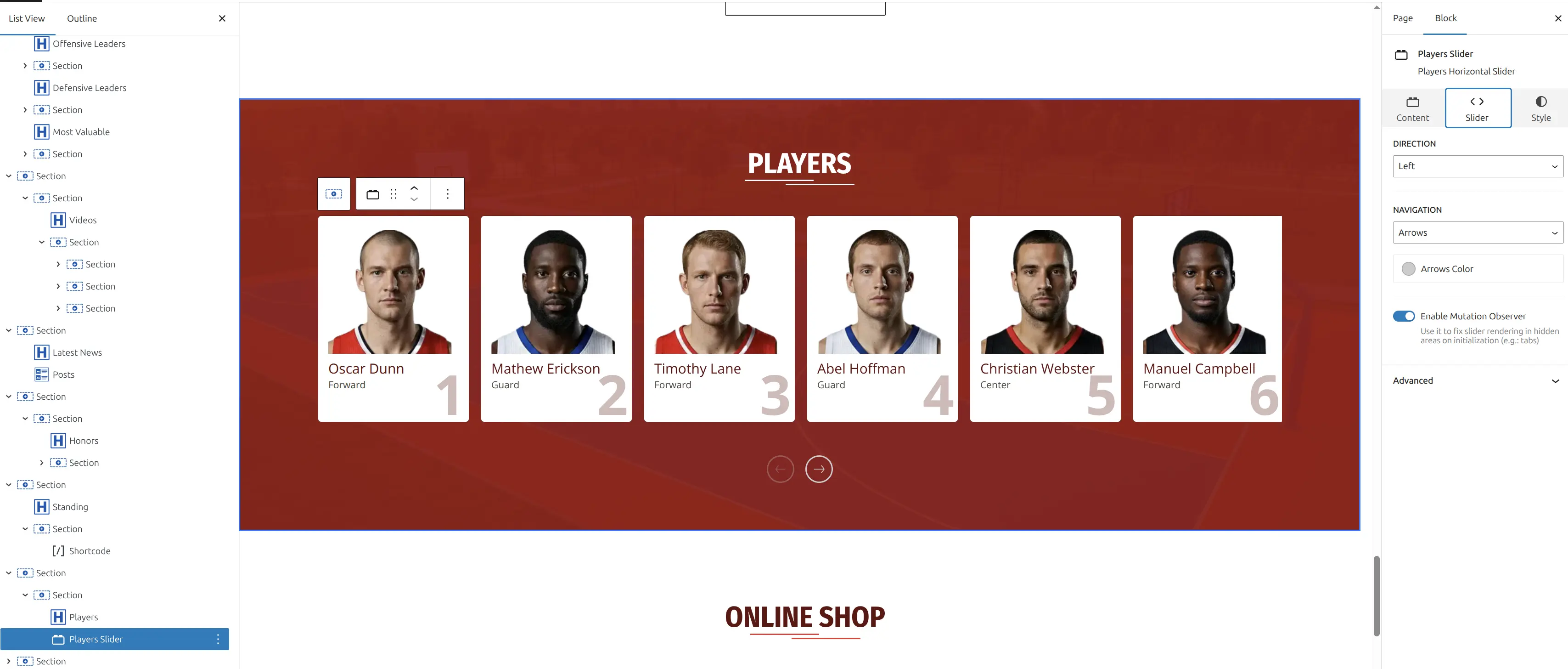
Displays team players in a horizontal scrolling carousel with player photos, numbers, positions, and names.
When to Use
- Team roster displays
- Player highlights
- Squad showcases
- Compact player lists
- Sidebar player widgets
Query Settings
| Setting | Default | Description |
|---|---|---|
| Season ID | (empty) | Filter by season (comma-separated) |
| Team ID | (empty) | Filter by team (single ID) |
| Limit | 20 | Maximum players to show |
Style Settings
| Setting | Default | Description |
|---|---|---|
| Direction | LTR | Slider direction: LTR or RTL |
| Navigation | Arrows | Options: Arrows, Dots, Both, None |
| Arrows Color | #ccc | Navigation arrow color |
| Show Number | ON | Display player number |
| Show Position | ON | Display player position |
Usage Examples
Team Roster Carousel:
- Team ID: 15
- Season ID: 8
- Limit: 25
- Show Number: ON
- Show Position: ON
Starting XI Only:
- Team ID: 15
- Limit: 11
- Navigation: Dots only
Roster (adv)
Displays team players as detailed cards with customizable statistics, nationalities, positions, numbers, and advanced styling options. The most feature-rich block for player displays.
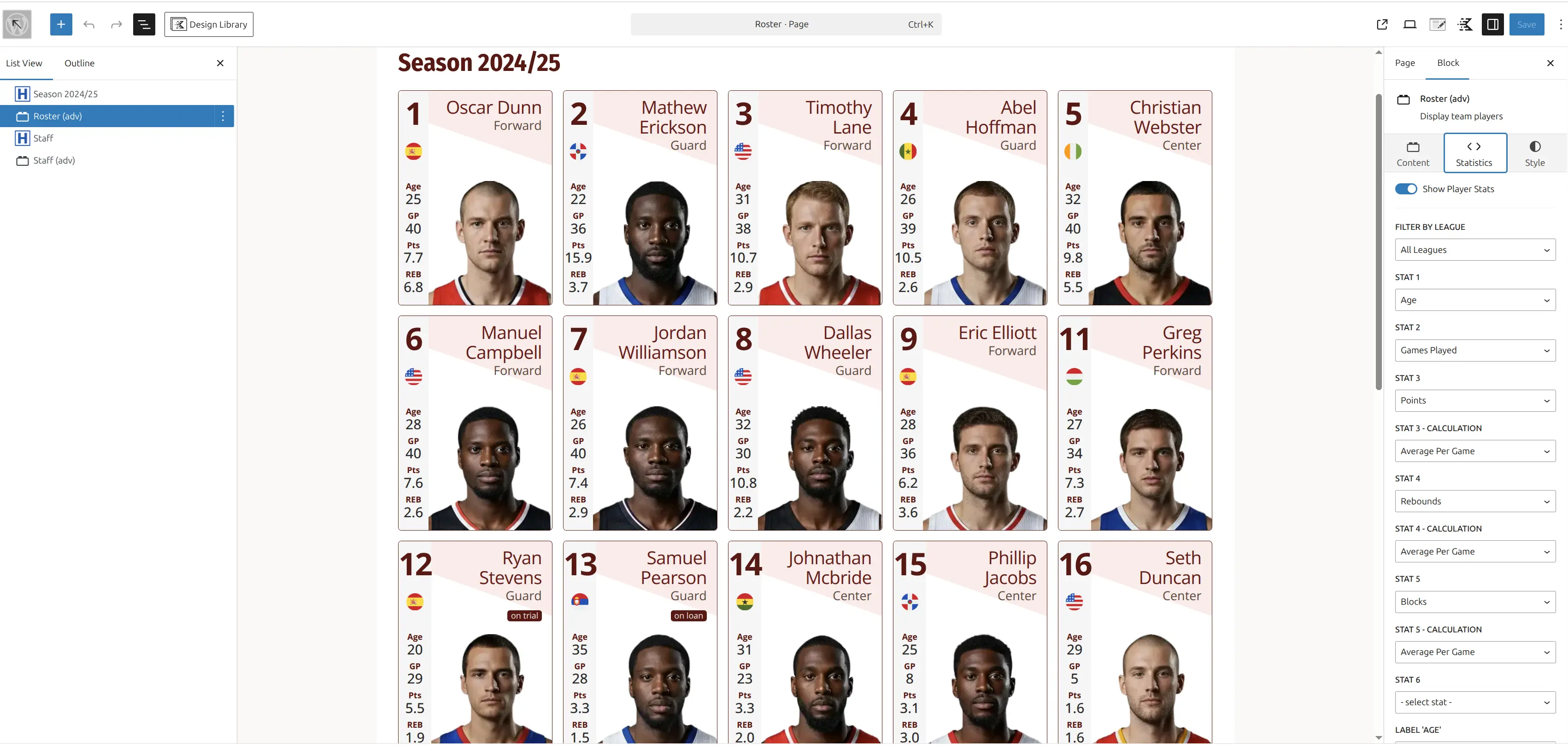
When to Use
- Full team rosters with stats
- Player profiles with detailed information
- Season-specific player data
- Custom stat displays (goals, assists, games played)
- Professional player cards
Query Settings
Player Filters
| Setting | Default | Description |
|---|---|---|
| Season ID | (empty) | Filter by season (single ID) |
| Team ID | (empty) | Filter by team (single ID) |
| Stat League ID | (empty) | League for statistics calculation |
Statistics Columns (6 customizable)
Each stat slot has two settings: the statistic type and calculation method.
| Setting | Options | Description |
|---|---|---|
| Stat 1-6 | Dropdown | Select statistic from your Sports Leagues config |
| Stat Calc 1-6 | sum, average, max, min | How to calculate the stat |
Available Statistics (depends on your Sports Leagues configuration):
- Goals, Assists, Games Played (GP), Minutes Played
- Cards (Yellow, Red), Saves, Clean Sheets
- Age (default for Stat 4)
- Custom stats from your sport setup
Style Settings
Display Options
| Setting | Default | Description |
|---|---|---|
| Show Stats | ON | Display statistics on cards |
| Show Nationality | ON | Display nationality flag |
| Show Position | ON | Display player position |
| Show Number | ON | Display jersey number |
| Show Roster Status | ON | Display status badge (Injured, Suspended) |
| Show BG Shape | ON | Background decorative shape |
| Card Layout | A | Visual style variant: A, B, or C |
Colors
| Setting | Description |
|---|---|
| Stats Label Color | Color for stat labels (Goals, Assists, etc.) |
| Stats Value Color | Color for stat numbers |
| Position Color | Color for position text |
| Number Color | Color for jersey number |
| Player Name Color | Color for player name |
| Border Color | Card border color |
| Roster Status BG Color | Status badge background |
| Roster Status Color | Status badge text color |
| BG Shape Color | Decorative shape color |
Other Styling
| Setting | Default | Description |
|---|---|---|
| Border Radius | 5px | Card corner roundness (0 = sharp) |
| BG Shape Opacity | (inherits) | Background shape transparency (0-1) |
| Player Name Typography | (inherits) | Font size, weight, style |
Usage Examples
Team Roster with Goals & Assists:
- Team ID: 42
- Season ID: 8
- Stat League ID: 10
- Stat 1: Goals (sum)
- Stat 2: Assists (sum)
- Stat 4: Age
Goalkeeper Statistics:
- Team ID: 42
- Stat 1: Saves (sum)
- Stat 2: Clean Sheets (sum)
- Stat 3: Games Played (sum)
- Card Layout: B
Minimalist Roster (No Stats):
- Team ID: 42
- Show Stats: OFF
- Show Position: OFF
- Show Number: OFF
- Show BG Shape: OFF
Statistics Tips
Use sum for cumulative stats (goals, assists). Use average for per-game stats. Ensure stats are configured in Sports Leagues Settings before using this block. Match the Stat League ID to where players actually competed.
Staff (adv)
Displays team staff (coaches, managers, trainers) as professional cards with job titles, nationalities, and customizable styling.
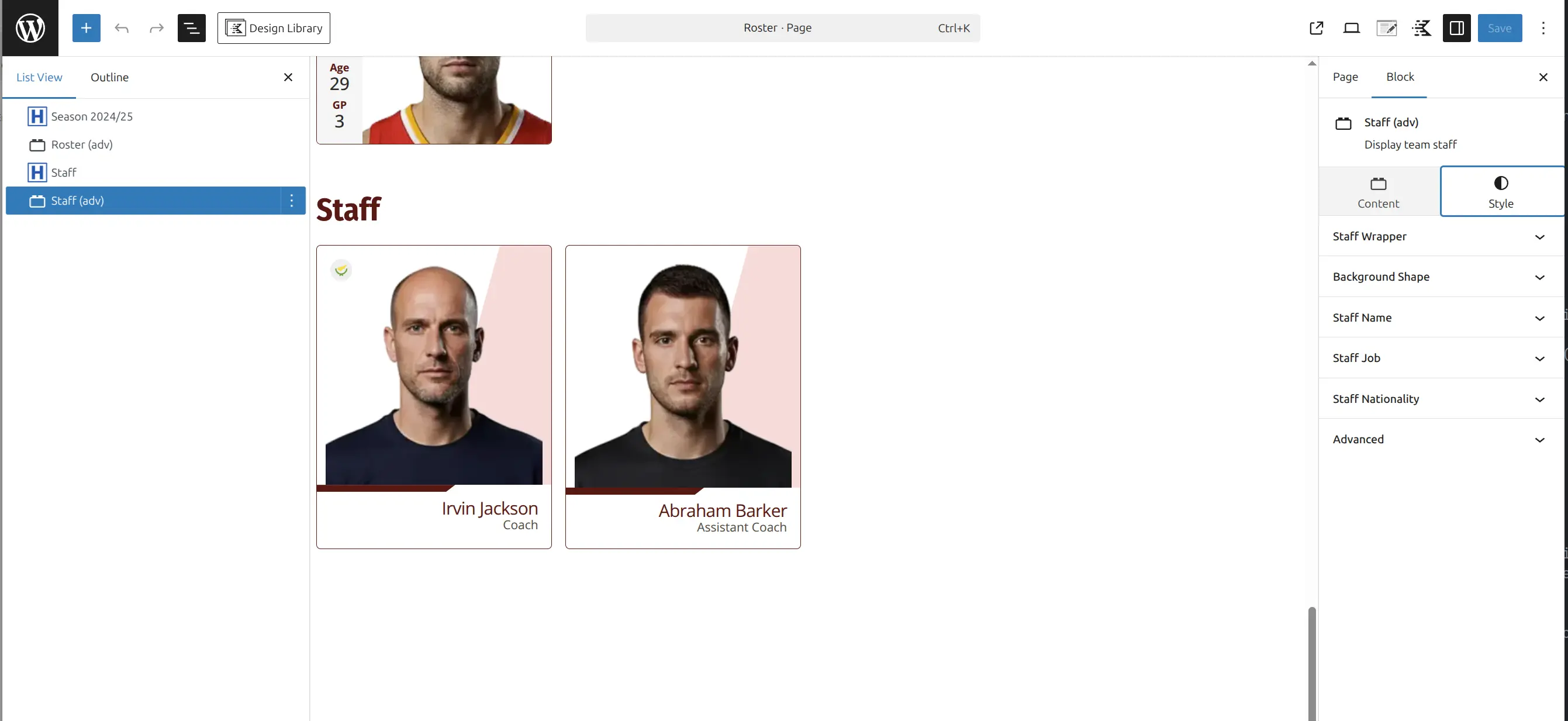
When to Use
- Coaching staff displays
- Management team pages
- Technical staff listings
- Club staff showcases
Query Settings
| Setting | Default | Description |
|---|---|---|
| Season ID | (empty) | Filter by season (single ID) |
| Team ID | (empty) | Filter by team (single ID) |
Style Settings
Display Options
| Setting | Default | Description |
|---|---|---|
| Show Nationality | ON | Display nationality flag |
| Show Job | ON | Display job title |
| Show BG Shape | ON | Background decorative shape |
| Card Layout | A | Visual style variant: A, B, or C |
Colors
| Setting | Description |
|---|---|
| Job Color | Job title text color |
| Staff Name Color | Staff member name color |
| Border Color | Card border color |
| BG Shape Color | Decorative shape color |
Other Styling
| Setting | Default | Description |
|---|---|---|
| Border Radius | 5px | Card corner roundness |
| BG Shape Opacity | (inherits) | Background shape transparency (0-1) |
| Staff Name Typography | (inherits) | Font size, weight, style |
Usage Examples
Coaching Staff Display:
- Team ID: 20
- Season ID: 8
- Show Job: ON
- Show Nationality: ON
- Card Layout: A
Management Team with Branding:
- Team ID: 20
- Show Job: ON
- Job Color: (your brand color)
- Card Layout: B
📊 Block Comparison
Quick reference to choose the right block:
| Feature | Hero Slider | Games Slider | Players Slider | Roster (adv) | Staff (adv) |
|---|---|---|---|---|---|
| Data Source | WP Posts | SL Games | SL Players | SL Players | SL Staff |
| Layout | Full-width | Carousel | Carousel | Grid | Grid |
| Statistics | No | Scores | No | 6 custom | No |
| Responsive | Yes | No | No | No | No |
| Best For | Featured content | Schedules | Quick rosters | Detailed info | Staff profiles |
🆘 Troubleshooting
Block Shows Empty or “No Data”
Cause: No data matches your filter settings.
Solutions:
- Verify IDs are correct (Team ID, Season ID, etc.)
- Check that data exists in Sports Leagues plugin
- Try removing filters temporarily
- For Games Slider: check the “Finished” setting
Stats Showing as 0 or Blank
Cause: Statistics not configured or no data entered.
Solutions:
- Configure stats in Sports Leagues → Settings → Statistics
- Enter player stats for games in Sports Leagues
- Verify Stat League ID matches player’s competition
Images/Logos Not Showing
Cause: Missing media in Sports Leagues entries.
Solutions:
- Hero Slider: Set featured images on posts
- Games Slider: Upload team logos in Sports Leagues → Teams
- Players/Roster: Upload player photos in Sports Leagues → Players
- Staff: Upload staff photos in Sports Leagues → Staff
Slider Not Initializing in Tabs/Accordions
Cause: Slider needs to re-initialize when container becomes visible.
Solution: Enable the Enable Observer setting in the Style tab.
📚 Related Resources
- Block Patterns – Pre-built page sections using SL Kit blocks
- Core Blocks Reference – Sports Leagues core and premium blocks
- Shortcode Builder – Visual tool to find IDs