

Block Patterns are pre-built page sections that combine multiple blocks for rapid sports website development. Insert a pattern and customize it instead of building sections from scratch.
🎯 Requirements
| Requirement | Details |
|---|---|
| WordPress | 6.5 or higher |
| AnWP Sports Leagues Premium | Required |
| AnWP SL Kit | Required |
| Kadence Blocks | Free plugin – provides layout components |
| WooCommerce | Only required for Online Shop pattern |
🚀 Finding Patterns
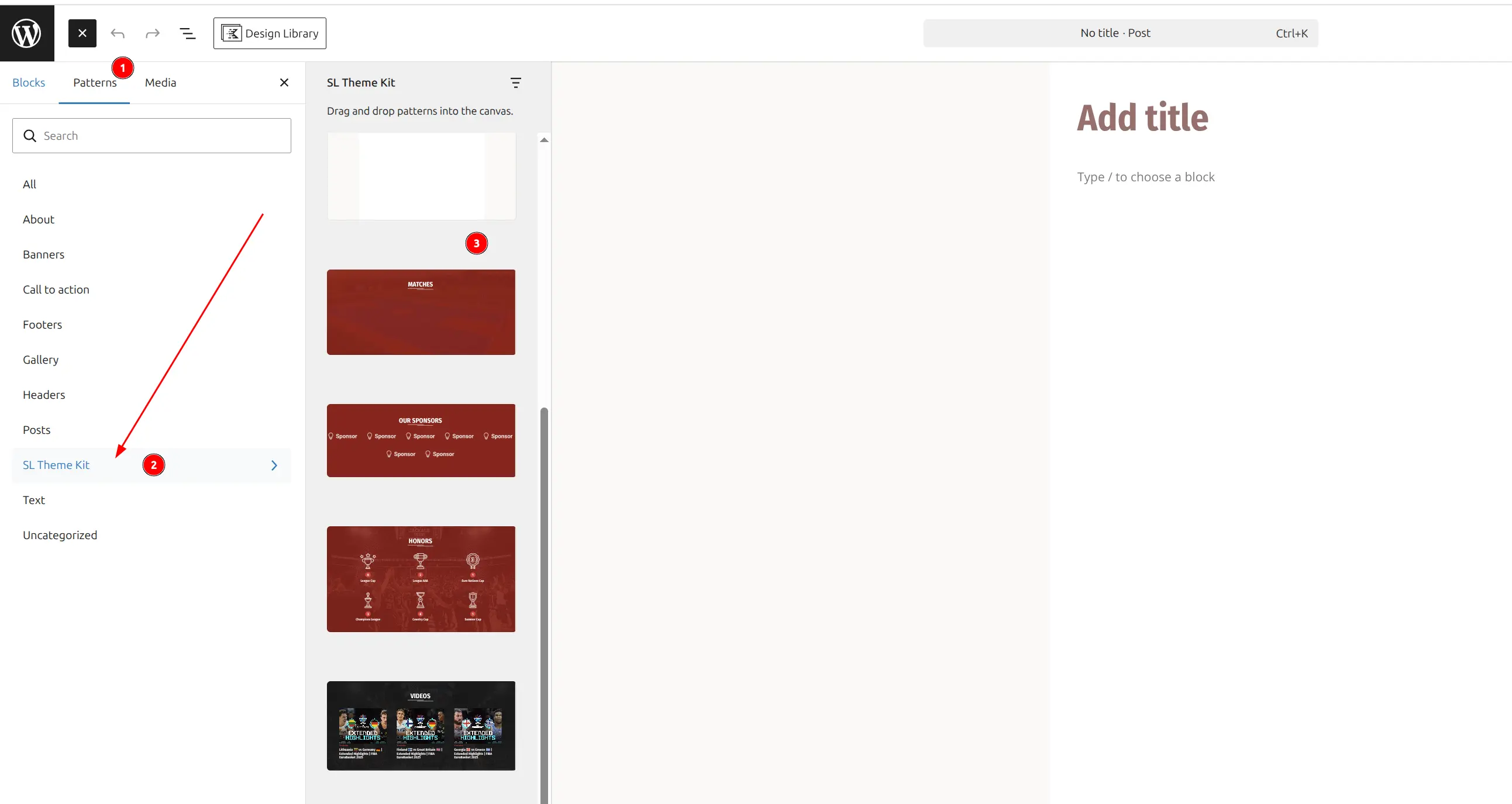
- Open any page or post in the block editor
- Click the (+) block inserter button
- Click the Patterns tab
- Select SL Theme Kit from the category dropdown
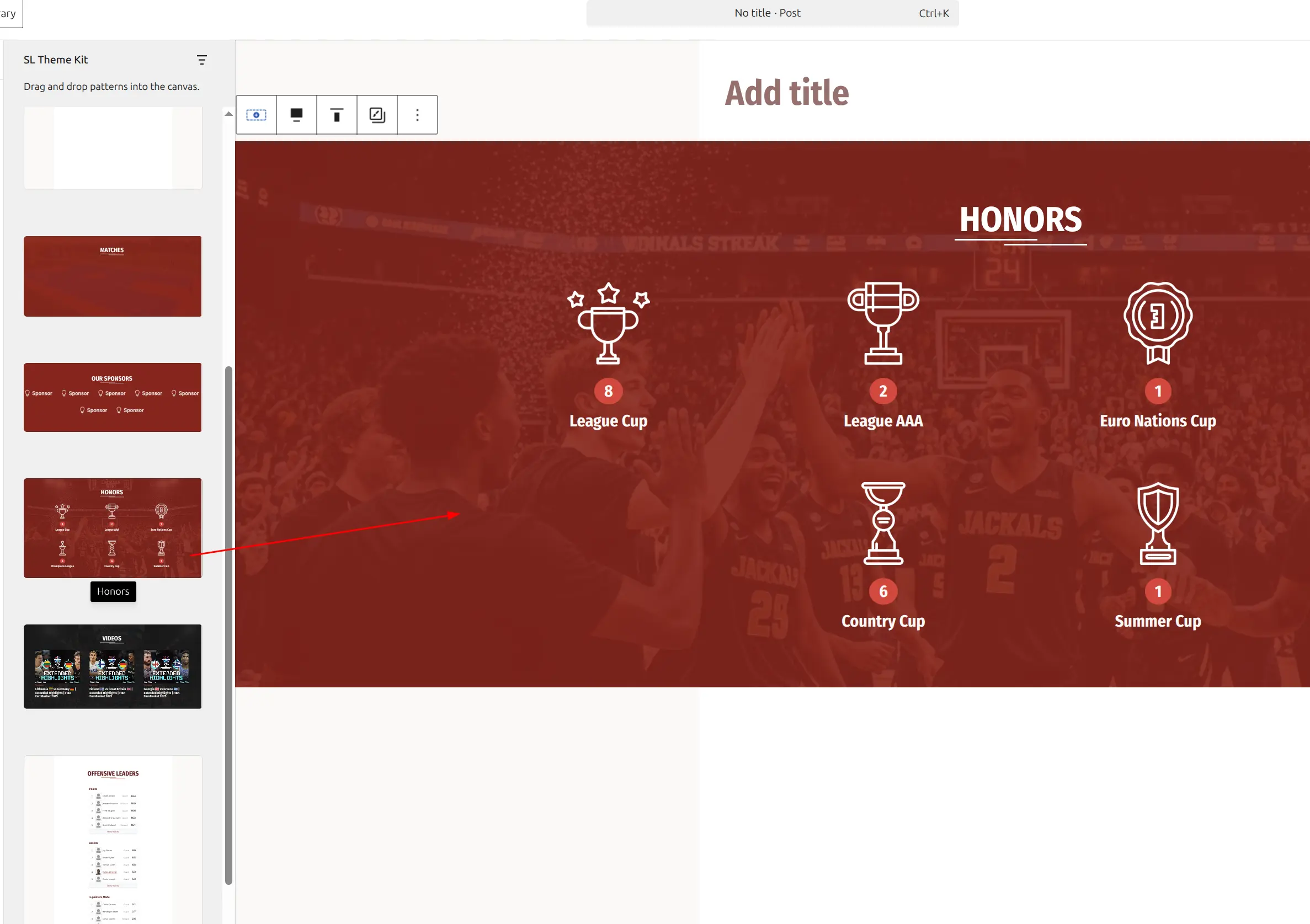
- Click or drag a pattern to insert it into your content
📚 Available Patterns
Header Patterns
| Pattern | Contains | Use For |
|---|---|---|
| Header (Light) | Kadence Column + Advanced Heading | Light background sections |
| Accent Header | Kadence Column + Heading (white text) | Dark or colored sections |
| Section with Header | Full section with padding + heading | Complete content blocks |
Section Patterns
| Pattern | Contains | Use For |
|---|---|---|
| Accent Section | Colored background section | Callouts, highlights |
| Secondary Section | Alternative styled section | Visual variety between sections |
Content Patterns
| Pattern | Contains | Use For |
|---|---|---|
| Hero Slider | SL Kit Hero Slider (autoplay 5s) | Homepage hero section |
| Games Slider | Accent section + Games Slider block | Match schedules display |
| Players Slider | SL Kit Players Slider block | Roster showcase |
| Sponsors | Accent section + 7 logo placeholders | Sponsor logos |
| Honors | Multi-block trophy/achievement display | Team history, awards |
| Videos | YouTube video grid | Media gallery |
| Leaders | 3-section player stats layout | Statistical leaders |
| Online Shop | WooCommerce product grid | Merchandise (requires WooCommerce) |
⚙️ Pattern Variables
Patterns use placeholder variables that you must replace with actual IDs after insertion:
| Variable | Replace With | How to Find the ID |
|---|---|---|
%site_team% | Your team ID | Sports Leagues → Teams → hover over team → see post=XX in URL |
%active_season% | Season ID | Sports Leagues → Seasons → hover → see post=XX in URL |
To replace a variable: Select the block → open the Inspector Panel (right sidebar) → find the attribute containing the variable → replace the placeholder with the actual ID.
✏️ Customizing Patterns
After insertion, patterns become regular editable blocks. You can customize any aspect:
- Text: Click any heading or paragraph to edit inline
- Colors: Select the block → Inspector Panel → Color settings
- Spacing: Select Kadence Column → Spacing tab → adjust padding/margin
- Data: Replace
%site_team%and%active_season%with actual IDs
💡 Quick Examples
Games Slider Setup
- Insert the Games Slider pattern
- Select the Games Slider block within the pattern
- In the Inspector Panel, find the Query settings:
- Filter by Team: Replace
%site_team%with your team ID (e.g.,42) - Tournament ID: Set your tournament (e.g.,
15) - Limit:
10
- Filter by Team: Replace
- Publish or update the page
Leaders Pattern for Football
The default Leaders pattern shows basketball-specific statistics. To adapt it for football:
- Insert the Leaders pattern
- Select each stats block individually
- Change
stats_idto football stat IDs:- Offensive: Goals, Assists
- Defensive: Tackles, Interceptions
- Valuable: Rating, Minutes
- Replace team and season variables with actual IDs
- Publish or update the page
Tip
To find stat IDs, go to Sports Leagues → Config → Player Statistics. The stat ID is shown in the list or URL when editing a stat.
🆘 Troubleshooting
Pattern not visible in the inserter
Cause: Kadence Blocks plugin is not installed or activated.
Solution: Install and activate the free Kadence Blocks plugin from the WordPress plugin directory.
Variables not auto-filling
Cause: Variables like %site_team% are manual placeholders, not dynamic values.
Solution: You must manually replace each variable with the actual ID. See the Pattern Variables section above for how to find IDs.
Layout looks broken
Cause: Your theme’s CSS may conflict with pattern styles.
Solution: Adjust colors and spacing in the Inspector Panel to match your theme, or use a compatible theme like Flavor starter theme.
“Block has been modified externally” warning
Cause: The pattern was updated in a plugin release after you inserted it.
Solution: Click Attempt Block Recovery to try automatic fixes, or delete the block and re-insert the updated pattern.