

The [sl-teams] shortcode shows a set of team logos, each linked to its team page. You either point it at a tournament stage, and it shows every team in that stage, or you list the teams yourself. The logos come as a row of fixed-size tiles or as a grid of 2, 3, 4 or 6 columns.
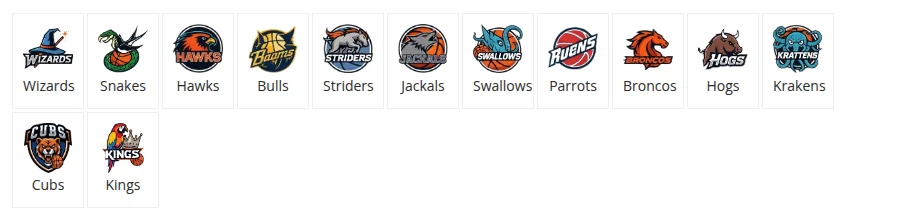
The shortest version that works shows every team in stage 12:
[sl-teams stage_id="12"]Hover a logo to see the team’s full name in a tooltip. The name under the logo is the team’s Abbreviation/Short Name when it has one, and its full name otherwise.
🚀 Add the Shortcode
With the Shortcode Builder
- Go to Sports Leagues > Shortcodes. The Shortcode Builder tab opens.
- In the Shortcode dropdown, pick Teams.
- Under Data Selection, click the search button next to Tournament Stage and pick a stage, or pick teams in Include Teams.
- Set the Display Options, check the preview, and click Copy Shortcode.
- Paste the shortcode into a page, post or Shortcode block.
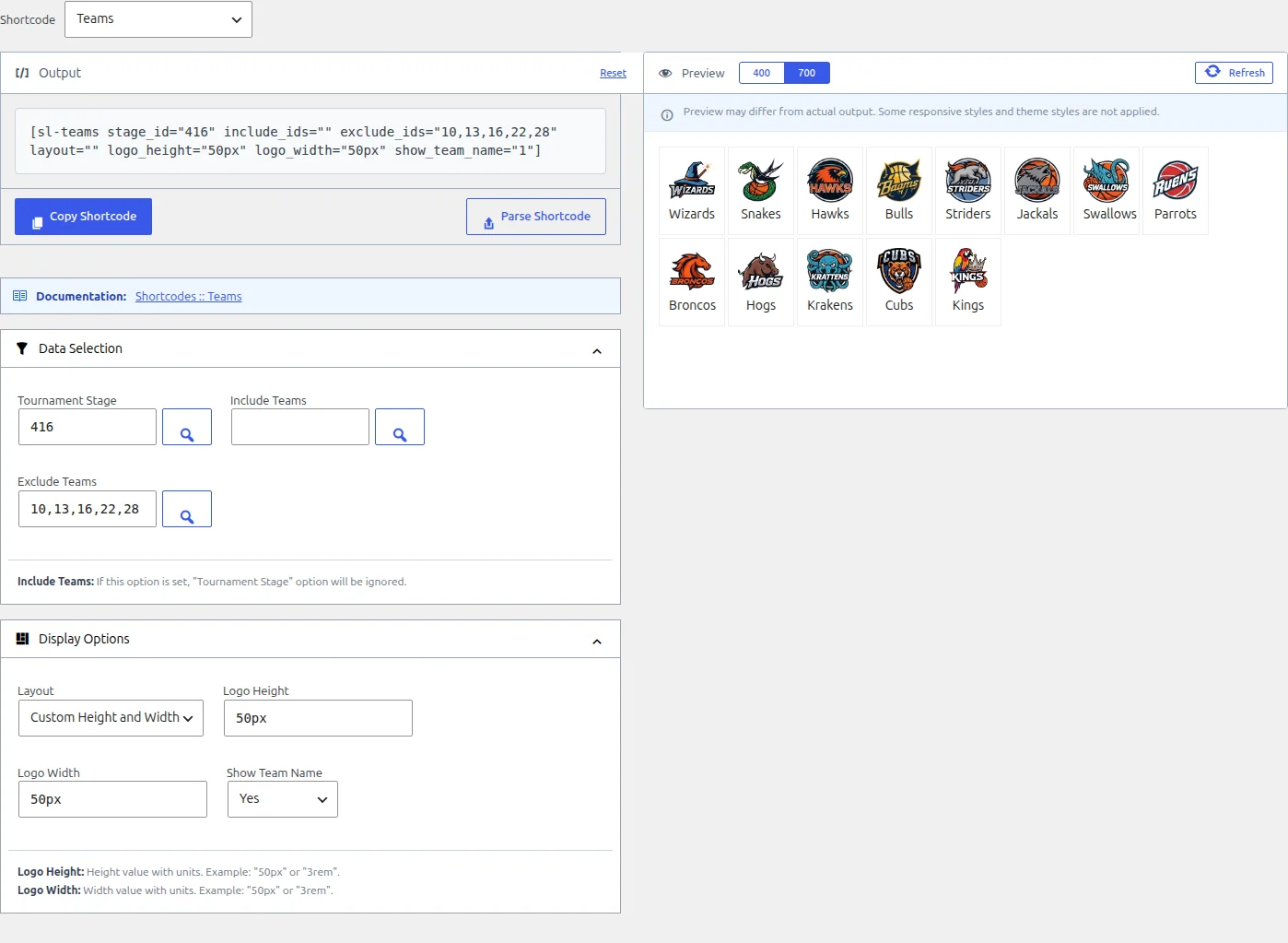
The builder writes every attribute into the shortcode, including empty ones. That’s fine: an empty stage_id="" or include_ids="" is the same as leaving it out. See Shortcode Builder for the preview, Parse Shortcode and how to pick IDs.
With the SL Teams block
In the block editor, add the SL Teams block from the Sports Leagues category. It shows the same kind of logo set, but it has its own options and its own look, so it isn’t a one-to-one copy of the shortcode:
| Block option | What it does |
|---|---|
| Tournament ID | Shows the teams of every stage in the tournament. The shortcode can’t do this. |
| Stage ID | Shows the teams of one stage. Wins over Tournament ID. |
| Include IDs / Exclude IDs | Same rules as the shortcode: Include IDs wins over everything, Exclude IDs works with Stage ID or Tournament ID. |
| Logo Size | Small (default) uses the team’s Small Logo when it has one; Big always uses the main logo. |
| Show Team Name, Team Title | Show the name as Abbreviation (default) or full Title. |
| Team Title Font Size (px) | Name font size in pixels. |
| Layout | Grid (bordered tiles in a row) or List (one team per line). |
| Width | Logo width and height in pixels. Empty or 0 means 50. |
With Team Title set to Abbreviation, the block shows each team’s Abbreviation/Short Name field, so fill that in for every team or switch to Title. The block’s Stage ID and Tournament ID pickers let you select several items, but only the first ID is used.
In a widget area
Widget areas have a Teams widget (“Show Teams Grid”) with the same options as the shortcode plus a title. In the block-based widget editor, add it through the Legacy Widget block. It renders the same output.
🎯 Which Teams Are Shown
The shortcode picks teams in one of two ways, never both:
include_idsset: exactly those teams, in the order you typed them.stage_idandexclude_idsare ignored.include_idsempty: all teams assigned to the stage instage_id(for a group stage, the teams of every group combined), minus any inexclude_ids. They come in the order they’re stored in the stage, group by group – not alphabetical.
With neither set, the shortcode outputs nothing. There’s no tournament option: to show a whole multi-stage tournament, use the stage that holds all the teams, list them in include_ids, or use the SL Teams block.
Only published teams are shown. Draft, pending, private and scheduled teams are skipped. Teams with the Premium Hidden status still appear, but their logo links back to the current page instead of to a team page.
Parameters
| Attribute (builder field) | What it does | Values | Default |
|---|---|---|---|
stage_idTournament Stage | Shows every team in this stage. Ignored when include_ids is set. | One stage ID | empty |
include_idsInclude Teams | Shows exactly these teams, in this order. | Team IDs, comma-separated | empty |
exclude_idsExclude Teams | Removes teams from the stage’s list. Only works with stage_id. | Team IDs, comma-separated | empty |
layoutLayout | How the logos are arranged. See Layouts below. | empty, 2col, 3col, 4col, 6col | empty |
logo_heightLogo Height | Logo height. Default layout only. | A CSS size with units: 50px, 3rem | 50px |
logo_widthLogo Width | Logo width, and the width of the name below it. Default layout only. | A CSS size with units | 50px |
show_team_nameShow Team Name | Shows the team name under each logo. | 1, yes or true show it; anything else (0, no) hides it | 1 |
Layouts
layout | Builder label | Result |
|---|---|---|
| empty | Custom Height and Width | Bordered logo tiles side by side, wrapping onto new lines. Each logo is logo_width x logo_height. |
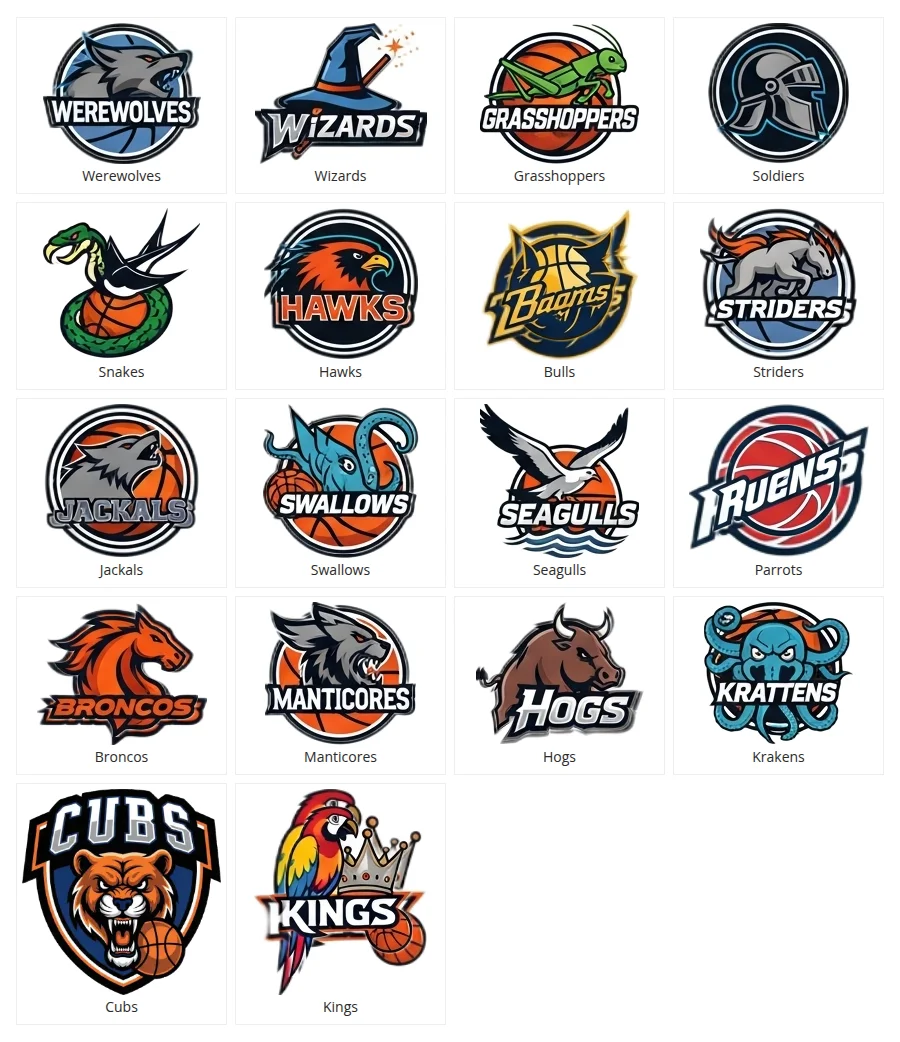
2col, 3col, 4col, 6col | 2 / 3 / 4 / 6 Columns | An equal-width grid with that many teams per row. logo_height and logo_width are ignored. |
The column count stays the same on phones, so a 6-column grid gets small on a narrow screen. Any other layout value (a typo, 5col, list) outputs nothing.
Examples
Replace the IDs with your own. Stage IDs are in the Stages column of Tournaments > Tournaments (each stage shows “Stage ID: N”) and on the tournament edit screen above each stage. The tournament’s own number in the ID column won’t work here. Team IDs are in the ID column of Teams & People > Teams. The Standing shortcode page has more on finding IDs, and in the Shortcode Builder the search buttons let you pick by name instead.
Every team in a stage except two:
[sl-teams stage_id="12" exclude_ids="45,46"]Hand-picked teams in your own order, four per row:
[sl-teams include_ids="31,28,40,33" layout="4col"]Bigger logos, no names:
[sl-teams stage_id="12" logo_height="80px" logo_width="80px" show_team_name="0"]A compact logo wall for a footer or sidebar:
[sl-teams stage_id="12" layout="6col" show_team_name="0"]🆘 Troubleshooting
Nothing shows up
- Set
stage_idorinclude_ids. With both empty the shortcode outputs nothing. - Check
layout: it must be empty,2col,3col,4color6col. - Check that
stage_idholds a stage ID, not the tournament’s ID. A tournament ID gives empty output. A single-stage tournament still has a separate stage with its own ID (see the Stages column in Tournaments > Tournaments). - Check that the stage has teams assigned. An empty stage outputs nothing visible.
- In the default layout, keep a value in
logo_heightandlogo_width. Empty values leave the logos with no fixed size, so they shrink to nothing or stretch to the width of the name.
A team is missing
- The team isn’t published (draft, pending, private or scheduled). Publish it.
- The team’s ID is in
exclude_ids. - The team isn’t in the stage. Add it to the stage, or list it in
include_ids. - You set
include_ids, so the stage is ignored. Add the team’s ID to the list.
exclude_ids doesn’t remove a team
exclude_ids only filters a stage. When include_ids is set it’s ignored, so just leave the team out of include_ids.
Names don’t show, or show the wrong text
show_team_nameonly accepts1,yesortruein lower case.Yeshides the names.- The name comes from the team’s Abbreviation/Short Name field when it’s filled in. Clear that field to show the full name, or shorten it to fit under the logo.
A tile has no logo
The team has no Team logo set. Open the team, set its Team logo in the sidebar box, and update it.
📚 Related
- Shortcode Builder: build and preview any shortcode, and pick IDs
- Standing shortcode: the stage’s table, and where to find IDs
- Teams: the team logo and Abbreviation/Short Name fields
- Tournaments: stages and groups
- Team Statistics shortcode (Premium): team stats instead of logos