

The Layout Builder replaces the standard Game, Team, Player or Tournament page with a layout you put together from blocks. You drag blocks into a top area, a set of tabs and a bottom area, then tell the layout which pages it applies to. Pages with no matching layout keep the standard look.
The Layout Builder is a Premium feature. Only administrators can open it.
🚀 Create a Layout
- Go to Layout Builder > Add New.
- Enter a title. It’s only shown in the admin, so name it after what it’s for (“Finished games”, “Club pages”).
- Under Select Layout Type, pick Game, Tournament Root, Team or Player.
- Click Select Type & Continue. The builder opens.
- Add your blocks, fill in Display Options, and click Save.
Team and Player layouts go live at once
“Select Type & Continue” publishes the layout straight away. A Team or Player layout needs no Display Options, so from that moment every team (or player) page uses it, and while it has no blocks those pages are blank. Switch it to Draft in the Publish box right away, build it, then publish it. The type can’t be changed later: to turn a Game layout into a Team layout, create a new one.
There’s no separate Stage type. Stage pages use the layout of their tournament (see Which Pages Use a Layout below).
The All Layouts list shows each layout’s type and its display rules in the Layout Info column, and the Layout Type dropdown filters the list by type.
Build the Layout
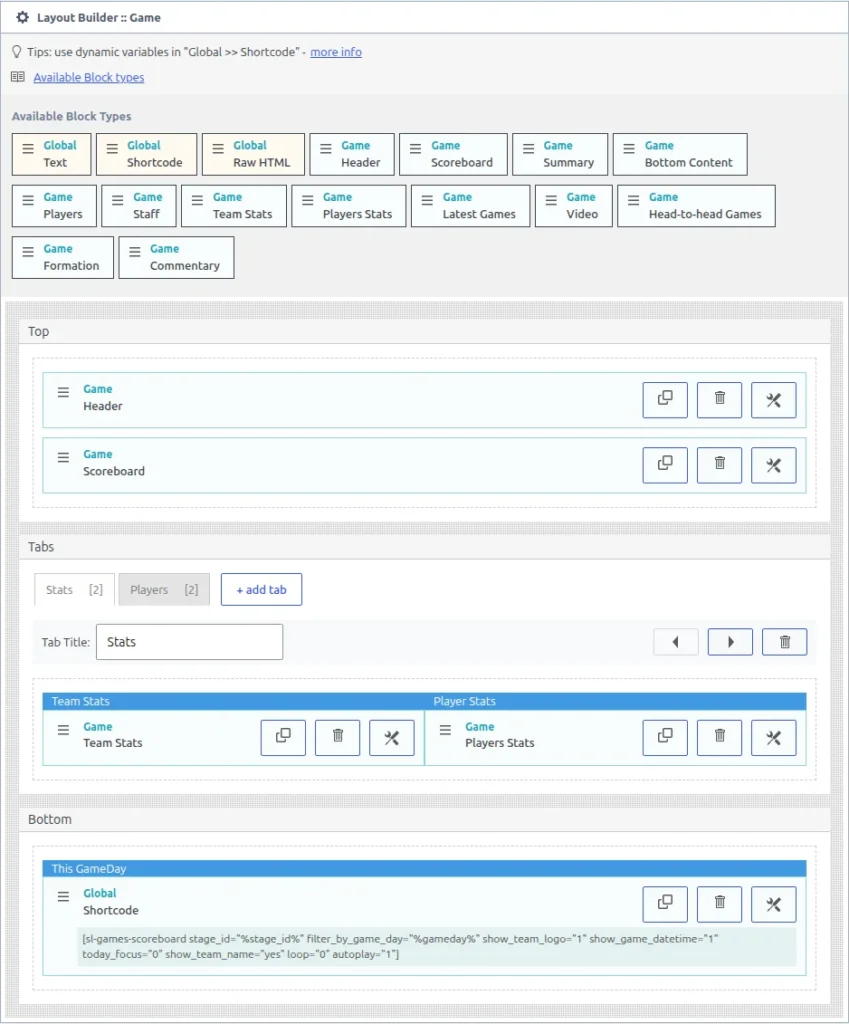
A layout has three sections, shown on the page in this order:
| Section | What it’s for |
|---|---|
| Top | Blocks above the tabs, such as the header or scoreboard |
| Tabs | Blocks split across tabs. The first tab opens when the page loads |
| Bottom | Blocks below the tabs |
To add a block, drag it from Available Block Types into a section. You can drag the same block in more than once. To reorder blocks or move one to another section, drag it by its handle.
Tabs
- Click + add tab to add a tab, then type its name in Tab Title.
- Each tab button shows how many blocks it holds, in brackets.
- Use the arrow buttons next to the title to move the active tab left or right, and the trash button to delete it.
- A tab with an empty title isn’t shown on the page, along with the blocks inside it. Give the first tab a title too, or no tab is open when the page loads.
Block buttons
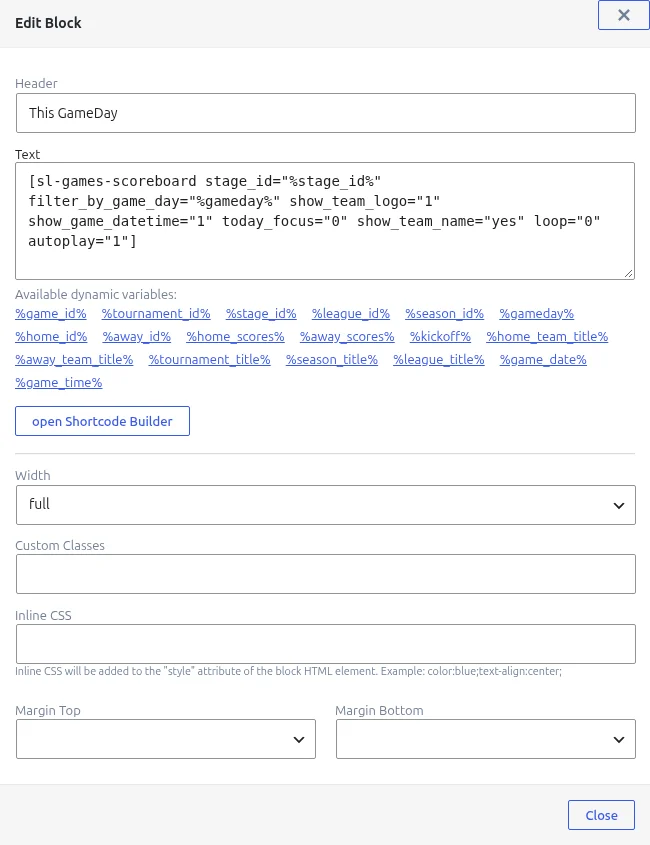
Every block in a section has three buttons on its right: Clone Block (adds a copy next to it), Remove Block, and a tools button that opens the Edit Block window. Under each block, the builder lists the options you’ve set on it.
Block options
Some options only appear on the blocks that use them. Changes show up in the builder right away, and they’re stored when you click Save.
| Option | What it does |
|---|---|
| Header | A title shown above the block |
| Text | The content of a Text, Shortcode or Raw HTML block |
| Width | full, 1/2 or 1/3 of the row. Below 768px every block is full width. 1/2 is half width from 768px. 1/3 is half width from 768px and a third from 1200px |
| Custom Classes | CSS classes added to the block |
| Inline CSS | CSS added to the block’s style attribute, for example text-align:center; |
| Margin Top / Margin Bottom | Space above or below the block: 0, 0.25, 0.5, 1, 1.5 or 3 rem, or the same negative values to pull it closer |
| Stage Number / Group Number | Tournament layouts only. Limit the block to one stage or group (see Stage Number and Group Number below) |
| Show on Player Position | Player layouts, Shortcode block only. Shows the block only for players in that position |
Header blocks and the Game Scoreboard are always full width and have no Header option.
🎯 Which Pages Use a Layout
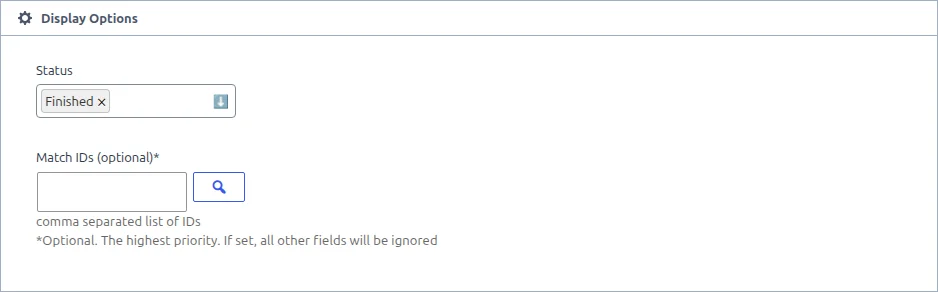
There’s no layout picker on the game, team, player or tournament screens. Each layout decides which pages it applies to in its own Display Options box, at the top of the layout screen.
| Layout type | Display Options | How a page finds its layout |
|---|---|---|
| Game | Status (Finished, Upcoming) and Match IDs | 1. A layout whose Match IDs include the game. 2. A layout whose Status matches the game (finished or upcoming). No match: the standard game page. |
| Tournament Root | League and Tournament IDs | 1. A layout whose Tournament IDs include the tournament. 2. A layout whose League matches the tournament’s league. No match: the standard tournament page. |
| Team | Team IDs | 1. A layout whose Team IDs include the team. 2. Otherwise, the most recently published Team layout, even one whose Team IDs list other teams. |
| Player | None | The most recently published Player layout applies to all players. |
- IDs come first, but don’t switch off Status or League. A Game layout that has both Match IDs and a Status also applies to every game with that status, and a Tournament layout with both IDs and a League applies to the whole league. To limit a layout to its IDs, leave Status (or League) empty. For games, Status is greyed out while Match IDs are filled, so clear the IDs, clear Status, then enter the IDs again.
- Enter IDs as a comma-separated list. On Game and Team layouts, the button next to the field lets you search for them.
- Game and Tournament layouts need Display Options. With nothing filled in, they never apply, and the box shows a reminder.
- When several layouts match, the most recently published one wins. This matters most for teams: Team IDs don’t keep a layout off other teams, so a club layout published after your general Team layout takes over every team. Publish the club layout first and the general one last, or give the general one a later date in the Publish box.
- Stage pages use the tournament’s layout. A stage page looks up the layout of its main tournament, so enter the main tournament’s ID in Tournament IDs, never a stage ID.
- Games must be fully set up. A game that hasn’t finished its setup step keeps the standard page.
There’s no global on/off switch. To stop a layout applying, move it to Draft or Trash.
Available Blocks
Each layout type has its own blocks, plus three Global blocks that every type has.
Global blocks
| Block | What it shows |
|---|---|
| Text | A header and your text. Shortcodes in it run, but dynamic variables aren’t replaced |
| Shortcode | A header and your shortcode, with dynamic variables replaced first. Hidden when the shortcode outputs nothing (see Shortcode Block and Dynamic Variables below) |
| Raw HTML | Your HTML as is, always full width, with dynamic variables and shortcodes. Has no Header, Width, class, Inline CSS or margin options |
Game blocks
| Block | What it shows |
|---|---|
| Header | The standard game header with teams and score |
| Scoreboard | The Premium scoreboard with a background image |
| Summary | The game’s Summary text (hidden when empty) |
| Bottom Content | The game’s Bottom Content text (hidden when empty) |
| Players | Both teams’ players in this game |
| Staff | Both teams’ staff in this game |
| Team Stats | Team statistics side by side |
| Players Stats | Player statistics for the game |
| Latest Games | Each team’s last 5 finished games |
| Video | The game’s video |
| Head-to-head Games | The last 5 games between the two teams |
| Formation | The teams’ formation |
| Commentary | Play-by-play commentary |
Team blocks
Season-based blocks use the season picked in the season selector, or the team’s current season. The selector is part of the Header block, so without a Header visitors only see the current season.
| Block | What it shows |
|---|---|
| Header | Team details, sub-teams, trophies and the season selector |
| Description | The team’s Description text (its Header shows even when the text is empty) |
| Bottom Content | The team’s Bottom Content text (same as above) |
| Games Upcoming | The team’s next games in the season, soonest first: 10, then a Load More button |
| Games Finished | The team’s finished games in the season, latest first: 10, then a Load More button |
| Roster | The season roster, in the roster layout set in the Customizer |
| Staff | The season staff |
| Players Stats | Player statistics for the team in the season |
Player blocks
Stats and games blocks use the season picked in the season selector, or the player’s current season.
| Block | What it shows |
|---|---|
| Header | Player photo and details |
| BIO | The player’s Bio text (its Header shows even when the text is empty) |
| Total Stats | Season totals |
| Game Stats | Statistics game by game |
| Player Games | Games the player took part in |
| Missed Games | Games the player missed |
| Bottom Content | The player’s Bottom Content text (same as above) |
| Gallery | The player’s photo gallery |
Tournament blocks
These blocks belong to the Tournament Root type and show on both the tournament page and its stage pages.
| Block | Stage / Group options | What it shows |
|---|---|---|
| Header | – | The tournament header, with the season selector when it’s turned on in the Customizer and the tournament has a league and season |
| Games Grouped (new) | – | Latest scores and upcoming games (10 each) and brackets, with a row of stage buttons that link to the stage pages when there’s more than one stage |
| Games All | Stage, Group | All games, grouped by GameDay, with stage titles when there’s more than one stage. Knockout stages are listed by round. Use it on the tournament page: on stage pages it currently shows nothing |
| Games Finished | Stage, Group | Finished games grouped by date, latest first |
| Games Upcoming | Stage, Group | Upcoming games grouped by date, soonest first |
| GameDay Slides | Stage, Group | A GameDay slider that opens on the stage’s Current GameDay (set on the stage in the tournament editor). Group stages only |
| Standing Tables | Stage, Group | The stage’s standing tables, with group titles when there’s more than one group. Group stages only |
| Results Matrix | Stage, Group | A results matrix for each group’s standing. Group stages only |
| Bracket | Stage | The bracket of each knockout stage whose Bracket Layout isn’t set to hide |
Stage Number and Group Number
Most tournament blocks have two extra options that limit them to part of the tournament. This is how you build pages like “Regular season standings in one tab, playoff bracket in another”.
- Stage Number is the stage’s position, starting from 1. Count the stage tabs in the tournament editor from the left. Leave it empty to show all stages.
- Group Number is the group’s position inside the stage, starting from 1. Leave it empty to show all groups. On the Games blocks it only works together with a Stage Number. Leave it empty for knockout stages.
On Games Upcoming, use Stage Number only for now: with a Group Number it currently shows no games.
The numbers always count the tournament’s stages, so Stage Number 2 means the same stage on the tournament page and on every stage page. If you reorder the stages in the tournament editor, check your layouts afterwards.
Games All, Games Finished, Games Upcoming, GameDay Slides, Standing Tables and Results Matrix take both options. Bracket takes Stage Number only. Header and Games Grouped take neither.
Shortcode Block and Dynamic Variables
The Shortcode block can show any shortcode, but its real strength is dynamic variables. A variable like %team_id% is replaced with the value from the page being viewed, so one layout works for every team, game or player.
For example, this Shortcode block on a Team layout shows the last 5 finished games of whichever team is open, in the season being viewed:
[sl-games filter_by_team="%team_id%" season_id="%season_id%" finished="1" sort_by_date="desc" limit="5"]And on a Game layout, this one shows every game of the same GameDay in a slider:
[sl-games-scoreboard stage_id="%stage_id%" filter_by_game_day="%gameday%" show_team_logo="1" show_game_datetime="1" today_focus="0" show_team_name="yes" loop="0" autoplay="1"]In the Shortcode block’s Edit Block window, click a variable under Available dynamic variables to insert it at the cursor. The open Shortcode Builder button opens the shortcode builder: set up the shortcode there, copy it from the builder’s Output box, and paste it into Text. It isn’t inserted for you.
Where variables work
Variables are replaced in the Shortcode and Raw HTML blocks and in the SEO Title and SEO Description fields. They are not replaced in the Text block.
Variables by layout type
The info box under the builder lists only some of these (Player layouts have none). This is the full list.
| Layout type | Variables |
|---|---|
| Game | IDs: %game_id% %tournament_id% %stage_id% %league_id% %season_id% %home_id% %away_id%Values: %gameday% %home_scores% %away_scores% %kickoff% %game_date% %game_time%Names: %home_team_title% %away_team_title% %tournament_title% %season_title% %league_title% |
| Team | %team_id% %season_id% %season_name% %team_title% %team_city% %team_country% |
| Player | %player_id% %season_id% %season_name% %player_name% |
| Tournament Root | %tournament_id% %tournament_title% %stage_nN% %group_nN% |
%game_date%and%game_time%use your custom game date and time formats, or the WordPress ones.%kickoff%is the date in the custom game date format, orYYYY-MM-DD.- On Team and Player layouts,
%season_id%is the season picked in the season selector, or the current one. - On Tournament layouts,
%tournament_id%is always the tournament’s ID, even on a stage page.%tournament_title%is the title of the page being viewed, so a stage page shows the stage’s title. %stage_nN%is the ID of stage N, for example%stage_n2%for the second stage. It works on the tournament page.%group_nN%is the ID of group N and works on a stage page. Only one stage number and one group number are replaced per block:%stage_n2%twice works, but%stage_n1%next to%stage_n2%leaves the second one as text.
SEO Title and Description
Below the builder, the SEO Title and SEO Description fields set the page title and meta description for every page that uses the layout. Use dynamic variables to make each page unique:
%home_team_title% vs %away_team_title% - %tournament_title% %season_title%- Supported SEO plugins: Yoast SEO, Rank Math SEO and SEO SIMPLE PACK. All in One SEO has limited support: with it, the page can end up with two title tags.
- Without an SEO plugin, Sports Leagues prints the title, description and their Open Graph tags itself.
- On Game layouts, the SEO Title also replaces the title shown on the page when the Customizer option “Hide post title for Game and Tournament” is set to No. It’s Yes by default.
🆘 Troubleshooting
The page still shows the standard layout
- Check that the layout is published, not Draft.
- Game and Tournament layouts: fill in Display Options. An empty box means the layout never applies.
- Another layout may win: when several match, the most recently published one is used. Check the Layout Info column in All Layouts.
- Tournament layouts: Tournament IDs must hold the main tournament’s ID, not a stage ID.
- Games: the game must have finished its setup step.
- Clear your page cache after saving the layout.
A tab is missing
Tabs with an empty Tab Title aren’t shown. Give the tab a title and save.
A block shows nothing
- Content blocks (Summary, BIO, Bottom Content) stay empty until the field is filled in on the game or player.
- GameDay Slides, Standing Tables and Results Matrix only work with group stages. Bracket only works with knockout stages.
- Check the block’s Stage Number and Group Number. A number past the last stage or group shows nothing, except on Games Finished and Games Upcoming: there a Stage Number past the last stage drops the filter and lists finished (or upcoming) games from the whole site.
- A Shortcode block is hidden when its shortcode outputs nothing. Try the shortcode on a normal page to check it.
A variable shows up as text, like %team_id%
- You’re using it in a Text block. Move it to a Shortcode or Raw HTML block.
- The variable belongs to another layout type.
%team_id%works on Team layouts, not on Game layouts (use%home_id%/%away_id%there).
📚 Related
- Premium Shortcodes: shortcodes to use in the Shortcode block
- Games Scoreboard shortcode: the slider in the GameDay example above
- Results Matrix: what the Results Matrix block shows
- Standing Table – Advanced Features: options for the tables in the Standing Tables block