

The [sl-standing] shortcode shows one of your standing tables on any page or post: places, teams with logos, the columns you picked for that standing, row colors and table notes. It needs one thing, the standing’s ID.
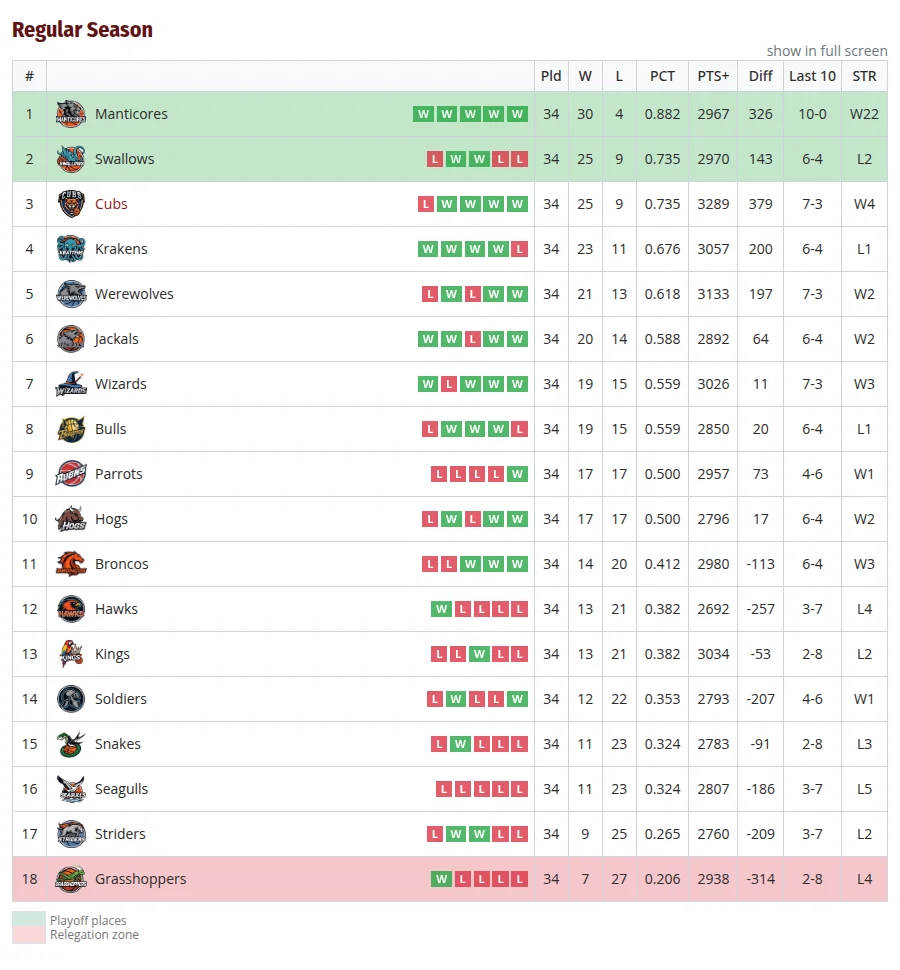
The table itself comes from the standing (Tournaments > Standings). This shortcode only decides where it appears and how much of it you see. To create a standing first, see Standings.
🚀 Add a Standing Table
The simplest version is just the ID:
[sl-standing id="123"]Replace 123 with your standing’s ID (see Find the IDs below). Or let the Shortcode Builder write it for you:
- Go to Sports Leagues > Shortcodes and pick Standing Table.
- In Standing Table, choose your standing. Each one is listed by tournament, stage and group (plus the round when a stage has several), in alphabetical order.
- Set any other options, check the preview, and copy the shortcode.
- Paste it into a Shortcode block (block editor) or straight into the text (classic editor).
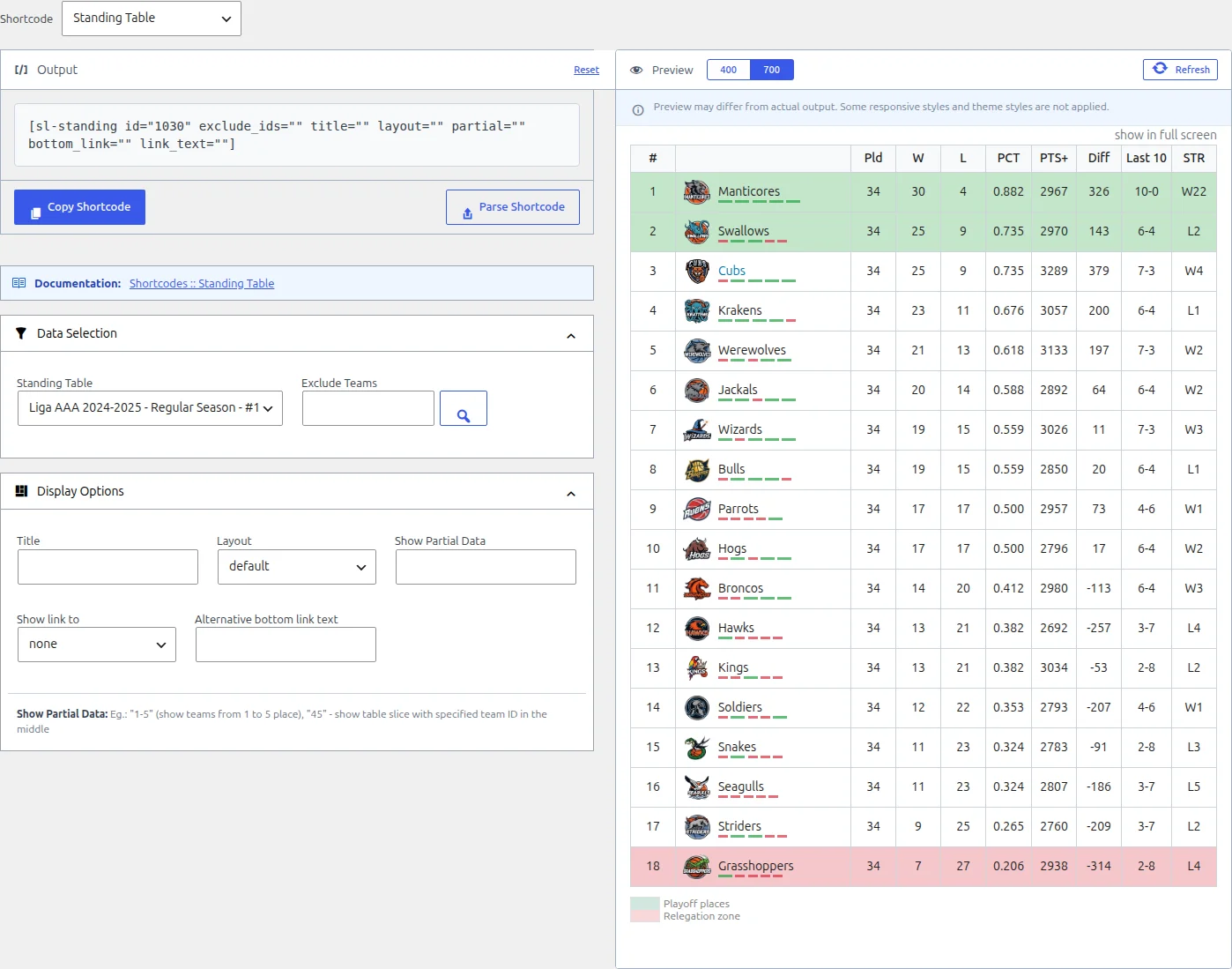
There’s no dedicated Gutenberg block for standings, so the Shortcode block is the way to go. The builder itself is covered on the Shortcode Builder page.
Parameters
| Parameter | What it does | Values | Default |
|---|---|---|---|
id | The standing to show. Required: without a valid standing ID the shortcode outputs nothing | Standing ID | empty |
title | Heading above the table | Any text | empty (no heading) |
exclude_ids | Hides these teams’ rows. The other teams keep their places, so the numbering skips the hidden ones (Premium Conference and Division views are numbered from 1, with no gap) | Team IDs, comma-separated | empty |
layout | Full table or a compact one for sidebars (see Default and Mini Layout below) | empty (default), mini | empty |
partial | Shows only part of the table (see Show Part of the Table below) | A place range like 1-5, or a team ID like 45 | empty (all teams) |
bottom_link | Adds a link under the table to the standing’s tournament | empty (no link), tournament | empty |
link_text | Text of that link. Only used with bottom_link="tournament" | Any text | empty (the tournament’s name) |
subheader_text | A light bar with your text above the table. When it’s set, the “show in full screen” link moves into this bar. Default layout only | Any text | empty |
subheader_class | Extra CSS classes for the subheader bar | Class names | empty |
partitions (Premium) | Which view a conference/division standing opens with. Only for standings with Conferences and Divisions support on: elsewhere c or d leaves the table empty | l League, c Conference, d Division | empty (the Customizer setting) |
partitions_switcher (Premium) | Shows the League / Conference / Division buttons above a conference/division standing | 1 or 0 (yes/no and true/false work too) | 1 |
The builder has fields for the first seven: Standing Table, Title, Exclude Teams, Layout, Show Partial Data, Show link to and Alternative bottom link text. The last four aren’t in the builder, so type them into the shortcode yourself.
What the Table Shows
Most of what you see is set on the standing, not in the shortcode:
- Columns: picked per standing in its Table Columns – order and visibility box, with one row for the Main Layout and one for the Mini Layout (widget, shortcode). With Premium, the standing’s Columns Builder gives each column a Layout switch instead: All, Full or Mini.
- Row colors and Table Notes: from the standing’s color settings and its Table Notes field. Notes appear under the table.
- Recent form: each team’s last 5 finished games in this stage and group, next to the team name.
- “show in full screen” link: opens the table in a full-screen window. It’s hidden on phone-sized screens.
Two settings switch the last two off for every table on the site: Show team series and Show “full screen” link, both in Appearance > Customize > Sports Leagues > Standing. The “show in full screen” link text and the “Team” column heading can be renamed like other front-end text (with Premium, the default layout leaves that heading blank, so only mini tables show it), see How to change front-end text strings.
Default and Mini Layout
layout="mini" gives a compact table for sidebars and narrow columns. Here’s what changes:
| Default | Mini | |
|---|---|---|
| Columns | Main Layout set (Premium: All + Full) | Mini Layout set (Premium: All + Mini) |
| Team name | Full name | Free version: abbreviation, when the team has one. With Premium: full name |
| Recent form | Yes | No |
| “show in full screen” link | Yes | No |
subheader_text | Yes | Ignored |
Title, notes, row colors, exclude_ids, partial, bottom link | Yes | Yes |
Show Part of the Table
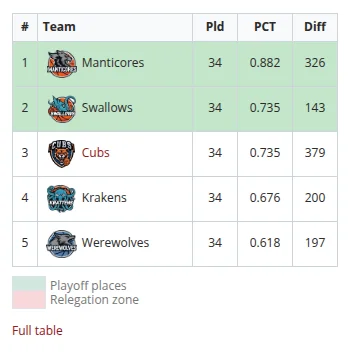
partial takes one of two forms:
- A place range, like
partial="1-5"(places 1 to 5) orpartial="10-14". Both numbers are needed:5-shows the whole table. - A team ID, like
partial="45". You get that team plus two places above and two below. Near the top or bottom there’s less room, so the leader shows with only the two teams under it.
The team version suits a team page: “where are we in the table” without the full list. If the team isn’t in that standing, the whole table shows.
Conferences and Divisions (Premium)
When a standing has Conferences and Divisions support switched on in Premium, the table gets buttons to flip between the whole League, each Conference and each Division. The Division button only appears when at least one team has a division. Setup is covered in Conference & Division Support.
partitionspicks the view the table opens with. Leave it empty and the Initial Standing Layout with Division and Conference support setting in Appearance > Customize > Sports Leagues > Standing decides. If that’s not set either, it opens on League.- Only use
partitionson a standing with Conferences and Divisions support on. On any other standing,cordleaves the table empty: you get the title and notes, but no rows. partitions_switcher="0"hides the buttons, so the table stays on the view you picked.- In the Conference and Division views, each conference or division is numbered from 1, even when
exclude_idshides a team.
partial and the switcher buttons
Clicking a League, Conference or Division button reloads the full table, so partial only applies until the first click. And partial counts league places: partial="1-5" with partitions="c" shows the league’s top 5, split across the conference tables. If you need partial on a conference standing, add partitions_switcher="0".
🎯 Examples
Top 5 in a sidebar, with a link to the tournament:
[sl-standing id="123" layout="mini" partial="1-5" bottom_link="tournament" link_text="Full table"]One team’s neighborhood on its team page (team ID 45):
[sl-standing id="123" partial="45" title="Where we stand"]Hide two teams, for example teams that withdrew:
[sl-standing id="123" exclude_ids="45,67"]A subheader bar with a note above the table:
[sl-standing id="123" title="Regular Season" subheader_text="Top 8 go to the playoffs"]Premium: open on conferences, no switcher buttons:
[sl-standing id="123" partitions="c" partitions_switcher="0"]Find the IDs
This is the ID reference for all the core shortcodes. Most admin lists have an ID column. You can also open an item and read the number from the address bar: post=123 for tournaments, standings, games, teams and venues, tag_ID=78 for seasons and leagues.
| ID | Where to find it | Used by |
|---|---|---|
| Tournament ID | Tournaments > Tournaments, ID column | Games, Players Stats, Tournament Header, Tournament List |
| Stage ID | Tournaments > Tournaments, Stages column: each stage line shows “Stage ID: N”. Also at the top right of each stage when you edit the tournament | Games, Players Stats, Teams, Tournament Header |
| Standing ID | Tournaments > Standings, ID column | this shortcode (id) |
| Game ID | Tournaments > Games, ID column | Games, Players Stats |
| Team ID | Teams & People > Teams, ID column | this shortcode (exclude_ids, partial), Games, Players Stats, Teams, Roster |
| Venue ID | Teams & People > Venues, ID column | Games, Players Stats |
| Season ID | Tournaments > Seasons, ID column (the last one) | Games, Players Stats, Roster |
| League ID | Tournaments > Leagues, ID column (the last one) | Games, Players Stats |
A standing already belongs to one tournament stage and group, so [sl-standing] never needs a season or league ID. In the Shortcode Builder you rarely need to look IDs up at all: fields like Exclude Teams have a search button that lets you pick items by name and fills in the IDs. For how seasons and leagues fit together, see Seasons & Leagues.
🆘 Troubleshooting
Nothing shows up
- Check
id. It must be a standing ID: a tournament, stage or team ID outputs nothing, and so does a missingid. There’s no error message. - Open the standing and check it has teams. A standing that was never saved outputs nothing, and one with no teams shows only the table header. Teams that haven’t played yet still show, with zeros.
partial shows the whole table
- With a team ID: that team isn’t in this standing. Check the ID in Teams & People > Teams.
- With a range: give both numbers,
1-5, not5-.
Places skip a number
That’s exclude_ids at work. Hidden teams keep their place, so the teams below them aren’t renumbered. The Premium Conference and Division views are the exception: they count from 1 in each group, with no gap.
The subheader or full-screen link is missing
- Neither exists in
layout="mini". - The full-screen link is hidden on phone-sized screens, and site-wide when Show “full screen” link is set to No in the Customizer.
Wrong or missing columns
Columns belong to the standing, and each layout has its own set. Edit the standing and check the Main Layout or Mini Layout row (Premium: the column’s Layout switch).
📚 Related
- Standings: how standing tables are built
- Standing Table: creating a standing, ranking criteria, position colors and columns
- Standing Table – Advanced Features: the Premium Columns Builder
- Conference & Division Support: setting up partitions
- Shortcode Builder: building and previewing shortcodes