

The [sl-players-stats] shortcode shows a ranked table of players for one statistic, like top scorers or rebound leaders. It adds up each player’s numbers from every game that matches your filters (a tournament, season, team, single game and so on) and sorts the table by that total.
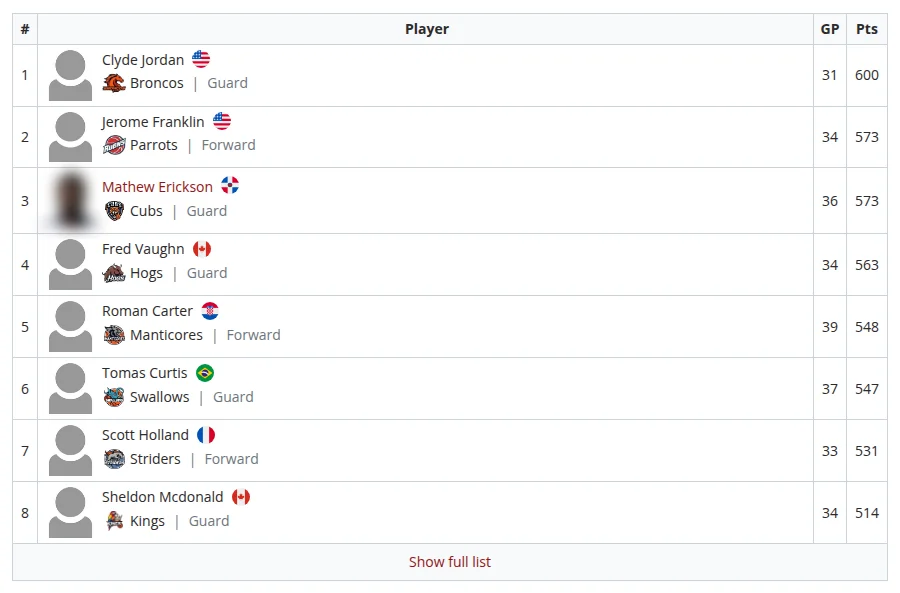
Each row shows the rank, the player and their stat total. You can switch the photo, nationality flag, team, position and a games played (GP) column on or off.
What Gets Counted
- Player stats entered in your games, for the stat you pick.
- Only games from stages whose Stage Status is Official. Games in Friendly stages are left out. A game takes its stage’s status when you save the game, so if you switch a stage to Official later, open and update its games so they count.
- Players whose total is 0 aren’t listed.
- The team shown next to a player is the team (or teams) they played for in the counted games.
🚀 Add the Shortcode
The easiest way is the Shortcode Builder. It lists your stats by name, so you don’t need to look up IDs.
- Go to Sports Leagues > Shortcodes and pick Players Stats.
- Under Data Selection, choose a stat in the Stats dropdown. This is the only option you must set.
- Add filters, such as a Tournament, Season or Team.
- Set the Display Options, check the preview, and copy the shortcode into your page.
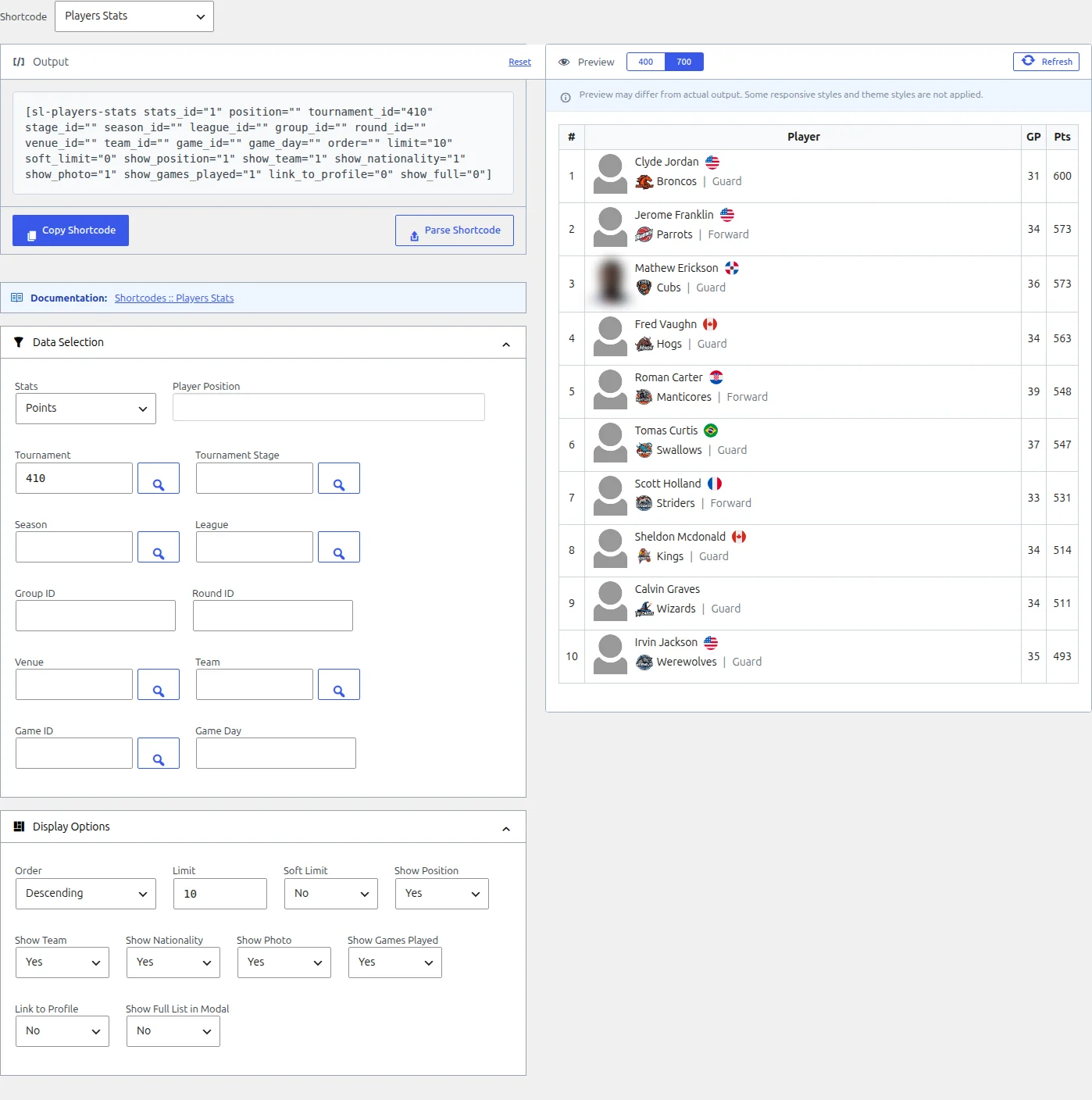
See Shortcode Builder for the preview, the entity pickers and how to edit a shortcode you’ve already made.
Players Stats block
In the block editor, add the SL Players Stats block from the Sports Leagues category and set its options in the sidebar. It shows the same table, with a few differences from the shortcode:
- Player Position takes one position, not several.
- Limit is a slider that starts at 1, so the block can’t show every player. Use the shortcode with
limit="0"for that. - Venue ID is a plain text field: type the venue’s ID.
- Team ID and Game ID let you pick several, but only the first one is used.
There’s also a classic Players Stats widget with the same output and fewer filters.
Find the Stat ID
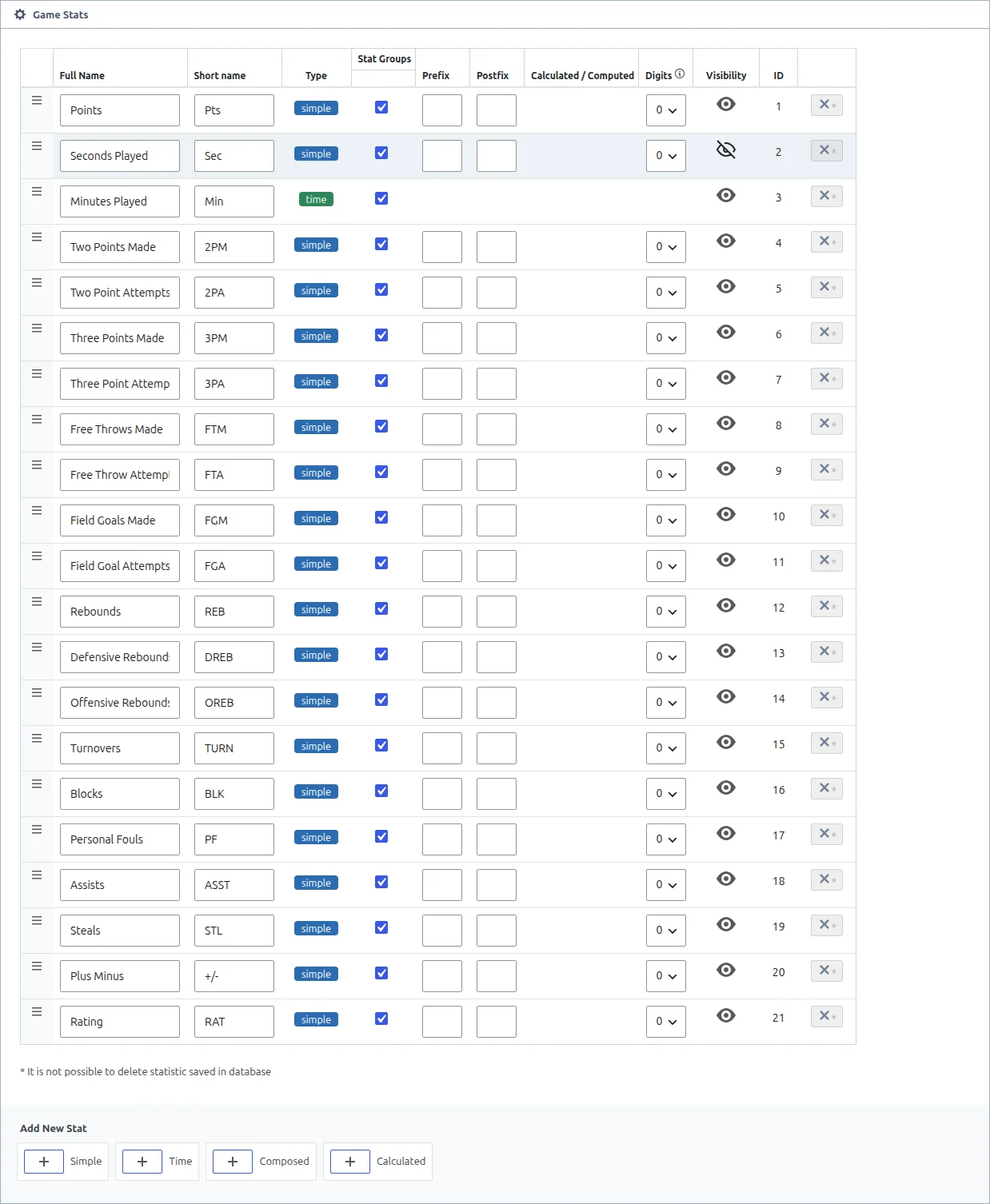
Sports Leagues works with many sports, so there’s no fixed list of stats. Each site has its own, and stats_id takes the stat’s number, not its name. To find it:
- Go to Settings & Tools > Player Stats (in 0.15.0 and later: Sports Leagues > Sport Setup, Stats tab).
- In the Game Stats box, find the stat and read its number in the ID column.
Not every stat type works here:
| Stat type | Works? | How the total is shown |
|---|---|---|
| Simple | Yes | The sum over all counted games |
| Time | Yes | The summed time as minutes:seconds. Enter time stats as MM:SS in your games |
| Calculated | Yes, if both of its source stats are Simple | Worked out from the two summed source stats (sum, difference, ratio or ratio in %), with the stat’s digits, prefix and postfix |
| Composed | No | Not offered in the dropdown |
The stat column’s header shows the stat’s Short name, with the full name in a tooltip. For setting up stats, see How to Configure Player Statistics.
Parameters
Only stats_id is required. Without it the shortcode outputs nothing. Leave a filter out (or empty) to skip it.
Data selection
| Parameter | Default | What it does |
|---|---|---|
stats_id | (required) | The stat to rank players by. A stat ID from the Player Stats screen |
tournament_id | (empty) | Only games of this tournament. One ID |
stage_id | (empty) | Only games of this tournament stage. One ID |
season_id | (empty) | Only games of this season. One ID |
league_id | (empty) | Only games of this league. One ID |
group_id | (empty) | Only games of this group. Use it together with stage_id |
round_id | (empty) | Only games of this round. Use it together with stage_id |
venue_id | (empty) | Only games played at this venue. One ID |
team_id | (empty) | Only stats a player made while playing for this team. One ID |
game_id | (empty) | Only this one game |
game_day | (empty) | Only games with this Game Day number |
position | (empty) | Only players with this position. Takes position IDs, comma-separated for several, with no spaces after the commas: position="Center,Power Forward". Uses the position set on the player’s profile |
Where to find the other IDs
The tournament edit screen shows a Stage ID for each stage and a Group ID and Round ID for its groups and rounds. Group and round numbers start again in every stage, so Group 1 exists in each stage: add stage_id or you’ll mix groups from different stages. Position IDs are in the ID column of the Player Position box under Settings & Tools > Sport Configurator (in 0.15.0 and later: Sports Leagues > Sport Setup, Sport tab). For tournaments, teams, seasons, leagues, venues and games, see the Standing page or use the pickers in the Shortcode Builder.
Display options
| Parameter | Default | What it does |
|---|---|---|
order | (empty) | Empty = highest total first. ASC = lowest total first |
limit | 10 | How many players to show. 0 shows all of them |
soft_limit | 0 | 1 is meant to also show players tied with the last place. See the warning below |
show_photo | 1 | Player photo. 0 hides it |
show_nationality | 1 | Nationality flags. 0 hides them |
show_team | 1 | Team logo and name. 0 hides them |
show_position | 1 | Player position. 0 hides it |
show_games_played | 0 | 1 adds a GP column: the number of counted games where the player is marked Played in the game’s player stats |
link_to_profile | 0 | 1 links player names to their profile pages |
show_full | (empty) | 1 adds a Show full list link under the table. It opens a popup with every player, 20 at a time with a load more button, using the same filters. The popup is a simpler list: team logos without names, GP in brackets, no flags or positions, and the default photo for every player |
The Shortcode Builder sets Show Games Played to Yes when you open it, so builder-made shortcodes include the GP column unless you switch it off. A shortcode you type by hand without show_games_played has no GP column.
Leave Soft Limit off for now
In the current version, the Soft Limit option (shortcode, block or widget) makes the whole table disappear whenever at least as many players qualify as your limit. In rare cases (a last-place total below 1) it ignores your limit and lists everyone instead. Keep it at 0. If you need everyone tied for last place, raise limit or use show_full="1".
Examples
Replace the IDs with your own. Stat IDs differ from site to site.
Top 10 in a tournament, linked to profiles
[sl-players-stats stats_id="1" tournament_id="25" link_to_profile="1"]One team’s leaders in a season
[sl-players-stats stats_id="18" team_id="120" season_id="3" show_team="0" show_games_played="1"]The team column is hidden because every player is from the same team. Players who moved teams only get the stats they made for team 120.
Best performers in a single game
[sl-players-stats stats_id="1" game_id="450" limit="5"]Leaders at one position
[sl-players-stats stats_id="12" tournament_id="25" position="Center" limit="5"]Use the position ID from the Player Position box. With the recommended basketball positions, the ID starts out as the position name. Renaming a position later doesn’t change its ID, so check the ID column.
Compact top 5 for a sidebar, with the full list in a popup
[sl-players-stats stats_id="1" tournament_id="25" limit="5" show_photo="0" show_nationality="0" show_full="1"]🆘 Common Problems
Nothing shows up
stats_idis missing.- The stat ID doesn’t exist on this site, or it’s a Composed stat, or a Calculated stat built from non-Simple stats.
- No player has a total other than 0 for the games your filters match. Check that player stats are entered in those games.
- The games are in a stage set to Friendly. Only Official stages count. If you changed the stage to Official after saving its games, update the games once.
soft_limit="1"is set. See the warning above.- In the block editor, an empty result shows “Output is empty. Try to change your arguments.”
The stat column has no header
The header shows the stat’s Short name. Fill it in for that stat on the Player Stats screen.
The stat column is empty and has no header
stats_id is a name like "points", not the number from the ID column. The shortcode then lists players by games played, with no stat values. Use the number.
A player with 0 is missing
That’s by design: players with a total of 0 are never listed, so an ascending table starts at the lowest non-zero total.
The position filter misses players
position compares against the position ID saved on each player’s profile. Players with no position, or a position whose ID isn’t in your list, are left out. Check the IDs in the Player Position box.
Names aren’t links
Add link_to_profile="1". Only published player profiles get a link.
I want to change the column labels
The #, Player, GP, Show full list and load more texts can be changed. See How to Change Frontend Text Strings.
📚 Related
- Shortcode Builder: build and preview shortcodes without typing them
- How to Configure Player Statistics: set up the stats this shortcode ranks
- Standing shortcode: includes how to find tournament, team, season, league, venue and game IDs
- Advanced Player Statistics (Premium): the same ranking with date ranges, a custom header, layouts and min / max / per-game average calculations
- Custom Player Statistics (Premium): a table with several stat columns
- Player Stats Panel (Premium): one player’s stats