

The Plugin Settings page controls how the plugin displays content on the frontend, manages odds display, rating colors, the color palette, and caching behavior. It contains five configurable sections: Display, Odds, Rating, Color Palette, and Caching.
Admin Menu: Settings & Tools > Settings
👁️ Display
Visual options that affect how teams, leagues, game times, and UI elements appear across the frontend.
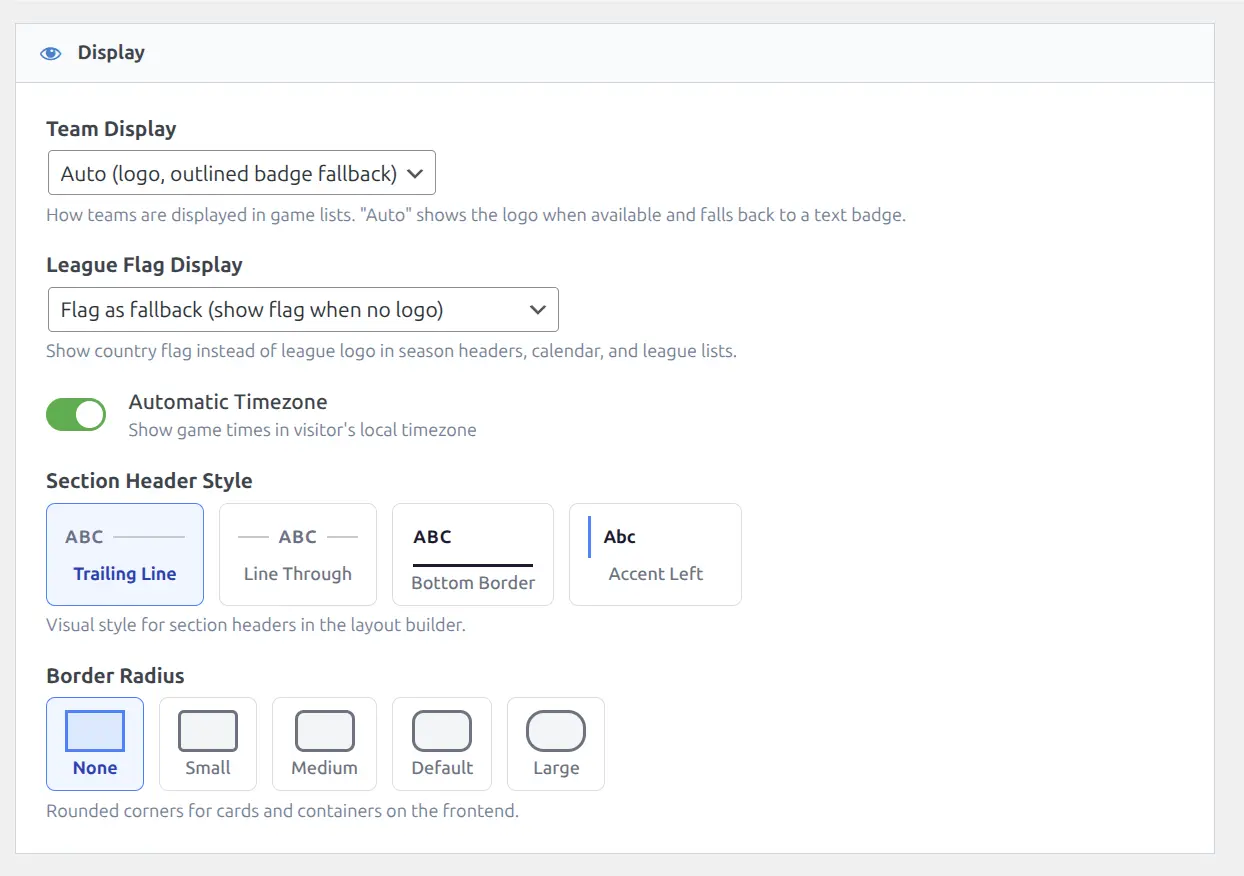
| Setting | Options | Default | Description |
|---|---|---|---|
| Team Display | Auto (logo, outlined badge fallback), Auto (logo, filled badge fallback), Logo Only, Logo + Code, Badge Filled, Badge Outlined | Auto (outlined) | How teams are displayed in game lists |
| League Flag Display | Logo only, Flag as fallback, Always show flag | Flag as fallback | Show country flag instead of league logo in season headers, calendar, and league lists |
| Player Stats Default Stage | Regular Season, All games | Regular Season | Which stage player stats blocks open on |
| Automatic Timezone | On / Off | On | Show game times in the visitor’s local timezone |
| Section Header Style | Trailing Line, Line Through, Bottom Border, Accent Left | Trailing Line | Visual style for section headers in layout builder blocks |
| Border Radius | None (0), Small (4px), Medium (6px), Default (8px), Large (12px) | None | Rounded corners for cards and containers on the frontend |
Team Display Modes
Controls how teams are visually represented across the plugin — in game cards, headers, standings, and all other contexts.
| Mode | Behavior |
|---|---|
| Auto (outlined badge fallback) | Shows logo if available, falls back to an outlined color badge with team code |
| Auto (filled badge fallback) | Shows logo if available, falls back to a solid color badge with team code |
| Logo Only | Only shows logo — no badge fallback for teams without logos |
| Logo + Code | Shows logo alongside team code text |
| Badge Filled | Always shows a solid color badge with team code (ignores logos) |
| Badge Outlined | Always shows an outlined color badge with team code |
Tip
The “Auto” modes are recommended — they provide the best experience by using logos where available while still identifying teams that lack logos.
Player Stats Default Stage
Player pages average every game a player appeared in. For a league with a postseason, that mixes regular-season and playoff games into one number, which won’t match the figures on NBA.com, ESPN or Basketball-Reference — those all report regular season.
This setting chooses which stage five blocks open on: Stat Rings, Game Log, vs. Opponents, Career Statistics and Advanced Stats. Visitors can still switch stages themselves using the buttons on each block.
| Option | Behavior |
|---|---|
| Regular Season | Blocks open showing regular-season games only. Matches the official sources. |
| All games | Blocks open showing every game, including the postseason. This is how the plugin behaved before version 1.2.5. |
The stage buttons only appear for leagues where every imported game is tagged with its stage – NBA, NFL and Euroleague, for example. Where the data provider doesn’t tag games, the blocks show all games and no buttons, and this setting has no effect. Any single block can override the setting from its Default Stage option in the Layout Builder.
Upgrading from an earlier version
Sites upgrading to 1.2.5 get Regular Season as the new default, so player averages and career totals will change for leagues with postseason data. Switch this setting to “All games” to keep the old numbers.
Automatic Timezone
When enabled, all dates and times on the frontend are converted from UTC to the visitor’s local timezone using the browser’s Intl API. For example, a game at 7:00 PM ET will display as 4:00 PM for a visitor in California.
When disabled, dates and times display in the WordPress site timezone configured in Settings > General.
Section Header Style
Layout builder blocks that include section headers (e.g., “Box Scores”, “Team Statistics”) use this style. Four visual presets are available as a pill selector. Choose the one that best matches your theme design.
Border Radius
Applies rounded corners to all frontend blocks via a CSS custom property. Set to “None” for sharp corners or “Large” for a softer, rounded look. The change takes effect on all cards, tables, and containers throughout the plugin.
Odds
Controls how betting odds are displayed on game pages, game cards, and the calendar.
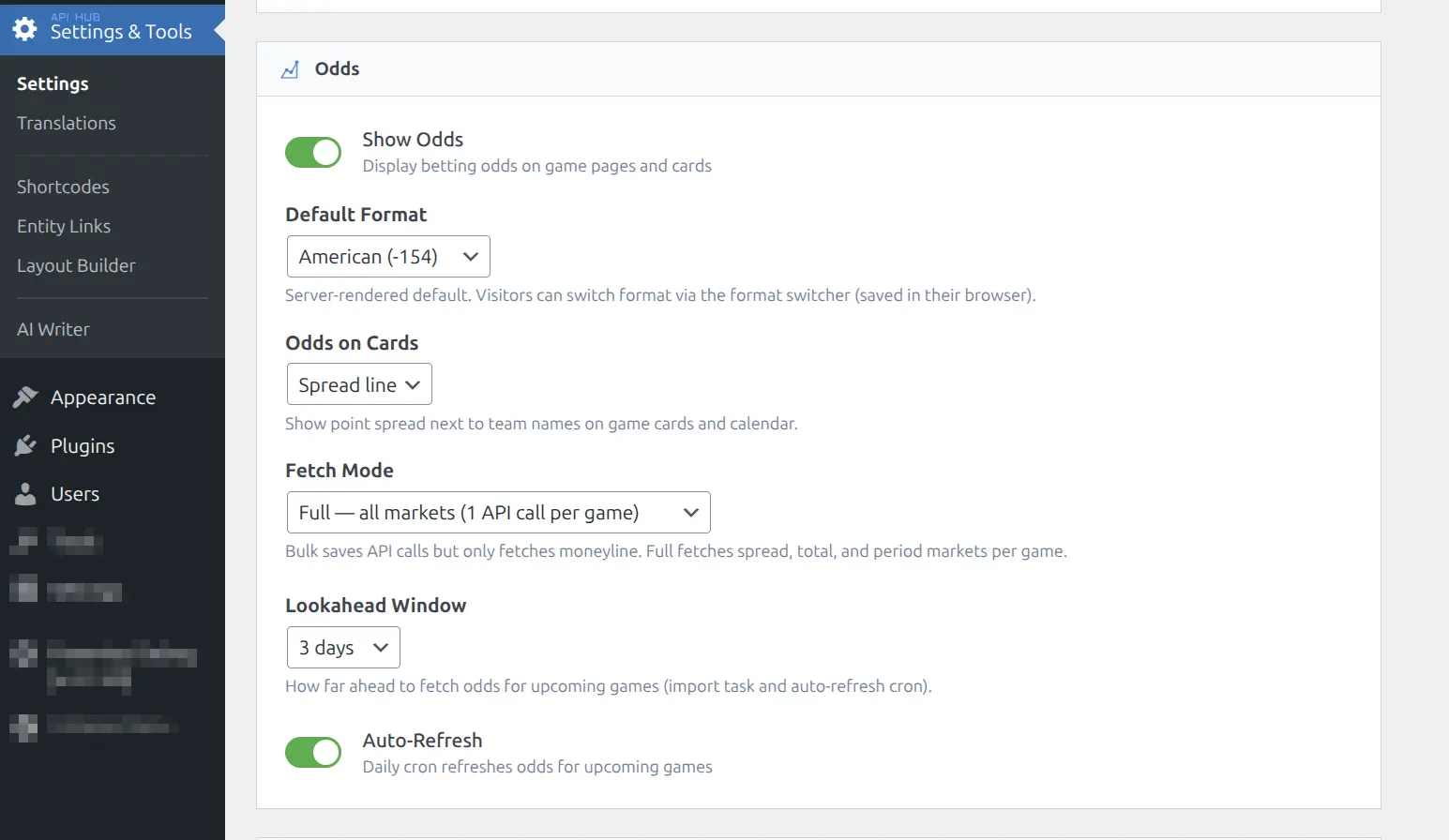
| Setting | Options | Default | Description |
|---|---|---|---|
| Show Odds | On / Off | Off | Show betting odds on game pages and cards |
| Default Format | Decimal (1.65), Fractional (4/6), American (-154) | Decimal | Server-rendered default format. Visitors can switch format via the format switcher (saved in their browser) |
| Odds on Cards | Spread line, Hidden | Spread line | Show point spread next to team names on game cards and calendar |
| Fetch Mode | Bulk (moneyline only), Full (all markets, 1 API call per game) | Bulk | Bulk saves API calls but only fetches moneyline. Full fetches spread, total, and period markets per game |
| Lookahead Window | 3 / 7 / 14 / 21 / 28 days | 3 days | How far ahead to fetch odds for upcoming games (import task and auto-refresh cron) |
| Auto-Refresh | On / Off | Off | Daily cron refreshes odds for upcoming games |
Tip
The odds format a visitor selects is saved in their browser’s local storage, so it persists across visits. The “Default Format” setting only determines the initial server-rendered format before the visitor makes a choice.
Rating
Controls how player ratings are displayed visually. The underlying data is not changed — these settings only affect the presentation.
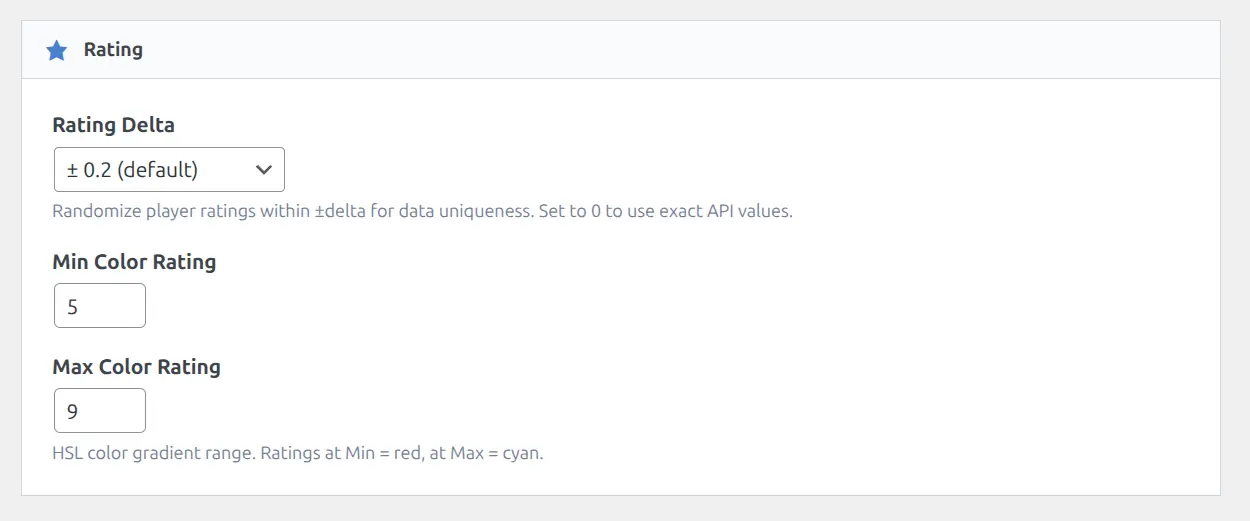
| Setting | Options | Default | Description |
|---|---|---|---|
| Rating Delta | 0 / ± 0.1 / ± 0.2 / ± 0.3 / ± 0.5 | ± 0.2 | Randomize player ratings within ±delta for data uniqueness. Set to 0 to use exact API values |
| Min Color Rating | Number input | 5 | Ratings at this value display as red (low end of the color gradient) |
| Max Color Rating | Number input | 9 | Ratings at this value display as cyan (high end of the color gradient) |
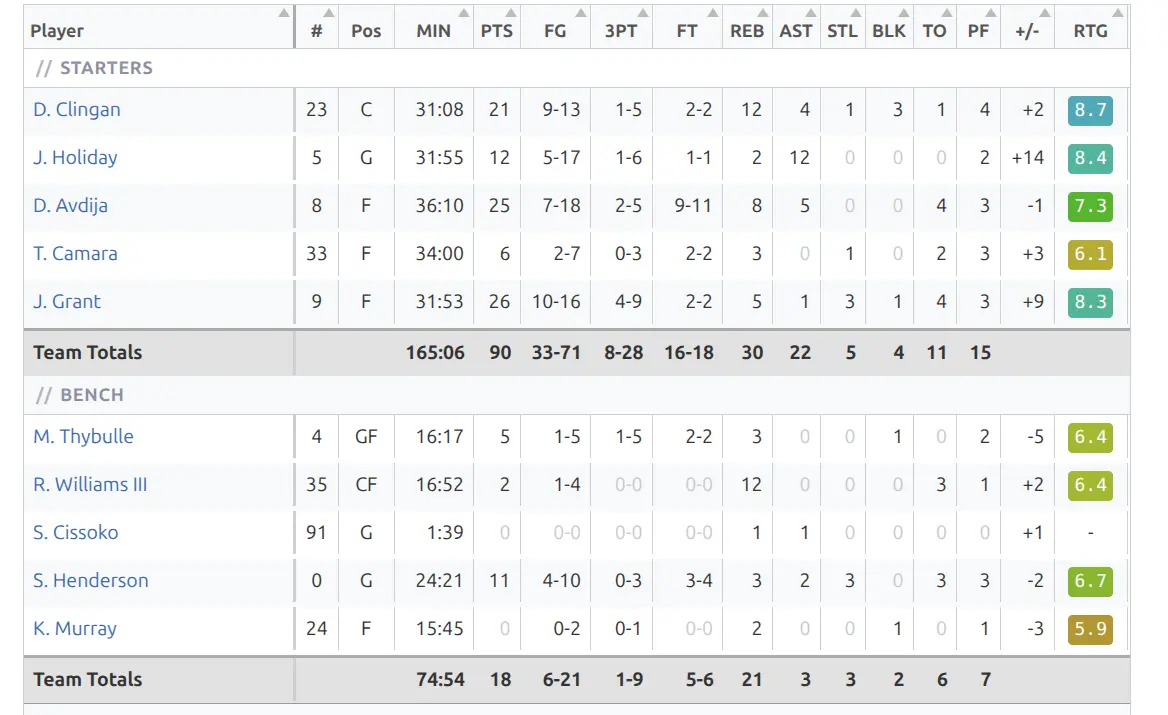
Player ratings are displayed as small colored badges throughout box scores, game logs, and player pages. The HSL color gradient transitions smoothly from red (Min) through yellow and green to cyan (Max), making it easy to spot standout performances at a glance.
🎨 Color Palette
A 9-slot semantic color palette that powers CSS variables across the entire frontend.
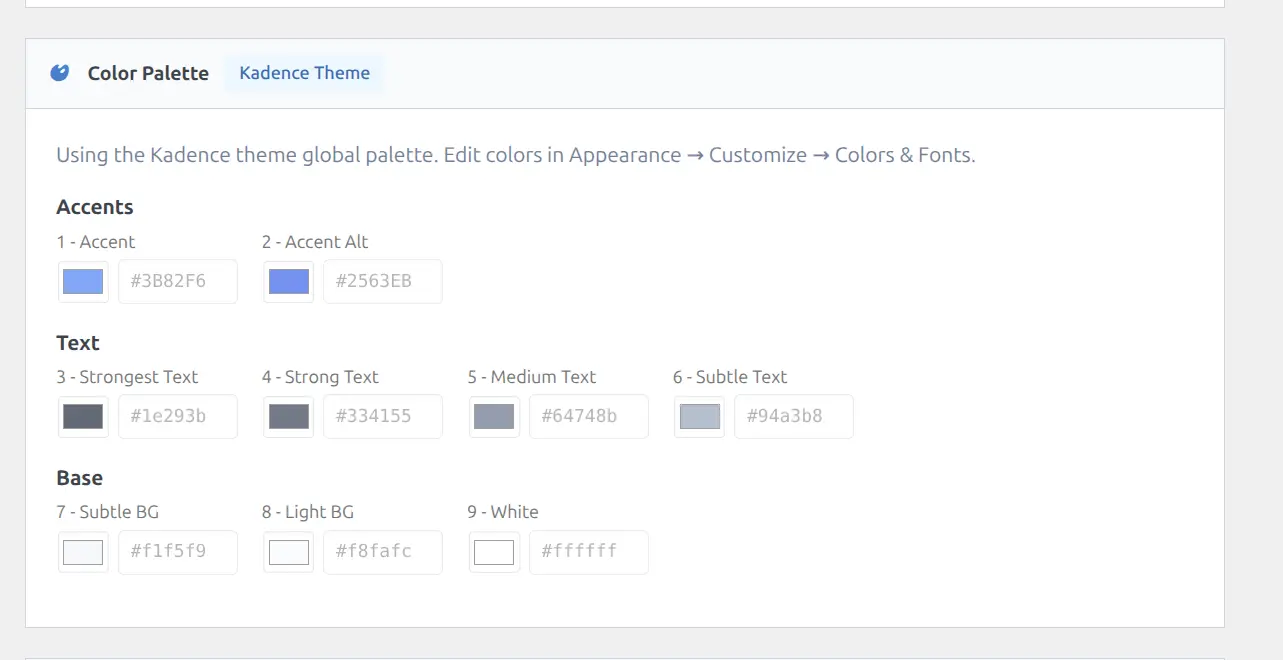
| Slots | Purpose |
|---|---|
| 1 – 2 | Accent colors (buttons, links, highlights, active states) |
| 3 – 6 | Text colors (headings, body text, captions, light text) |
| 7 – 9 | Base/Background colors (main background, card background, alternate background) |
Each slot has a color picker. Changing a palette color updates every element that references it across the frontend — buttons, headings, backgrounds, borders, and Layout Builder block colors all stay in sync.
Kadence Theme Integration
When the Kadence theme is active, the palette editor is automatically disabled and shows a “Kadence Theme” badge. The plugin reads Kadence’s global palette directly, so your colors stay perfectly in sync without any manual configuration.
Reset to Defaults
Click the Reset to Defaults button to restore the original hex values for all 9 palette slots.
For full details on how the palette integrates with the Layout Builder and custom CSS, see the dedicated Color Palette page.
⚡ Caching
Controls how the plugin caches data for optimal performance. Proper cache configuration is important for sites with high traffic or those using a CDN.
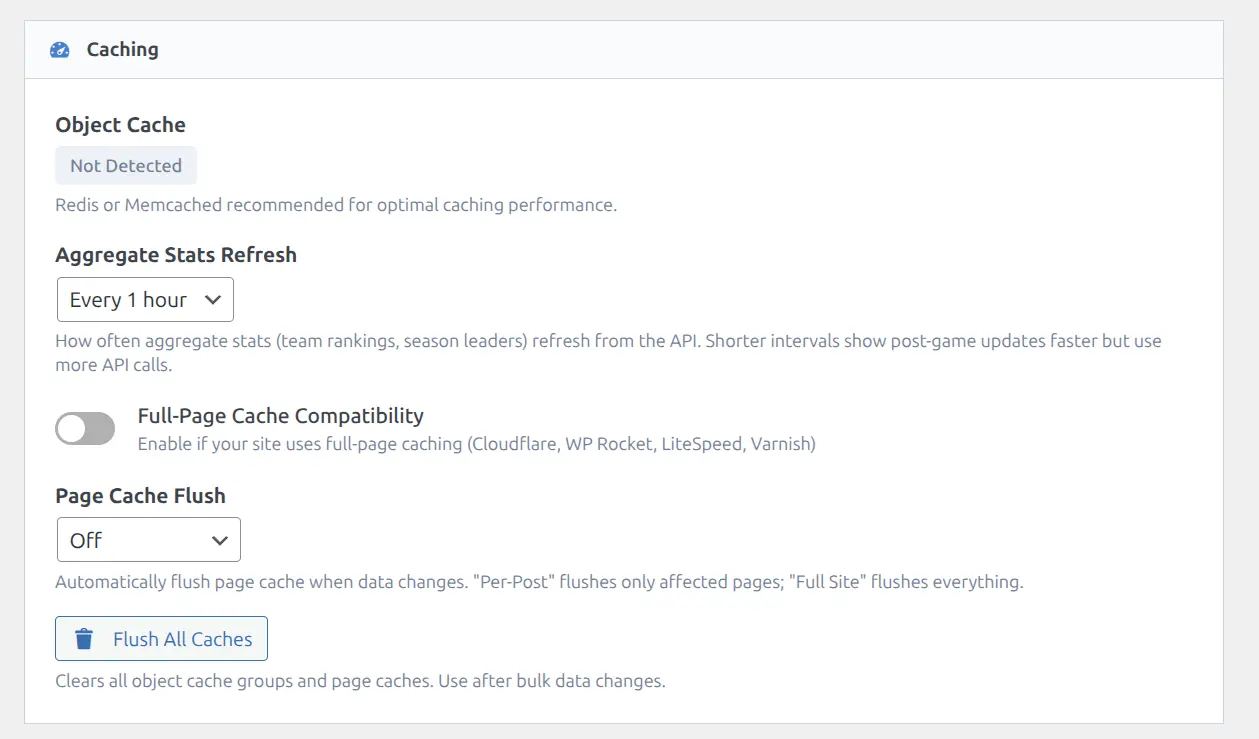
| Setting | Options | Default | Description |
|---|---|---|---|
| Object Cache | Not Detected / Redis / Memcached | — | Read-only status indicator. A persistent object cache is recommended for optimal performance |
| Aggregate Stats Refresh | Every 1 hour / 2 hours / 4 hours / 6 hours | Every 1 hour | How often aggregate stats (team rankings, season leaders) refresh from the API |
| Full-Page Cache Compatibility | On / Off | Off | Enable if your site uses full-page caching (Cloudflare, WP Rocket, LiteSpeed, Varnish) |
| Page Cache Flush | Off / Per-Page / Full Site | Off | Automatically flush page cache when data changes. “Per-Page” flushes only affected pages; “Full Site” flushes everything |
Object Cache
A read-only indicator showing whether your server has a persistent object cache (Redis or Memcached). The plugin uses object caching for all internal data caching. Without a persistent object cache, cached data is lost on every page load, which can impact performance.
Tip
If your hosting provider supports Redis or Memcached, enabling it will significantly improve the plugin’s performance — especially for sites with many seasons and leagues.
Aggregate Stats Refresh
Controls how frequently aggregate statistics (team rankings, season leaders, player averages) are refreshed from the API. Shorter intervals keep data fresher but use more API calls. During the offseason, you can safely increase this to every 6 hours.
Full-Page Cache Compatibility
Enable this if your site uses a full-page caching plugin or CDN (e.g., Cloudflare, WP Rocket, LiteSpeed Cache, W3 Total Cache, Varnish). When enabled, the plugin uses a two-request pattern: the first request fetches a content hash, and the second fetches actual data only if the hash has changed. This prevents stale content on cached pages.
Page Cache Flush
| Level | Behavior |
|---|---|
| Off | No automatic page cache flushing |
| Per-Page | Flushes only the pages affected by data changes (recommended) |
| Full Site | Flushes the entire page cache whenever any data changes |
The “Per-Page” level is recommended for most sites — it supports 20+ popular caching plugins and keeps game updates visible immediately without flushing unrelated pages.
Flush All Caches
Click the Flush All Caches button to manually clear all plugin object cache groups and page caches. This is useful after bulk data imports or if you notice stale data on the frontend.
For the complete caching guide, see Caching.
Save Settings
After making changes, click the Save Settings button at the bottom of the page. All settings are saved together in a single action. The page will show a confirmation message when settings are saved successfully.
Related
- Color Palette — Full palette configuration and CSS variables
- Caching — Detailed caching guide and CDN setup
- API Config — API connection and import settings
- CSS Customization — Using design tokens in custom CSS
- Layout Builder — Block color fields that reference the palette