

All invoices and receipts for your Sports API Hub purchases are available in the Freemius customer portal. You can view, download, and update your billing details at any time.
🚀 Viewing Your Invoices
- Go to the Freemius customer portal
- Sign in with the email you used at checkout
- Click Invoices in the sidebar
- Find your AnWP Sports API Hub invoice and click View Invoice
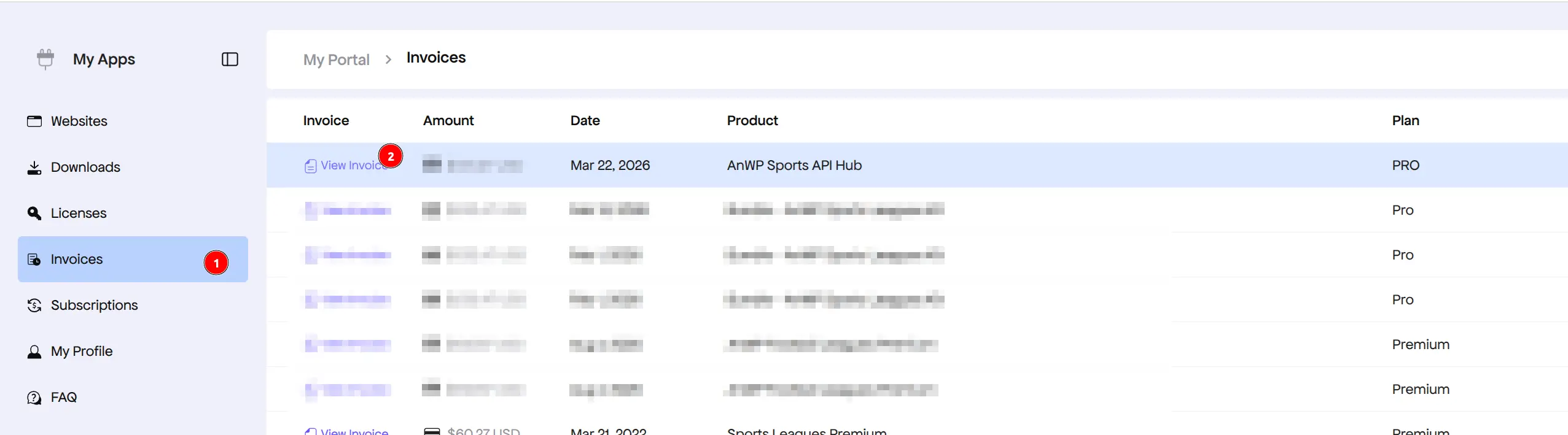
Each invoice shows the amount, date, product name, and plan. Click View Invoice to open a printable receipt that you can save as PDF.
Updating Billing Details
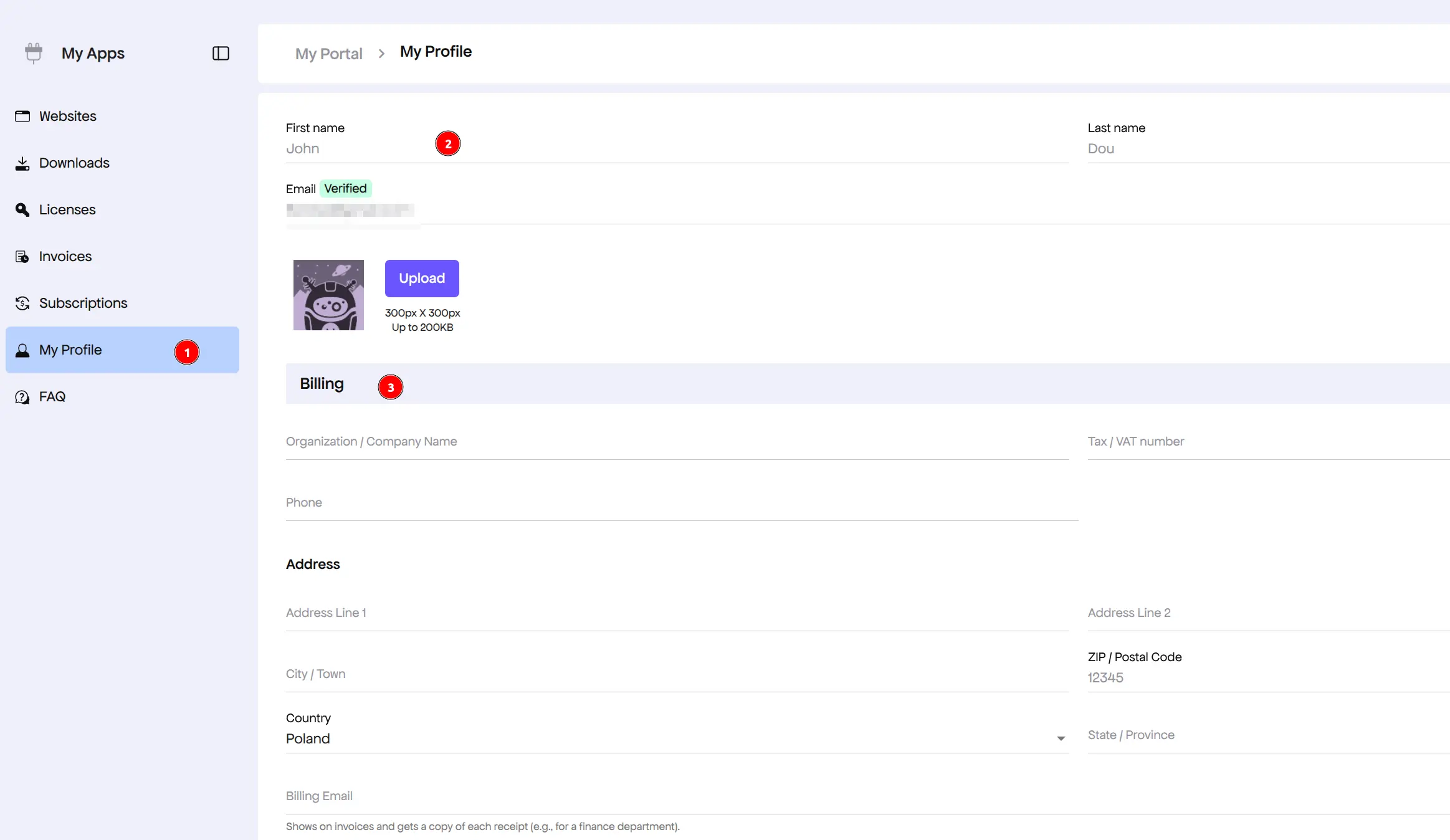
Need a company name, VAT number, or updated address on your invoices? Update your billing information in the portal:
- Go to My Profile in the sidebar
- Scroll to the Billing section
- Fill in your organization name, Tax/VAT number, and address
- Save your changes
Tip
Updated billing details appear on all future invoices. Existing invoices are not retroactively updated — update your details before your next renewal if you need the new info on the receipt.
Invoice Details
Each invoice includes:
| Field | Description |
|---|---|
| Invoice Number | Unique identifier for the transaction |
| Date | Payment date |
| Product | AnWP Sports API Hub |
| Plan | PRO (Monthly, Annual, or Lifetime) |
| Amount | Amount charged |
| Tax | VAT/Tax if applicable |
| Billing Info | Your name, company, and address (from My Profile) |
🆘 Troubleshooting
Can’t Find Your Invoice
- Check your email for the original purchase receipt (from
plugins@anwp.pro) - Log in to the Freemius customer portal — all invoices are stored there
- If you can’t access the portal, use the License Recovery page to resend your credentials
Need a Corrected Invoice
If you need changes to an existing invoice (wrong name, missing VAT number), contact support with your invoice number and the required corrections.
📚 Related
- License Activation — Activate your purchase
- Upgrades & Updates — Keep plugin updated
- Support — Get help with billing questions