

After connecting to the API, you are ready to bring sports data into your site. This guide walks you through importing your first league and season — from browsing the API hierarchy to seeing games, teams, and players in the WordPress admin.
Admin Menu: API & Import > Import
Prerequisite: Complete the API Setup guide before proceeding. You need a working API key and at least one sport enabled.
🗂️ Understanding the API Hierarchy
The sports API organizes data in a tree structure. Understanding this hierarchy helps you find the right league and season to import.
Category (country)
  └── League (competition)
        └── Season (year-specific edition)
For example:
- Category: USA
- League: NBA
- Season: NBA 2025/26
You always import at the season level. A season contains all the fixtures, teams, players, and standings for that competition year.
📥 Step 1: Browse and Select a Season
- Go to API & Import > Import
- If you have multiple sports enabled, select one from the sport tabs at the top
- The first time you visit the Import page for a sport, click Load Leagues from API to fetch the full league catalog. This runs in two steps — loading leagues for each country, then loading seasons for each league. Wait for both steps to complete
- The browse panel now shows countries and their leagues. Use the Country filter or search to find a league
- Click a league to see its available seasons — for example, “NBA”
- Click the Import button next to a season to open the import modal
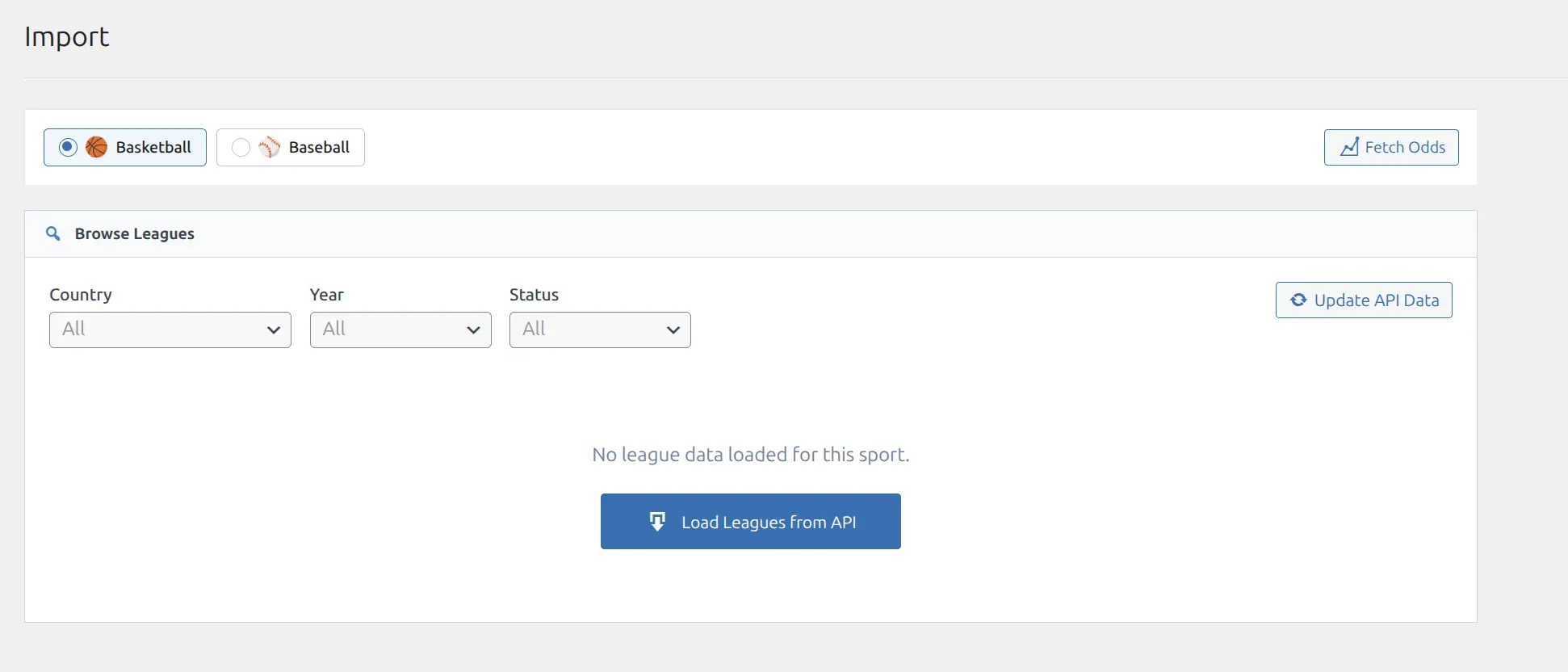
After clicking Load Leagues from API, the plugin fetches leagues for each country and then loads their seasons:
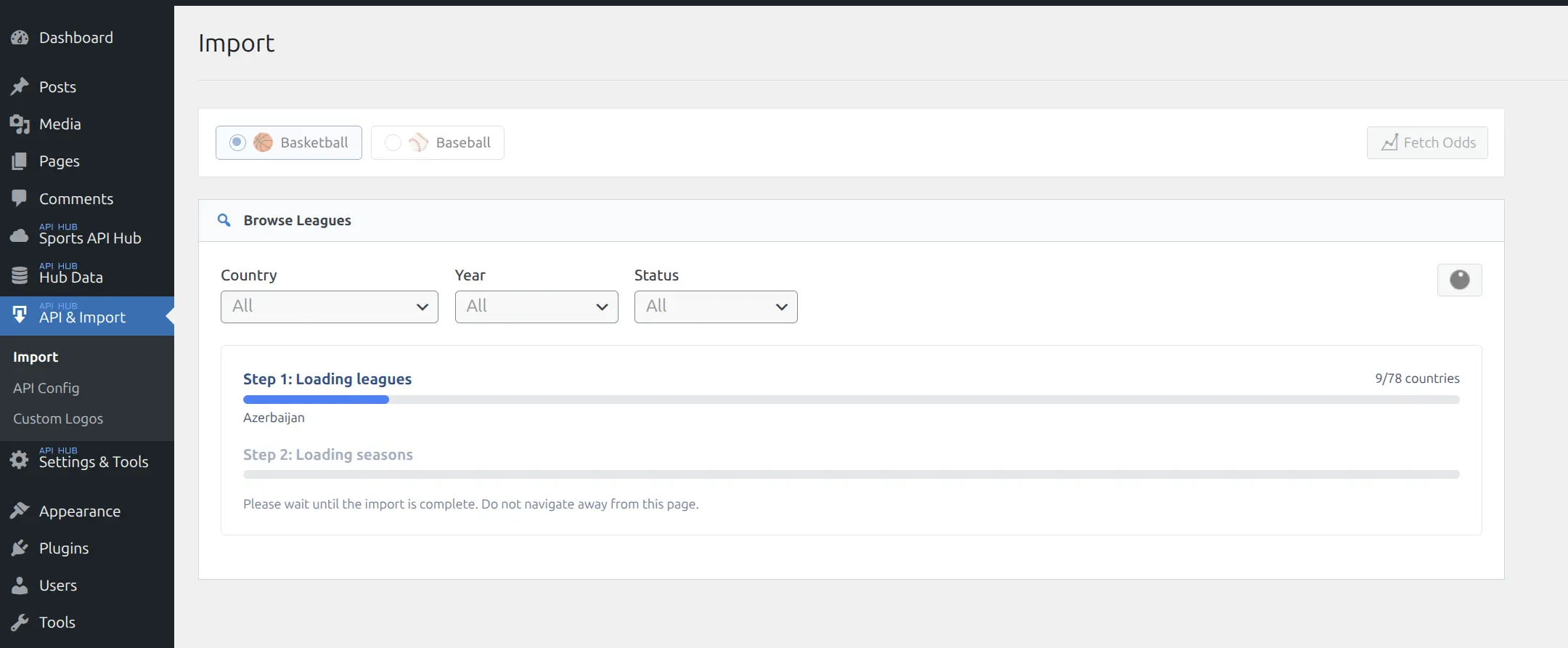
Start with Basketball
Basketball (especially the NBA) has the most complete data: box scores, play-by-play incidents, shooting stats, and detailed standings. It is the best sport for seeing what the plugin can do.
Season Capability Badges
Each season row in the browse panel may show letter badges indicating what data is available from the API:
| Badge | Meaning | What It Enables |
|---|---|---|
| P | Player Stats | Per-game box scores with individual player statistics |
| T | Team Stats | Per-game team statistics (shooting percentages, rebounds, etc.) |
| E | Events / Incidents | Play-by-play timeline (scoring plays, periods, timeouts) |
| H | Highlights | YouTube video highlights linked to games |
These badges are auto-detected the first time you browse a season. Major leagues like the NBA typically have all four badges. Smaller leagues may have fewer.
Step 2: Configure and Start the Import
After clicking the import icon on a season, the import modal opens. Here you select which tasks to run.
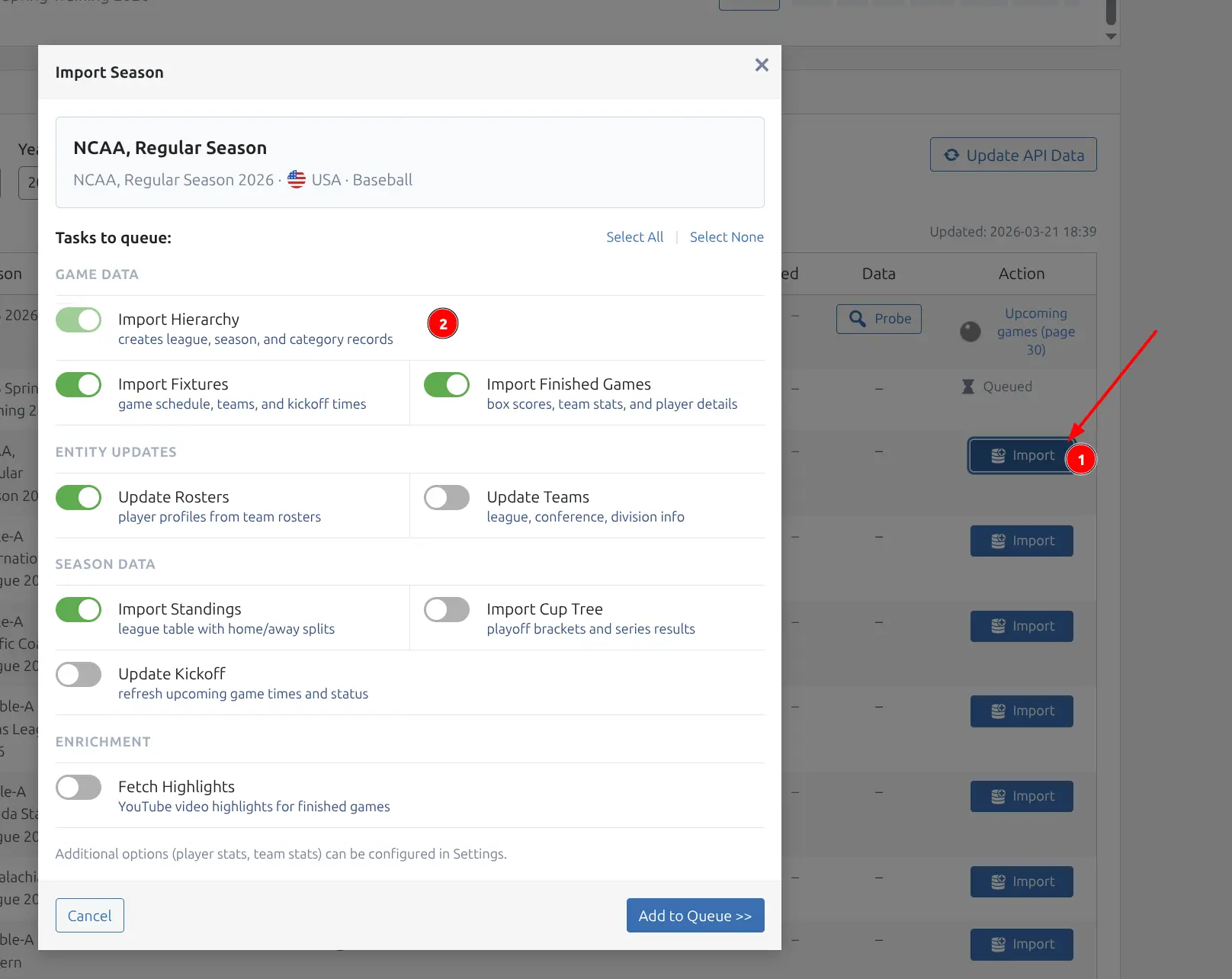
For your first import, select the following tasks:
- Hierarchy — creates the league and season records in your database (fast, a few seconds)
- Fixtures — imports all scheduled and finished games for the season (batches of 30 per API call)
- Teams — fetches team details including logos, colors, and venue information
- Finished Details — downloads full game data: match details, box scores (lineups), and optionally team statistics, incidents, and highlights
- Rosters — imports team rosters with player details (positions, jersey numbers, photos)
- Standings — fetches league standings tables
Click Start Import to add these tasks to the queue. The tasks run in the correct order automatically — you do not need to start them one at a time.
Step 3: Monitor Progress
Once the import starts, the task queue appears at the top of the Import page. Each season shows task badges (HIER, FIX, FIN, ROST, TEAM, STND, CUP) with their current status. The queue header shows overall progress — for example, “7/60 done, 1 running, 52 queued”.
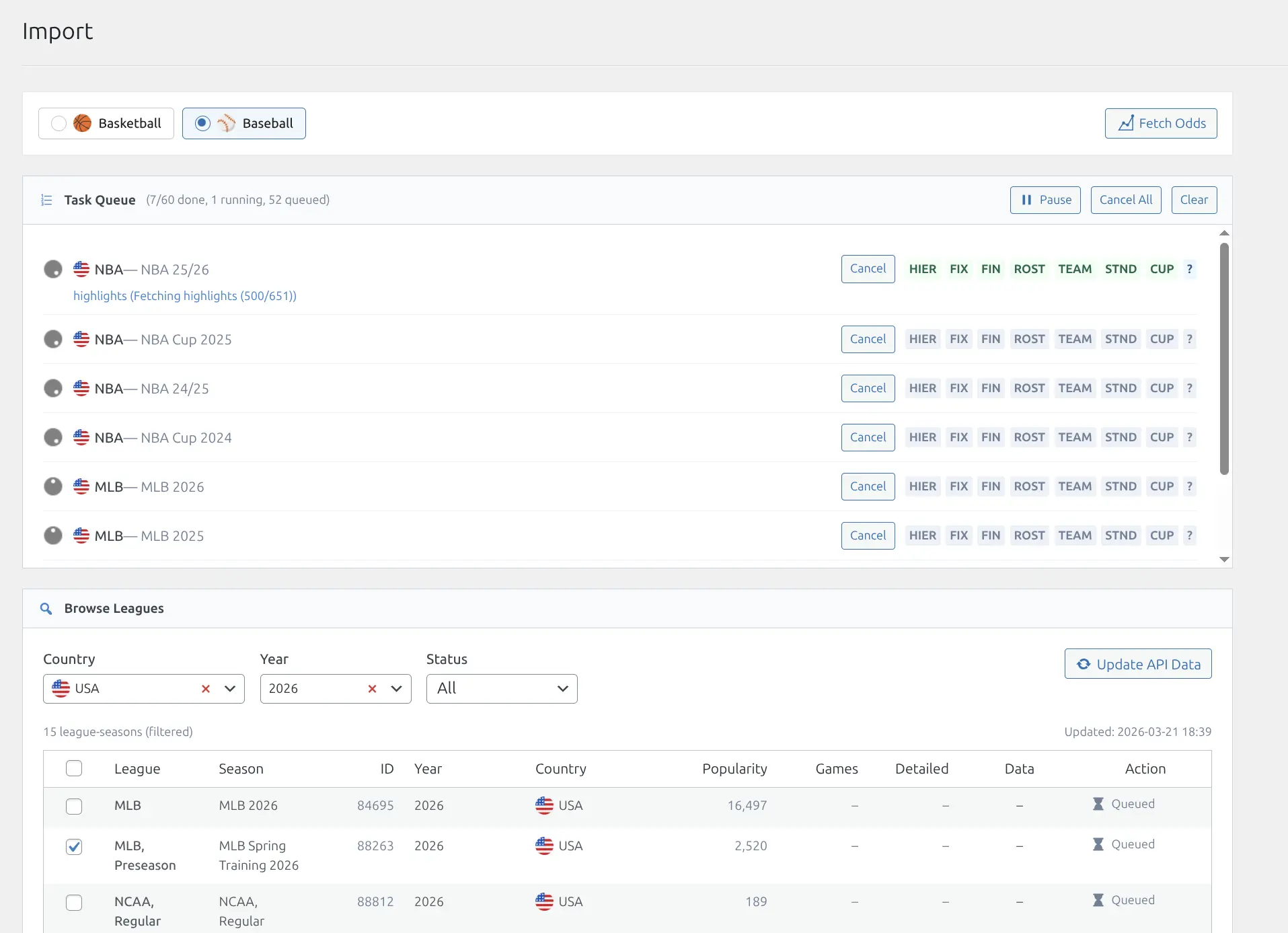
You can Pause, Cancel All, or Cancel individual seasons. The currently running task shows a progress message — for example, “Fetching highlights (500/651)”.
Import Speed
The import process is not instant — it depends on the external API response time, which is typically ~1 second per API call. The Finished Details task is the most time-consuming: each game requires 2-5 API calls depending on what sub-options are enabled (lineups, team statistics, incidents, highlights). A batch of 5 games takes about 15 seconds. For a full MLB season (~2,500 games), expect roughly 2 hours for the initial import. NBA (~1,200 games) takes about 1 hour. This is a one-time cost — once imported, background sync handles daily updates in seconds.
You can leave the Import page open while the tasks run. If you navigate away, running tasks will stop — but you can return to the Import page and start them again. Already-imported data will not be duplicated.
🔍 Step 4: Verify Your Data
Once the import completes, check the results in the admin.
Games
Go to Hub Data > Games to see all imported games. The list shows each game’s date, teams (with logos), score, status, and league. Use the filters at the top to narrow by sport, league, season, or status.
Teams and Players
Go to Hub Data > Teams and Hub Data > Players. These entities were auto-created during the import. Teams include logos and colors; players include positions, jersey numbers, and photos (when available from the API).
Frontend Pages
Click the View link on any game, team, or player in the admin list to open its frontend page. These pages are generated automatically using the Layout Builder with default layouts for each entity type and sport.
Permalinks
If entity pages return a 404 error, go to Settings > Permalinks in WordPress and click Save Changes (without making any changes). This flushes the rewrite rules so the plugin’s custom URLs are recognized. See Installation for details.
Batch Import: Multiple Seasons
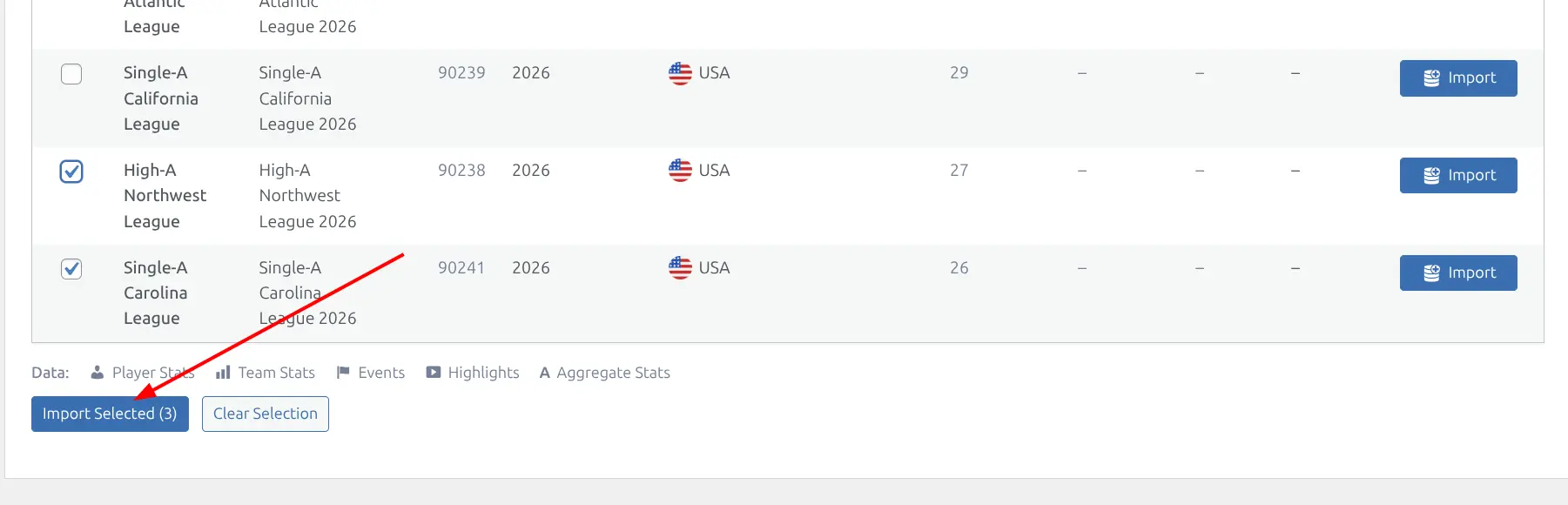
You do not need to import seasons one at a time. You can select multiple seasons and queue them all at once — the plugin processes them sequentially.
- In the browse panel, click the import icon on a season to open the modal
- Select your tasks and click Start Import
- While the first season imports, open another season’s import modal and start it too
- New tasks are added to the end of the queue
This is useful when importing multiple seasons from the same league (e.g., NBA 2024/25 and 2023/24) or seasons from different leagues.
Additional Import Tasks
Beyond the core tasks recommended above, several optional tasks can add more depth to your data:
| Task | What It Imports | When to Use |
|---|---|---|
| Cup Trees | Knockout bracket data | Only for tournaments with playoff brackets (NBA Playoffs, March Madness, etc.) |
| Kickoff Times | Updated game schedule times | If games have been rescheduled since the initial fixture import |
| Re-update | Refreshes already-imported game details | If API data has been corrected (stat fixes, missing incidents added) |
| Highlights | YouTube video highlights for finished games | After finished details — adds video highlights to game pages |
Import Pipeline Summary
The recommended order for a complete first import:
- Hierarchy — categories, leagues, and season structure
- Fixtures — all games (schedules + scores)
- Teams — team logos, colors, and venue information
- Finished Details — box scores, statistics, and play-by-play for completed games
- Rosters — team rosters with player details
- Standings — league standings tables
Steps 1-4 are essential for a fully functional site. Steps 5-6 add depth and are recommended but optional.
API Usage
Each task uses API calls from your RapidAPI plan. A full NBA season import (all tasks) uses approximately 300-500 API calls. Check your RapidAPI dashboard after the first import to see your usage and plan accordingly for additional leagues.
Tips for Getting Started
- Start small. Import one season from one league. Explore the data in admin and on the frontend before importing more leagues.
- Check your API usage. After importing, visit your RapidAPI dashboard to see how many requests you used. This helps you plan for larger imports.
- Enable background sync later. Once you have data imported, you can enable Background Sync to keep scores, standings, and rosters updated automatically.
- Use shortcodes to display data. After importing, try embedding a shortcode like
[anwphub-games]or[anwphub-standings]on any page to see your data in action.
What’s Next
Now that you have data imported, here are the recommended next steps:
- Learn about the import system — see Import & Sync for a detailed guide to all import tasks and background sync
- Customize your pages — use the Layout Builder to rearrange blocks on game, team, player, and season pages
- Add shortcodes — embed shortcodes to show games, standings, brackets, and calendars on any page or post
- Configure import options — in API & Import > API Config, you can toggle which sub-data to fetch (lineups, team statistics, incidents, highlights)
Related
- API Setup — Configure the API connection before importing
- Import & Sync — Detailed guide to the import page and all task types
- Import Tasks — Full reference for each import task
- Shortcodes — 18 shortcodes for displaying imported data
- API Config — Import sub-options and API connection settings