

Sports API Hub connects to external sports data APIs via RapidAPI. Before you can import any data, you need a RapidAPI account, an API subscription, and your API key entered in the plugin settings.
Admin Menu: API & Import > API Config
The Single-Sport APIs Charge Past Their Daily Quota
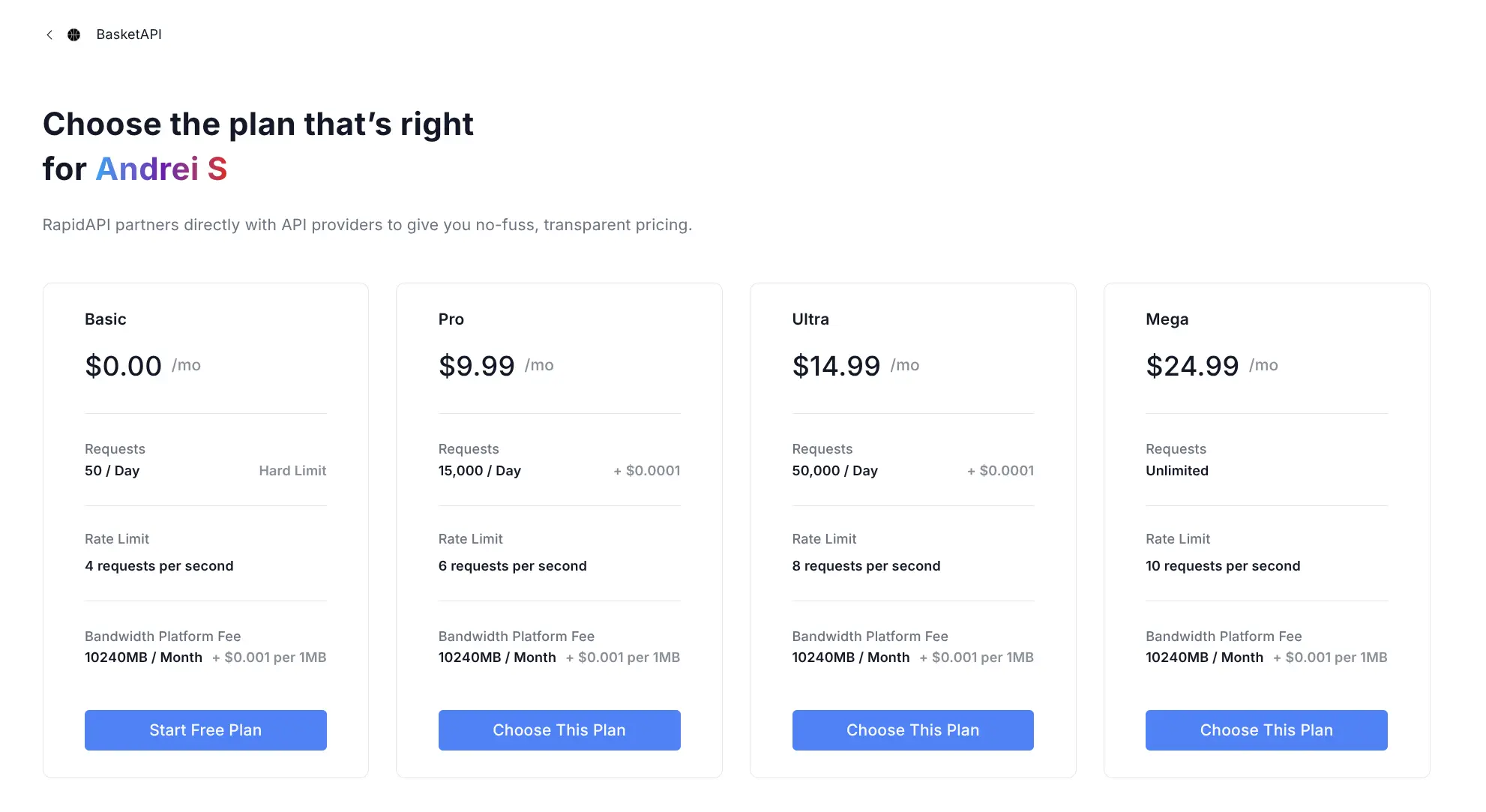
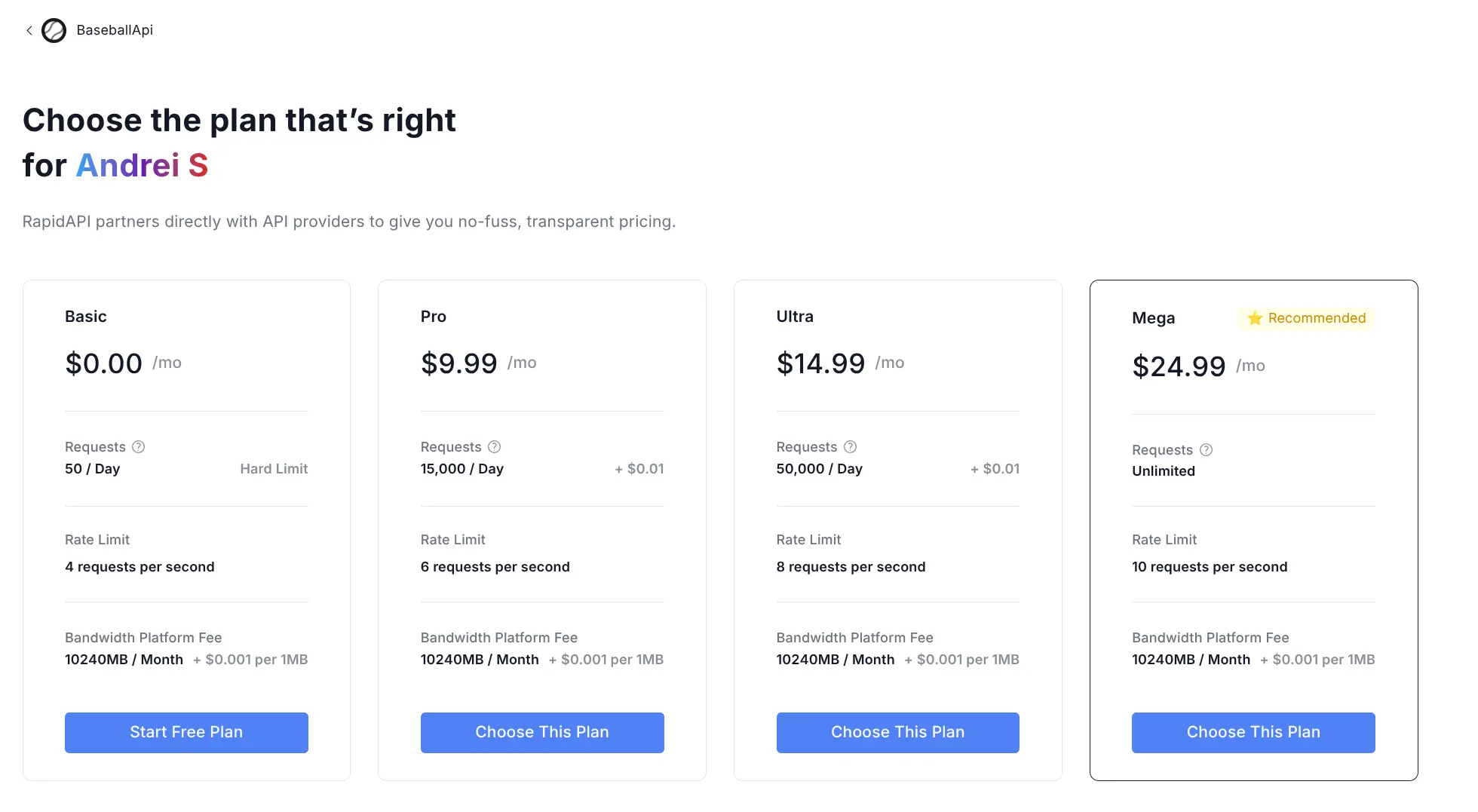
BasketAPI1, BaseballAPI and AmericanFootballApi include 15,000 requests a day on the Pro plan and 50,000 on Ultra, and RapidAPI charges for every request past that: $0.01 each on BaseballAPI and AmericanFootballApi, $0.0001 on BasketAPI1 at the time of writing (prices can change – check the current one on the BasketAPI1, BaseballAPI or AmericanFootballApi pricing page). The API keeps answering, so nothing stops at the quota – the plugin can’t stop there for you either. A big import, like several seasons in one day, can go over it. Every paid AllSportsAPI2 plan has no daily limit, which is why we recommend it.
Step 1: Create a RapidAPI Account
- Go to rapidapi.com and sign up for an account
- Verify your email address
- Add a payment method (required even for free plans)
RapidAPI is a marketplace that hosts the sports data APIs used by this plugin. Your API key and billing are managed through RapidAPI, not through our plugin.
📡 Step 2: Subscribe to an API
The plugin supports four API providers on RapidAPI. Choose one based on the sports you need:
| Provider | Sports | Requests |
|---|---|---|
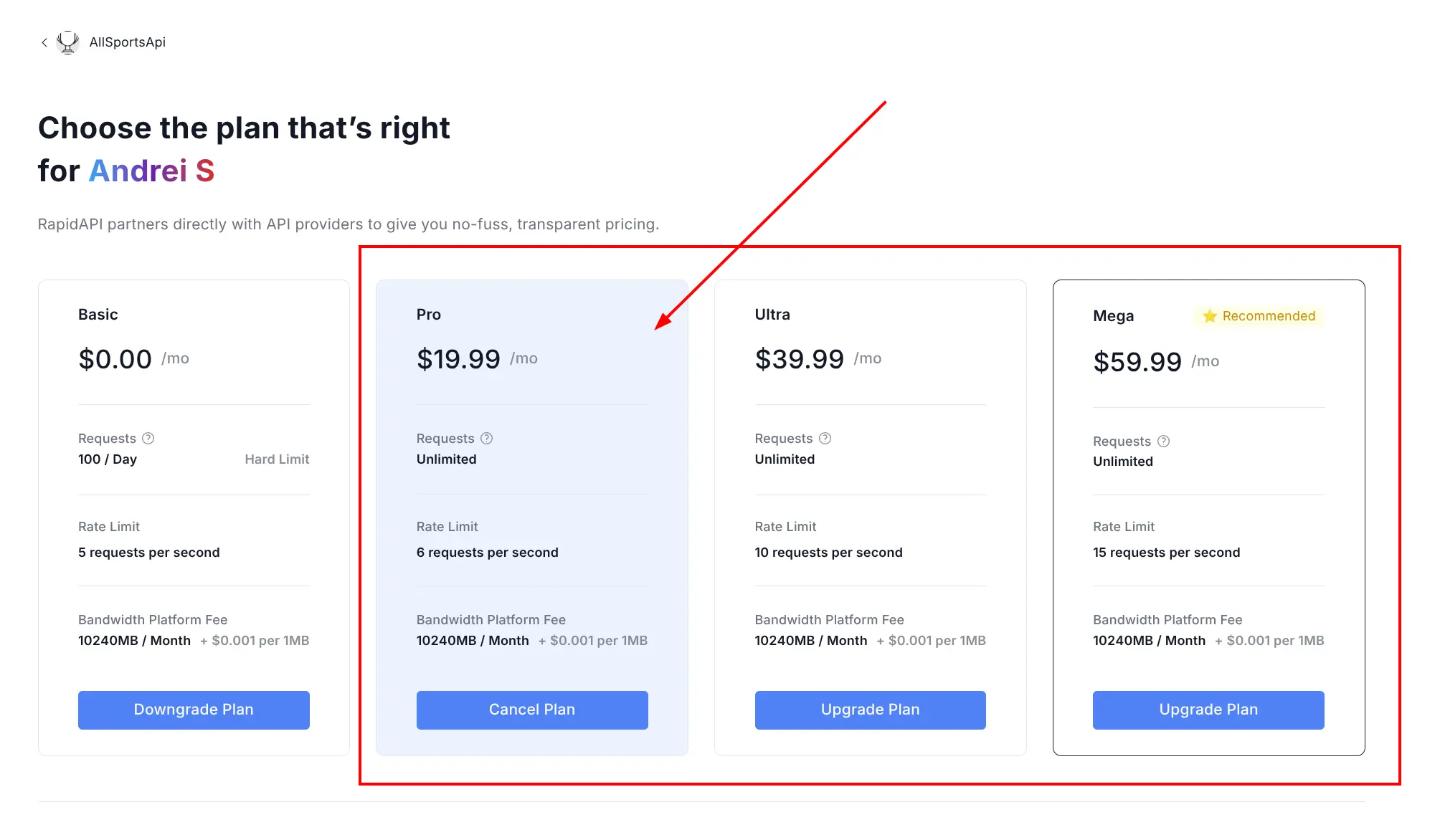
| AllSportsAPI2 | Basketball, Baseball, American Football, Ice Hockey (Rugby, Cricket, Handball and Volleyball are planned) | Unlimited on every paid plan (Pro $19.99/mo) |
| BasketAPI1 | Basketball only | 15,000/day (Pro) or 50,000/day (Ultra), then $0.0001 per request |
| BaseballAPI | Baseball only | 15,000/day (Pro) or 50,000/day (Ultra), then $0.01 per request |
| AmericanFootballApi | American Football only | 15,000/day (Pro) or 50,000/day (Ultra), then $0.01 per request |
All four providers share the same endpoint structure and data format. The only difference is the host URL, sport coverage, and pricing.
Recommendation
Use AllSportsAPI2 — it is the recommended provider. The Pro plan ($19.99/mo) offers unlimited daily requests across every sport, and it’s the only provider for ice hockey, making it the best value for any site.
The dedicated sport APIs (BasketAPI1, BaseballAPI, AmericanFootballApi) have a daily request quota on the Pro and Ultra plans, and every request past it is billed. They are suitable for covering a few seasons of a single sport, but not for large-scale ongoing data sync. Only their Mega plan has no daily limit.
Subscribing
- Search for the provider name on RapidAPI (e.g., “AllSportsAPI2”)
- Click Subscribe on the API page
- Select a pricing plan
Free Plan is NOT Suitable
Important
The free plan (Basic) on these APIs has a hard limit of 50-100 requests per day. This is not enough even for a basic import of one league — a single season import requires thousands of API calls. You must subscribe to a paid plan (Pro or higher) to use Sports API Hub effectively.
Step 3: Find Your API Key
- Go to your RapidAPI Dashboard
- Navigate to the Security or API Keys section
- Copy your Default Application API key
The key is a long alphanumeric string. You use the same key for all four providers — it is tied to your RapidAPI account, not to a specific API.
🔑 Step 4: Enter the API Key in the Plugin
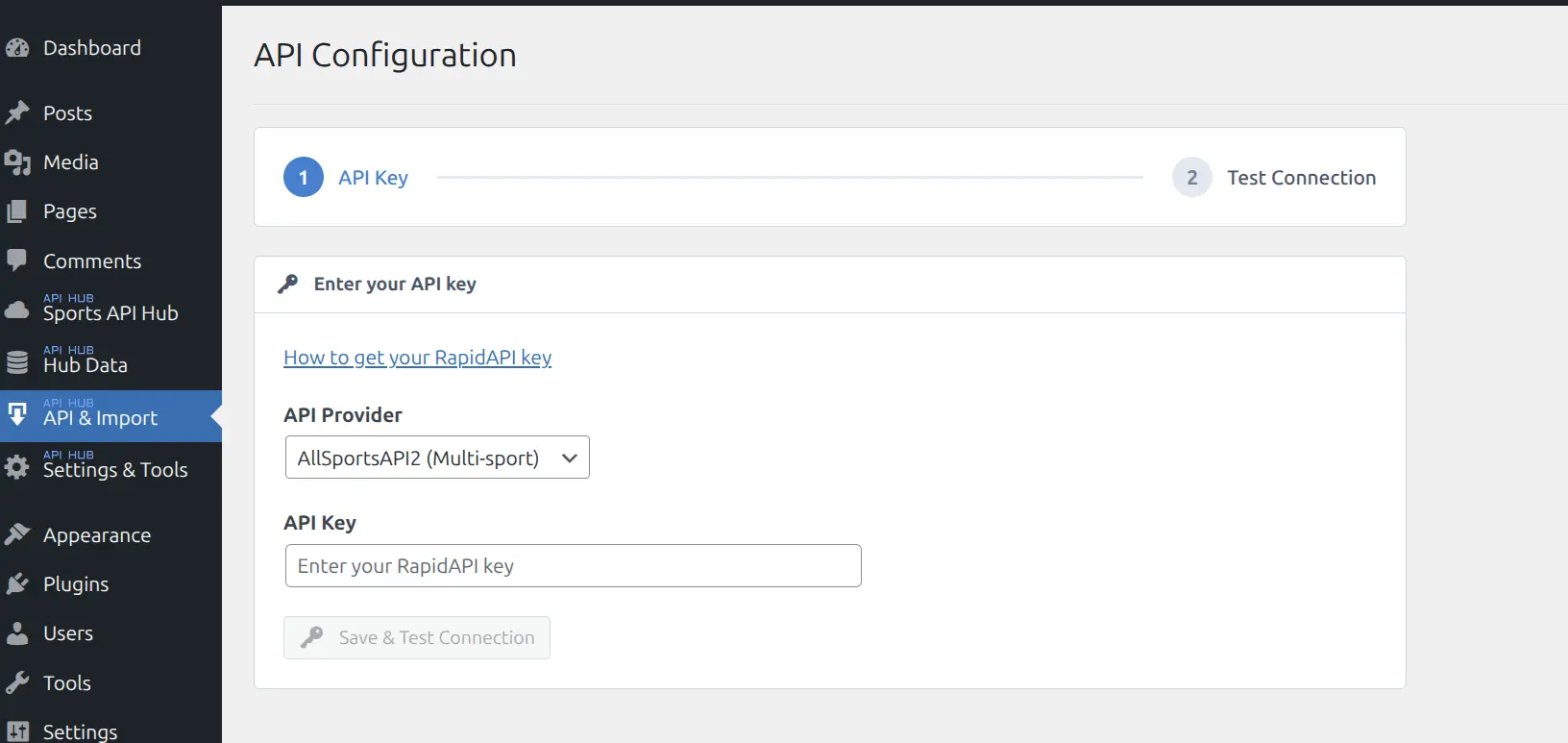
- In WordPress admin, go to API & Import > API Config
- Select your API Provider from the dropdown (AllSportsAPI2, BasketAPI1, BaseballAPI or AmericanFootballApi)
- Paste your API key in the API Key field
- Click Save & Test Connection
Test Connection
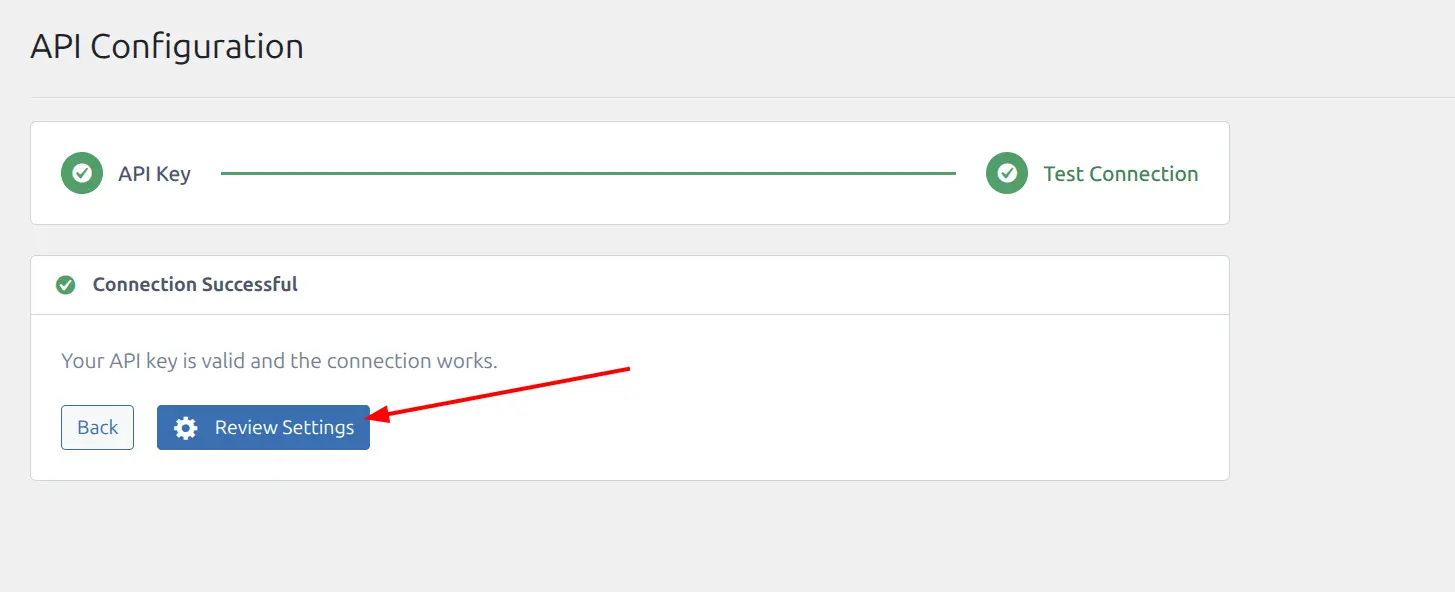
The Save & Test Connection button saves your key and sends a test request to the API with it and the selected provider. Results:
| Result | Meaning |
|---|---|
| Connection Successful with a green checkmark | Your key is valid. Click Review Settings to go on |
| Error message | Key is invalid, subscription expired, or provider mismatch |
Important: The provider setting is global — it applies to all sports. You cannot use AllSportsAPI2 for basketball and BaseballAPI for baseball simultaneously. Pick one provider and use it for everything.
⚙️ Step 5: Select Sports and Review Settings
After a successful connection test:
- In the Sports section, check the sports you want to enable
- Review the import and sync settings below the sports checkboxes
- Click Save Settings
Available sports depend on your provider. AllSportsAPI2 offers all four available sports. Each single-sport provider offers only its own sport, and the plugin selects it for you.
| Sport | AllSportsAPI2 | BasketAPI1 | BaseballAPI | AmericanFootballApi |
|---|---|---|---|---|
| Basketball | Yes | Yes | — | — |
| Baseball | Yes | — | Yes | — |
| American Football | Yes | — | — | Yes |
| Ice Hockey | Yes | — | — | — |
The sport cards also show Rugby (In Development) and Cricket, Handball and Volleyball (Planned). You can’t select those yet – see Supported Sports.
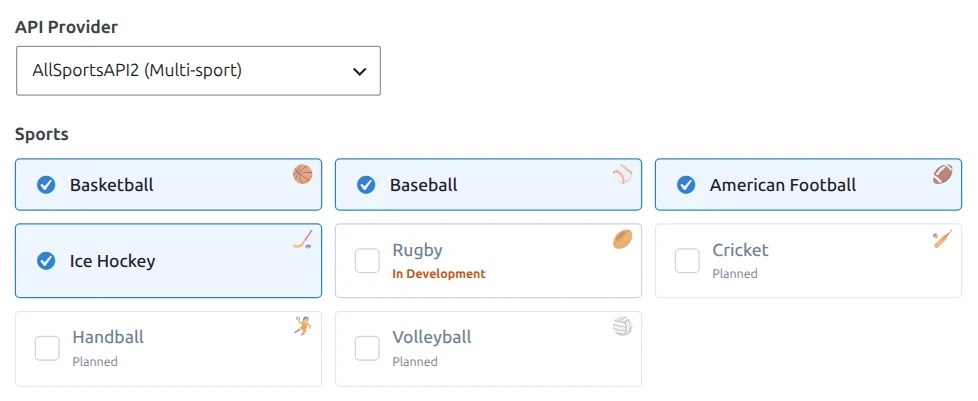
Enable only the sports you actually need. Each enabled sport adds filters and options to the admin interface. You can always enable more sports later.
Step 6: Save and Verify
- Click Save Settings at the bottom of the page
- Confirm the green success message appears
- The Import and Custom Logos submenus now appear under API & Import
Your API connection is ready. The next step is to import data.
API Key Security
Your API key is stored in the WordPress database as a plugin option. It is never exposed on the frontend or in page source code. All API requests are made server-side from your WordPress installation.
- Do not share your API key publicly
- If you suspect your key has been compromised, regenerate it on the RapidAPI dashboard
- Each RapidAPI account has its own rate limits and billing — do not share keys across multiple WordPress sites unless you are monitoring usage carefully
Rate Limits and Costs
The API enforces rate limits at two levels:
| Level | Limit | What Happens |
|---|---|---|
| Per-second | 6 to 15 requests/second, depending on the plan | Excess requests receive a 429 error (auto-retried by the plugin) |
| Per-day | None on paid AllSportsAPI2 plans. 15,000 (Pro) or 50,000 (Ultra) on the single-sport APIs | Single-sport Pro and Ultra: every request past the quota goes through and is billed ($0.01 on BaseballAPI and AmericanFootballApi, $0.0001 on BasketAPI1) |
The plugin handles per-second throttling automatically (it waits and retries). It can’t stop at a daily quota the API doesn’t enforce: on the single-sport Pro and Ultra plans, requests past the quota go through and are billed. Pitch-by-Pitch Data, the heaviest option at about 70 requests per game, takes at most 50 games a day on BaseballAPI for that reason. For large imports on a single-sport API, spread the seasons over several days and keep an eye on usage in your RapidAPI dashboard.
For more detail on monitoring usage and estimating costs, see API Usage (in the Import & Sync section).
Troubleshooting
| Issue | Solution |
|---|---|
| Test Connection fails | Verify the key has no leading/trailing spaces. Check that your RapidAPI subscription is active |
| “Subscription required” error | Subscribe to the API on RapidAPI — a paid plan is required for actual usage |
| Provider mismatch | Ensure the selected provider matches your RapidAPI subscription (e.g., do not select BasketAPI1 if you subscribed to AllSportsAPI2) |
| No sports available to select | Test the connection first — sport checkboxes appear after a successful test |
Related
- First Import — Import your first league after API setup
- API Config — Full API Config page reference (import options, media, live, sync)
- API Usage — Rate limits, cost estimation, and monitoring
- Sports — Sport-by-sport capabilities and features