

The plugin automatically downloads logos from the sports API during import. If an API logo is wrong, low quality, or you simply prefer a different one, you can upload a custom logo that permanently overrides the API version.
Custom logos are protected from being overwritten — future imports will never replace a logo you have manually uploaded.
Automatic Logo Downloads
Logo downloads are controlled in API & Import > API Config under the Media & Images section. You can toggle auto-download for each entity type independently: Team Logos, League Logos, Player Photos, and Manager Photos.
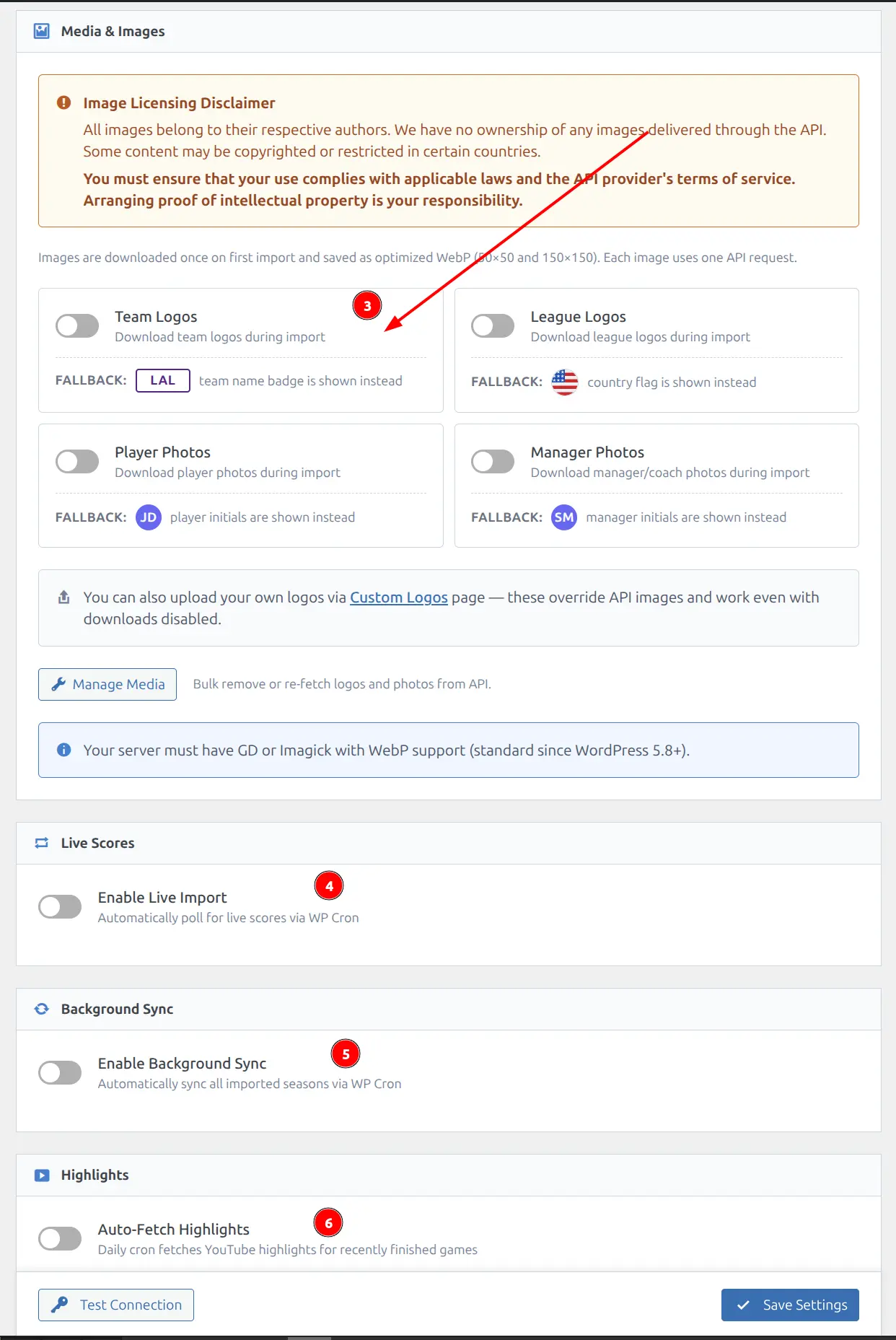
When a logo is not available or downloads are disabled, the plugin shows a fallback: team code badges for teams, country flags for leagues, and initials for players and managers.
🏟️ League Logos
The Custom Logos page displays a grid of all imported leagues with their current logos.
Admin Menu: API & Import > Custom Logos
- Navigate to API & Import > Custom Logos
- Find the league in the grid
- Click Change Image to open the WordPress Media Library
- Select an image or upload a new one
- The new logo appears immediately in the grid
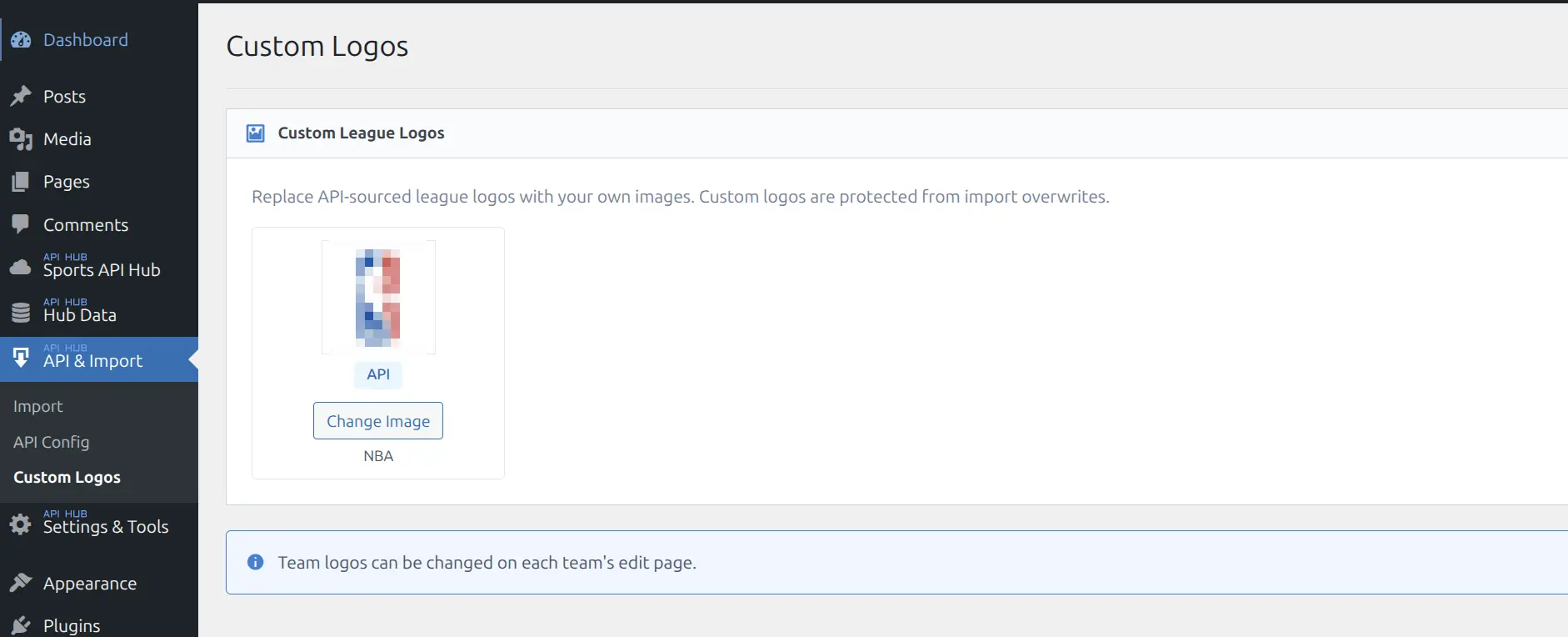
Each logo shows an “API” badge when using the API-provided image, or “Custom” when you have uploaded your own.
Note
The Custom Logos page only appears in the menu when an API key is configured. If you don’t see it, check your API configuration first.
Team Logos
Each team has a logo metabox on its edit screen where you can upload a custom logo.
Admin Menu: Hub Data > Teams — then click on a team to edit
- Navigate to Hub Data > Teams
- Click on the team you want to update
- In the Logo metabox, click “Upload Logo” (or “Replace” if a logo already exists)
- Select an image from the Media Library or upload a new one
- Save the team post
🛡️ How Protection Works
When you upload a custom logo, the plugin marks the entity with a special flag in the database. During future API imports:
- The import process checks the logo flag before downloading
- If the flag indicates a custom logo, the API download is skipped entirely
- Your custom logo remains in place indefinitely
This means you can safely re-import data, run background sync, or update seasons without losing your custom logos.
Logo Format
All logos (both API-downloaded and custom uploads) are stored as optimized WebP files in two sizes: 50×50 and 150×150 pixels. Custom uploads are automatically converted to WebP. Your server must have GD or Imagick support (standard since WordPress 5.8+).
Resetting to the API Logo
Team Logos
- Open the team edit screen (Hub Data > Teams — click the team)
- In the Logo metabox, click the “Reset” button
- Save the team post
- The custom flag is removed. On the next import or sync, the plugin will re-download the logo from the API
League Logos
Remove the custom logo from the Custom Logos page. The API logo will be restored on the next import.
🔧 Bulk Media Management
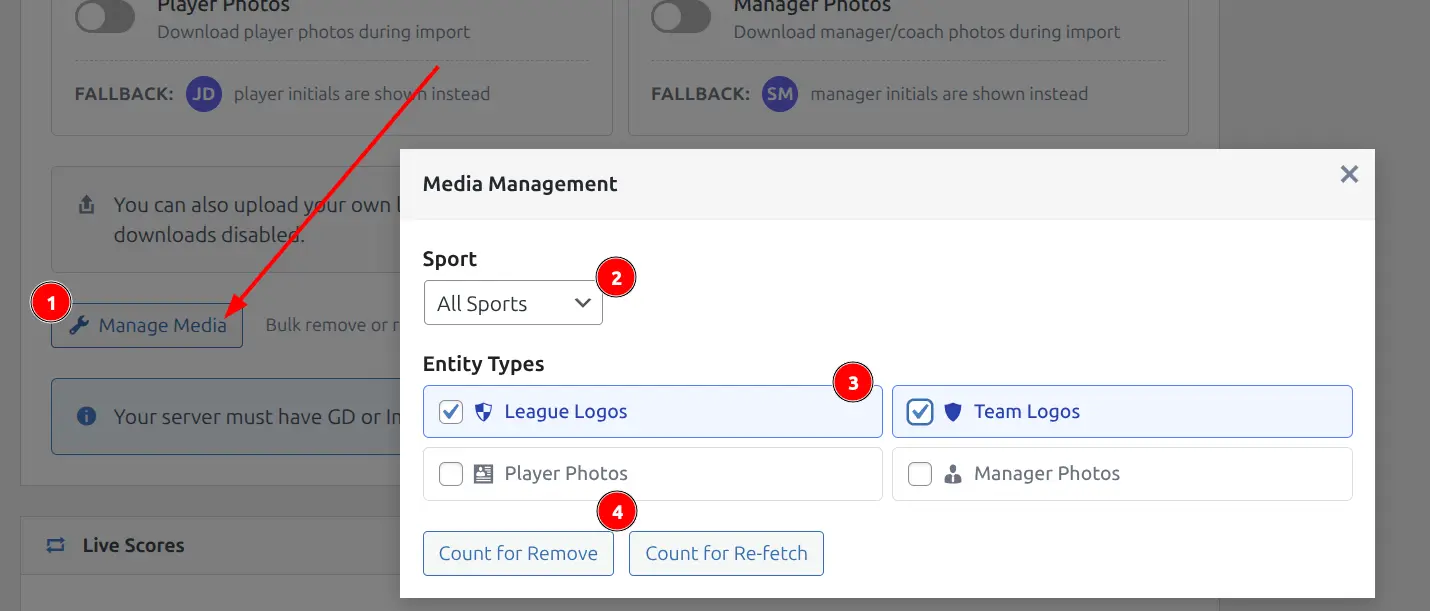
The Manage Media button in API Config opens a modal where you can bulk remove or re-fetch logos across all entities at once. This is useful when switching API providers or after a logo overhaul.
- Go to API & Import > API Config, Media & Images section
- Click Manage Media
- Select a sport (or “All Sports”)
- Check the entity types you want to manage (League Logos, Team Logos, Player Photos, Manager Photos)
- Click Count for Remove or Count for Re-fetch to see how many files will be affected
- Confirm to proceed
Custom Logos Are Safe
The re-fetch operation respects custom logo flags. Entities with custom-uploaded logos are skipped during re-fetch — only API-sourced logos are re-downloaded.
📚 Related
- Plugin Settings — Display settings including team display modes
- API Config — API key setup and media download toggles
- Teams — Team data and management