

AnWP Sports API Hub is a paid WordPress plugin distributed as a ZIP file. There is no free version and no listing on WordPress.org — you install it by uploading the ZIP from your purchase email.
System Requirements
| Requirement | Minimum | Recommended |
|---|---|---|
| WordPress | 6.5+ | Latest |
| PHP | 7.4+ | 8.0+ |
| MySQL | 5.6+ | 5.7+ |
| PHP Extensions | — | GD or Imagick (for image processing) |
| Object Cache | — | Redis or Memcached (for caching layer) |
No additional plugin dependencies. Sports API Hub does not require CMB2 or any other third-party plugin. Everything is self-contained.
🚀 Step 1: Download the Plugin ZIP
After purchasing, download the plugin ZIP file from your purchase email or your Freemius customer portal.
Important
Do not unzip the file. WordPress expects the ZIP archive directly.
Step 2: Upload and Install
- In your WordPress admin, go to Plugins > Add New
- Click Upload Plugin at the top of the page
- Click Choose File and select the downloaded ZIP file
- Click Install Now
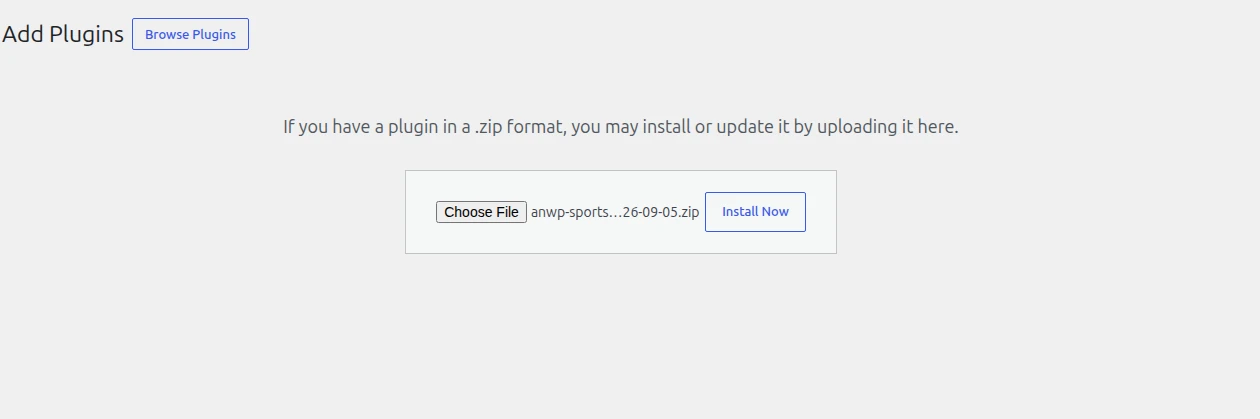
Alternative (FTP/SFTP): Extract the ZIP and upload the anwp-sports-api-hub folder to /wp-content/plugins/ on your server.
Step 3: Activate the Plugin
After installation completes, click Activate Plugin.
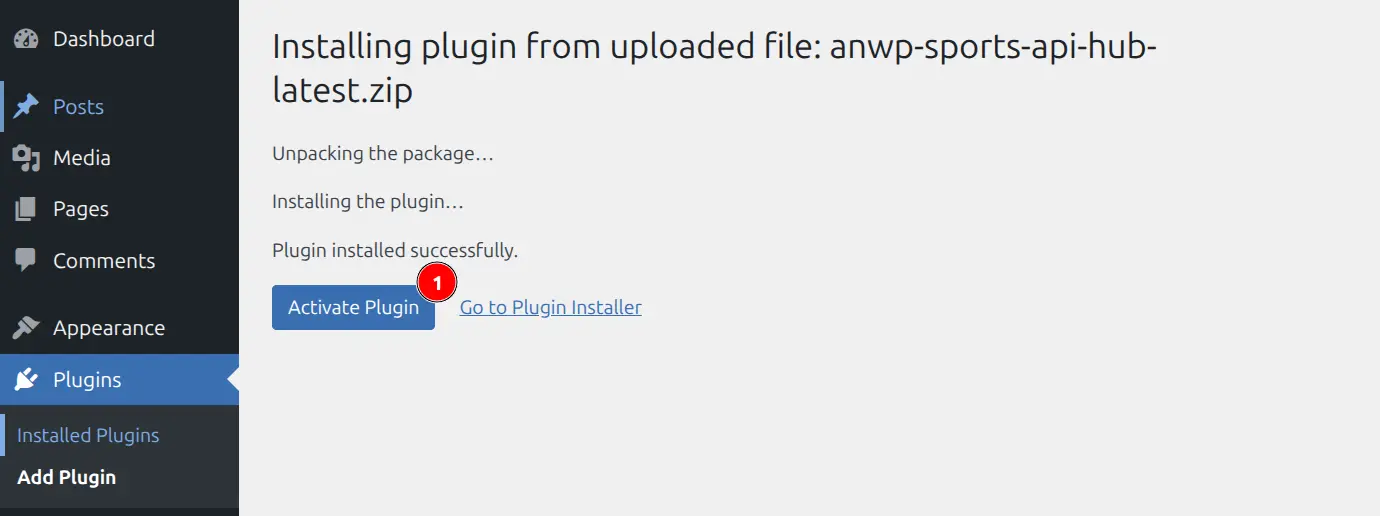
On activation, the plugin automatically:
- Creates database tables for games, teams, players, stats, and more (with the
wp_anwphub_prefix) - Registers 6 post types for games, teams, players, venues, managers, and seasons
- Adds 4 admin menus with blue “API HUB” badges in your sidebar
No manual database setup is needed — everything is created automatically.
Step 4: Flush Permalinks
After activation, flush your permalink structure to register the new URL rules:
- Go to Settings > Permalinks
- Click Save Changes (no need to change anything)
This ensures that entity pages (games, teams, players) resolve correctly at their sport-prefixed URLs (e.g., /basketball/game/123).
Tip
If you ever see 404 errors on entity pages, flushing permalinks is the first thing to try.
Admin Menu Structure
After activation, four new root menus appear in your WordPress admin sidebar, each marked with a blue “API HUB” badge:
| Menu | Purpose |
|---|---|
| Sports API Hub | Dashboard, Support |
| Hub Data | Games, Teams, Players, Venues, Managers, Seasons |
| API & Import | API Config, Import, Custom Logos |
| Settings & Tools | Settings, Translations, Shortcodes, Entity Links, Layout Builder, AI Writer |
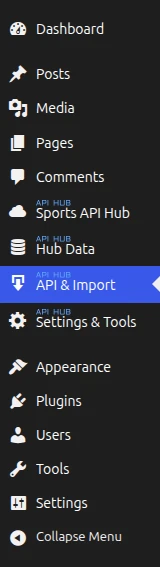
Note: The Import and Custom Logos submenus under “API & Import” only appear after you configure an API key.
Updating the Plugin
When a new version is available, you’ll see an update notice on the Plugins page — click update now to install:
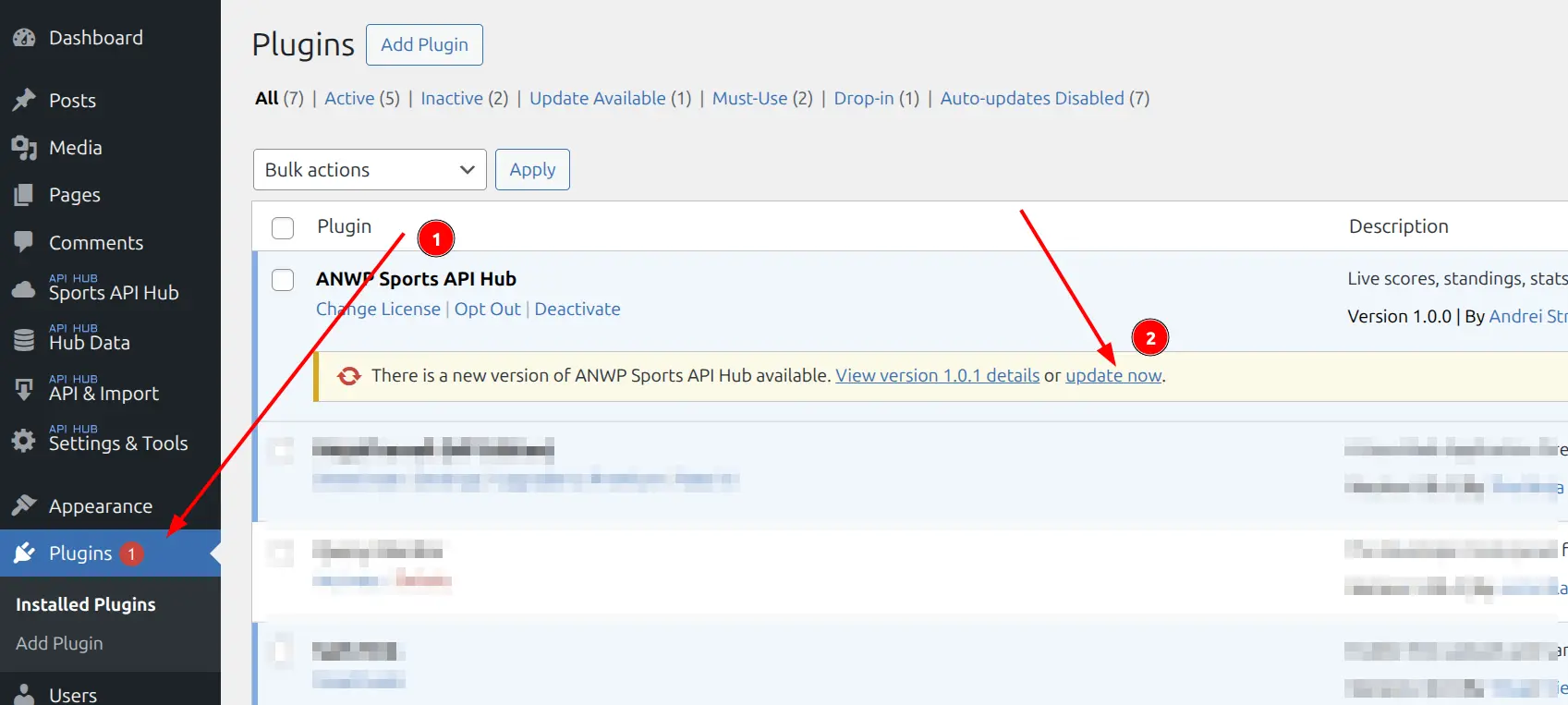
You can also update from Dashboard > Updates along with other plugins:
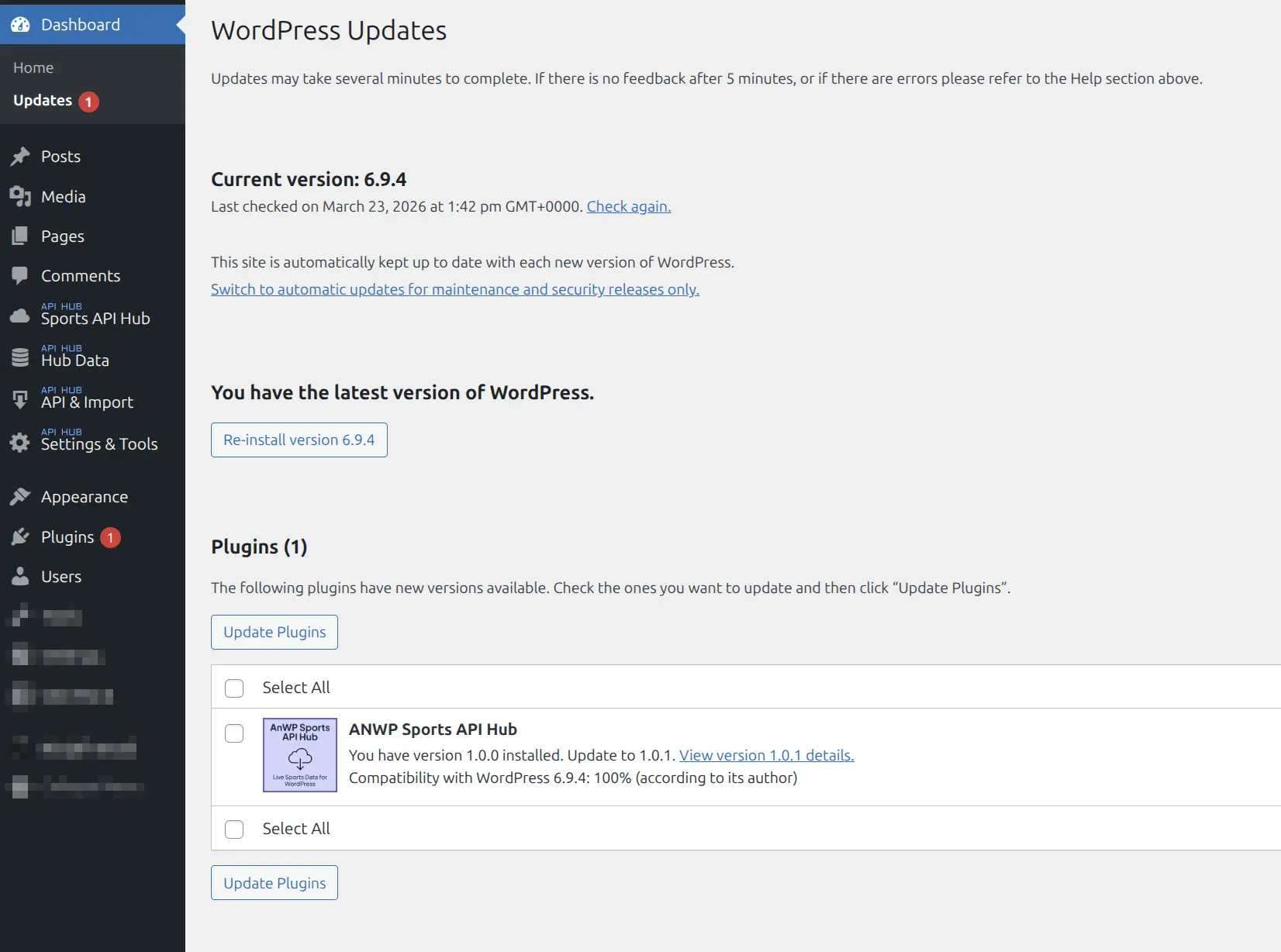
Database tables are updated automatically when the database version changes. Your data is preserved — the update process only adds new columns or tables.
For more update options (including updating from the Account page), see Upgrades & Updates.
Tip
Always back up your database before updating.
🆘 Troubleshooting Installation
| Issue | Solution |
|---|---|
| “The package could not be installed” | Verify the ZIP file is not corrupted. Re-download from your account |
| Upload size limit exceeded | Increase upload_max_filesize and post_max_size in PHP settings, or use FTP upload |
| Database tables not created | Deactivate and reactivate the plugin, then visit any admin page |
| 404 errors on entity pages | Go to Settings > Permalinks and click Save Changes |
| Admin menus not visible | Check that the plugin is activated and you have the administrator role |
📚 Next Steps
After installation, proceed to connect the plugin to a sports data API:
- API Setup — Get your API key and configure the connection
- First Import — Import your first league and season
Related
- API Setup — Connect to a sports data API
- Quick Start — Conceptual overview of the plugin
- Common Issues — General troubleshooting