

The AI Writer generates game reviews and previews using OpenAI. It collects structured game data — box scores, team stats, scoring timeline, form, standings — and sends it to an AI model with your custom prompt. You can also export the data as JSON and use it with any AI tool (Claude, Gemini, ChatGPT, etc.) without an OpenAI key.
Menu: Settings & Tools > AI Writer
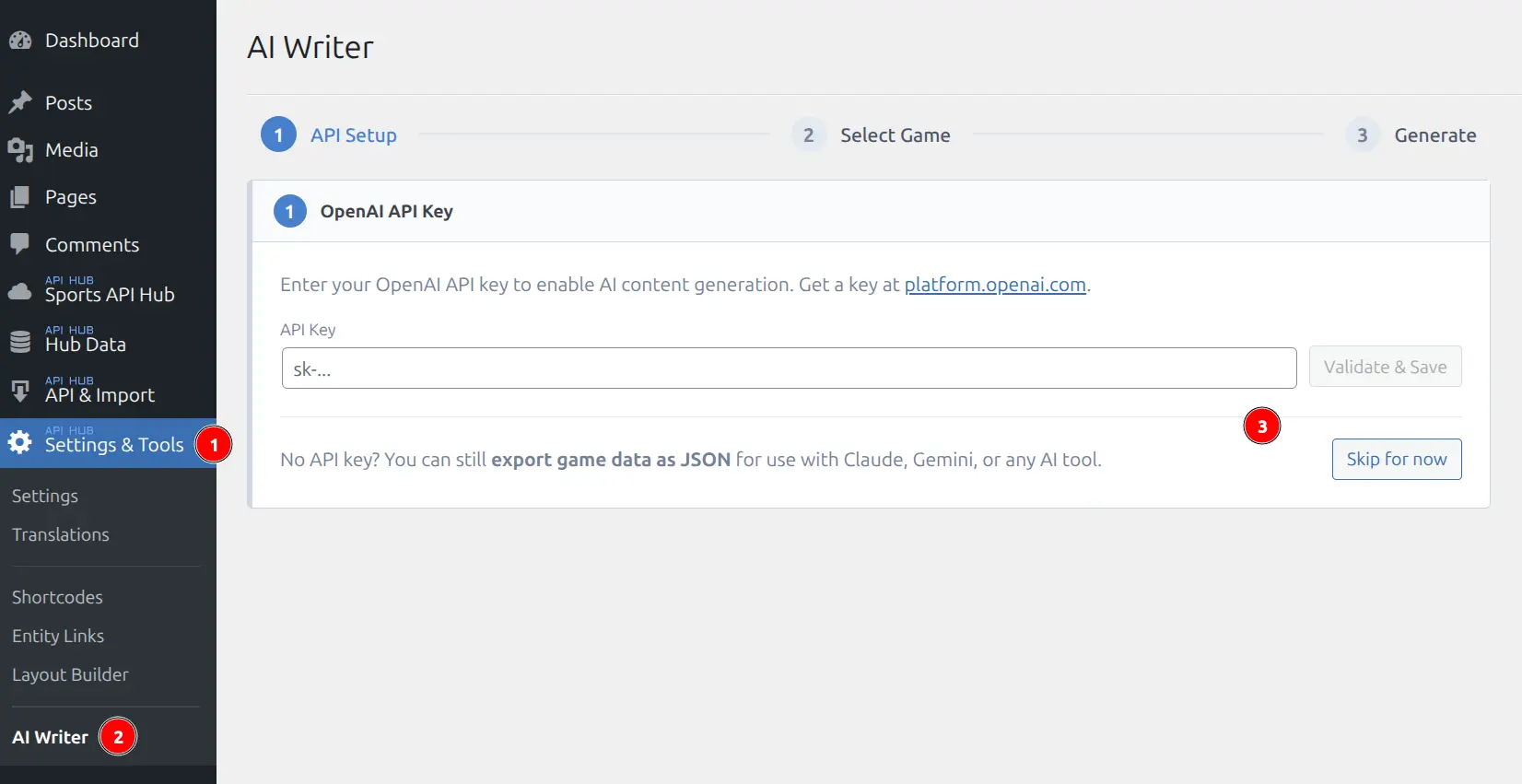
🚀 3-Step Wizard
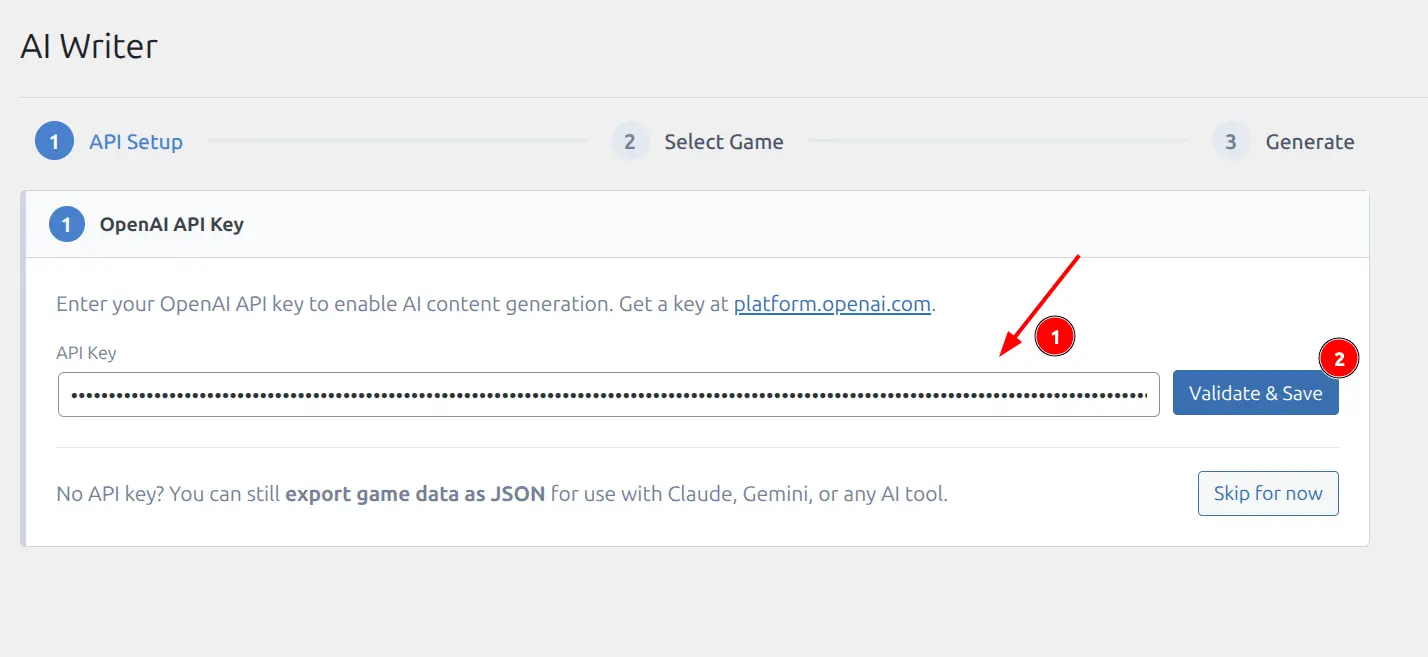
Step 1: API Setup (Optional)
Enter your OpenAI API key and click Validate & Save. Get a key at platform.openai.com.
This step is skippable — click Skip for now if you only want to use Export Data (no OpenAI key required).
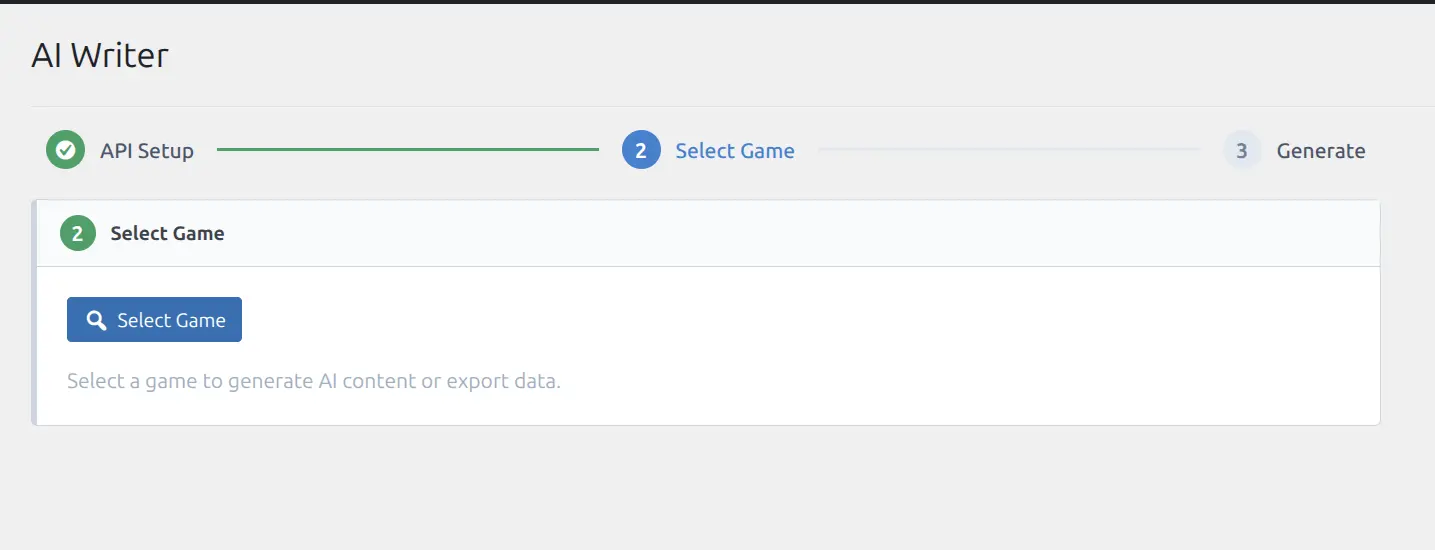
Step 2: Select Game
Click Select Game to open the entity selector. Choose any game — the mode is auto-detected based on game status:
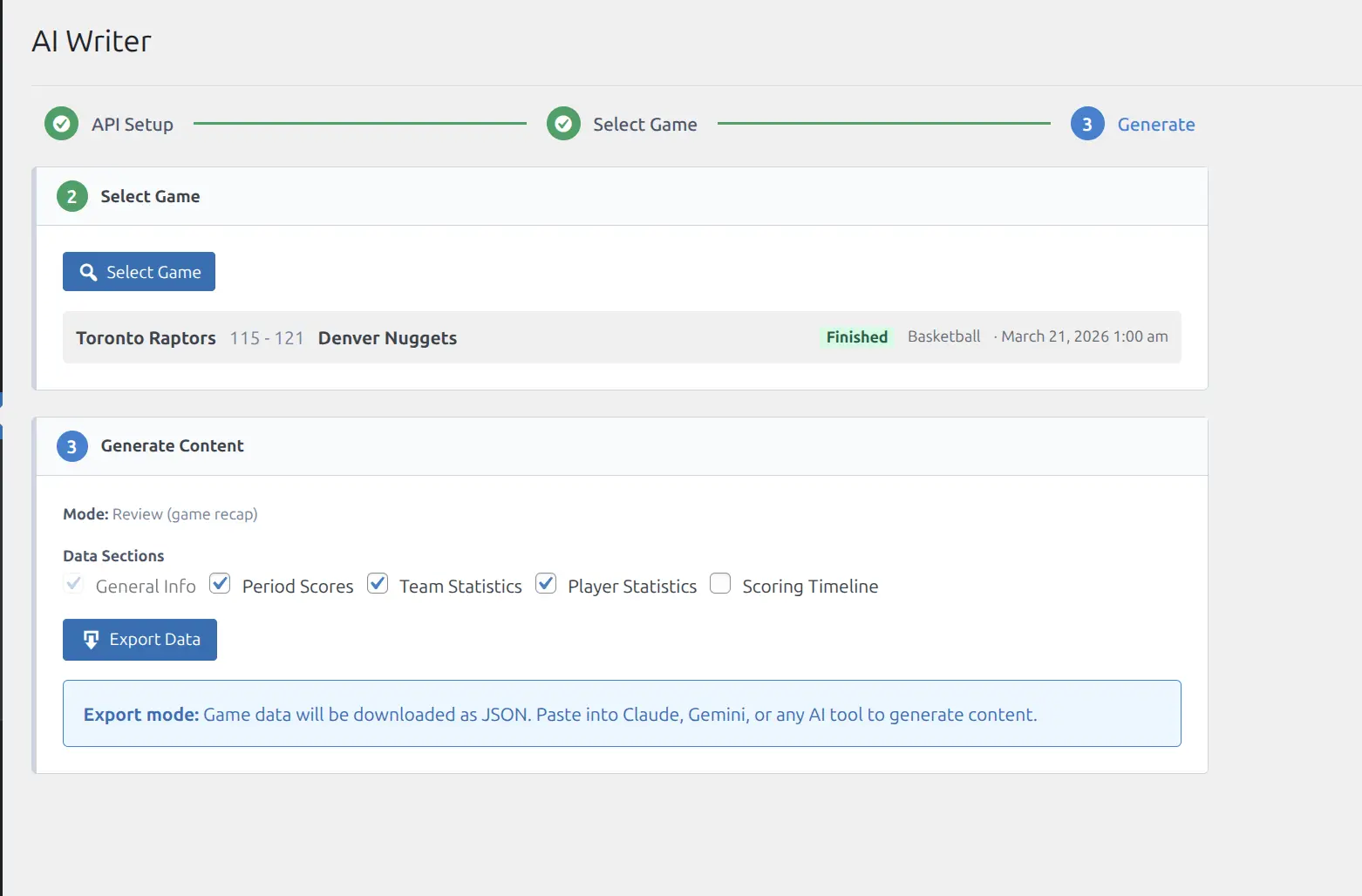
- Finished games → Review mode (game recap)
- Upcoming games → Preview mode (pre-game analysis)
Step 3: Generate Content
After selecting a game, the Generate step shows the auto-detected mode, data section checkboxes, and model selector.
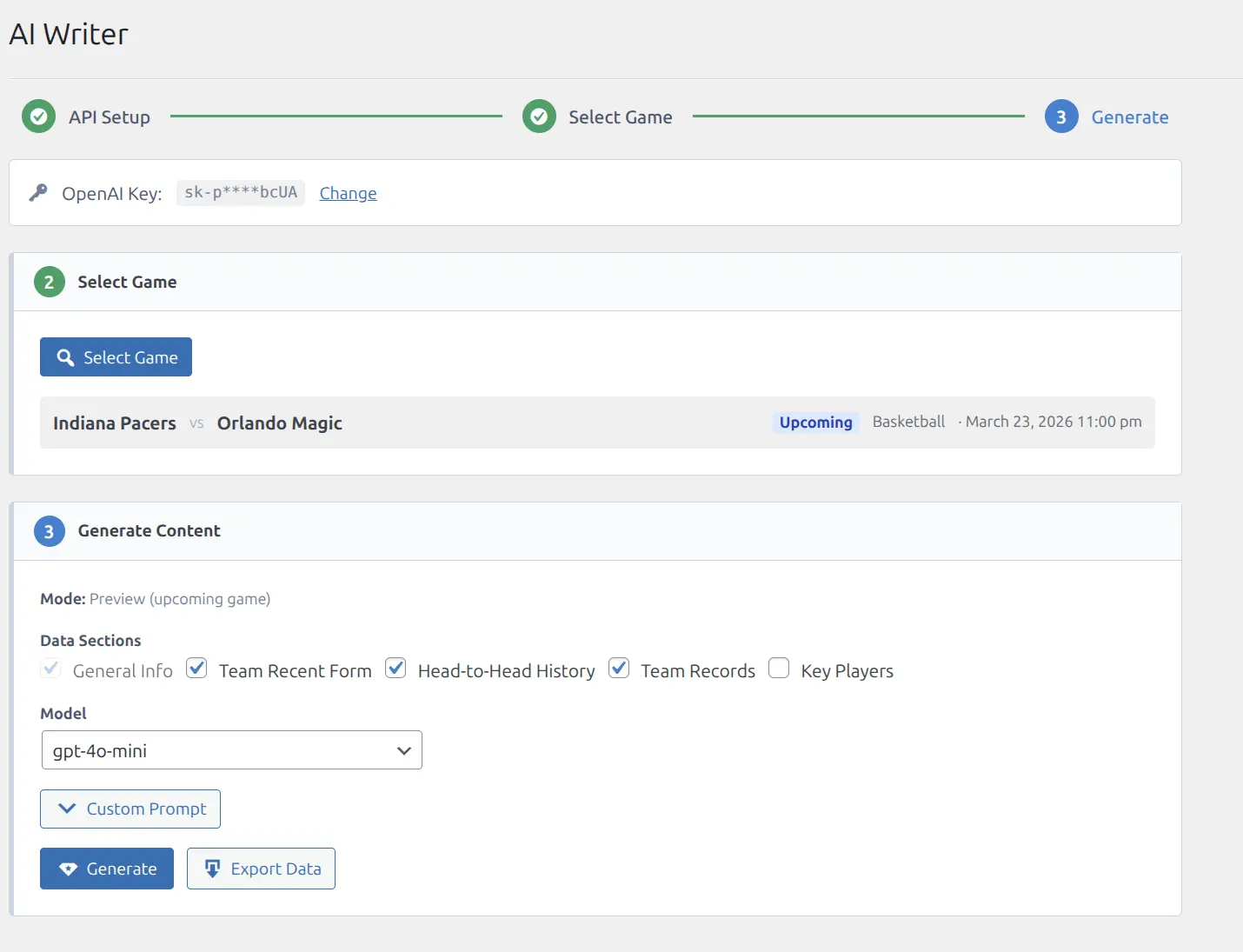
Click Generate to send the data to OpenAI. The generated content appears below with token usage info. You can edit the text, then save it to the game.
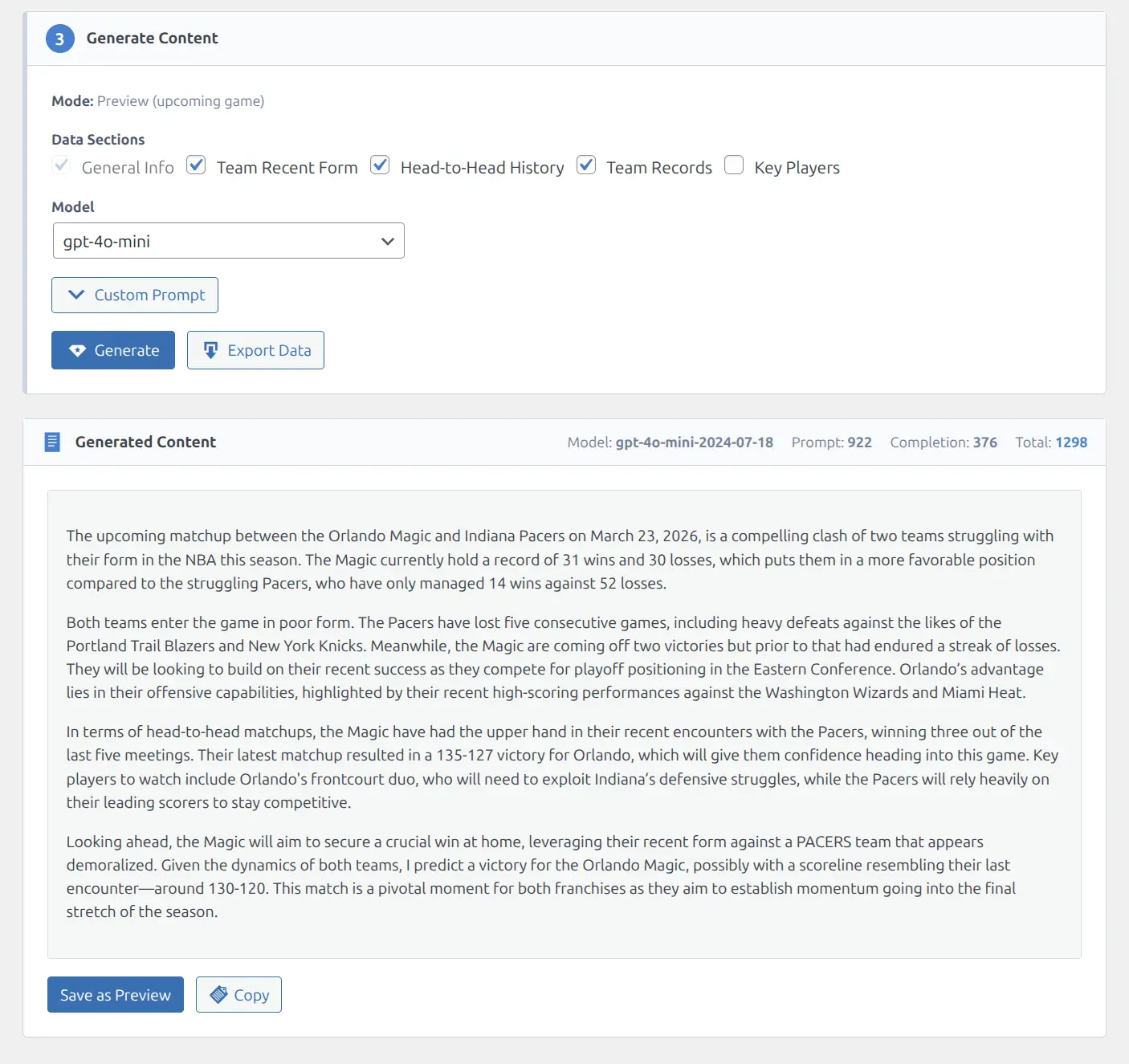
- Save as Review — appears for finished games, saves to the game’s review content
- Save as Preview — appears for upcoming games, saves to the game’s preview content
- Copy — copies the generated text to clipboard
🎯 Two Modes
Review (Finished Games)
For finished games, the AI gets detailed post-game data to write a game recap:
| Data Section | What It Includes |
|---|---|
| General Info | Teams, final score, venue, attendance, referee |
| Period Scores | Quarter/inning/period breakdown |
| Team Statistics | Shooting, rebounds, assists, turnovers, etc. |
| Player Statistics | Box score stats for all players |
| Scoring Timeline | Play-by-play scoring events |
Preview (Upcoming Games)
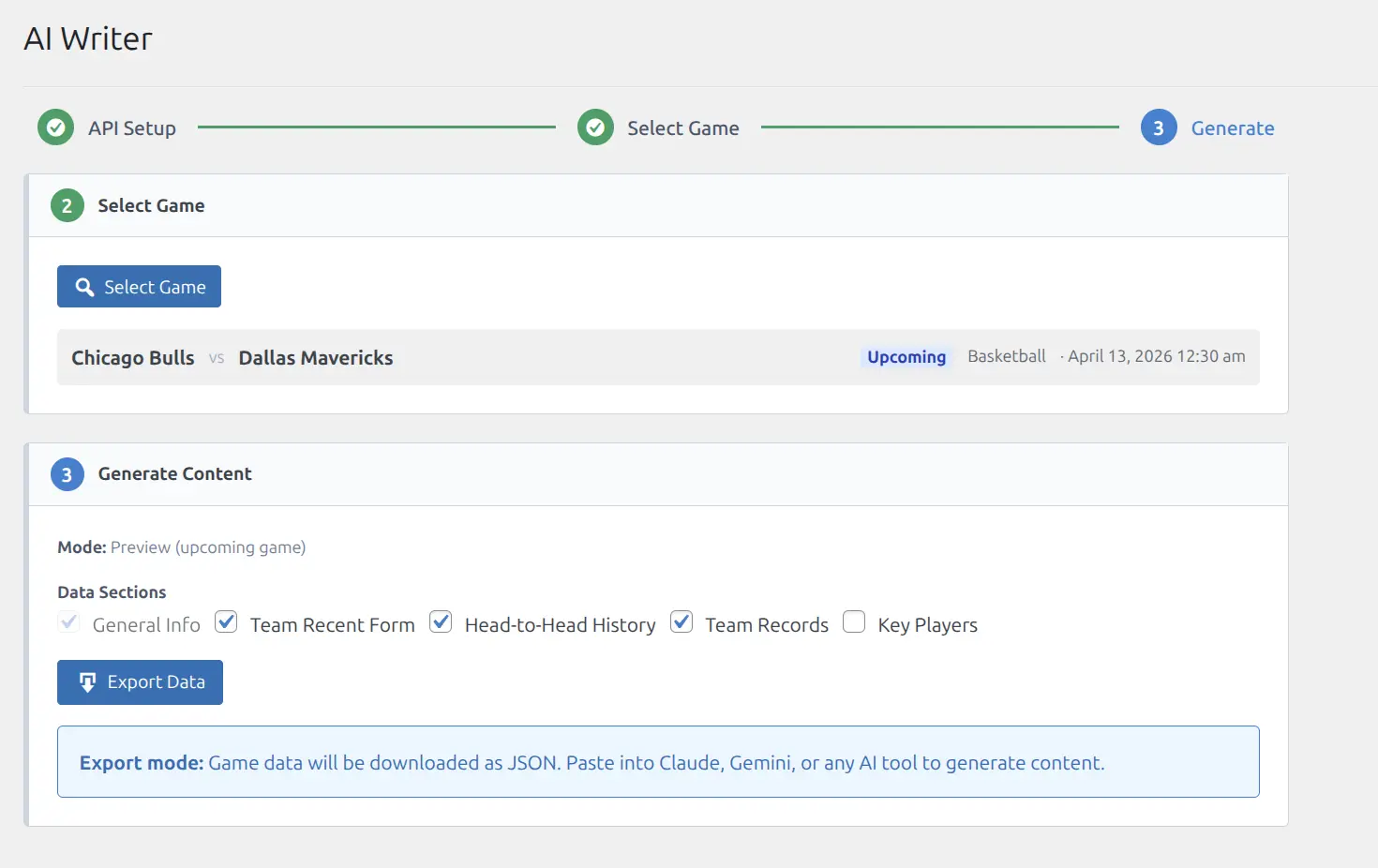
For upcoming games, the AI gets pre-game context to write a preview article:
| Data Section | What It Includes |
|---|---|
| General Info | Teams, date, venue |
| Team Recent Form | Last 5–10 games with results |
| Head-to-Head History | Previous meetings between the teams |
| Team Records | Current season W-L records |
| Key Players | Top performers with season averages |
Export Data (No API Key Required)
The Export Data button downloads the structured game data as a JSON file — no OpenAI API key needed. This lets you use any AI tool you prefer:
- Paste the JSON into Claude, ChatGPT, Gemini, or any other AI tool
- Use with your own AI workflows or scripts
- Review exactly what data the plugin collects for each game
Tip
Skip the API Setup step entirely if you only want to export data. Click Skip for now on Step 1, select a game, and use Export Data. You can always add an OpenAI key later.
Quick Access from Games List
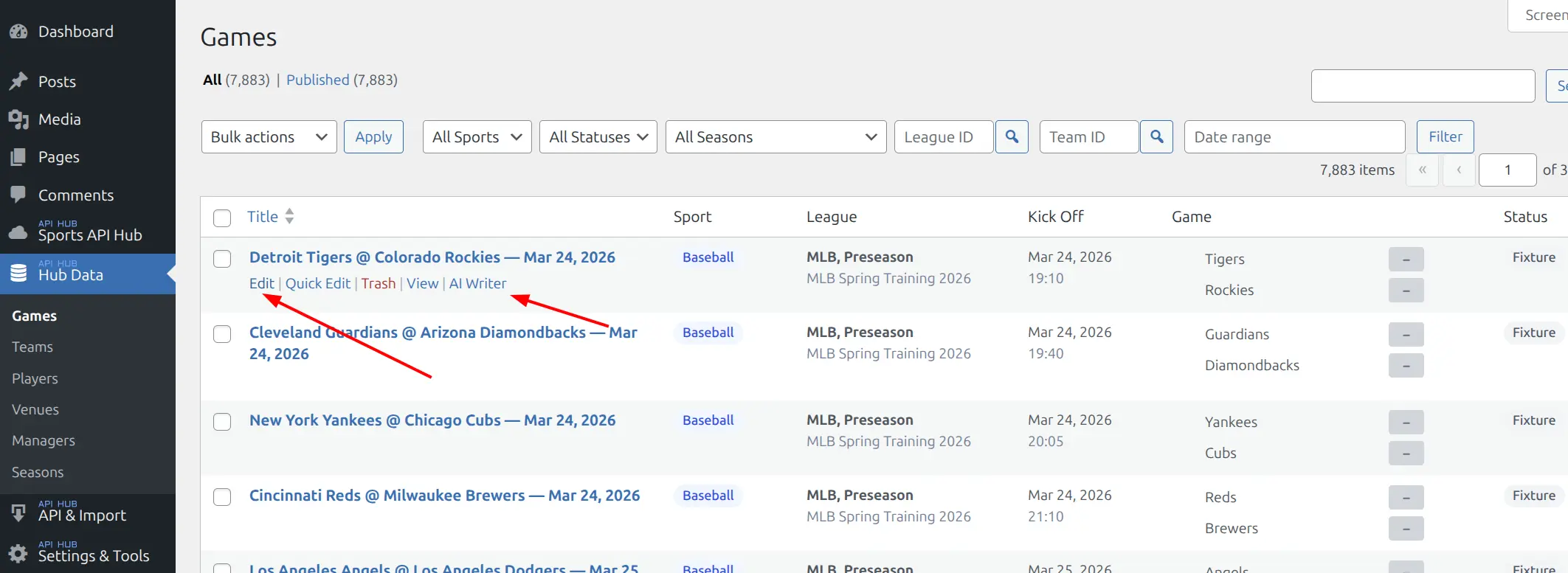
Every game in the Hub Data → Games admin list has an AI Writer row action link. Clicking it opens the AI Writer with that game pre-selected — skipping directly to Step 3.
Where Content Appears
Generated content is saved to the game and displayed on game pages via Layout Builder blocks:
| Mode | Saved To | Builder Block |
|---|---|---|
| Review | Game Review field | game_review |
| Preview | Game Preview field | game_preview |
Add the game_review and/or game_preview blocks to your game layouts in the Layout Builder to display the content on the frontend. The default game layouts already include these blocks.
You can also edit the content directly from the game edit screen (Hub Data → Games → Edit) in the Custom Content metabox, which has separate fields for Game Preview, Game Review, and Raw Code.
Custom Prompts
Click Custom Prompt on the Generate step to expand the prompt editor. You can customize the instructions sent to the AI for each mode:
- Review prompt — instructions for writing game recaps (e.g., “Write a 200-word game summary focusing on key plays and standout performers”)
- Preview prompt — instructions for writing pre-game analysis (e.g., “Write a preview highlighting team form and key matchups”)
Custom prompts are saved in the AI Writer settings and reused for all future generations.
📚 Related
- Game Pages — Game page blocks including review/preview display
- Layout Builder — Configure which blocks appear on game pages
- API Config — API connection settings