

The API Config page is the central hub for connecting the plugin to a sports data API and controlling how data is fetched, stored, and updated. It contains six sections: API Configuration, Import Options, Media & Images, Highlights, Live Scores, and Background Sync.
Admin Menu: API & Import > API Config
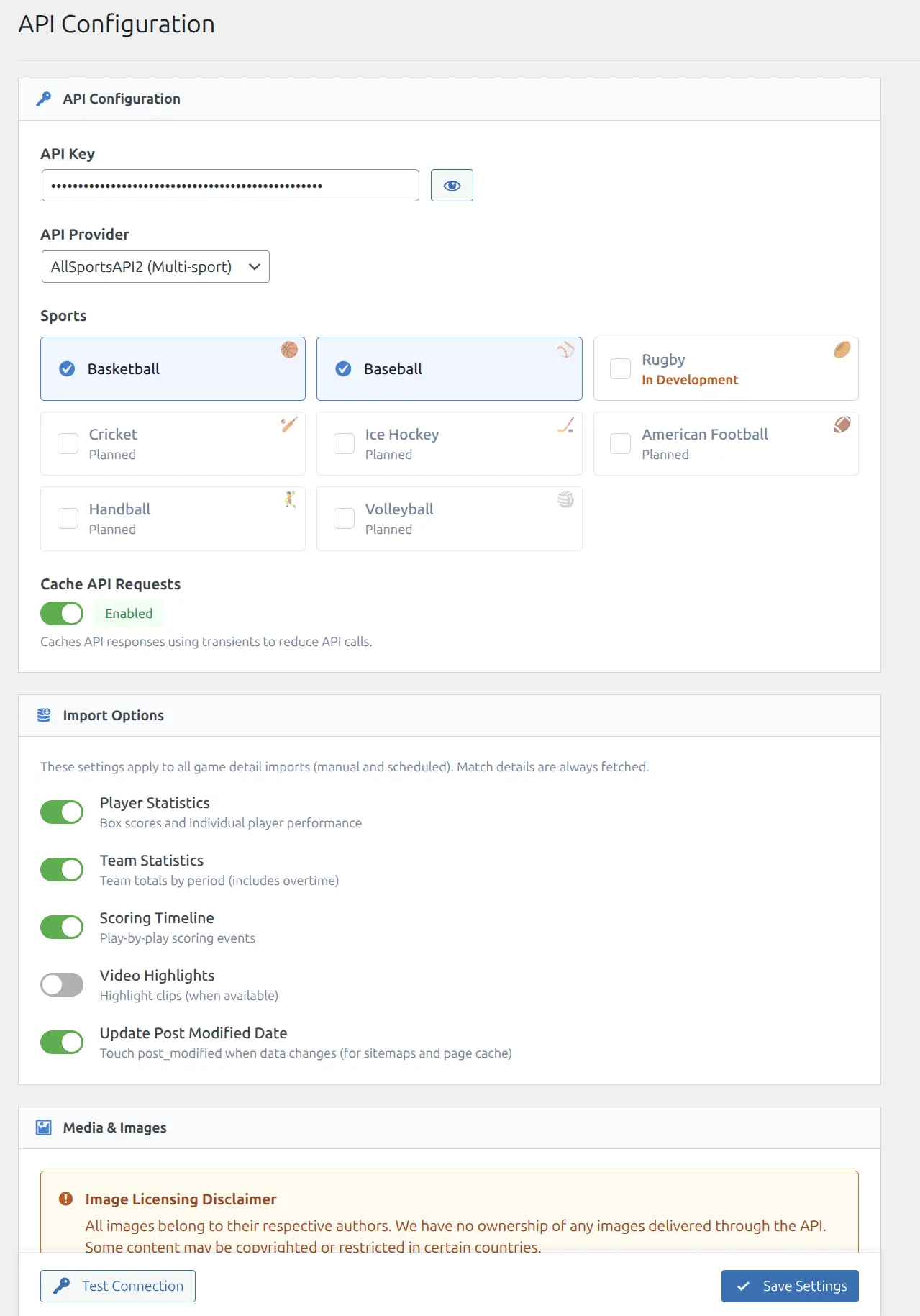
🔑 API Configuration
Core connection settings for the external API.
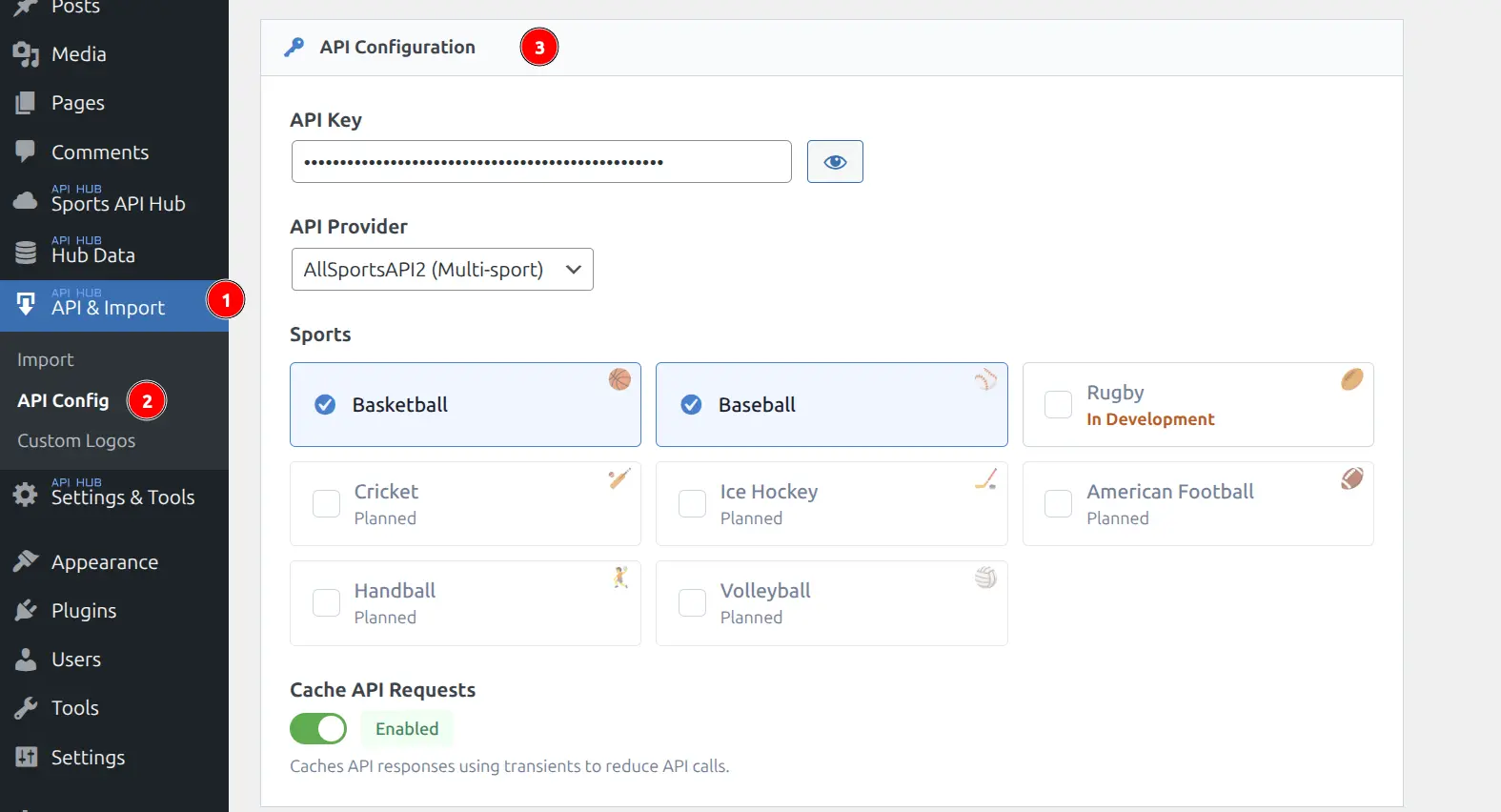
| Setting | Options | Default | Description |
|---|---|---|---|
| API Key | Text input | — | Your RapidAPI key (required) |
| API Provider | AllSportsAPI2 / BasketAPI1 / BaseballAPI | AllSportsAPI2 | Which API host to use |
| Sports | Checkboxes | None | Which sports to enable (Basketball, Baseball, etc.) |
| Cache API Requests | On / Off | On | Cache API responses using transients to reduce API calls |
API Provider
The provider setting is global (not per-sport). All three providers share the same endpoint structure but use different RapidAPI hosts:
| Provider | Best For |
|---|---|
| AllSportsAPI2 (Multi-sport) | Multiple sports — recommended for most users |
| BasketAPI1 | Basketball only |
| BaseballAPI | Baseball only |
Choose AllSportsAPI2 if you plan to use more than one sport. Single-sport providers may offer better pricing for that sport alone.
Test Connection
Click Test Connection to validate your API key. A successful test displays the provider name and confirms the key is active. If the test fails, check that:
- The key is copied correctly (no leading/trailing spaces)
- Your RapidAPI subscription is active
- The selected provider matches your RapidAPI subscription
Sport Selection
Enable only the sports you need. Each enabled sport appears in the admin interface and creates its own permalink structure. Disabling a sport hides it from the import and admin interfaces but does not delete existing data. Sports show their current status — Basketball and Baseball are fully supported, others show “In Development” or “Planned”.
📥 Import Options
Controls what data is fetched when importing finished game details. These settings apply to all game detail imports (manual and scheduled). Match details are always fetched.
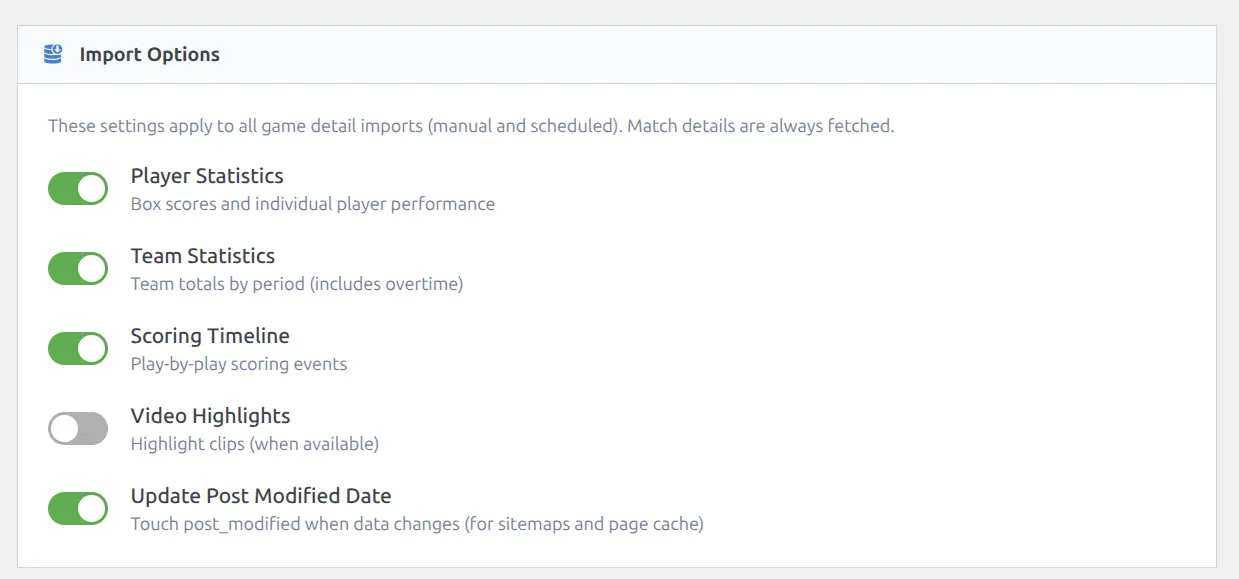
| Setting | Default | Description |
|---|---|---|
| Player Statistics | On | Box scores and individual player performance |
| Team Statistics | On | Team totals by period (includes overtime) |
| Scoring Timeline | Off | Play-by-play scoring events |
| Video Highlights | Off | Highlight clips (when available from API) |
| Update Post Modified Date | On | Touch post_modified when data changes (for sitemaps and page cache) |
API Cost
With all four data sub-options enabled, each finished game requires up to 5 API calls. With only Player Statistics enabled, it requires 2 calls per game. Start with Player Statistics and Team Statistics, then add others as needed.
🖼️ Media & Images
Controls automatic downloading of images from the API. Images are downloaded once on first import and saved as optimized WebP (50×50 and 150×150). Each image uses one API request.
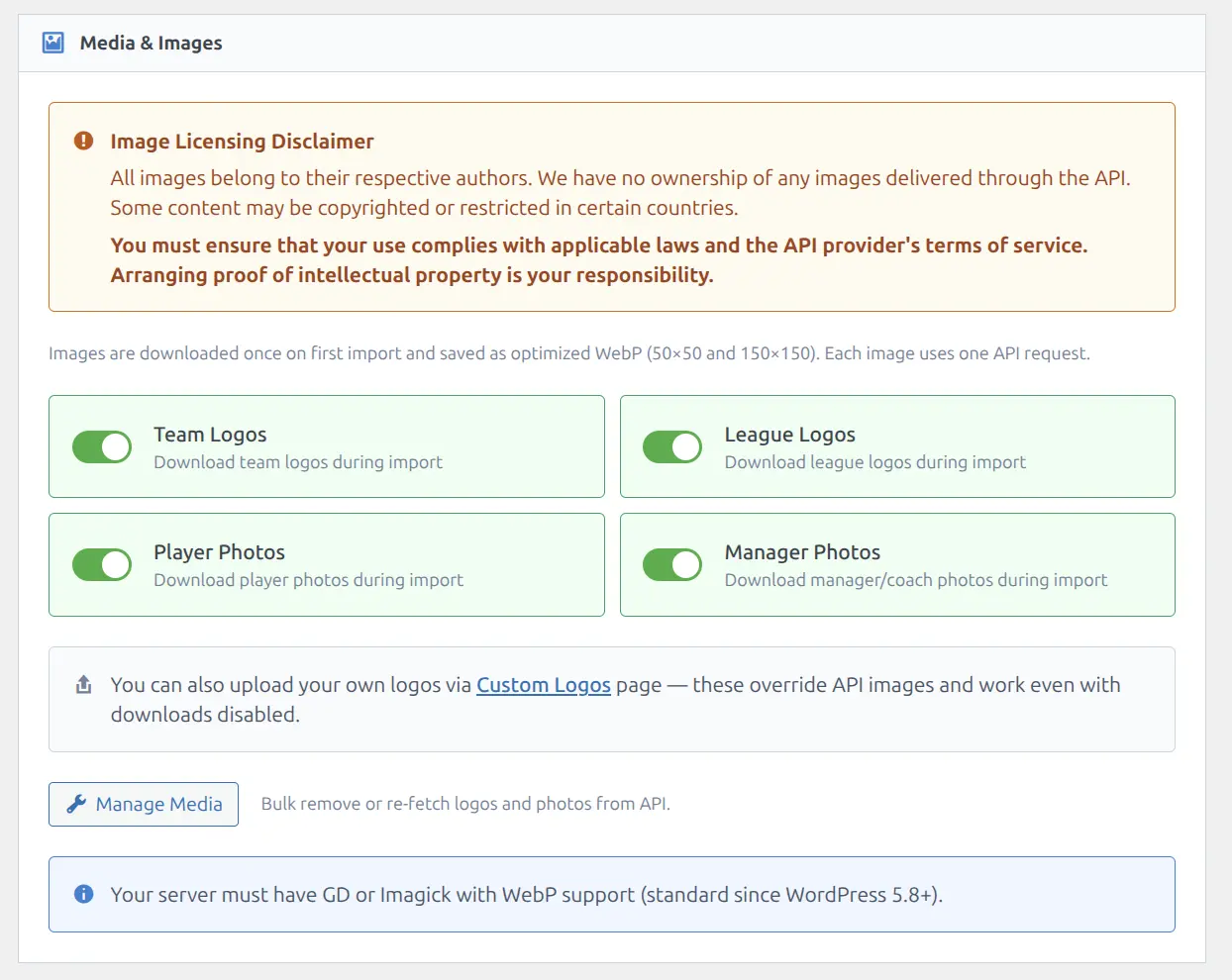
| Setting | Default | Description |
|---|---|---|
| Team Logos | On | Download team logos during import |
| League Logos | On | Download league logos during import |
| Player Photos | Off | Download player headshots during import |
| Manager Photos | Off | Download manager/coach photos during import |
Server requirement: Your server must have GD or Imagick with WebP support (standard since WordPress 5.8+). A status indicator shows whether image processing is available.
Custom Logos: You can upload your own logos via the Custom Logos page — these override API images and work even with downloads disabled.
Manage Media: Click the “Manage Media” button to bulk remove or re-fetch logos and photos from the API, filtered by entity type and sport.
Highlights
Controls automatic fetching of YouTube video highlights for finished games.
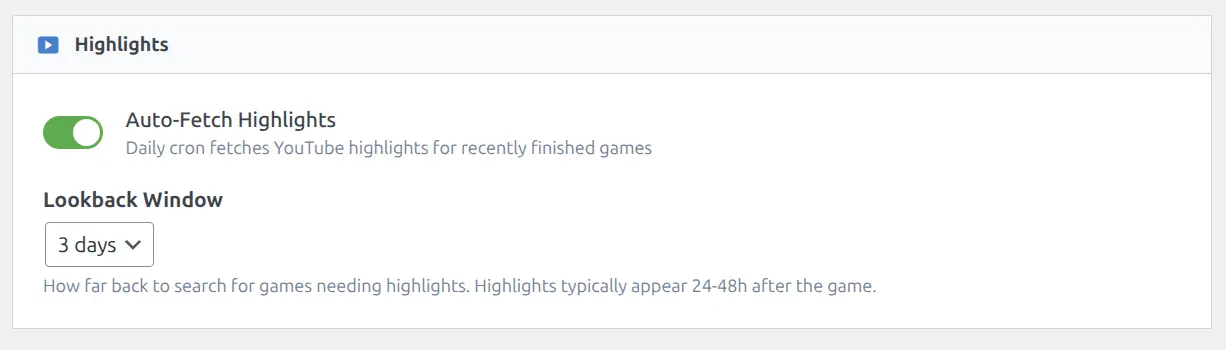
| Setting | Options | Default | Description |
|---|---|---|---|
| Auto-Fetch Highlights | On / Off | On | Daily cron fetches YouTube highlights for recently finished games |
| Lookback Window | 3 / 5 / 7 days | 3 days | How far back to search for games needing highlights. Highlights typically appear 24-48h after the game |
When enabled, a daily background task searches for finished games that don’t have highlights yet and attempts to fetch YouTube video IDs from the API. Videos are validated before saving — dead or unavailable videos are automatically skipped.
📡 Live Scores
Real-time score updates during active games. When enabled, the plugin polls the API at regular intervals for games in progress.
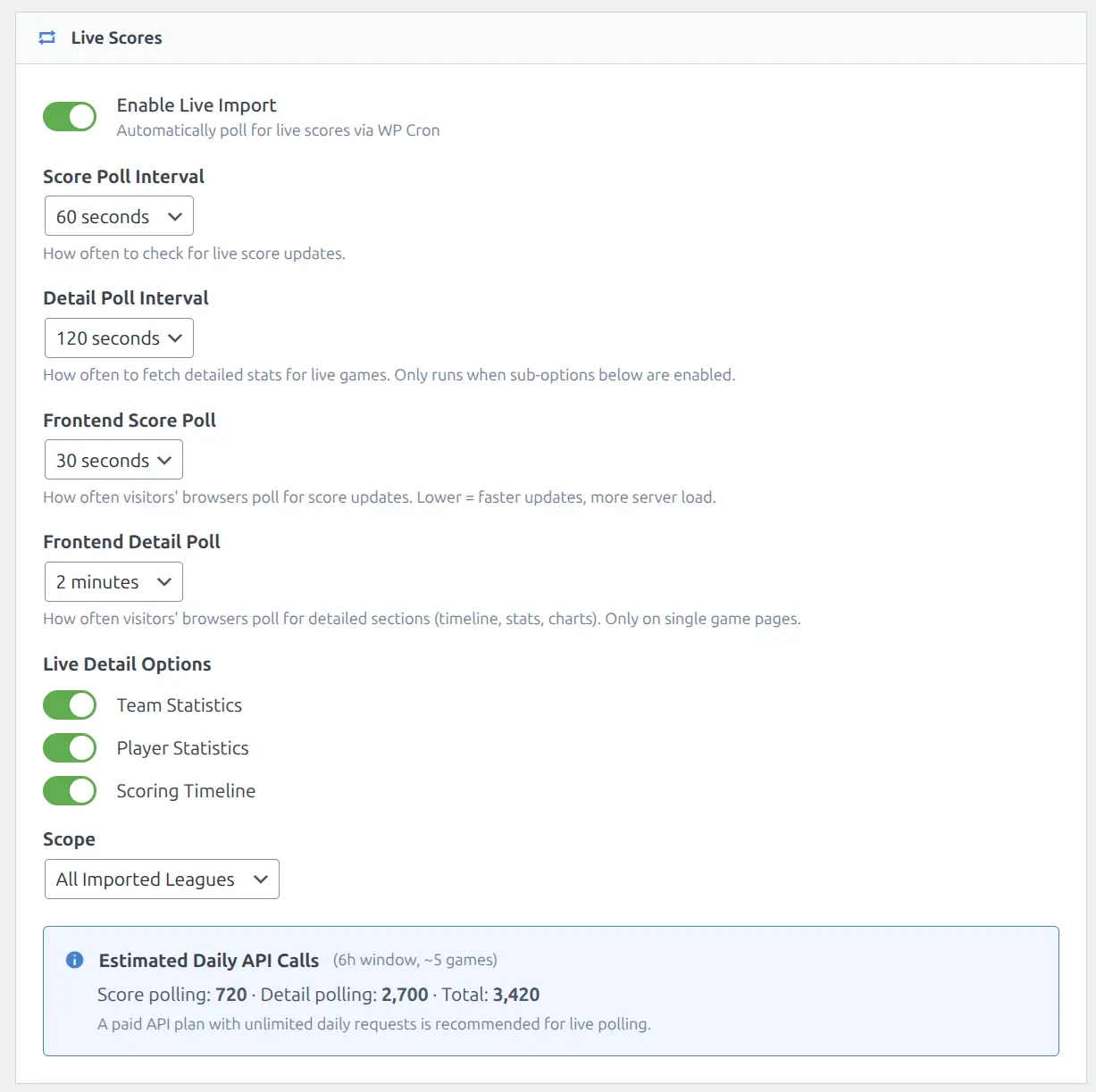
| Setting | Options | Default | Description |
|---|---|---|---|
| Enable Live Import | On / Off | Off | Automatically poll for live scores via WP Cron |
| Score Poll Interval | 60 / 120 seconds | 60s | How often to check for live score updates |
| Detail Poll Interval | 120 / 300 seconds | 120s | How often to fetch detailed stats for live games |
| Frontend Score Poll | 15 / 30 / 45 / 60 seconds | 30s | How often visitors’ browsers poll for score updates |
| Frontend Detail Poll | 2 / 3 / 5 minutes | 2 min | How often visitors’ browsers poll for detailed sections (timeline, stats, charts) |
Live Detail Options
Additional data fetched during live polling (each adds API calls per live game):
| Setting | Default | Description |
|---|---|---|
| Team Statistics | Off | Update team stats during game |
| Player Statistics | Off | Update box scores during game |
| Scoring Timeline | Off | Update play-by-play events during game |
Scope & Estimated Cost
Choose whether to poll all imported leagues or only selected ones. If you follow only a few leagues, set Scope to “Selected” and pick those leagues to reduce API usage.
The page shows an estimated daily API call count based on your settings, the typical active window (~6 hours), and the approximate number of simultaneous live games. A paid API plan with unlimited daily requests is recommended for live polling.
See Live Scores for the full guide on how live scoring works (backend pipeline + frontend polling).
🔄 Background Sync
Automatic data updates via WordPress Cron. When enabled, the plugin periodically syncs all imported seasons — active seasons get full sync, completed seasons are skipped.
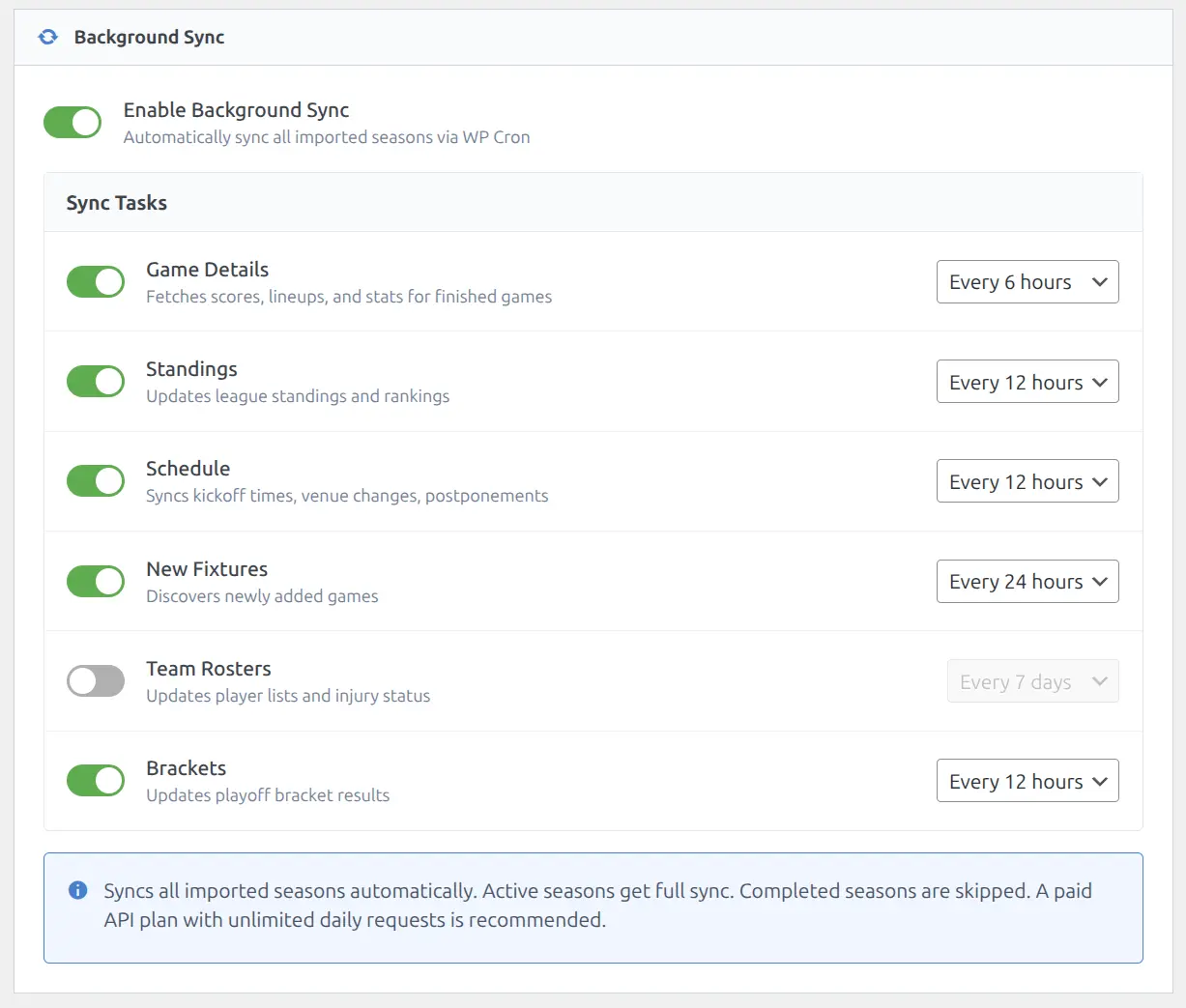
| Task | Options | Default | What It Does |
|---|---|---|---|
| Game Details | Every 6 / 12 hours | 6h | Fetches scores, lineups, and stats for finished games |
| Standings | Every 12 / 24 hours | 12h | Updates league standings and rankings |
| Schedule | Every 12 / 24 hours | 12h | Syncs kickoff times, venue changes, postponements |
| New Fixtures | Every 24 / 48 hours | 24h | Discovers newly added games |
| Team Rosters | Every 7 / 14 days | 7 days | Updates player lists and injury status |
| Brackets | Every 12 / 24 hours | 12h | Updates playoff bracket results |
Recommendation
Enable Game Details (6h) and Standings (12h) as a baseline. Add Schedule and New Fixtures if you display upcoming games. Rosters can run at 7 days since roster changes are less time-sensitive. A paid API plan with unlimited daily requests is recommended.
See Background Sync for detailed task descriptions.
Saving Changes
A sticky bar at the bottom of the page contains two buttons:
- Save Settings — saves all changes across all sections
- Test Connection — tests the API key without saving
Changes are not applied until you click Save Settings. The page does not auto-save.
📚 Related
- API Setup — first-time API key setup walkthrough
- Import Workflow — how to use the import page after configuration
- Live Scores — complete live scoring guide
- Background Sync — detailed sync task descriptions
- Custom Logos — override downloaded logos
- Plugin Settings — display, odds, rating, palette, caching options