

Every game in Sports API Hub has an import status that tracks how much data has been fetched from the API. Understanding these statuses helps you monitor your data pipeline and identify games that may need attention.
📋 Status Reference
| Status | Value | Meaning | Set By |
|---|---|---|---|
| Fixture | 0 | Scheduled game. Only basic information (teams, date, venue) has been imported. | Fixtures import task |
| Live Scheduled | 1 | Queued for live score tracking. The live system will begin polling when the game starts. | Live master check (hourly cron) |
| Live | 2 | Game is currently in progress. Scores are being updated in real time. | Live poller (30–120s interval) |
| Live Ended | 3 | Game has finished but full details (box scores, statistics, incidents) have not yet been fetched. | Live poller (detects final status) |
| Skipped | 4 | Intentionally skipped during import. Can be set automatically for certain game types or manually. | Import system or manual action |
| Detailed | 5 | Full game details have been imported, including lineups, team statistics, incidents, and highlights (based on your import sub-options). | Finished details task |
| Rechecked | 10 | Details have been refreshed via re-update. The game was previously Detailed and has been re-fetched to capture corrections or additions. | Re-update task |
🔄 Status Flows
Standard Flow (No Live Scores)
Most games follow this straightforward path:
Fixture (0) ───▶ Detailed (5)- The Fixtures import task creates games with status 0
- After games finish, the Finished Details task fetches full data and sets status to 5
The finished details task only processes games at status 0 that have a final score from the API.
Live Score Flow
Games tracked by the live score system pass through additional stages:
Fixture (0) ───▶ Live Scheduled (1) ───▶ Live (2) ───▶ Live Ended (3) ───▶ Detailed (5)- The Live Master Check runs hourly and finds upcoming games, setting them to Live Scheduled (1)
- The Live Poller detects game start and updates status to Live (2), then continuously polls for score changes throughout the game
- When the API reports the game as finished, status moves to Live Ended (3)
- The Live Finished task imports full details (box scores, statistics, incidents) and sets status to Detailed (5)
Re-Update Flow
Previously imported games can be refreshed to pick up corrections:
Detailed (5) ───▶ Rechecked (10)The re-update process re-fetches all game details without changing the game’s finished state. This is useful when the API updates statistics after the initial import (stat corrections, late-added highlights, etc.).
Viewing Game Statuses in Admin
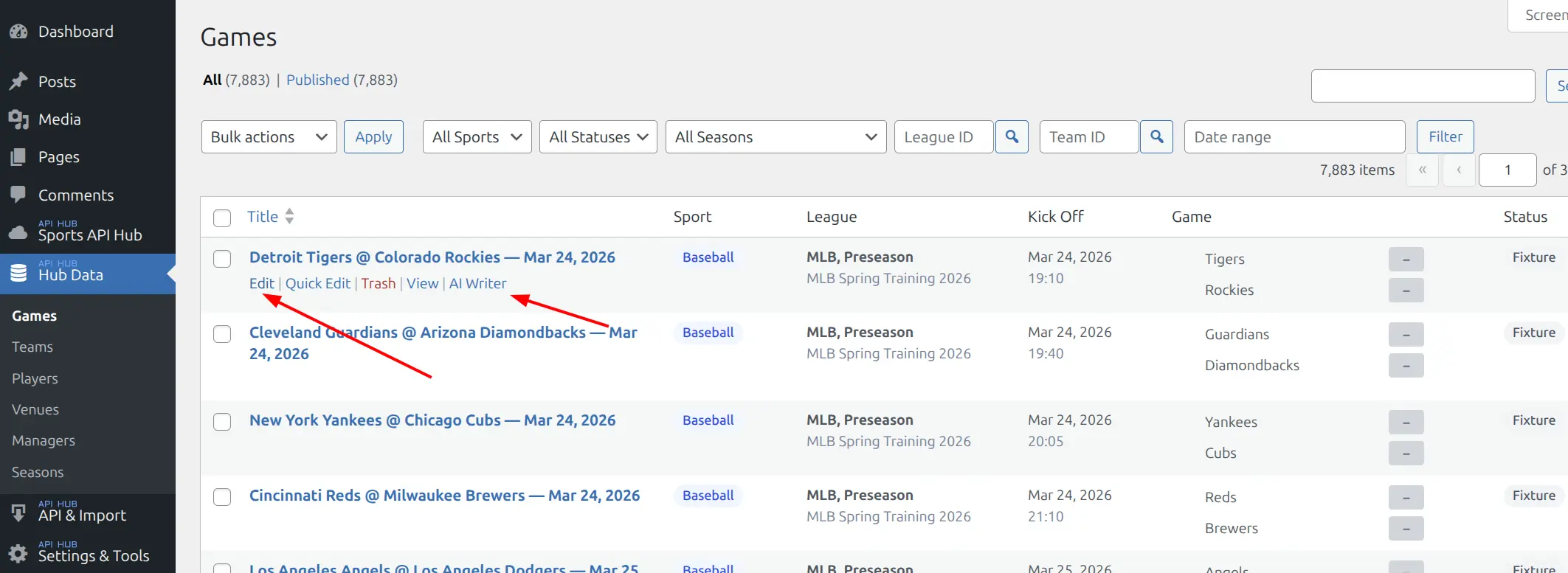
In Hub Data > Games, each game displays its import status as a colored badge in the list table. Use the status dropdown filter at the top of the list to show only games with a specific status.
What to Look For
- Fixture (0) on a finished game — the finished details task has not yet processed this game. It will be picked up on the next import run, or you can manually trigger the finished details task.
- Live Ended (3) lingering — the game finished during live tracking but full details have not been imported yet. This is normally processed automatically within minutes. If it persists, check that background sync or the live system is running.
- Skipped (4) — review these periodically to ensure no important games were skipped unintentionally.
Re-Updating Games
Single Game
To re-fetch details for one game:
- Go to Hub Data > Games
- Hover over the game row
- Click the Re-update action link
This triggers fresh API calls to re-import all game details based on your current import sub-options (lineups, team statistics, incidents, highlights). The status changes from Detailed (5) to Rechecked (10).
Bulk Re-Update (Full Season)
To re-update all detailed games in a season:
- Go to API & Import > Import
- Select the season
- Run the Re-update task
This processes all games with status 5 or higher in batches, re-fetching their details. Each game moves to status 10 after successful re-update.
When to Re-Update
Re-updating is useful after the API publishes stat corrections, adds highlight videos, or when you enable additional import sub-options (e.g., turning on incidents after initially importing without them).
📊 Data Available at Each Status
| Data Type | Fixture (0) | Live (2) | Detailed (5) / Rechecked (10) |
|---|---|---|---|
| Teams and date | Yes | Yes | Yes |
| Final score | — | Yes (live) | Yes |
| Period scores | — | Yes (live) | Yes |
| Player stats (box scores) | — | — | If enabled in settings |
| Team statistics | — | — | If enabled in settings |
| Incidents (play-by-play) | — | — | If enabled in settings |
| Highlights (videos) | — | — | If enabled in settings |
Import sub-options for lineups, team statistics, incidents, and highlights are configured in API & Import > API Config under the Import section.
📚 Related
- Games — understanding game data structure
- API Configuration — configuring import sub-options
- Import Workflow — how the import process works
- Import Tasks — individual task details (fixtures, finished, re-update)
- Live Scores — live tracking and score updates