

The Layout Builder lets you customize the page layout for games, teams, players, and seasons. Choose which blocks to display, arrange their order, and style them visually — all with drag-and-drop.
Admin Menu: Settings & Tools > Layout Builder
Every sport gets 6 pre-built layouts automatically: 3 for games (Upcoming, Live, Finished), plus Team, Player, and Season. Layouts come pre-populated with sensible defaults — customize them at any time or reset back to defaults.
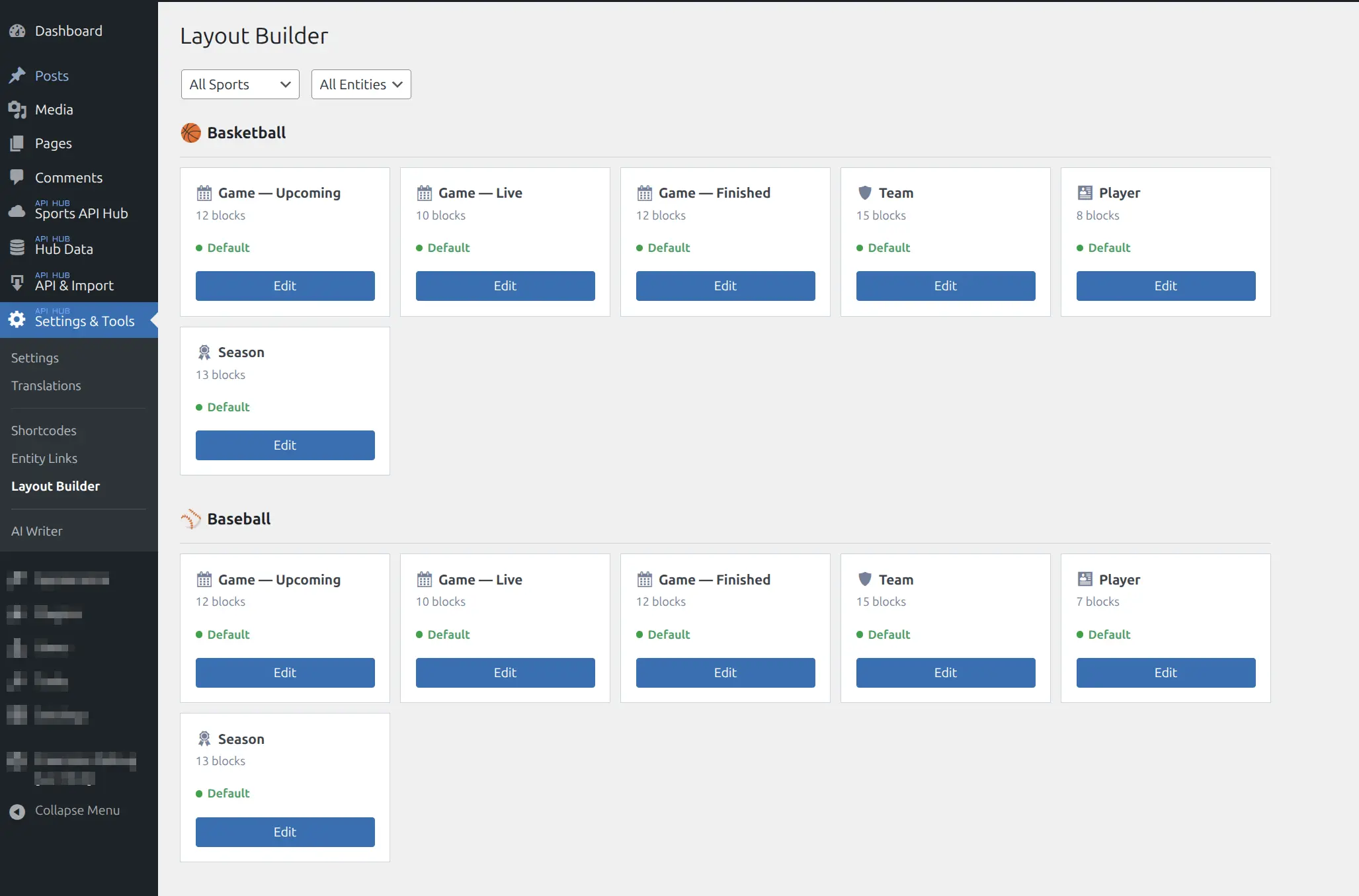
Layout List
The list page shows all layouts grouped by sport. Each card displays the entity icon and label (e.g., Game — Finished, Team, Player), the block count, a status badge — Default (green) or Modified (blue) — and an Edit button.
Use the dropdowns at the top to filter by sport or entity type.
🎯 The Editor
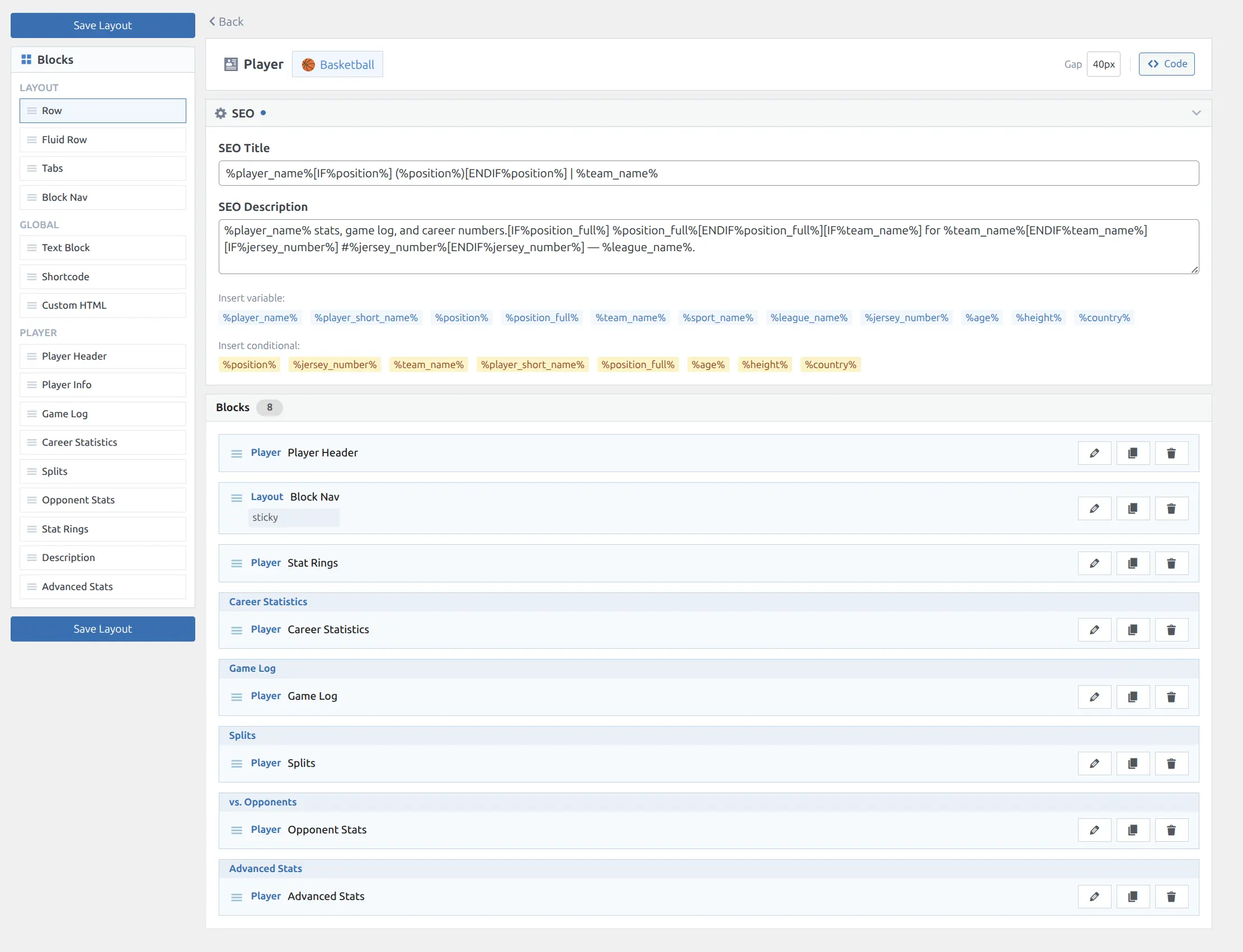
The editor has two columns: a Block Palette on the left and the Layout Content on the right.
Block Palette
A sticky sidebar listing all available blocks, organized by group. Drag blocks from the palette into the layout. Each block can be used multiple times.
| Group | Contents |
|---|---|
| Layout | Row, Fluid Row, Tabs, Block Nav |
| Global | Text Block, Shortcode, Custom HTML |
| Entity-specific | Blocks for the selected entity type (e.g., Player Header, Game Log) |
Sport-aware blocks only appear when relevant — basketball-specific blocks won’t appear in a baseball layout.
Layout Content
A single block list where you arrange blocks in the order they should appear on the page. Drag to reorder. Each block card shows the block name, group badge, section header text, and key settings at a glance (limit, data source, spacing, colors).
The header bar shows the entity type, sport badge, gap setting, and a toggle between Visual and Code editing modes.
Block Settings
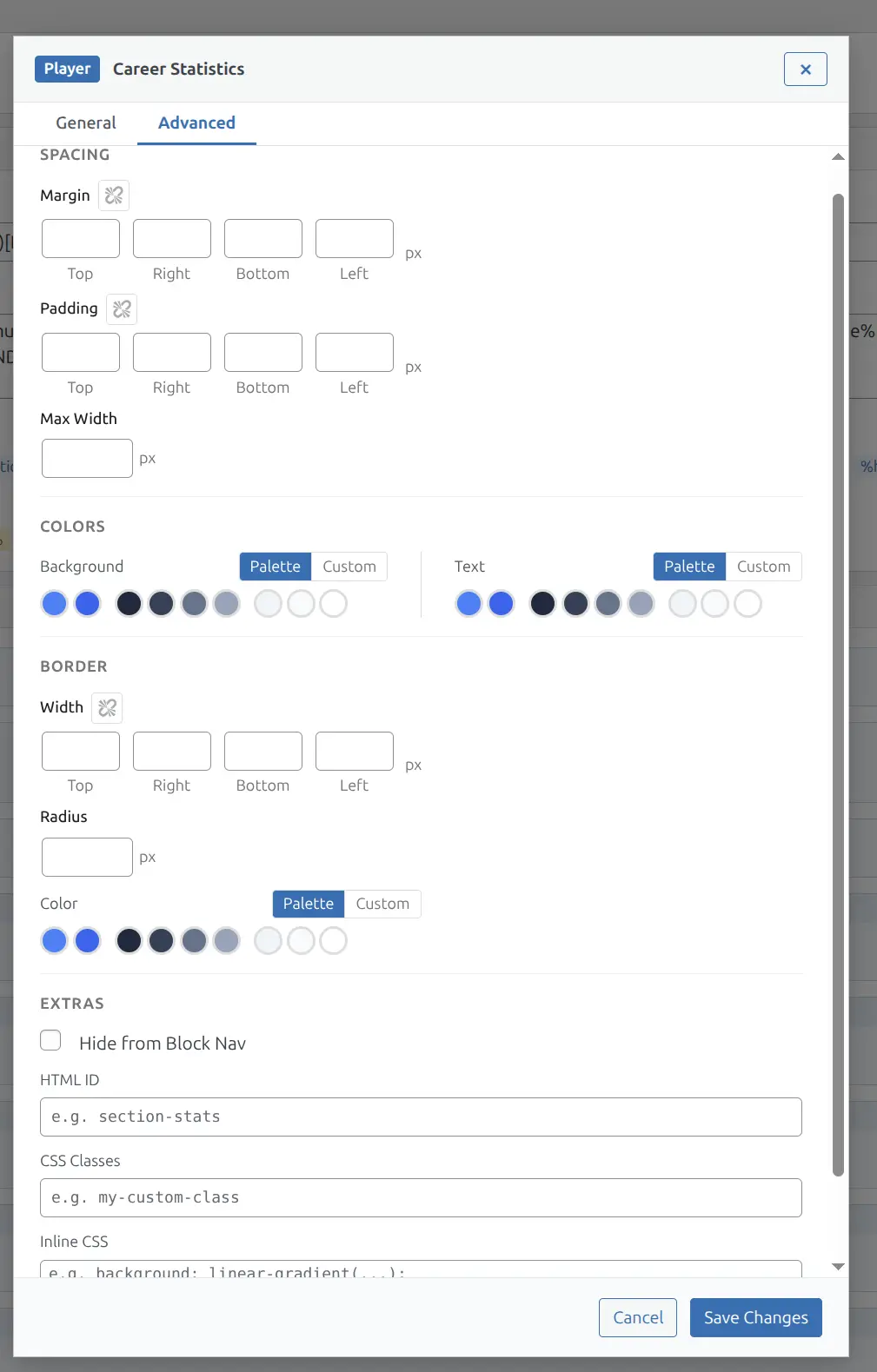
Click any block’s edit icon to open the settings modal with two tabs.
General Tab
| Field | Description |
|---|---|
| Section Header | Optional heading text displayed above the block |
| Content | For text/HTML blocks: the content (8-line textarea) |
| No Data Text | Message shown when the block has no data to display |
| Data Source | For stats blocks: choose where data comes from (see Data Source below) |
| Default Stage | For the five player stats blocks: which stage the block opens on (Regular Season / All games). Leave on “Inherit from Settings” to follow the global setting — see Player Pages |
Advanced Tab
Spacing: Margin and padding on all 4 sides, plus max-width. Link icon to set all sides at once.
Colors: Background and text colors. Each supports two modes — Palette (pick from the 9-slot Color Palette) or Custom (any hex color). Clear button to remove.
Border: Width on each side independently, border radius (corner rounding), and border color (Palette or Custom).
Extras: Hide from Block Nav, HTML ID for anchor linking, CSS classes, and inline CSS.
Data Source
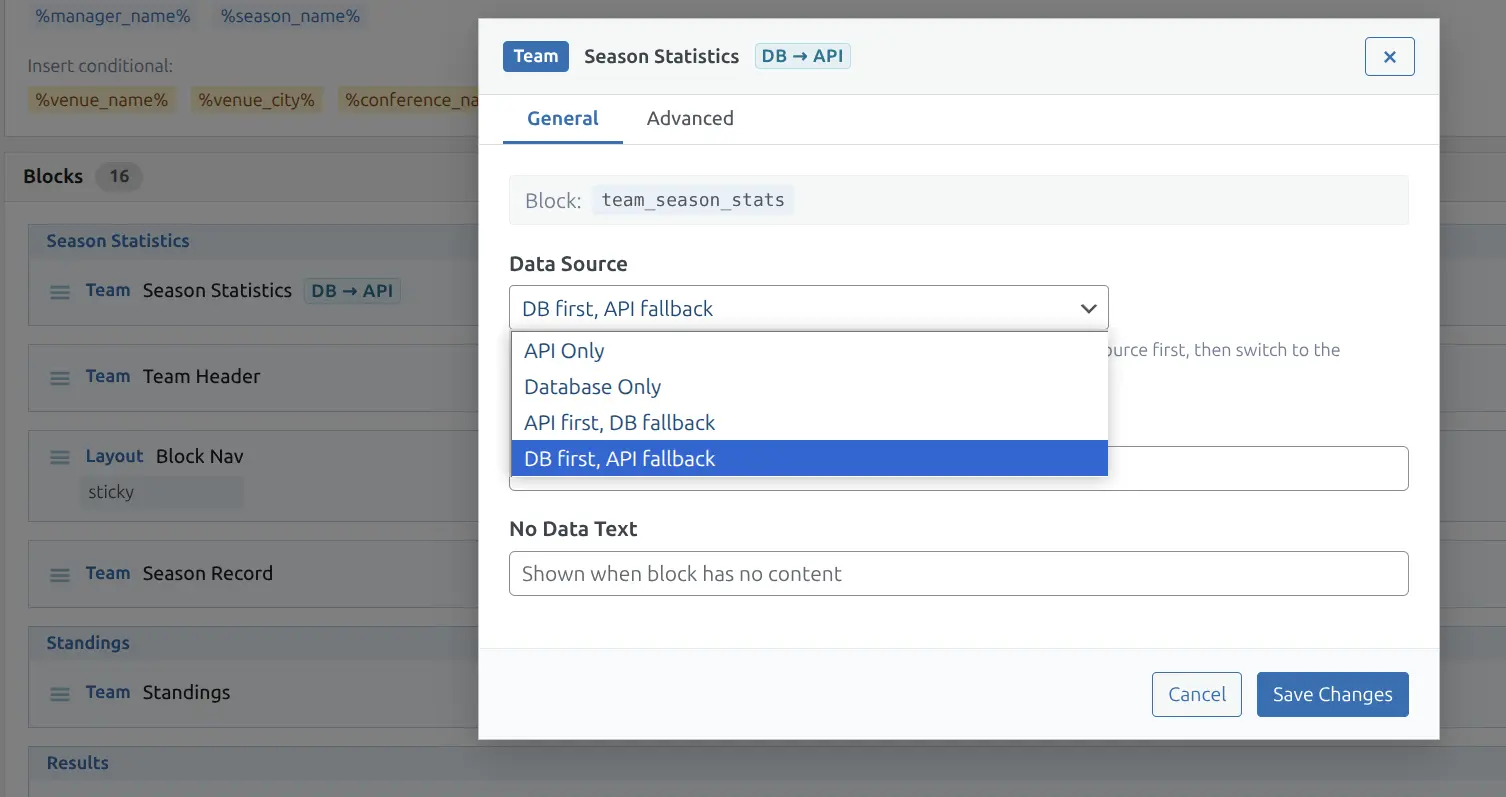
Some blocks (like Season Statistics, Season Ranks, Season Leaders, Player Averages) can pull data from different sources.
| Option | Description |
|---|---|
| API Only | Fetches from the external sports API on demand |
| Database Only | Uses locally imported per-game data |
| API first, DB fallback | Tries the API first; if unavailable, falls back to local data |
| DB first, API fallback | Uses local data first; if unavailable, falls back to the API |
The active data source appears as a badge on the block card — amber for API-based, teal for database-based.
Row Wrappers
By default, blocks stack vertically. Row wrappers place multiple blocks side by side.
Fixed Row
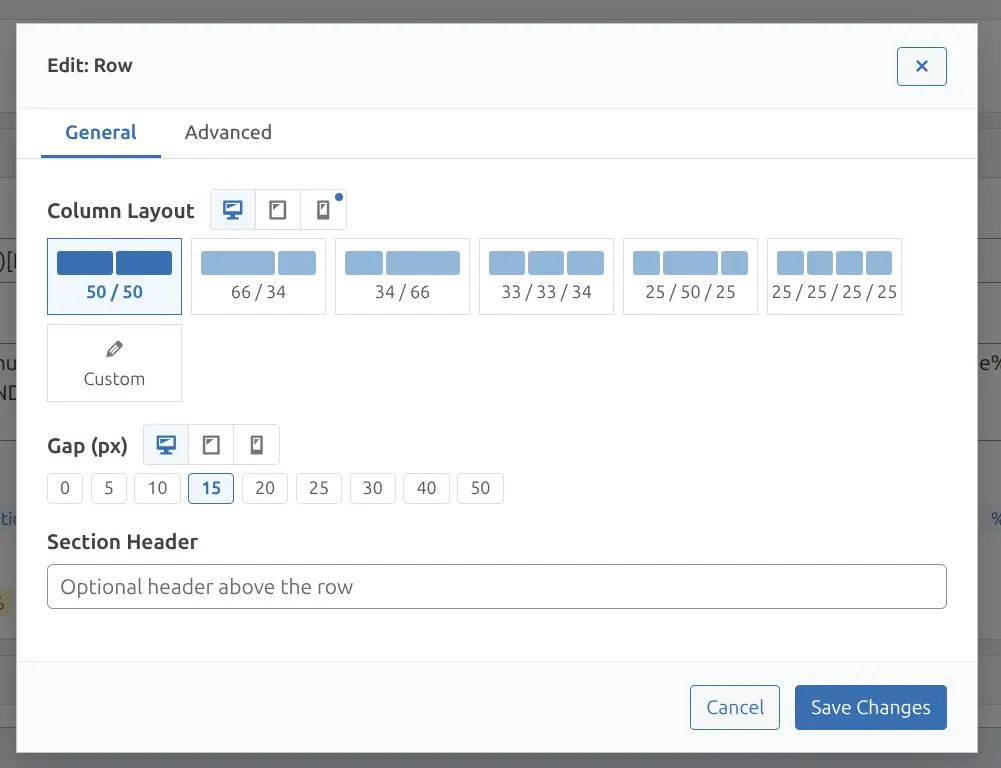
CSS Grid with defined column ratios — up to 4 columns. Presets: 50/50, 66/34, 34/66, 33/33/34, 25/50/25, 25/25/25/25, plus a Custom option.
Responsive: A device switcher (desktop / tablet / mobile icons) lets you set different column layouts per breakpoint. Devices with custom overrides show a blue dot.
- Desktop — default column layout
- Tablet (992px and below) — falls back to desktop if not set
- Mobile (768px and below) — falls back to tablet, then desktop
Gap: Space between columns. Presets: 0, 5, 10, 15, 20, 25, 30, 40, 50px. Separate gap values available for tablet and mobile.
Fluid Row
CSS Grid with automatic wrapping — columns flow based on a minimum width you set. Options: min width (e.g., 300px), max column width (0 = stretch to fill), and alignment (start, center, end).
Usage
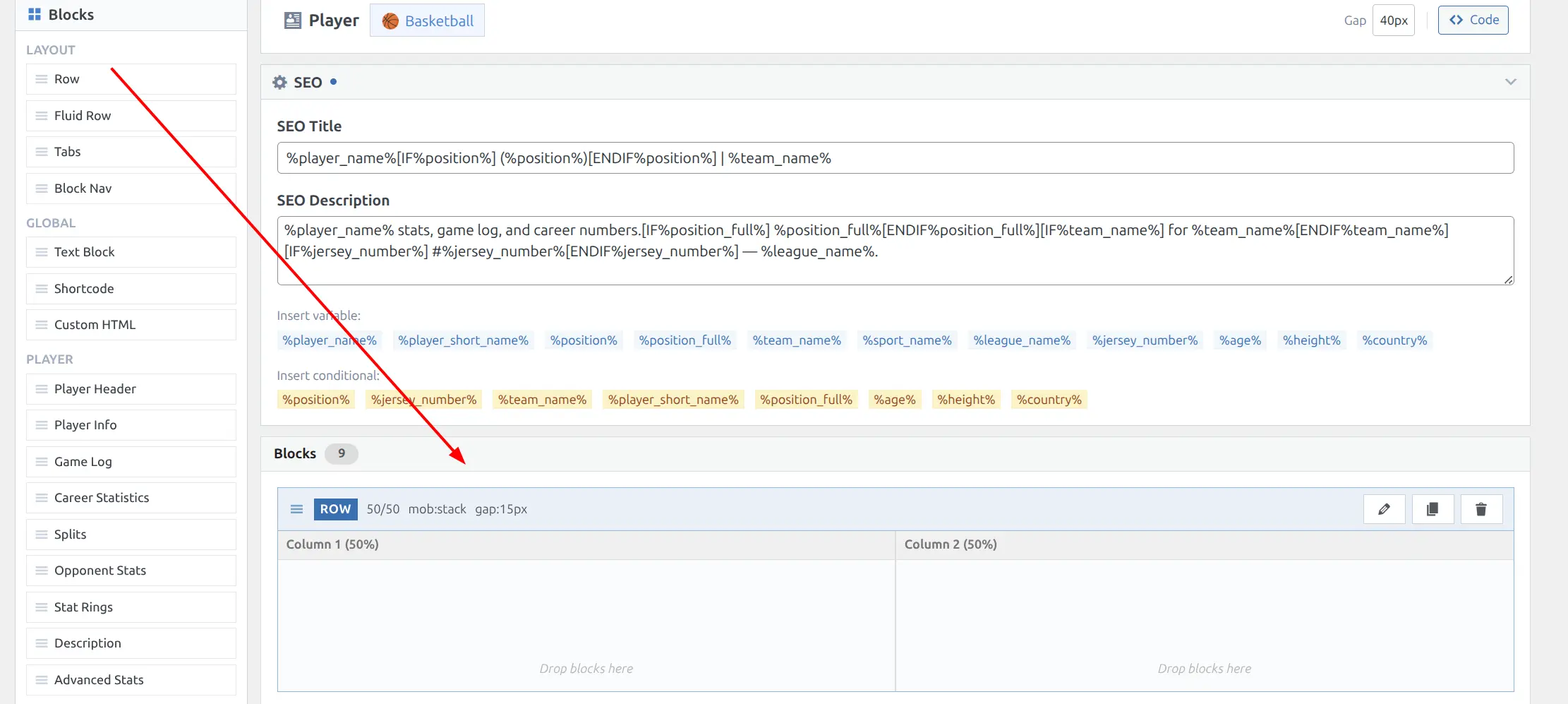
- Drag a Row or Fluid Row from the palette into the layout
- Drag blocks into the row’s column slots
- Click the row’s edit icon to configure columns, gaps, and responsive behavior
Rows cannot be nested inside other rows.
Tabs Container
Organize blocks into tabbed sections — visitors click tab titles to switch between content panels.
Setting Up Tabs
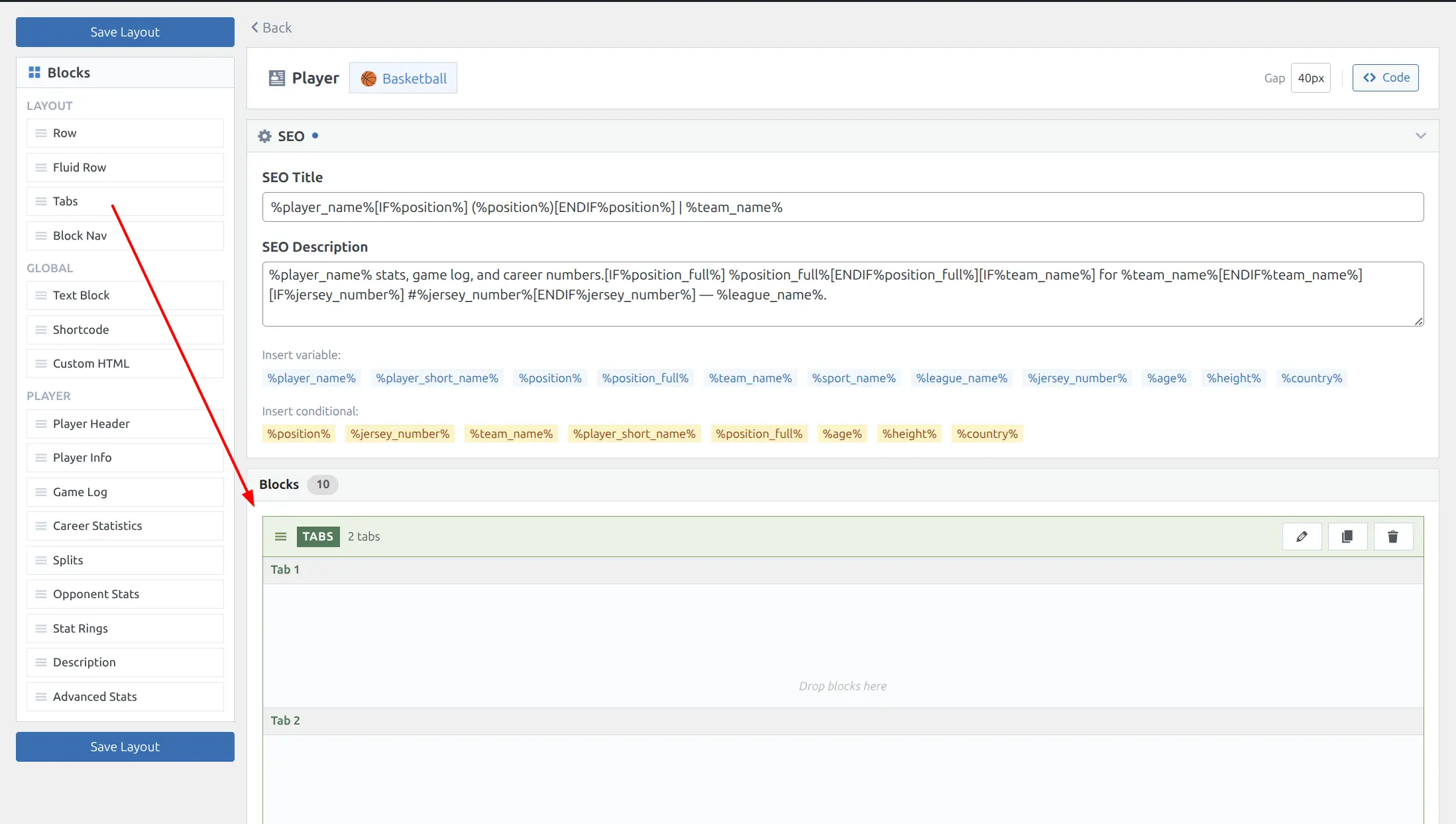
- Drag the Tabs block from the palette into the layout
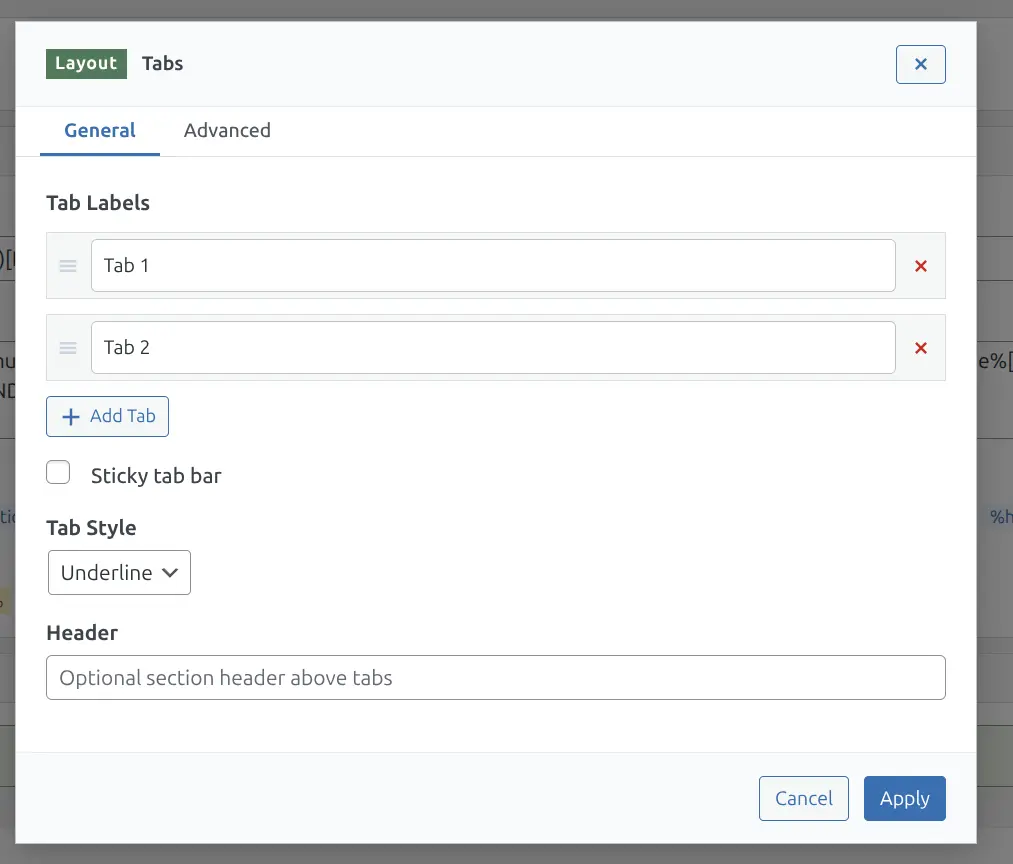
- Click the edit icon to name your tabs (e.g., “Stats”, “Game Log”, “Splits”)
- Drag blocks into each tab’s drop zone in the editor
Tab Settings
| Field | Description |
|---|---|
| Tab Labels | Name each tab. Drag to reorder. Click X to remove |
| Sticky tab bar | Keeps the tab bar visible when scrolling down the page |
| Tab Style | Underline (ESPN-style) or Pills (bordered buttons) |
| Header | Optional section header above the tabs |
All tab panels are rendered in the HTML (good for SEO) — only the active tab is visible. Tab selection is saved in the URL hash (e.g., #tab-stats) so links are shareable and browser back/forward works. Charts and tables inside tabs automatically resize when the tab becomes visible.
Block Nav
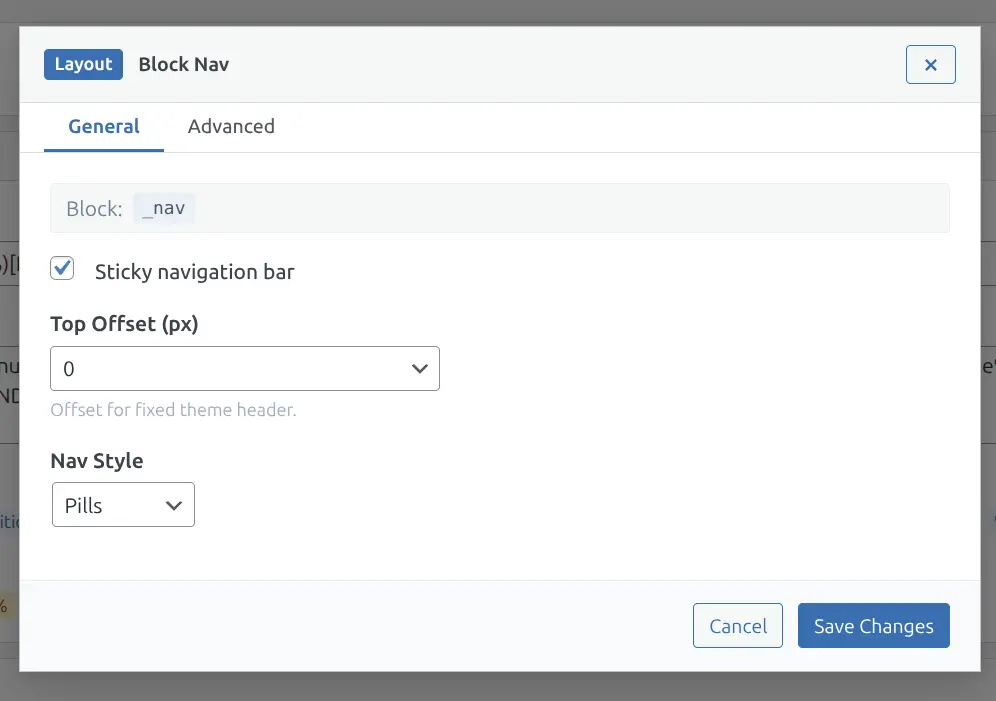
An auto-generated scroll navigation bar. It reads section headers from the blocks below it and creates clickable anchor links.
- Drag Block Nav from the palette (typically right after the page header)
- It automatically finds all blocks below it that have a section header set
- Clicking a link smooth-scrolls to that section
- The active section highlights as you scroll
| Setting | Description |
|---|---|
| Sticky navigation bar | Keeps the nav bar fixed at the top when scrolling |
| Top Offset | Pixel offset for fixed theme headers (e.g., 60px) |
| Nav Style | Pills (bordered buttons) or Underline |
Any block can be excluded from the nav by checking Hide from Block Nav in its Advanced settings.
Code Mode
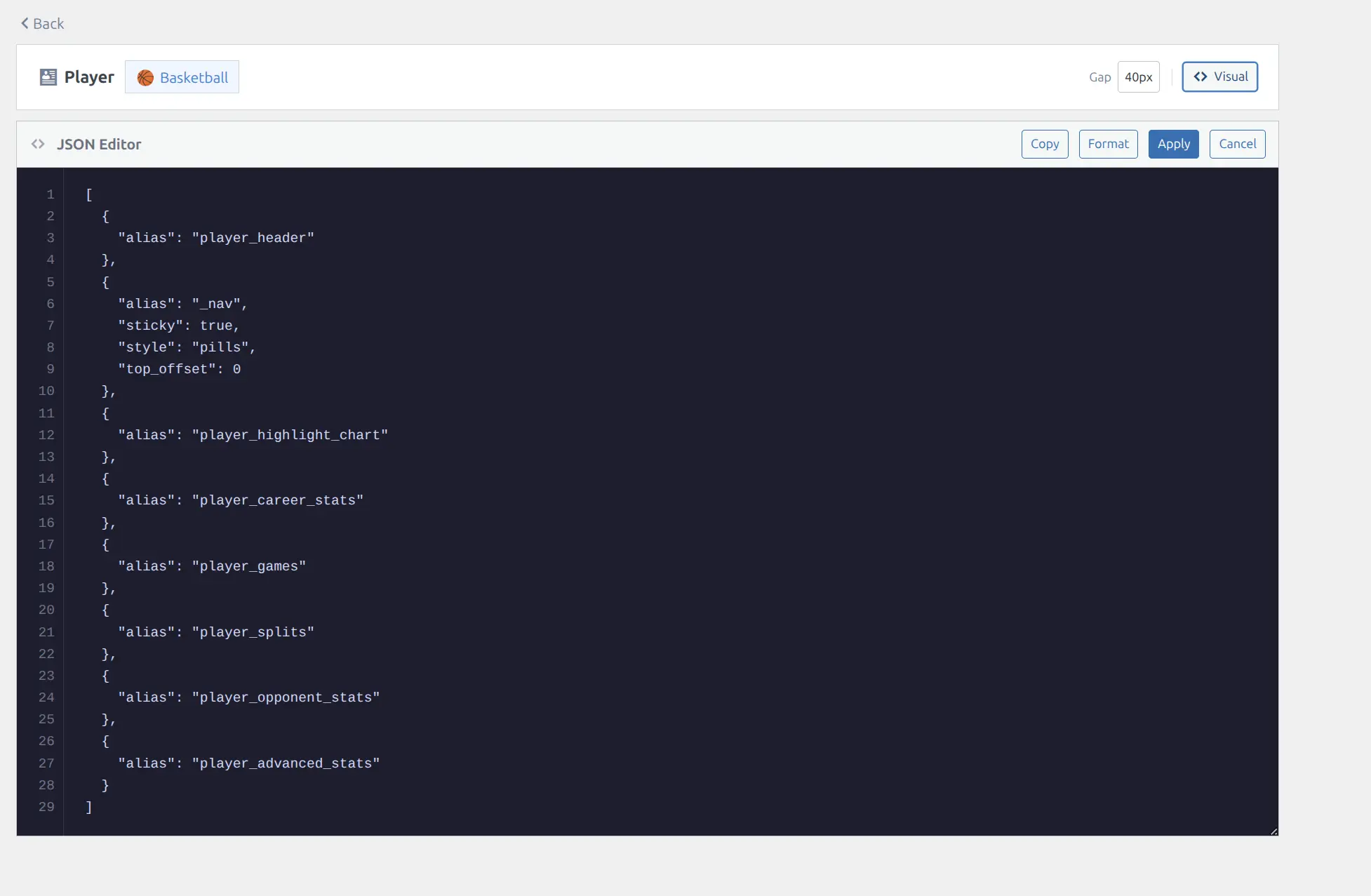
For advanced users, the editor includes a JSON code view. Click Code in the header bar to switch.
The code editor shows a compact JSON representation — default styling values are stripped out. A simple layout might look like:
[
  { "alias": "player_header" },
  { "alias": "_nav", "sticky": true, "style": "pills" },
  { "alias": "player_highlight_chart" },
  { "alias": "player_career_stats", "header": "Career Statistics" }
]
Actions: Copy JSON to clipboard, Format to auto-indent, Apply to validate and switch back to Visual mode, Cancel to discard changes.
You can paste minimal JSON from documentation or blog posts. Single block objects (without the array wrapper) are accepted too.
SEO
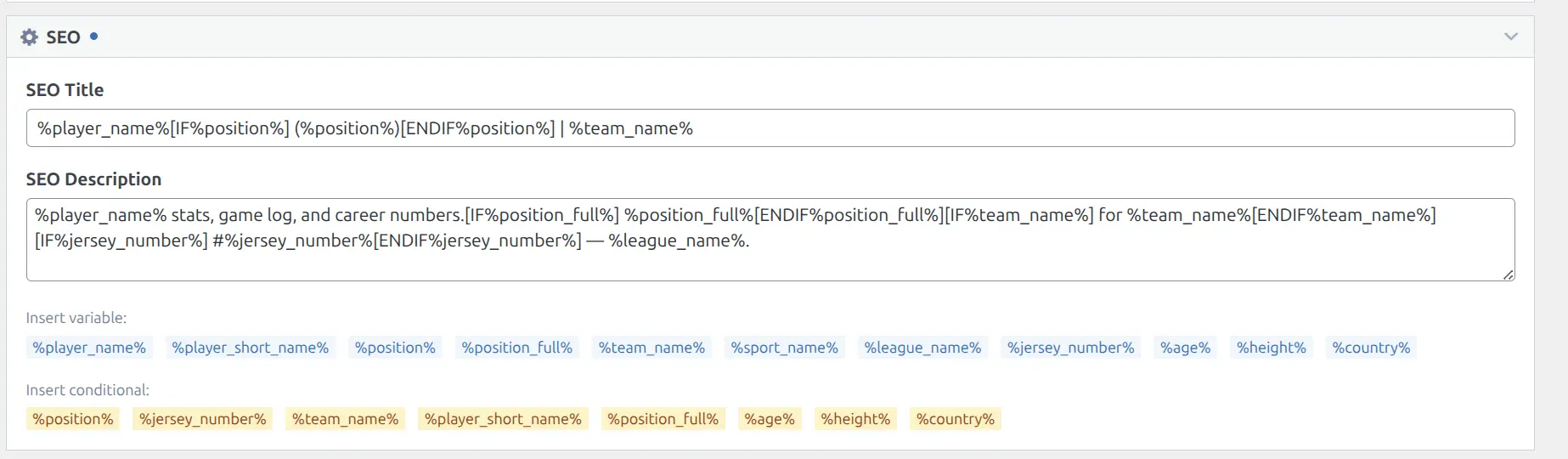
Each layout has optional SEO fields in a collapsible section below the header bar. A blue dot appears when SEO content is set.
SEO Title: Custom <title> tag for search engines. SEO Description: Custom meta description tag.
Dynamic Variables
Click a variable chip to insert it at the cursor position. Available variables depend on the entity type:
| Entity | Example Variables |
|---|---|
| Game | %home_team%, %away_team%, %league_name%, %date% |
| Team | %team_name%, %league_name%, %venue_name%, %manager_name% |
| Player | %player_name%, %team_name%, %position%, %jersey_number%, %age% |
| Season | %season_name%, %league_name%, %sport_name% |
Conditional Tags
Wrap text in conditional tags to include it only when a variable has a value:
%player_name%[IF%position%] (%position%)[ENDIF%position%] | %team_name%With position: Nikola Jokic (Center) | Denver Nuggets
Without position: Nikola Jokic | Denver Nuggets
Block Gap & Reset
The Gap setting in the editor header controls vertical spacing between all blocks. Presets: 0, 10, 20, 30, 40 (default), 50, 60px.
Reset to Default: Click “Reset to Default” in the editor header to restore the plugin’s built-in layout. The plugin automatically updates default (unmodified) layouts when the plugin is updated with new blocks. Modified layouts are never changed automatically.
💡 Tips
- Start with defaults — the pre-populated layouts work well out of the box
- Use Block Nav — adding a sticky Block Nav below the header gives your pages ESPN-style section navigation
- Row wrappers for side-by-side — want standings next to recent form? Use a Fixed Row with 50/50 split
- Code mode for sharing — export a layout as JSON, share it in a support thread, and others can paste it into their Code editor
- Game state layouts — game pages have 3 separate layouts (Upcoming, Live, Finished). Show different blocks for each — odds on upcoming, box scores on finished
📚 Related
- Game Pages — Available game blocks
- Team Pages — Available team blocks
- Player Pages — Available player blocks
- Season Pages — Available season blocks
- Shortcodes — Shortcode builder (also available inside layout blocks)
- Color Palette — Palette colors used in block color settings