

Sports API Hub includes built-in CSS classes that add sport icons to your WordPress navigation menu items. No shortcodes, plugins, or custom code needed — just add a CSS class to your menu item. The icons automatically match your menu text color.
Available Icons
| CSS Class | Sport |
|---|---|
menu-basketball | 🏀 Basketball |
menu-baseball | ⚾ Baseball |
menu-football | 🏈 American Football |
menu-hockey | 🏒 Ice Hockey |
menu-soccer | ⚽ Soccer / Football |
menu-tennis | 🎾 Tennis |
menu-volleyball | 🏐 Volleyball |
menu-cricket | 🏏 Cricket |
menu-handball | 🤾 Handball |
🚀 How to Set Up
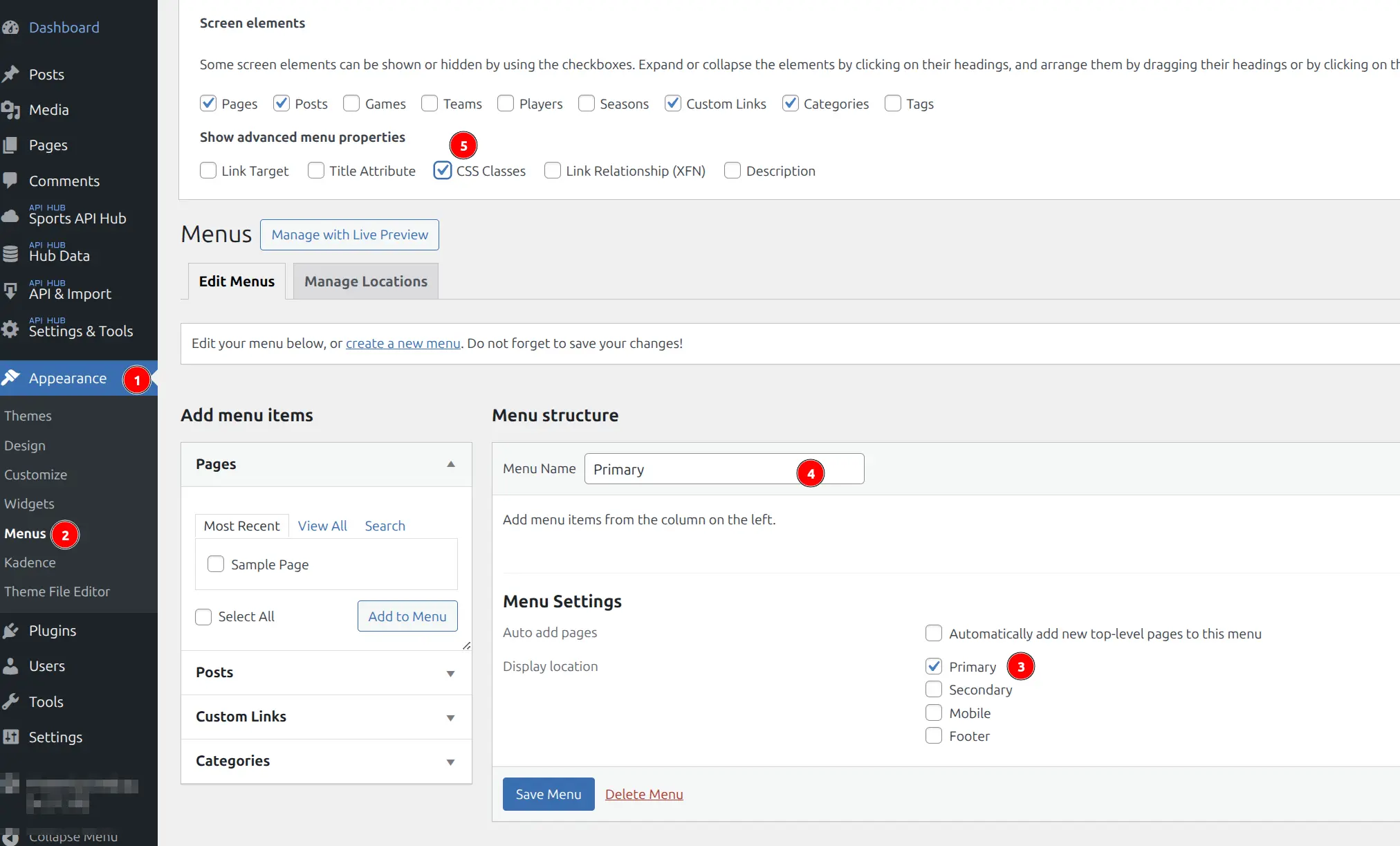
Step 1: Enable CSS Classes in the Menu Editor
- Go to Appearance → Menus in your WordPress admin
- Click Screen Options (top-right corner of the page)
- Check the CSS Classes checkbox
- The menu editor will now show a “CSS Classes” field for each menu item
Step 2: Add the Sport Class to a Menu Item
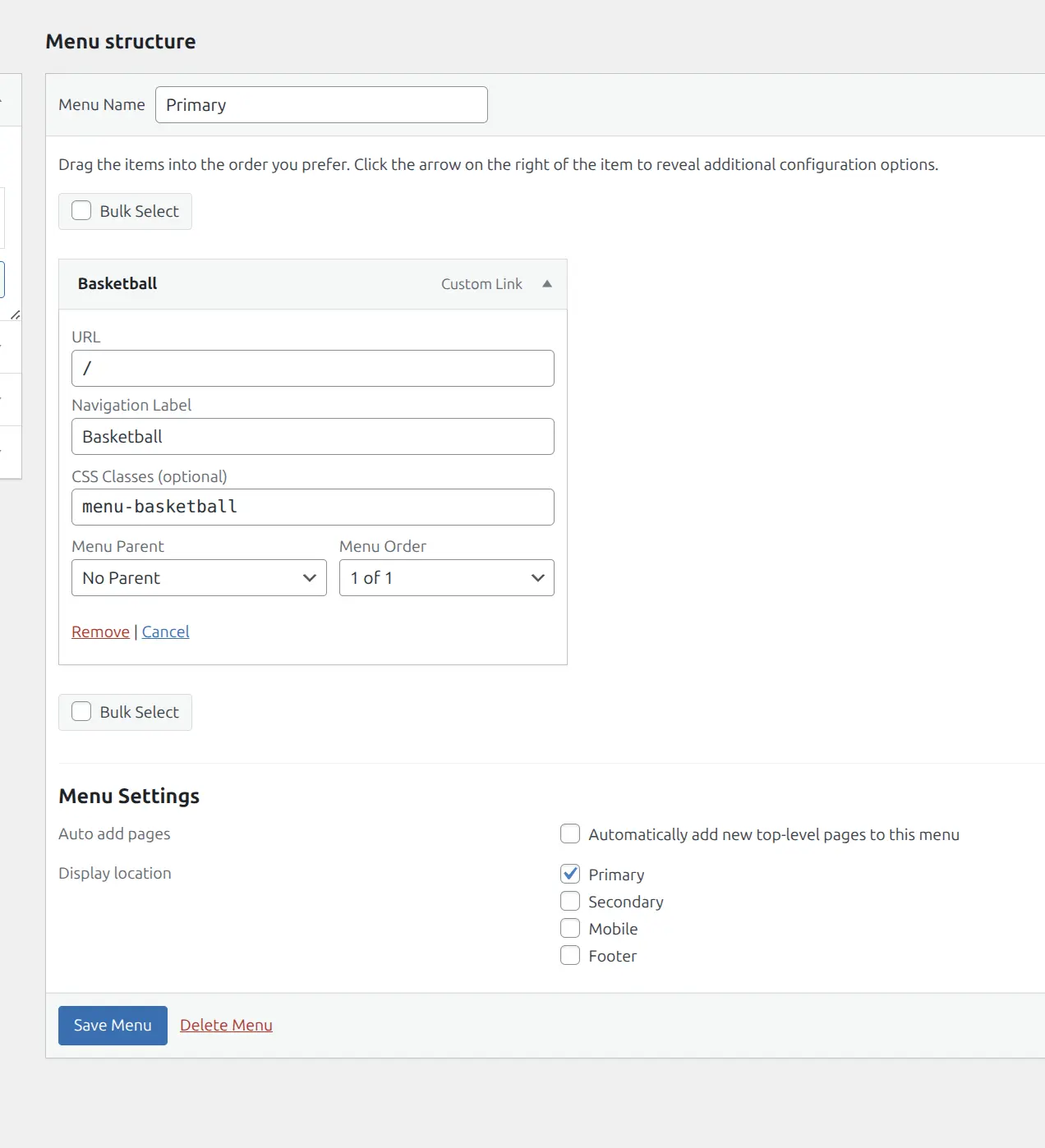
- Click the arrow on a menu item to expand it
- In the CSS Classes field, type the class name (e.g.,
menu-basketball) - Repeat for each sport menu item
- Click Save Menu
Result
Each menu item will display a sport icon before the text. The icons inherit the menu text color, so they adapt to your theme’s styling automatically — including hover and active states.
Tip
The icons use the Phosphor Icons Bold set — a clean, consistent icon family designed for UI use.
Customization
Icon Size
The default icon size is 22×22 pixels. To change the size, add custom CSS in Appearance → Customize → Additional CSS:
/* Make all sport icons smaller */
.menu-basketball > a::before,
.menu-baseball > a::before,
.menu-football > a::before,
.menu-hockey > a::before,
.menu-soccer > a::before,
.menu-tennis > a::before,
.menu-volleyball > a::before,
.menu-cricket > a::before,
.menu-handball > a::before {
    width: 18px;
    height: 18px;
}
Icon Spacing
To adjust the gap between the icon and text:
.menu-basketball > a::before {
    margin-right: 8px;
}
Icon Color
By default, icons use currentColor — inheriting the menu text color. To set a specific color for one sport:
.menu-basketball > a::before {
    background: #e65100;
}
🆘 Troubleshooting
Icons not showing?
- Make sure the CSS class is entered exactly as shown (lowercase, with the
menu-prefix) - Check that the Sports API Hub plugin is active — the icons are part of the plugin’s CSS
- Clear any page cache after making changes
Icons showing in desktop menu but not mobile?
The classes work on both desktop and mobile menus. If your theme uses a separate mobile menu, make sure the same classes are applied there too.
📚 Related
- CSS Customization — Design tokens, color palette variables, and BEM class reference