

Sports API Hub support works by email. Open Sports API Hub > Support in your WordPress admin, copy the support address, the subject line and your System Info, then send your question. It’s included for all licensed customers, and you’ll get a reply within 48 hours on business days.
Before Contacting Support
Many issues (404 errors, blank pages, missing logos, failed imports) already have a documented fix. Check these first:
- FAQ – answers to the most common questions
- Common Issues – step-by-step fixes for frequent problems
- API Errors – what each API error code means and how to resolve it
Submitting a Support Ticket
Navigate to Sports API Hub > Support in your WordPress admin. This page has everything you need to send a support request.
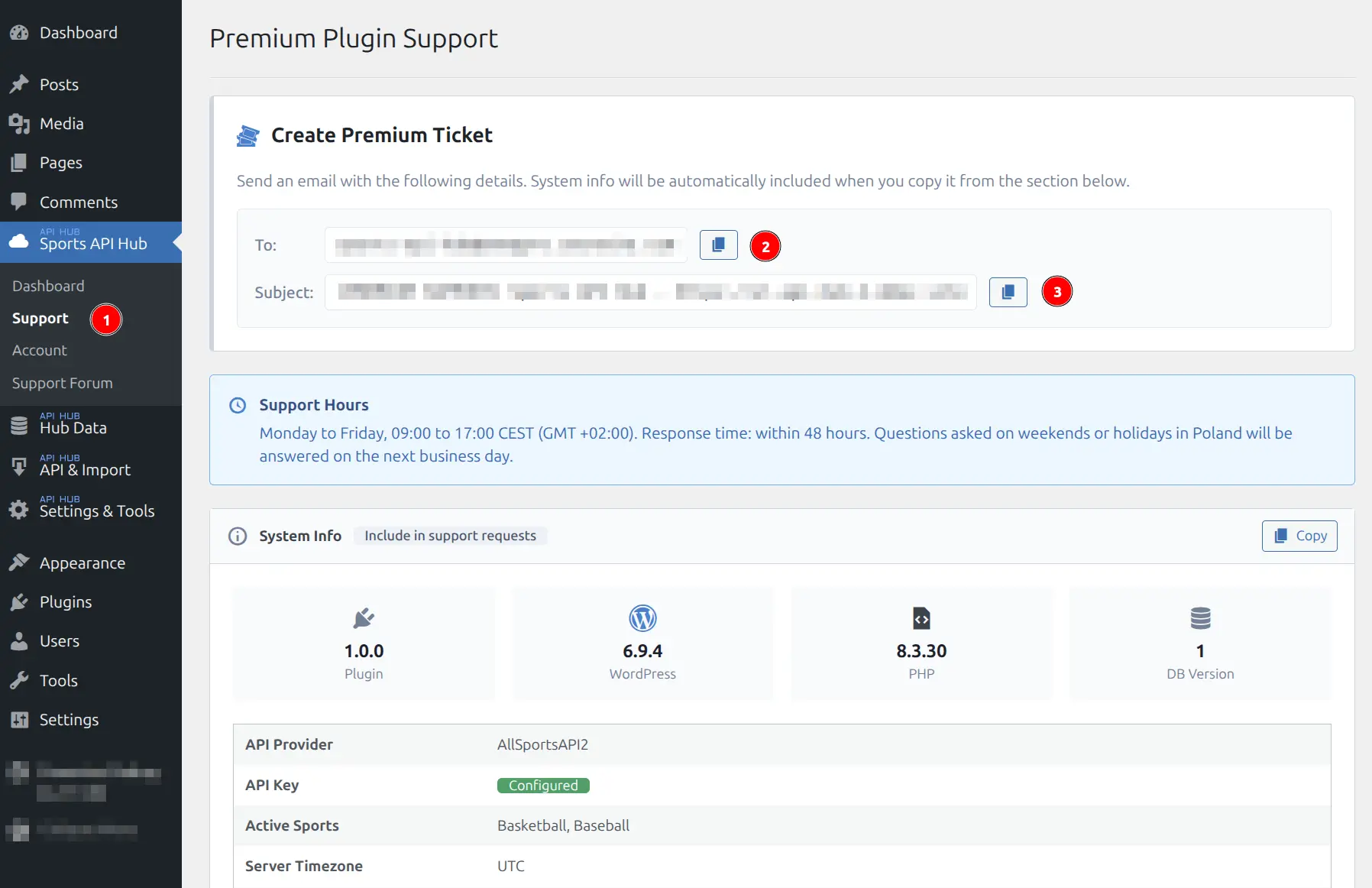
Step-by-Step
- Copy the To address — click the copy button next to the support email
- Copy the Subject line — pre-formatted with your site URL for faster identification
- Copy System Info — click Copy in the System Info section (this collects plugin version, WordPress/PHP versions, timezone, database info, and active plugins automatically)
- Open your email client — paste the To address, Subject, and System Info into a new email
- Describe your issue — write a clear description of the problem (see tips below)
- Send
What to Include in Your Ticket
| Item | Required? | Why It Helps |
|---|---|---|
| System Info | Yes | Auto-collected environment details for faster diagnosis |
| Error message | Yes | Exact text or screenshot of the error |
| License key (or last 4 characters) | Recommended | Identifies your account for license-specific issues |
| Steps to reproduce | Recommended | Helps recreate the issue on our end |
| URL where the issue occurs | Recommended | Lets us see the problem on your site directly |
| Expected vs. actual behavior | Helpful | “I expected 30 teams in the standings, but only 15 appear” |
| Screenshot | Helpful | Visual context, especially for UI-related problems |
Support Hours
| Day | Hours (CEST / GMT+2) |
|---|---|
| Monday – Friday | 09:00 – 17:00 |
| Weekends & Holidays | Next business day |
Response time: Within 48 hours on business days. Most tickets are answered within 24 hours.
For urgent issues such as a site-breaking bug, say so in the email subject line.
What Support Covers
- Bug reports – handled with priority
- Configuration help – plugin setup, API connection, import settings and display options
- API connection issues – failed API requests, authentication errors and rate limit problems
- Display and template questions – layout builder, shortcodes, CSS tokens and template overrides
- License and account issues – see the topics below
What Support Does Not Cover
- Custom development – custom templates, custom CSS written from scratch, or features the plugin doesn’t include
- Third-party plugin conflicts – we can give basic guidance, but deep debugging of other plugins is outside our scope
- API provider issues – RapidAPI billing, API downtime, incorrect data from the API source, or API plan upgrades. Manage these in your RapidAPI dashboard
🔑 License-Specific Support Topics
These are the most common license-related questions we handle:
Activation Problems
If your license key is not accepted during activation, double-check for extra spaces when pasting. If the problem persists, include your license key (or its last 4 characters) in the ticket so we can verify it on our end.
“Site Limit Reached” Error
Each license allows activation on up to 2 websites (localhost sites are unlimited). If you see this error, you may have the plugin activated on old sites you no longer use. You can deactivate unused sites from your account, or contact support to have them released.
License Transfer Between Sites
To move your license to a different site, deactivate it on the current site first, then activate on the new one. If you no longer have access to the old site, contact support with both the old and new site URLs.
Expired License
When a monthly license expires, plugin features are blocked until renewed. Annual and Lifetime licenses keep all features working but lose access to updates and support. Renew from your account at anwp.pro/my-account to restore full access.
Renewal Issues
If automatic renewal fails (expired card, payment declined), you will receive an email notification. Log in to your account to update payment details and manually renew.
🏠 Account Management
Your account at anwp.pro/my-account is the central place to manage your subscription:
- License keys — view and copy your active keys
- Site activations — see which sites are using your license
- Download history — download current and previous plugin versions
- Billing — update payment methods and view invoices
System Info
The System Info section on the Support page automatically collects technical details about your WordPress installation. This helps support diagnose issues without back-and-forth questions about your environment.
Information collected includes:
- Plugin version and database version
- WordPress version and PHP version
- Timezone and locale settings
- Database table status
- Active plugins list
- API configuration summary (provider, selected sports — no API keys are included)
Your API Key Is Never Shared
System Info does not include your RapidAPI key or any sensitive credentials. It only collects non-sensitive environment details needed for troubleshooting.
Tips for Faster Resolution
- Always include System Info — saves at least one round of back-and-forth
- Quote the exact error message — “License activation failed: Site limit reached” is better than “it didn’t work”
- Mention recent changes — “I just migrated from example.com to newsite.com” gives immediate context
- Include your license key (or last 4 characters) — lets us look up your account quickly
- One issue per ticket — easier to track and resolve
No WordPress.org Forum
Sports API Hub is a paid plugin, so it has no support forum on WordPress.org. All support goes through the email ticket described on this page.
Related
- Licensing & Updates — License overview, activation, migration, updates
- Troubleshooting — FAQ, common issues, API error solutions
- API Errors — API error code reference and solutions
- License Activation — Step-by-step activation guide
- Invoices — Download receipts and tax documentation