

The plugin uses a multi-layer caching strategy to minimize API calls and deliver fast page loads. Caching is largely automatic — most users don’t need to configure anything beyond enabling a persistent object cache.
Admin Menu: Settings & Tools > Settings (Caching section)
⚡ Cache Layers
1. Object Cache (Primary)
The plugin stores computed data (game cards, team pages, standings) in the WordPress object cache. This is the main performance layer.
- Requires: A persistent object cache plugin (Redis or Memcached)
- Without object cache: Data is recomputed on each page load — still functional, just slower
- Cache groups: Organized by entity type (
anwphub-game-*,anwphub-team-*,anwphub-season-*, etc.)
Recommended
Install Redis or Memcached for the best performance. Most managed WordPress hosts (Cloudways, GridPane, SpinupWP) include Redis. Check with your host if unsure.
2. Aggregate Stats Cache (Database)
Pre-computed statistics from the API (season averages, league rankings, advanced metrics) are stored in a dedicated database table — not in the object cache.
Why a separate table? Unlike object cache data, aggregate stats:
- Survive
wp cache flushand server restarts - Survive API downtime (stale data is always preserved)
- Are expensive to re-fetch (each type costs an API call)
Stale-while-revalidate: When cached data is past its TTL, the plugin serves the cached version instantly and refreshes in the background. Visitors see data immediately, and it updates silently.
| Season State | Refresh Interval | Example |
|---|---|---|
| Active (in-progress) | Configurable (1-6 hours) | NBA 2025/26 during season |
| Finished (recent) | Weekly | MLB 2025 just ended |
| Archived (past year) | Monthly | NBA 2024/25 |
3. Page Cache Support
If you use a page caching plugin (WP Super Cache, W3 Total Cache, LiteSpeed Cache, WP Rocket, etc.), the plugin can flush relevant cached pages when data updates. Supports 20+ caching plugins.
4. CDN / Browser Cache
REST API responses use immutable URLs with cache hashes, enabling aggressive browser and CDN caching. The hash changes when data is updated, so CDNs automatically serve fresh content.
🌐 Cache REST API with Cloudflare
The plugin loads dynamic content (live scores, standings, player stats, game cards) via the WordPress REST API. Cloudflare can cache these REST API responses at the edge, so visitors worldwide get near-instant responses without hitting your server.
Before Getting Started
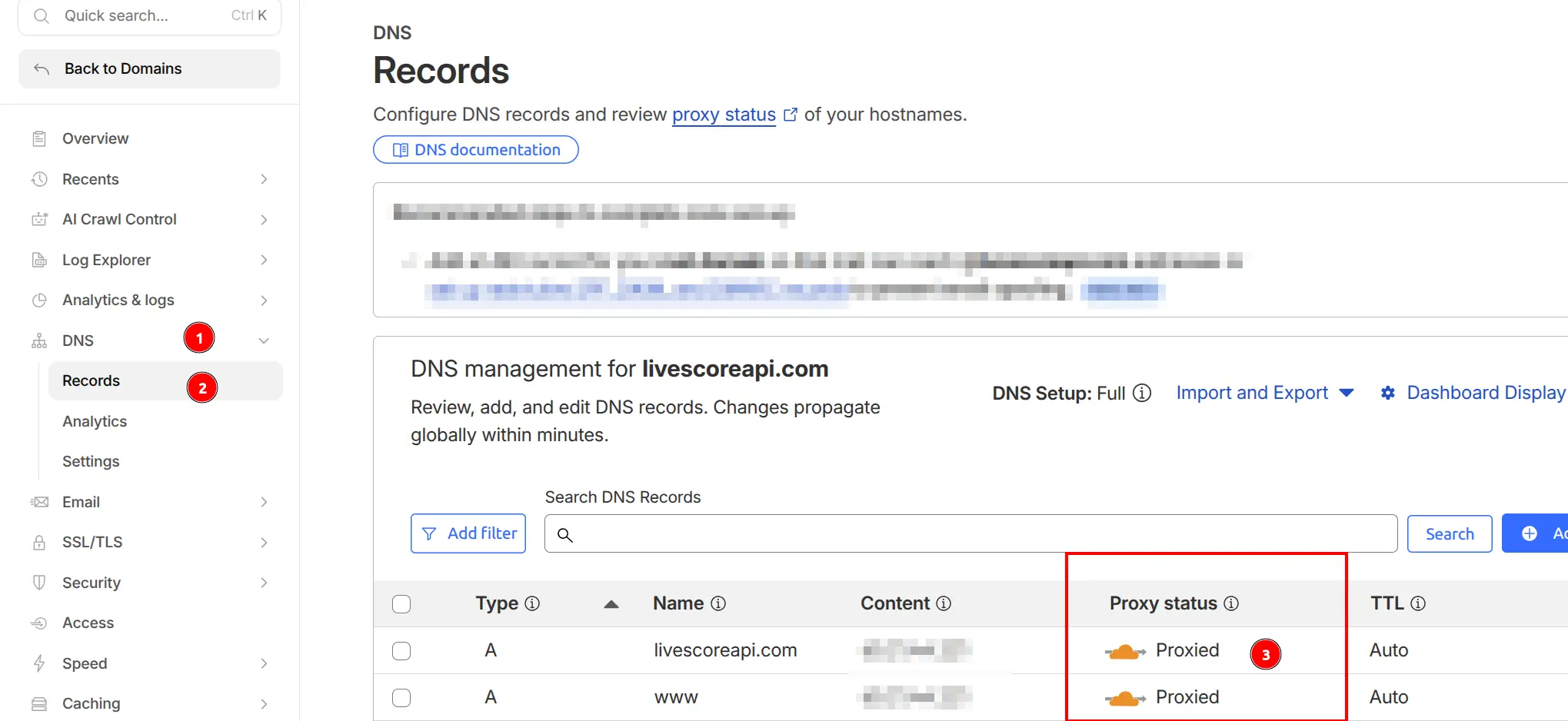
- Your domain must be proxied through Cloudflare (check DNS Records — “Proxy status” should show the orange cloud icon)
- Cloudflare’s free plan allows up to 3 Page Rules per domain
Go to DNS > Records in the Cloudflare dashboard and verify that your domain’s A record shows Proxied status (orange cloud icon):
Create Page Rule
- In the Cloudflare dashboard, navigate to Rules > Page Rules in the sidebar
- Click Create Page Rule
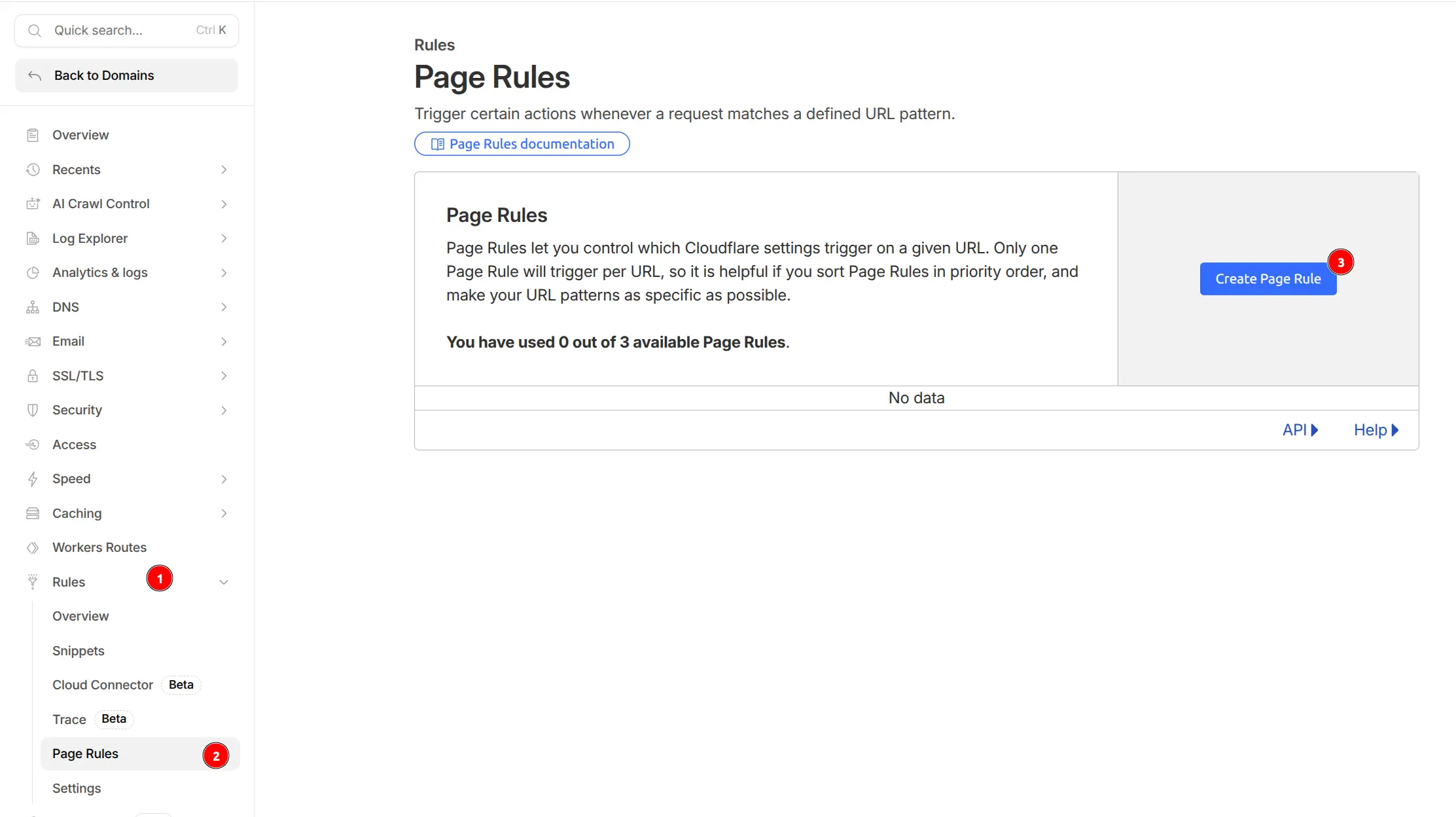
- Enter the URL pattern:
*yourdomain.com/wp-json/anwphub/*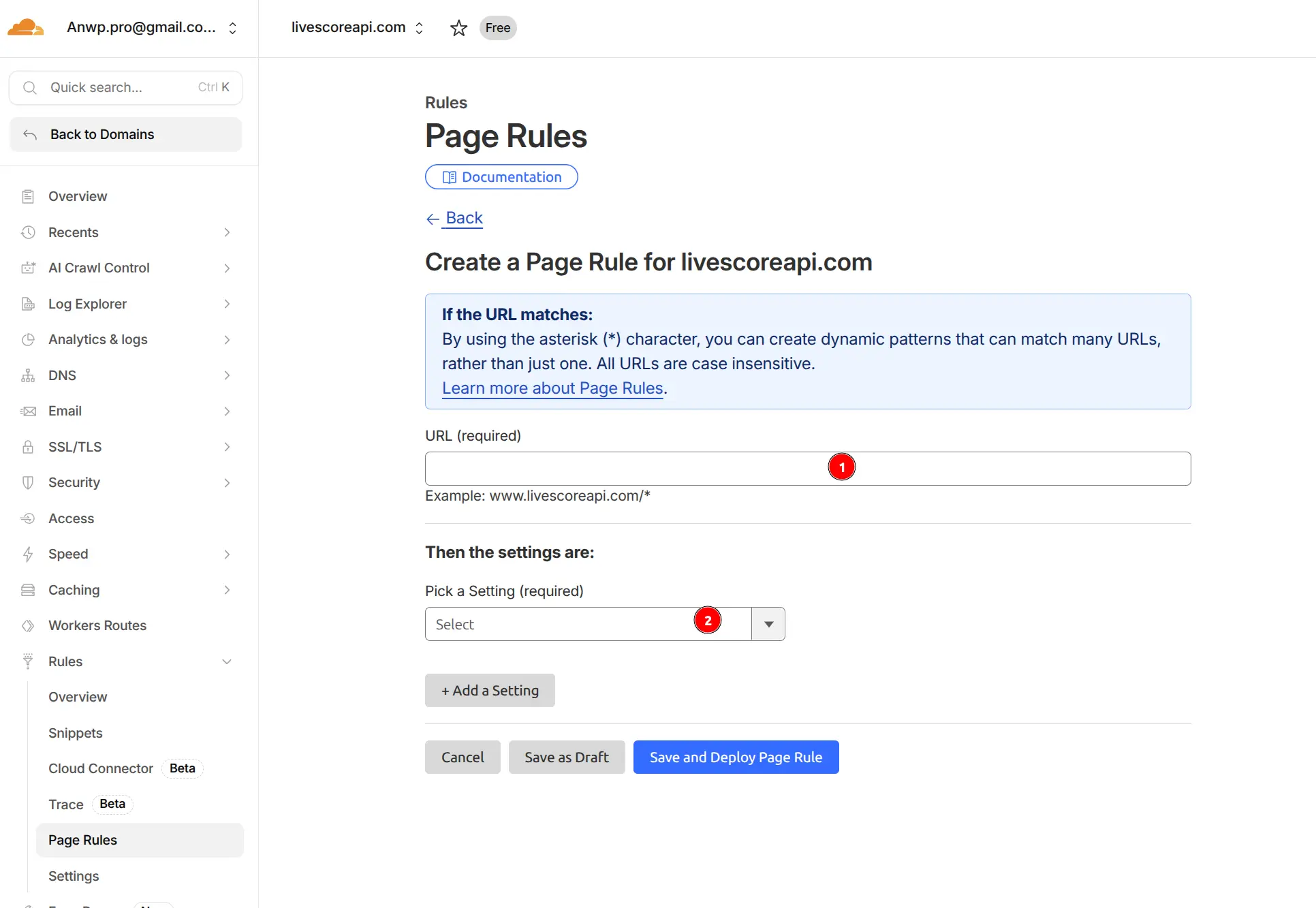
- Add the following settings (use + Add a Setting to add each one):
- Browser Cache TTL: 30 minutes
- Cache Level: Cache Everything
- Edge Cache TTL: 2 hours
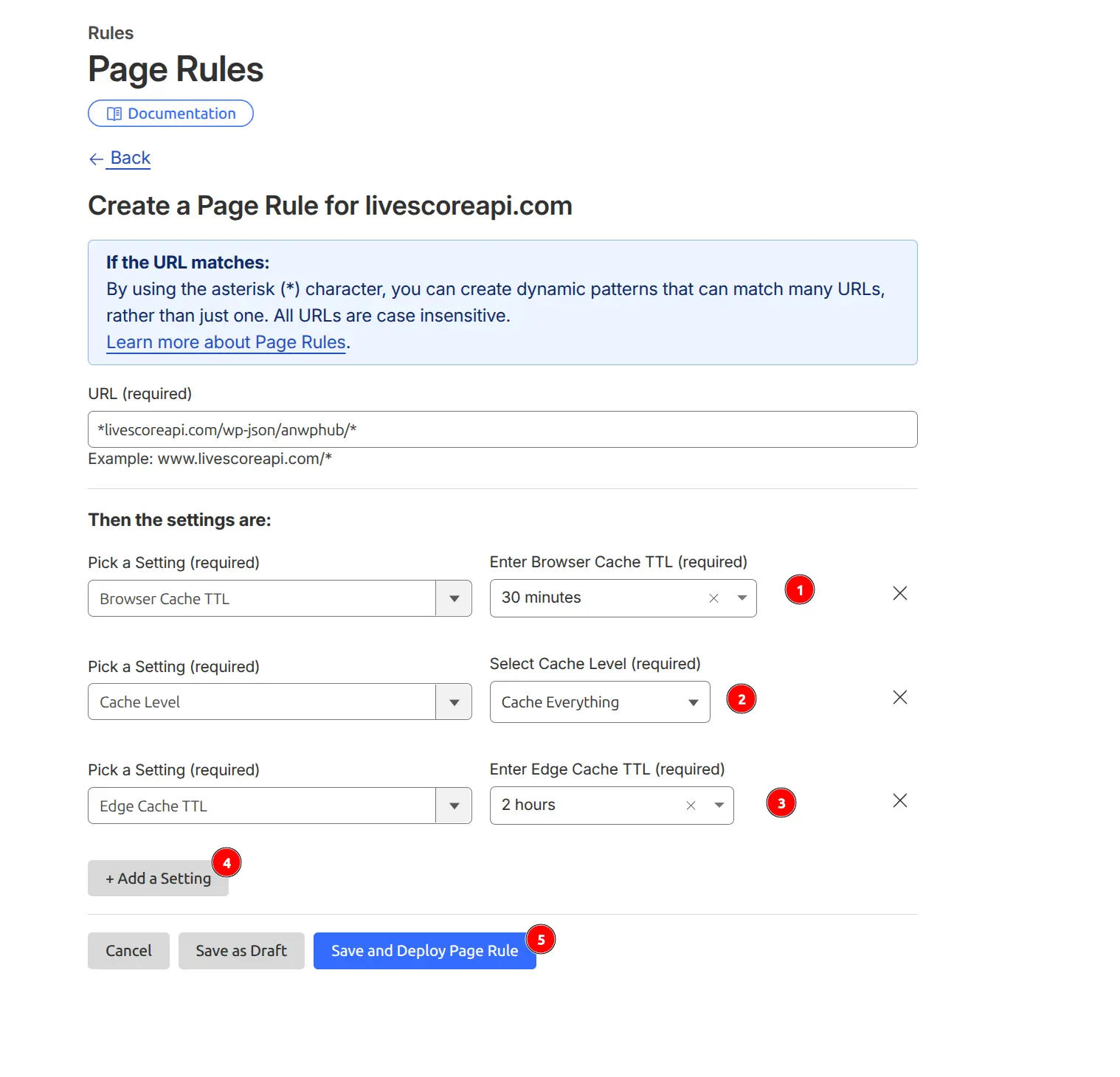
- Click Save and Deploy Page Rule
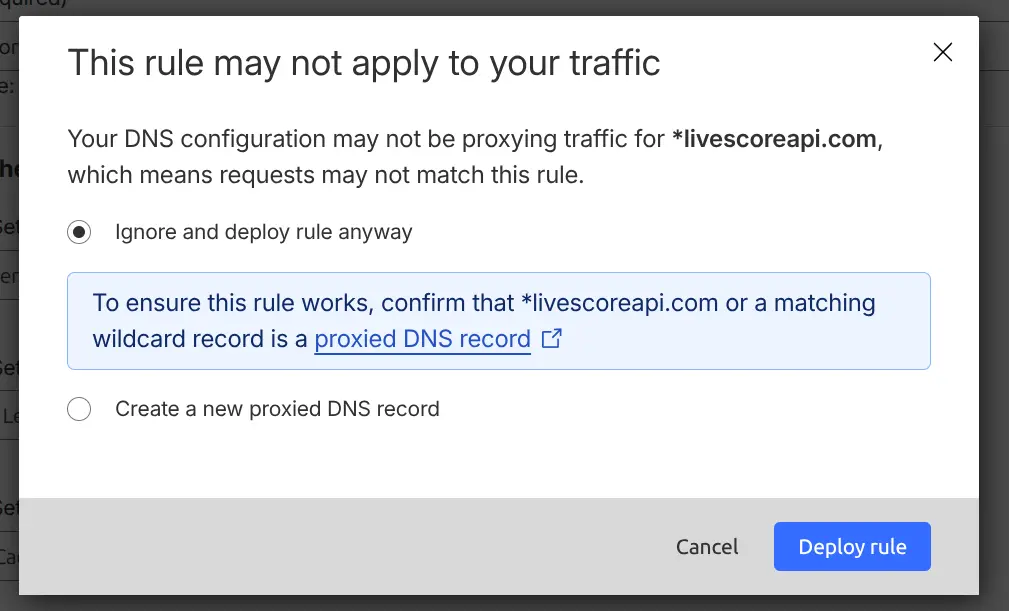
If you see a warning about “This rule may not apply to your traffic” — this is normal for wildcard URL patterns. Select “Ignore and deploy rule anyway” and click Deploy rule.
How It Works
The plugin uses time-bucketed URLs for all REST API requests. Instead of requesting the same URL repeatedly, it appends a time-based parameter that changes at regular intervals:
/wp-json/anwphub/v1/calendar-games?date=2026-03-24&_t=56284The _t parameter changes every few minutes (depending on the content type), so:
- Within a time window: All visitors hit the Cloudflare cache (fast, no server load)
- At the boundary: The first request fetches fresh data, Cloudflare caches it again
| Content Type | Cache Window |
|---|---|
| Live scores | 30 seconds |
| Game cards, calendars, player stats | 5 minutes |
| Aggregate stats (season averages, rankings) | 1–6 hours |
This means live scores stay near real-time while static data benefits from long cache periods — all automatically.
Verify It Works
- Open your site with game or player pages loaded
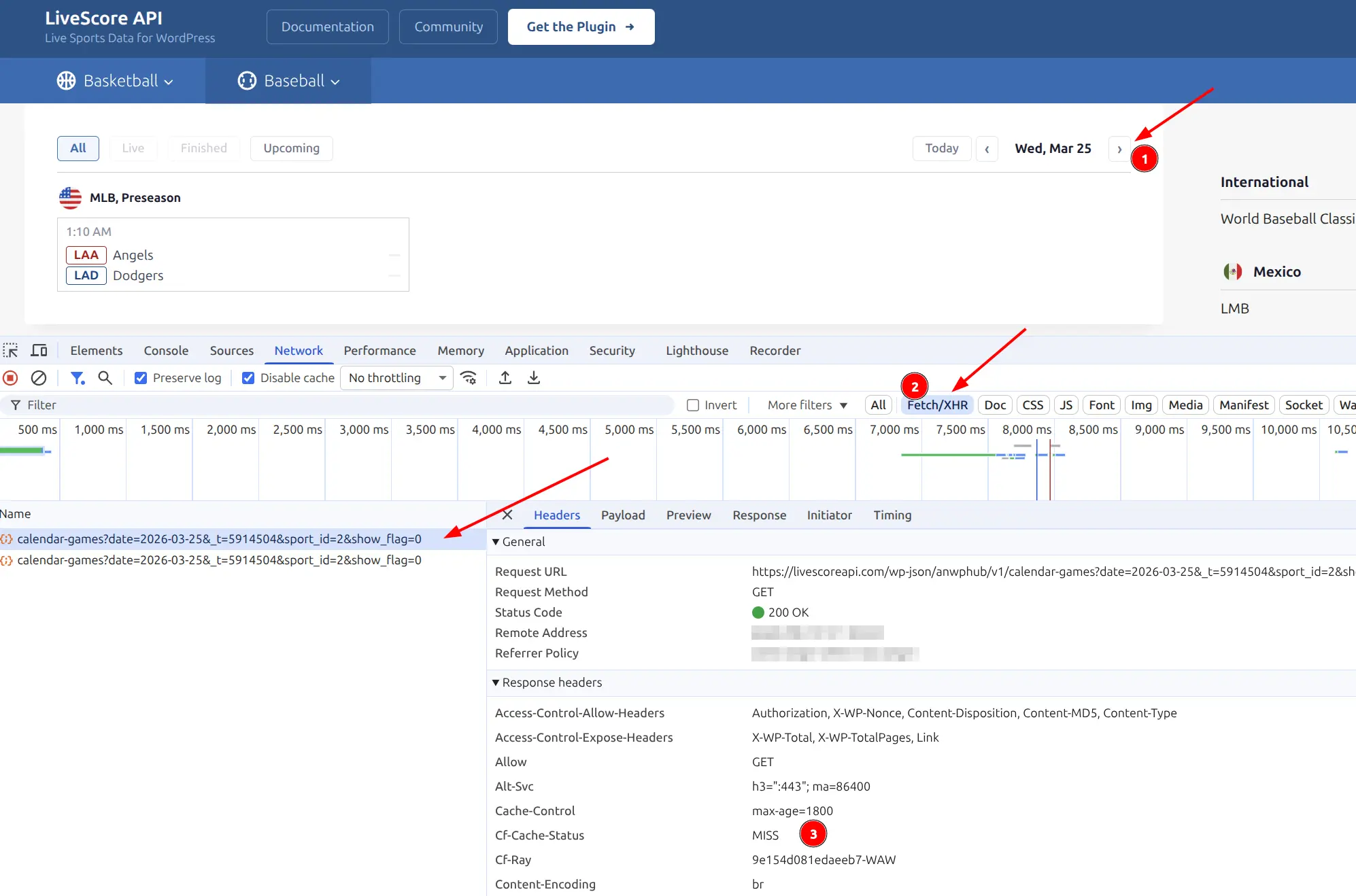
- Open browser DevTools (F12) → Network tab
- Filter by Fetch/XHR
- Click any REST API request (URLs containing
/wp-json/anwphub/) - Check the Response Headers for
Cf-Cache-Status
The first request will show MISS — the server responds and Cloudflare stores the result:
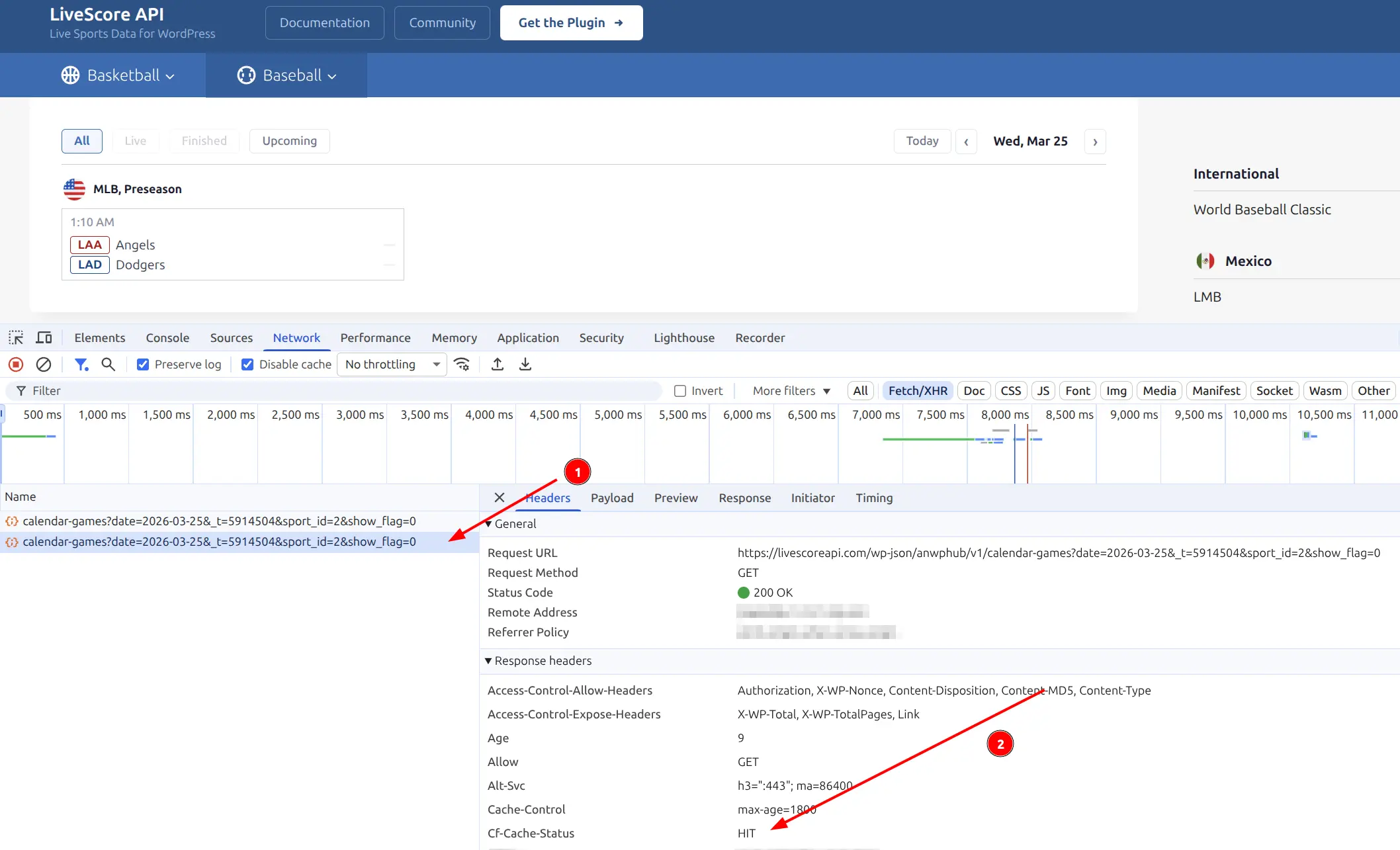
Reload the page. The same request now shows HIT — served directly from Cloudflare’s edge, no server load:
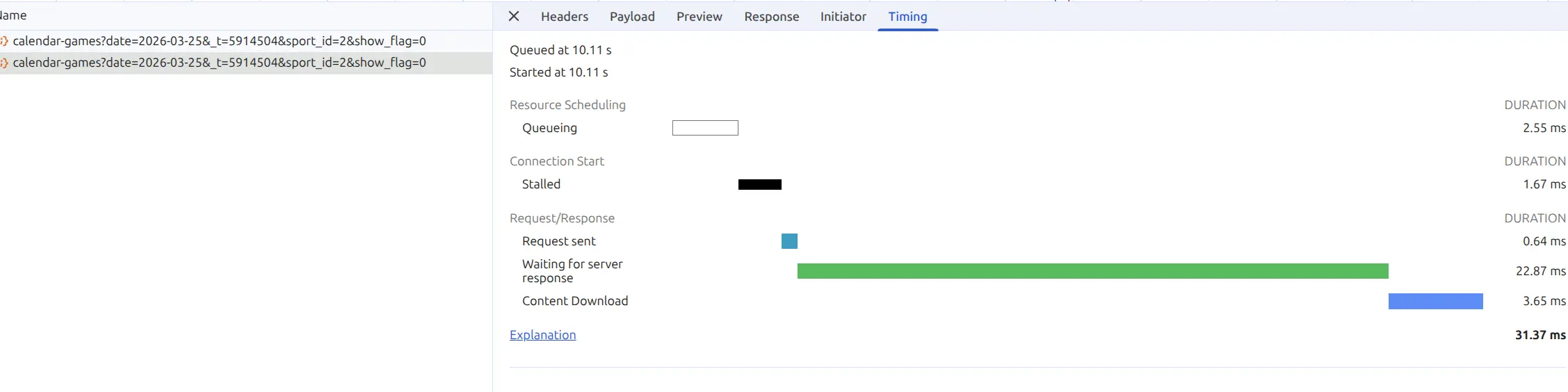
Check the Timing tab to see the speed difference — cached responses arrive in milliseconds:
| Status | Meaning |
|---|---|
HIT | Served from Cloudflare edge cache (fast) |
MISS | Fetched from your server (first request or new time window) |
EXPIRED | Was cached but expired, fetching fresh |
DYNAMIC | Not cached — check your Page Rule setup |
No Plugin Configuration Needed
The cache-busting URLs are built into the plugin — just set up the Cloudflare Page Rule. Live scores use short time windows (30s), so they update promptly even with edge caching. When you import new data or live scores change, the cache hash updates and Cloudflare serves fresh content automatically.
🔧 Cache Settings
Located in Settings & Tools > Settings under the Caching section.
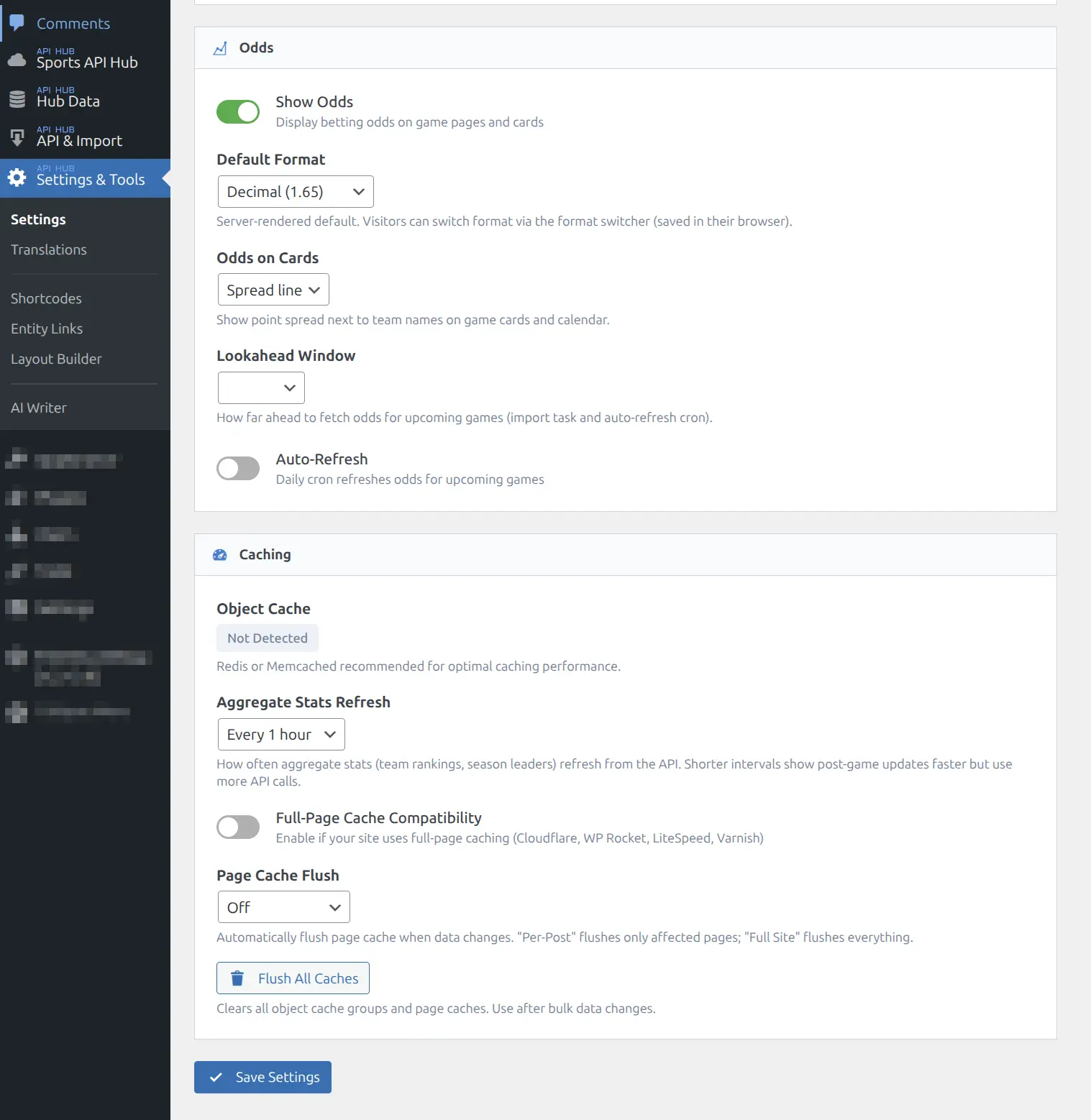
| Setting | Options | Default | Description |
|---|---|---|---|
| Object Cache | Not Detected / Redis / Memcached | — | Read-only status indicator |
| Aggregate Stats Refresh | Every 1 / 2 / 4 / 6 hours | Every 1 hour | How often aggregate stats refresh from the API |
| Full-Page Cache Compatibility | On / Off | Off | Enable if your site uses full-page caching |
| Page Cache Flush | Off / Per-Page / Full Site | Off | Automatically flush page cache when data changes |
| Flush All Caches | Button | — | Manually clear all plugin caches |
Full-Page Cache Compatibility
Enable this if your site uses a full-page caching plugin or CDN. When enabled, the plugin uses a two-request pattern: the first request fetches a content hash, the second fetches actual data only if the hash has changed. This prevents stale content on cached pages.
Page Cache Flush
| Level | Behavior |
|---|---|
| Off | No page cache integration |
| Per-Page | Flushes only affected pages when data changes |
| Full Site | Flushes the entire page cache on any data change |
Choose “Per-Page” for the best balance of freshness and performance. Use “Full Site” only if per-page flushing doesn’t work with your caching plugin.
Cache Invalidation
Cache is automatically flushed when:
- New games are imported or updated
- Live scores change
- Background sync updates data
- Standings or rosters are refreshed
Note
Aggregate stats (season rankings, team averages) are stored separately and are not cleared by the Flush All Caches button. They refresh on their own schedule based on the Aggregate Stats Refresh setting.
Manual flush: Go to Settings & Tools > Settings > Caching section and click Flush All Caches. Use this after bulk imports or if you notice stale data on the frontend.
📚 Related
- Plugin Settings — Parent settings page with Display, Odds, Rating, and Palette sections
- API Usage — Rate limits and API call costs
- Leagues & Seasons — Aggregate stats per season