

Background Sync keeps your imported data current automatically using WordPress Cron. Instead of manually running import tasks, the plugin periodically checks for new games, updated scores, roster changes, standings updates, and more — all in the background.
Admin Menu: API & Import > API Config > Background Sync section
🔄 Enabling Background Sync
- Go to API & Import > API Config
- Scroll to the Background Sync section
- Toggle Enable Background Sync to On
- Configure individual task toggles and intervals
- Click Save Settings
When enabled, a master cron event is scheduled that dispatches individual sync tasks based on their configured intervals. Each task can be enabled or disabled independently, and each has its own interval dropdown.
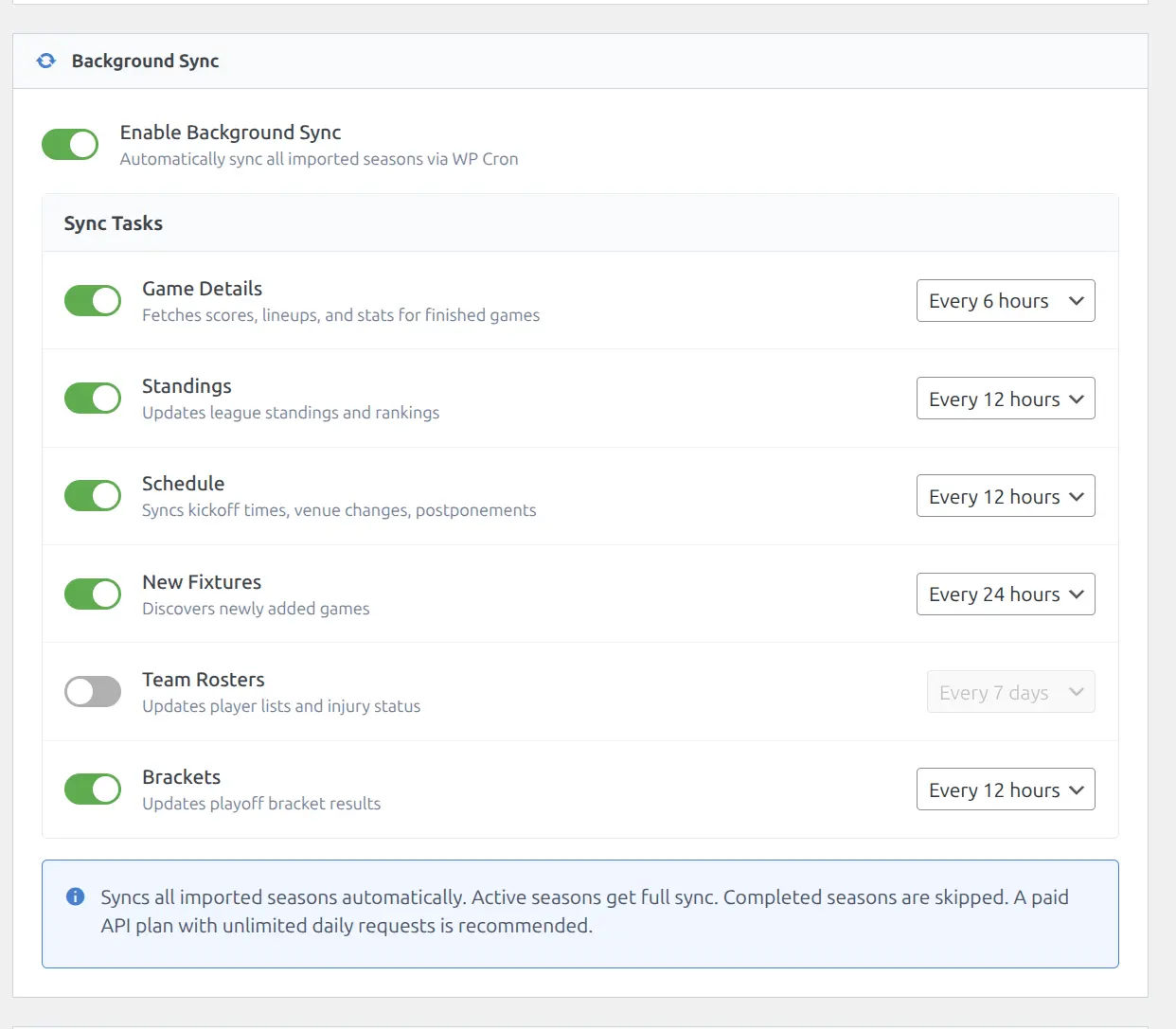
📋 Sync Tasks
Six core sync tasks run on configurable intervals. Two additional tasks (Highlights and Odds) run on a daily schedule with their own settings.
Core Sync Tasks
| Task | Interval Options | Default | What It Does |
|---|---|---|---|
| Game Details | 4h / 6h / 12h | 6h | Fetches scores, lineups, and stats for finished games |
| Standings | 6h / 12h / 24h | 12h | Updates league standings and rankings |
| Schedule | 6h / 12h / 24h | 12h | Syncs kickoff times, venue changes, postponements |
| New Fixtures | 12h / 24h / 48h | 24h | Discovers newly added games (playoffs, added matchdays) |
| Team Rosters | 3d / 7d / 14d | 7 days | Updates player lists and injury status |
| Brackets | 6h / 12h / 24h | 12h | Updates playoff bracket results |
Highlights (Daily)
Located in the Highlights section on the same API Config page (below Background Sync). When the Auto-Fetch Highlights toggle is enabled, a daily cron job searches for YouTube highlight videos for recently finished games.
- Lookback window: 3, 5, or 7 days (configurable) — how far back to search for games needing highlights
- Batch size: Up to 10 games per cron run
- Highlights typically appear on YouTube 24-48 hours after a game ends
- The plugin validates video availability before saving — dead or removed videos are automatically skipped
Odds (Daily)
When Auto-Refresh Odds is enabled in Plugin Settings, a daily cron job fetches betting odds for upcoming games.
- Pace: 1 date per sport per cron run
- Staleness threshold: 6 hours — dates already fetched within 6 hours are skipped
- Lookahead window: Configurable (7, 14, 21, or 28 days ahead)
- Covers all leagues on each date, not just your imported seasons
Task Details
Game Details is typically the most important sync task. It picks up games that have finished since the last sync run and imports their full statistics — box scores, play-by-play, and team stats. This is the same process as running the Finished Details import task manually, but automated.
Standings should run at least daily during an active season. Standings data powers the standings blocks on team and season pages.
Schedule catches postponements, venue changes, and time adjustments. Important if you display upcoming game schedules or fixtures.
New Fixtures discovers newly scheduled games. Most useful during playoff season when matchups are determined by results.
Team Rosters tracks trades, free agent signings, and injury list changes. Can run less frequently (3-14 days) since roster changes are less time-sensitive.
Brackets only matters for leagues with knockout/playoff brackets. Can be disabled entirely for regular-season-only leagues.
How It Works
Master/Chain Pattern
Background Sync uses a master/chain execution pattern:
- A master cron event fires periodically (hourly)
- The master checks each task’s last run time against its configured interval
- Tasks that are due are dispatched immediately
- Each task runs independently — if one fails, others still execute
- Within each task, batches are chained with 30-second delays to prevent API rate limit issues
Smart Season Filtering
Sync tasks do not blindly process every season in your database. The system uses smart filtering:
- Only processes seasons that have been imported (not just discovered via the hierarchy step)
- Only processes seasons that have the required capabilities — for example, Standings sync only runs for seasons where standings data is available
- Completed or archived seasons are automatically skipped
This means seasons you imported in previous years will not generate unnecessary API calls.
🕒 Recommended Configuration
Active Season (Games Being Played)
| Task | Recommended Interval |
|---|---|
| Game Details | 4–6 hours |
| Standings | 6–12 hours |
| Schedule | 6–12 hours |
| New Fixtures | 12–24 hours |
| Team Rosters | 3–7 days |
| Brackets | 6–12 hours (if applicable) |
| Highlights | Enabled, 3-day lookback |
| Odds | Enabled, 7-day lookahead |
Off-Season
During the off-season, you can either disable Background Sync entirely or keep only the tasks that matter:
| Task | Recommendation |
|---|---|
| Team Rosters | 7–14 days (track off-season moves) |
| New Fixtures | 24–48 hours (catch schedule releases) |
| All others | Disabled |
WordPress Cron Limitation
WordPress Cron is not a real cron system. It is triggered by site visits — when someone loads a page on your site, WordPress checks if any scheduled events are due and runs them.
The problem: If your site has low traffic, scheduled tasks may run late or be skipped entirely.
Important
For reliable sync timing, set up a server-side cron job. This is especially important for live scores and game details — without real cron, updates may be delayed by hours on low-traffic sites.
Setting Up Server-Side Cron
- Disable WordPress’s built-in cron by adding this to
wp-config.php:
define( 'DISABLE_WP_CRON', true );- Set up a server cron job (via cPanel, Plesk, or SSH):
* * * * * wget -q -O /dev/null https://your-site.com/wp-cron.phpThis triggers wp-cron.php every minute. This is required if you use Live Scores — the live polling pipeline needs to fire every 30-120 seconds. Even for background sync alone, every minute ensures tasks execute promptly.
Tip
Most managed WordPress hosts (Cloudways, Kinsta, WP Engine, GridPane) handle server-side cron automatically. Check your hosting documentation before setting it up manually.
API Usage Impact
Background Sync consumes API calls from your RapidAPI quota. The number of calls depends on which tasks run and how much data you have imported.
| Task | API Calls Per Run | Notes |
|---|---|---|
| Game Details | 2–5 per game | Depends on sub-options (lineups, team stats, incidents, highlights) |
| Standings | 1 per season | Single call per active season |
| Schedule | 1 per page per season | Checks upcoming game pages |
| New Fixtures | 1 per page per season | Similar to Schedule |
| Team Rosters | 1 per team | One call per team in active seasons |
| Brackets | 1 per season | Single call per season with bracket data |
| Highlights | 1 per game | Up to 10 games per daily run |
| Odds | 1 per date | 1 date per sport per daily run |
Example: A site tracking 2 active basketball seasons with ~15 games finishing per day would use roughly 30–75 API calls for Game Details alone per sync cycle. Add standings, schedule, and other tasks for an additional 10–20 calls per cycle.
A paid RapidAPI plan with unlimited daily requests is recommended for sites using Background Sync. The sub-options in API Config (lineups, team stats, incidents, highlights) let you control how many calls each finished game consumes.
Troubleshooting
Sync Is Not Running
- Background Sync disabled — Check API & Import > API Config and verify the master toggle is on
- WP Cron disabled without server cron — If
DISABLE_WP_CRONis set inwp-config.phpbut no server cron is configured, no scheduled events will fire - Low site traffic — WordPress Cron requires page visits to trigger. Set up server-side cron (see above)
- API key invalid or expired — Verify your API key is active in your RapidAPI dashboard
- Rate limit reached — If your daily API quota is exhausted, sync tasks will fail silently until the quota resets
Data Not Updating on the Frontend
- Page cache serving stale content — If you use a page caching plugin, enable Page Cache Flush in Settings > Caching so pages refresh when data changes
- Object cache stale — The plugin automatically flushes relevant caches after sync. If data still appears old, try the Flush All Caches button in Plugin Settings
- CDN caching — If you use Cloudflare or another CDN, cached REST API responses may take time to expire. The plugin uses cache-busting hashes, but edge cache TTL overrides can delay updates
Inspecting Cron Events
Install the free WP Crontrol plugin to inspect scheduled events. Look for these cron hooks:
| Hook Name | Task |
|---|---|
anwphub_sync_finished | Game Details |
anwphub_sync_standings | Standings |
anwphub_sync_kickoff | Schedule |
anwphub_sync_fixtures | New Fixtures |
anwphub_sync_rosters | Team Rosters |
anwphub_sync_cuptrees | Brackets |
anwphub_sync_highlights | Highlights |
anwphub_sync_odds | Odds |
If a hook is missing from the schedule, Background Sync may have been disabled and re-enabled — save the settings again to re-register the cron events.
Related
- Import Workflow — Manual import as an alternative to Background Sync
- Import Tasks — What each import/sync task does in detail
- Live Scores — Real-time score updates during active games (separate from sync)
- API Config — Full settings reference for the Background Sync section
- API Usage — Rate limits and API call cost estimation
- Caching — How the plugin caches data and flushes on sync