

Add custom call-to-action buttons to your game pages — ticket links, streaming buttons, sponsor CTAs, and more. Create reusable button templates, then assign them to individual games with unique URLs.
🎯 Overview
Advanced Buttons work in two steps:
- Create button templates in Settings (define appearance and placement)
- Assign buttons to games on each game’s edit screen (set URLs per game)
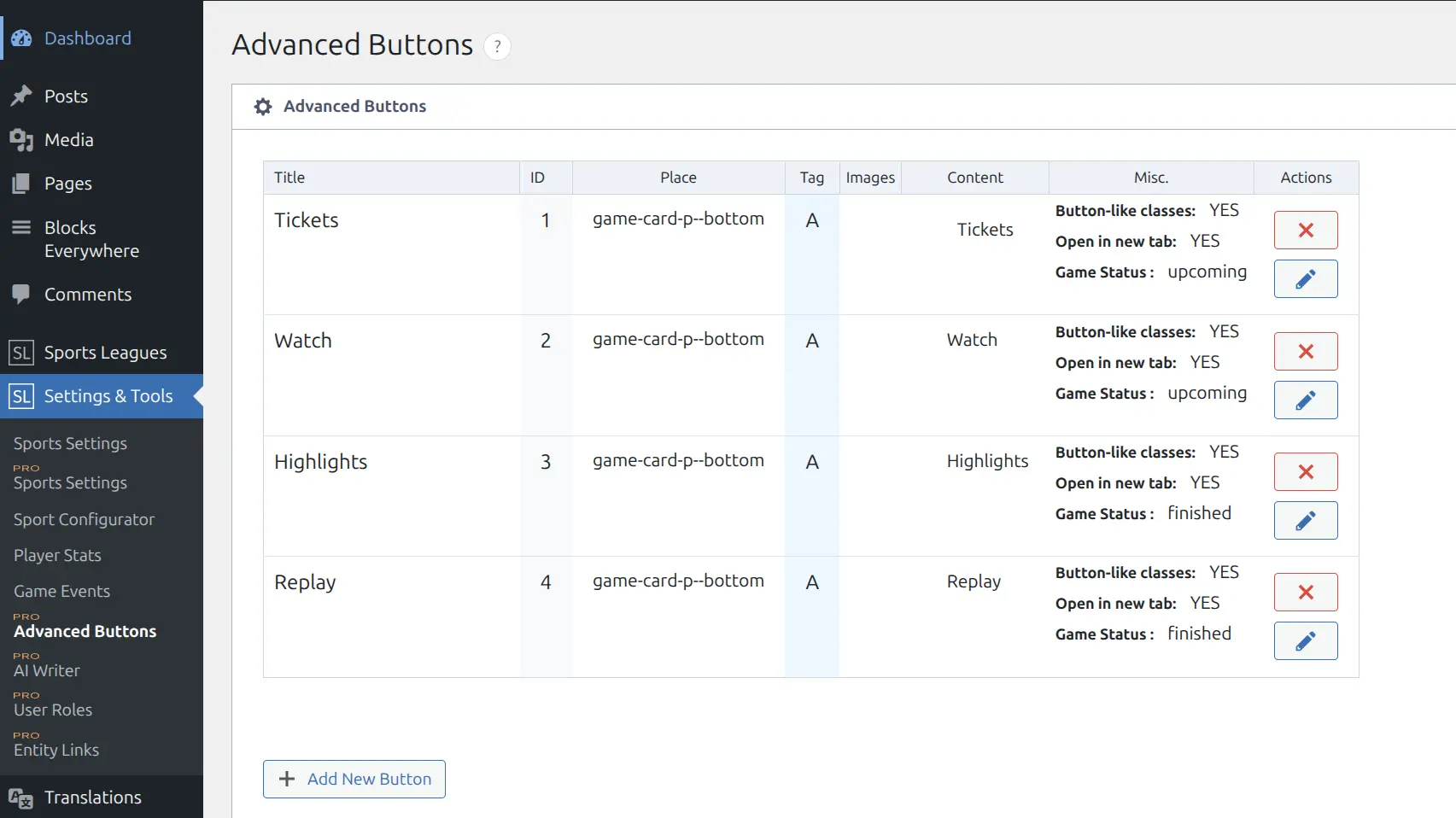
Common use cases:
- 🎟️ Ticket sales — Link to ticketing platform for upcoming games
- 📺 Live streaming — Link to watch live broadcast
- 🎬 Highlights — Show video replays for finished games
- 🏪 Sponsor CTAs — Display partner banners or promotions
🚀 Step 1: Create Button Templates
Access the Settings
- Navigate to Sports Leagues → Settings
- Click the Advanced Buttons tab
- Click Add New Button
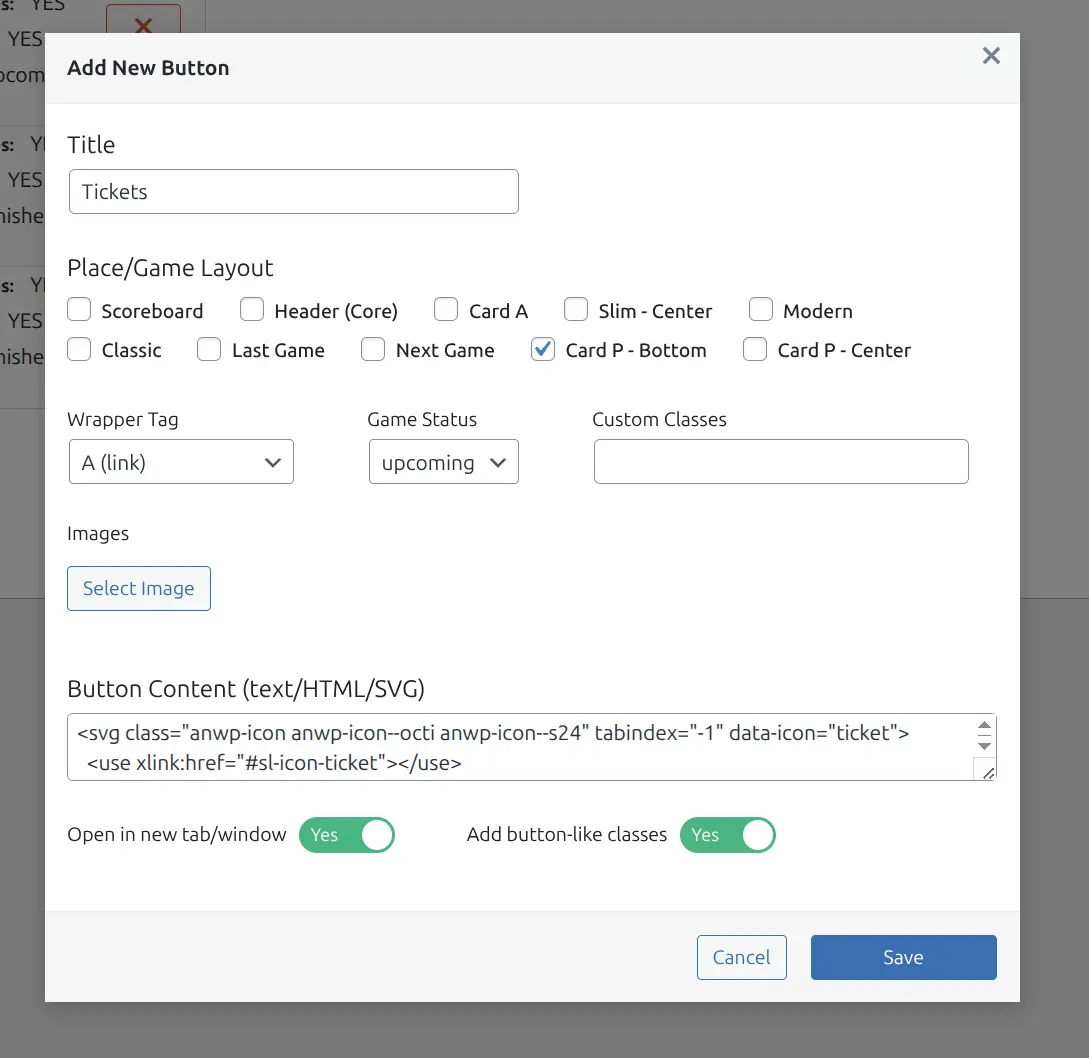
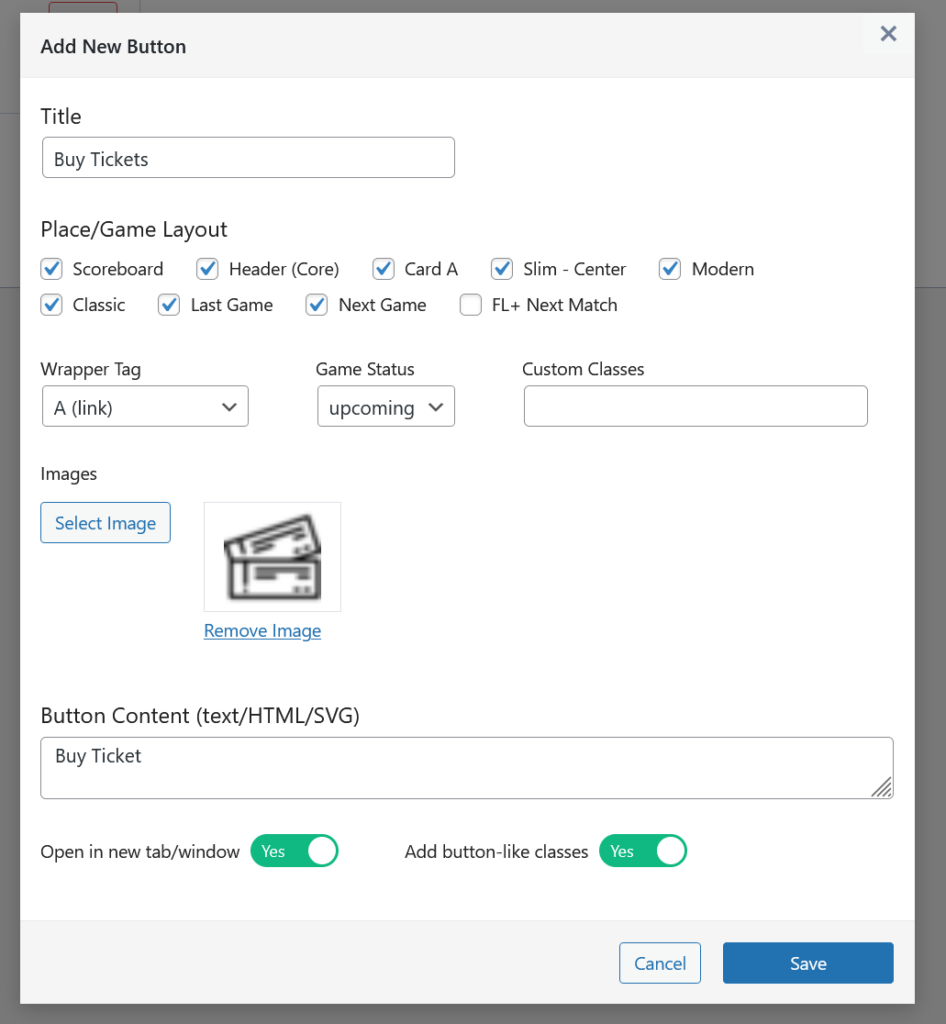
Button Settings Reference
Title
Internal name for the button. This helps identify buttons in the management list and when assigning to games.
Place / Game Layout
Select which game layout(s) display this button. You can select multiple layouts for each button.

| Place | Description |
|---|---|
| Scoreboard | Premium game header with image background |
| Header (Core) | Core game header template |
| Card A | Games Scoreboard shortcode |
| Slim – Center | Most game list shortcodes and blocks |
| Modern | Game layout for widgets and Calendar shortcode |
| Classic | Game layout for widgets and Calendar shortcode |
| Last Game | Last Game widget |
| Next Game | Next Game widget |
SL Kit only:
| Place | Description |
|---|---|
| Card P – Bottom | Games Slider block – below scores |
| Card P – Center | Games Slider block – between scores and team logos |
These places appear only when SL Kit is installed.
Wrapper Tag
Choose the HTML element type for your button:
| Tag | Use Case |
|---|---|
| A (link) | Clickable links — URL field appears on game edit screen |
| DIV (block) | Static content, embedded widgets, non-link elements |
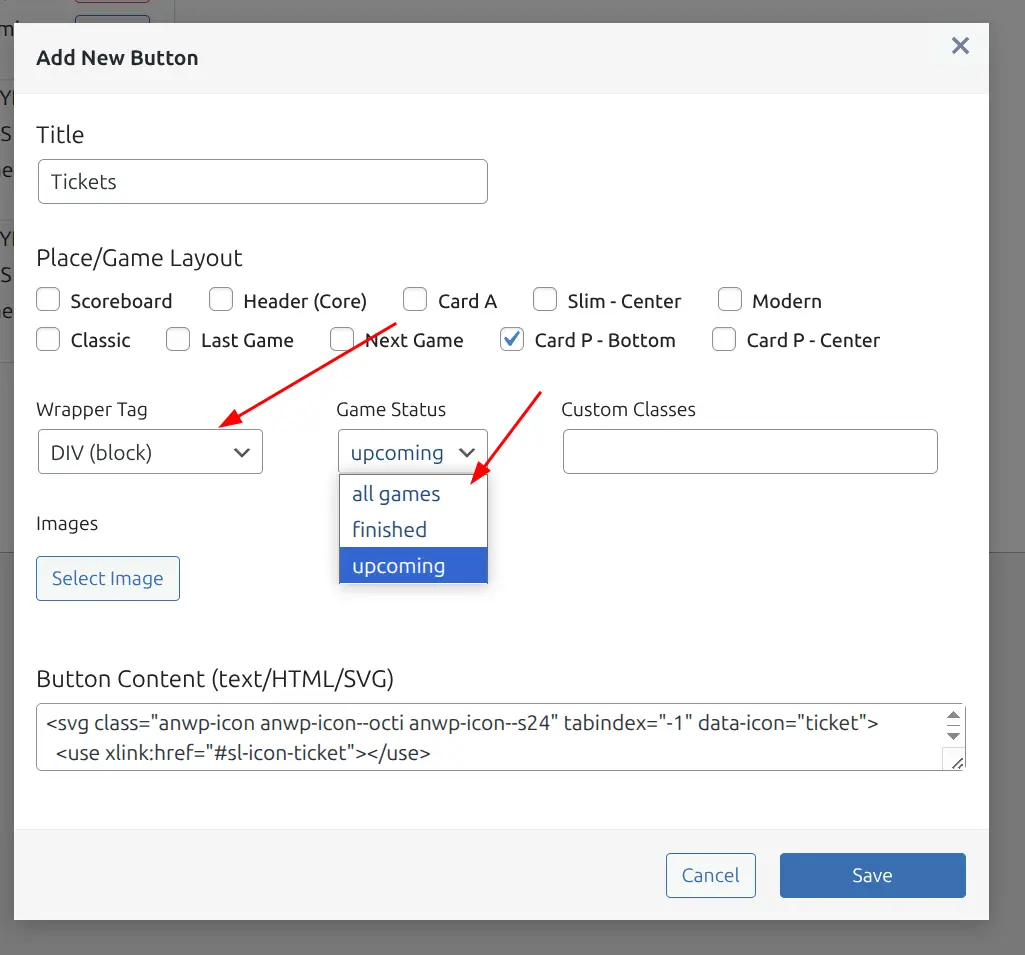
Game Status
Filter when the button appears based on game status:
| Status | Shows On | Example Use |
|---|---|---|
| All games | Every game regardless of status | Merchandise links |
| Finished | Only completed games | Video highlights |
| Upcoming | Only scheduled/future games | Ticket sales |
Tip
Use the Game Status filter to automatically show “Buy Tickets” for upcoming games and “Watch Highlights” for finished games — no manual switching needed.
Custom Classes
Add CSS classes for custom styling. Separate multiple classes with spaces.
Images
Add images to your button:
- Click Select image
- Choose from Media Library or upload new
- Multiple images are supported
Button Content (text/HTML/SVG)
Enter the button’s display content:
- Plain text:
Buy Tickets - HTML:
<span class="icon">🎟️</span> Buy Tickets - SVG icons: Paste inline SVG code
Link Options (A tag only)
| Option | Description |
|---|---|
| Open in new tab/window | Adds target="_blank" attribute |
| Add button-like classes | Applies default button styling (anwp-sl-btn class) |
🎮 Step 2: Assign Buttons to Games
After creating button templates, assign them to individual games:
- Edit a Game post
- Find the Advanced Buttons metabox
- Select a button from the dropdown
- Enter the URL for link-type buttons (A tag)
- Save the game
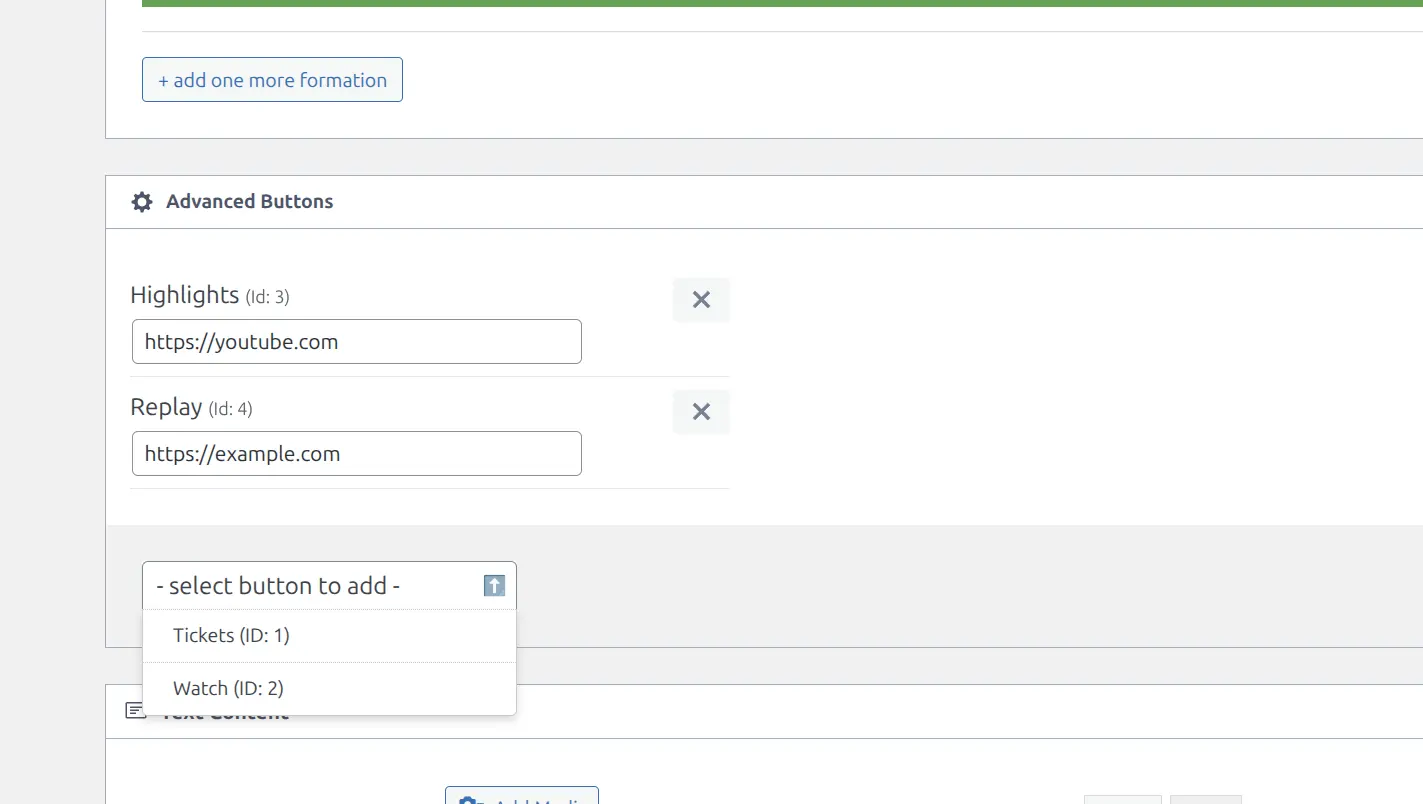
Each game can have:
- Different buttons assigned
- Different URLs for the same button template
- Multiple buttons at once
💡 Example Workflows
Ticket Sales Button
Step 1 — Create Template:
| Setting | Value |
|---|---|
| Title | Buy Tickets |
| Place | Scoreboard, Modern |
| Tag | A (link) |
| Game Status | Upcoming |
| Content | 🎟️ Buy Tickets |
| Button-like classes | Yes |
Step 2 — Assign to Game:
- Edit an upcoming game
- Add “Buy Tickets” button
- Enter URL:
https://tickets.example.com/game-123
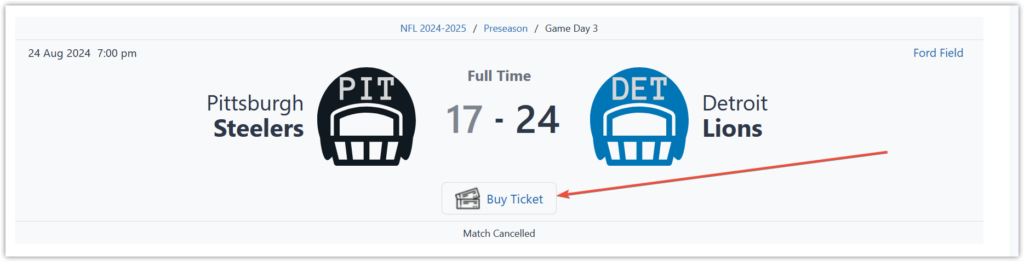
Streaming Banner
Step 1 — Create Template:
| Setting | Value |
|---|---|
| Title | Watch Live Banner |
| Place | Header (Core) |
| Tag | DIV (block) |
| Game Status | All games |
| Images | [Partner logo] |
Step 2 — Assign to Game:
- Edit a game
- Add “Watch Live Banner” button
- No URL needed (DIV tag)
Video Highlights
Step 1 — Create Template:
| Setting | Value |
|---|---|
| Title | Watch Highlights |
| Place | Modern, Classic |
| Tag | A (link) |
| Game Status | Finished |
| Content | 🎬 Highlights |
| Open in new tab | Yes |
Step 2 — Assign to Game:
- Edit a finished game
- Add “Watch Highlights” button
- Enter YouTube or video platform URL
🆘 Troubleshooting
Button Not Appearing on Game
- Verify button is assigned to the game (Game Edit → Advanced Buttons)
- Check the Place matches your active game layout
- Check Game Status filter matches the game’s current state
- Clear your site cache
URL Field Not Showing
The URL field only appears for buttons configured with A (link) as the Wrapper Tag. DIV buttons don’t have URLs — they display static content only.
Styling Issues
Add Custom Classes in the button settings and define styles in your theme’s CSS or the WordPress Customizer. The anwp-sl-btn class is automatically added when “Button-like classes” is enabled.
🔧 Developer Reference
For developers who want to add custom button placements or trigger buttons in custom templates.
Add Custom Places
Register new placement locations:
add_filter( 'sports-leagues/adv-btns/available_places', function( $places ) {
    $places[] = [
        'text'  => 'My Custom Location',
        'value' => 'my-custom-location',
    ];
    return $places;
});
Trigger Button Display
Display buttons in custom template locations:
do_action( 'sports-leagues/game-actions', $game_data, 'my-custom-location', 'optional-css-classes' );