

Entity Translations let you translate the names of teams, players, leagues, categories (countries), and managers into any language. The API provides names in English by default. This feature replaces those names in-place, so your translated names appear everywhere on the frontend — game cards, headers, standings, rosters, and all other displays.
Admin Menu: Settings & Tools > Translations (tabs 2–6: Categories, Leagues, Teams, Players, Managers)
The Translations page has 6 tabs. The first tab (Text Strings) is covered in Text Overrides. This page covers the remaining 5 entity tabs.
How Translation Works
Each entity (team, player, etc.) stores two sets of name fields:
| Field | Purpose |
|---|---|
name / short_name | Display values — shown on the frontend |
api_name / api_short_name | API originals — preserved for reference |
When you translate an entity, only the display fields (name, short_name) are updated. The original API names are always kept for reference.
Import Protection
When the plugin re-imports data from the API, it compares the current name with api_name. If they differ (meaning you have translated the name), the import skips overwriting your translation. This means your translations survive all future imports, re-updates, and background sync operations.
If you clear a translation (reset it to the API original), future imports will update the name normally again.
✏️ Translating Entities
Selecting an Entity Tab
Each entity type has its own tab:
| Tab | Translatable Fields | Extra Column |
|---|---|---|
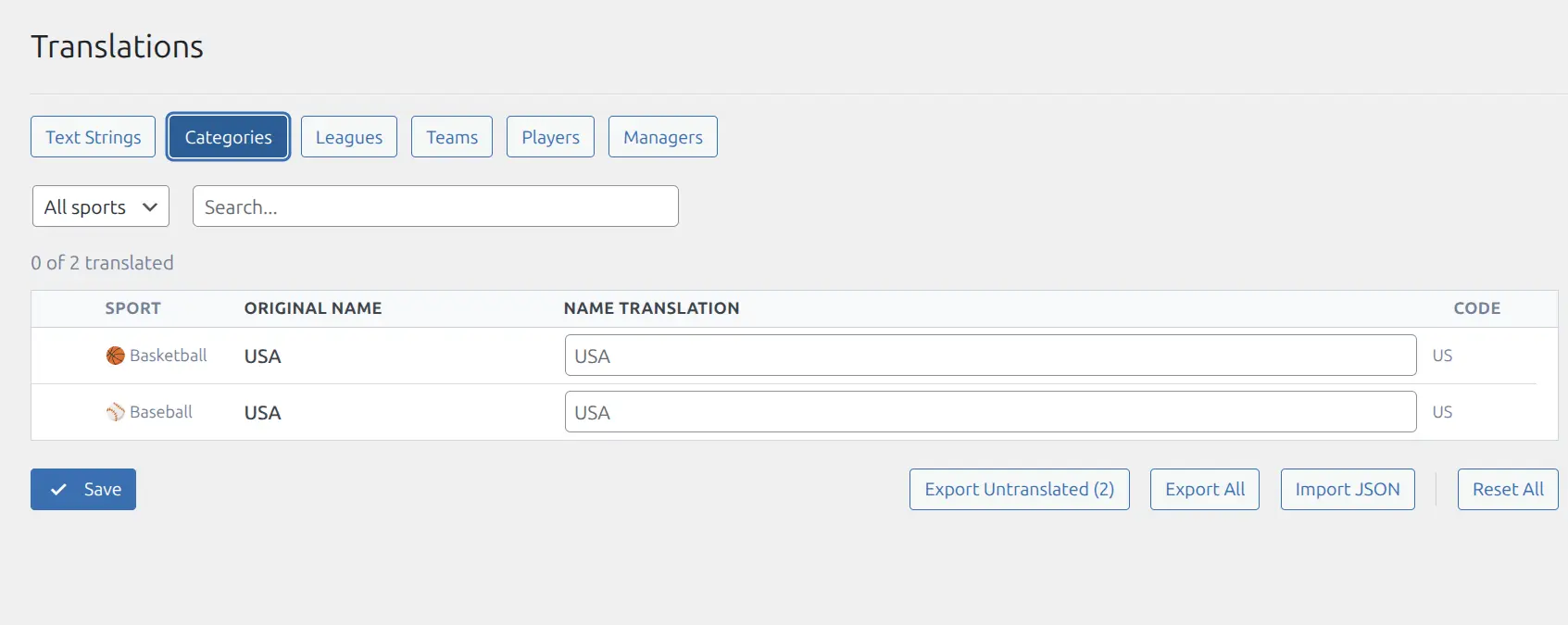
| Categories | Name | Country code |
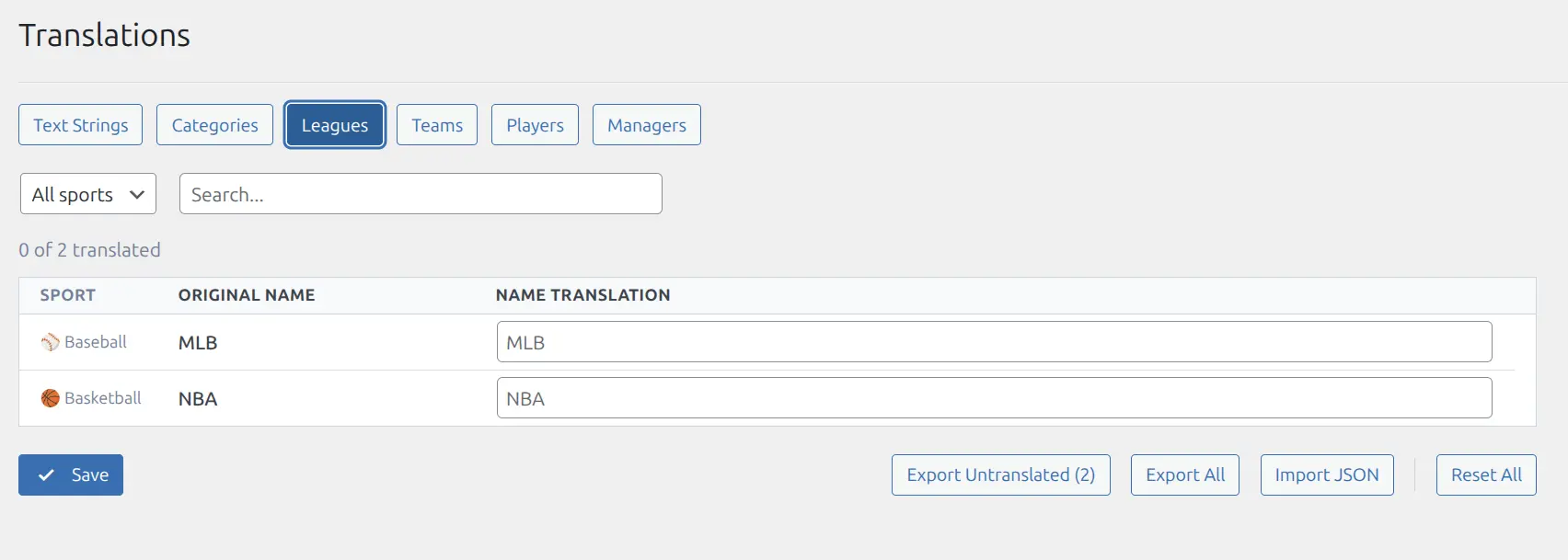
| Leagues | Name | — |
| Teams | Name + Short Name | Country flag |
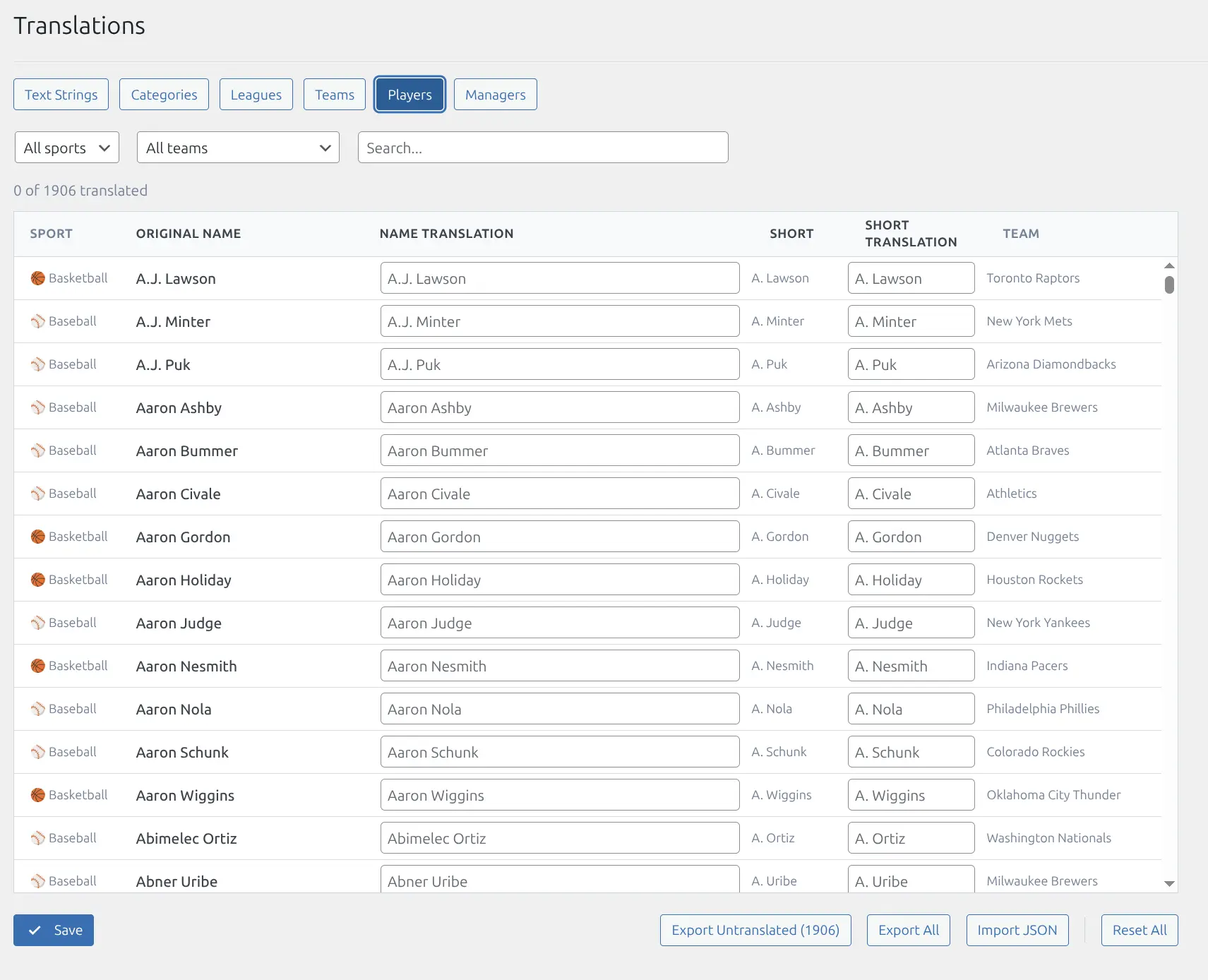
| Players | Name + Short Name | Current team |
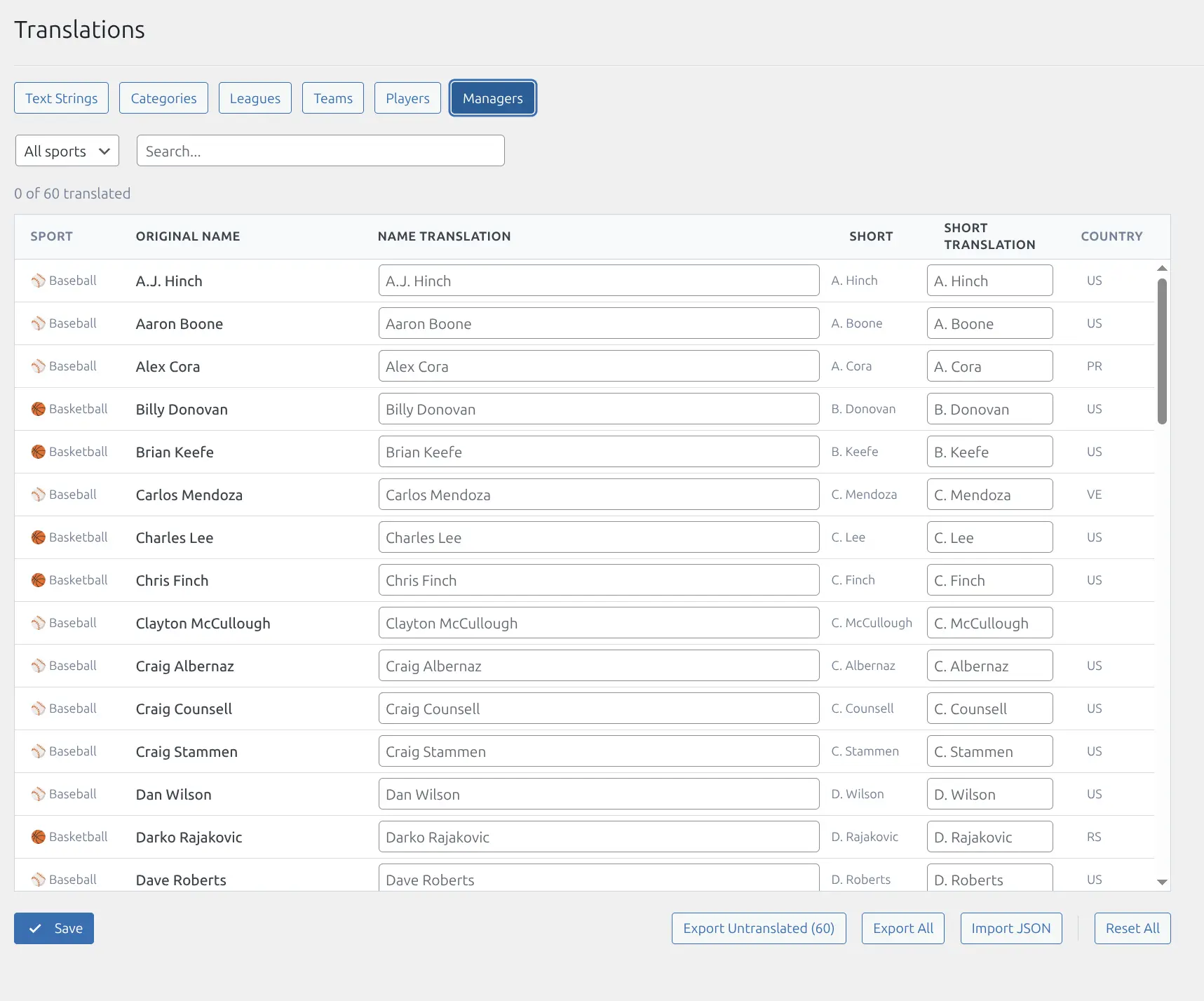
| Managers | Name + Short Name | Country flag |
Categories and Leagues only have a full name. Teams, Players, and Managers also have a Short Name field (used in compact displays like scoreboards and badges).
Editing a Translation
- Go to Settings & Tools > Translations
- Click the tab for the entity type you want to translate (e.g., Teams)
- Use the Sport filter to narrow by sport (shown when multiple sports are imported)
- Use the Search box to find specific entities
- Type your translation in the Name Translation column
- For teams, players, and managers: optionally fill in the Short Translation column
- Click Save
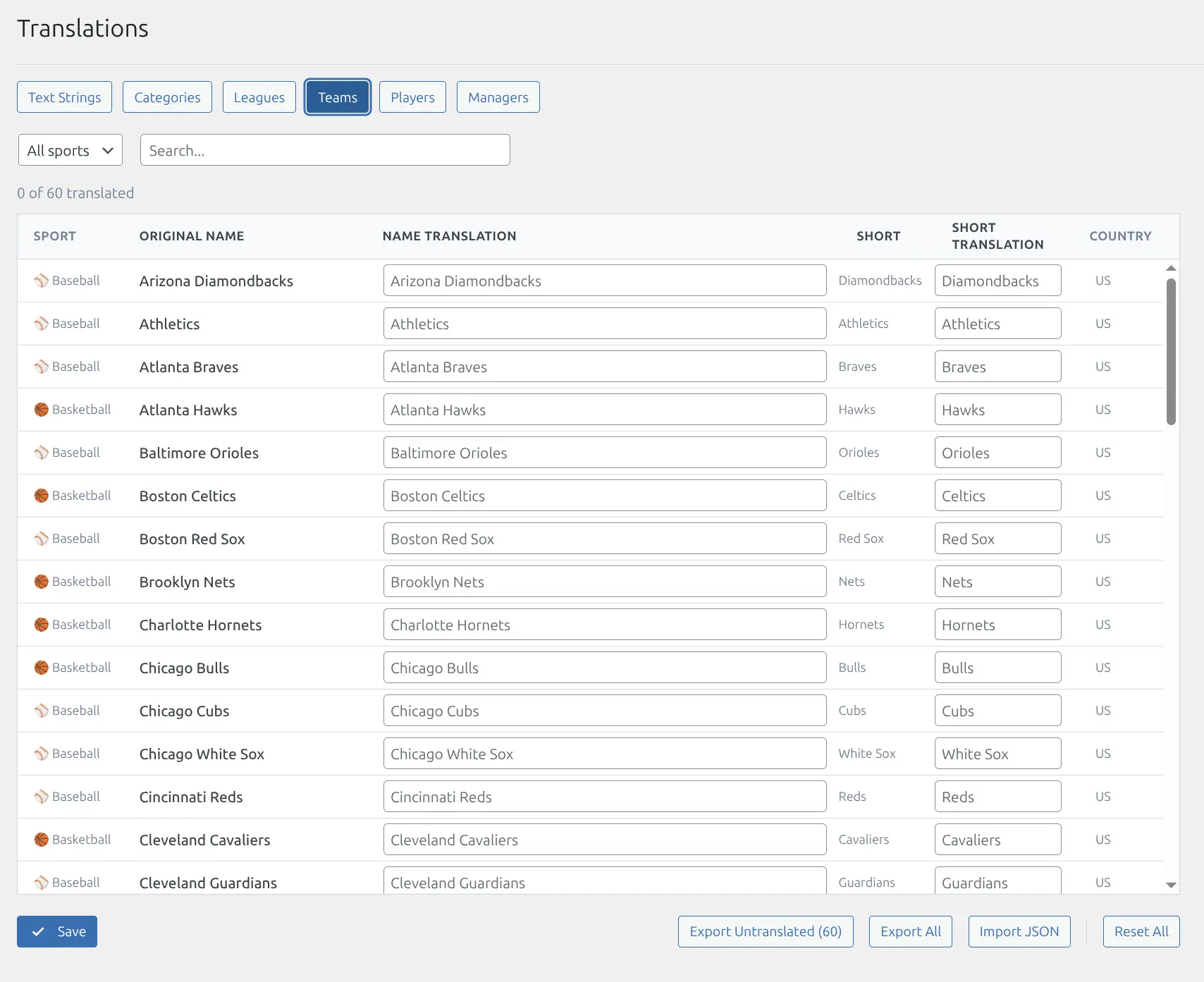
UI Indicators
- Progress bar — shows how many entities in the current filtered view are translated
- Unsaved highlight — rows with unsaved changes get an orange left border
- Unsaved count — displayed next to the Save button
- “Unsaved only” checkbox — filters the list to show only rows with pending changes
🤖 Bulk Translation with AI
For large datasets (hundreds of teams or players), manual editing is impractical. The export/import workflow lets you translate in bulk using AI tools like ChatGPT, Claude, or Google Gemini.
Export Options
| Button | What It Exports |
|---|---|
| Export Untranslated | Only entities that have no translation yet (respects current sport/search filters) |
| Export All | All entities in the current filtered view |
The exported JSON file contains the original API name, sport, and a blank (or existing) translation field for each entity.
Import
- Click Import JSON
- Select a previously exported (and translated) JSON file
- Imported values appear as unsaved changes (orange highlight)
- Review the translations, then click Save to persist
The import validates the file format and entity type. Only entities that exist in your database are updated — unknown entries are ignored.
AI Translation Workflow (Step-by-Step)
This is the recommended approach for translating large numbers of entities. You can use any AI tool — ChatGPT, Claude, Google Gemini, or others.
Step 1: Export
- Go to the entity tab you want to translate (e.g., Teams)
- Filter by sport if needed
- Click Export Untranslated to download a JSON file
Step 2: Understand the JSON format
For teams, players, managers (entities with short names):
{
  "meta": { "type": "teams", "target_language": "" },
  "entities": {
    "1_123": {
      "api_name": "Atlanta Hawks",
      "sport": "Basketball",
      "name": "",
      "api_short_name": "Hawks",
      "short_name": ""
    }
  }
}
For categories and leagues (name only, no short name):
{
  "meta": { "type": "categories", "target_language": "" },
  "entities": {
    "1_1": {
      "api_name": "USA",
      "sport": "Basketball",
      "name": ""
    }
  }
}
The name and short_name fields are the ones you need to fill in. All other fields must stay unchanged.
Step 3: Send to AI
Upload the JSON file to your preferred AI tool with a prompt like this:
Example AI Prompt
Translate the name and short_name fields in this JSON file to Spanish. Rules:
— Fill in each empty name field with the translated version of api_name
— Fill in each empty short_name field with the translated version of api_short_name
— Do NOT change api_name, api_short_name, sport, or the meta section
— Keep the same JSON structure and all keys intact
— For team/player names that don’t have a standard translation in the target language, keep them as-is (e.g., “LeBron James” stays “LeBron James”)
— Return the complete JSON file
For large exports (500+ entities), you may need to split the file and send it in parts.
Step 4: Import
- Save the AI-translated JSON file to your computer
- Back in the Translations page, click Import JSON
- Select the translated file
- Imported translations appear as unsaved changes (orange highlight)
- Review the translations for accuracy
- Click Save to persist
Tips for Best Results
Player names often don’t need translation — personal names typically stay the same. Include a note in your prompt: “Keep personal names unchanged unless a well-known localized form exists.”
Team names may have official local versions (e.g., “Bayern Munich” in English vs “Bayern München” in German). Mention this in your prompt if relevant.
Short names are used in compact displays (scoreboards, badges). Keep them brief — ideally under 10 characters.
After importing, spot-check a few entries to verify quality before saving.
Resetting Translations
| Action | Scope |
|---|---|
| Clear a single row | Delete the text in that row’s translation input and save |
| Reset All button | Reverts all translations for the current entity type back to API originals |
Warning
Reset All requires confirmation and cannot be undone. It resets both name and short_name for every entity of that type.
🔤 Entity Types
Categories (Countries)
Categories represent countries in the API data model. Translating a category changes the country name displayed in league listings and team metadata.
- Fields: Name only (no short name)
- Extra column: Alpha-2 country code with flag icon
- No associated WordPress posts (no post title sync needed)
Leagues
Leagues are the top-level competitions (e.g., NBA, MLB, Premier League).
- Fields: Name only (no short name)
- No associated WordPress posts (no post title sync needed)
Teams
- Fields: Name + Short Name
- Extra column: Country flag
- WordPress post titles are synced automatically when you save translations
Players
- Fields: Name + Short Name
- Extra column: Current team name
- Additional filter: Team dropdown (filter players by their current team)
- WordPress post titles are synced automatically when you save translations
Managers
- Fields: Name + Short Name
- Extra column: Country flag
- WordPress post titles are synced automatically when you save translations
Post Title Sync
For entity types that have WordPress pages (Teams, Players, Managers), saving translations also updates the corresponding WordPress post titles to match. This ensures that:
- Admin list tables show the translated name
- WordPress search finds entities by their translated name
- Any theme or plugin reading the post title gets the translated version
Post title sync happens automatically in batches of 50 for performance. No manual action is required.
📚 Related
- Text Overrides — Customize frontend labels and stat abbreviations
- Plugin Settings — Display and caching settings
- Custom Logos — Override API-provided logos with custom images