

The Import page is where you browse available leagues from the API, select seasons, and run import tasks that pull data into your WordPress site. It handles everything from the initial league hierarchy down to game details, rosters, standings, and highlights.
Admin Menu: API & Import > Import
Overview
The import workflow follows a simple pattern:
- Browse — pick a sport tab, find a league by country or search
- Select — expand a league to see its seasons, click Import or Update
- Configure — choose which tasks to run in the import modal
- Run — the task queue processes everything in the correct order
You can queue multiple seasons at once. The plugin runs tasks sequentially with colored progress indicators so you always know what is happening.
📋 Import Page Layout
The Import page has two main areas: the browse panel (top) where you find and select leagues, and the task queue (bottom) where running and completed tasks are displayed.
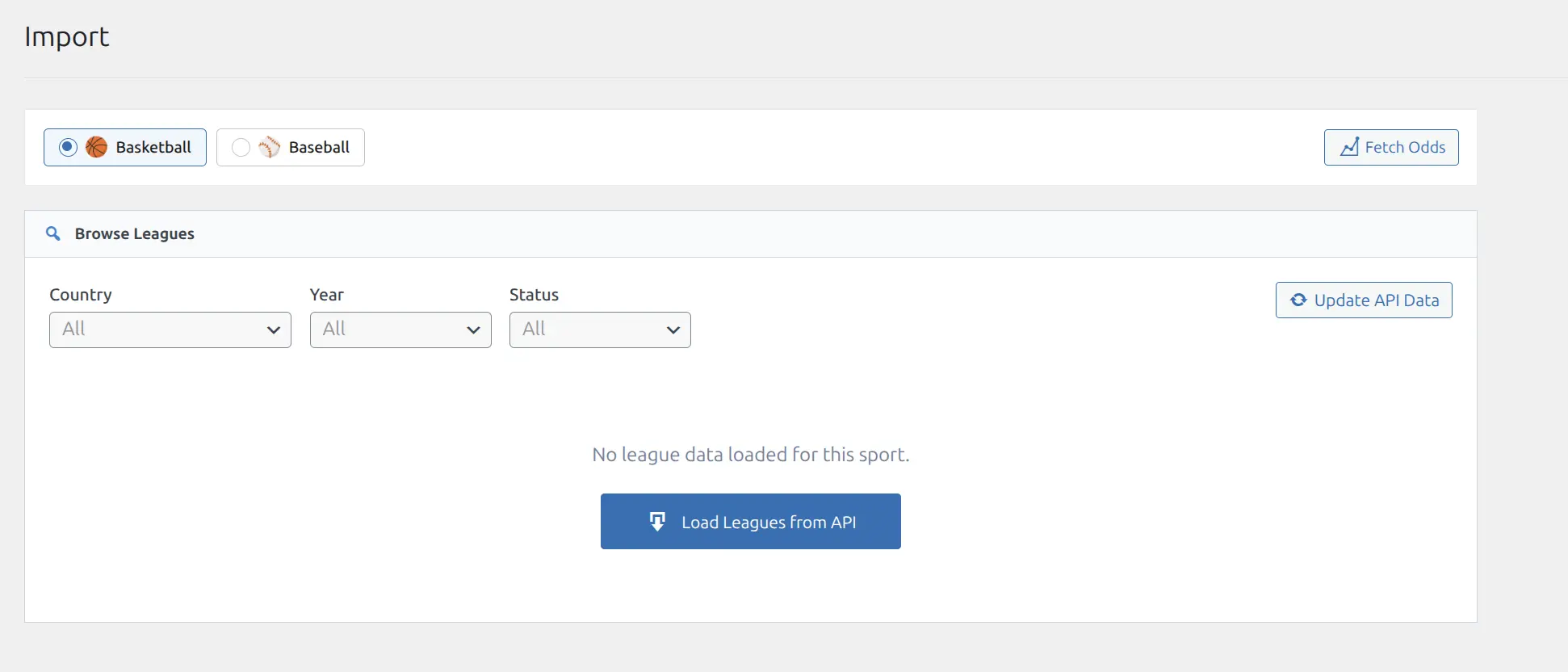
Sport Tabs
Tabs at the top of the page let you switch between sports. Only sports you have enabled in API Config appear here. Each sport has its own independent league catalog from the API.
Browse Panel
The browse panel shows all leagues available from the API for the selected sport. Leagues are organized by country. Use the Country filter dropdown or the search field to find a specific league quickly.
Click on a league row to expand it and see its available seasons. Each season row shows:
- Season name — e.g., “NBA 25/26” or “MLB 2025”
- Games count — how many games have been imported so far
- Capability badges — colored icons showing what data types are available (see below)
- Action buttons — Import, Update, Probe, and a quick action dropdown
Your selected country filter and search text are saved in your browser’s local storage, so they persist between visits.
🔍 Season Capabilities
Not all leagues and seasons have the same data available from the API. After importing a season, you can probe it to detect which data endpoints return results. The capability badges in the browse panel tell you at a glance what each season supports.
Capability Badges
| Badge | Letter | Meaning | What It Enables |
|---|---|---|---|
| Person icon | P | Player Stats (Lineups) | Box scores, player game logs, career stats |
| Chart icon | T | Team Stats | Team statistics comparison on game pages |
| Flag icon | E | Events (Incidents) | Play-by-play timeline, scoring events |
| Video icon | H | Highlights | YouTube video highlights |
Badge Colors
- Green — Available (the API endpoint returns data for this season)
- Red — Not available (the API returns empty or error responses)
- Gray — Unknown (not yet probed)
How to Probe
- Import a season first (at minimum, run the Hierarchy + Fixtures tasks)
- Wait for some games to finish and import their details
- Click the Probe button on the season row
- The plugin tests each data endpoint using one real game from the season
- Badges update to show green or red availability
API cost: 5 API calls per probe (one per capability type). Capabilities are auto-detected when you first run the finished details task, so manual probing is usually only needed if you want to check before running a full import.
📥 The Import Modal
When you click Import or Update on a season row, the import modal opens. It shows a list of tasks with checkboxes, each with a short description of what it does.
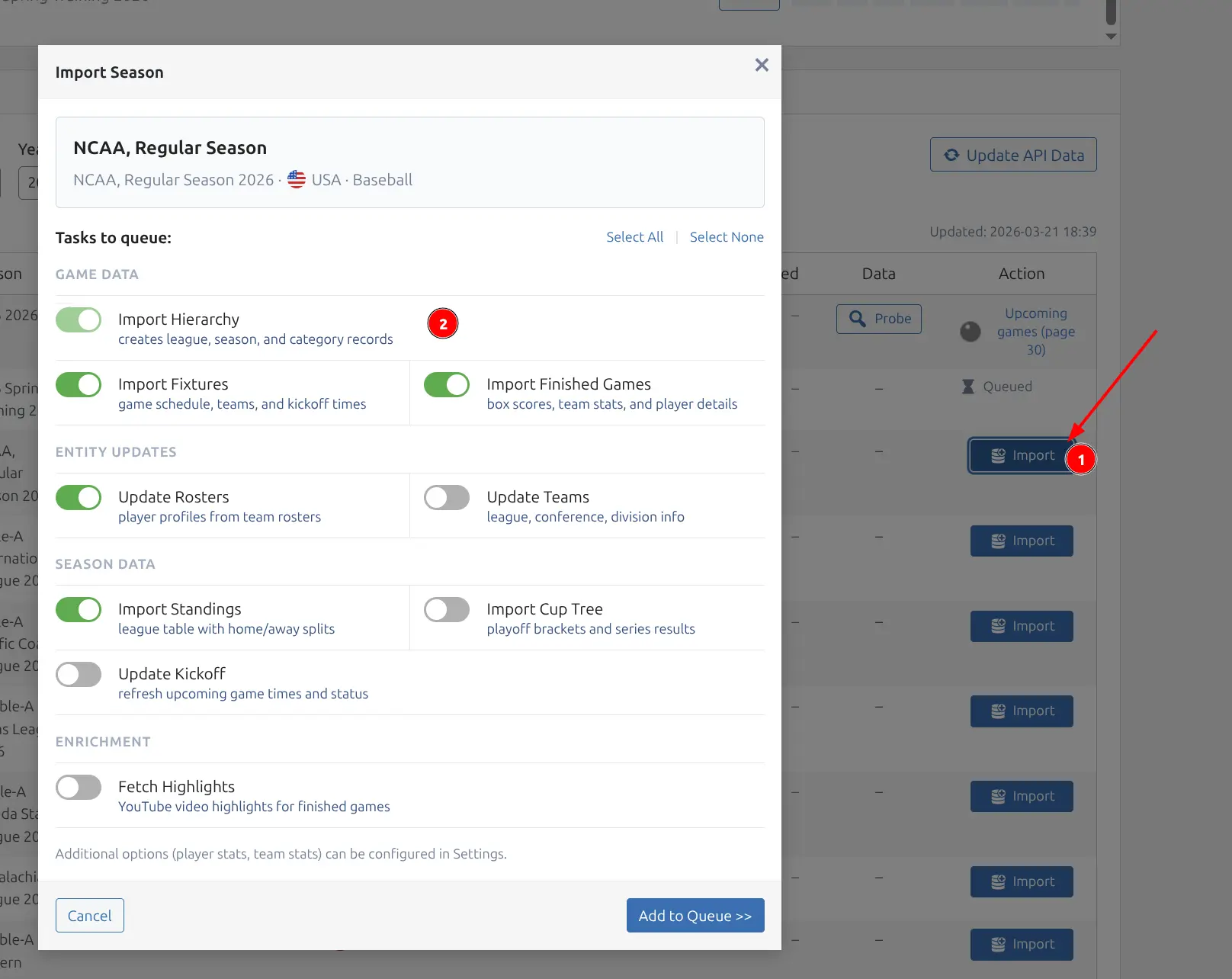
Check the tasks you want to run and click Start Import. For a brand-new season, you will typically want all tasks checked. For updates to an existing season, you might only select Finished Details and Standings.
Quick Actions
The dropdown menu on each season row provides shortcuts that pre-select common task combinations:
- Select All — checks every available task
- Fixtures Only — just fetch scheduled games
- Finished Only — just fetch details for completed games
- Re-update — re-fetch details for games that have already been imported
Import Tasks
The plugin processes import tasks in a specific order. Each task builds on data from previous tasks, so the order matters.
| Order | Task | Description |
|---|---|---|
| 1 | Hierarchy | Fetches the country → league → season structure from the API. Creates the foundational entities. Must run first |
| 2 | Fixtures | Fetches scheduled games for the season. Creates game, team, and venue entities. Paginated at 30 games per API call |
| 3 | Teams | Fetches full team details (logos, colors, venue info) for all teams in the season. Runs automatically after Fixtures |
| 4 | Finished Details | Fetches detailed data for completed games: match context, box scores (lineups), team statistics, play-by-play incidents, and highlights. 2–7 API calls per game, processed in batches of 5 |
| 5 | Rosters | Fetches current team rosters. Creates player entities. Processes 1 team per step |
| 6 | Standings | Fetches league standings. Includes overall, home, and away tables where available |
| 7 | Cup Trees | Fetches knockout bracket data for cup/playoff competitions |
| 8 | Kickoff | Updates kickoff times, game status, and venue assignments for upcoming games |
Note
The Teams task runs automatically after Fixtures — you do not need to select it separately. This ensures teams have proper league associations before game details are imported. For a deeper look at what each task fetches and its API cost, see the Import Tasks page.
What Finished Details Fetches
The Finished Details task is the most comprehensive import step. It can fetch up to 5 types of data per game, controlled by sub-options in API Config:
| Sub-option | Data | API Calls |
|---|---|---|
| Match context | Scores, periods, game metadata | 1 (always fetched) |
| Lineups | Box scores, player stats per game | 1 |
| Team Stats | Team-level statistics (FG%, rebounds, etc.) | 1 |
| Incidents | Play-by-play timeline events | 1 |
| Highlights | YouTube video highlights | 1 |
With all sub-options enabled, each game requires up to 5 API calls. With only the essentials (match context + lineups), it uses just 2. Adjust these settings based on the level of detail you need and your API plan limits.
Batch Import
You can queue multiple seasons for import at once. Click Import on several seasons, and each one is added to the task queue. The plugin processes them sequentially.
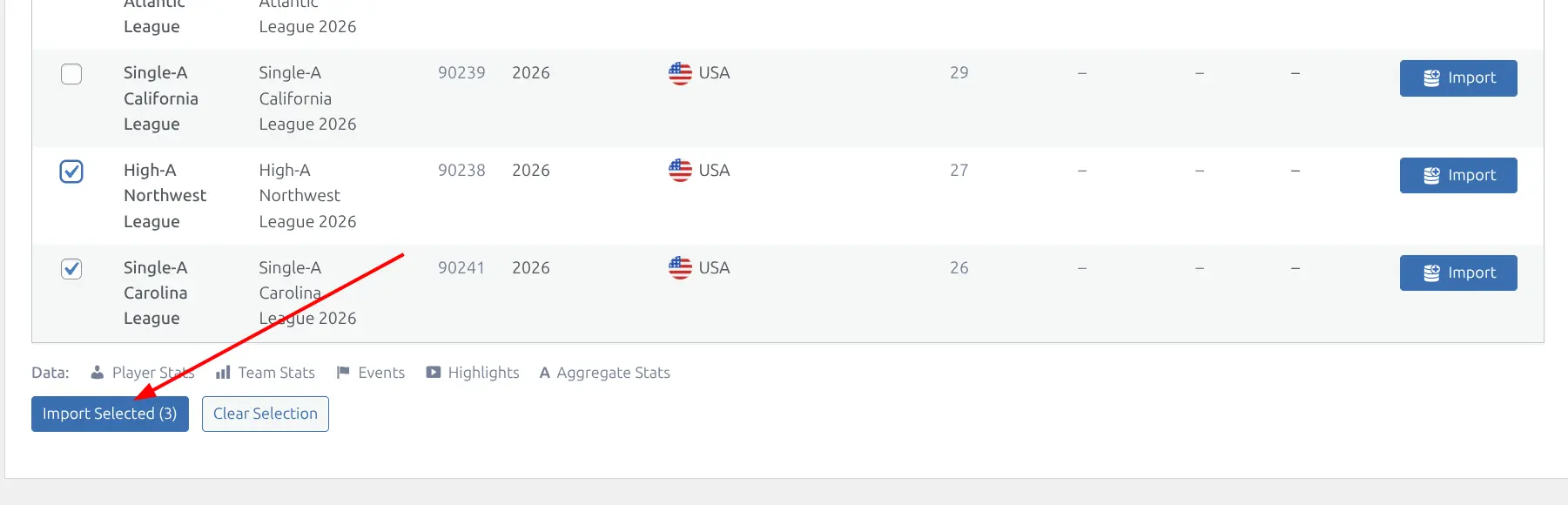
Batch Sizes
Different tasks process data in different batch sizes to balance speed and API usage:
| Task | Batch Size | Notes |
|---|---|---|
| Fixtures | 30 per page | API pagination limit. Fetches all pages automatically |
| Finished Details | 5 games per batch | Each game makes 2–7 API calls depending on sub-options |
| Rosters | 1 team per step | One team’s full roster per API call |
| Highlights | 10 games per batch | Checks for YouTube highlight videos |
⚙️ Task Queue
Once you start an import, the task queue appears at the top of the Import page. Each season row shows task badges — HIER, FIX, FIN, ROST, TEAM, STND, CUP — with their current status. The queue header shows overall progress (e.g., “7/60 done, 1 running, 52 queued”).
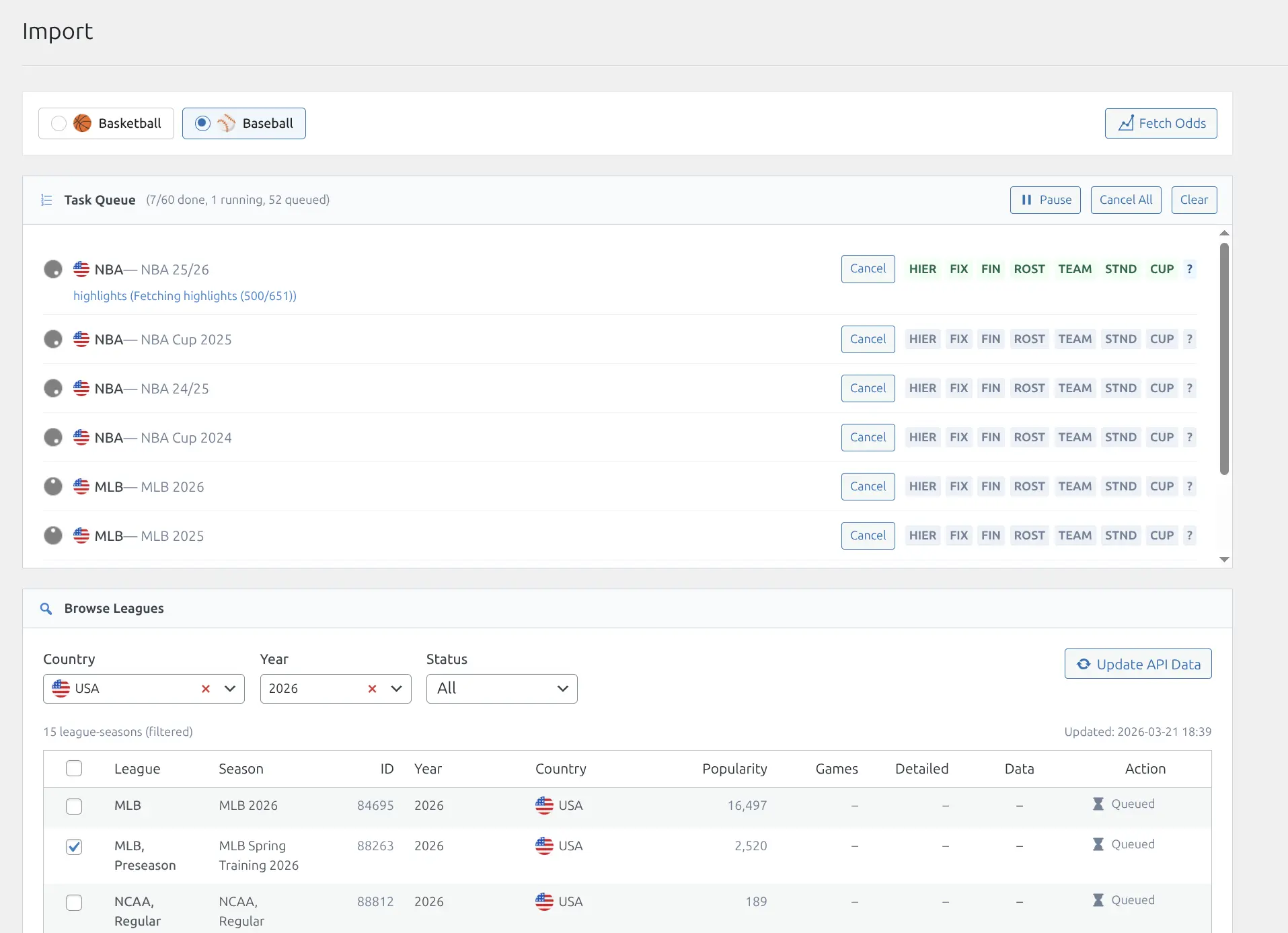
The currently running task shows a progress message — for example, “Fetching highlights (500/651)” — so you can estimate how long the import will take.
Queue Controls
While the queue is running, you have three controls:
- Pause / Resume — temporarily stop the queue without losing progress. Useful if you need to reduce server load
- Cancel — stop the current task and remove all remaining queued tasks. Already-completed tasks keep their imported data
- Clear — remove all completed and failed tasks from the queue display
Tip
The task queue runs in your browser tab. Keep the Import page open while tasks are running. If you navigate away, the queue will pause and resume when you return to the page.
Re-updating Games
The Re-update option re-fetches details for games that have already been fully imported. This is useful when:
- You initially imported without lineups or incidents and want to add them now
- The API has updated or corrected data for certain games
- You want to refresh highlights for games that may have had videos added after the initial import
Re-update uses the same batch size and sub-options as the Finished Details task. It re-fetches all enabled data types for each game.
You can also re-update a single game from the Hub Data > Games admin list — hover over any game row and click the Re-update action link.
Standalone Tasks
Two tasks operate outside the per-season import flow. They appear as separate buttons on the Import page:
Fetch Odds
Fetches betting odds for upcoming games across all seasons. This task works by date rather than by season — it finds dates with upcoming games and fetches odds for each date in sequence. The lookahead window (how many days ahead to fetch) is controlled in Plugin Settings.
Fetch Highlights
Scans finished games that do not yet have a highlight video assigned and checks the API for YouTube highlights. Processes 10 games per batch. This is useful for catching highlights that were not available at the time the game details were initially imported.
Recommended Workflow
For a typical season setup, follow this sequence:
- Initial import — Select All tasks for a new season. This runs hierarchy, fixtures, teams, finished details, rosters, standings, cup trees, and kickoff in the correct order. See First Import for a step-by-step guide
- Probe capabilities — After the initial import, click Probe to see which data types the season supports
- Daily updates — Run Finished Details periodically to import newly completed games. Or better, enable Background Sync to automate this
- Fetch extras — Use the standalone Fetch Odds and Fetch Highlights buttons as needed
Note
Manual imports are great for the initial setup, but for ongoing updates you should enable Background Sync. It automatically fetches new game results, updates standings, and refreshes odds on a schedule.
Error Handling
If a task fails, it shows a red badge with an error message. Common reasons include:
- API rate limit — you have exceeded your API plan’s daily call limit. Wait until the limit resets (usually midnight UTC)
- Network timeout — the API did not respond in time. The plugin retries once automatically, but persistent timeouts may indicate a server-side issue
- No data available — the season does not have the requested data type. Check the capability badges
Failed tasks do not block the rest of the queue — the import continues with the next task. You can re-run any failed task later by clicking Import or Update on the same season again.
Related
- Import Tasks — Detailed breakdown of each import task and API cost
- Background Sync — Automatic scheduled updates
- Live Scores — Real-time game updates
- API Config — API connection settings and import sub-options
- First Import — First-time setup and your first import
- Shortcodes — Display imported data on your site