

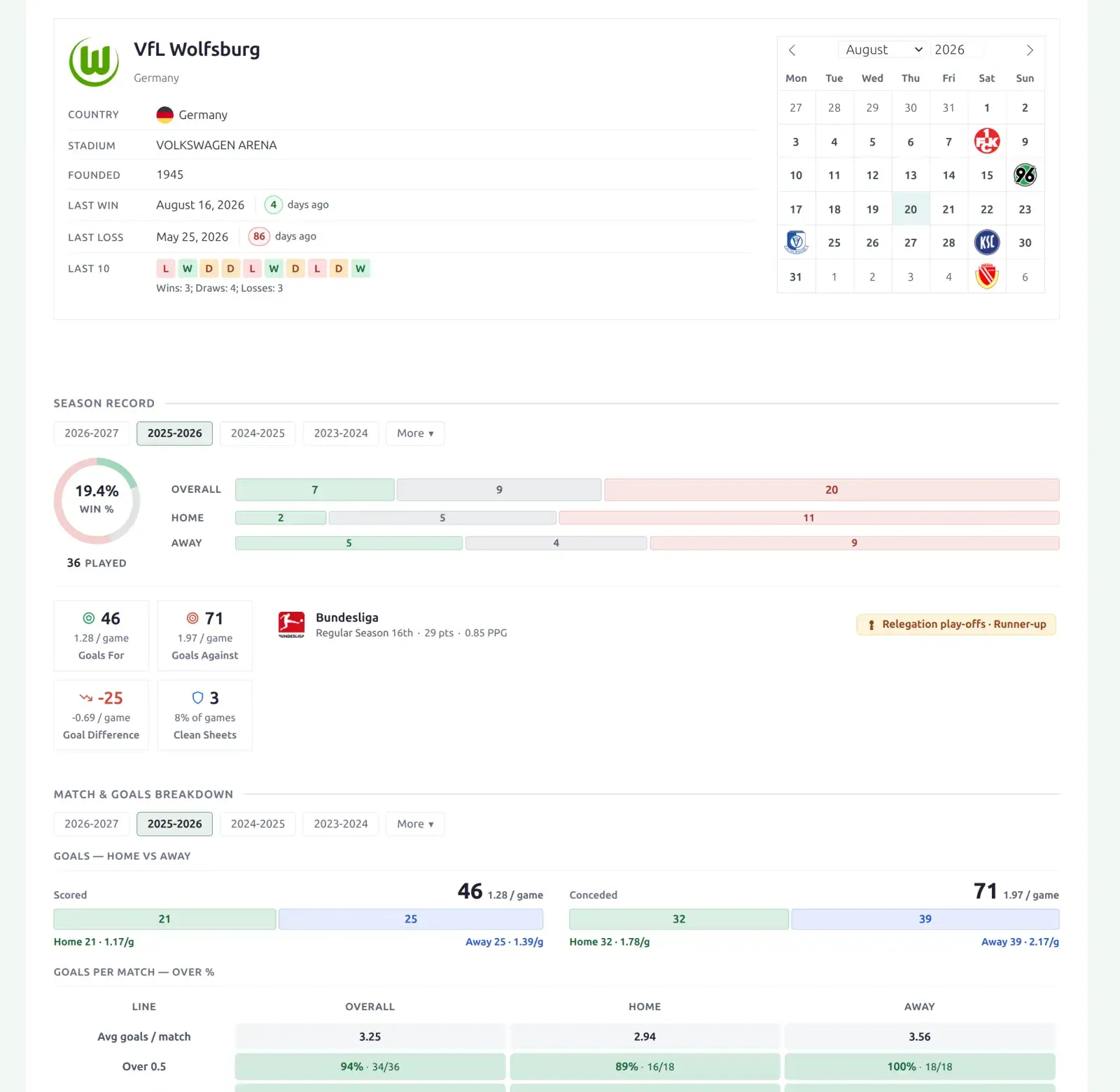
Layout Builder v2 gives your club (team) pages a new, modern design built from drag-and-drop blocks: a team header, season record, stat breakdowns, standings, a month-by-month schedule, the roster, player stats and recent form. Each section carries its own season and competition filter, so visitors can narrow one section without touching the rest of the page.
🚀 Turn it on
The new team layout is off until you activate it. Default club pages keep their current look until you do.
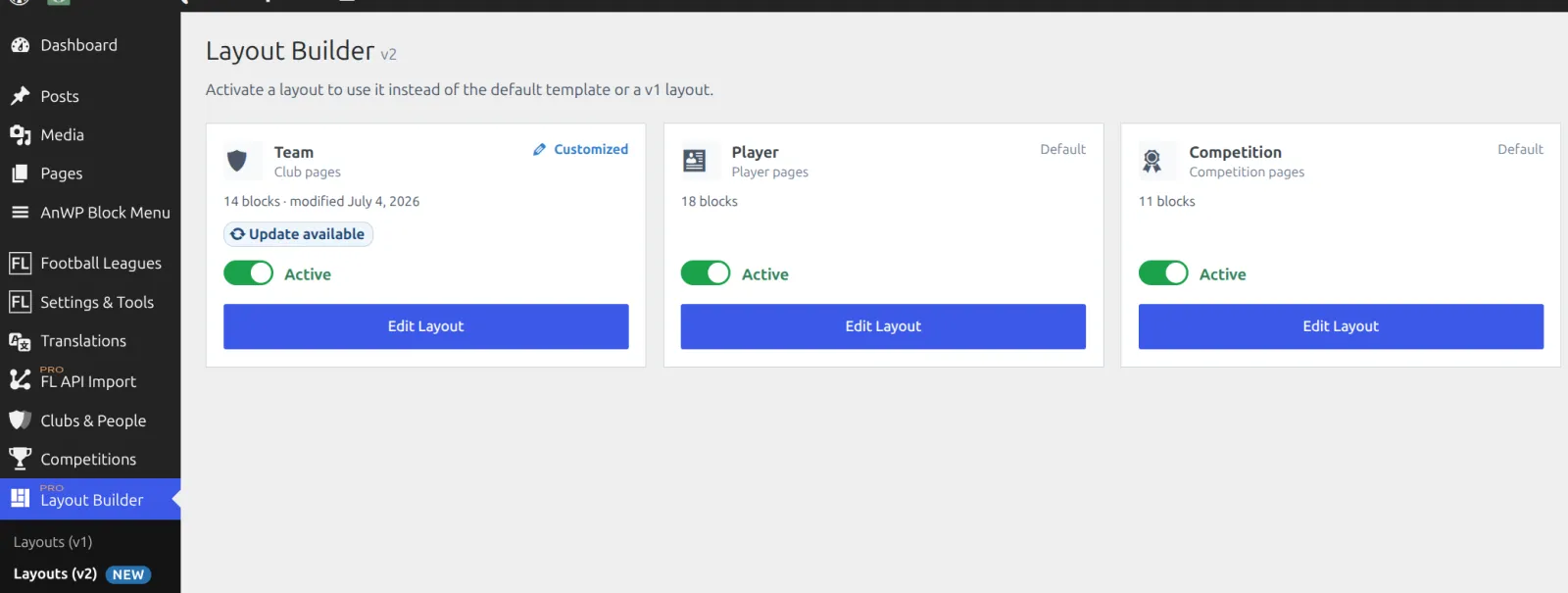
- In wp-admin, open Layout Builder → Layouts (v2).
- Open the Team layout.
- Click Activate.
That’s it. Every club page now renders the new design.
How it works
While the team layout is active it takes over every club page, overriding both the default club template and any older (v1) club layout. Deactivate it any time to go back.
What’s on the page
The default team layout ships with these blocks, in this order. You can reorder, remove, or regroup any of them in the builder. Sections with no data hide themselves, heading included, so the same layout works on a club with full statistics and on one that only has results.
| Block | Shows |
|---|---|
| Team Header | Logo, club name, league and city, recent form, and last win / last loss. |
| Section navigation | Sticky jump links to the sections below. |
| Description | The club’s description text. |
| Subteam Statistics | Summary clubs only – one row per subteam. Hidden on ordinary clubs. |
| Combined Squad | Summary clubs only – all subteams’ players with a per-team switcher. |
| Subteam Schedule | Summary clubs only – every subteam’s games merged into one calendar. |
| Season Record | Win-Draw-Loss overall, home and away, plus win % and games played. |
| Match & Goals Breakdown | Goals per match, over/under rates, both-teams-scored and clean sheets. |
| Scorelines & Goals | Most common scorelines and goals by half. |
| Season Statistics | The club’s own totals for the season – the stat columns you pick. |
| Team Rankings | Where the club ranks in its competition on each stat. |
| Standings | The league / group table(s) the club is in. Full or partial – see below. |
| Schedule | Results and fixtures in one month-by-month grid. |
| Roster | The squad, in a compact card layout. |
| Player Stats | The per-player statistics table. |
| Top Players | Leaderboards for the stats you choose. |
| Form Trends | Recent results as a W/D/L run, with a Home & Away / Home / Away toggle. |
Also in the palette
Four more blocks aren’t in the default layout but are one drag away:
| Block | Use it when |
|---|---|
| Gallery | You want the club’s photo gallery and gallery notes on the page. |
| Results | You prefer a flat list of finished matches to the Schedule grid. |
| Fixtures | Same, for upcoming games. |
| Squad | You prefer the fuller squad table to the compact Roster. |
Season and competition filters
Filters live on each block, not on the page. A block that supports them shows a small pill row – seasons, and usually competitions – and clicking a pill refetches just that block, in place, without reloading the page.
Blocks are independent on purpose: changing the season on Season Record doesn’t move the Schedule below it. That lets you show, say, this season’s table next to a career-long form run.
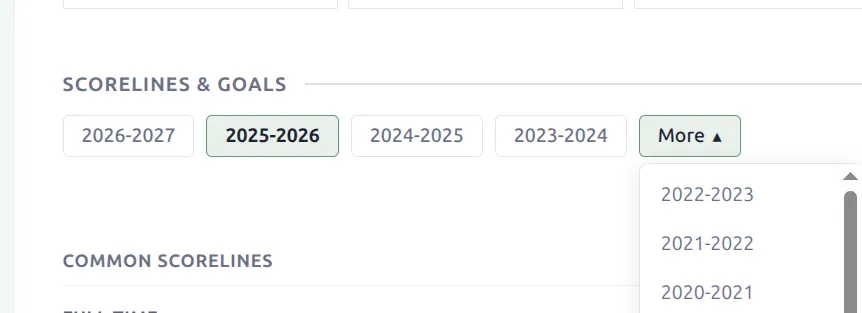
Out of the box each filter-capable block opens on the club’s highest-tier competition rather than an all-competitions total, so a club that plays a league and a cup shows its league first. You can change that per block – reorder the competition priority list, or clear it to default to All competitions.
Form Trends adds a venue toggle (Home & Away / Home / Away). Team Rankings only lists competitions that have a table, so a knockout cup never leads to an empty ranking.
Two things that don’t follow the filters
The header’s recent form and last win / last loss are “recent across seasons” on purpose – they’re the club’s last 10 games whatever season you’re viewing. And filter choices aren’t written into the page address, so a filtered view isn’t a shareable link. A ?season= in the URL is still honoured when the page first loads.
The Roster block
Two settings decide what the Roster shows and how it looks.
Squad Source – which roster to show:
- Active Squad (default) follows the active season, so it stays current on its own.
- Selected season pins the roster to one season you choose.
- Season pills lets the visitor switch the roster season in place.
Style – Editorial (a large number watermark behind each player, the default) or Clean (colour pills). Position groups are separated by a divider, and players with no position sit in their own group at the end rather than running on from the previous one.
Standings: full table or just the club’s slice
The Standings block can show the whole table or a slice of it. Set Table rows on the block:
| Mode | Shows |
|---|---|
| Full table | Every row (default). |
| Top rows | Just the top of the table. |
| Around this team | A window of rows either side of the club. |
| Top rows + around this team | Both slices, combined, with a separator between them. |
The partial modes can add a Show full table button so visitors expand it in place. On a multi-group stage, panels the club isn’t in always render in full.
Summary clubs and subteams
If you run a club with several teams – a first team, a reserve side, youth ages – you can set up one club as the summary page for all of them. In the club editor open the Subteams tab and set Root Type to Summary, then list its subteams.
Three blocks in the default layout exist for those pages, and they hide themselves on every ordinary club – so one shared layout covers both:
- Subteam Statistics – one row per subteam for the selected season: games, W-D-L, goals for and against, goal difference, win % and the subteam’s league position (blank for a cup-only side with no table).
- Combined Squad – every subteam’s players, with a per-team switcher.
- Subteam Schedule – all subteams’ results and fixtures merged and de-duplicated into one month-by-month grid.
The season pills on these blocks come from the seasons the subteams actually played, since a summary club has no matches of its own. For the same reason, the club’s own blocks (Season Record, Schedule, Form Trends and the rest) hide themselves there.
Customize the layout
Open the Team layout in Layouts (v2) to change it. You can drag blocks into rows and tabs, reorder them, remove ones you don’t need, and set per-block spacing and colours. Save, and your club pages update right away.
Layout Builder v2 pages use one consistent block style across team, player and competition pages: only the header block at the top of the page keeps a frame, and the sections below it are separated by their section heading rather than each sitting in its own box. If you prefer boxed sections, put the blocks inside a row container and set that row’s background and border – which also lets you pick the colours per layout.
Section headings (“Standings”, “Season Record”, and so on) are per-block – edit the heading right on the block in the builder. The wording inside the stat blocks (Season Record, Subteam Statistics, Scorelines, Match & Goals Breakdown, Team Rankings, Player Stats) is separate: rename or translate it from Football Leagues → Text Strings, with no translation plugin needed.
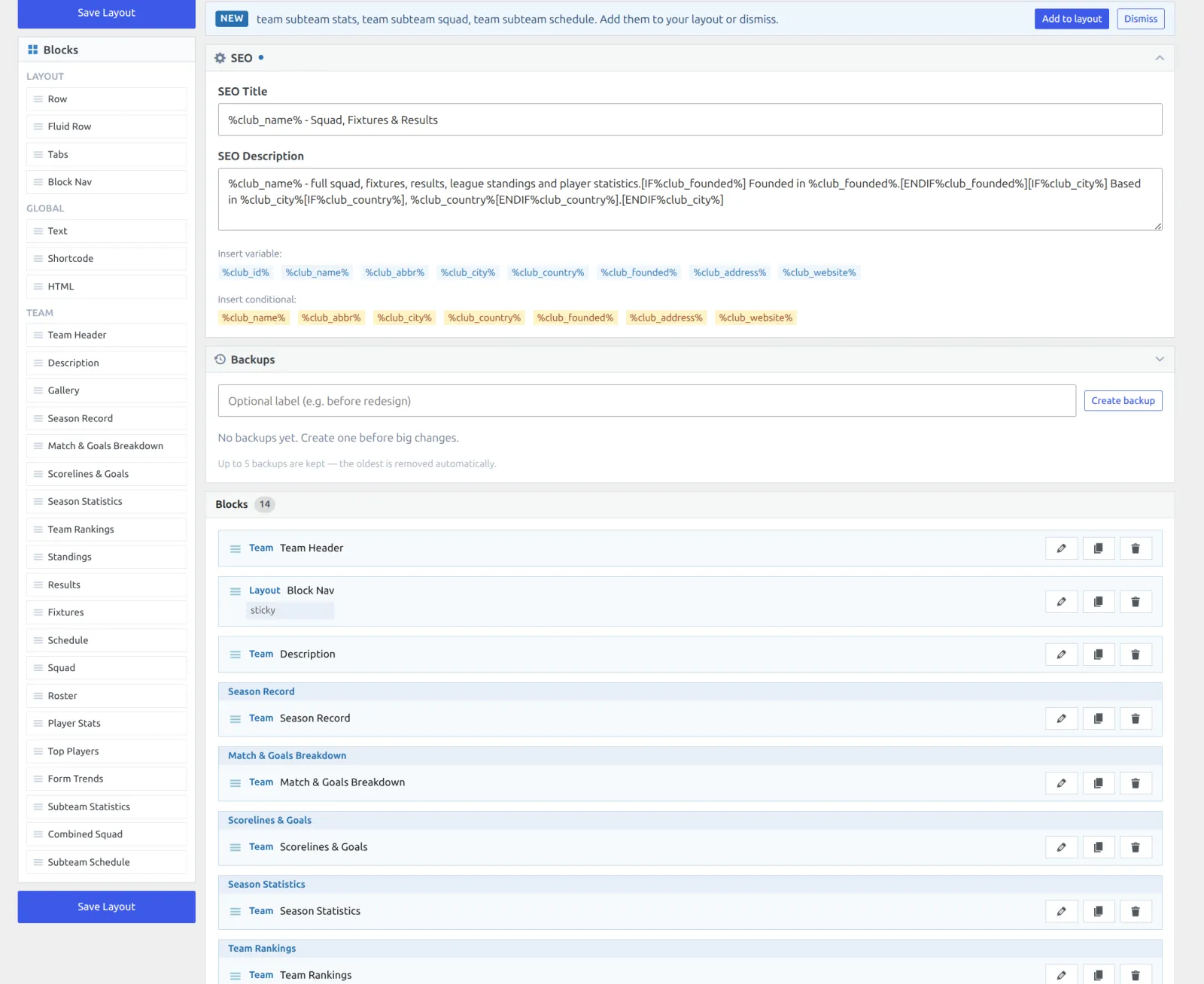
If you’ve customized the layout and want the shipped default back, use Reset in the builder. That replaces your layout, so note your changes first.
📚 Related
- Player Pages with Layout Builder v2
- Competition Pages with Layout Builder v2
- See the Site Migration guide to move an existing site onto the new tables.