The lazy import functionality introduced in v0.16.18 enables faster API data imports without requiring manual import configuration, competition structure with stages, and setup of a standing table.
Lazy Import works best for archived seasons, national cup competitions (provided you can accept the absence of bracket support), and minor league tournaments where speed and simplicity take priority over advanced features.
Advantages
- Speed: Faster import process
- Automation: Automatically creates games and standing tables
- Simplified setup: No advanced competition configuration is required; only league, season, and status settings are needed
Limitations
- Limited interactivity in Standing Tables: Created competitions cannot use interactive standing table features, including:
- Home/away switcher
- Form display
- Dynamic arrows
- No bracket support: Tournament brackets are not supported in Competitions created by Lazy Import
- Delayed data updates in Standing Tables: The API does not update standing table data immediately after a game is finished. Sometimes the delay can extend for hours before the data is reflected in the standings.
Key Considerations
When choosing lazy import, consider whether the speed benefits outweigh the loss of interactive features and real-time updates for your specific use case.
Creating a Lazy Import Configuration
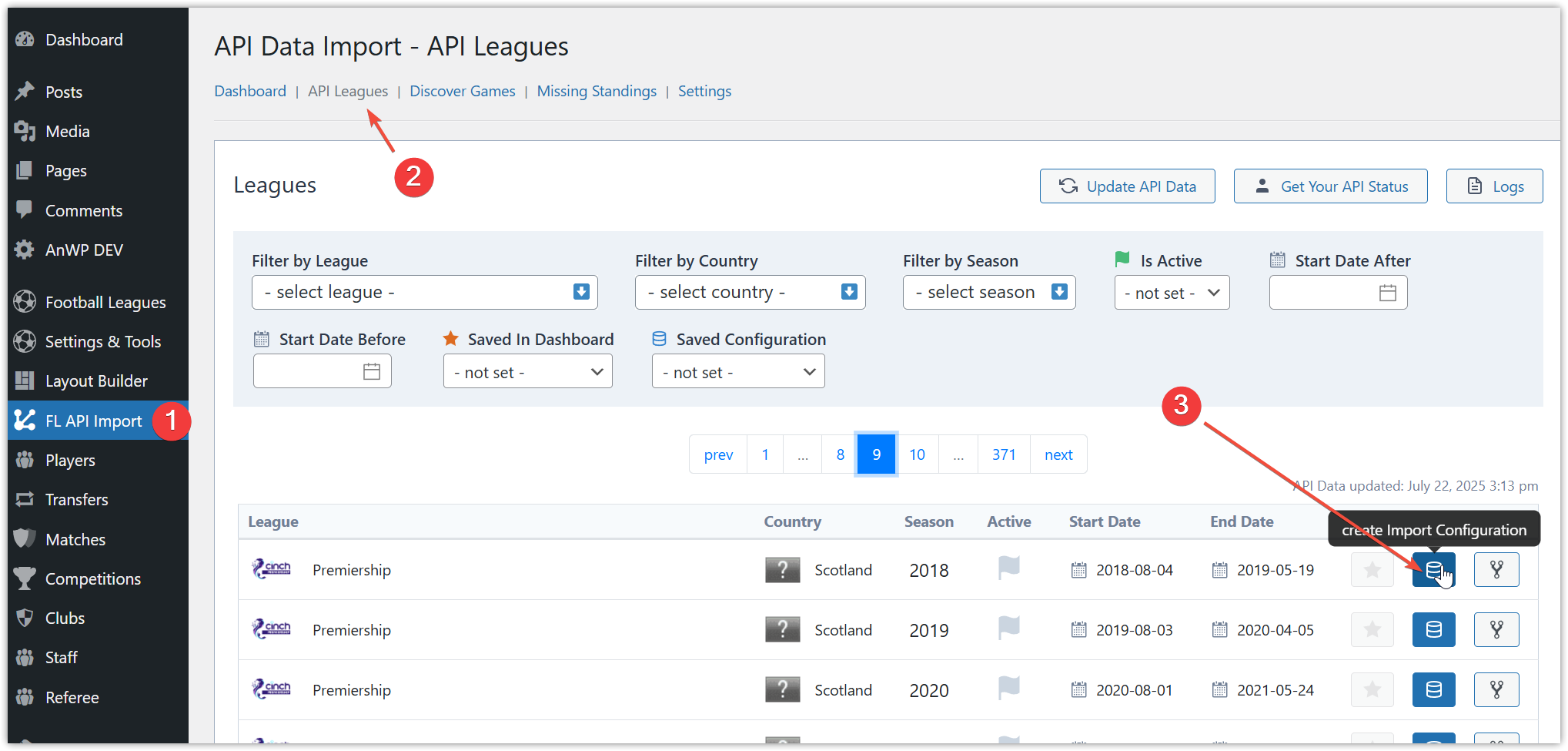
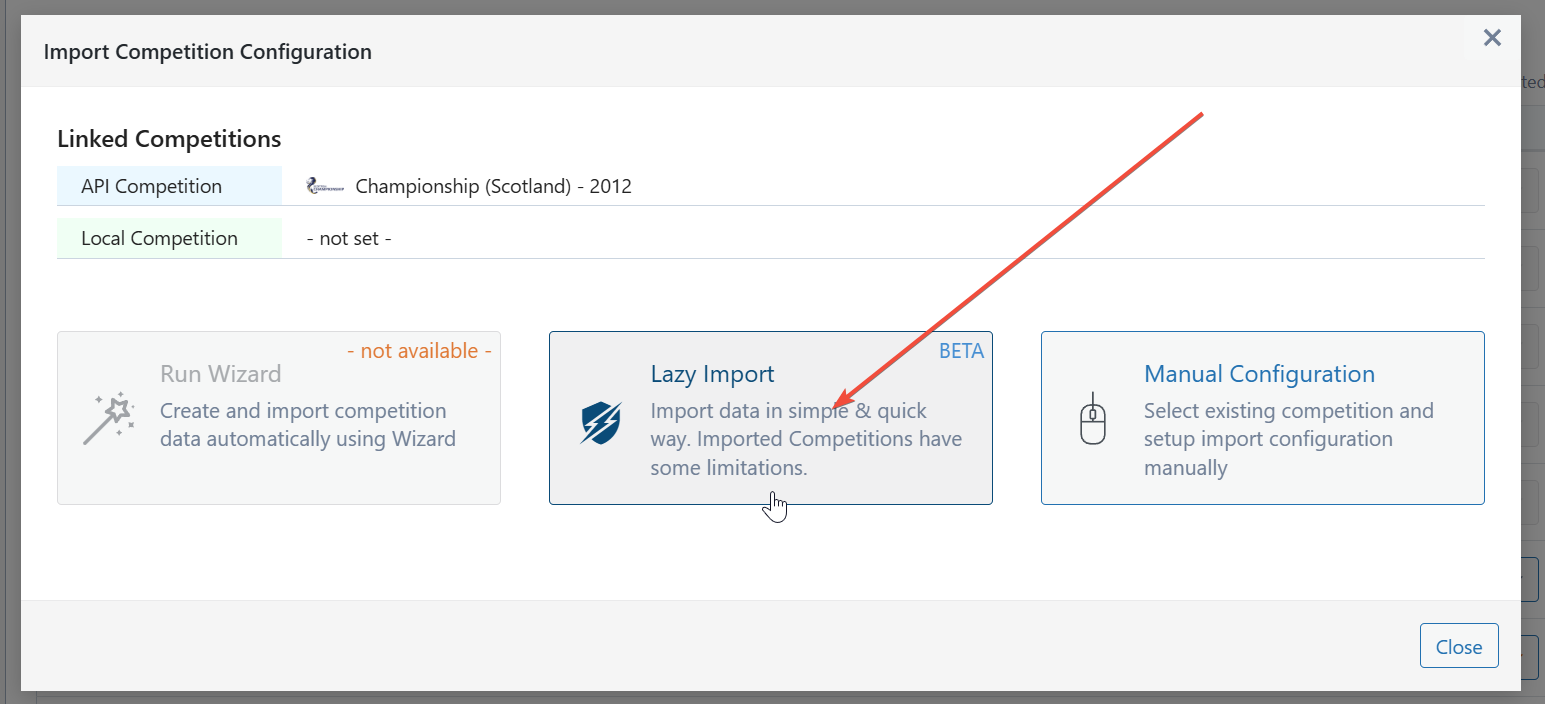
Go to “FL API Import” → “API Leagues” tab → select your desired league → click “Create Import Configuration” (blue database icon) → choose “Lazy Import.”
Next, either create new league/season entries or select existing ones.
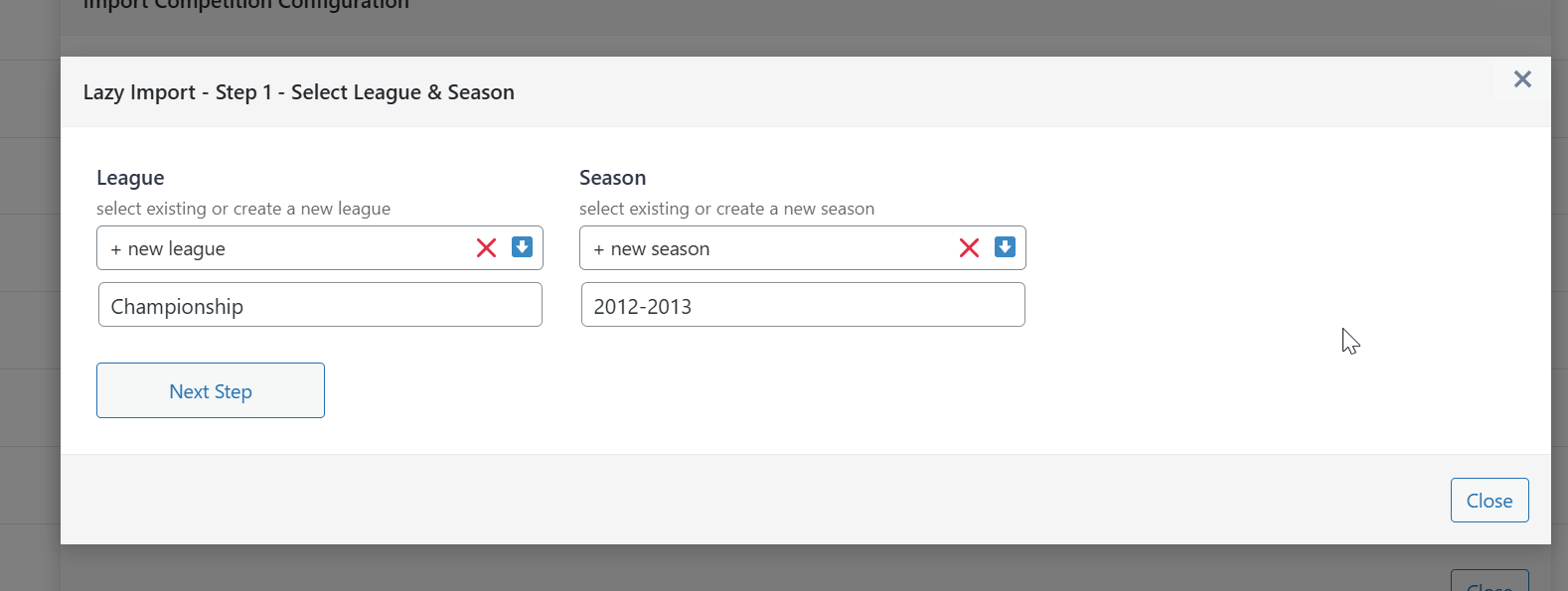
Review the automatically suggested competition name and confirm whether the competition status is classified as “official” or “friendly.”
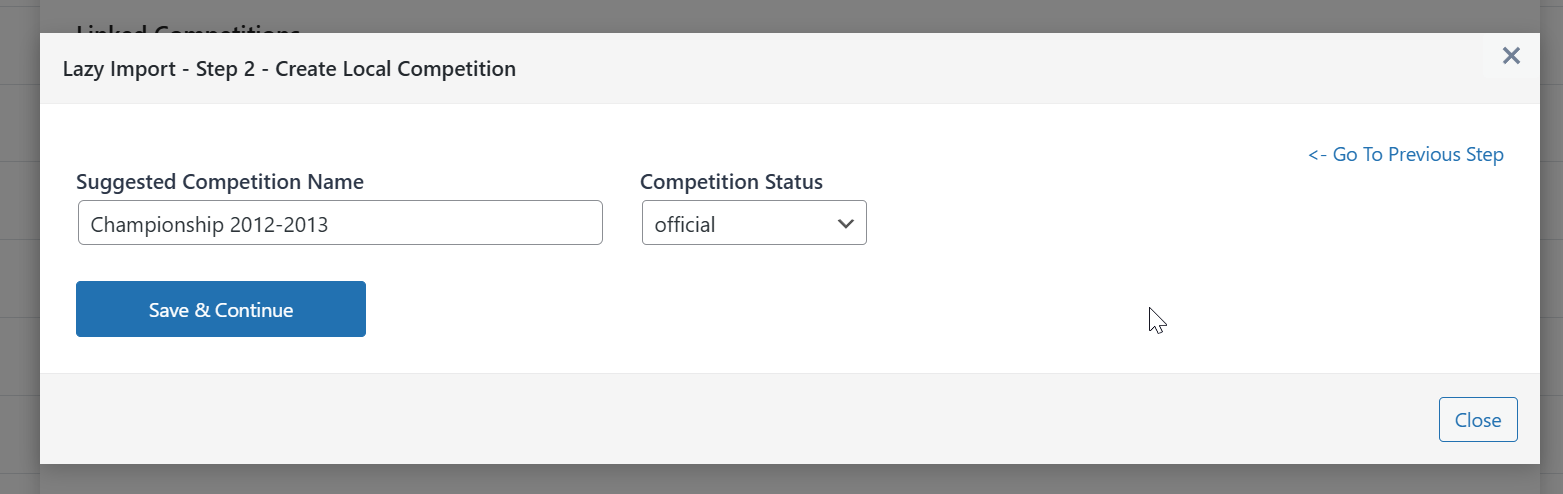
Running Import Configuration Actions
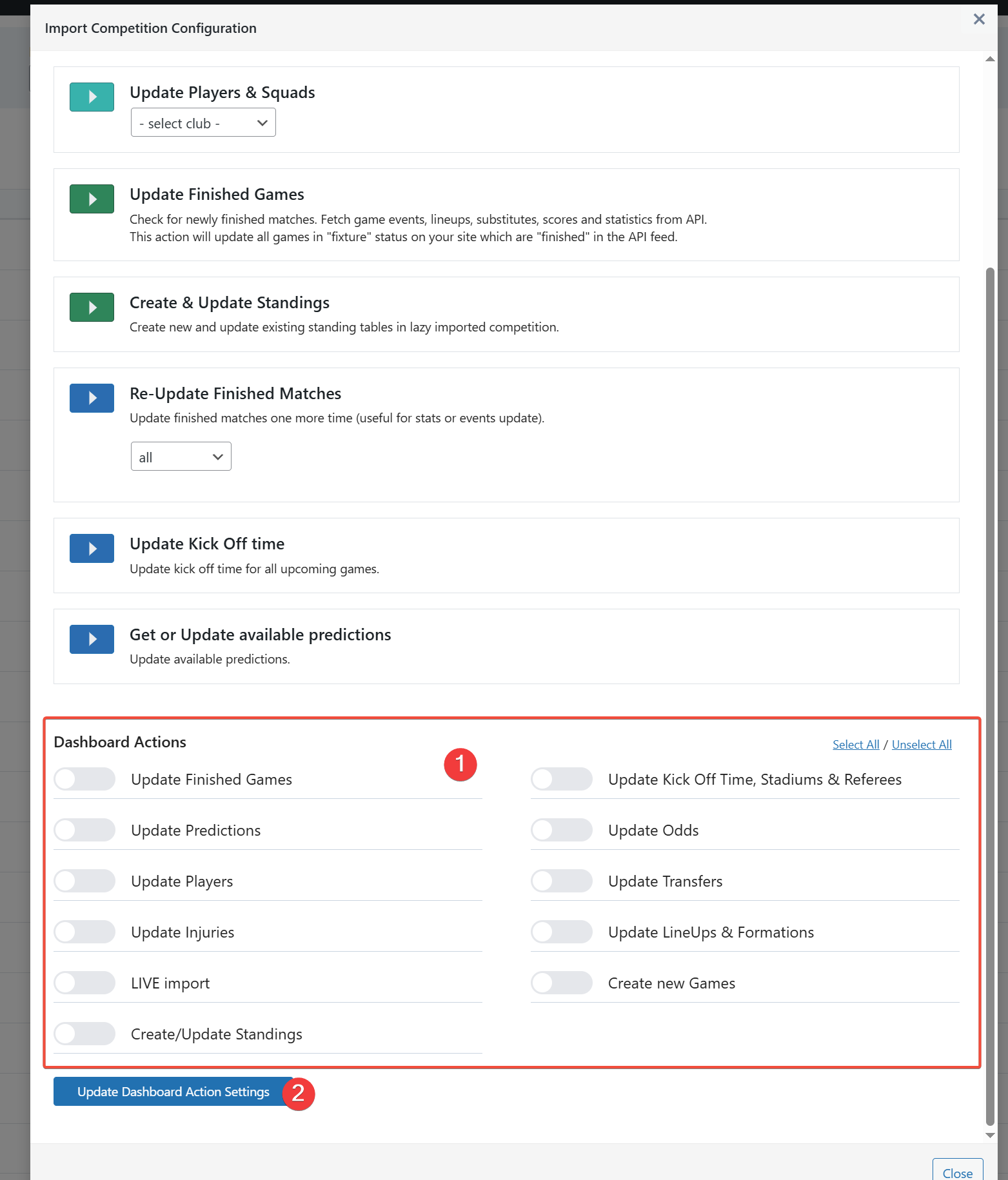
If the competition is created successfully, you will see the “Import Competition Configuration” modal where you can execute several basic tasks.
▶ Create Games
When you run Create Game, the plugin performs the following steps:
- Team verification: Before importing, the plugin checks for any teams from this league that don’t exist on your website
- Team creation: The plugin attempts to create any missing teams automatically
- Game creation: Only after all teams are imported will the plugin begin creating games
Important Considerations
Large competitions: Some national cups can have hundreds of teams. The plugin must complete importing all these teams before it starts creating games, which can be a time-intensive process.
Timeout handling: If you encounter a timeout error during the import process, simply rerun the task. The plugin will resume from where it left off.
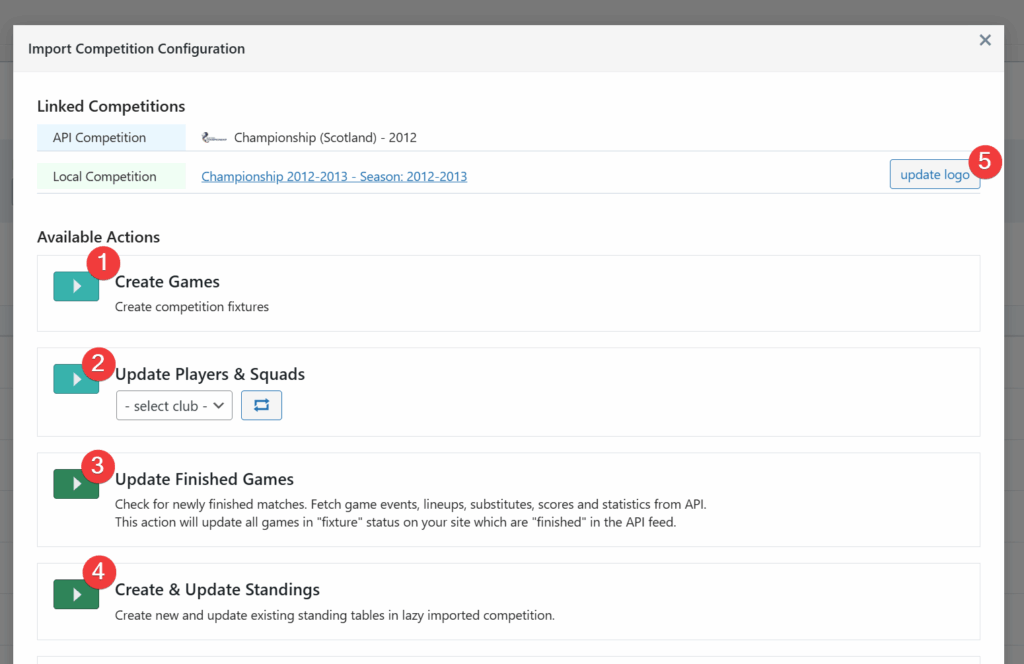
▶ Update Players & Squad
The “Update Players & Squad” action is an optional feature that retrieves detailed player information from the API (when available) and updates team’s squad data.
We recommend avoiding this action for national cups and archived seasons. Use this action only for active (current) national leagues.
▶ Update Finished Games
This action is required for all finished or already started leagues.
To schedule automatic updates for finished games, refer to the Scheduled section of this tutorial.
▶ Create & Update Standings
Use this feature for competitions with round-robin stages. It automatically imports standings table data from the API when available.
Adding Active Competitions to Dashboard
When a competition is currently in progress, you can add it to the Dashboard by clicking the star icon. Once added to the Dashboard, you’ll be able to:
- Run basic tasks for the current league
- Schedule and manage your most important tasks
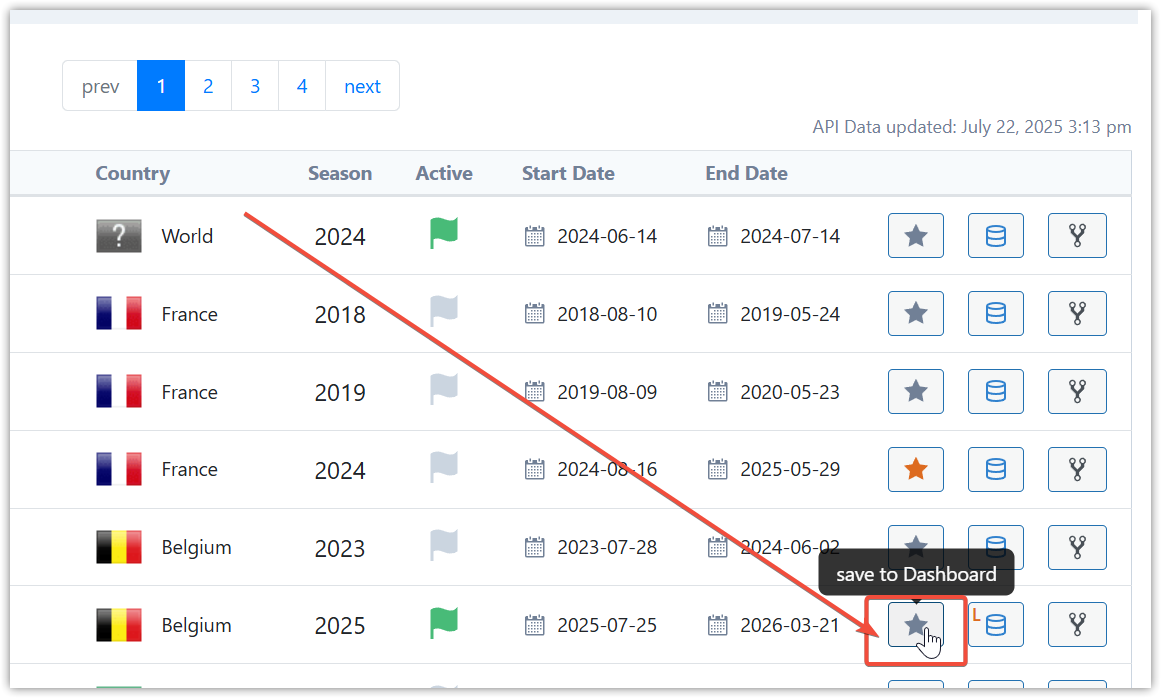
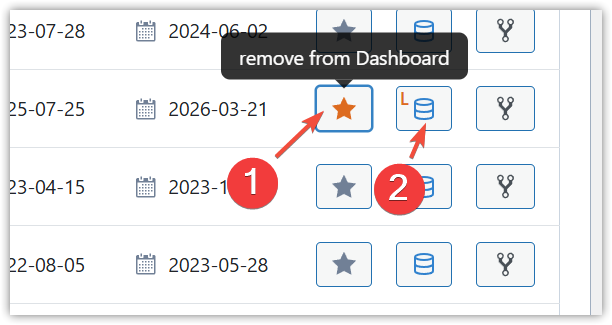
After adding the league to Dashboard → Click “Edit Import Configuration” → Select dashboard actions → Update settings.
Dashboard
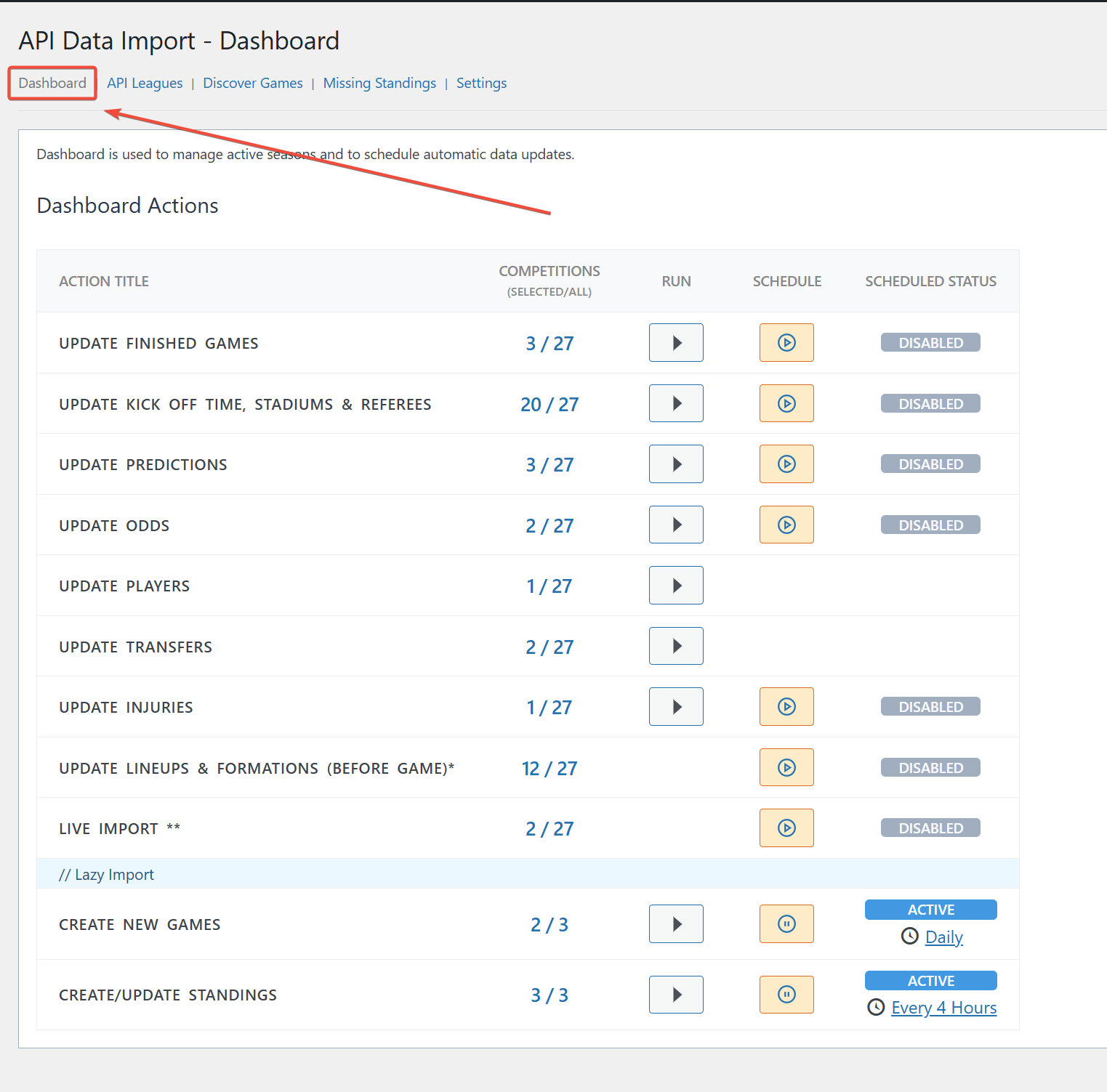
The Dashboard is used to manage active seasons and schedule automatic data updates. You can run different tasks by clicking the “Run” button for immediate execution, or schedule tasks to run automatically. All actions will apply to the competitions listed in your selected competitions.
Schedule a Task
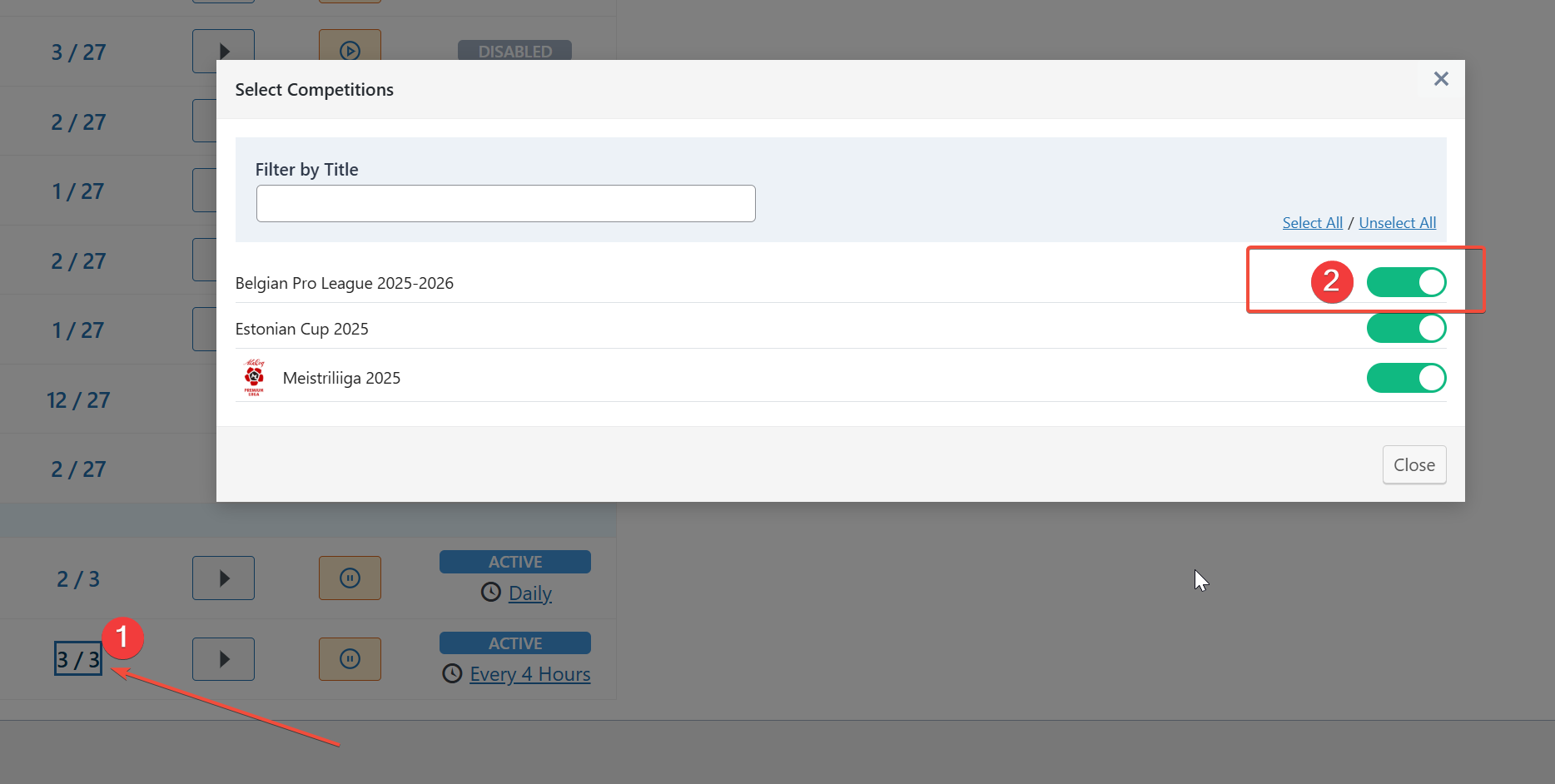
Let’s schedule a task to automatically update Standing tables. Follow these steps:
- Verify your competition is selected: Click on the “selected/all” (1) number next to the task
- Check the modal: Confirm that your competition appears as selected in the popup (2)
- Close the modal and return to the main screen
- Click the “Schedule” button (if the scheduled task is currently disabled)
Change Task Recurrence
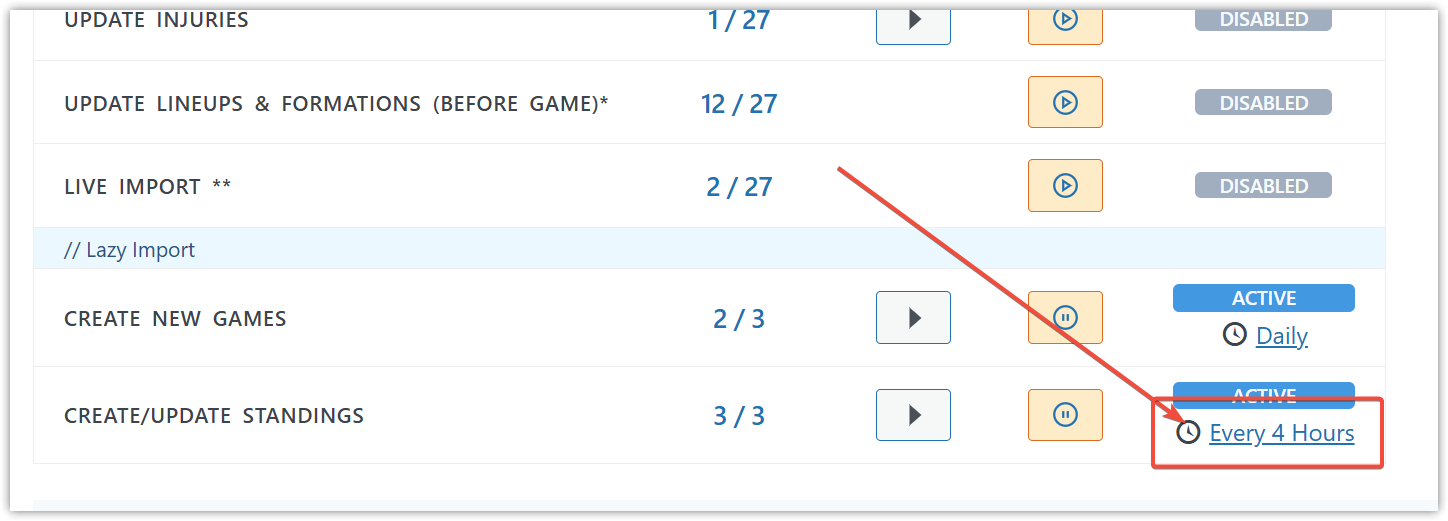
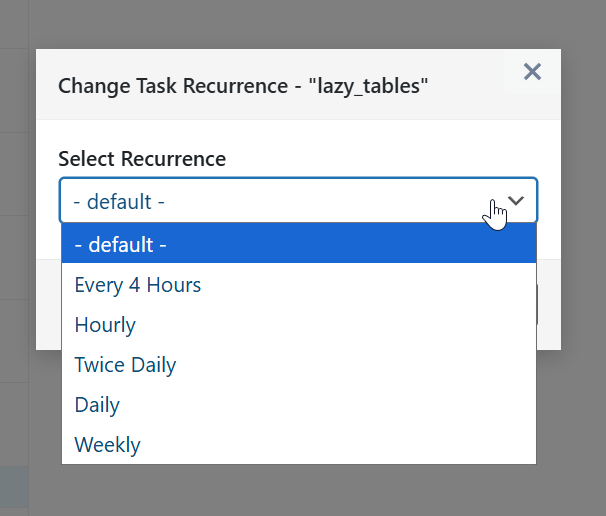
To adjust how often the task repeats, click on the current recurring period value. This will allow you to select a different time interval for automatic execution.
Layout Builder
Every Lazy Import competition created so far uses the “Default Layout” configuration for Multi-Stage Competitions.
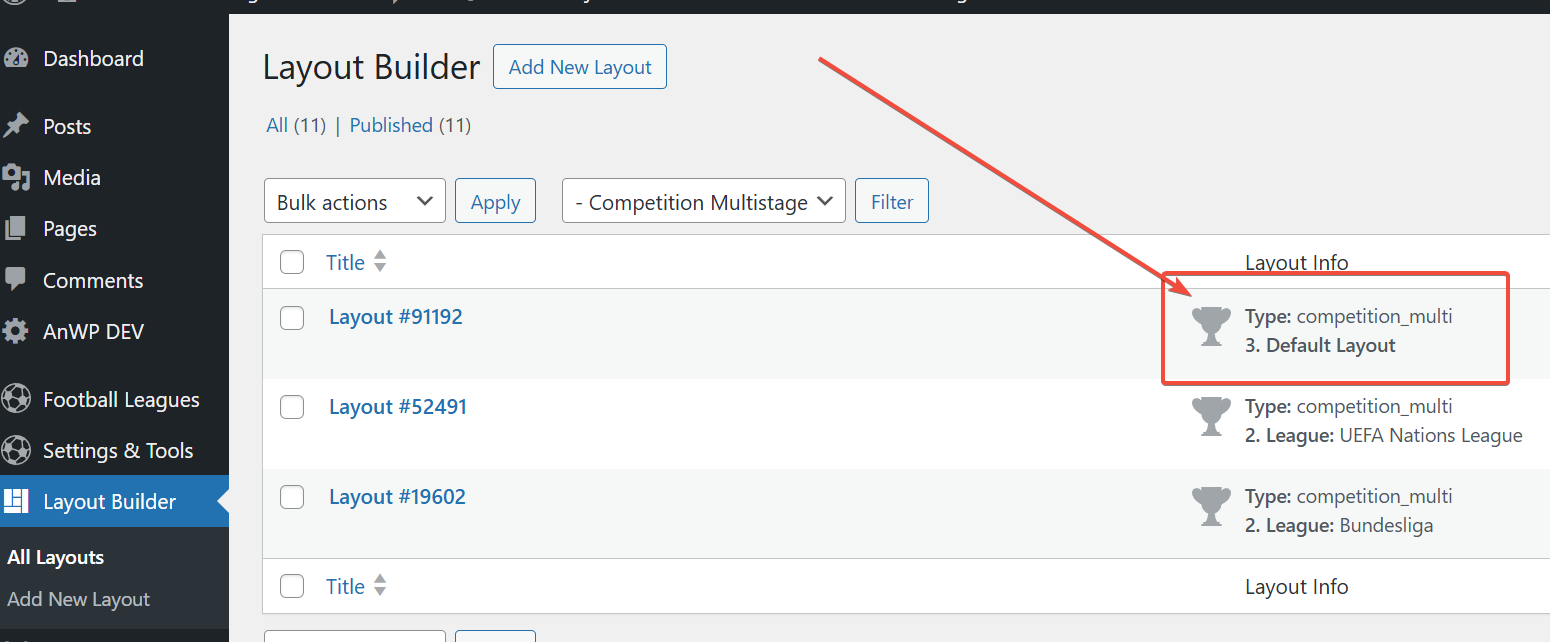
Below, I’ll provide detailed step-by-step instructions on how to set this up.
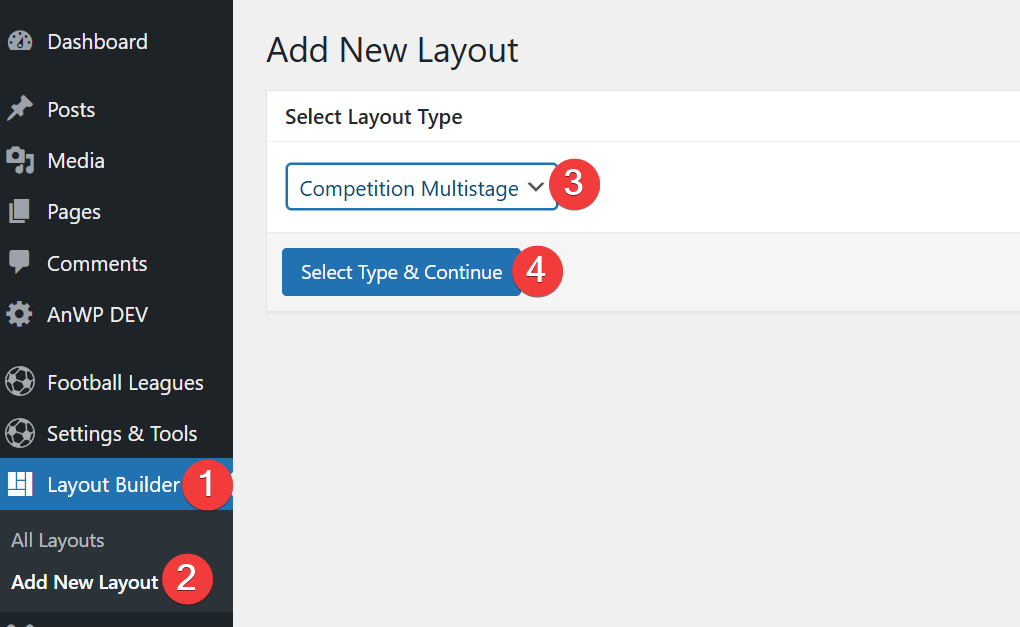
Navigate to “Layout Builder” → “Add New Layout”. Choose “Competition Multistage” as your Layout Type, then click “Select Type and Continue” to proceed.
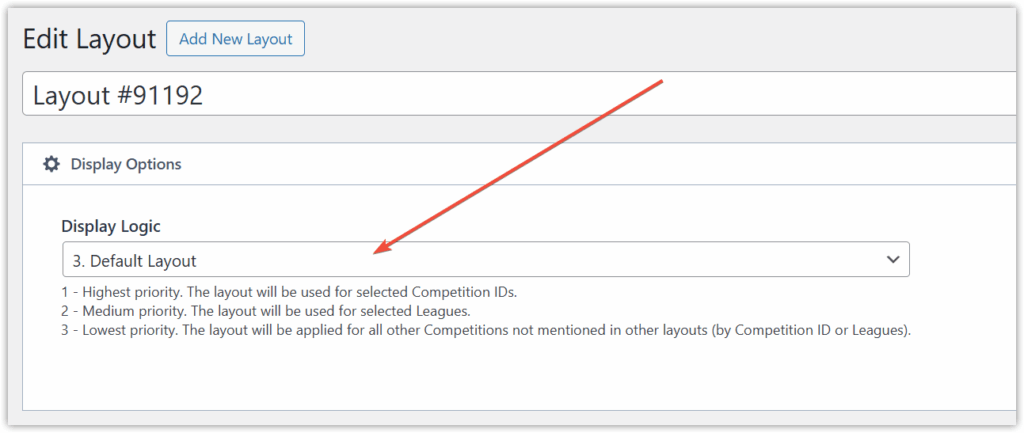
In the “Display Options” metabox, select “3. Default Layout”.
You can only have one Default Layout per site. If this option is available for selection, it means you have already created a Default Layout previously. Locate this layout in your list and click to edit it.
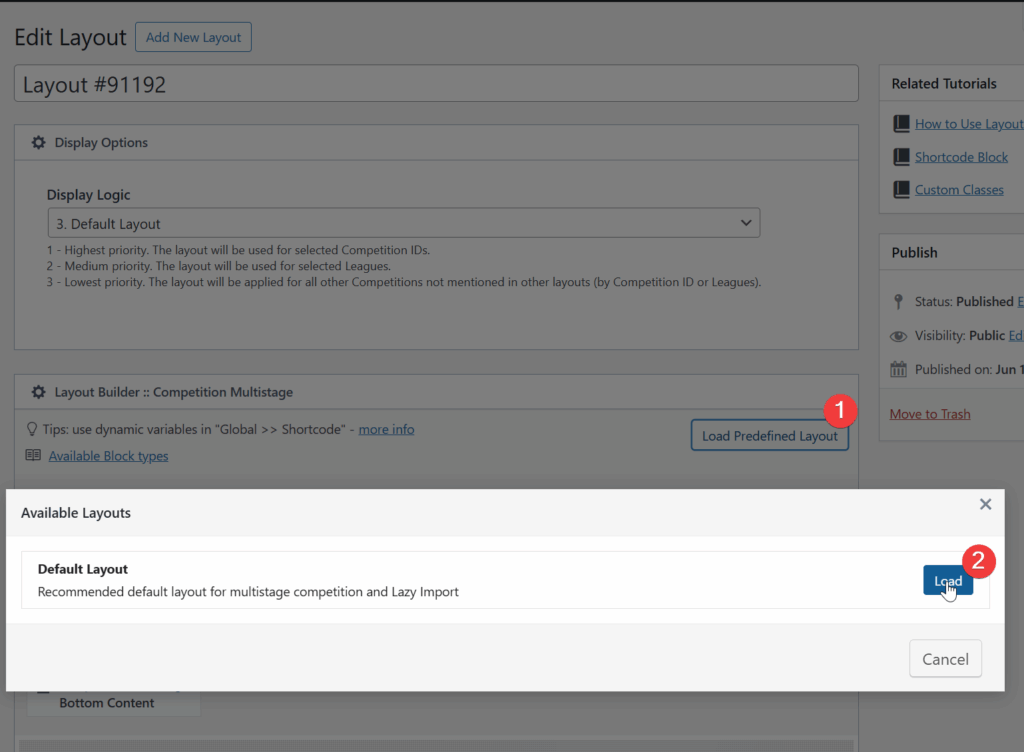
Next, click the “Load Predefined Layout” button, choose “Default Layout” from the dropdown menu, and then click “Load” to apply the layout.