

Football Leagues 0.18.0 is a performance release that moves clubs, competitions, standings, and squad rosters into dedicated database tables. Pages load faster and admin lists become more responsive. This page walks you through the upgrade end-to-end.
Back up your site before you start
This upgrade rewrites parts of your database. Make a full backup (files + database) before clicking any Update button. Most managed hosts offer one-click backups; if yours doesn’t, plugins like UpdraftPlus or All-in-One WP Migration can do it for you. If anything goes wrong, restoring from the backup is the safest recovery path.
What’s changing
Four kinds of data move into faster, purpose-built storage:
- Clubs – team info, logos, colors, social links.
- Competitions – leagues, cups, groups, brackets.
- Standings – the league table configuration for each competition.
- Squad rosters – the player list attached to each club, plus per-season archives.
You don’t need to recreate any data – the plugin migrates everything automatically. The upgrade has a few safety checks built in, so the order of steps matters. Follow them in sequence.
Step 1 – Update Football Leagues (Core)
Open Plugins and update AnWP Football Leagues to 0.18.0 (or higher). Don’t worry if you can’t update the Premium plugin in the same step – the new Core version checks for this and shows clear notices on every admin page.
After the Core update, the dashboard will look something like this:
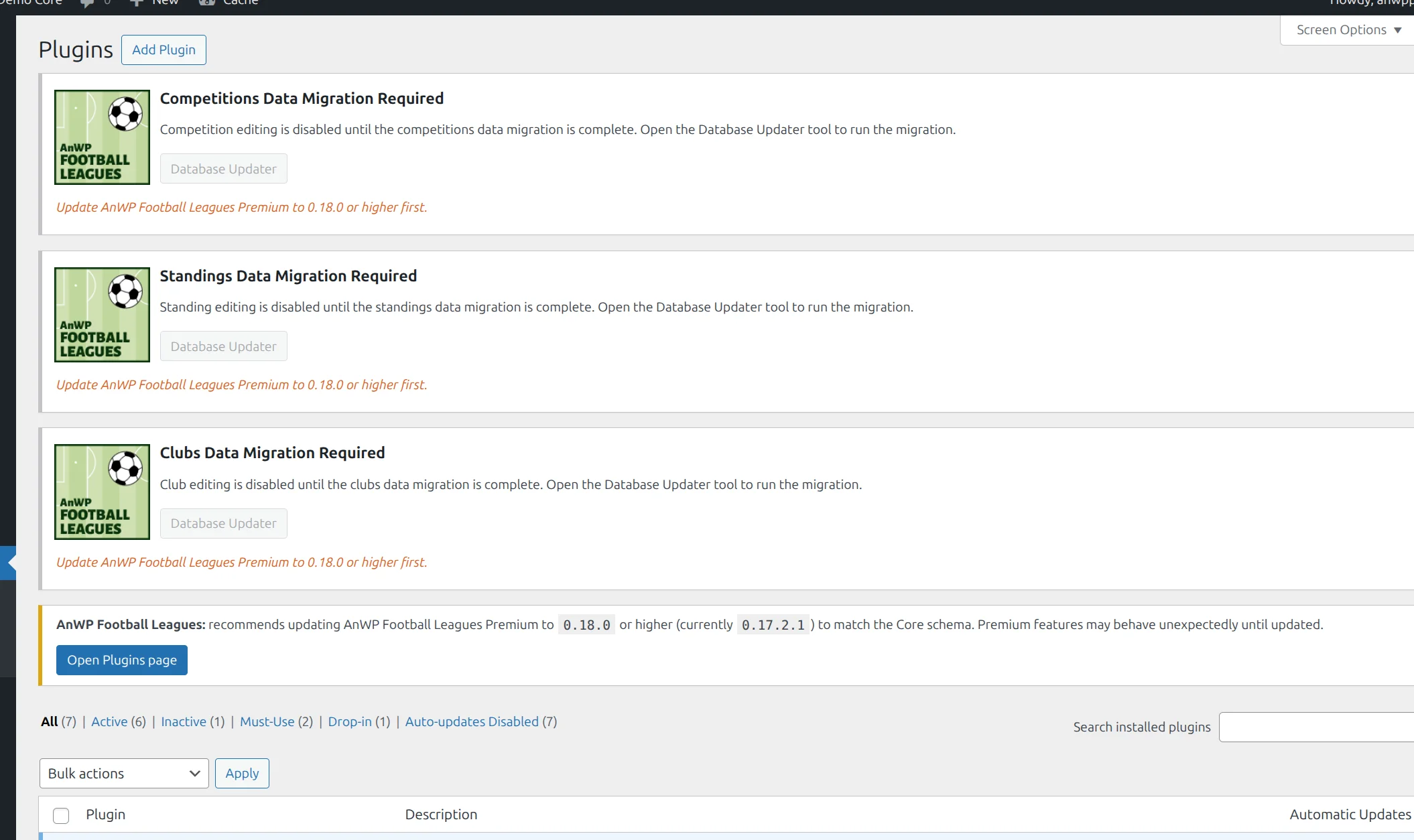
- Three notices at the top say Clubs / Competitions / Standings Data Migration Required.
- The Database Updater buttons are greyed out and the hint underneath says “Update AnWP Football Leagues Premium to 0.18.0 or higher first.”
- A yellow notice at the bottom recommends updating Premium.
This is the safety gate working as intended. It stops you from running the migration before Premium is ready, which would silently leave premium-only fields (custom shirts, trophies, roles, report email) out of the new tables. Update Premium next.
Step 2 – Don’t edit clubs, competitions, or standings yet
Between the Core update and running the migration, editing for these three entities is temporarily paused. If you open an edit screen, you’ll see a notice in place of the form:
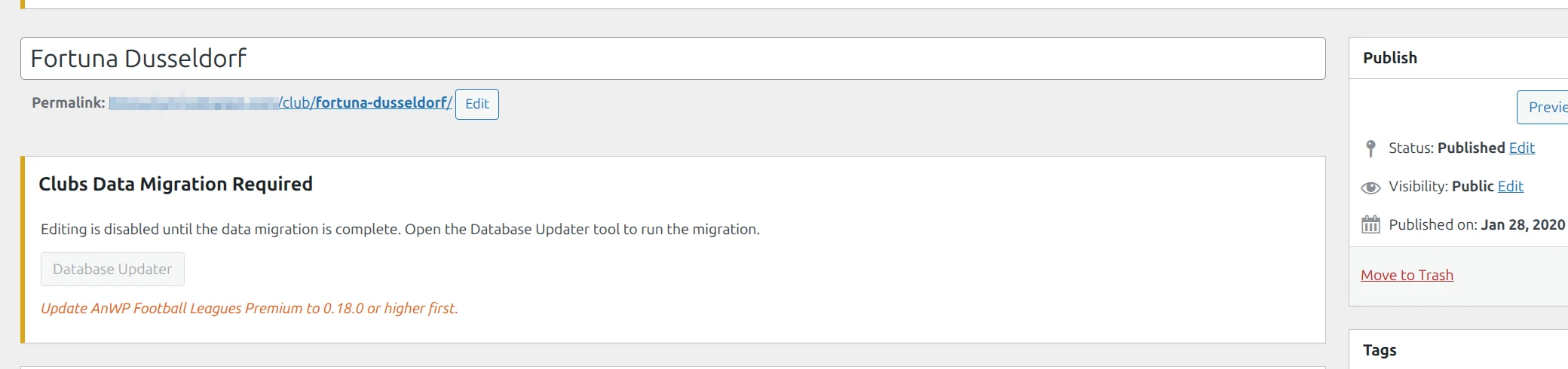
This is intentional – saving a club, competition, or standing edit right now would write to the old format and conflict with the migration. Editing automatically becomes available again once the migration finishes.
What still works during the upgrade
The frontend continues to render normally for visitors. Match editing, player editing, and entering match results are not affected. Only club / competition / standing edits are paused, and only until you run the Database Updater in Step 4.
Step 3 – Update AnWP Football Leagues Premium
Back on the Plugins page, update AnWP Football Leagues Premium to 0.18.0 (or higher).
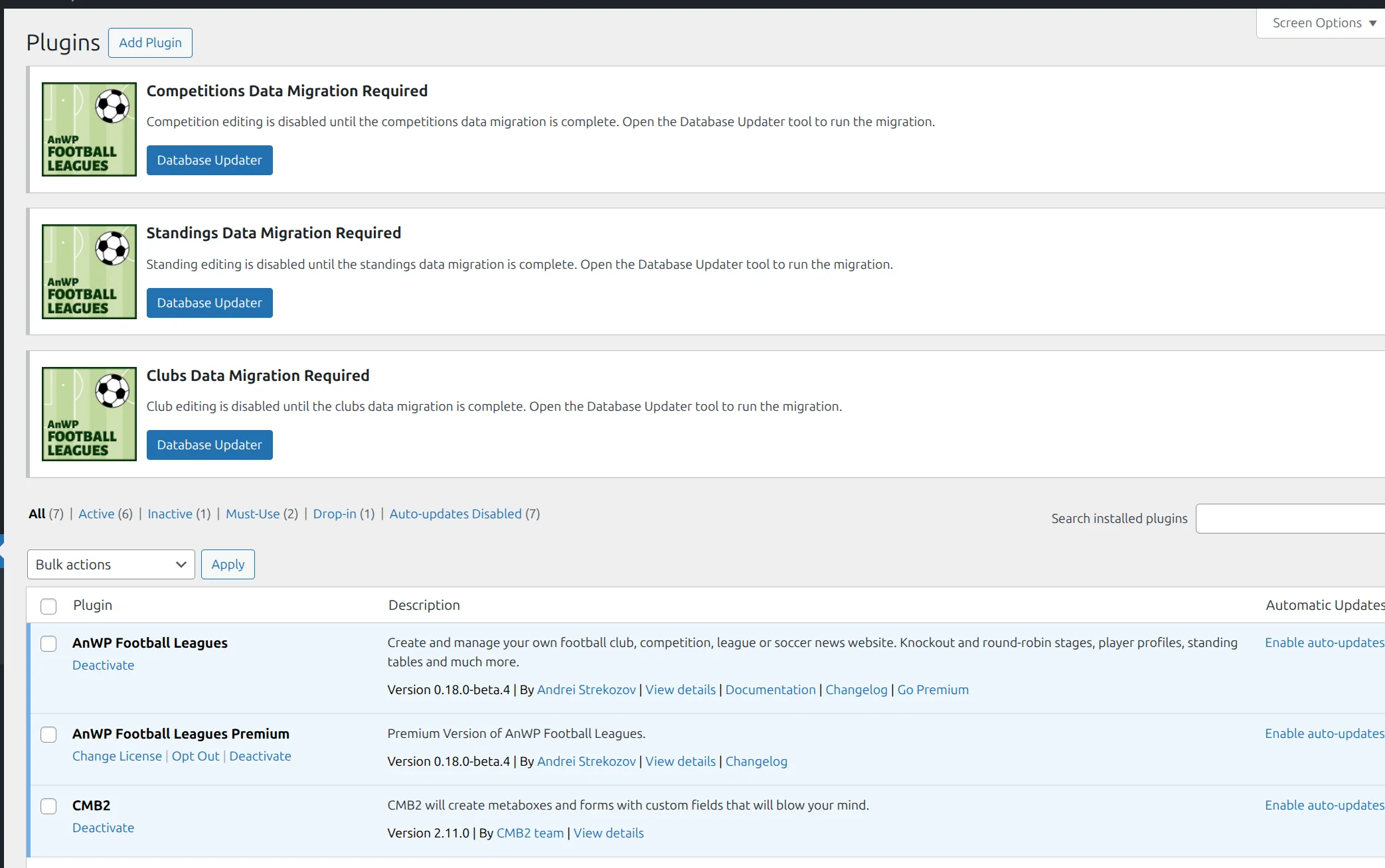
As soon as Premium is updated, two things change:
- The yellow “recommends updating Premium” notice disappears.
- The three migration notices now show active blue Database Updater buttons.
Step 4 – Run the Database Updater
Click any Database Updater button (or go to Football Leagues > Toolbox > Database Updater). You’ll land on the Database Schema Updater page:
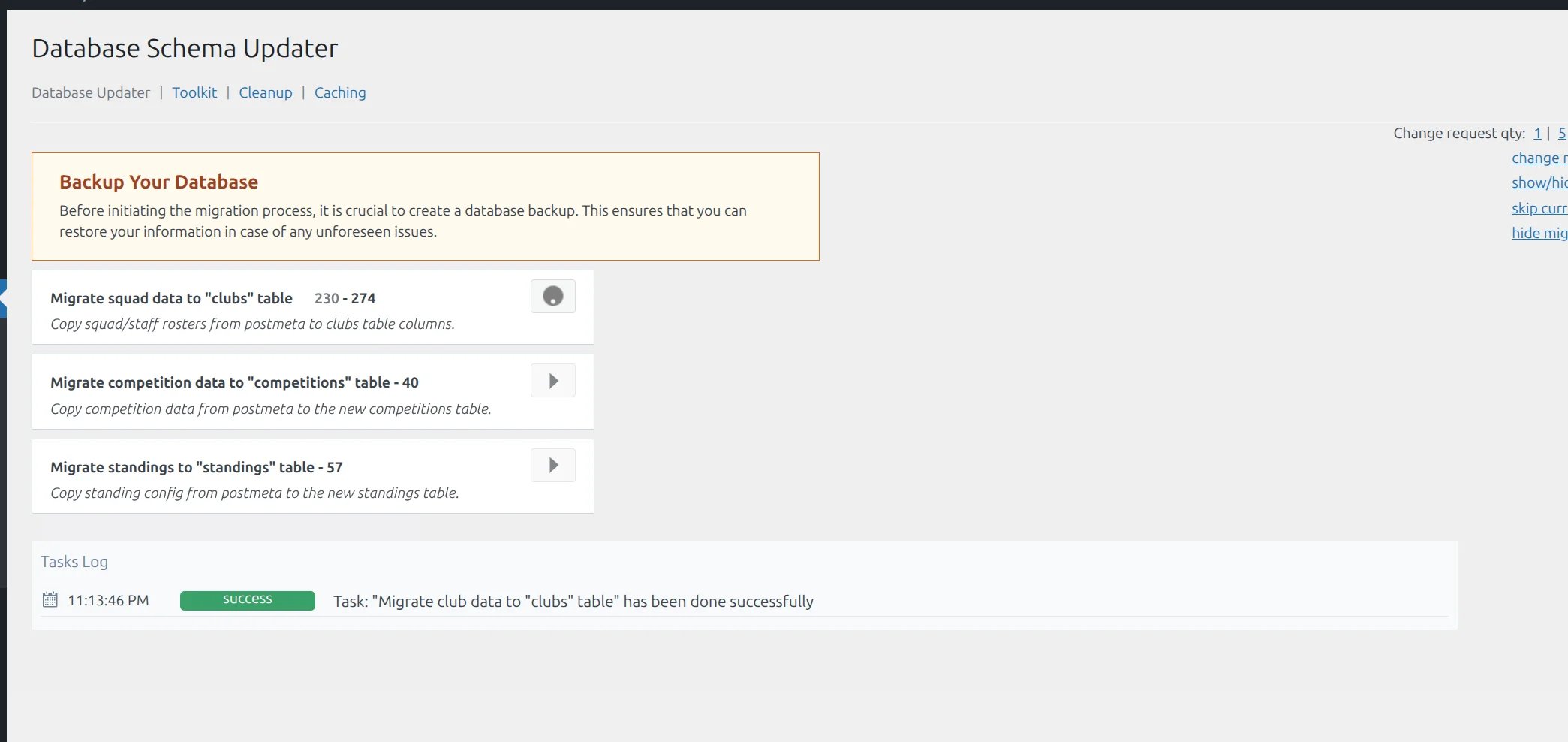
- The page lists four migration tasks: clubs, squad rosters, competitions, and standings.
- Each task shows the total number of items it will process (for example, “Migrate standings to standings table – 57” means 57 standing entries).
- Click the play (►) button on each task and wait for it to finish before starting the next.
- The Tasks Log at the bottom records each completed task so you can see progress.
Most sites finish in under a minute. Large installations (thousands of clubs or competitions) may take a few minutes. If a task seems stuck, you can refresh the page – the migration resumes safely from where it left off, and re-running a completed task is a no-op.
Once all tasks finish, the three “Data Migration Required” notices disappear from the dashboard and editing for clubs, competitions, and standings is enabled again. Your site is now running on the new fast storage.
Step 5 – Clean up the old data (recommended)
After the migration, the old copy of your data is still in the WordPress postmeta table as a safety net. The plugin reads everything from the new tables now, so the old copy is just dead weight – thousands of rows your database carries on every page load.
Open Football Leagues > Toolbox > Cleanup:

- Four sections show how many old postmeta rows can be removed (clubs, standings, competitions, squad).
- Click Remove old postmeta in each section.
- A typical site sees 4,000 to 6,000 rows removed in total.
When should you run cleanup?
If you have a custom theme with template overrides (theme files under yourtheme/anwp-football-leagues/) or custom PHP that reads plugin data, check the developer migration guide before running cleanup. Plain installs and themes that don’t override Football Leagues templates can run cleanup right after migration with no extra work.
After the upgrade
- Editing works as before – the club editor is now a faster custom editor (the old CMB2 metabox was replaced).
- Shortcodes, blocks, and widgets render unchanged. Visitors see no difference except faster page loads.
- Saved data is intact. Every postmeta key the plugin used previously was carried over.
- If you have API Import or Site Migration tools running on schedule, they continue working automatically.
Troubleshooting
The “Data Migration Required” notices won’t go away.
This usually means one of the migration tasks didn’t finish. Open the Database Updater page (Football Leagues > Toolbox > Database Updater) and run any pending task that’s still showing a play button. The notices clear automatically once all four migration tasks complete.
I updated Premium first by mistake.
That’s fine – Premium 0.18.0 detects an older Core and shows its own notice asking you to update Core first. Update Core to 0.18.0, and from that point follow the steps starting at Step 3 (the Premium-update step is already done).
I edited a club / competition / standing right before updating.
Your edit is safe. The migration reads the latest values from your data, so the most recent save is what ends up in the new table. Just complete the upgrade as normal.
My theme renders blanks or odd values after cleanup.
This is the main case where the developer migration guide matters. Custom template overrides that read directly from get_post_meta() with keys like _anwpfl_city stop working after cleanup, because that data lives in the new tables now. The developer guide has before/after code for each affected pattern. If you restored from your pre-upgrade backup, the postmeta returns and the theme renders normally again – then update the theme, then re-run the migration and cleanup.
For developers
If you maintain custom theme overrides or custom PHP that reads plugin data, the developer migration guide is the companion to this page. It lists every renamed function, every removed postmeta key, and the new accessor methods, with side-by-side before/after code.