

This page takes you from a fresh install to a site with your sport set, your club in place and a first competition with its draw made. The setup wizard does most of it in about a minute.
Requirements
- WordPress 6.5 or later
- PHP 7.4 or later
- Any theme. Classic themes (Kadence, Astra and the like) and block themes (Twenty Twenty-Five and the like) both work.
🚀 Install the plugin
- Go to Plugins > Add New Plugin and search for AnWP Tennis Leagues. Or click Upload Plugin and pick the plugin’s .zip file.
- Click Install Now, then Activate.
- A Tennis Leagues menu appears in your admin, and the Plugins screen shows a setup notice.

Click Start setup, or open Tennis Leagues > Dashboard. On a site with no competitions yet, the Dashboard opens on the wizard.
The setup wizard
Four steps: Sport, Club, First competition and Sample data. The last two are optional. Nothing is created until you click Finish setup, and Back keeps every answer.
Step 1 – Sport
Pick the sport you run most. Every new competition starts with its scoring, and each competition can still pick another sport, so a club running tennis and padel side by side is fine.
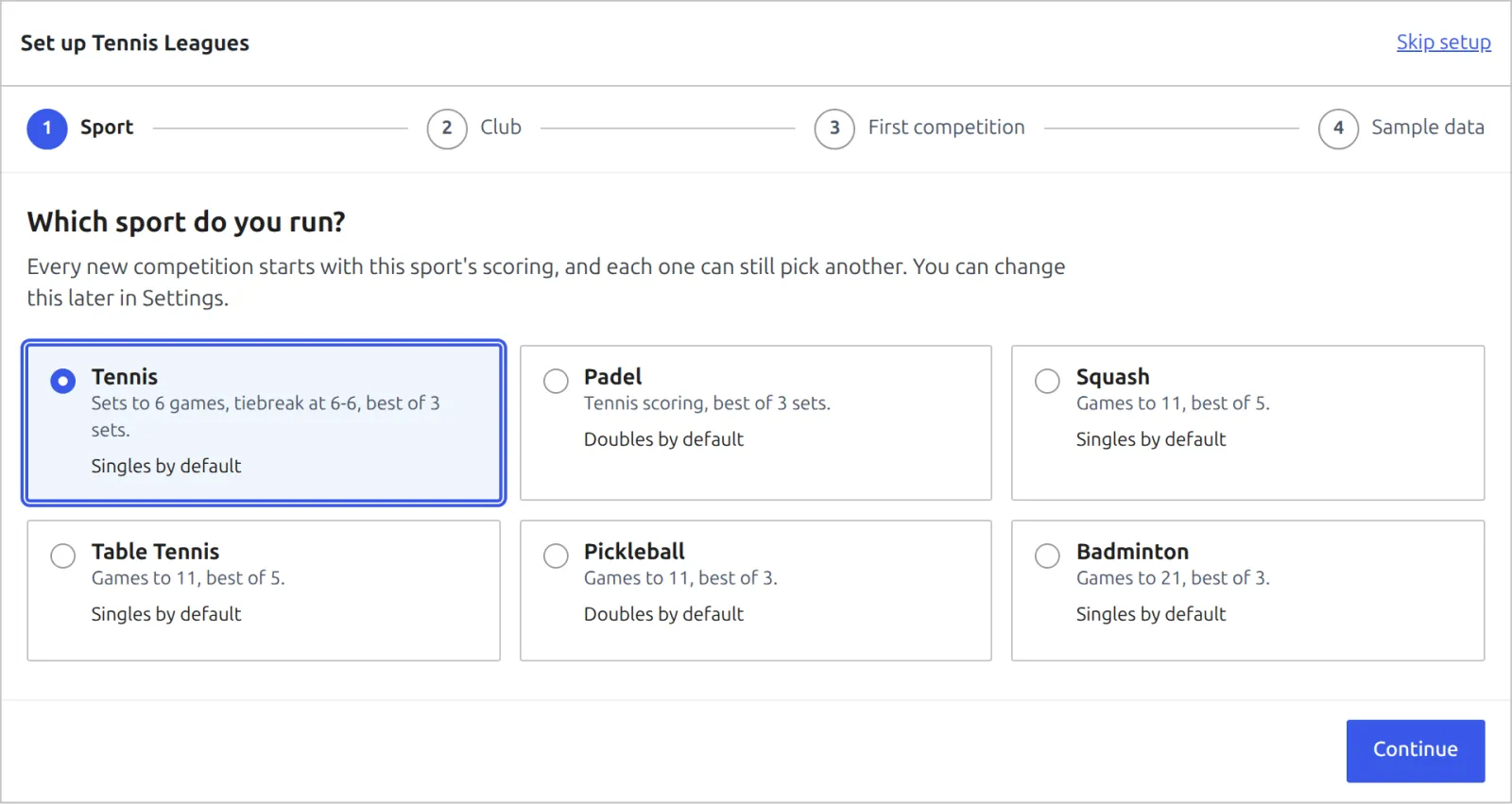
| Sport | Default scoring | Played as |
|---|---|---|
| 🎾 Tennis | Sets to 6 games, tiebreak at 6-6, best of 3 sets | Singles |
| Padel | Tennis scoring, best of 3 sets | Doubles |
| Squash | Games to 11, best of 5 | Singles |
| Table Tennis | Games to 11, best of 5 | Singles |
| Pickleball | Games to 11, best of 3 | Doubles |
| Badminton | Games to 21, best of 3 | Singles |
These are starting points. Each competition can change its best of, the deciding set and the other variants its sport offers.
Step 2 – Club
- One club – your club’s own site, and everyone plays for you. Your club and its courts are filled in for you, the club fields stay out of the way, and Clubs in the menu becomes Your Club. The club name starts as your site title. Add your courts here too (up to 20, or 0 if you don’t track courts). Surface is asked for tennis only.
- Several clubs – leagues, team leagues or events between clubs, for organisers and federations. Nothing is created now: add clubs when you need them.
You can switch any time in Settings – nothing is deleted.
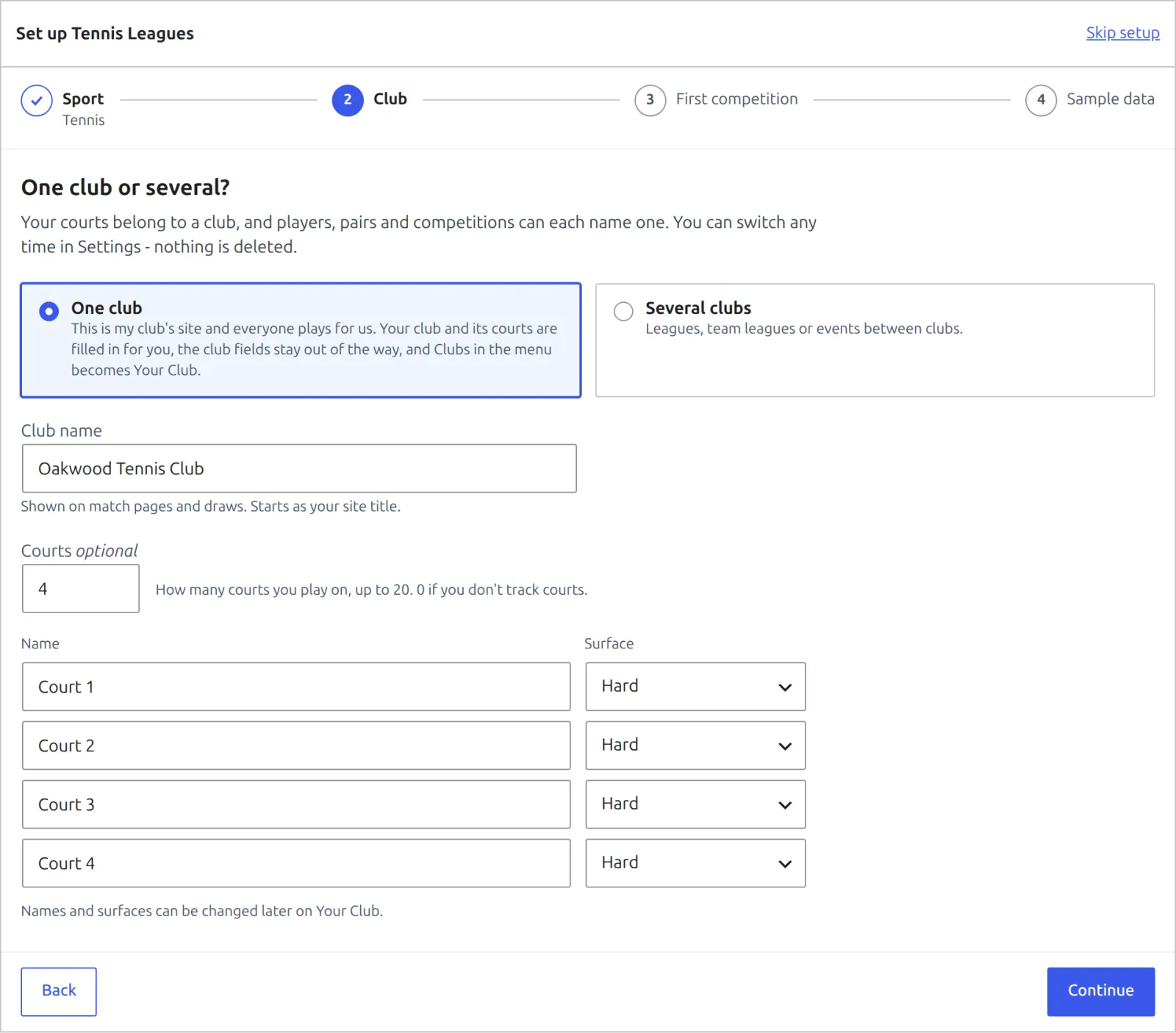
You can switch either way later under Tennis Leagues > Settings, in the Clubs box. Nothing is deleted when you switch.
Step 3 – First competition (optional)
Set one up now and its draw or fixtures are made for you. Give it a name, choose Singles or Doubles, and pick a format:
| Format | What you get |
|---|---|
| Knockout tournament | A bracket: lose a match and you’re out. Byes fill it up to 4, 8, 16 or 32 lines. |
| League | Everyone plays everyone once, in one table. |
| Box league | Small groups by level, everyone plays everyone in their box. List players strongest first: the top of the list makes Box A. Boxes are kept as even as possible (14 entrants in 3 boxes are 5, 5 and 4). |
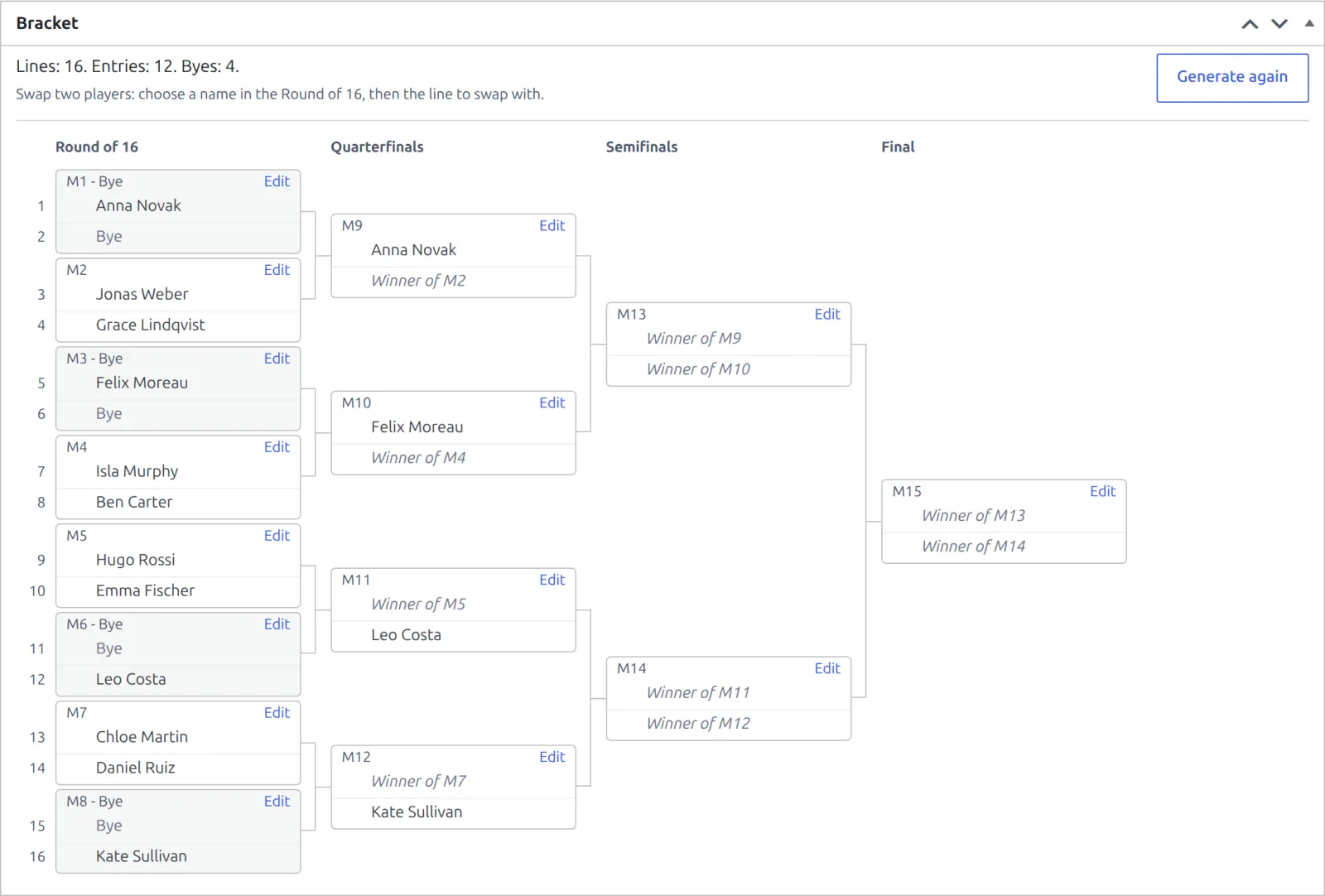
Then type the Entrants, one per line, 2 to 32 lines. For doubles, put both names of a pair on one line with a slash: Marta Ruiz / Eva Gil. Each name becomes a player and each doubles line a pair. The line under the box counts it for you, for example Entrants: 12. Draw: 16 lines, byes: 4.
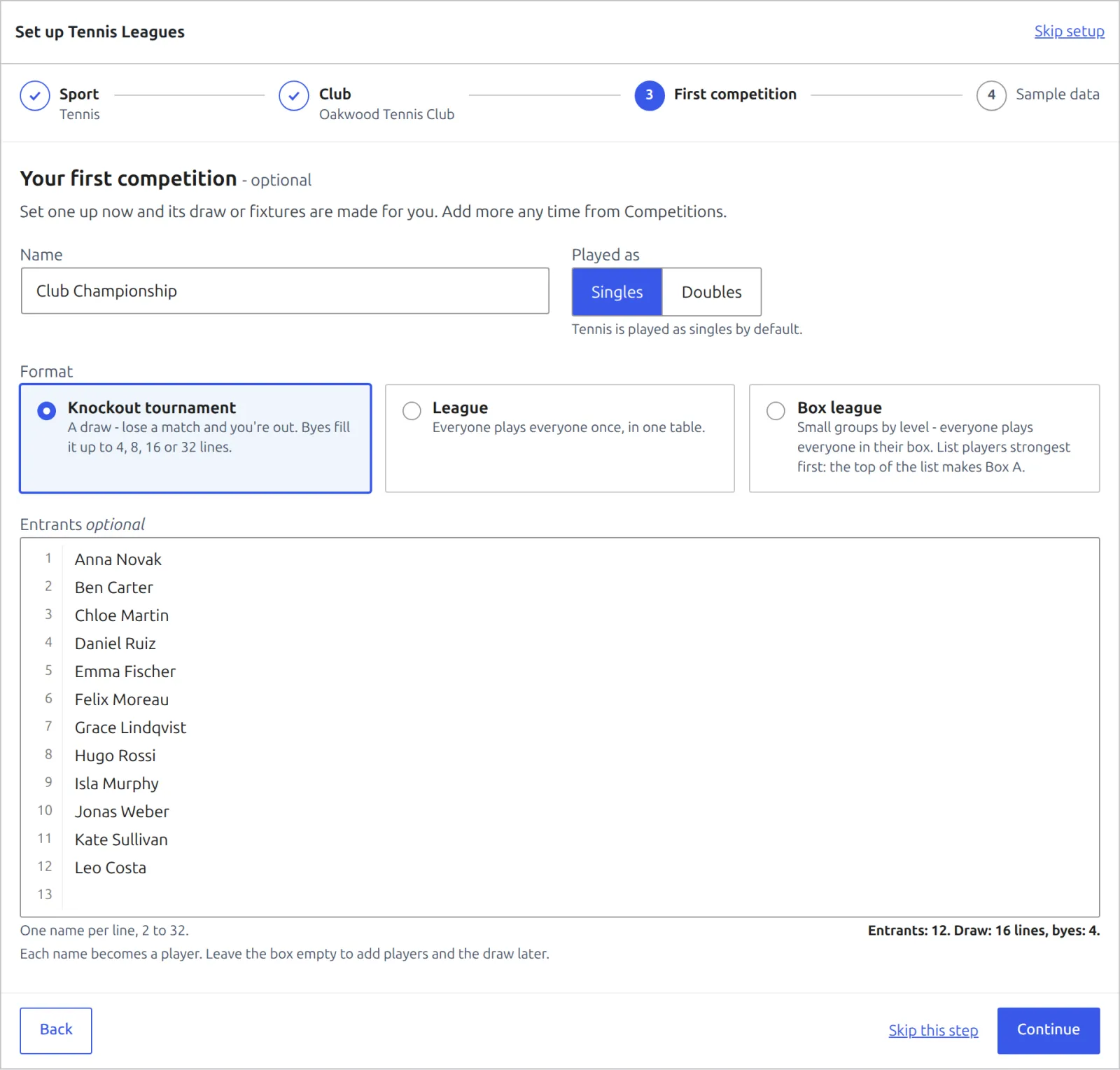
Leave the Entrants box empty to add players and the draw later, or click Skip this step to make no competition at all. Continue with nothing filled in skips it too.
Seeding a knockout
The wizard places knockout entrants by a fair draw, with no seeds. To seed it, open the draw, type the seed numbers in the Entries box, click Update, then Generate again in the Bracket box. Do it before any result is in: Generate again creates every match anew.
Step 4 – Sample data (optional)
Real-looking competitions with results, so you can see draws, tables and match pages before your own data is in. Tick any of the three, or untick all three to start empty.
| Sample | What’s in it | Size |
|---|---|---|
| Tennis club championship | A 16-player knockout played to the quarterfinals, a Plate for the first-round losers, and a finished 6-player league | 16 players, 37 matches |
| Padel league | 6 pairs, everyone plays everyone, 3 of 5 rounds played | 12 players, 6 pairs, 15 matches |
| Pickleball box league | 15 pairs in 3 boxes of 5, 3 of 5 rounds played | 30 players, 15 pairs, 30 matches |
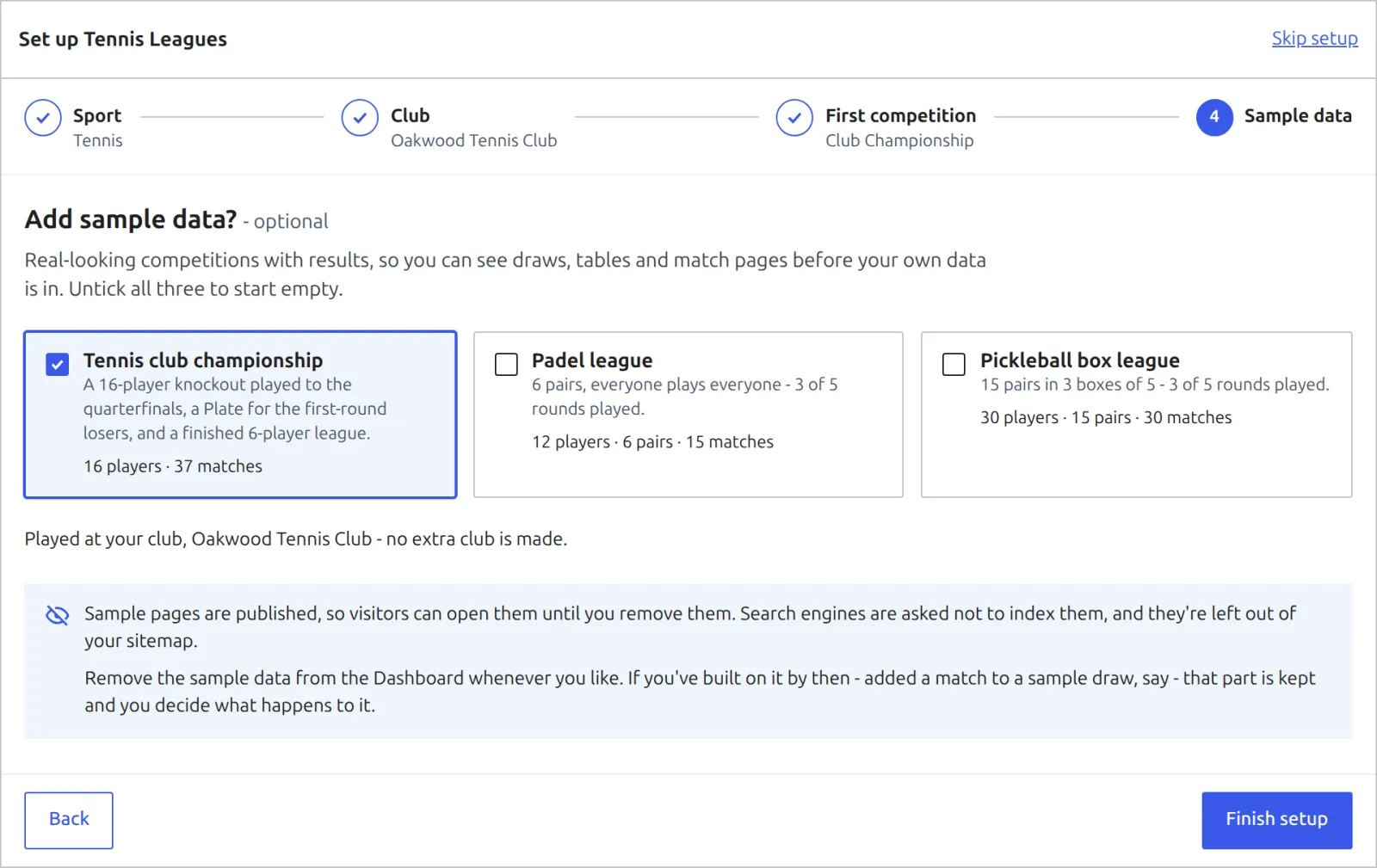
- With One club, the sample matches are played at your club and no extra club is made. With Several clubs, they’re played at a sample club, Riverside Racket Club, with 4 courts.
- Sample pages are published, so visitors can open them until you remove them. Search engines are asked not to index them, and they’re left out of your sitemap.
Done
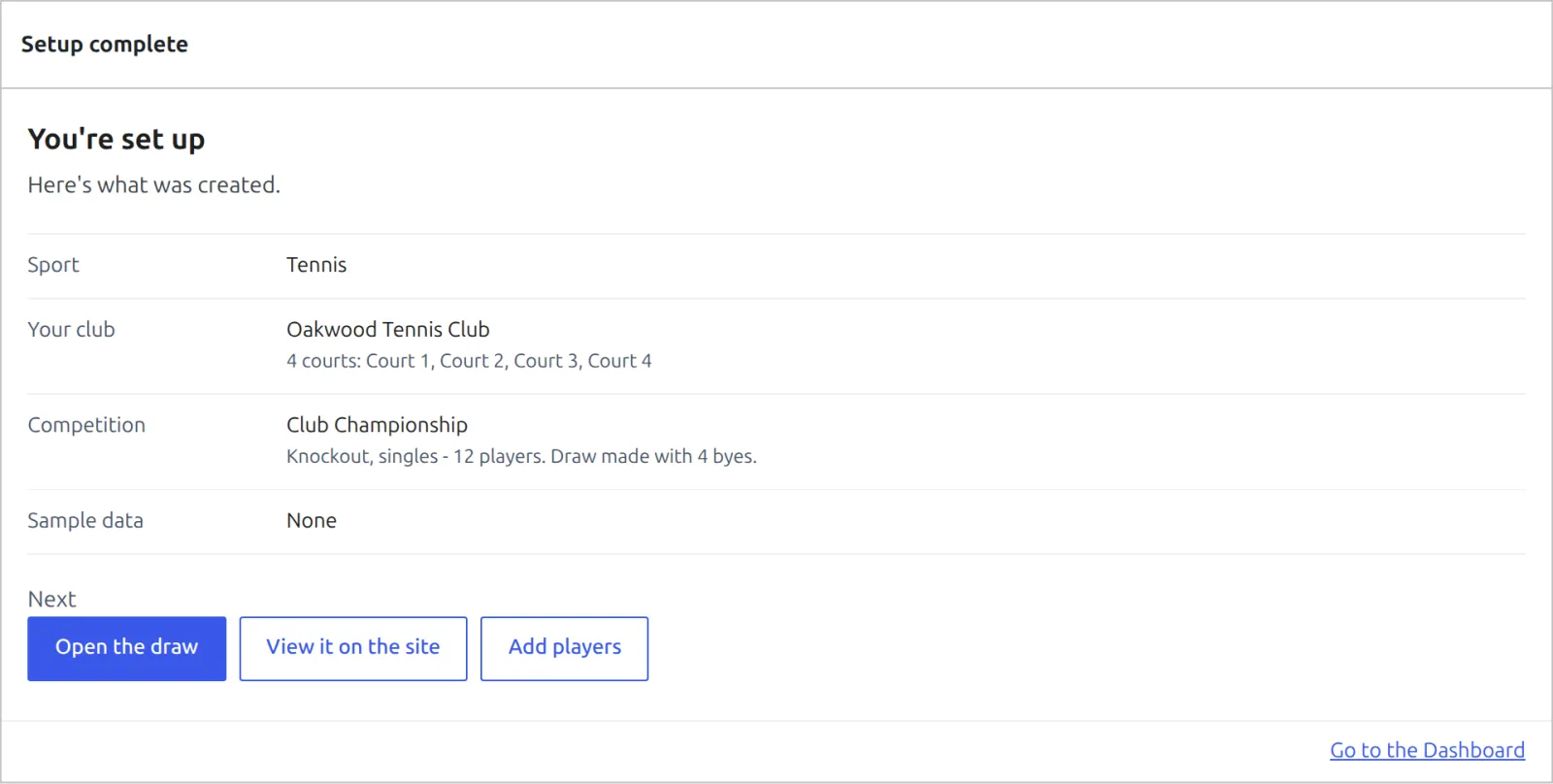
Click Finish setup. The wizard lists what it created, with buttons to go on: Open the draw, View it on the site and Add players (the buttons follow what you created).
Open the draw shows the bracket the wizard made. Every match is there, Final included, and each card links to its match.
Remove the sample data
When you’re done looking around, open Tennis Leagues > Dashboard and click Remove sample data in the Sample data box.
- Nothing of yours is deleted.
- If your own data uses a sample row (your match in a sample draw, a sample player in your own pair), that row is kept and you see what and why.
- For kept rows, choose Keep these as my own (they become ordinary data, and search engines can index their pages) or Decide later (their pages stay hidden from search until you choose).
Skipped the wizard?
- Skip setup takes you to the Dashboard. While the site has no competitions, the Dashboard keeps a Run setup button to bring the wizard back.
- Once setup is finished, or once you have a competition, the wizard doesn’t come back. Everything it does can be done by hand: see Your First Competition.
- Change the site’s sport later under Tennis Leagues > Settings, in the Sport box. It sets what a new competition starts with. Competitions you already have keep their own sport.
🆘 Troubleshooting
| You see | What to do |
|---|---|
| Setup needs JavaScript. | The wizard runs in the browser. Turn JavaScript on, or add players, clubs and competitions from the menu. |
| Line 4 has two names. Pick Doubles, or put one name per line. | A singles competition takes one name per line. Switch Played as to Doubles if those are pairs. |
| Line 5: add the second player – like Marta Ruiz / Eva Gil. | A doubles line needs two names with a slash between them. |
| Line 6 is the same player as line 2. | Each player can be entered once. Remove the repeated line. |
| A step shows a ! after Finish setup | The server refused an answer on that step. Nothing has been created yet. Fix the message on that step and click Finish setup again. |
📚 What’s next
- Your First Competition – build a competition by hand: players, draw, entries, fixtures, results.