

This page builds a competition by hand, start to finish: a 6-player singles league with its fixtures, a first result and a league table on your site. The same steps make a knockout tournament, and the differences are noted where they come up.
🎯 What you’ll do
- Add the players.
- Create the competition. It gets a season and a draw by itself.
- Enter the players in the draw.
- Generate the fixtures (or the bracket, for a knockout).
- Enter a result.
- Show the competition on your site.
Ran the setup wizard with a first competition? Then steps 1 to 4 are done for that one: skip to step 5, Enter a result.
1. Add the players
Go to Tennis Leagues > Players and click Add New Player. The name goes in the title field. Everything else (photo, country, date of birth, club) is optional and can wait. Click Publish and repeat for each player.
For doubles, add the players first, then make the pairs under Tennis Leagues > Pairs. A doubles draw takes pairs, not players.
2. Create the competition
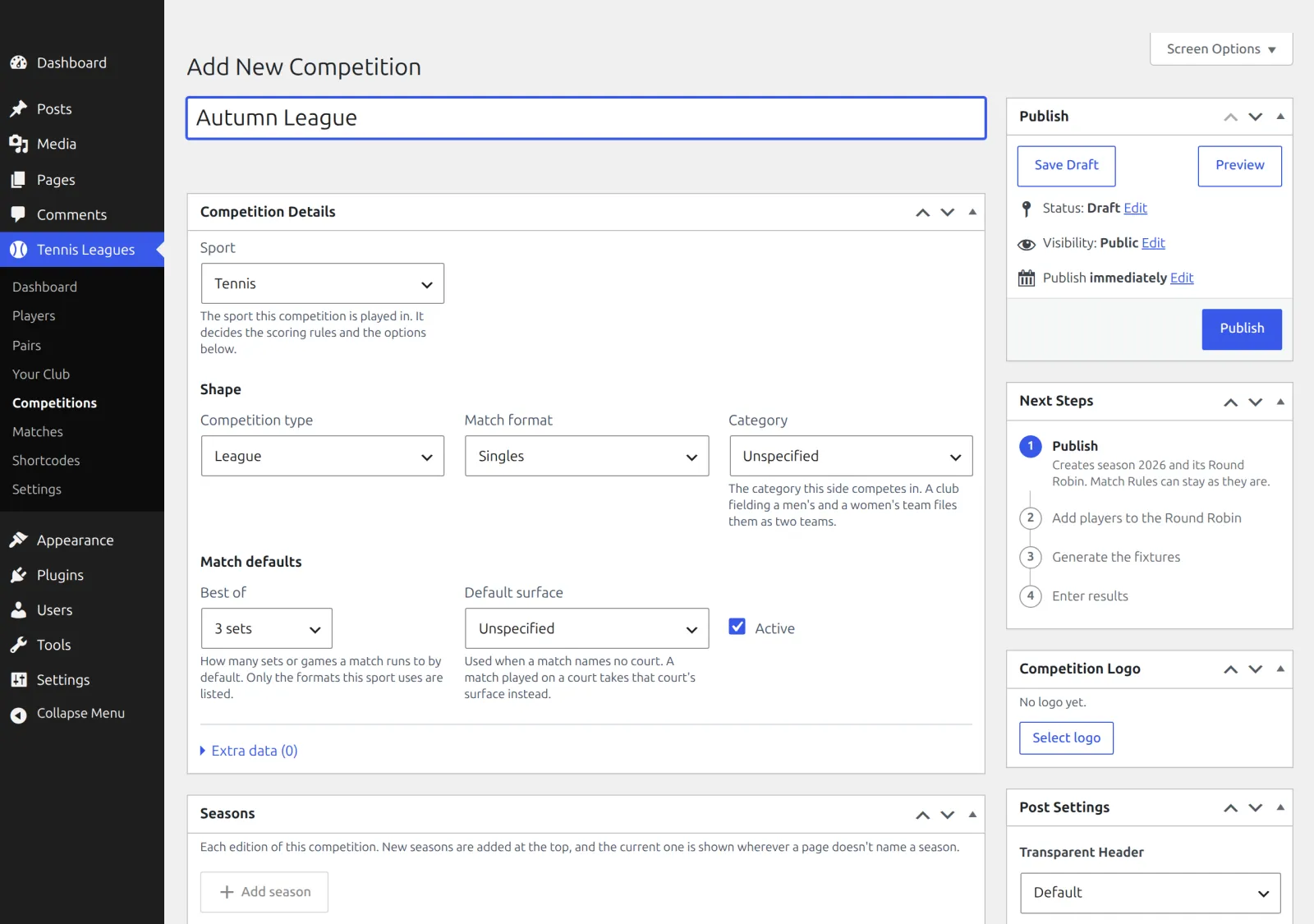
Go to Tennis Leagues > Competitions and click Add New Competition. Type the name, then set:
| Field | What it does |
|---|---|
| Sport | Starts on your site’s sport. It decides the scoring rules and the options below it. |
| Competition type | Tournament (a knockout), League (a table) or Team League (club against club). Team League isn’t offered in single-club mode. |
| Match format | Singles or doubles. |
| Best of | How many sets or games a match runs to. Only the formats the sport uses are listed. |
Leave Match Rules closed. It starts that way on a new competition because the sport’s standard rules are right for most clubs, and its header says what’s in force: Tennis, best of 3 – standard rules. Open it only to change a rule.
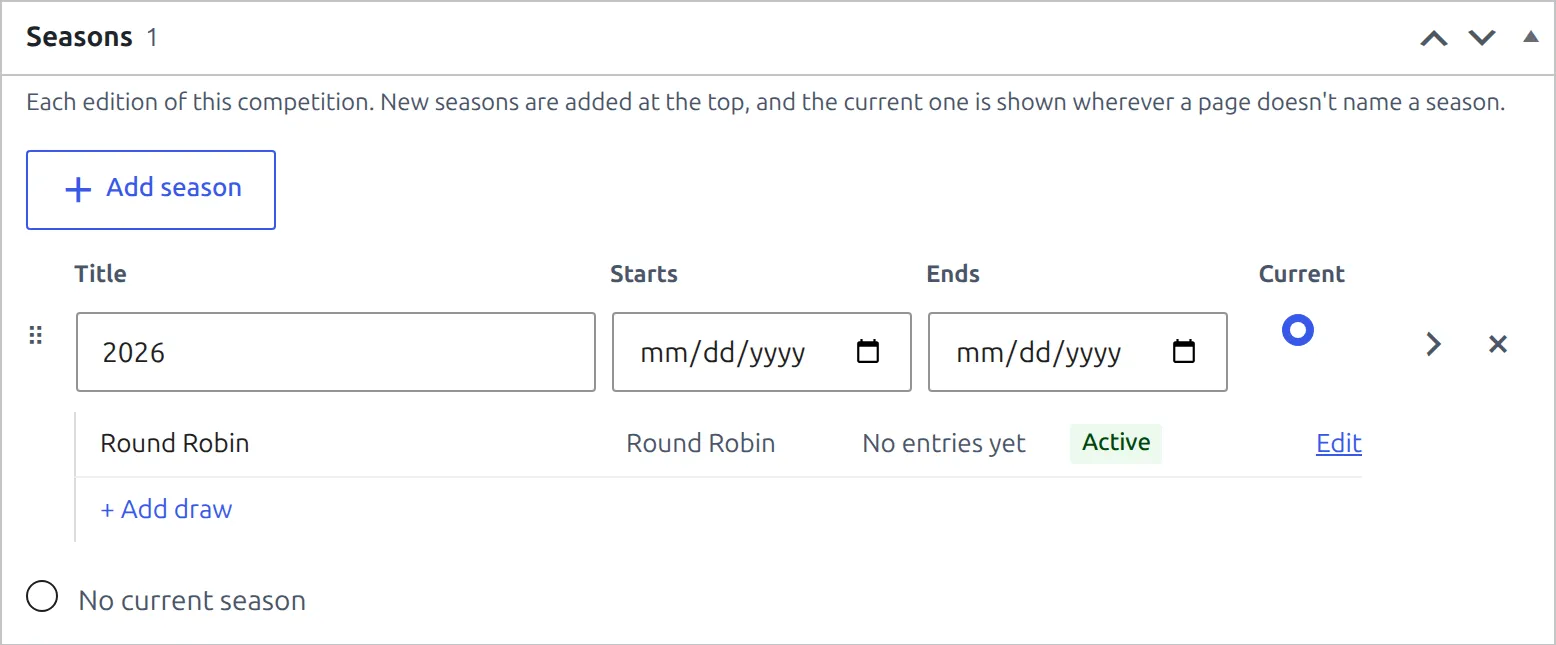
Click Publish. The competition gets this year’s season and a draw, ready to use: a Main Draw (knockout) for a Tournament, a Round Robin for a League or Team League. Both show in the Seasons box. And the Next Steps box under Publish ticks Publish off and points at what’s left: add the players, generate, enter results.
3. Enter the players in the draw
- In the Next Steps box, click Open Round Robin (or Edit on the draw’s line in the Seasons box).
- In the Entries box, open Choose players and pick everyone who plays. Type to search.
- Click Add selected, then Update.
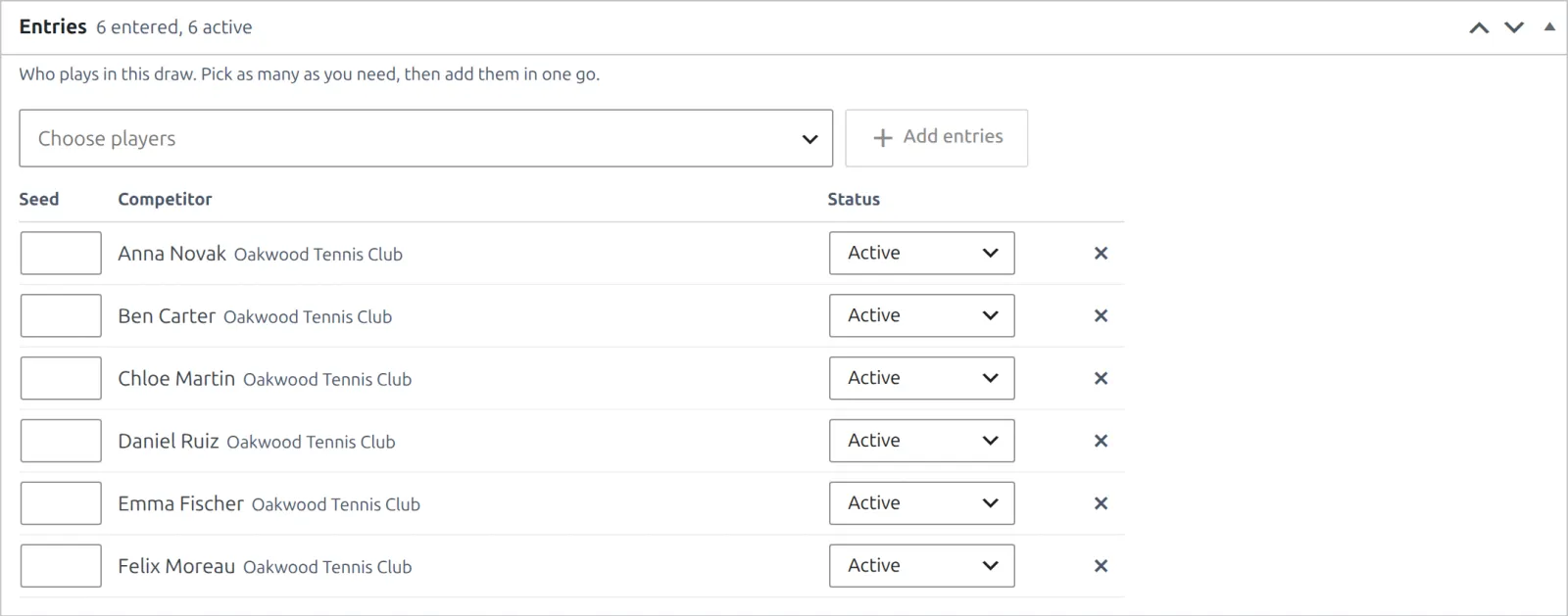
For a knockout, type seed numbers in the Seed column before you click Update. Seeds go on their placement lines and the byes go to the top seeds.
Update first
Fixtures and brackets are built from the saved entries. Until you save, the Entries box is marked Unsaved and the Fixtures box says Unsaved changes. Update the draw to save them first. Its Update Draw button saves the page for you, then Generate fixtures comes back. The Next Steps box says the same thing as Save the players, with its own Update Draw button.
4. Generate the fixtures
On the same screen, the Fixtures box shows what it will make: Active entries: 6. Rounds: 5. Matches: 15. Click Generate fixtures. Every match of every round is created at once.
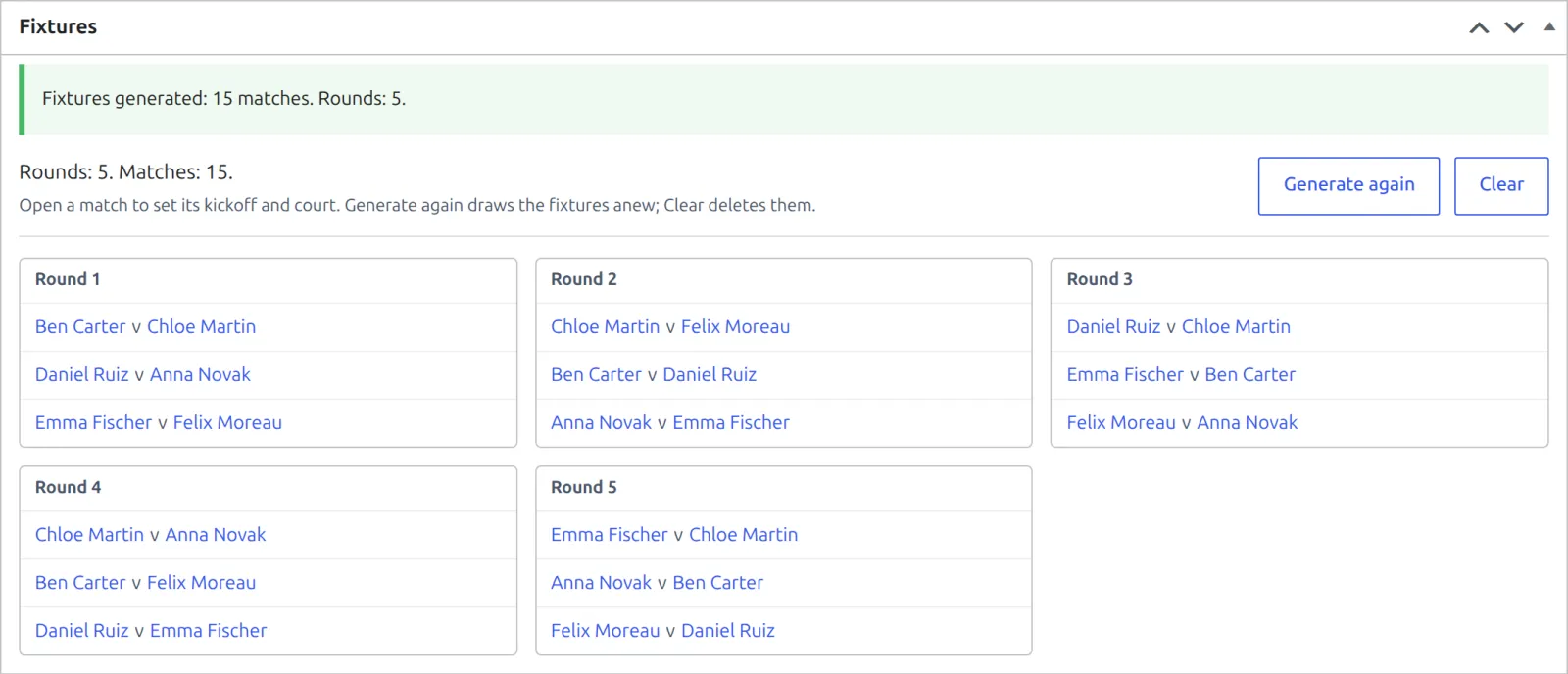
- Open a match to set its kickoff and court.
- Generate again draws the fixtures anew, and Clear deletes them. Both lose the kickoffs and courts you set, so use them before the season starts.
- Added a player after results are in? The box offers Add fixtures for new entries, which leaves the existing matches as they are.
- Knockout: the draw has a Bracket box instead. Click Generate bracket and every match is created, Final included. Winners move on to the next round by themselves.
5. Enter a result
- Click a match in the Fixtures list (or Edit on a bracket card).
- In the Result box, set Status to Finished.
- Type the score set by set, then click Update.
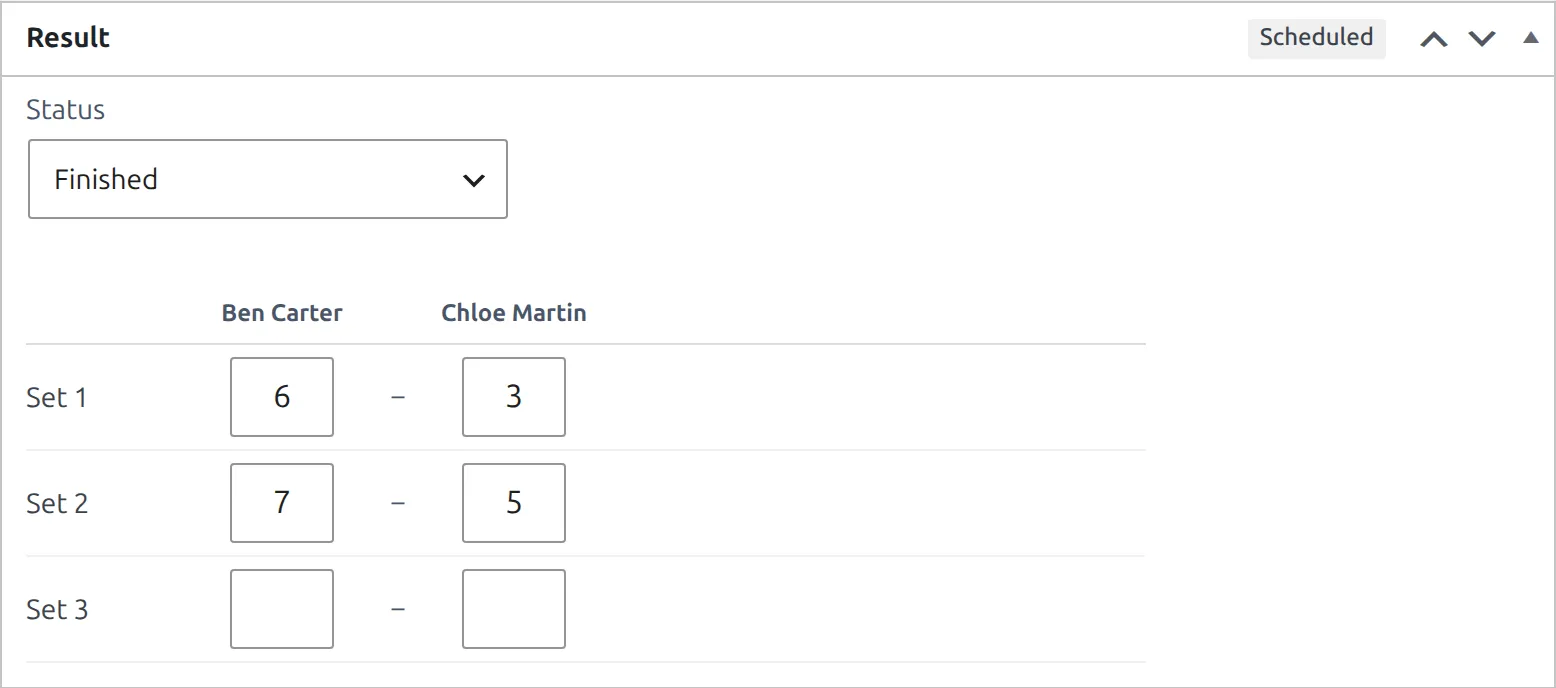
- The winner is worked out from the score. Leave the sets that weren’t played empty.
- A score that couldn’t happen under the match’s rules is refused, and the message names the set it’s in (8-6 in a set with a tiebreak won’t save).
- Tiebreak points are optional. Leave them empty if the scoresheet only gives the set score.
- Other statuses: Retired, Walkover, Default and Cancelled. For the first three you pick the winner.
The league table rebuilds itself on every result. In a knockout, the winner moves into the next round’s match.
6. Show it on your site
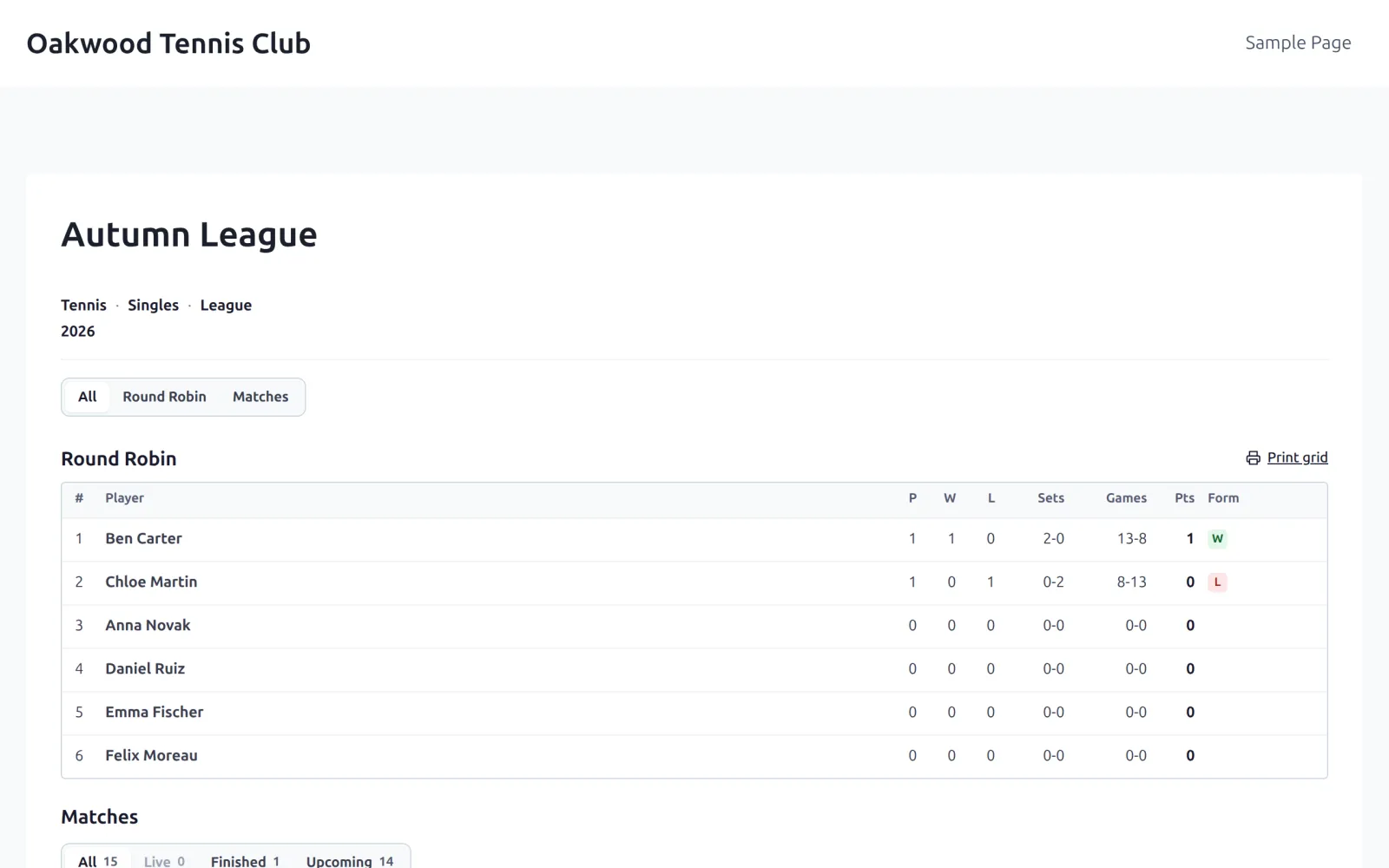
Every competition has its own page, at an address like /tennis-competition/autumn-league/. Open it with View Competition in the admin bar of its edit screen. It shows the league table (or the bracket), a tab per draw, the match list, and a Print grid link for the club noticeboard.
To put it on a page of your own, use one of the four blocks (Standings table, Competition draw, Match list, Player card) or their shortcodes. Tennis Leagues > Shortcodes builds a shortcode from pickers and previews it in your theme.
Next season
Don’t make a new competition for next year. Click Add season in the Seasons box: the competition page gets a season pill per year and keeps the history together.
🆘 Troubleshooting
| You see | What to do |
|---|---|
| Unsaved changes. Update the draw to save them first. | Click Update Draw in the same box (or Update at the top), then generate. |
| A bracket needs at least 2 active entries. | Add entries in the Entries box and click Update. |
| A player is missing from Choose players | A singles draw lists players and a doubles draw lists pairs. Check the competition’s Match format. |
| Set the status to Finished, Retired or Default to enter the score. | The score grid opens once the match has one of those statuses. |
📚 What’s next
- Installation & Setup Wizard – the 4-step wizard and sample data.