How to Find the Slow Block on a Football Leagues Page
When a Football Leagues page feels slow, the cause is rarely “the plugin” as a whole. It’s usually one or two blocks doing most of the work. Since Football Leagues 0.18.5 you can measure every block on a page yourself, with one setting and the free Query Monitor plugin, and see exactly where the time goes.
This post walks through it on a real page: a Layout Builder team page with 20 blocks. It also shows the one mistake that makes the numbers lie.
What you need
- Football Leagues 0.18.5 or newer. The setting is in the free plugin, so it works with or without PRO.
- Query Monitor, free on WordPress.org. Football Leagues sends its numbers there – it has no report screen of its own.
- An administrator account. Only administrators are measured.
You don’t need to edit wp-config.php or touch any code. Before 0.18.5 that was the only way in, which is why this was a developer tool until now.
Step 1: Turn on Block Performance Profiling
Install and activate Query Monitor. Then go to Settings & Tools > Settings, open the Configuration tab and pick Advanced. Scroll down to the Diagnostics section, switch on Block Performance Profiling and save.
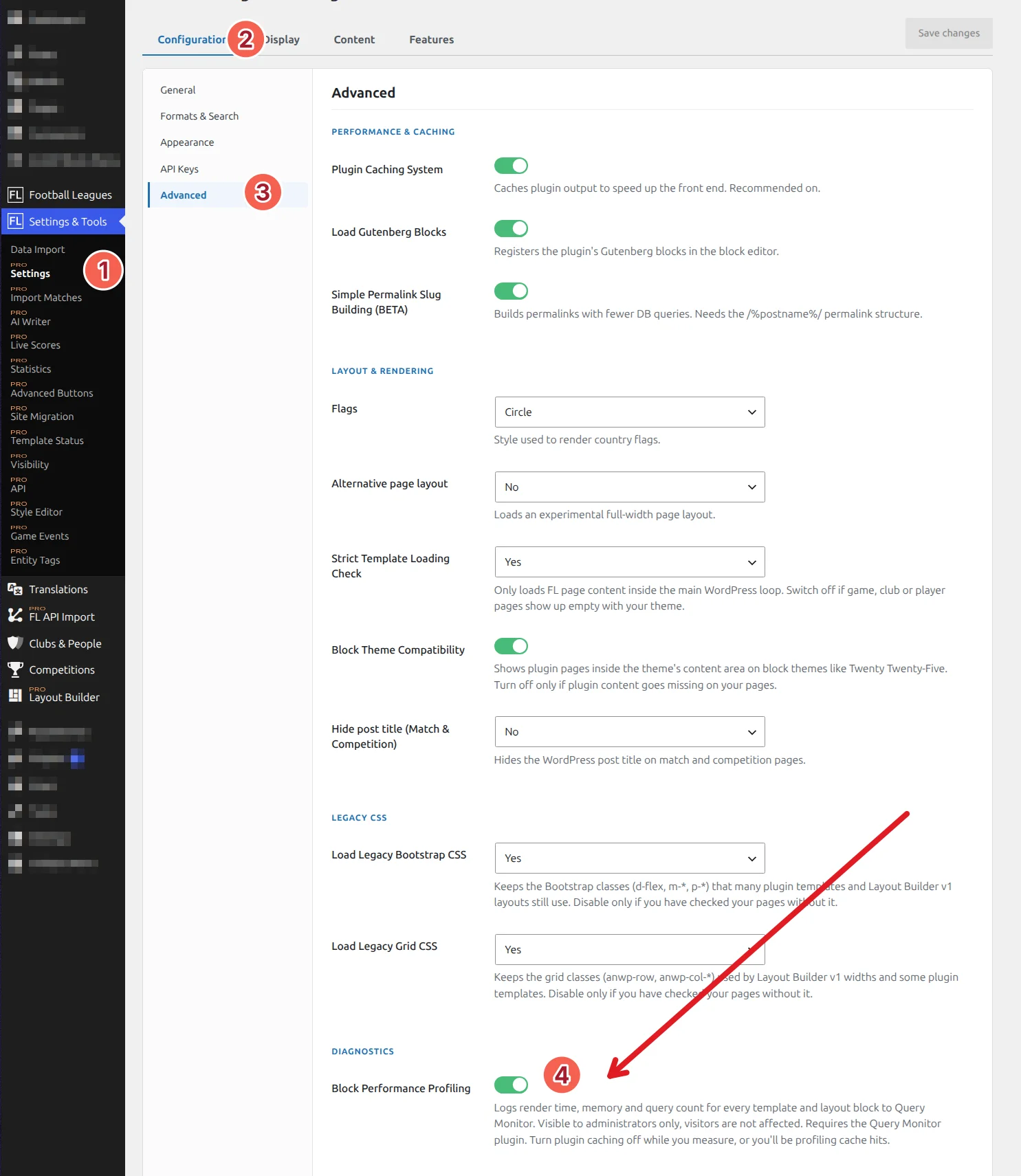
It’s safe on a live site. Visitors are never measured, only logged-in administrators. And if Query Monitor isn’t active, the setting does nothing at all, so forgetting it switched on costs you nothing.
Step 2: Switch caching off while you measure
This is the step people skip, and it’s the one that matters most. With caching on, you’re timing how fast the plugin reads a saved copy, not how long the block really takes to build.
Here’s the same team page measured both ways on my test site:
| Caching on | Caching off | |
|---|---|---|
| Whole page | 0.26 s, 43 queries | 0.50 s, 59 queries |
| Top Players block | 1 ms | 106 ms |
| Player Stats block | 1 ms | 80 ms |
| Schedule block | 61 ms | 60 ms |
With caching on, Schedule looks like the problem. With it off, Top Players and Player Stats are the two heaviest blocks on the page, and you’d never have known.
So before you measure, switch off Plugin Caching System – the first toggle on the same Advanced page, in the Performance & Caching section – and save. This also switches off the standing table cache, so there’s nothing else to change. Just remember to switch it back on at the end.
Step 3: Open the page and read Query Monitor
Open the slow page while logged in, then load it once more. The first load after a settings change does extra work, so read the second one. Click the Query Monitor numbers in the admin bar. Two panels hold the Football Leagues numbers.
Timings: how long each block took
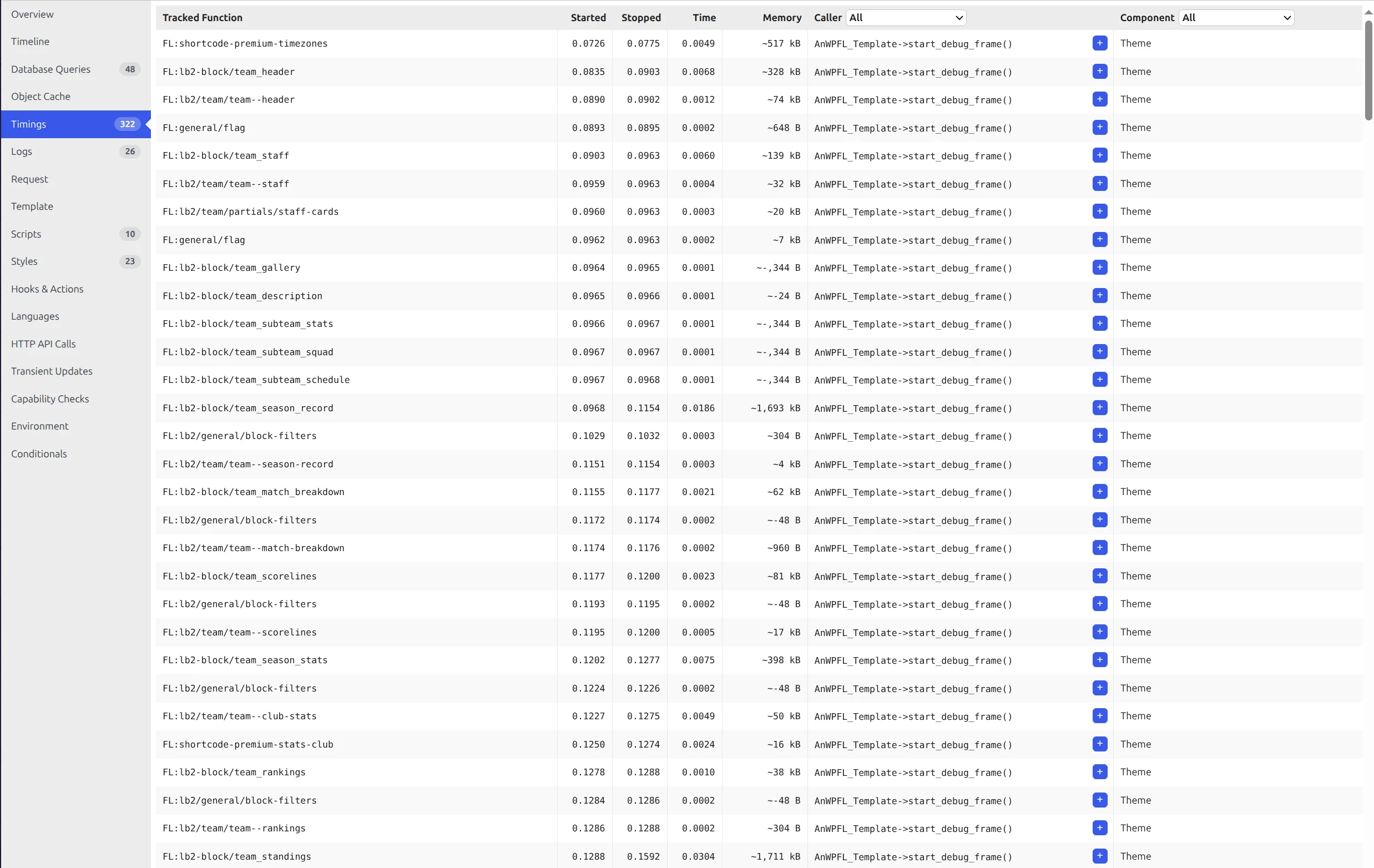
Every row that starts with FL: is a Football Leagues block or template, with its render time and memory. The Time column is in seconds, so 0.0304 means about 30 ms – scan it for the big numbers.
The names tell you what you’re looking at:
| Row name | What it is |
|---|---|
FL:lb2-block/team_schedule | A Layout Builder block (PRO). The part after the slash is the block, here Schedule. |
FL:shortcode-standing | A shortcode or widget |
FL:match/match--slim | A small template used inside a block, such as one game row |
Logs: how many database queries each block ran
The Logs panel lists the same blocks with the memory they used and the number of database queries they ran.
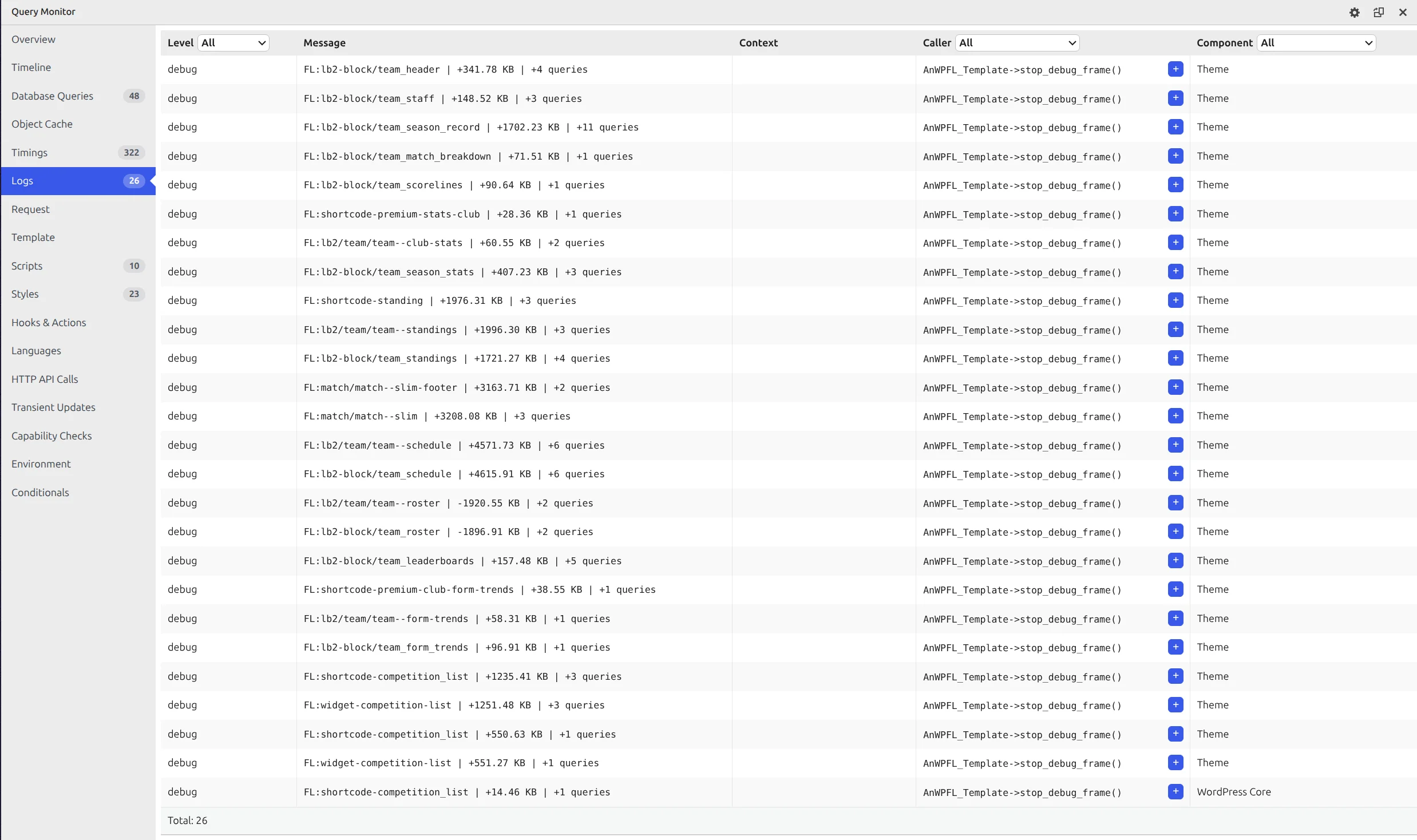
A block can be slow without running many queries (Schedule: about 60 ms, 6 queries) or fast while running a lot of them. Time tells you where the page waits. Queries tell you how hard your database works, which matters more on cheap shared hosting.
How to read the numbers
Three things trip people up the first time.
- Blocks contain other blocks, so don’t add rows up. On my team page
FL:lb2-block/team_scheduletook 60 ms. Inside it,FL:lb2/team/team--scheduletook nearly the same, and inside that, 88 game rows (FL:match/match--slim) took 42 ms between them. That’s one cost shown three times, not 160 ms. Look at the outerlb2-blockrow first, then the rows inside it to see why. - Count the repeats. One game row is cheap. 88 of them aren’t. If a template shows up dozens of times, the block is showing a lot of items.
- Negative memory is fine. A row like
-1896.91 KB(Roster in the screenshot above) means PHP freed memory while that block ran. Ignore it.
For scale: on my test site no single block took more than 106 ms, and 13 of the 20 were under 10 ms. A block taking several hundred milliseconds is worth a closer look.
Every block says +0 queries?
Query Monitor counts queries through a small helper file it places at wp-content/db.php when you activate it. If your host doesn’t let it write that file, the query counts stay at zero. Times and memory still work.
You found it – now what?
- Turn caching back on first. Switch Plugin Caching System back on. On my test page that alone halves the load time.
- Ask whether the block earns its place. If a heavy block sits on every team page but nobody uses it, take it out of the layout. A block you remove costs 0 ms.
- Heavy standing tables: use the standing table cache – see Performance Optimization.
- Still slow? Send us the numbers. Copy the
FL:lines from the Logs panel into your support ticket along with the page URL. That tells us where to look in seconds instead of guessing.
You can leave Block Performance Profiling switched on afterwards – visitors never pay for it. But if you don’t plan to measure again soon, switch it off to keep your Query Monitor panels tidy.
📚 Related
- Performance Optimization – standing table caching, live scores behind Cloudflare, object and page caching
- Cache a WordPress REST API endpoint with Cloudflare