

Every match, player, team, tournament and head-to-head page on your site is built from a layout: a list of blocks in a set order. The Layout Builder lets you change that list. Drag blocks in, put them side by side in columns or behind tabs, rename their headers, and set the SEO title and description for every page of that type. One layout covers every page of its kind, so editing the tennis Player layout changes all your tennis player pages at once.
Open it from Settings & Tools > Layout Builder (the Dashboard has a Layout Builder card too).
The layouts
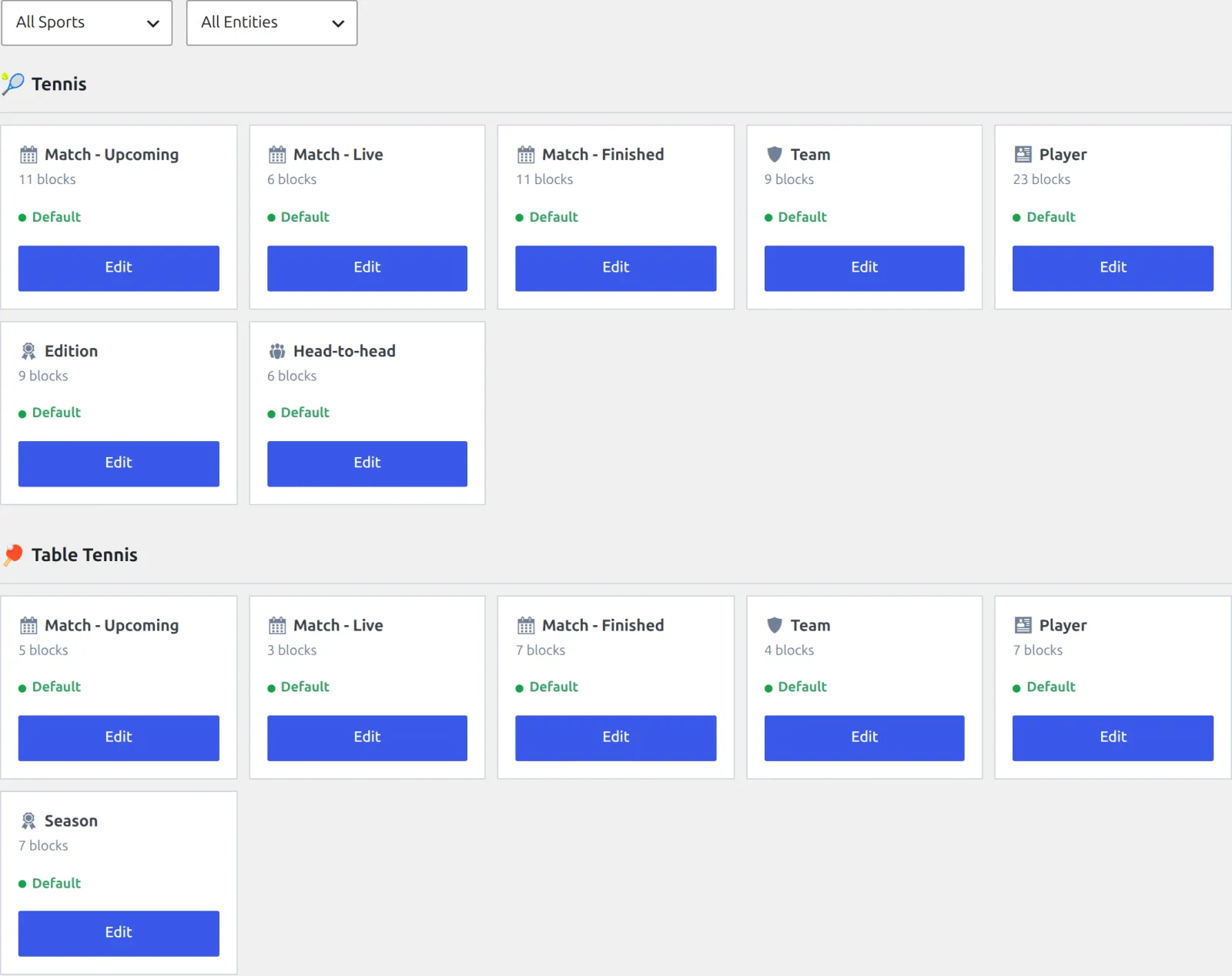
Layouts are grouped by sport, and only the sports you’ve enabled in API & Import > API Config are listed. Use the All Sports and All Entities filters to narrow the list.
| Layout | Used for | Sports |
|---|---|---|
| Match – Upcoming | Matches that haven’t started, plus postponed and canceled ones | Both |
| Match – Live | Matches in progress. An open page switches to this layout when the match starts, and to Finished when it ends, without a reload. | Both |
| Match – Finished | Finished matches | Both |
| Team | Teams and clubs, and on tennis also doubles pairs | Both |
| Player | Player pages | Both |
| Edition / Season | A tournament edition (tennis) or a league season (table tennis) | Both |
| Head-to-head | Head-to-head pages | Tennis |
Each card shows how many blocks the layout has and a badge: Default if it’s the layout the plugin ships, Modified once you’ve saved changes to it. If you save a layout that matches the default again, it goes back to Default.
🚀 Editing a layout
Click Edit on a card. The editor has the block palette on the left and the layout on the right: the page’s blocks from top to bottom, with the SEO panel above them.
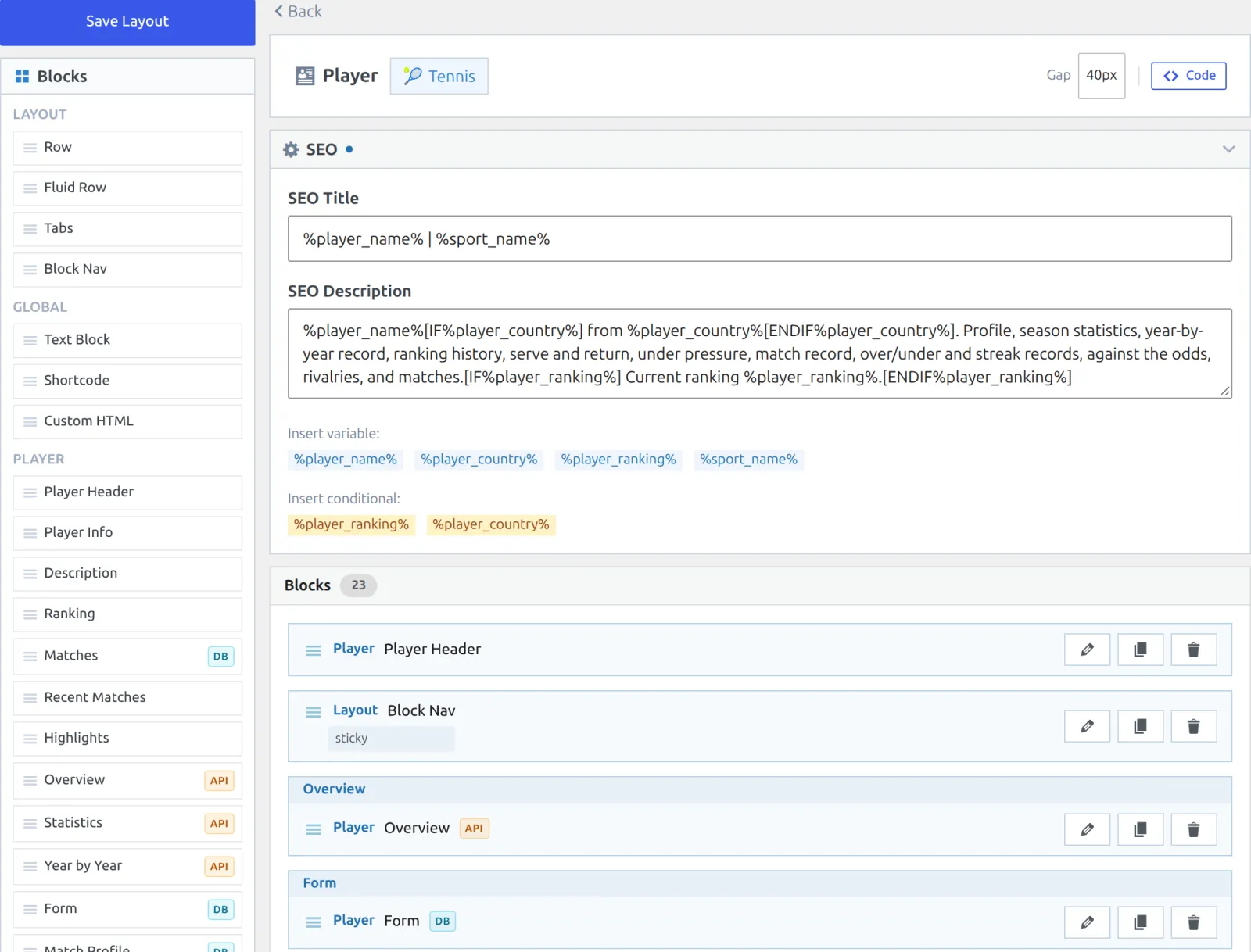
- Add a block: drag it from the Blocks palette and drop it where you want it in the layout. Dragging is the only way to add one.
- Move a block: drag it by the handle on its left edge.
- Change a block: click the pencil icon to open its settings. The copy icon clones it right below the original, and the bin icon removes it after you confirm.
- Space the blocks: the Gap menu sets the space between blocks on the page, from 0 to 60px (40px by default).
- Save: click Save Layout at the top or bottom of the palette. A “Layout Saved” message confirms it.
Save Changes isn’t Save Layout
The Save Changes button in a block’s settings only updates the layout in the editor. Nothing reaches your pages until you click Save Layout. If you try to leave with unsaved edits, the browser asks you to confirm.
The palette starts with the Layout blocks (Row, Fluid Row, Tabs, Block Nav) and the Global blocks (Text Block, Shortcode, Custom HTML), then lists the blocks for this page type. The full list is in Blocks by page type below. Some blocks carry a badge: API means the numbers come from the data provider, DB means they’re counted from the matches you’ve imported. In the layout a block can also show API → DB or DB → API: one source first, the other as a fallback.
If you delete every block and save, the page has no plugin content at all. To get the original layout back, use Reset to Default.
Block settings
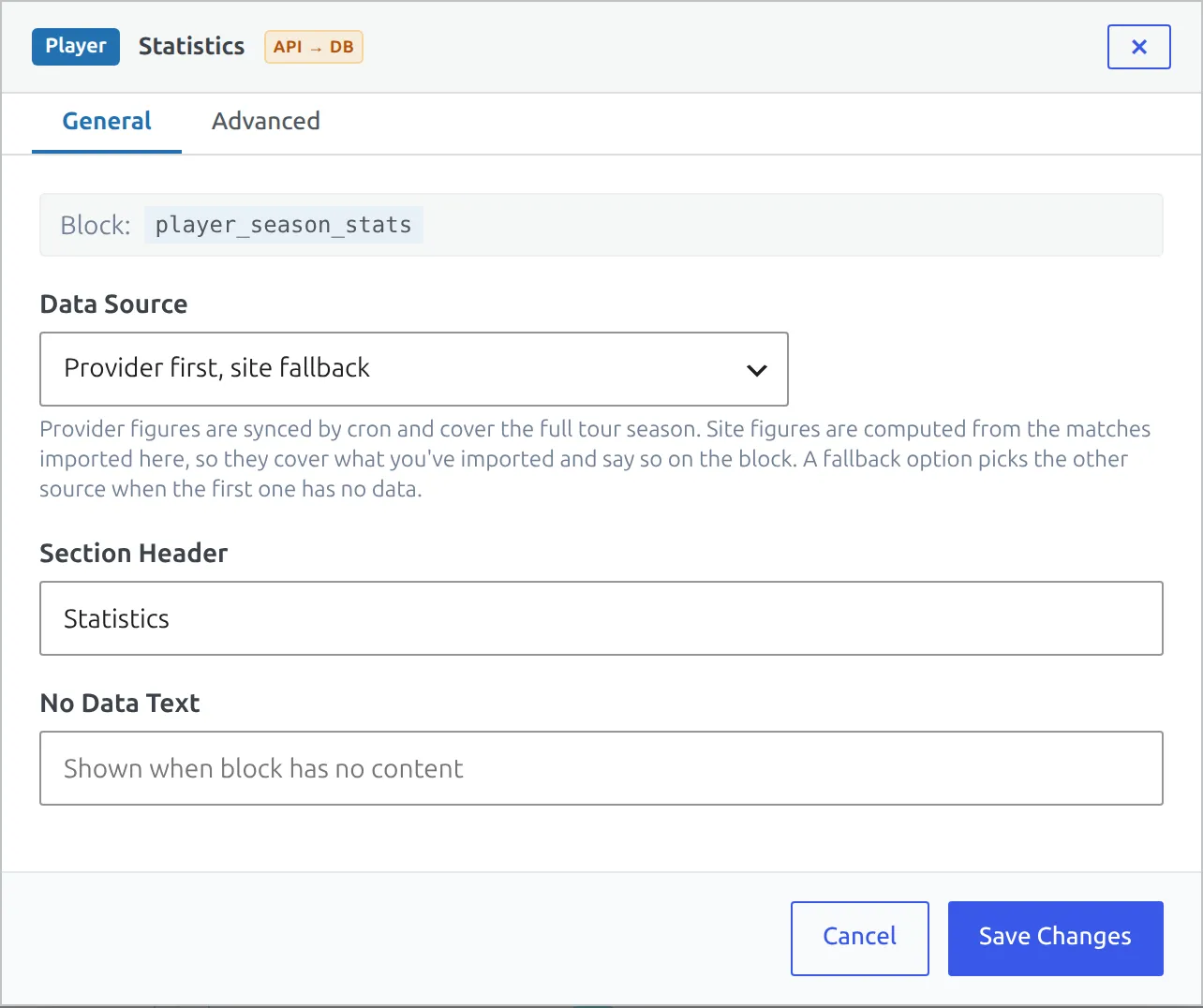
The pencil icon opens a block’s settings in two tabs, General and Advanced. Cancel, the Esc key or a click outside the window closes it without keeping your changes.
| Setting | What it does |
|---|---|
| Data Source | Where the block’s numbers come from. Player Statistics, the doubles pair Statistics block and Stat Leaders offer four options: Provider totals (synced), On this site (imported matches), Provider first, site fallback and Site first, provider fallback. See Choosing a Data Source. Blocks with a single source show it but don’t let you change it. |
| Layout | Only on blocks with more than one look, such as Matches (Flat list or Grouped by tournament), Overview (Tiles or Tiles + summary sentence), match Statistics (Comparison bars or Compact table) and Draw (Use global setting, Compact cards or Standard cards). |
| Section Header | The heading printed above the block. Leave it empty for no heading. |
| No Data Text | A message shown when the block has nothing to display. Without one, an empty block disappears from the page, header included. |
| Content | Text Block, Shortcode and Custom HTML only: the text, shortcode or HTML to show. |
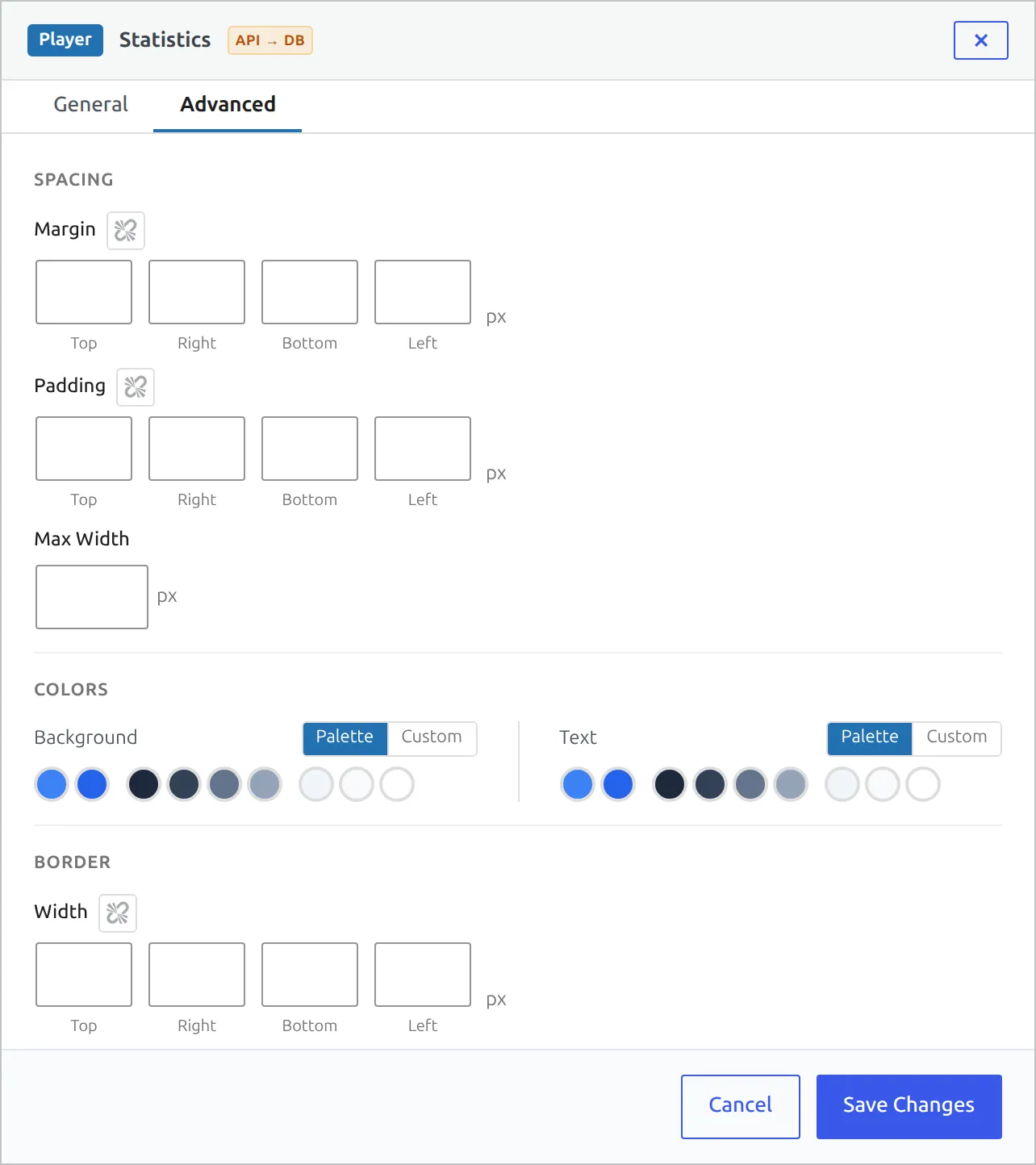
The Advanced tab is the same for every block: margin and padding on each side, a maximum width, background and text colors (from the palette or a custom color), border width, radius and color, and an Extras group with Hide from Block Nav, HTML ID, CSS Classes and Inline CSS.
Columns and tabs
Three layout blocks put other blocks side by side or behind tabs. Drag one into the layout, then drag blocks into it.
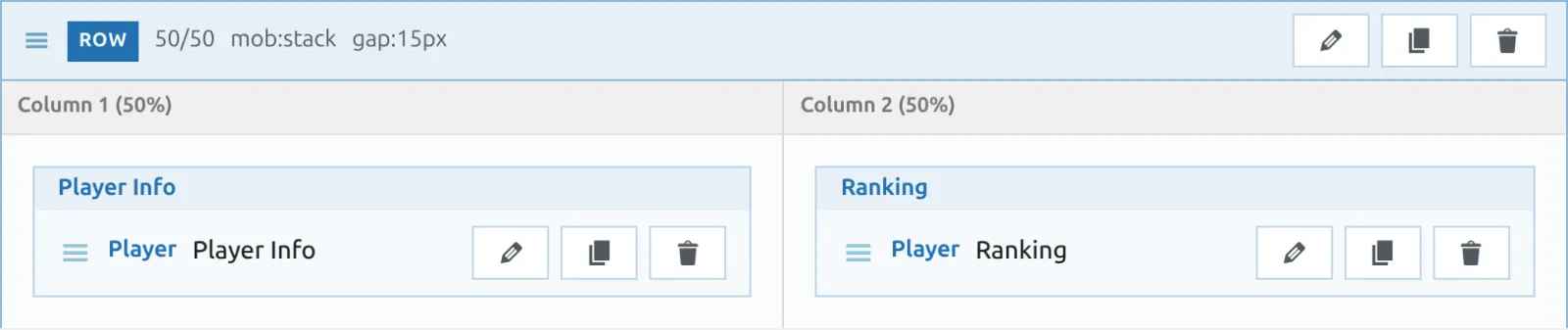
Row
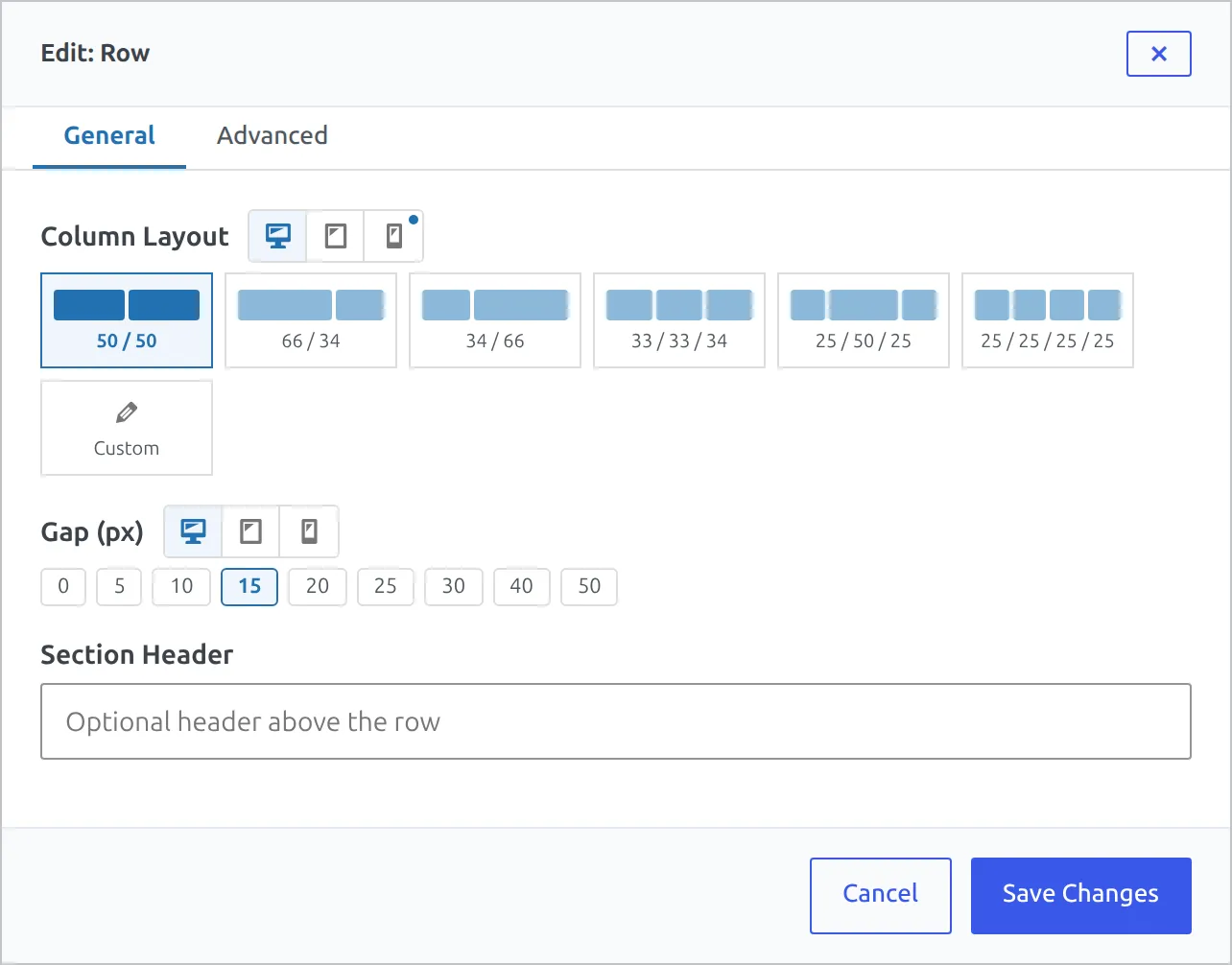
A Row has fixed columns. Its pencil icon (Edit Row) opens the settings:
- Column Layout: 50 / 50, 66 / 34, 34 / 66, 33 / 33 / 34, 25 / 50 / 25, 25 / 25 / 25 / 25, or Custom (for example 40/60, up to 4 columns).
- The desktop, tablet and phone icons next to Column Layout and Gap set each screen size on its own. Tablet and phone add Inherit and Stack. Phones stack the columns by default.
- Gap (px): space between the columns, 0 to 50px (15px by default), per screen size.
- Section Header: an optional heading above the row.
If you switch to fewer columns, the blocks from the removed columns move into the last one, so nothing is lost.
Fluid Row
A Fluid Row makes every block in it a column and wraps them onto new lines as the screen gets narrower. Set Minimum Column Width (px) (200 to 400, 300 by default), an optional Maximum Column Width (px) and the Alignment.
Tabs
Tabs shows one group of blocks at a time. A new Tabs block starts with Tab 1 and Tab 2. In its settings you can rename, reorder and add tabs under Tab Labels, make the tab bar sticky, set a Top Offset (px), and pick a Tab Style (Underline or Pills). On the page, a tab with nothing to show is dropped, and if only one tab is left the tab bar isn’t shown at all.
What goes where: a Row or Fluid Row holds ordinary blocks only. Tabs holds blocks and rows. Block Nav can only sit at the top level of the layout.
Block Nav
Block Nav is the row of links that jumps to the blocks below it. Most default layouts already have one right under the header block.
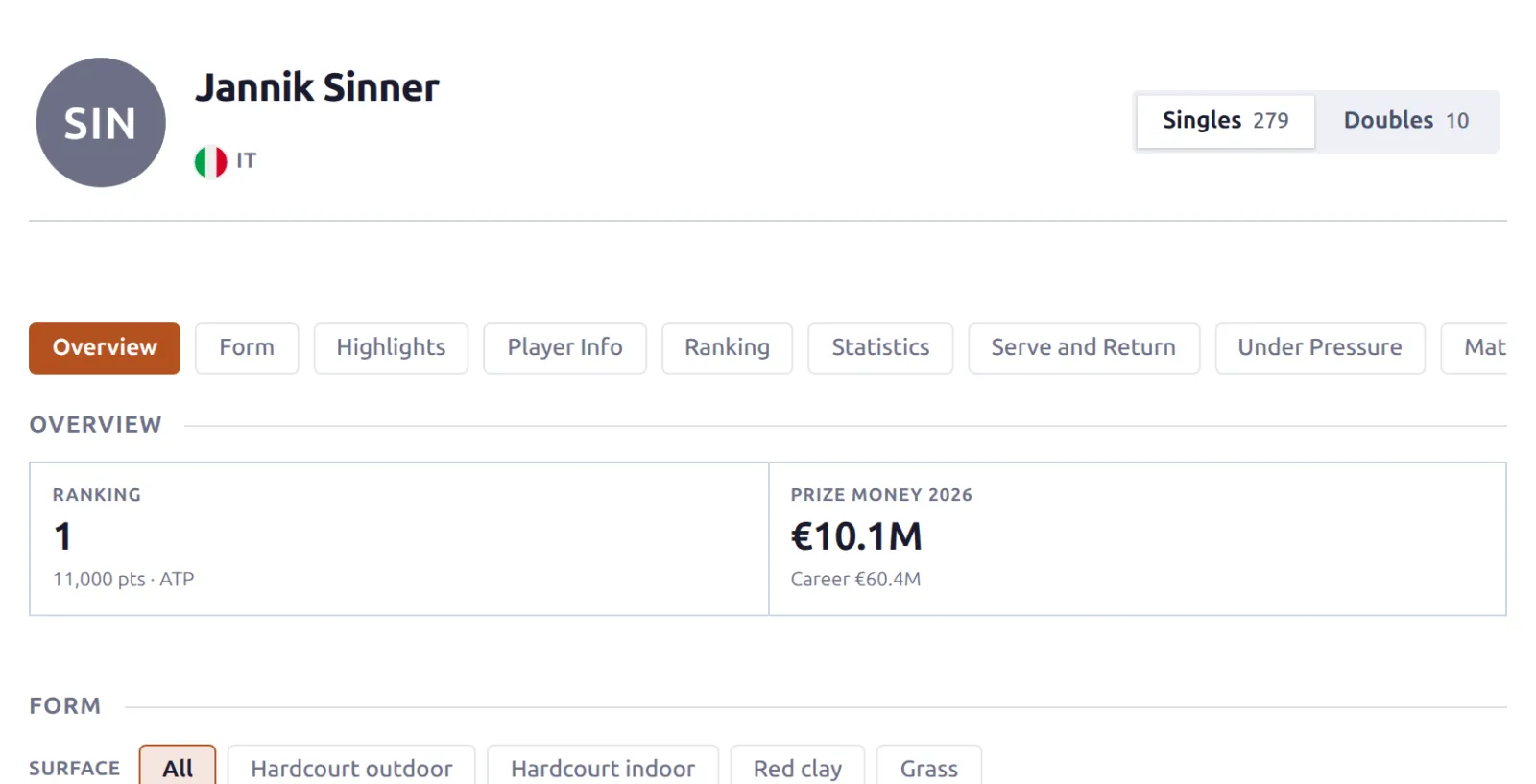
- It links every block that comes after it, labeled with the block’s Section Header, or its name if the header is empty. Header blocks are never linked.
- To leave a block out, turn on Hide from Block Nav in that block’s Advanced tab.
- Sticky navigation bar (on by default) keeps the links on screen as you scroll. If your theme has a sticky header, set Top Offset (px) to its height so the two don’t overlap.
- Nav Style: Pills or Underline.
Text, shortcodes and HTML
The three Global blocks work on every page type:
- Text Block – plain text, such as a note above the draw.
- Shortcode – any shortcode, from this plugin or another one. Open Shortcode Builder in its settings writes a Tennis API Hub shortcode for you (see Shortcodes).
- Custom HTML – your own HTML, printed as is. An ad slot or a banner fits here.
All three fill in the same variables and conditionals as the SEO panel, so a Text Block can say “Every match %player_name% has played on this site” and print the right name on each page.
SEO title and description
The SEO panel above the blocks (click its header to open it) sets the page title and meta description for every page that uses this layout. The default layouts come with both filled in. If Rank Math, Yoast SEO or SEO SIMPLE PACK is active, the plugin passes its title and description to them. Otherwise it prints its own tags.
Click a chip under Insert variable: to add a variable at the cursor. Each layout offers its own:
| Layout | Variables |
|---|---|
| Match | %team1_name% %team2_name% %team1_short_name% %team2_short_name% %team1_code% %team2_code% %sport_name% %league_name% %season_name% %tournament_name% %round_name% %game_date% %game_time% %team1_score% %team2_score% %match_format% %winner% %has_highlights% %has_pbp% |
| Player | %player_name% %player_country% %player_ranking% %sport_name% |
| Team | %team_name% %sport_name% %country_name% %ranking% |
| Edition / Season | %season_name% %sport_name% %league_name% %year% |
| Head-to-head | %player1_name% %player2_name% %h2h_record% %h2h_leader% %h2h_meetings% %h2h_last_year% %h2h_has_stats% |
The chips under Insert conditional: add text that only appears when a value exists. [IF%player_ranking%] Current ranking %player_ranking%.[ENDIF%player_ranking%] prints the sentence for ranked players and nothing for the rest. There’s no “else” part. Both fields take plain text only.
Code mode: copy a layout as text
The Code button swaps the visual editor for the layout as JSON text. Use it to keep your own copy before a big change, or to move a layout to another site running Tennis API Hub.
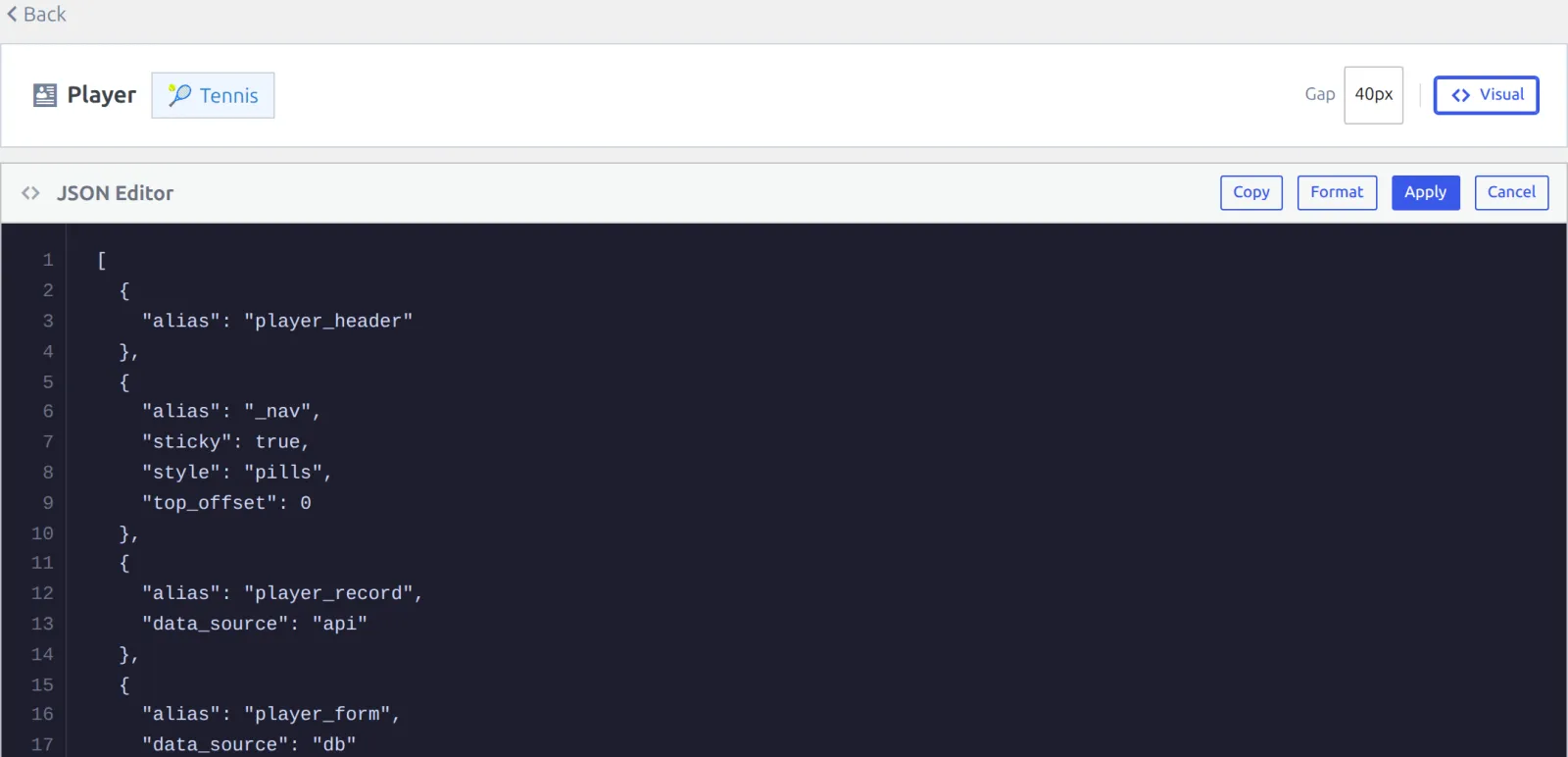
- Copy puts the JSON on your clipboard. Format tidies the indentation.
- Apply loads the JSON into the editor and shows “Layout updated from JSON”. Click Save Layout afterwards to keep it.
- Cancel (or Visual) goes back to the visual editor without applying.
The JSON has to be a list of blocks, and every block needs an alias. If it isn’t, Apply stops with a message such as “Invalid JSON” or “Block at index 3 is missing required “alias” field”. A block this page type doesn’t know is applied with a warning.
Reset to Default
A Modified layout has a Reset to Default button next to Code. After you confirm, the layout goes back to the plugin’s default and the editor reloads.
Reset replaces the whole layout
Reset replaces the blocks, the Gap and your SEO title and description, not just the part you wanted back. The plugin keeps a backup of the layout you reset, but there’s no restore button for it. Contact support if you need it back. To pick up one new block, drag it in instead (see the next section). To keep your own copy first, use Copy in Code mode.
New blocks after a plugin update
Plugin updates often add blocks to the default layouts. Layouts still on Default get them automatically. Layouts you’ve modified are never changed by an update, so the new blocks aren’t added to them. The plugin tells you which blocks you’re missing instead, in three places:
- a notice on the Tennis API Hub screens and the Plugins screen, “Tennis API Hub: new blocks for your edited layouts”, with a link to each layout and the block names
- a NEW line with the block names on the layout’s card in the list
- a NEW bar at the top of the editor: “Drag from the palette to add.”
To add one, drag it from the palette into place and click Save Layout. The notice goes away once the blocks are in your layout, when you click Dismiss on the editor bar, or after a reset. Only blocks added since you last saved the layout are listed, so a block you removed on purpose won’t be offered back.
Blocks by page type
Besides the Layout and Global blocks, each page type has its own blocks. All three match layouts (Upcoming, Live, Finished) share one palette. Statistics Blocks explains what the statistics blocks show.
| Page | Both sports | Tennis only |
|---|---|---|
| Match | Game Header, Standings, Highlights, Odds, Statistics, Key Stats, Head to Head | Preview, Hold by Score, Momentum Habits, Point by Point, Recent Form, Momentum, Road to This Match, Common Opponents |
| Player | Player Header, Player Info, Description, Ranking, Matches, Recent Matches, Highlights | Overview, Statistics, Year by Year, Form, Match Profile, Serve and Return, Under Pressure, Streaks, Over / Under, Against the Odds, Rivalries, Head-to-Heads, Doubles Partners, By Level, Ranking History. Table tennis has Match Statistics instead. |
| Team | Team Header, Recent Form, Standings, Schedule | Doubles pair blocks: Pair Header, Recent Form, Ranking, Statistics |
| Edition / Season | Season Header, Draw, Standings, Schedule, Champions, Highlights, Stat Leaders | Tournament Tempo |
| Head-to-head | – | H2H Header, Record Breakdown, Next Meeting, Every Meeting, Match Stats in Their Meetings, Player Comparison |
On tennis the Team layout serves both clubs and doubles pairs. The team blocks hide on a pair’s page and the pair blocks hide on a team’s page, so one layout can hold both.
🆘 Troubleshooting
My changes don’t show on the page
Check that you clicked Save Layout, not just Save Changes in a block’s settings. If the layout card says Modified and the page still looks old, a page cache (a caching plugin, your host or a CDN) is probably serving a stored copy. Clear it, or wait for it to expire.
A block I added doesn’t appear
A block with nothing to show is left off the page, header and all. This is normal for a Preview on a finished match or Key Stats before the match statistics are imported. Set No Data Text in the block’s settings if you’d rather show a message. Statistics Blocks lists what each statistics block needs.
A block from the changelog isn’t on my pages
Your layout is Modified, so the update didn’t add the block. Open the layout, drag the block in from the palette and save. See New blocks after a plugin update.
The page is empty
If you removed every block and saved, the page has no plugin content. Drag blocks back in, or use Reset to Default.
📚 Related
- Statistics Blocks – what every statistics block shows and what it needs
- Head-to-Head Pages – the pages the Head-to-head layout builds
- Shortcodes – for the Shortcode block, or to put the same data on any other page
- Terminology – why tennis says Edition where table tennis says Season