

A shortcode puts one piece of Tennis API Hub data anywhere on your site – a match list on the home page, a draw on a tournament post, a ranking table in a sidebar. There are 15 of them, and you don’t have to remember a single one: Settings & Tools > Shortcodes has a builder that picks the options for you, shows a live preview, and hands you the finished shortcode to paste.
🎯 Building a shortcode
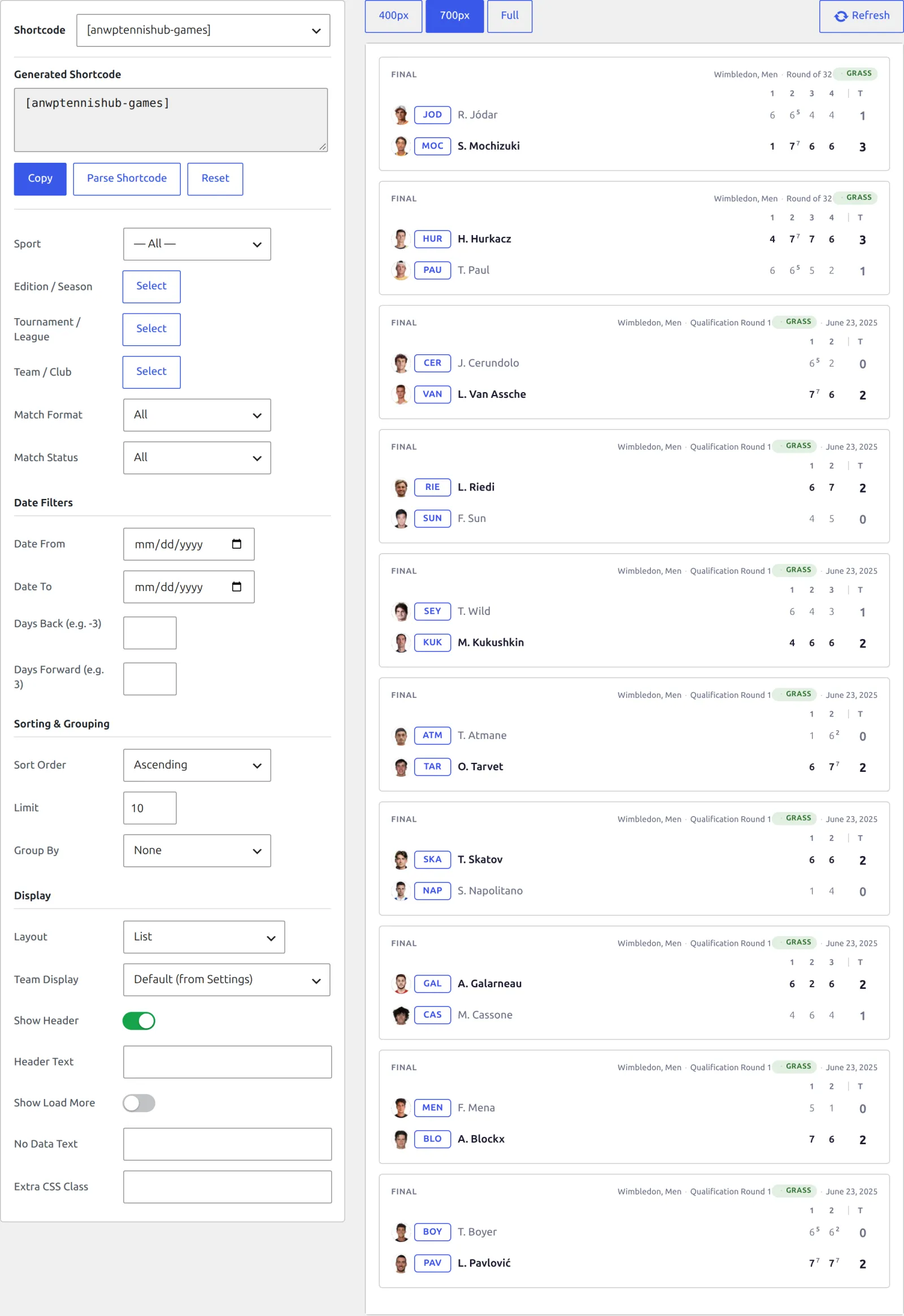
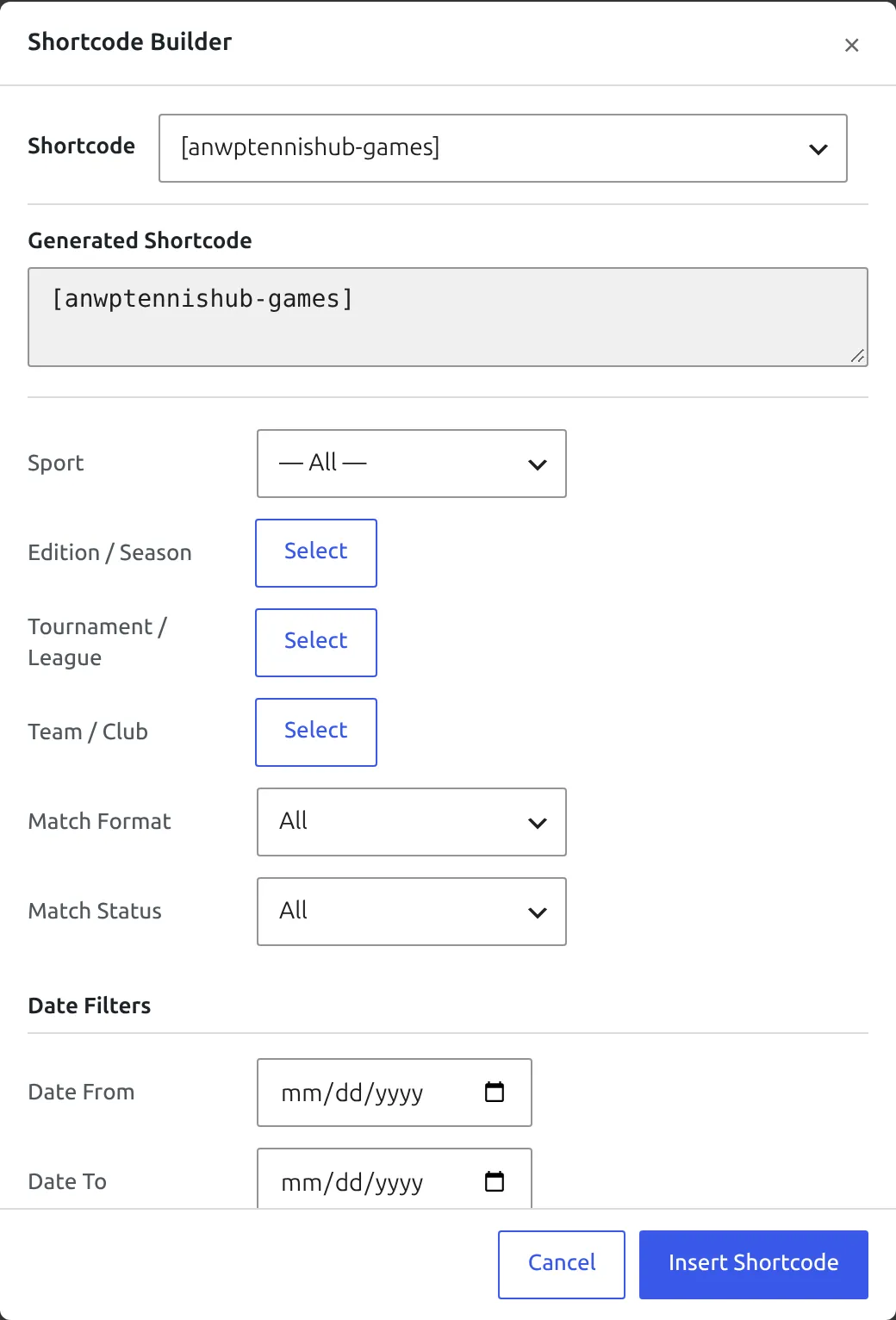
Go to Settings & Tools > Shortcodes. The left column builds the shortcode, the right column shows what it will look like.
1. Pick a shortcode
The Shortcode dropdown at the top lists every shortcode you can use. Shortcodes that belong to one sport only appear when that sport is switched on – Rankings and Point by Point need tennis, Incidents needs table tennis.
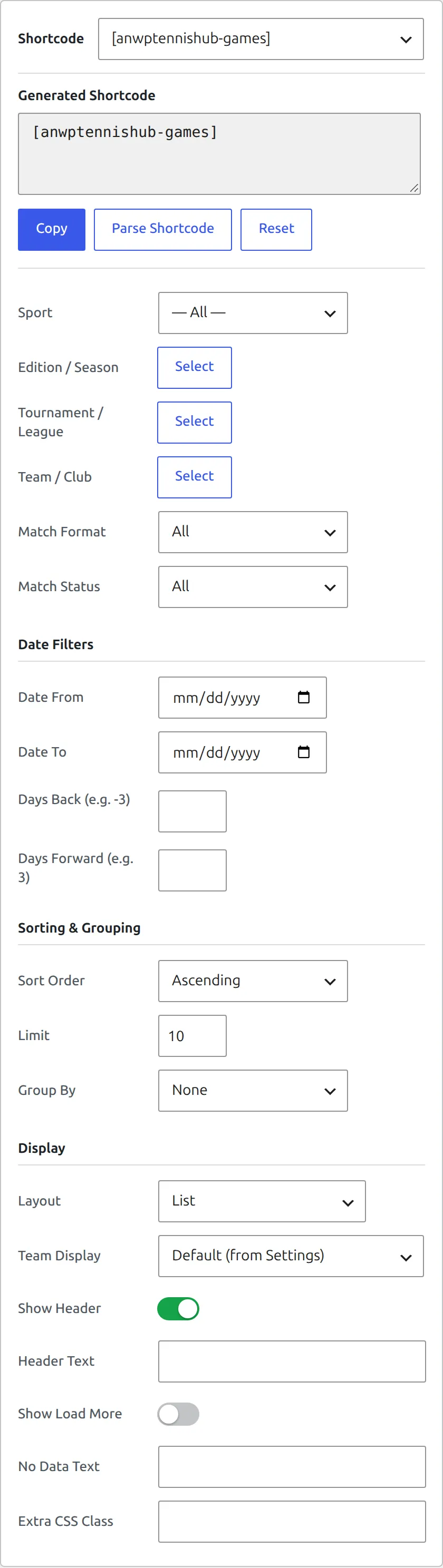
2. Set the options
Each shortcode brings its own set of options, grouped into sections – filters first, then dates, sorting, and display. Leave an option alone and it stays out of the shortcode entirely, so you only carry what you changed.
3. Choose players, editions and tournaments
Anywhere the shortcode needs a specific player, pair, team, tournament or edition, the option shows a Select button instead of a text field. It opens a picker you can search and filter, so you never type an ID by hand. Pick a row, press Select, and the name appears on the option as a chip.
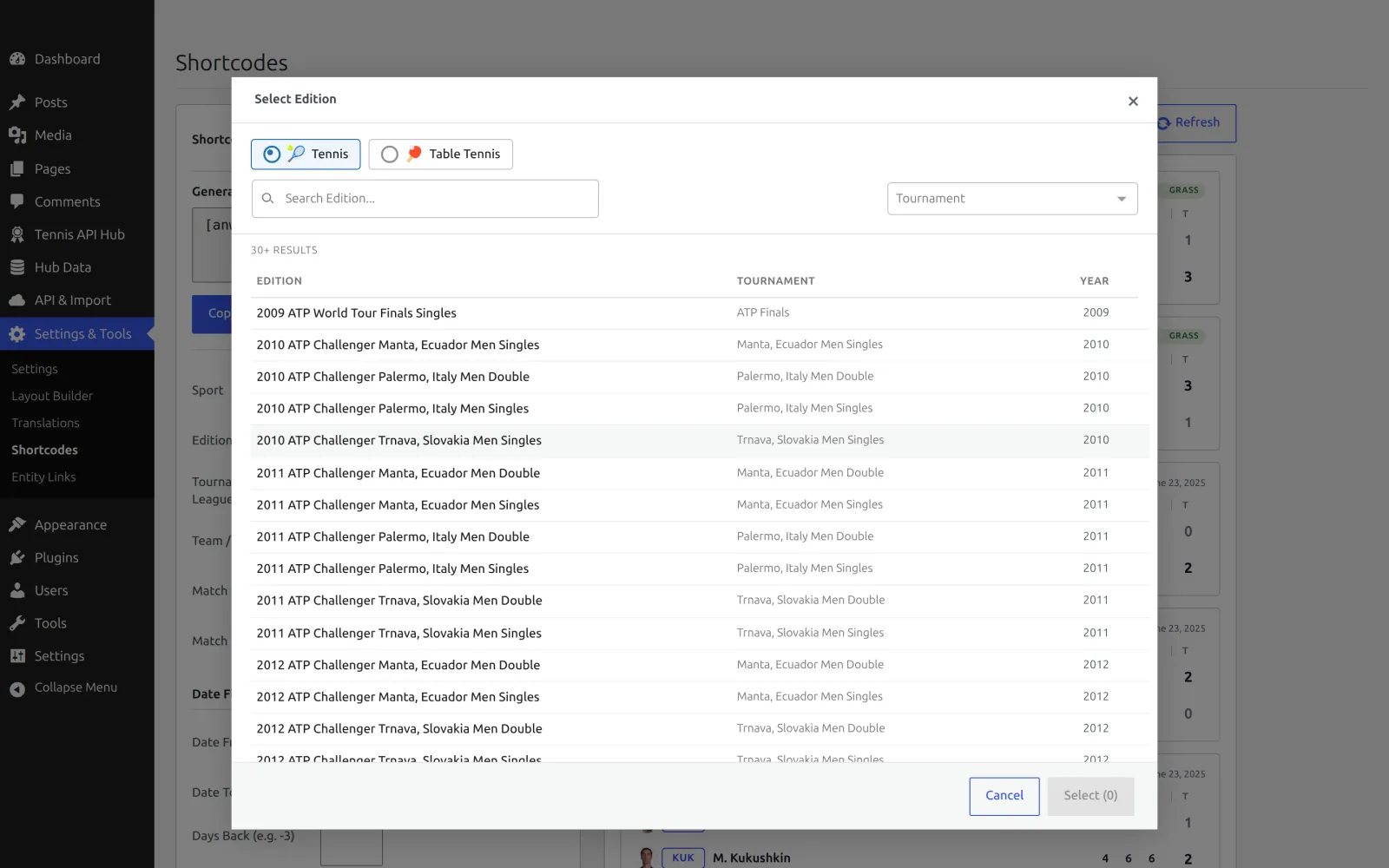
For a Player shortcode the picker can list singles players or doubles pairs and teams. A Profile Type switch above it chooses which – it only steers the picker and never ends up in the shortcode. The Bracket shortcode has the same switch, called Focus Type.
4. Check the preview
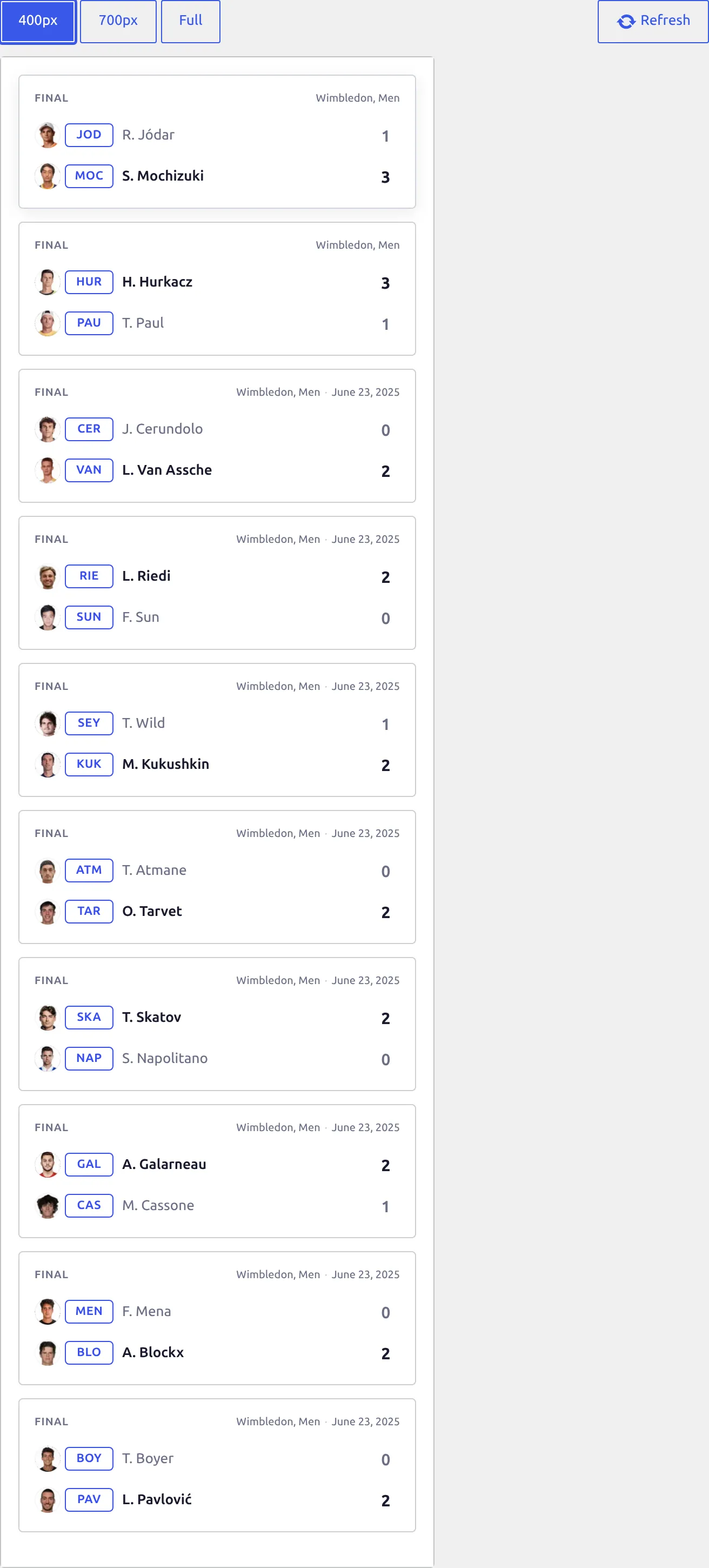
The preview on the right renders the shortcode the way a visitor will see it, with your site’s colors and the same stylesheets and scripts a real page loads. It waits until you stop typing before it reloads, so a long header text doesn’t reload it on every letter. Refresh renders it again on demand.
The width buttons above it – 400px, 700px and Full – show how the block reflows in a narrow sidebar, a normal column, and the full width of the page. Some shortcodes add their own width to the row: Champions has 420px, Standings 480px. The one the shortcode opens on is the width it was designed for.
5. Copy it
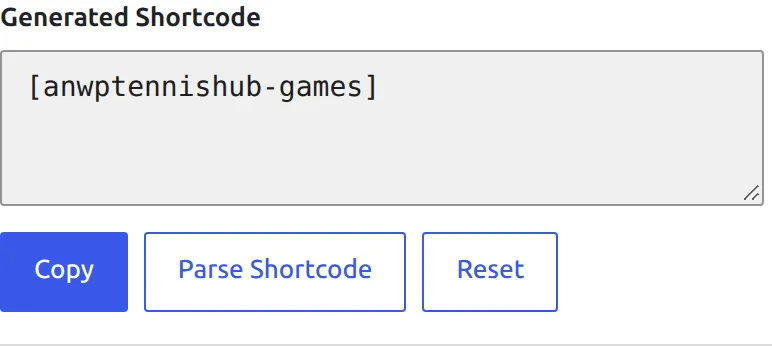
The Generated Shortcode box holds the finished shortcode and updates as you work. Press Copy and paste it into a page, a post, or a widget. Reset clears the options and starts the shortcode again.
Editing a shortcode you already have
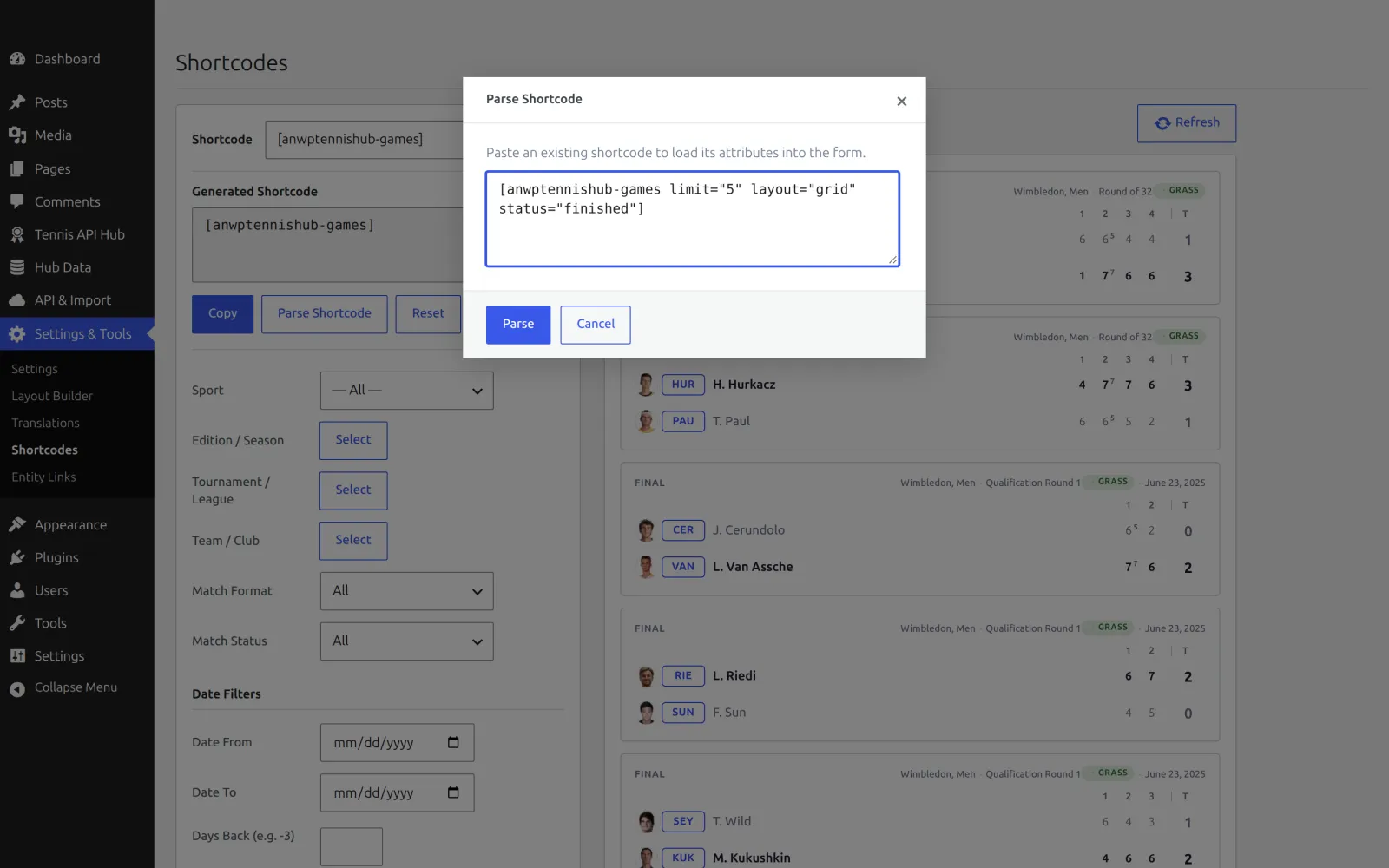
You don’t have to rebuild a shortcode from scratch to change it. Press Parse Shortcode, paste the one from your page, and the form fills in with its options – including the names behind any IDs it carries. Change what you need and copy it back.
Tip
Parse works on any shortcode of ours, wherever it came from – one a colleague sent you, or one you wrote by hand. It’s the quickest way to see what a shortcode on your site is actually set to.
🎾 The 15 shortcodes
Matches
| Shortcode | What it shows |
|---|---|
[anwptennishub-games]Games | A list or grid of matches. Filter by sport, edition, tournament, player or team, match format, status and date range, and group them by day or tournament. Both sports. |
[anwptennishub-calendar]Calendar | One day at a time, with All / Live / Finished / Upcoming filters, day arrows and a date picker. The day changes without reloading the page. Both sports. |
[anwptennishub-highlights]Highlights | The video highlights of one match as a thumbnail grid. Both sports, where the provider published any. |
[anwptennishub-highlights-feed]Highlights Feed | The latest match videos across your site, newest match first, one entry per match. Narrow it to one edition, or to one player and match format. Both sports. |
[anwptennishub-point-by-point]Point by Point | Every point of one match, set by set, one cell per point. It marks break points, set and match points, aces and double faults, and during a live match it updates after each game. Tennis only. |
[anwptennishub-incidents]Incidents | The same idea for table tennis: the running point score through each game of one match. Table tennis only. |
Players and teams
| Shortcode | What it shows |
|---|---|
[anwptennishub-player]Player | One profile page: a singles player, a doubles pair, or a club or national team. A match format option keeps singles, doubles and mixed records apart, so a win-loss record is never a mix of three different games. |
[anwptennishub-rankings]Rankings | One ranking table – ATP or WTA, official or live. Singles only, because that’s what the tours rank. Tennis only. |
Tournaments
| Shortcode | What it shows |
|---|---|
[anwptennishub-current-tournaments]Current Tournaments | The tournaments playing this week, or the ones with a match live right now, each linked to its edition page. It builds itself from what you’ve imported, so it never needs updating by hand. Tennis only – see Current Tournaments below for its options. |
[anwptennishub-season]Season | One edition in full: its header, its draw, and the schedule of its matches. |
[anwptennishub-bracket]Bracket | The knockout draw on its own. A Grand Slam holds several draws – main and qualifying, singles, doubles and mixed – so the options let you choose which one to show, and which player’s path to light up. |
[anwptennishub-standings]Standings | Group tables, for the competitions that have them: table tennis leagues, and the Davis Cup and BJK Cup group stages. A knockout draw has no table, and says so instead of printing an empty one. |
[anwptennishub-winners]Champions | The last five winners of a tournament, newest year first. It belongs to the tournament rather than one edition, so every year of Wimbledon shows the same roll. The provider publishes no winners for table tennis, so a table tennis league shows the no-data block instead. |
[anwptennishub-stat-leaders]Stat Leaders | Leader boards for one edition, a card per category. A Grand Slam publishes them; a small ITF draw usually doesn’t, and table tennis never does. |
Your own content
| Shortcode | What it shows |
|---|---|
[anwptennishub-entity-posts]Entity Posts | Your own blog posts, filtered to the ones linked to a player, team, tournament or edition. Used inside the Layout Builder it picks up whichever entity the visitor is looking at, so one block serves every player page. |
Picking an entity for Entity Posts
The Entity Posts picker lists only entities that have a page on this site, because that page is what your posts get linked to. Most tournaments and editions don’t have one until you import them, so a short list here usually means “import it first”, not “it isn’t there”.
Current Tournaments: a “This Week” box that keeps itself up to date
Most tennis sites have a “This Week” box in the sidebar or on the home page. Kept by hand, it’s out of date every Monday. [anwptennishub-current-tournaments] builds the list from the tournaments you’ve imported, so it turns over to the new week by itself.
[anwptennishub-current-tournaments]Each event gets one row, even a Grand Slam with five draws. The event name links to its main singles draw, and the other draws sit under it as small links. An event with both ATP and WTA draws labels them Men, Women, Men Doubles, Women Doubles and Mixed Doubles; an event on one tour says Singles and Doubles. The row also shows the tier, the surface, the current round, and how many matches are live. In the weekly view, the header above the list shows the week’s dates.
What gets listed
- Only tournaments you’ve imported. The list links every row to its edition page, and a tournament has no page until you import it.
- Only main-draw matches count. A tournament joins the list once it has main-draw matches in the week. Qualifying alone doesn’t put it on.
- The week is your site’s week. It runs in your site’s timezone and starts on the day set under Settings > General > Week Starts On.
- Tennis only. Table tennis isn’t covered yet.
Options
| Option | Default | What it does |
|---|---|---|
Windowwindow | this_week | this_week lists the tournaments playing this week. live lists only the ones with a match in progress, and can run up to 5 minutes behind the live scores. |
Tierstiers | all | Keep only these tiers, as a comma-separated list of the keys below. |
Exclude categoriesexclude_categories | none | Leave out the draws of these categories, as comma-separated IDs. 1474,1475 hides the Juniors and Wheelchairs draws at the Grand Slams. |
Limitlimit | 20 | The most events to show, up to 100. |
Layoutlayout | list | list suits a sidebar. grid lays the events out as cards across a wide column. |
Header Textheader_text | This Week / Live Now | The title above the list. |
No Data Textno_data_text | No tournaments this week. / No tournaments live right now. | What shows instead of the list when nothing is playing. The header is left out too, so an empty week takes up one line. |
Extra CSS Classclass | none | A class of your own on the block, for theme fixes. |
The tier keys for the Tiers option:
| Key | Tier |
|---|---|
grand_slam | Grand Slam |
tour_finals | ATP Finals and WTA Finals |
masters_1000, wta_1000 | Masters 1000, WTA 1000 |
atp_500, wta_500 | ATP 500, WTA 500 |
atp_250, wta_250 | ATP 250, WTA 250 |
challenger, wta_125 | Challenger, WTA 125 |
itf | ITF Men and ITF Women |
team_event | Davis Cup and Billie Jean King Cup |
other | Everything else |
Examples
The big events only, on a home page, as cards. The Juniors draws at a Slam count as Grand Slam too, so the second option drops them:
[anwptennishub-current-tournaments tiers="grand_slam,tour_finals,masters_1000,wta_1000" exclude_categories="1474,1475" layout="grid"]A “Playing now” box for the sidebar, which simply says so when nothing is on court:
[anwptennishub-current-tournaments window="live" header_text="Playing now" no_data_text="No matches on court right now."]Point by Point: every point of a match
[anwptennishub-point-by-point] shows every point of one tennis match, set by set. Each game is a row and each point gets its own cell, so you can read a game from left to right the way it was played. Match pages already show it: it’s the Point by Point block, and it appears by itself once a match has point data. Use the shortcode when you want it somewhere else, like a match report post.
[anwptennishub-point-by-point id="17345448"]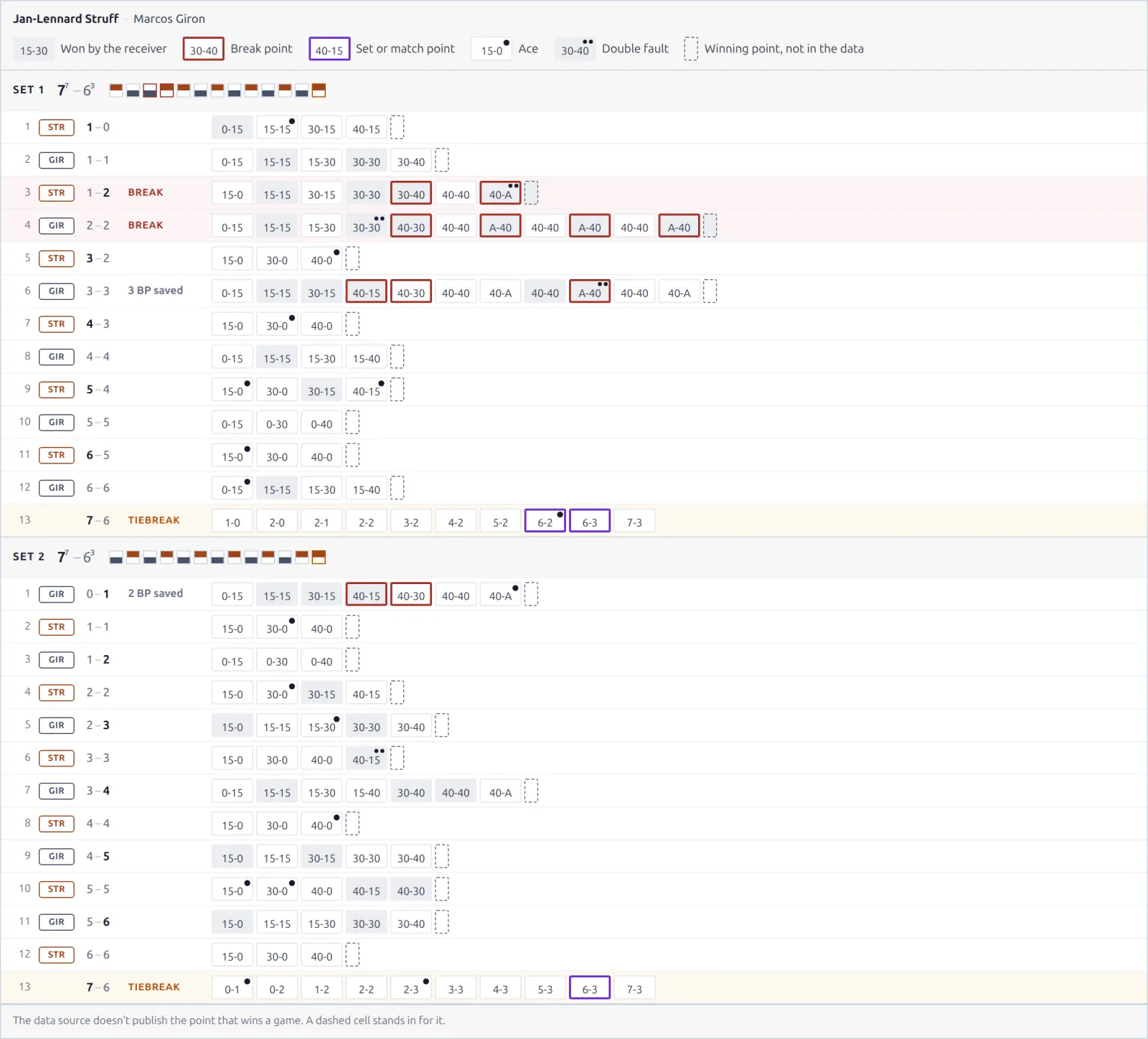
Reading the grid
- Each row is one game. It starts with the game number, the server and the set score after that game. “Break”, “Tiebreak” or “2 BP saved” next to the score tells you how the game went, and break and tiebreak rows are tinted.
- Each cell is one point, showing the score after it. A grey cell is a point the receiver won, a red frame is a break point, and a violet frame is a set or match point. One dot means an ace, two dots a double fault. The legend above the grid repeats all of this.
- The dashed cell at the end of a game stands in for the winning point. The data source doesn’t publish the point that wins a game, so the last score you see is the one before it. Tiebreaks do include their last point.
- The set header shows the set score, with the tiebreak score in small print, and a strip with one square per game. Each square is filled on the side of the player who won the game, and a red frame marks a break. Hover a square to see the game.
- When the point data stops short, the set header still shows the real result from the match score, and a muted “Not in the point data” row marks the games that are missing.
During a live match
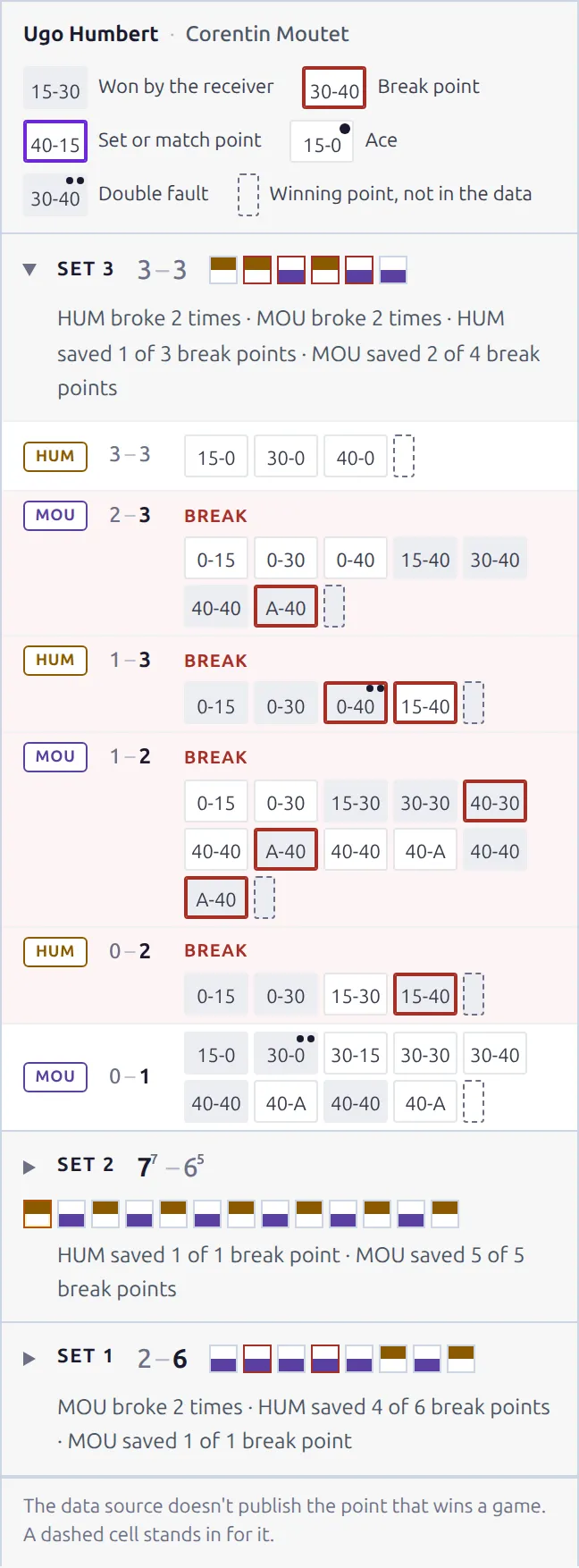
While a match is on, the newest set sits on top with the current game first. Finished sets fold to one line: who broke serve and how many break points each player saved. Tap a set to open it, and it stays open while the block updates.
The block refreshes about 1-2 minutes after each game ends, for 1 API call per game. It’s on by default. The switch is Point-by-Point (tennis) under API & Import > API Config, in the Live Scores card, and it works only while Enable Live Import is on.
Options
| Option | Default | What it does |
|---|---|---|
Matchid | (required) | The match to show. Pick it in the builder and it fills in the ID for you. |
Sportsport_id | 5 | Always tennis. Table tennis has no point data. |
Show Momentummomentum | off | 1 adds a thin bar to each game showing which player had the momentum, when the match has a momentum graph. |
Orderorder | auto | auto puts a finished match in reading order (Set 1 first) and a live one newest first. asc always starts with the first set, desc always with the latest. |
Examples
A match in a match report post, with the momentum bars:
[anwptennishub-point-by-point id="17345448" momentum="1"]A live match that should keep the first set on top, for readers who follow it from the start:
[anwptennishub-point-by-point id="17345448" order="asc"]🚀 Putting a shortcode on a page
Once you’ve copied a shortcode, it goes wherever your theme accepts content:
- Block editor – add a Shortcode block and paste it in. Pasting it into a paragraph works too; WordPress turns it into a shortcode block for you.
- Classic editor – paste it straight into the text.
- Widgets and page builders – use a shortcode or text widget. Elementor, Beaver Builder and the rest all have one.
- Templates – a theme developer can render the same thing with
do_shortcode().
The preview on the Shortcodes page is what it will look like. If your theme’s content column is narrower than the preview, use the width buttons to check that width before you publish.
The builder inside the Layout Builder
The same builder is available a second way. In the Layout Builder, a Shortcode block has an Open Shortcode Builder button, and the form that opens is the one described above. Press Insert Shortcode and it writes the result into the block for you, no copying and pasting.
Use whichever fits what you’re doing: the Shortcodes page for a shortcode you’re going to paste somewhere yourself, the Layout Builder for one that belongs on every player, match or tournament page.
🆘 When something doesn’t show
The preview is empty
Almost always it’s the filters, not the shortcode. A date range with no matches in it, a tournament you haven’t imported yet, or a status no match currently has all produce an honest empty block. Press Reset and add your filters back one at a time to find the one doing it.
The block says there’s no data
Some blocks only exist for some competitions, and they say so rather than printing an empty table. Standings has nothing to show for a knockout draw, Stat Leaders has nothing for most small tournaments, and Champions has nothing for table tennis. That message is the block working correctly.
Current Tournaments is empty, or misses an event
It lists only tournaments you’ve imported that have main-draw matches this week. An event still in qualifying, or one whose draw the provider hasn’t published yet, appears once its first main-draw matches arrive. A Tiers or Exclude categories option can hide one too, so check those before importing anything.
A match has no Point by Point
The block shows only for tennis matches that have started and have point data, so an upcoming match or a table tennis match never shows it. The point data comes with the match details while Point-by-Point is on in the Import Options card under API & Import > API Config. It’s on by default, and matches imported while it was off don’t have it.
A shortcode isn’t in the list
A few shortcodes belong to one sport, and they’re hidden when that sport is switched off. Rankings and Point by Point need tennis; Incidents needs table tennis. Switch the sport back on and it returns to the dropdown.
It looks different on the page than in the preview
The preview loads the same stylesheets and your site’s colors, so the usual cause is width: your theme’s content column is narrower than the preview was. Check it at 400px, and if your theme adds its own styling to tables or lists, the Extra CSS Class option gives you a hook to correct it.
📚 Related
- Layout Builder – arrange the blocks that make up player, match and tournament pages.
- Statistics Blocks – the statistics that player, match and tournament pages can show.
- Terminology – why tennis says Edition and Tournament where table tennis says Season and League.